


As a PC owner, I understand how scary it is to update a motherboard's BIOS — a failed update can brick your PC, rendering it useless. However, sometimes a BIOS update becomes almost necessary and unavoidable, and what nobody tells you is that it often reverts settings to their defaults and, in doing so, will make you lose all your custom profiles.
For someone who might have memory clocks fine-tuned or their hardware overclocked after extensive testing, it can be a real nuisance to have to do it all over again. Fortunately, there's a simple way to avoid losing that work.
Why does a BIOS update reset settings?
Your motherboard can't trust old values after a firmware change

Depending on the type of update, a newer BIOS firmware version can introduce new features, changes to how they work, support for newer chipsets, and so on. A newer update can also rename some settings, and the existing values from earlier versions may not translate well to the newer firmware.
As such, motherboards will often clear the existing BIOS settings to ensure your PC boots and for compatibility. Also, the motherboard settings are stored in the NVRAM (CMOS for older systems), a type of computer memory that retains data even without power, and during a firmware flash, all data is rewritten.
How to back up your BIOS settings before an update
Most manufacturers let you export a profile to a USB drive
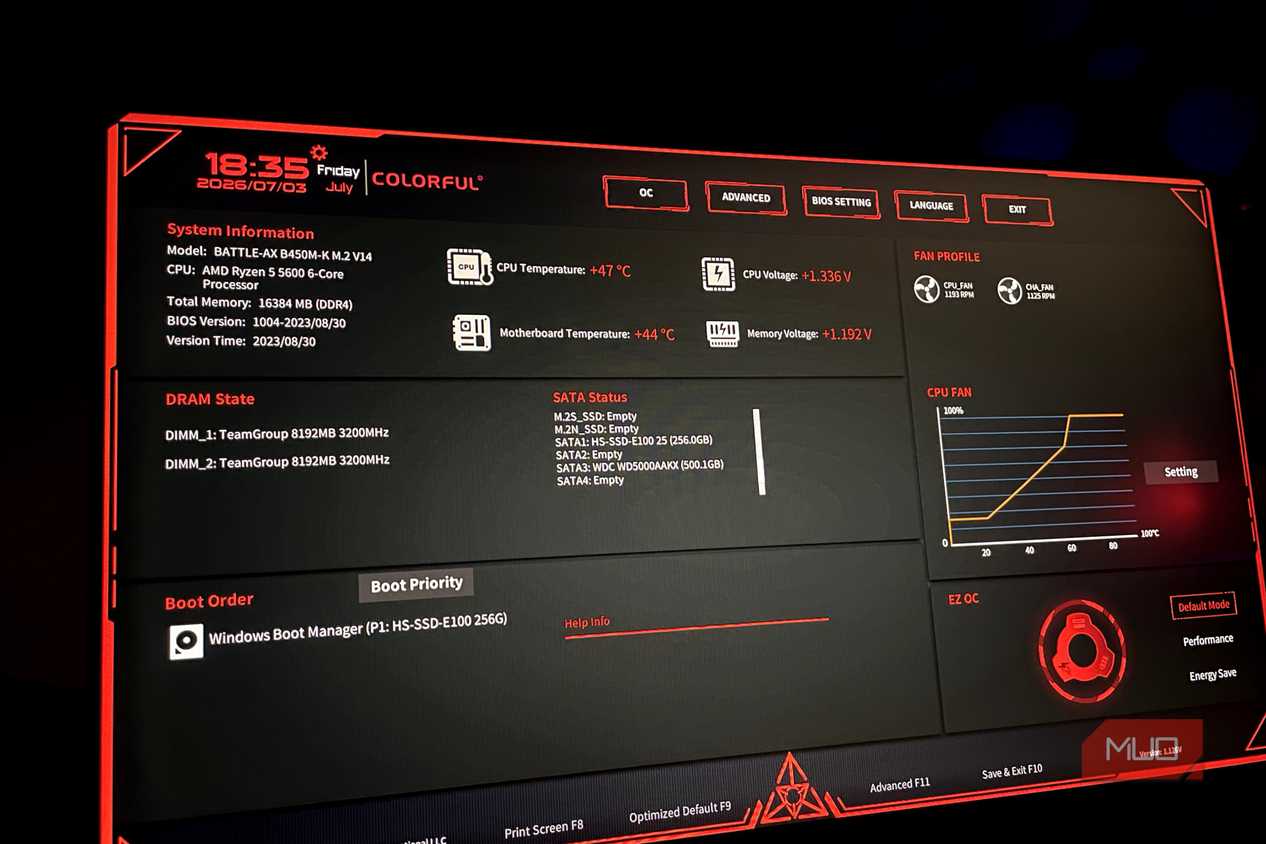
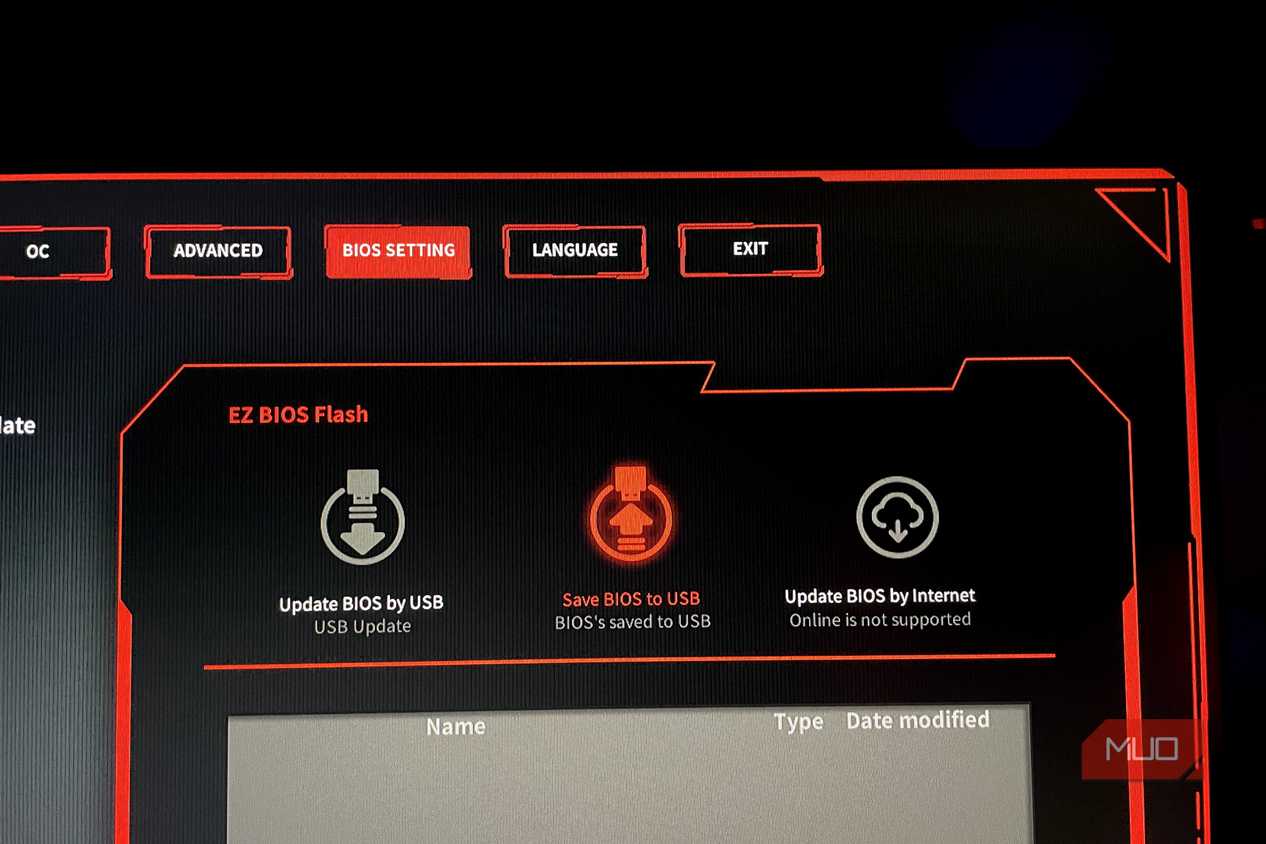
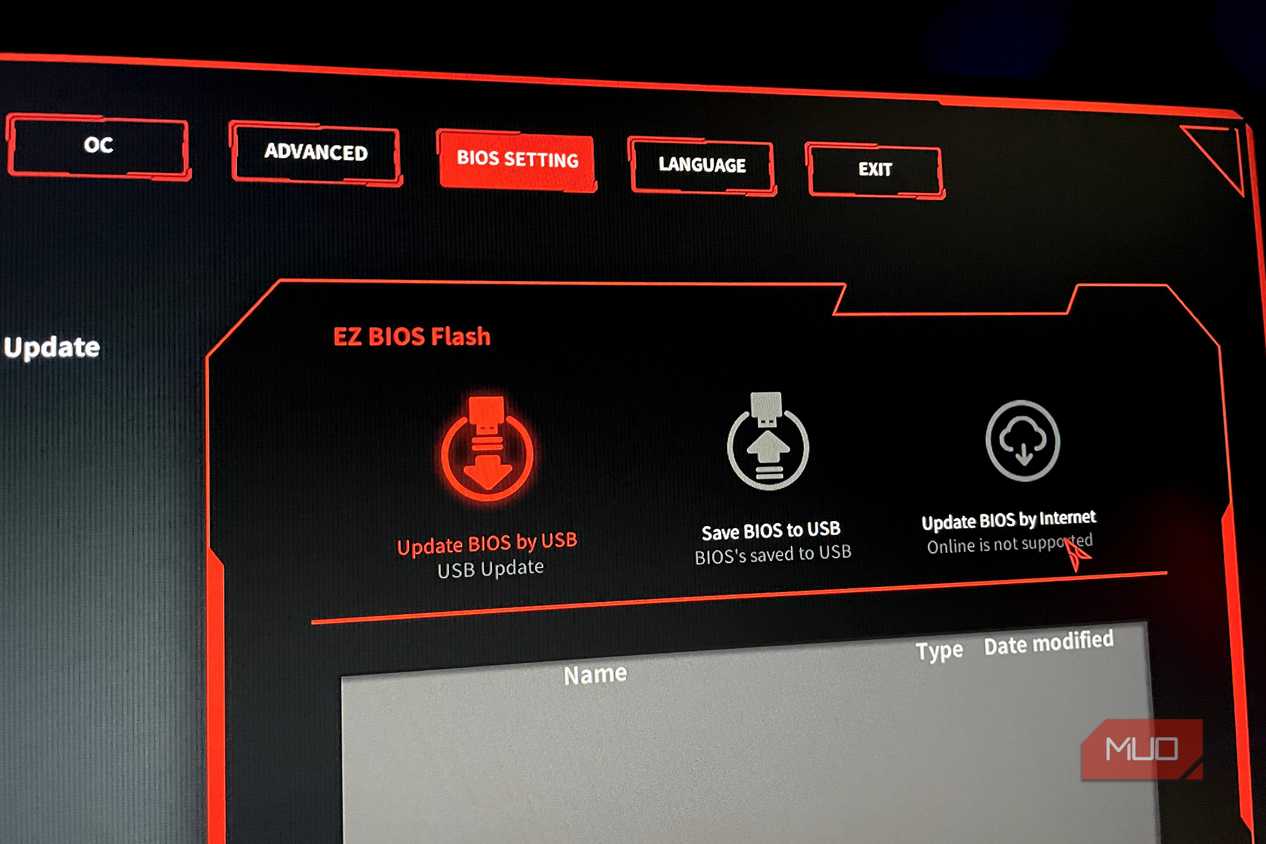
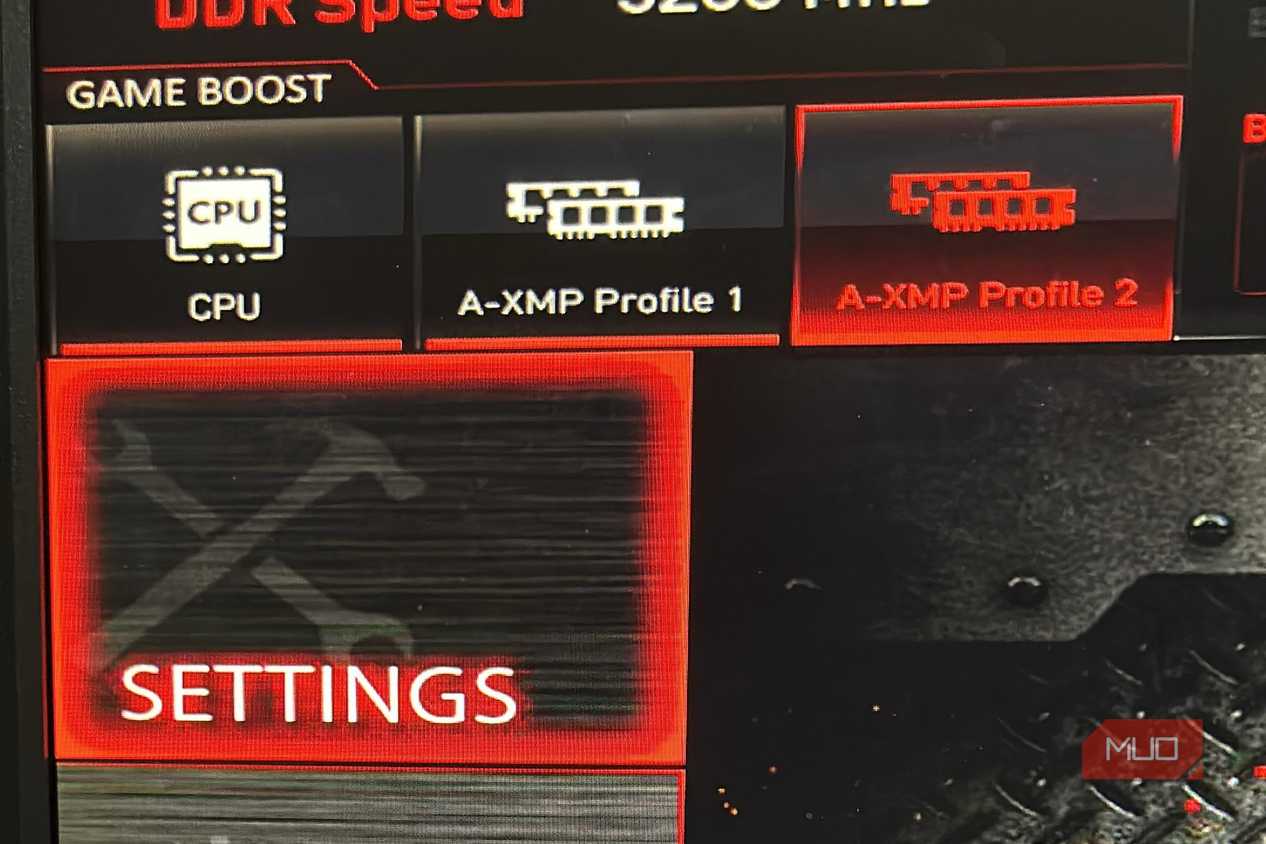


 Credit: Shaheer Khan/MUO
 Credit: Shaheer Khan/MUO
 Credit: Shaheer Khan/MUO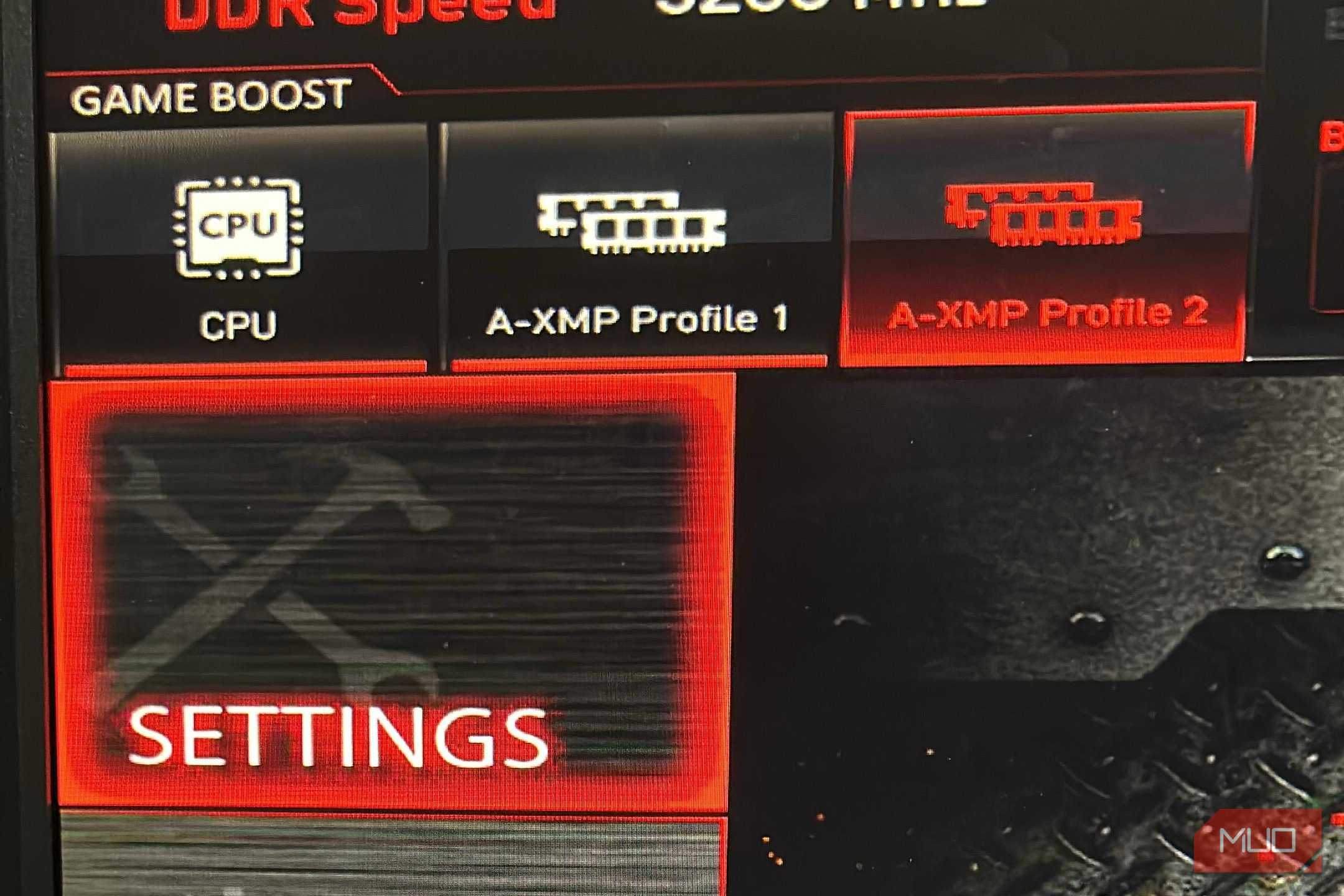
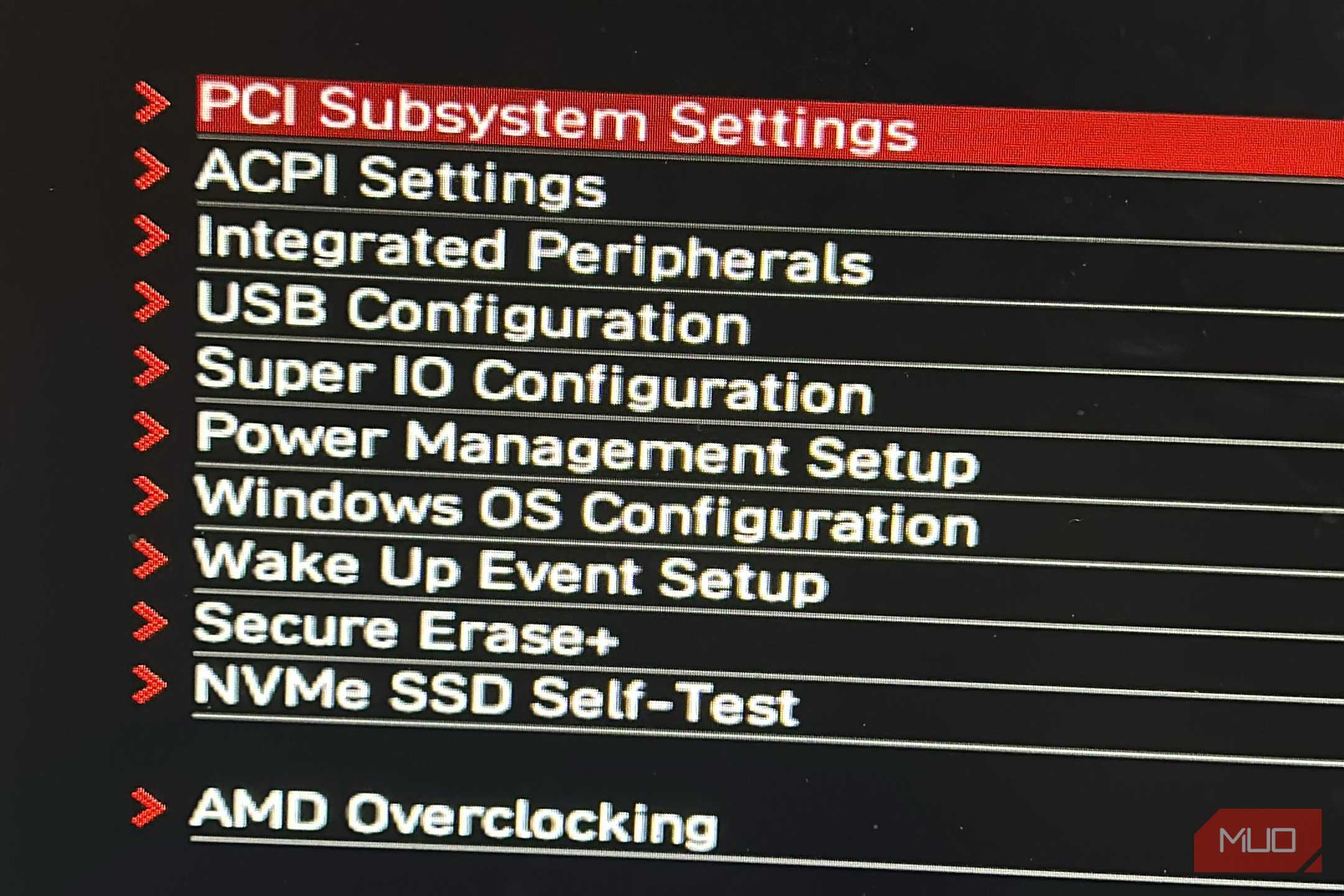
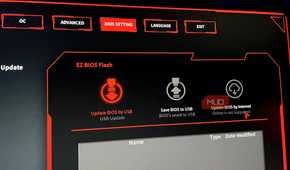
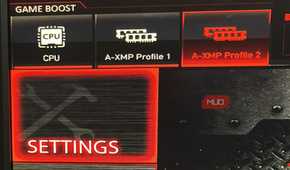
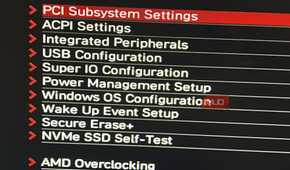
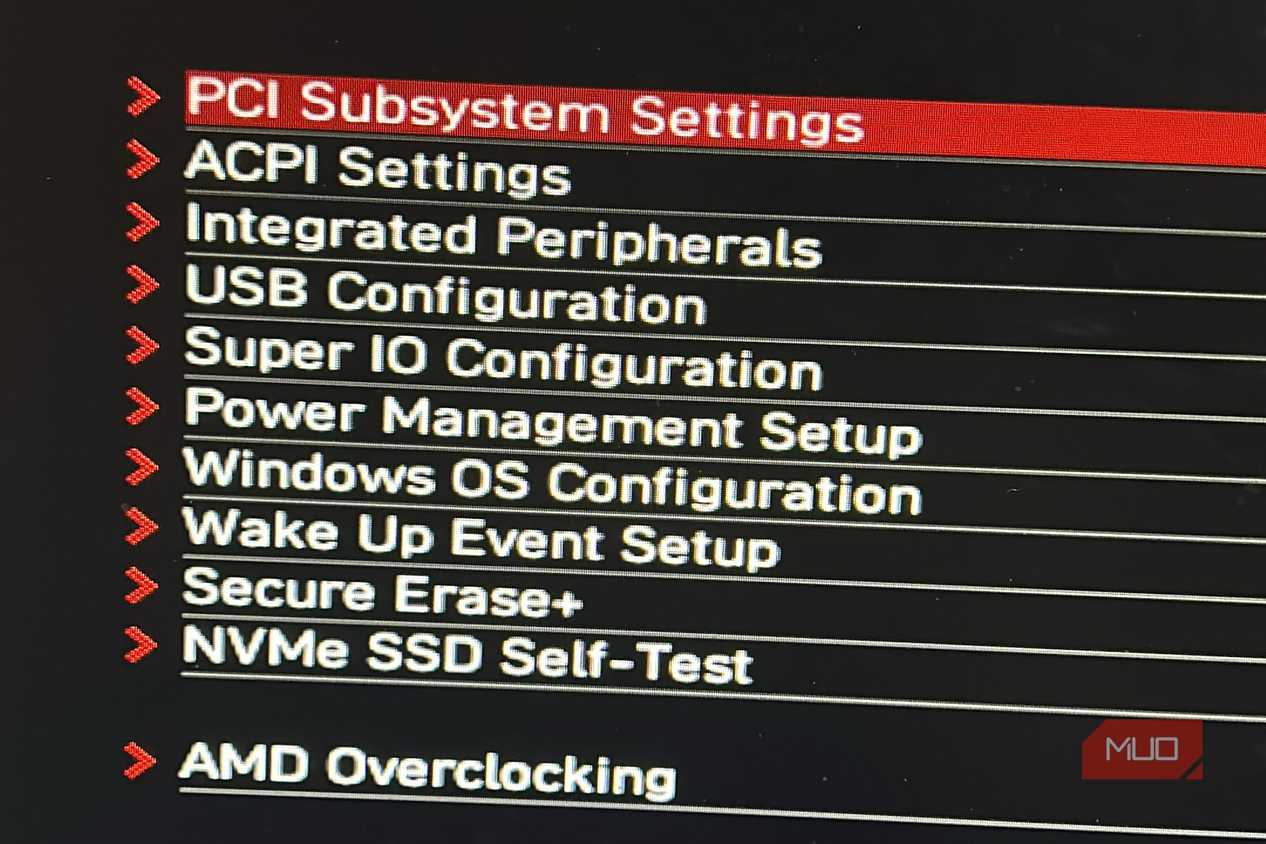
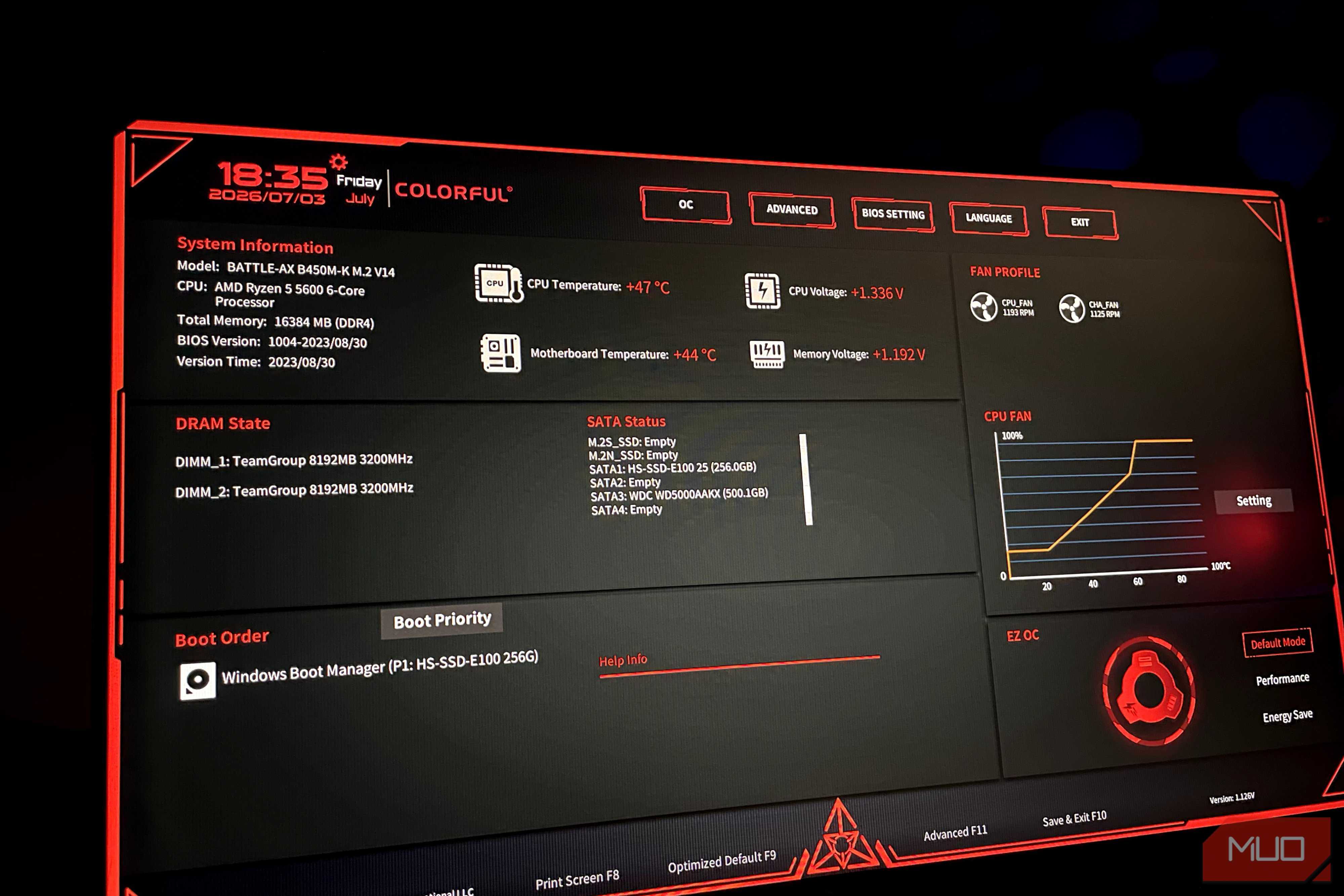
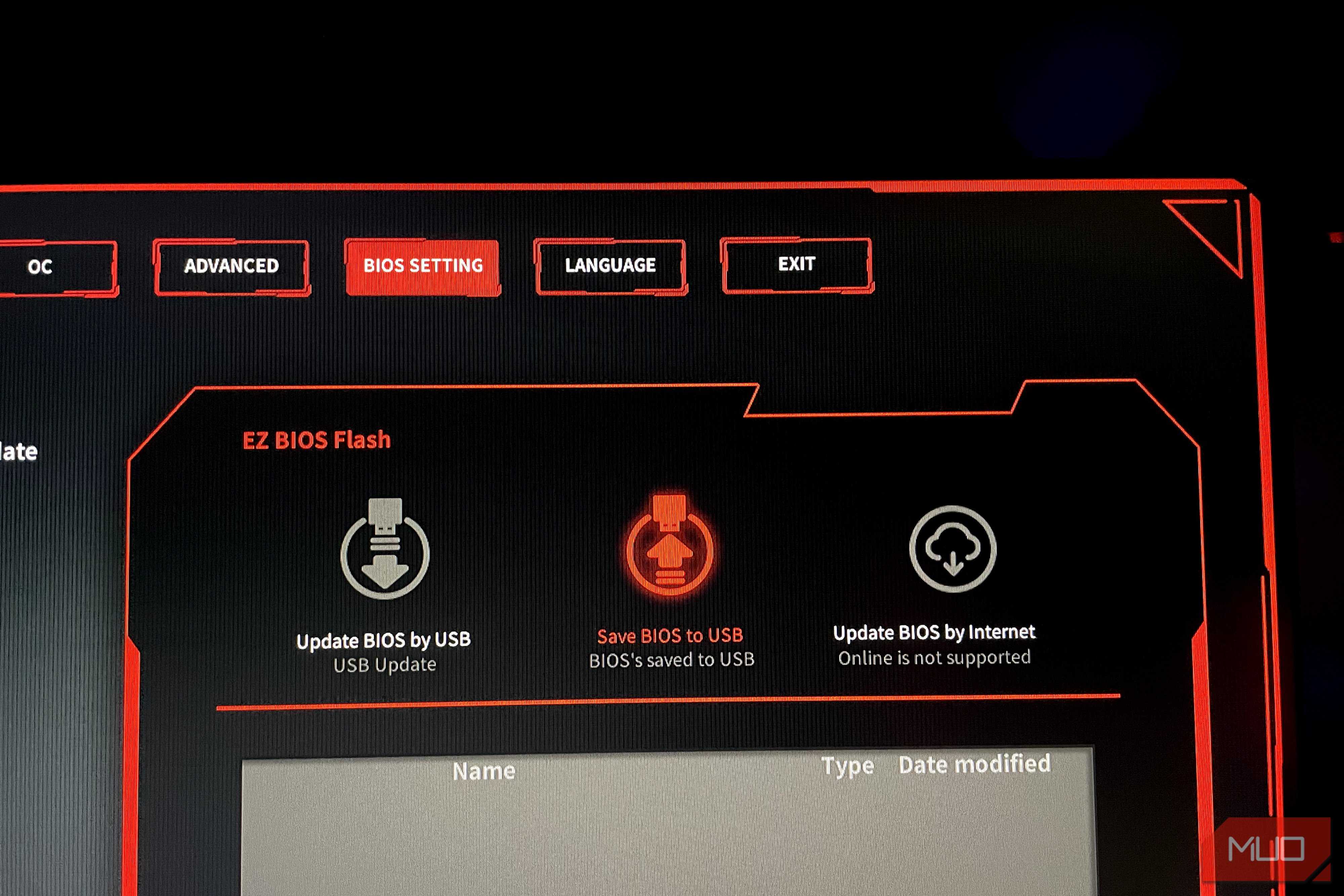
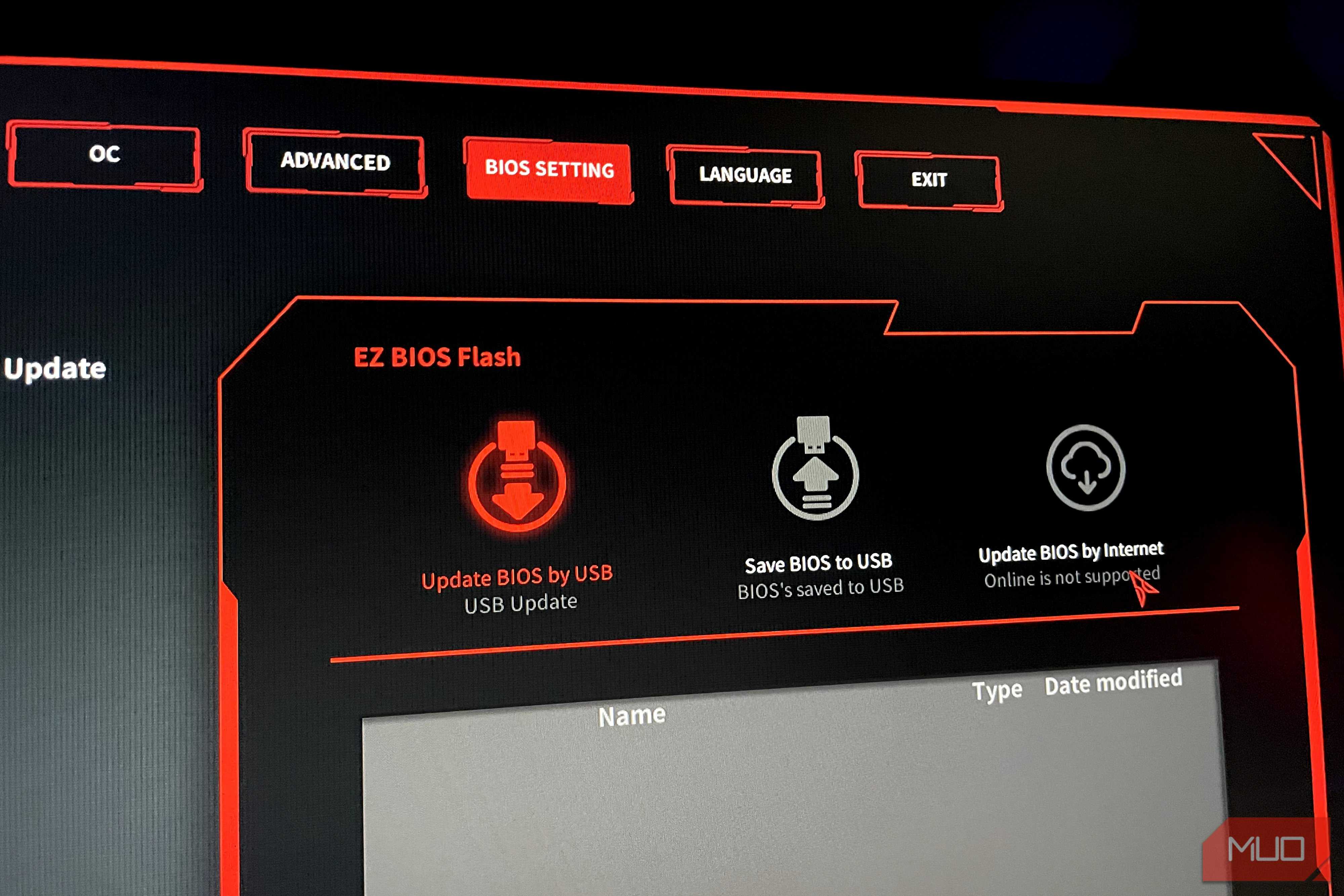
There are a couple of ways to back up your BIOS settings before updating the firmware. The first option is to save the BIOS profile. Many motherboard manufacturers, such as ASUS and Gigabyte, offer the option to save it to an external USB drive. To do so, follow these steps:
- Go to the BIOS via F2/Delete.
- Go to the OC Tab (In some cases, you may have to go to Advanced beforehand).
- Select OC profile.
- Save to a profile slot.
- Export to USB.
The steps will vary by motherboard manufacturer, but the rundown is essentially the same: saving the BIOS profile to an external USB drive. After updating the firmware, insert the USB drive, navigate to the same OC profile section, and import the BIOS settings.
It is important to consider that in certain cases, the BIOS may not be able to load your saved settings, especially if the new firmware update changes the underlying structure. In that case, it will warn you that these settings are incompatible. Don't forcefully apply the changes, as your PC will most likely fail to boot, and all settings could be corrupted.
Fortunately, there's a much better, more reliable alternative I recommend following.
Documenting your BIOS settings is much more reliable

Backing up your BIOS settings to an external device is a gamble, so I recommend documenting them manually instead. For every change you make, just snap photos of it from inside your BIOS if it allows, or externally with a smartphone. When you update the BIOS firmware, reload those custom settings from the photos instead of starting from scratch. Document any non-default values in your RAM profile, boot order, fan curve, CPU adjustments (overclock or undervolt), Resizable Bar, and similar settings.
Check whether you need the update
Not every BIOS update is worth the risk

Updating your motherboard's BIOS isn't as simple as updating your drivers, and there are several considerations you should make before doing so. For starters, check the manufacturer's support page to see what the update is even for — whether it's for stability fixes, security updates, or new features. If your PC is working fine as is, I don't recommend updating your firmware because the caveats are a major concern.
However, if the firmware update is to install a new CPU or to add new features essential to your use, it becomes compulsory. As such, back up or document your BIOS settings beforehand, and ensure that your internet and power supply are steady and reliable before proceeding with the update.
The real damage isn't bricking — it's the rebuild
A motherboard BIOS update takes mere minutes, but for someone with custom values, the testing and headaches that result from those values are a combination of blood and sweat, and just the thought of having to redo them from scratch is enough to wear anyone out. Even for users who haven't explicitly overclocked, the newer firmware is noticeable since your PC will be slower overall because it resets your XMP/EXPO settings, reverting your RAM to its original JEDEC speeds. As I mentioned earlier, this part isn't even known to most PC users, and instead, most will tell you about the bricking concern, which is less of a concern for someone who might have spent hours tweaking their BIOS settings.