


Some of the most important files on my PC are my article drafts, research work, coding projects, and my images, and losing them means redoing days or even weeks of work all over again. While Windows does offer a built-in backup option, it's limited by what you can back up and where.
For my backups, I believe in the three-two-one rule, and one part of that backup strategy is to automatically back up my most essential files to an external drive as well as a copy to the cloud using Duplicati. I've been using this as a core part of my backup strategy for years now, and it takes less than an hour to set up.
Duplicati can do cloud and local backups
A free, open-source backup tool that works with over 20 storage destinations

Duplicati is a free and open-source backup tool available for Windows, macOS, Linux, and even Docker. It lets you back up to a local external drive or cloud services like OneDrive, Google Drive, Dropbox, and Backblaze B2. It supports more than 20 storage destinations in total, so there's a good chance your preferred cloud provider is on the list.
I use it mainly to back up to my external drive and my OneDrive account. More importantly, Duplicati encrypts your files with AES-256 encryption by default, so your data stays protected even if your cloud account gets compromised in a data breach. You also have the option to turn off encryption entirely, but I prefer to leave the default on to be on the safer side.
Once installed, Duplicati runs through a browser-based interface that you can access through a local web address. It looks clean, and the setup follows a step-by-step process that doesn't bury you in settings. You can schedule automatic backups, and Duplicati handles incremental backups on its own, meaning after the first full backup, it only uploads the files that have changed. This keeps things fast and saves storage space over time.
Setting up a backup is easy
Download, install, and create your first backup in five steps


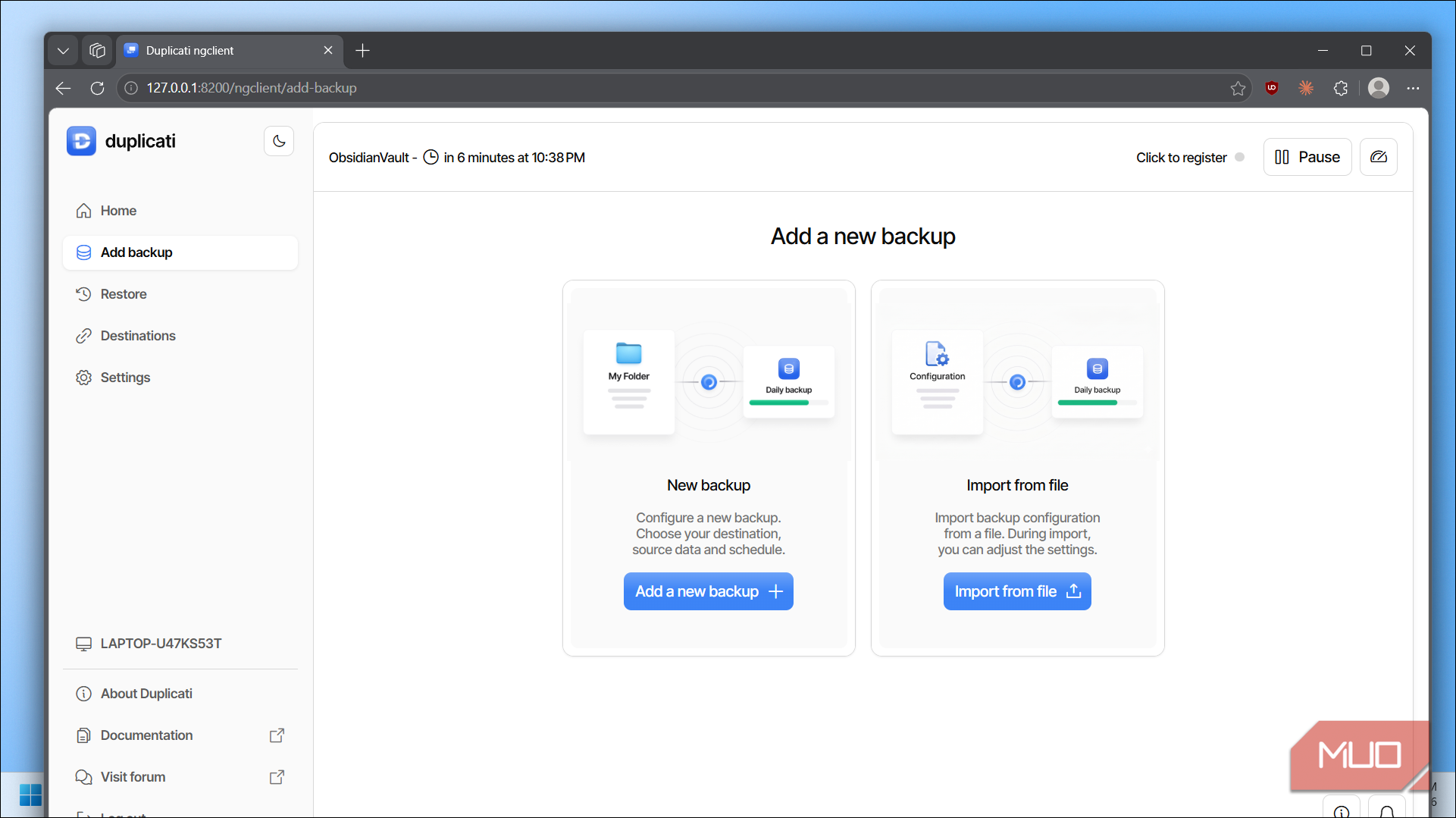
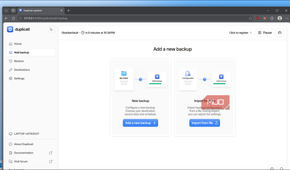
To get started, download Duplicati on your PC and run the installer. Once installed, double-click the Duplicati icon in the system tray to launch the web interface. The first time you open it, you'll be asked to sign up for an account, but you can skip that and move on. You'll also be asked to set up a passphrase for remote access, which is useful if you want to manage backups from another device on your network. If you're not sure what that means or don't need it right now, skip it.
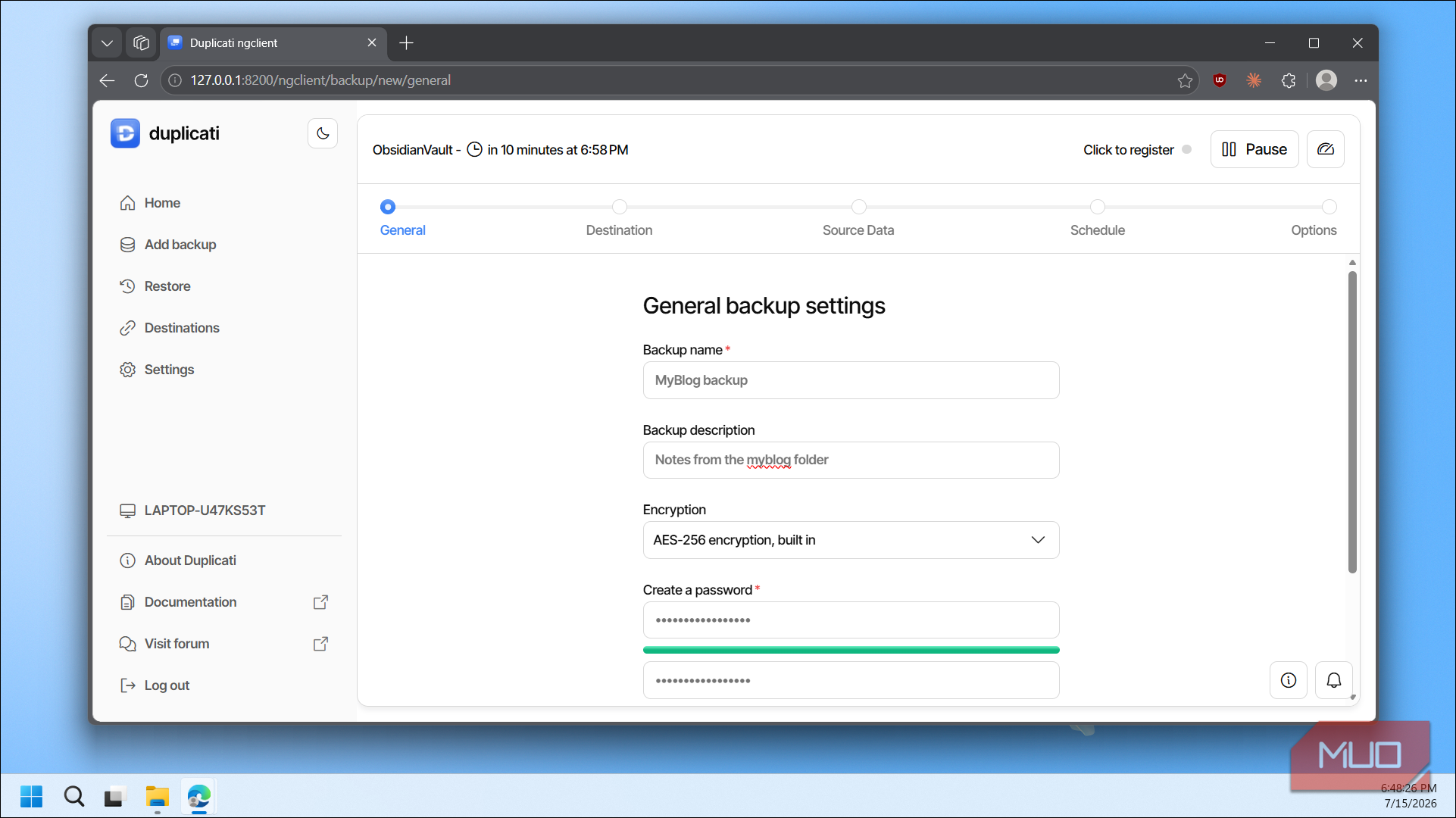
To create your first backup, click Add backup, then click Add a new backup. Now Duplicati walks you through five steps, which makes it a tad bit easier compared to other backup solutions I've tried.
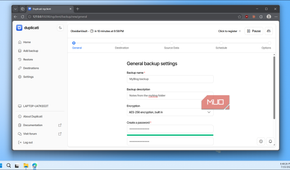
Step 1: Add backup information
In the General backup settings screen, type a name for your backup and add a short description so you can tell your backups apart later. Next, choose your encryption type. I leave it on the default AES-256 setting, but you can pick a different option or choose None to skip encryption. Then enter a password for the encryption. You can generate one using the built-in button or type your own. Either way, save the password to a password manager, because without it, you won't be able to access your backups.
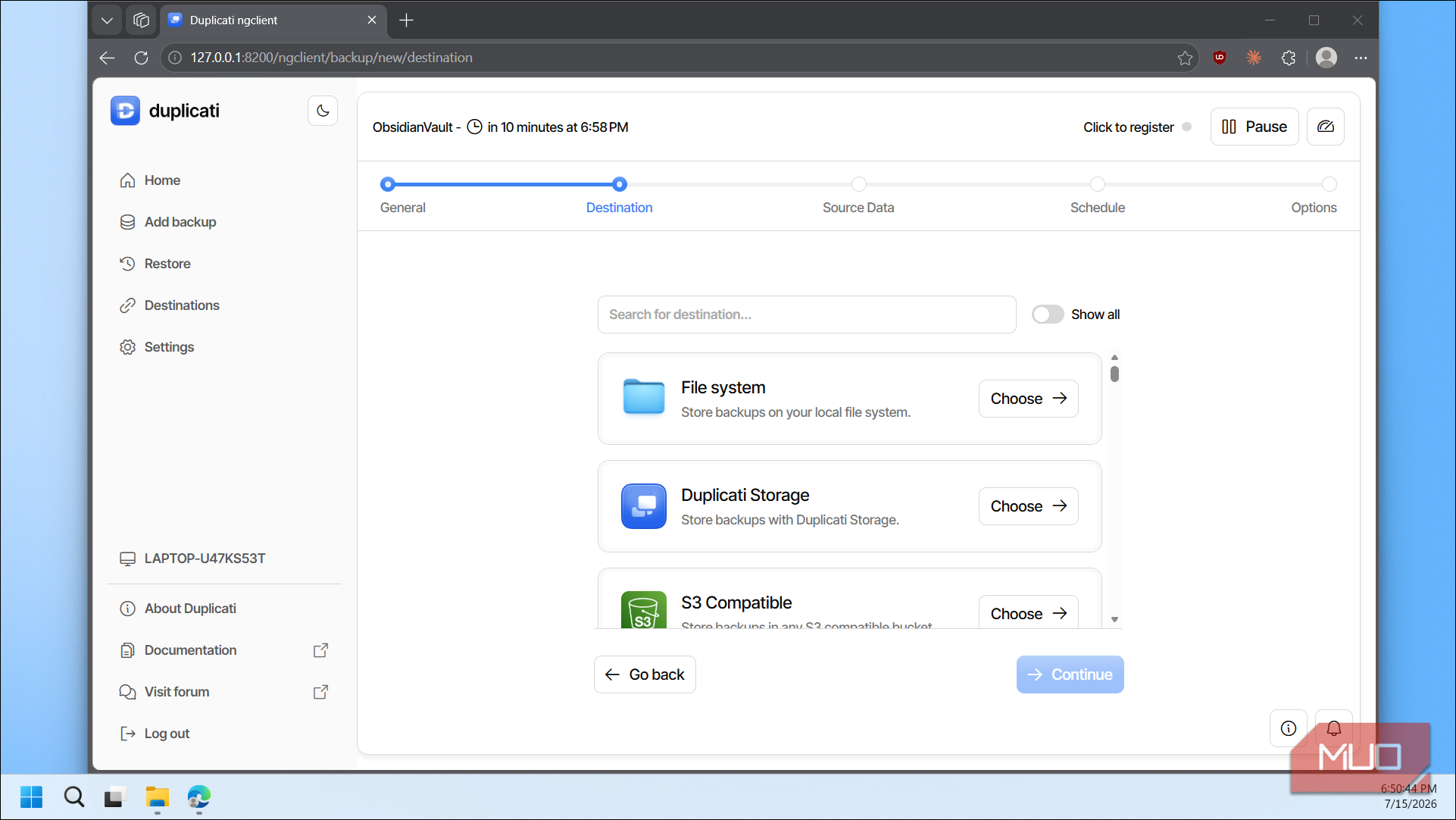
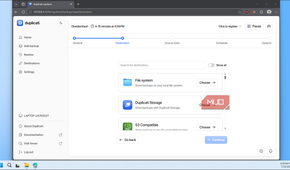
Step 2: Add destination details
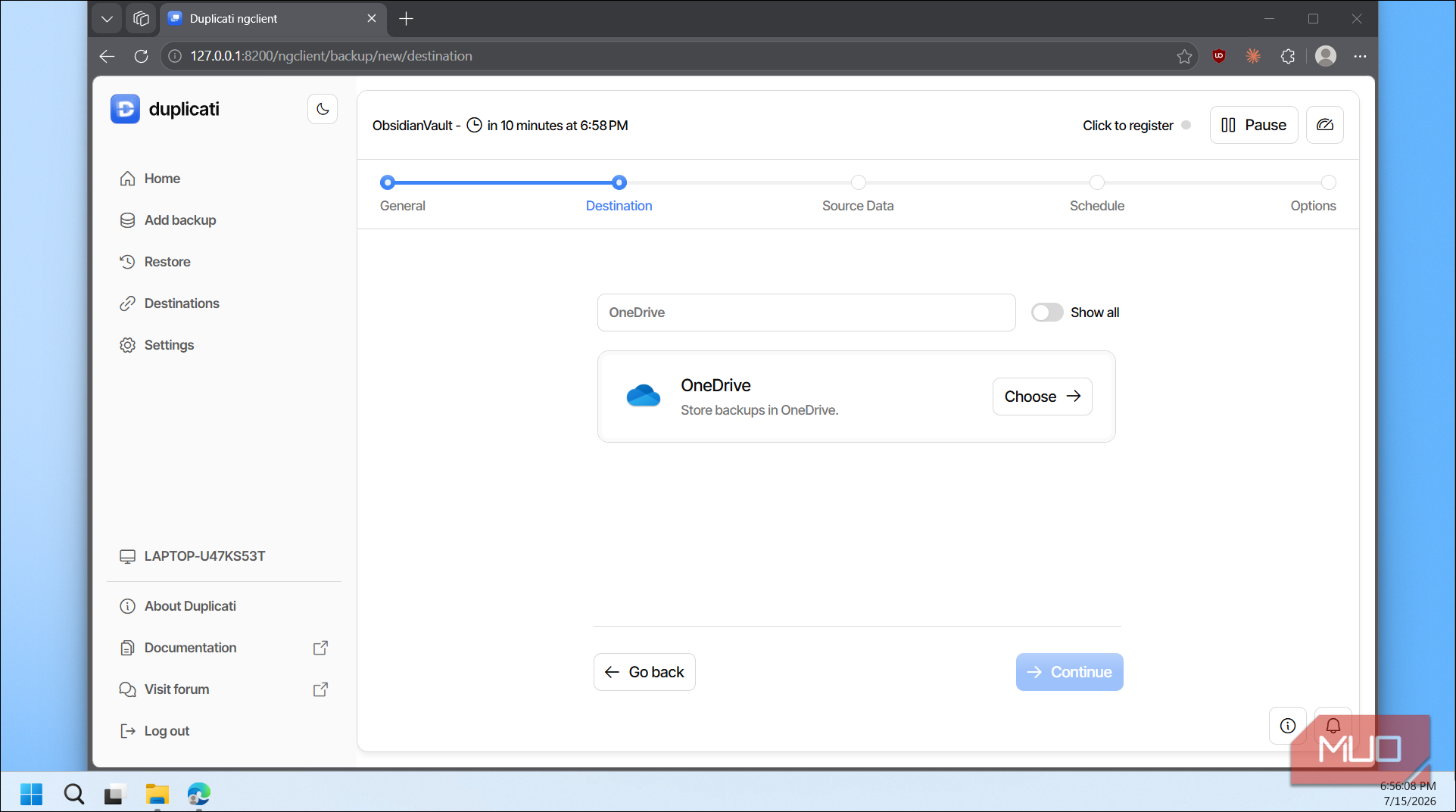
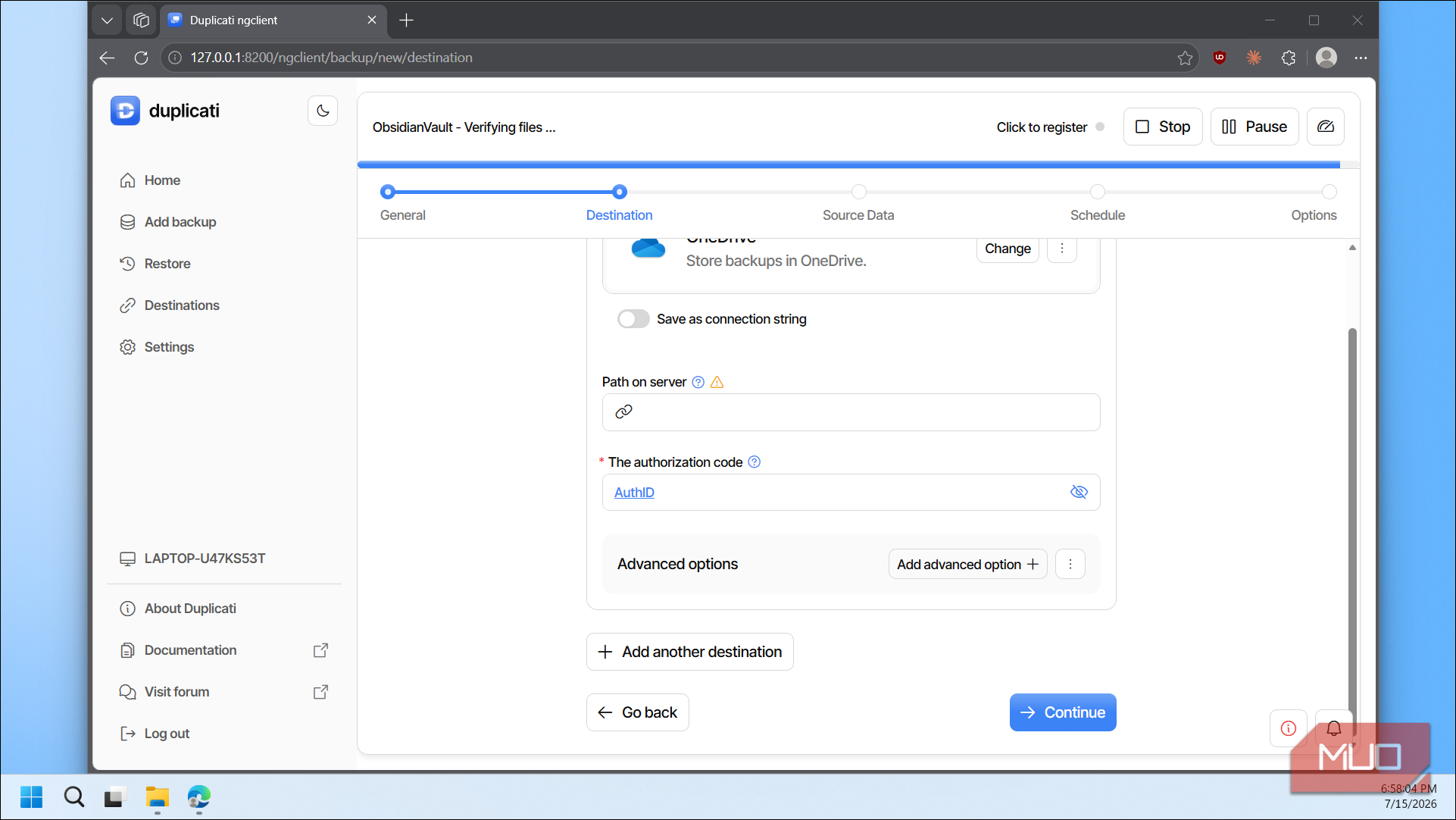
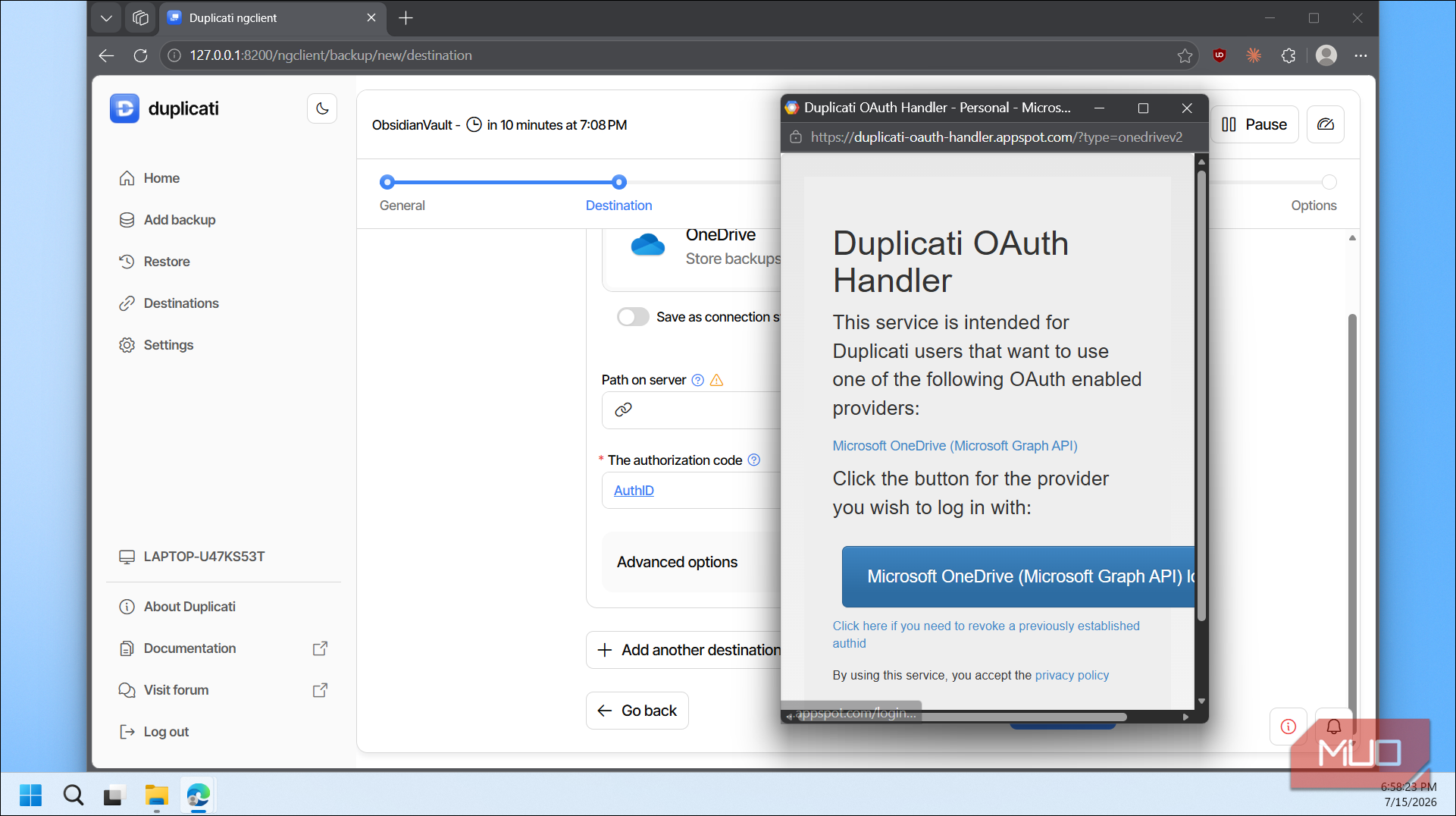
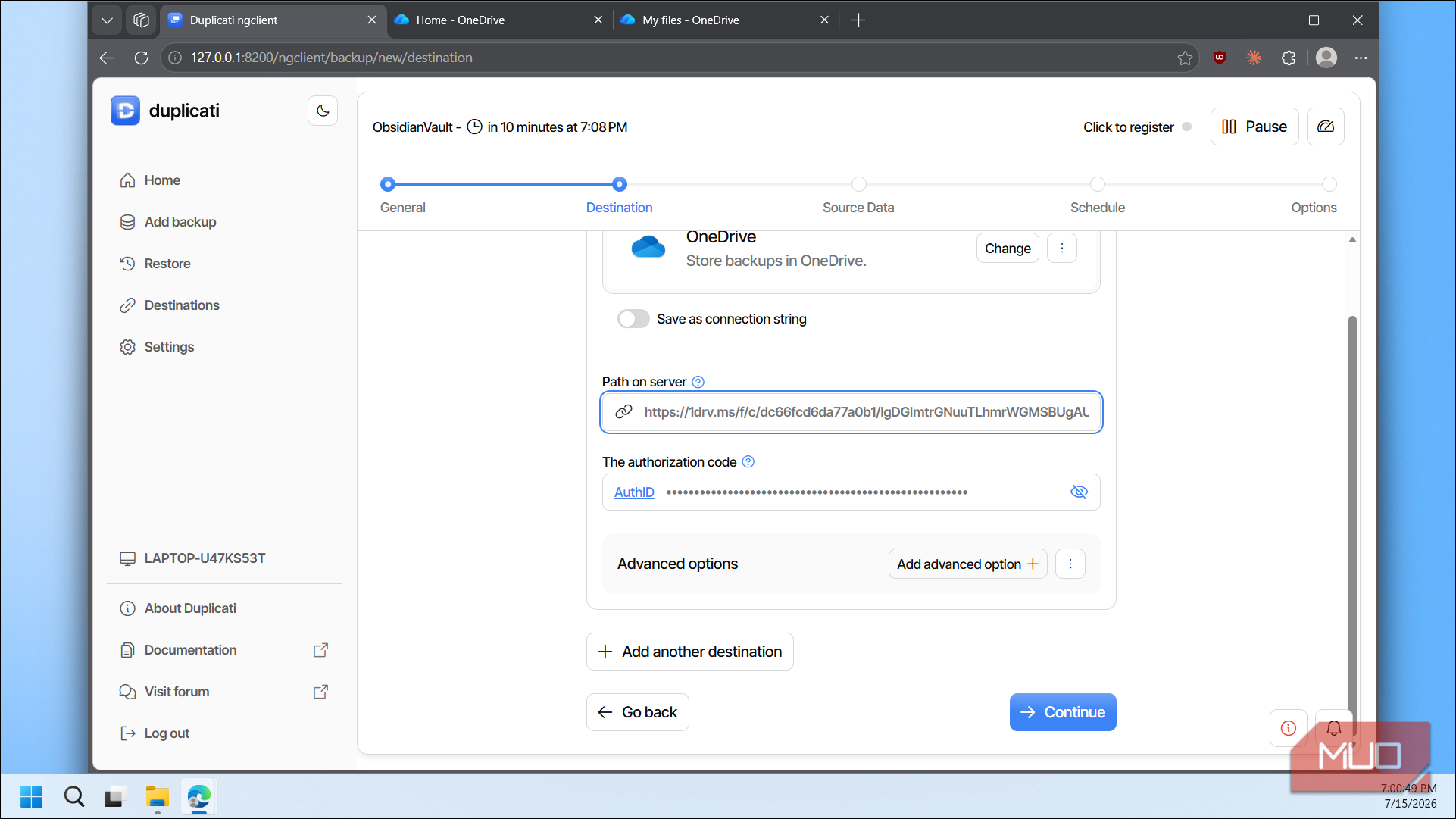
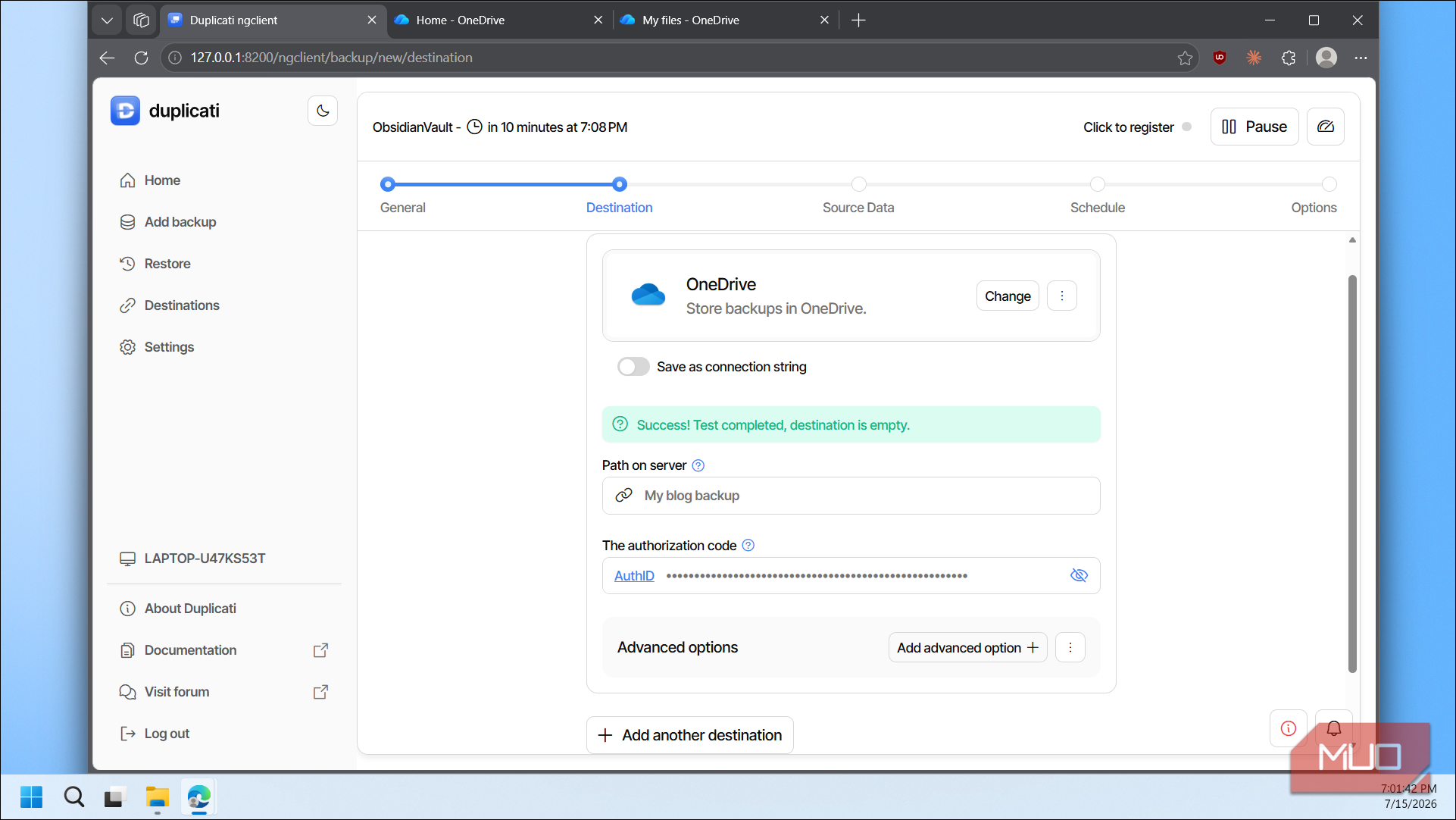
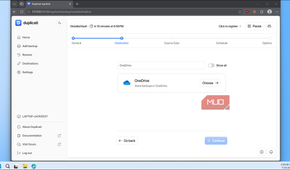
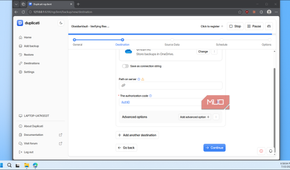
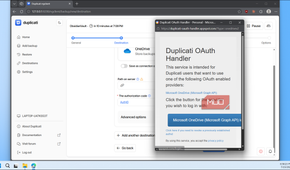
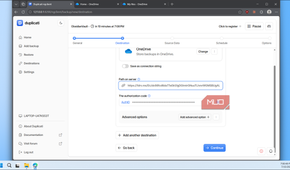
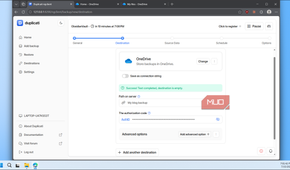
Next, you select where you want to store the backup. If you want to back up to the cloud, search for your provider. I searched for OneDrive and clicked Choose. Duplicati then opens a pop-up window where you click AuthID to authenticate your account. Log in with your Microsoft credentials, and it'll generate an authorization code automatically.
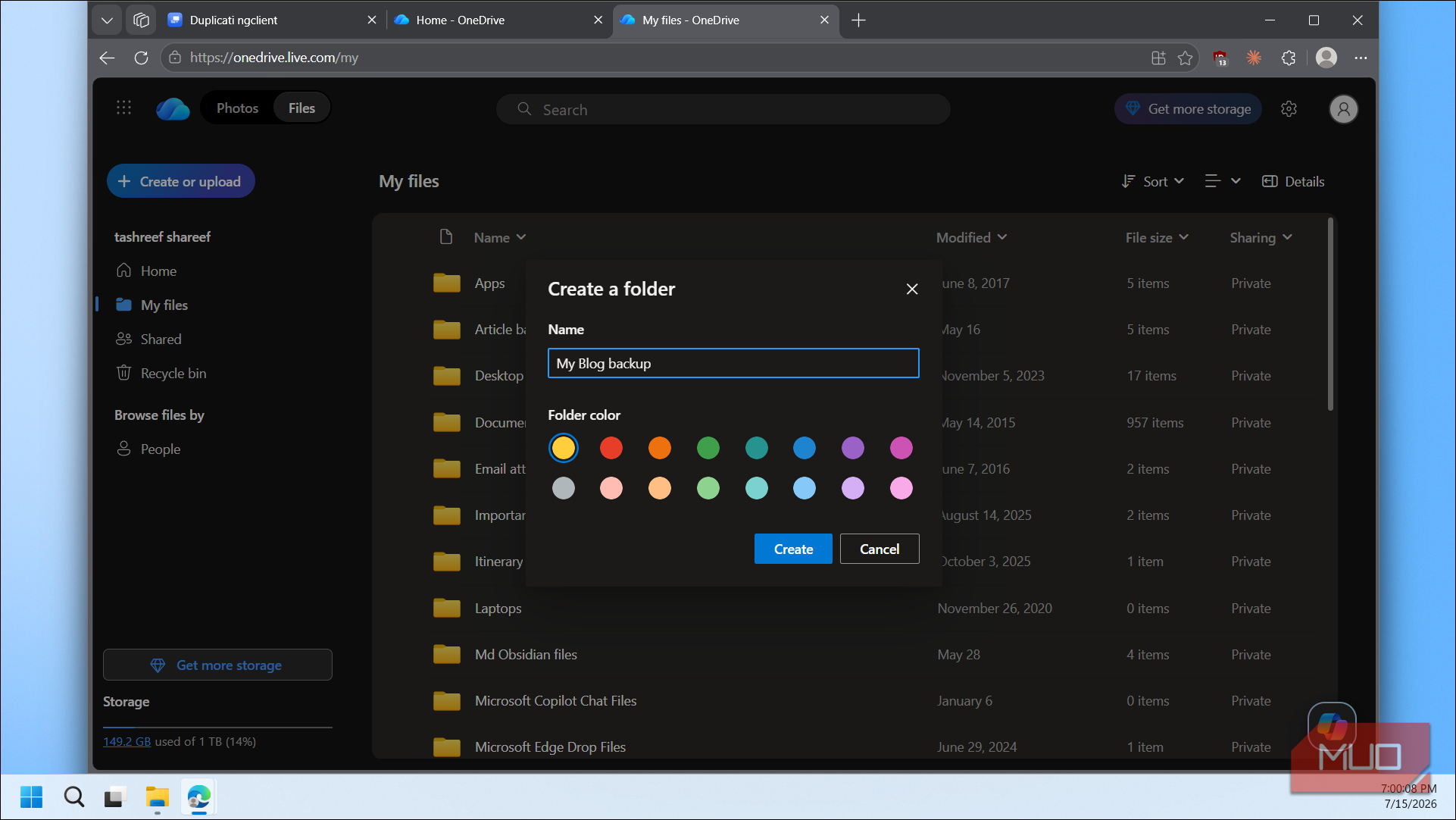
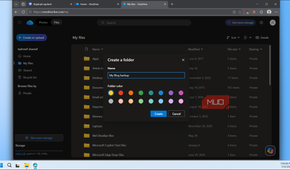
You'll also see a Path on the server field. Type a folder name here, like "My blog backup," and Duplicati will save your backup files in that folder on your OneDrive. I recommend creating the folder in OneDrive first so you know exactly where your backups are going. Click Continue to test the connection. If you see a success message, you're good to move on.
Step 3: Select source folders
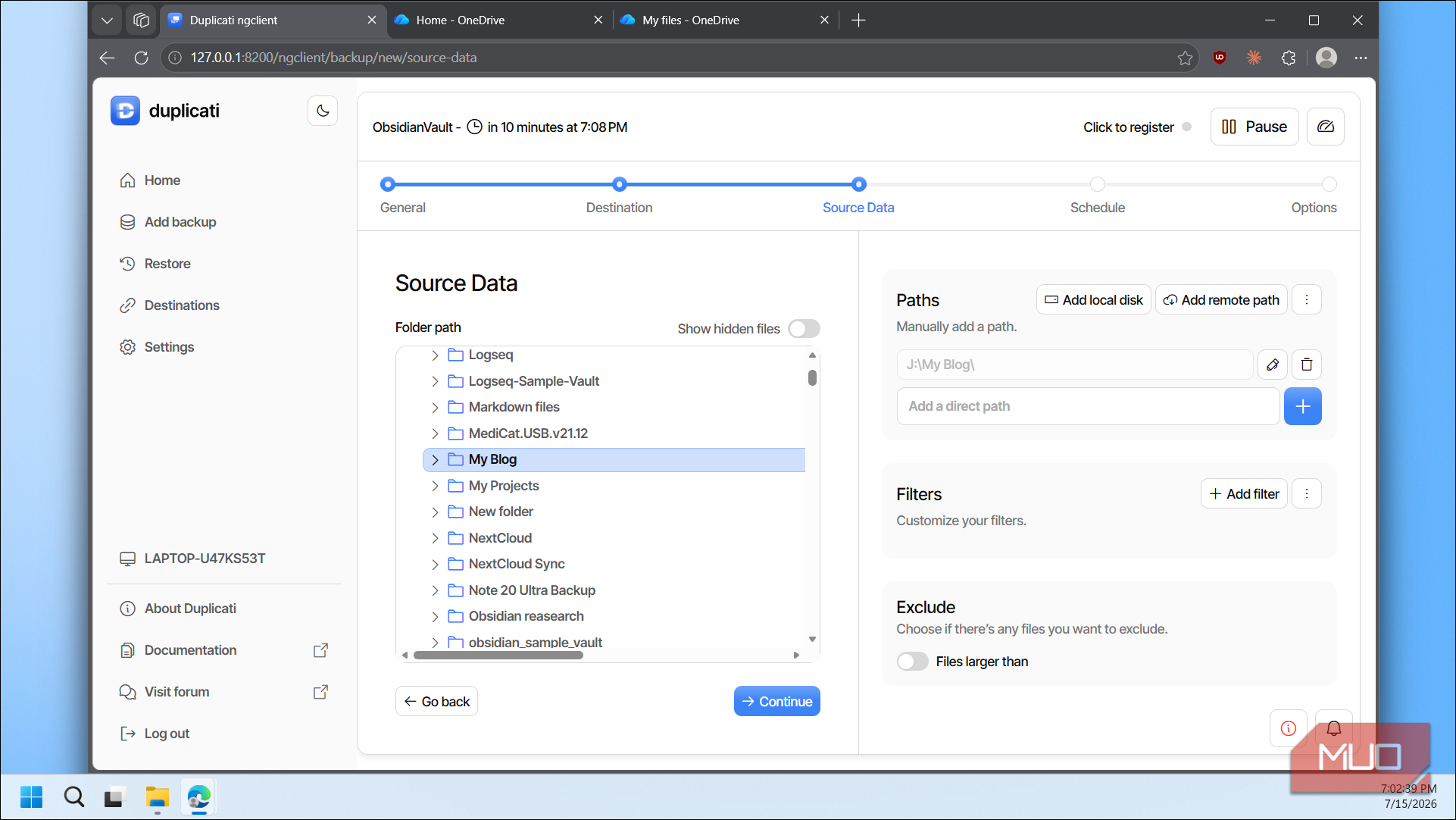
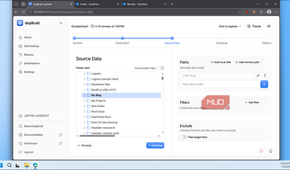
Now choose which folders you want to back up. You can browse through your drives and select specific folders, or type the path directly under Paths. I selected my blog folder from my secondary drive. You can also add filters to exclude certain file types or skip files larger than a specific size if you don't want to back up large video files or system files.
Step 4: Choose your schedule
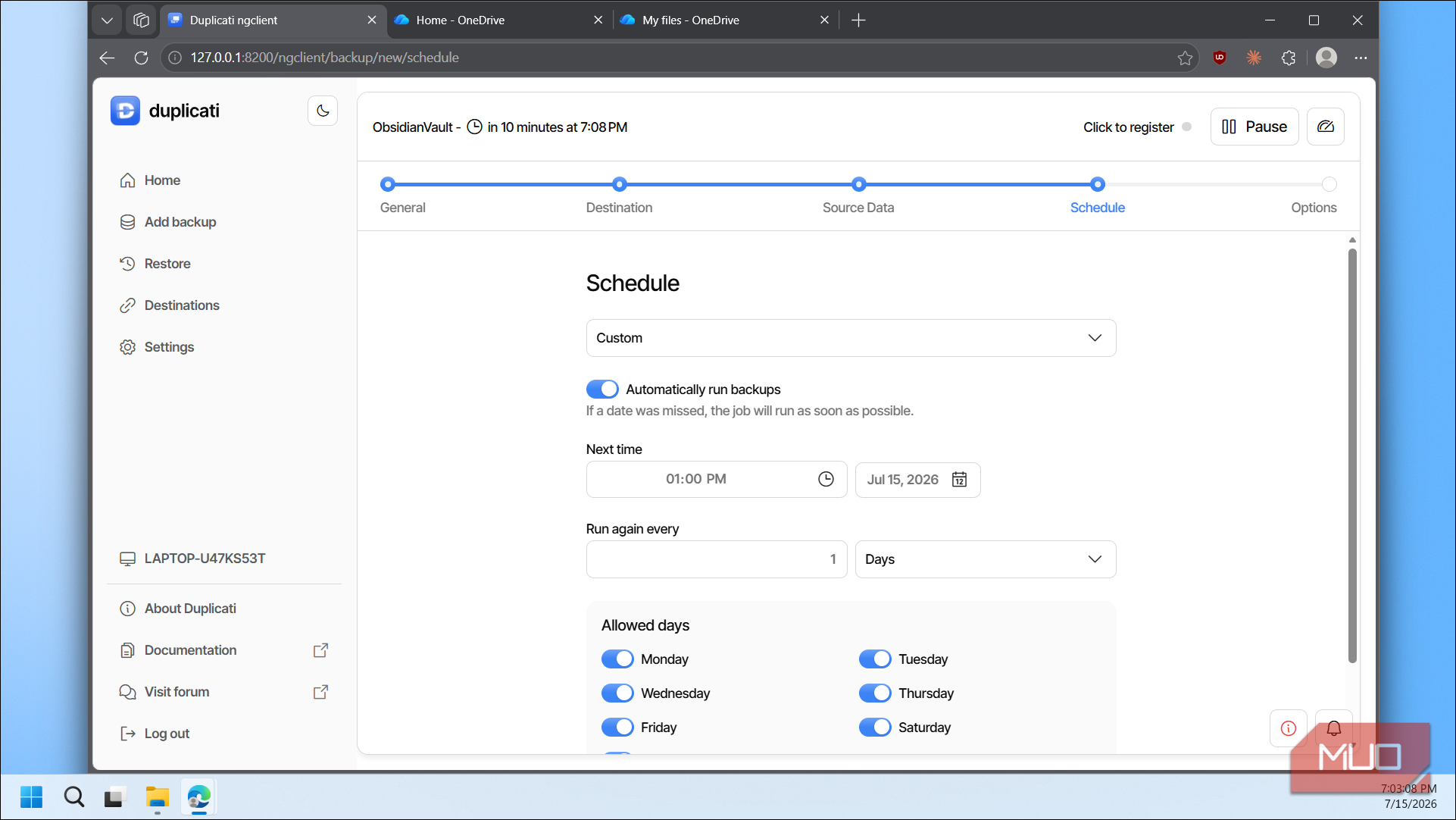
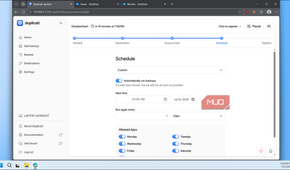
By default, Duplicati sets your backup to run automatically once a day at 1 PM. You can change the frequency to run every few hours, weekly, or even monthly, and pick the exact time and days of the week. I keep mine on the daily schedule, so I never have to think about it. If a scheduled backup gets missed because your PC was off, Duplicati runs it as soon as possible once the PC is back on.
Step 5: Set backup options

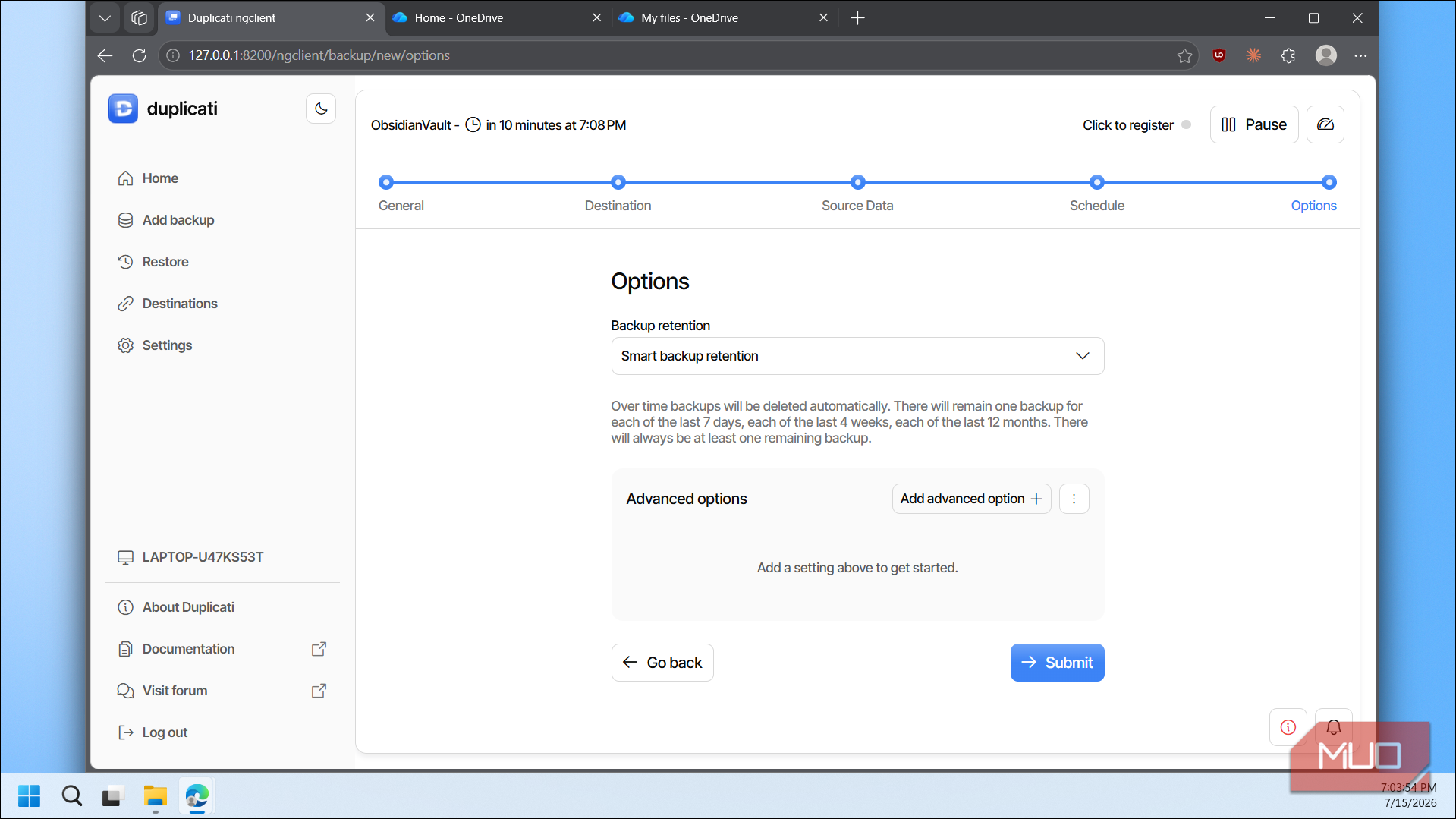
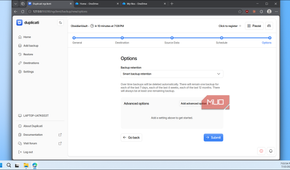
The last step covers backup retention. The default Smart backup retention option works well for most people. It keeps one backup for each of the last seven days, one for each of the last four weeks, and one for each of the last twelve months, so older backups get cleaned up automatically without you losing recent restore points. Click Submit, and Duplicati starts your first backup right away.
Restoring backups is even easier
Get your files back with a few clicks

To restore any backup, in the Duplicati web interface, find the backup you want to restore from, click the three-dot menu next to it, and choose Restore.
Duplicati shows you a list of all your backed-up files and folders. You can select individual files or entire folders. Click Continue, and you'll see options for where to restore the files. By default, they go back to their original location, but you can click Pick location to restore them somewhere else. There's also a setting to choose whether to overwrite existing files or save the restored copies with timestamps in the filename so you don't lose current versions. Click Submit and wait for the restore to finish.
As a rule, it's worth testing your backup restore process every few months to make sure everything is working correctly, especially when you're using encryption. The most common reason people lose access to their backups isn't that the data is gone, but that they forgot their encryption passphrase or the backup database got corrupted. A quick test restore can catch these problems before your only option is a backup that's corrupted or unusable.

Duplicati
- OS
- Windows, Linux, macOS
- Developer
- Duplicati
Duplicati is an open-source backup client. It creates encrypted, incremental, and compressed backups of local files to various cloud storage services.
Duplicati makes backups effortless
Apart from a cloud backup, I also save another copy of my data to an external drive. The process is the same in Duplicati, except you choose File system instead of a cloud provider during the destination step and point it to your external drive. This gives me two separate backup copies, one local and one off-site in the cloud, which is exactly what the 3-2-1 rule asks for.
Duplicati isn't a full system imaging tool like Macrium Reflect or Clonezilla, so it won't save your installed apps or Windows settings. But for the files that matter most, your documents, projects, photos, and anything you can't reinstall, it does the job well, runs quietly in the background, and doesn't cost a thing. For most people, that's all a backup tool needs to do.