


Most people like Windows 11 as it is. Others, not so much. Some don't like the new Start Menu, others hate how the OS took away the ability to customize the taskbar. However, the good thing about Windows is that if Microsoft isn't willing to fix something that's bothering a lot of people, third-party developers are more than willing to release a free app that fixes those shortcomings.
Case in point: Windhawk, an open-source, community-supported customization marketplace for Windows that has fixed most of my complaints with the OS and made Windows 11 behave like it should.
Taskbar height and icon size
Crisp icons at the size they were designed for

The first thing I fixed was the taskbar itself. By default, the Windows 11 taskbar shows icons at 24x24 pixels, while earlier versions of Windows displayed them at 32x32, the conventional size app icons are designed for. Since Windows icons only come in 16x16 and 32x32, the OS loads the 32x32 version and downscales it to fit. The result is slightly blurry, soft-looking icons that you can't unsee once you spot them on a sharp display.
The Taskbar height and icon size mod fixes this with three settings: icon size, taskbar height, and taskbar button width. Set the icon size to 32, and the taskbar renders icons at their native resolution with no scaling involved. The difference is immediately visible.
You can also push it the other way. Shrink the height for a compact taskbar, or raise both values for a larger, touch-friendly one.
Microsoft did recently add a Show smaller taskbar buttons option under Taskbar behaviors, but it only makes icons smaller. There's still no native way to make them bigger or sharper.
Vertical Taskbar for Windows 11
Put the taskbar back on the side where it belongs

Another thing I immediately noticed missing in Windows 11 was the ability to change the taskbar position. Earlier, I could dock the taskbar to any edge of the screen, whether bottom, left, top, or right. Now it's locked to the bottom. I prefer mine on the left because it opens up more usable space on my ultrawide monitor, while others like it at the top, where it cuts down mouse travel since browser tabs and window controls already live up there.
The Vertical Taskbar for Windows 11 mod brings the side placement back. Open the mod's Settings, pick left or right, and the taskbar moves over, taking the Start menu and system flyouts with it. You can set a different position for each monitor and adjust the taskbar width to your liking.
If you want it at the top instead, the same developer maintains a companion Taskbar on Top mod that works the same way.
Cycle taskbar and browser tabs with the mouse scroll wheel
Flick through tabs and apps without clicking anything
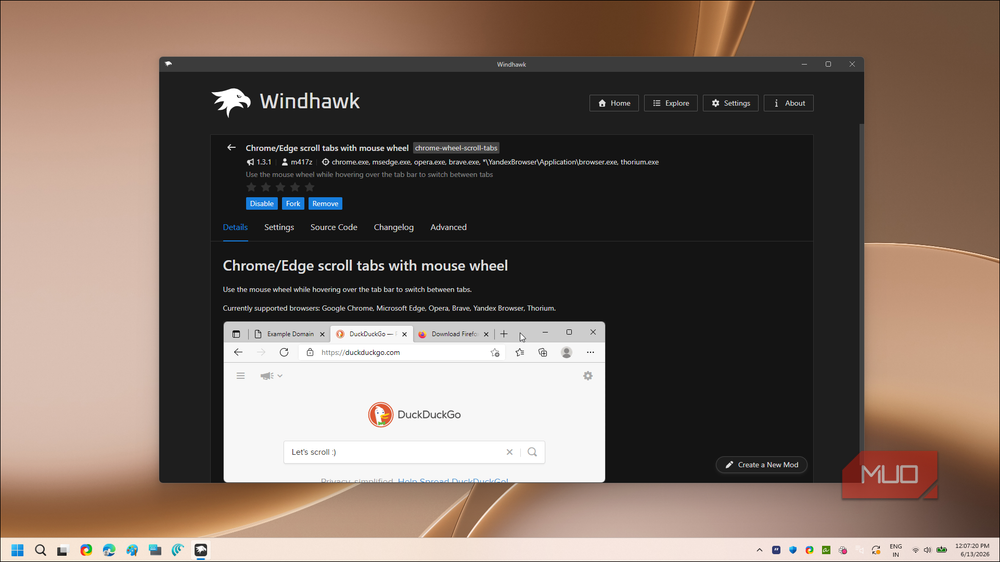
My MX Master 3S has a horizontal scroll wheel on the side, and I mostly use it to cycle through open browser tabs. It saves a second every time I bounce between two tabs that I can't open in a side-by-side view. The Chrome/Edge scroll tabs with mouse wheel mod brings that same convenience to any mouse. Hover over the tab bar in Chrome, Edge, or another Chromium browser, roll the wheel, and you flick through tabs without a single click.
A companion mod, Cycle taskbar buttons with mouse wheel, does the same trick for apps. Point at the taskbar, scroll, and Windows switches between open windows in order.
While you're at it, install Taskbar Volume Control too. It turns the taskbar into a volume slider when you scroll over it, and you can require holding Ctrl so a stray scroll doesn't blast your speakers.
Windows 11 Start Menu Styler
Reshape the Start menu with community themes
The Windows 11 Start Menu Styler is the second most popular Windhawk mod, and that alone tells you not everyone agrees with how the default Start Menu looks. Instead of forcing one redesign on you, the mod applies themes contributed by the community. Open its Settings, pick a theme from the dropdown, and the Start menu transforms the moment you save.
The range is wide. There are glassy, translucent designs that blend into a dark desktop, compact layouts that trim the wasted padding, and styles that remove the Recommended section entirely, which I suspect is the only reason some people install it.
Expect a little trial and error, though. I tried a couple of themes that looked great in screenshots but clashed with my dark Windows theme, so I settled on a translucent style that matches the rest of my setup.
Windows 11 Taskbar Styler
The most popular mod in the catalog, for good reason
Now, the most popular Windhawk mod is the Windows 11 Taskbar Styler, and it works just like its Start menu sibling. Pick from built-in community themes, including translucent styles, a macOS-like dock, and even nostalgic Windows XP looks, and your taskbar stops looking like every other Windows 11 machine.
The advanced options go deeper. Control styles let you target individual taskbar elements by name and override their properties. For example, setting the target to #SystemTrayFrameGrid with the style Visibility=Collapsed hides the entire system tray, leaving nothing but your centered icons.
It also pairs well with the other taskbar mods here. I run it alongside Taskbar height and icon size, and a dock-style theme with a hover animation mod gets you surprisingly close to macOS. One caveat: it restyles the taskbar through XAML diagnostics, and only one tool can do that at a time, so it conflicts with apps like TranslucentTB.
Better file sizes in Explorer details
Folder sizes in the Size column, at last
File Explorer still doesn't show folder sizes in the Size column. You have to hover over each folder or open Properties one folder at a time, which is useless when you're hunting down what's eating your drive. The Better file sizes in Explorer details mod finally puts folder sizes right next to file sizes in Details view.
In the mod's settings, you choose how sizes are calculated. If you have the Everything search app running, the mod reads folder sizes from its index almost instantly. Without it, pick the manual calculation option, which works fine but takes longer on large directories.
I still open WizTree when I want to clean up gigabytes of Windows junk in one sweep, but for everyday browsing, this mod makes Explorer feel like Microsoft finally finished the feature itself.
Windhawk gives back what Microsoft took away
It's not without trade-offs, though. These mods inject code into Windows processes, and a major update occasionally breaks one until its developer pushes a fix. I wouldn't run it on a locked-down work PC. On my own machine, though, it's been running for a year now without issues, and when something goes wrong, I simply uninstall the mod, and everything works fine.