


Linux and Nvidia haven’t exactly been known to work out of the box. Team Green’s GPUs have never been easy to set up or even use on Linux, and when compared to Windows, it is an objectively inferior experience.
So much so that certain basic settings remain toggled off, and a few of these are known to affect performance. Nothing’s more frustrating than seeing your FPS go down for no reason at all, and it isn’t fair to expect everyone to know the inner workings of such setups.
That being said, there are a few countermeasures and commands that can be used with great effect, and the boost is often substantial.
Enable the nvidia-powerd service
Extra watts, more power

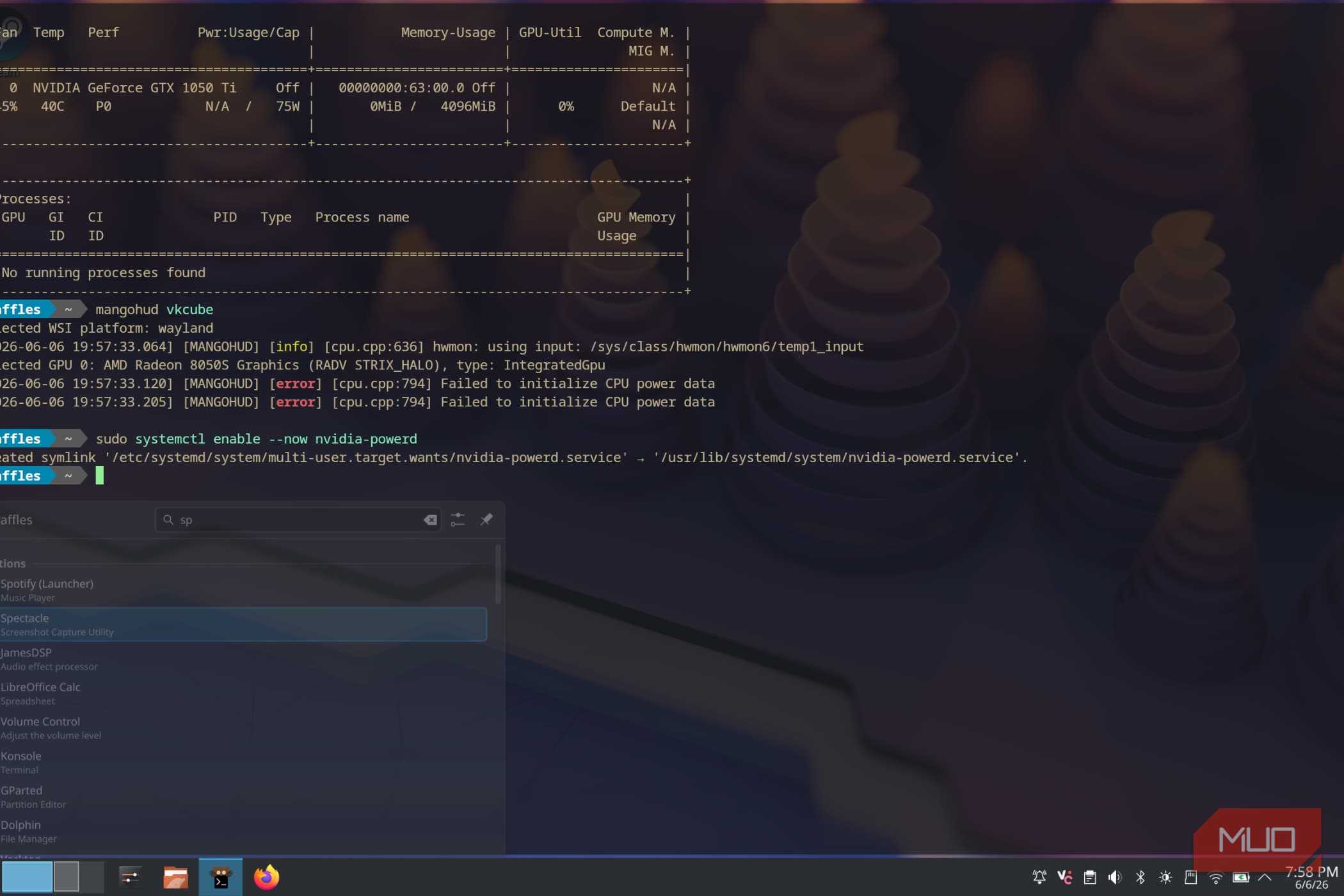
The nvidia-powerd service is, for some reason, disabled by default on most Linux installations. The powerd service is a daemon that, when enabled, lets the GPU access the full wattage it was rated for.
This is more common in laptops, which feature discrete mobile Nvidia GPUs. Usually, modern laptop GPUs are rated for a base TDP and an additional “boost” TDP that pushes a bit more wattage to the card.
The difference is immediately noticeable, and it’s essentially free performance that is otherwise left on the table. Enabling it is as simple as running a single command in the terminal.
systemctl enable --now nvidia-powerd.serviceThis should let the GPU achieve performance similar to Windows, and is a step I’d recommend anyone with a gaming laptop take.
This does nothing for desktop cards. Only use it if you have a laptop with Nvidia graphics.
Use the Nvidia settings app to set performance profiles
Or some other fancy alternative


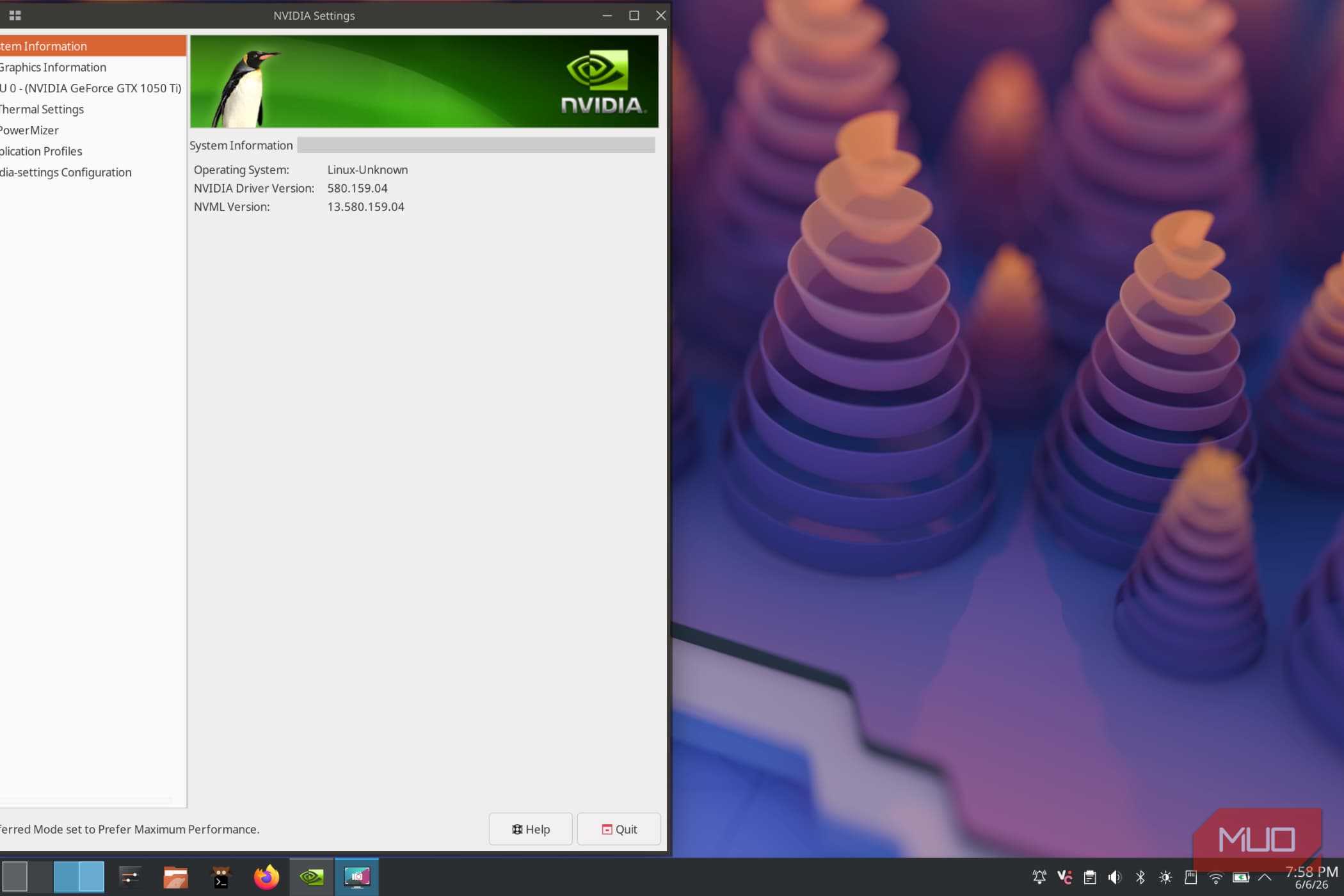
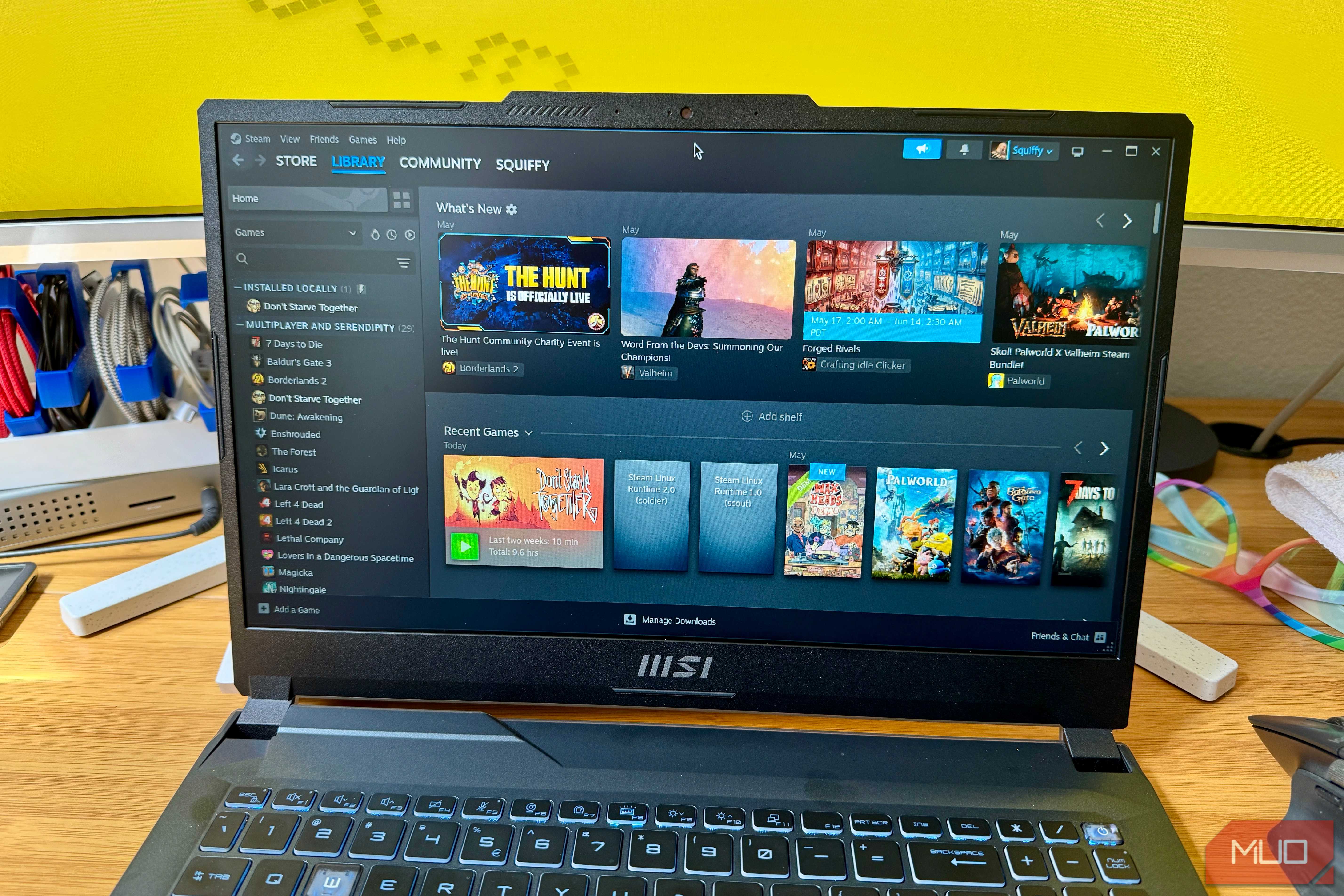
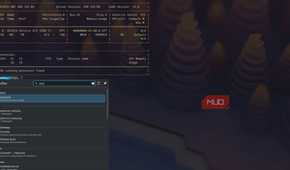
Another place to check would be in the Nvidia settings app. It’s a pretty basic but informative app for Linux systems and is part of the nvidia-settings package. Interestingly, the app used to have better support on X11-based desktops and window managers, but Wayland support seems to be improving over time — which is something you could also say about the state of Nvidia on Linux as a whole.
Going back to the app, you’ll want to make your way to the Powermizer tab on the left. From here, you should see a menu with the GPU clocks and additional details. On the same page, scroll down to find a performance profile drop-down menu.
Change it from Normal to Prefer Maximum Performance. As you might have guessed, it forces the GPU to always be in high performance mode, which is pretty important for ensuring higher frame rates.
If you’re looking for something with a lot more granular control, consider something like LACT. It can be easily installed through a variety of package managers and requires one command to enable it.
systemctl enable --now lactd.serviceLACT is a fantastic GPU tuning utility that supports Nvidia GPUs out of the box. There are a lot of parameters to tweak, and you can also overclock your card here, in addition to setting multiple profiles.
Regardless of what you do, make sure to keep those changes persistent, or at least create (and save) a profile for ease of use.
Remember to update your drivers
And install a few more packages, if you’re on a laptop

Nvidia, despite its many issues in regard to Linux, does continually update its driver stack. The newest version on Arch Linux is version 610, which brought with it a number of features and stability updates.
As such, it would be wise to update your distribution’s install from time to time. Gaming on Linux works best with up-to-date packages, and Nvidia is no exception.
Unless you absolutely know what you’re doing, do NOT download the Linux drivers from Nvidia’s official site. Use the ones provided by your distribution instead. These are a lot easier to maintain and install.
If you happen to use a gaming laptop, you would do well to consider a few extra packages:
- Nvtop: A GPU monitoring CLI tool
- LACT: Used to overclock GPUs, has a GUI
Other than these two packages, make sure to install the Nvidia settings and utils applications for more effective monitoring. Nvidia Prime (used with “prime-run %command%” without the quotes) can be used to force select the Nvidia GPU in games.
Nvidia on Linux is a bit of a mess
I won’t sugarcoat it — Nvidia on Linux systems isn’t particularly great. The GPU drivers periodically suffer from a host of issues, including lowered DirectX 12 (in this case, VKD3D) performance as compared to Windows.
It’s an ongoing problem acknowledged by Nvidia, and the good news is that there has been areal effort to get things working.
Unfortunately, it’s still a lot more complicated to set up, and I can only recommend AMD cards for the time being if you want a more hassle-free experience.
Interestingly enough, this doesn’t seem to affect hybrid systems (that is, laptops with an Nvidia + AMD/Intel GPU) all that much. Since most rendering is done by the iGPU (with heavier tasks offloaded to the Nvidia GPU), things are fairly smooth in this kind of setup.

Known primarily for their gaming graphics cards, Nvidia is a multinational company that develops GPUs, SoCs and much, much more. Their recent efforts seem to be focused on artifical intelligence as of late.