


I use Waze virtually every day. Even when I know where I'm going, I still plug the address into my phone and let it navigate through Apple CarPlay in my vehicle. Why? It shows if there are any issues with my usual route, like heavier than usual traffic, an accident, or construction. I can get a head's up when police officers have been spotted to watch my speed. Plus, there are other useful updates, like an estimated time of arrival.
But before I punch an address into the Waze app to start my route, there are a few settings I always check first. Some might seem obvious, but as I note in my personal stories here, it's easy to forget. The next thing you know, you end up on a route that isn't the best one you could have taken, you have a voice constantly interrupting your music or podcast when you don't need it, or you're on a toll highway that will cost you a fortune.
Navigation on highways
Don't forget to turn this on (or off)

Funny story: I was going to visit a friend who lives about a 30-minute drive away. The typical route is through a busy stretch of highway, so it can sometimes take upwards of 45 minutes to get there. I punched in her address and Waze oddly gave me a different route. I didn't think much of it, figuring there was a highway closure or accident. But as I drove, I couldn't help but feel like this route didn't make sense. I pulled over to a side street and checked the app. That's when I noticed it. I had "avoid freeways" turned on.
I had changed this setting recently for a longer drive where I wanted to take the streets to avoid bumper to bumper traffic during rush hour. And I totally forgot to turn it off. This made a trip that might have taken 35 minutes take closer to an hour. I kicked myself but also couldn't help but laugh.
Conversely, you may find that selecting avoid freeways works to your benefit. For example, there's one city I travel to where taking the back roads is so much simpler. Even if Wave claims the highway is faster, I know the estimated time of arrival will keep creeping up as unexpected bottlenecks arise. If I want to take the scenic route, even if it takes longer, I adjust this setting. To do so, select the three lines at the top, left of the main screen, Settings, Navigation, and adjust the Avoid freeways slider to the on or off position as desired.
Don't ding me with tolls
Keep 'avoid' on unless needed

Where I live, there's a toll highway that will get you to where you need to go much faster than the typical highway. The caveat is that you'll get a ridiculous bill after using it, especially if you're traveling a long distance. Several cities have toll roads, and if you want to avoid getting a bill or hitting a toll booth along the route if you can, go into the same menu noted above and turn on Avoid toll roads. I always preview my route before departing to ensure that a toll road isn't part of it. If so, I'll go into Settings, turn this off, and enter the address again for an alternative route.
Sometimes, toll roads are worth the investment. A few months ago, I attended an evening event that's in a city about an hour's drive from me. If I were to head home in rush hour on the regular highway, it would have taken me over two hours. Turning off Avoid toll roads it is and eating the exorbitant cost.
Speeding alerts
Keep yourself safe

I have a tendency to let my foot slowly press on the gas if I'm on a long, open highway and driving for miles. I took my son to summer camp a three-hour drive away on a wide-open highway early on a Saturday morning. It was way too easy to speed, but of course, always dangerous to do so. I had to stop myself at times to avoid going too much over the speed limit, as I'm sure many of us do at times. With this feature, you can set a speeding threshold, like 5 or 10 miles over the speed limit. From there, an alert is sent through the app to prompt you to slow down if you exceed this.
Under Settings, go to Speedometer. Select Always for Show speed limit (or When above limit if you prefer) and under Speeding Threshold, choose the desired distance, either in miles per hour over the speed limit or percentage above. Then turn on Alert at threshold. It's not only for your own safety, but for others in the car and around you, too. This can help you avoid an expensive speeding ticket, or accidentally going over the limit in an unfamiliar city when you don't realize the speed limit is slower than in your area.
Choose the navigation assistant
Voice and frequency matters


 Credit: Christine Persaud / MUO
 Credit: Christine Persaud / MUO
 Credit: Christine Persaud / MUO
 Credit: Christine Persaud / MUO
 Credit: Christine Persaud / MUO
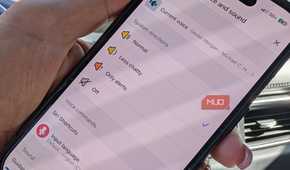
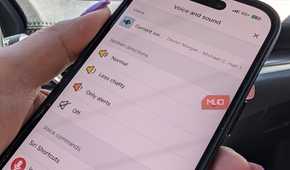
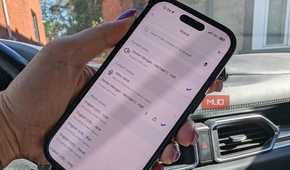
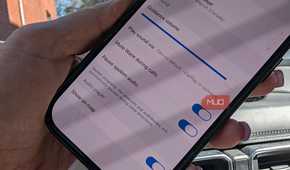
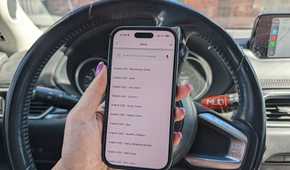
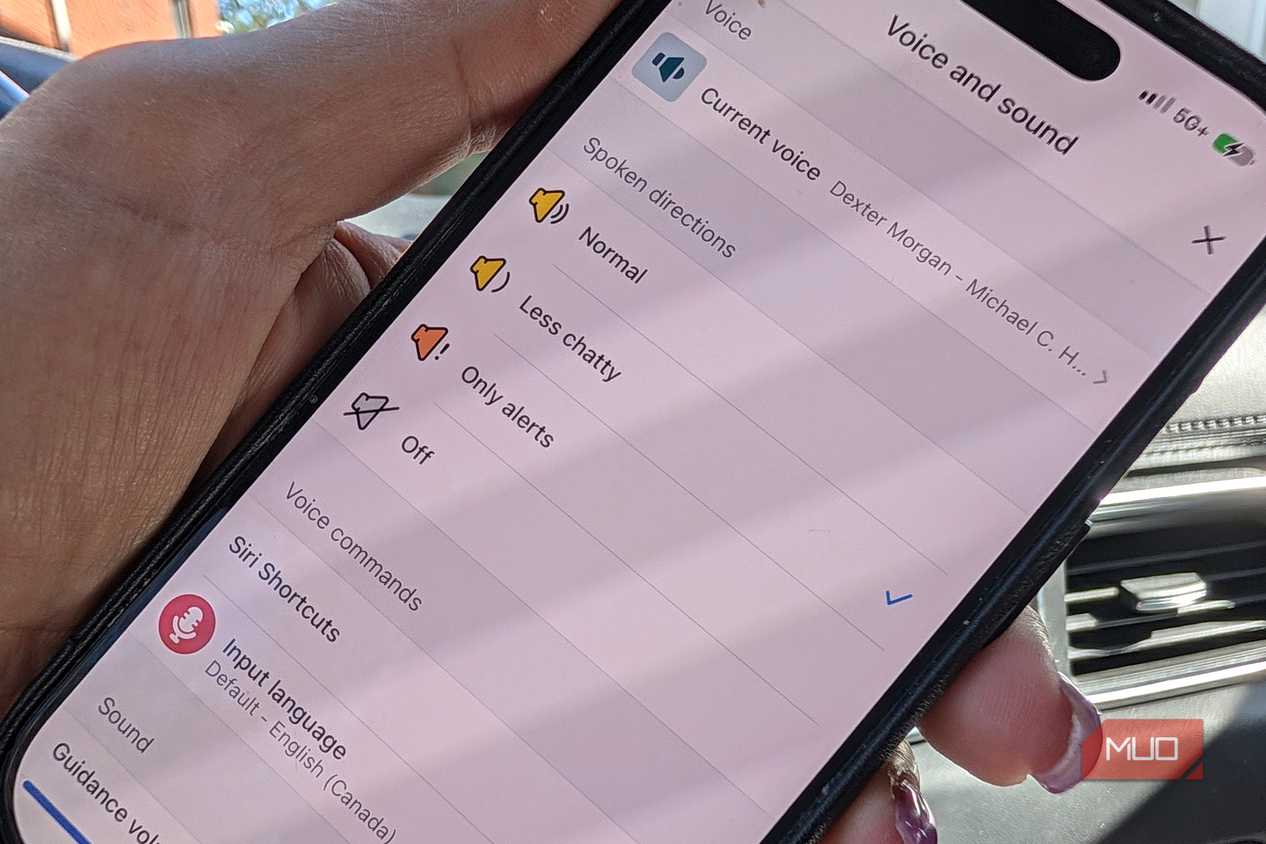
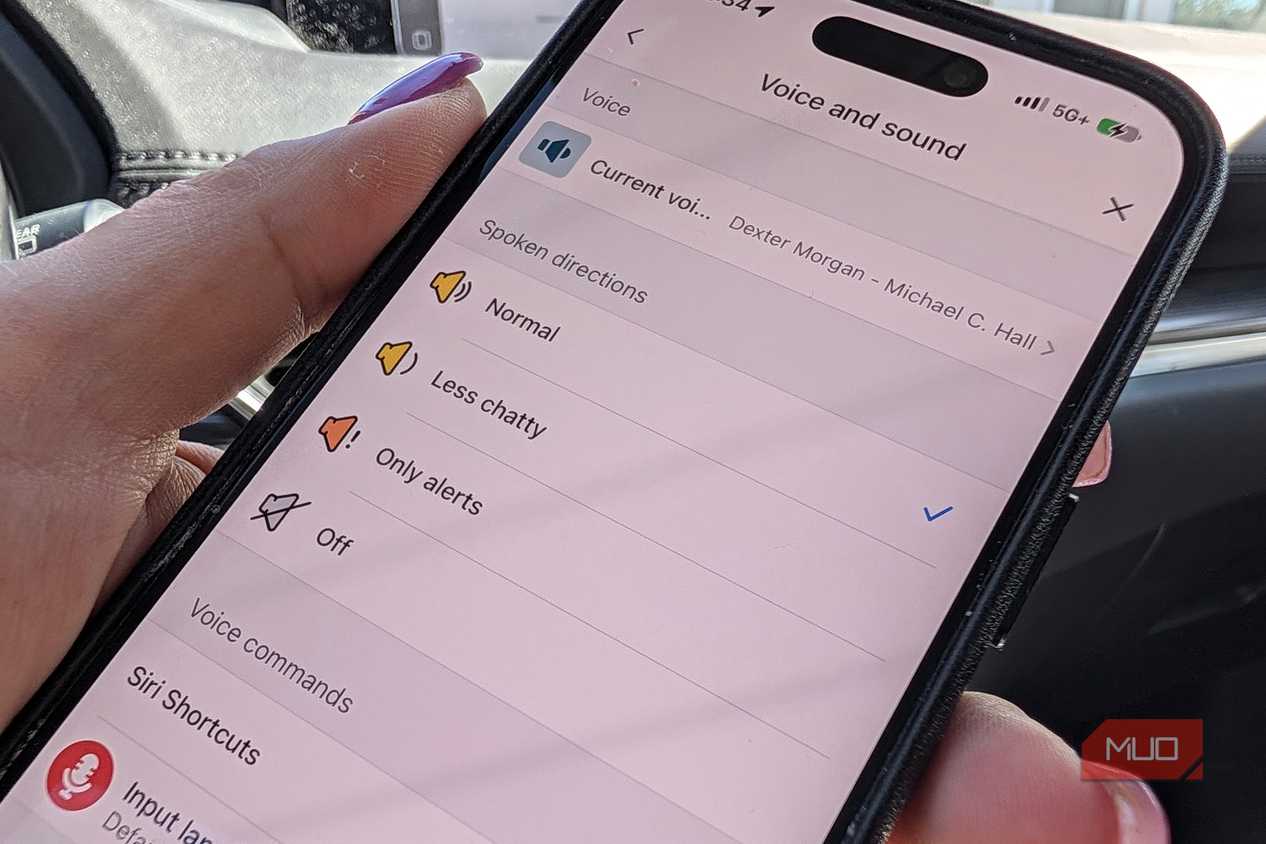
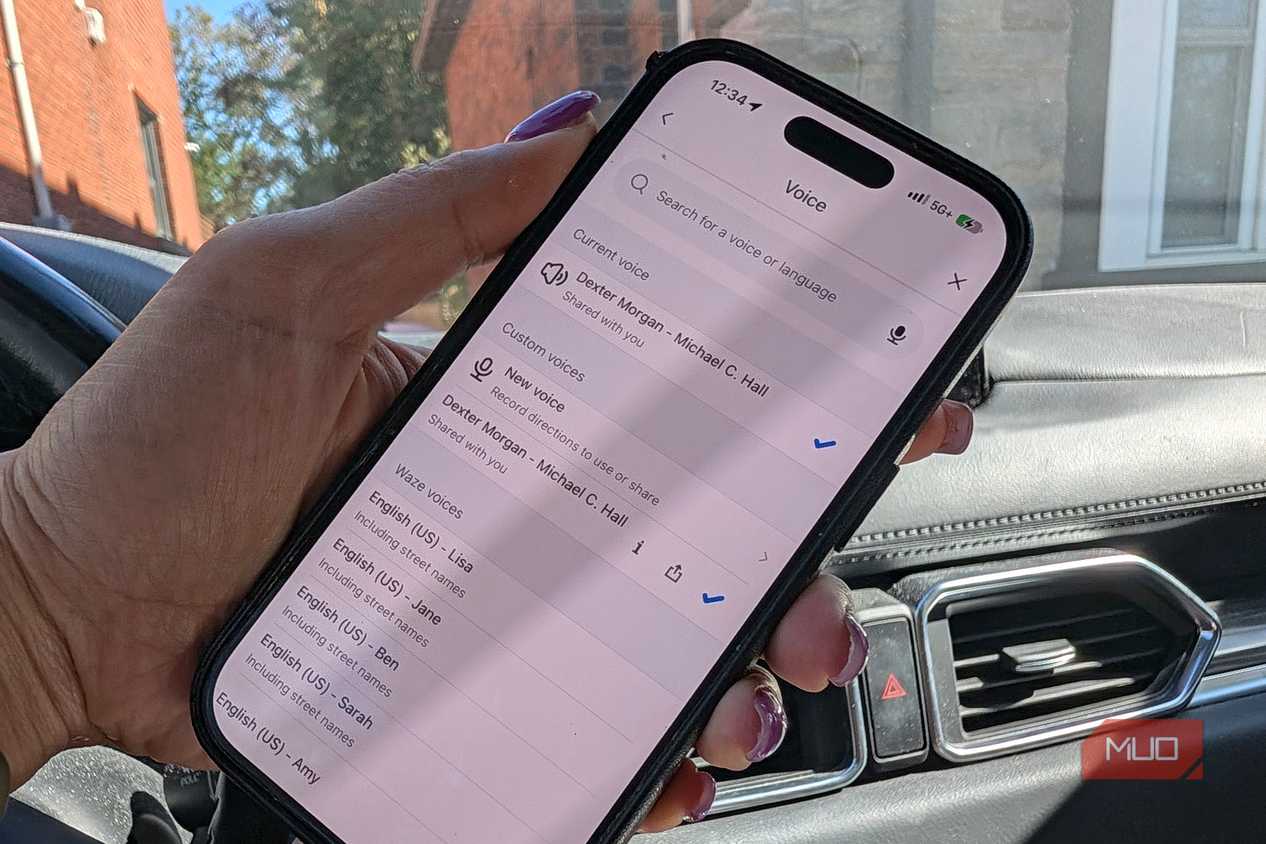
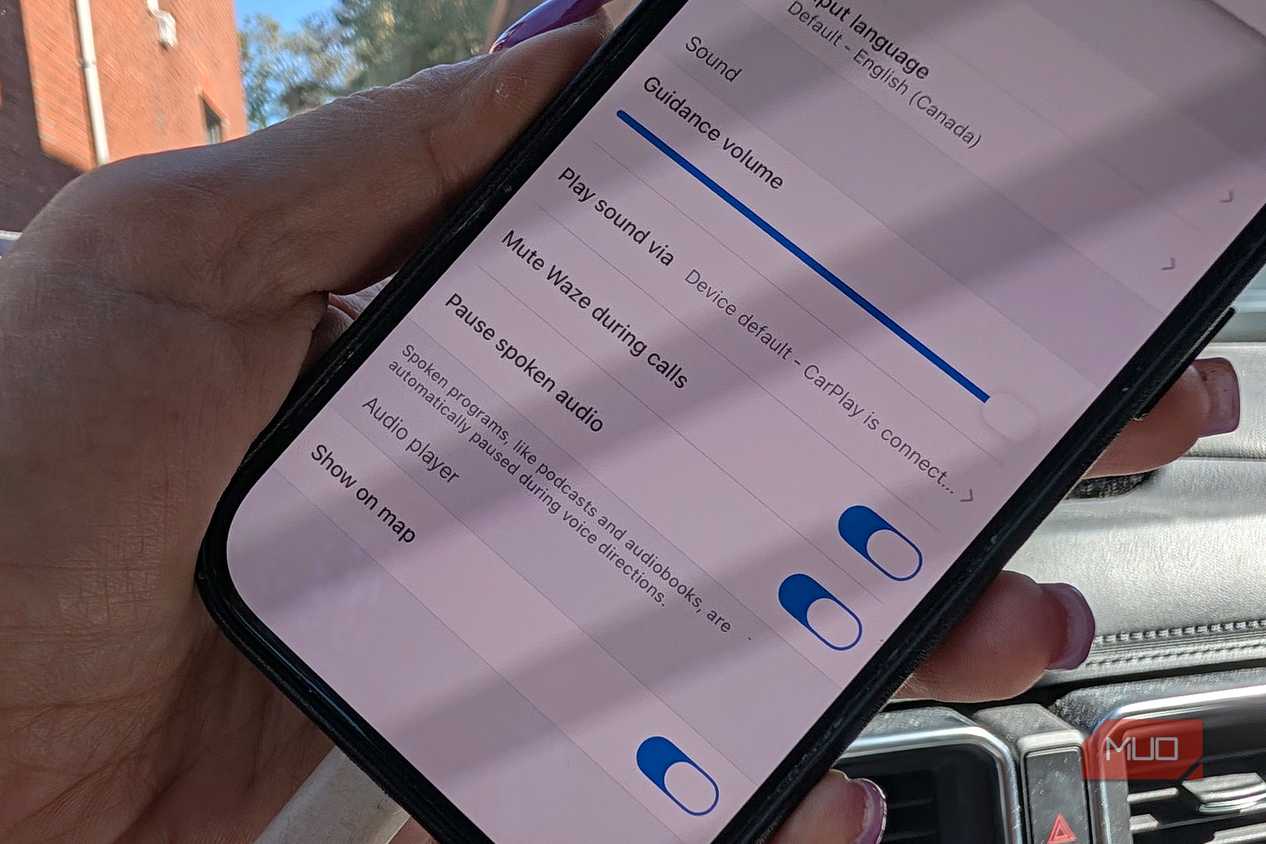
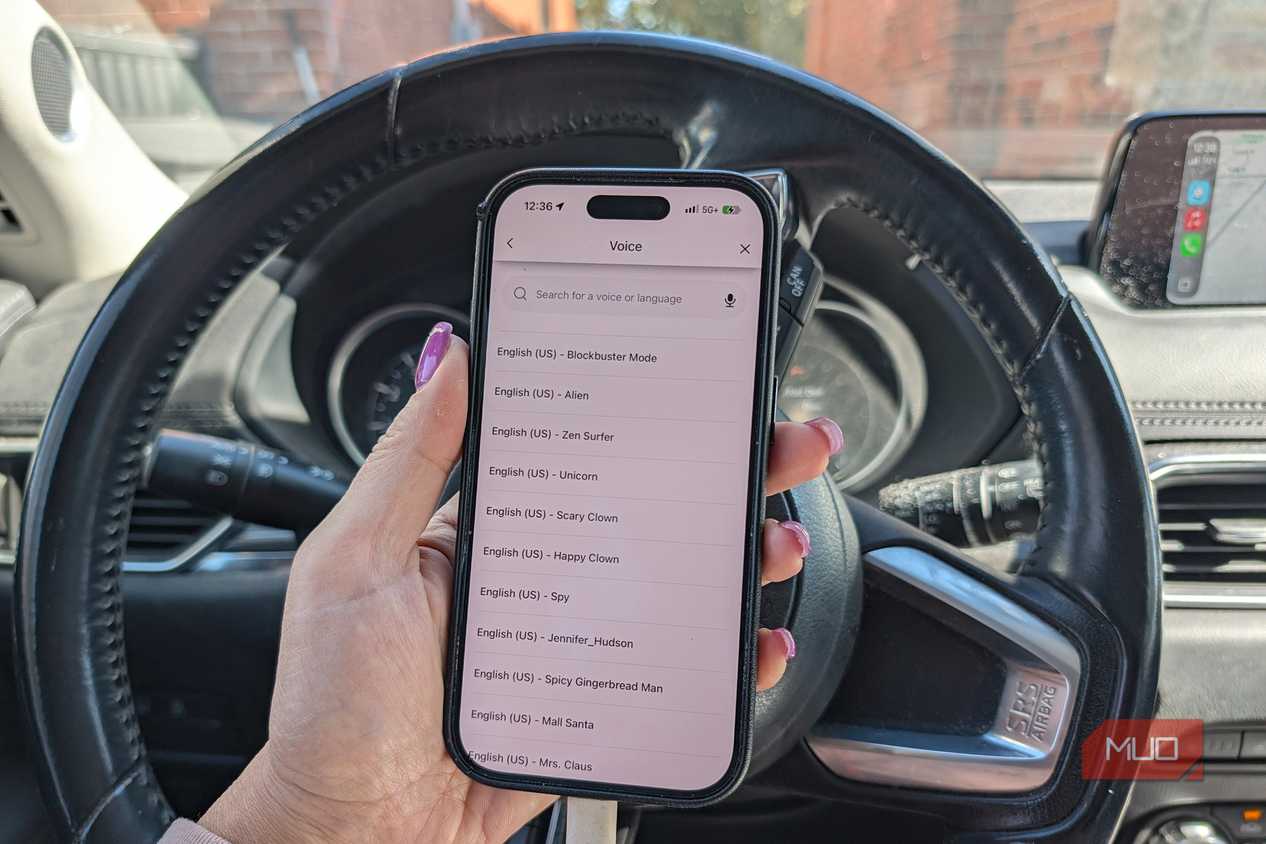
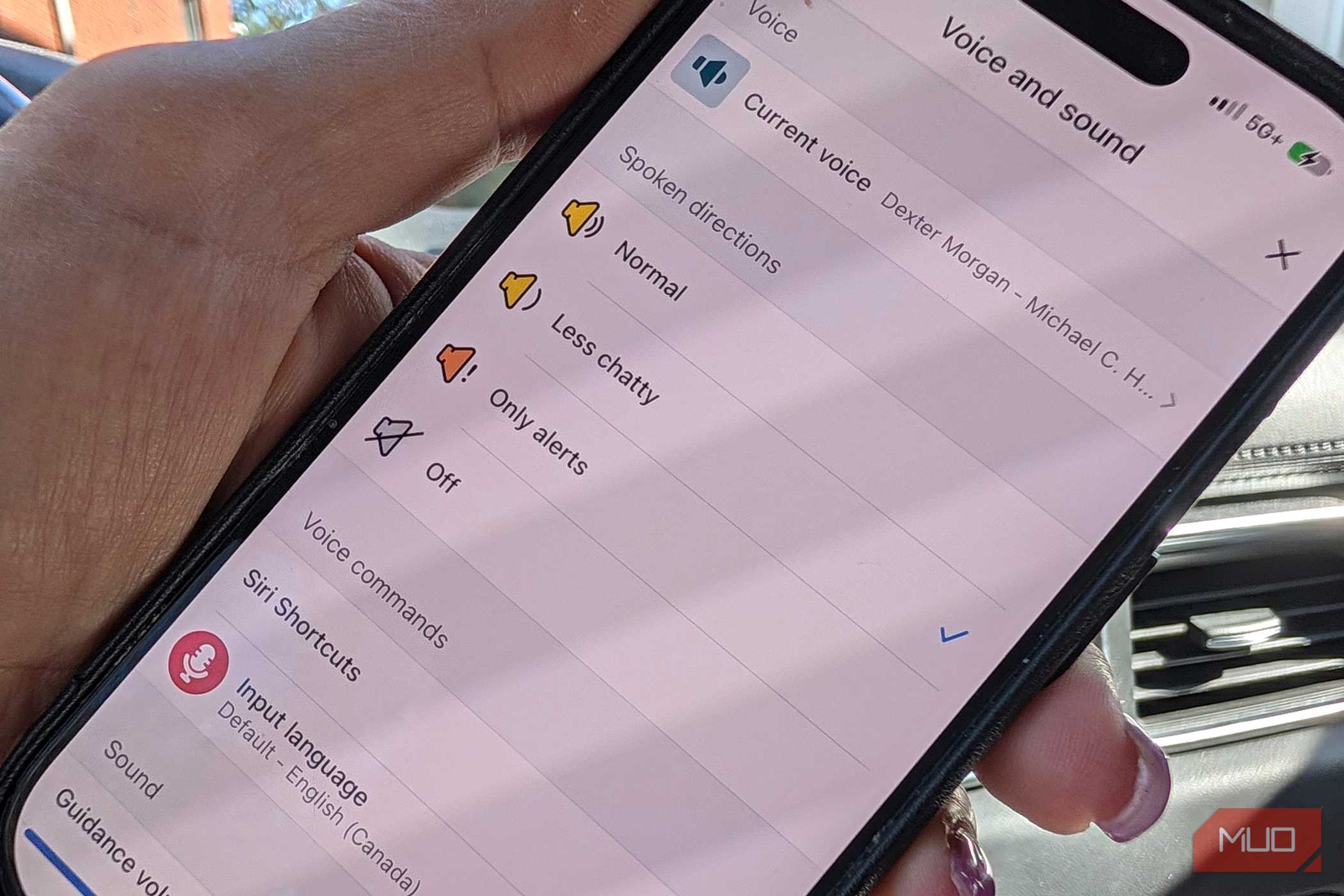
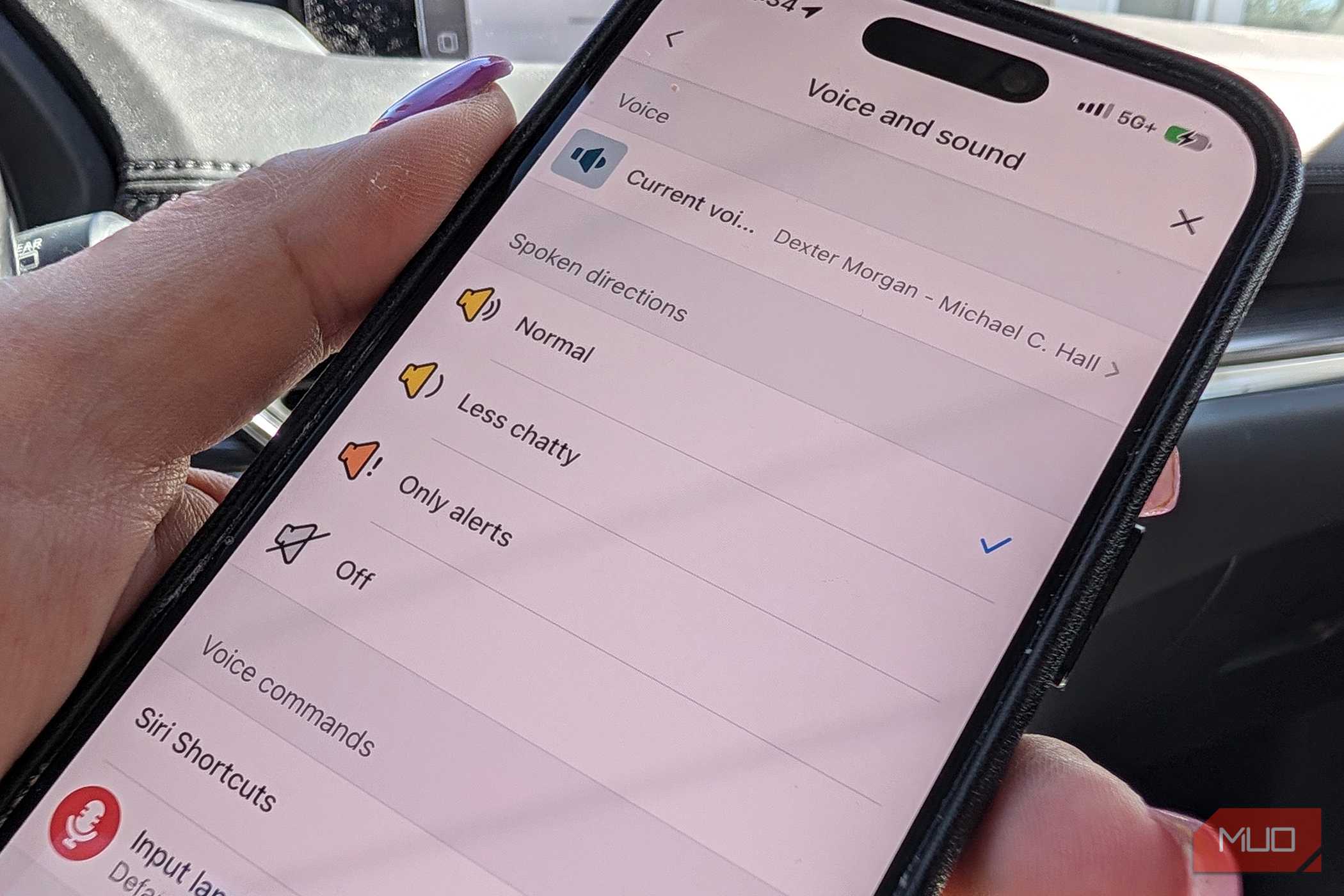
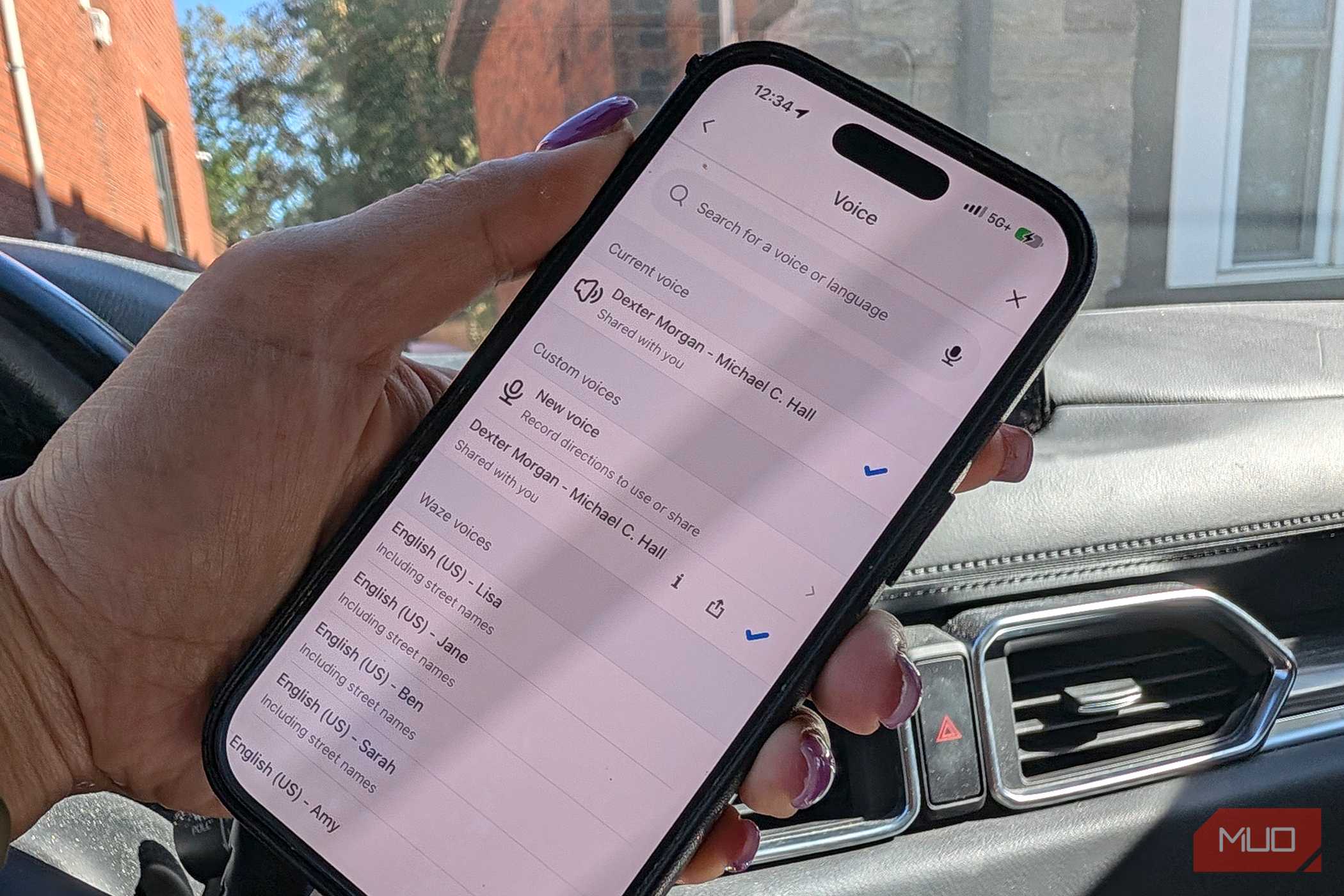
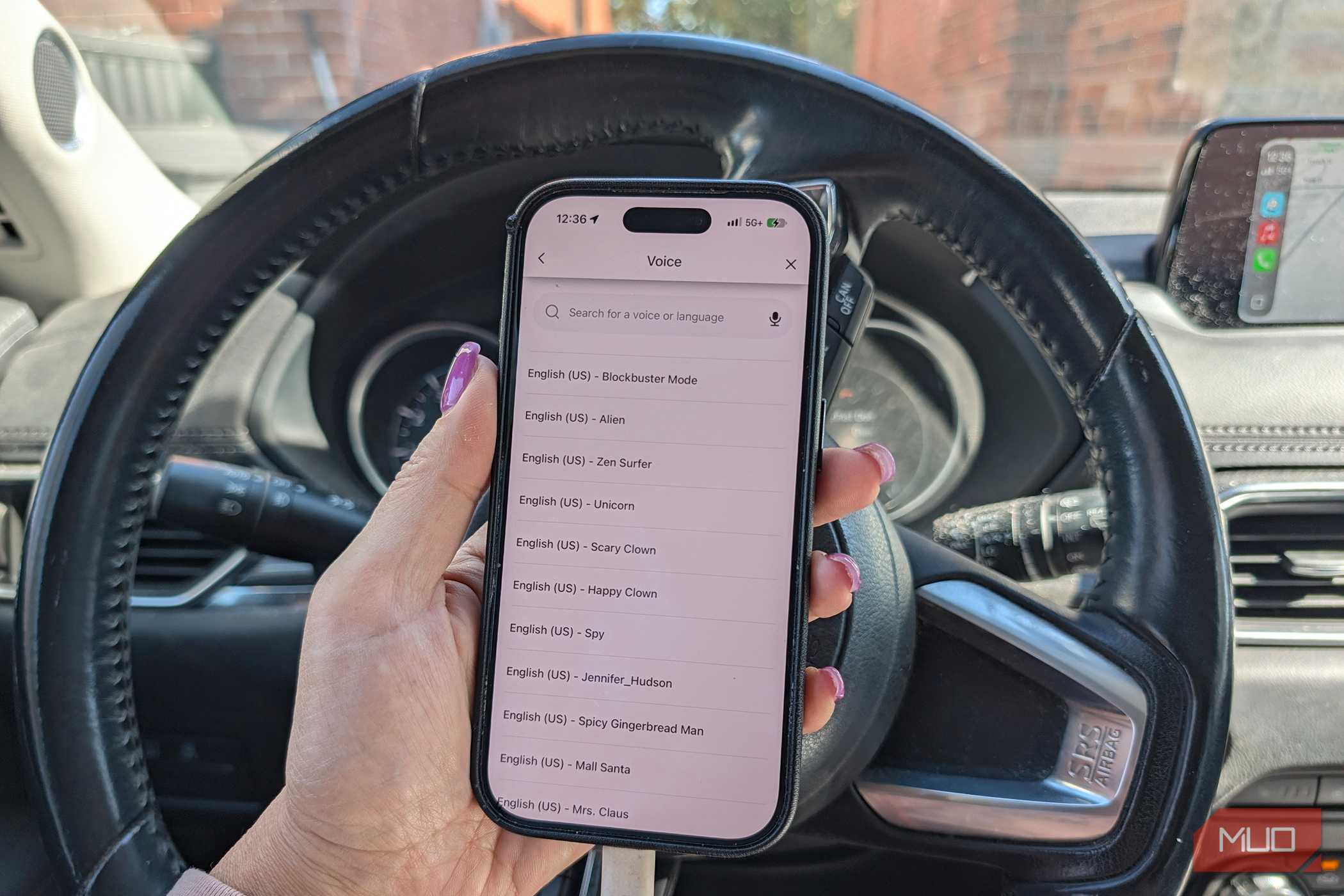
Did you know that you can not only choose the voice Waze uses to provide directions, including a rotating selection of limited edition and themed options, but also the frequency with which they talk? In Settings, Voice and sound, under Voice, you can sample various ones and make a choice. For some time now, I have had the voice of Dexter Morgan (Michael C. Hall) from my favorite show Dexter. Along with basic navigation instructions, he adds a bit of character flavor, as do other limited edition and celebrity guest voices.
Under Spoken directions, you can leave it at Normal for most rides. But if I'm traveling somewhere I have gone before and don't necessarily need the spoken turn-by-turn directions as much, I might switch this to Less chatty or Only alerts, one of the newest Waze AI features that's worth turning on. Otherwise, he'll give me warnings at several intervals before reaching a highway exit, which can get repetitive and annoying if I already know. If you want to use Waze only for keeping an eye on traffic, construction, and police, you can turn spoken directions off entirely.
Show the map how you like it
Customize the look
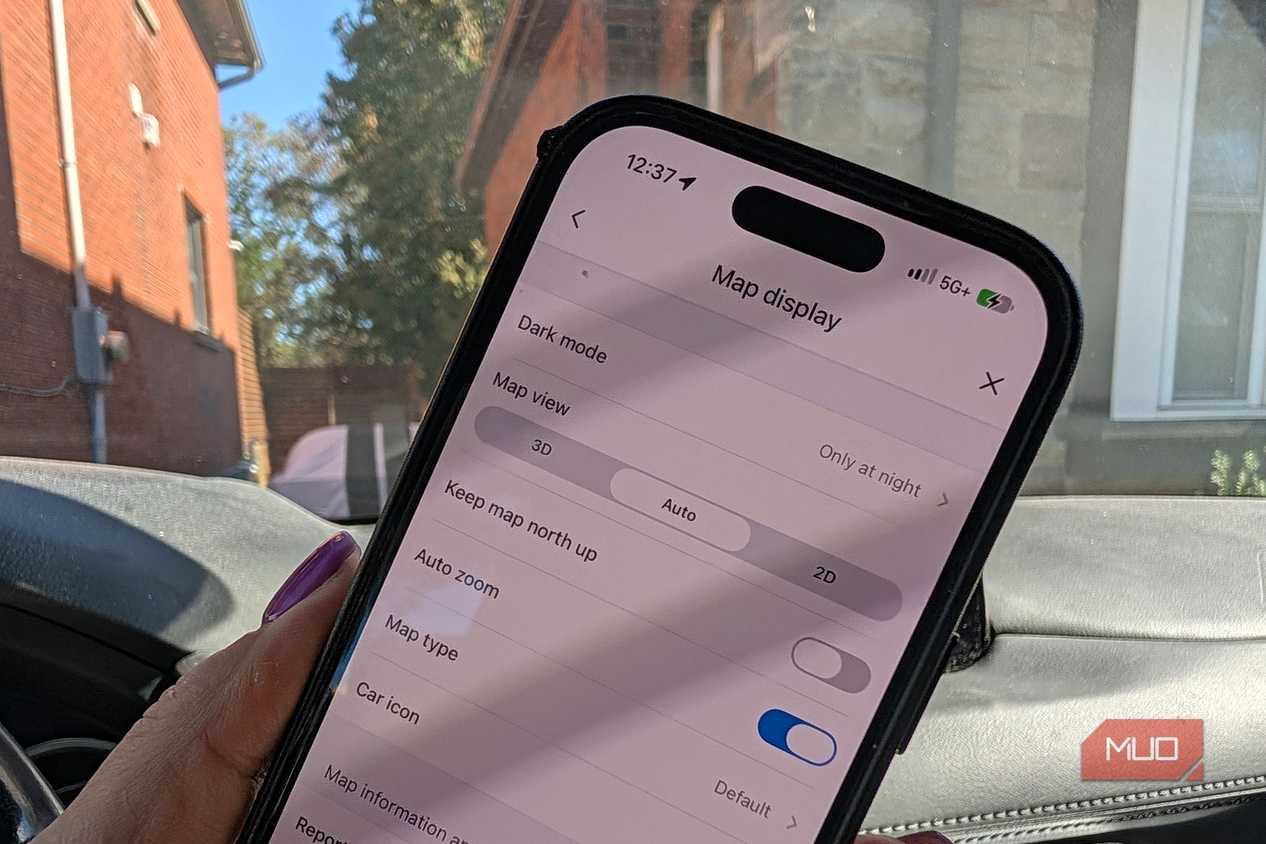
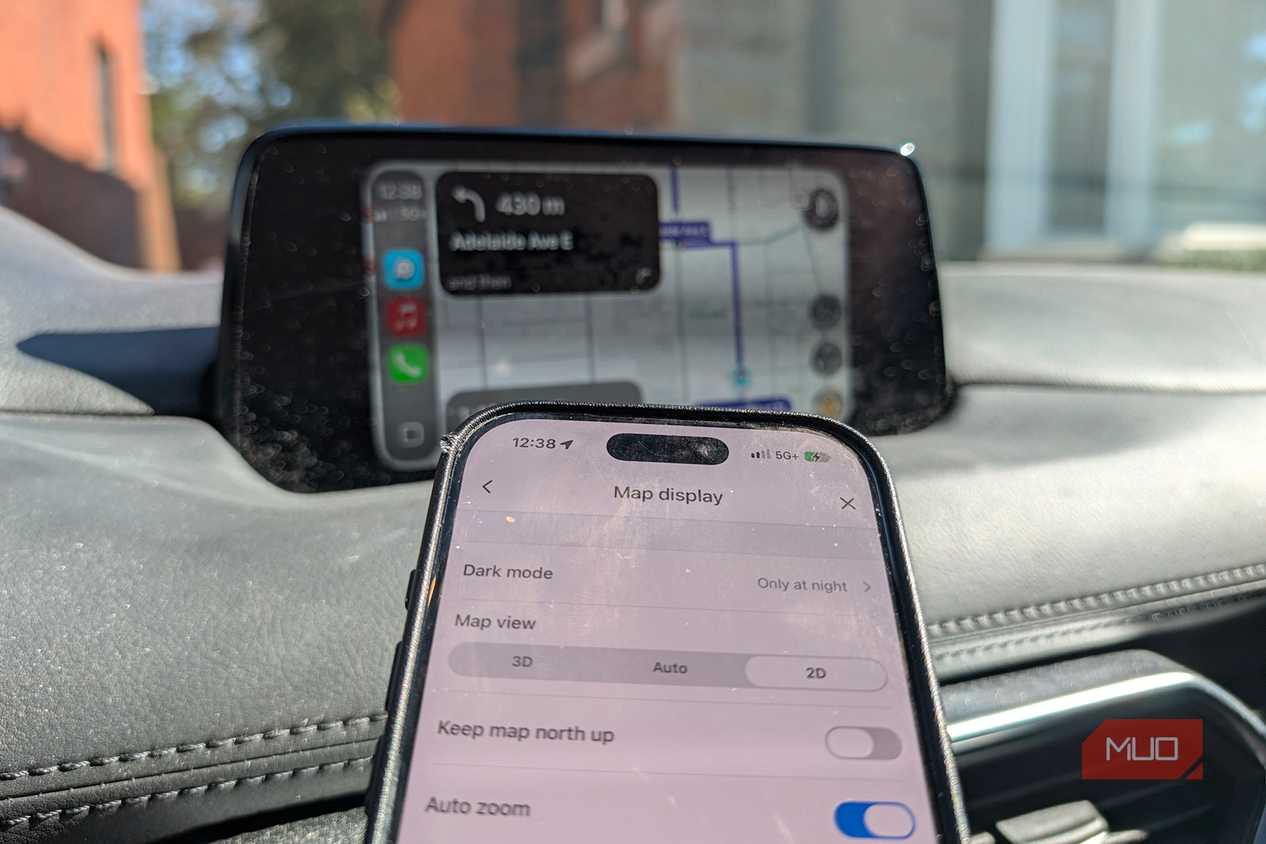
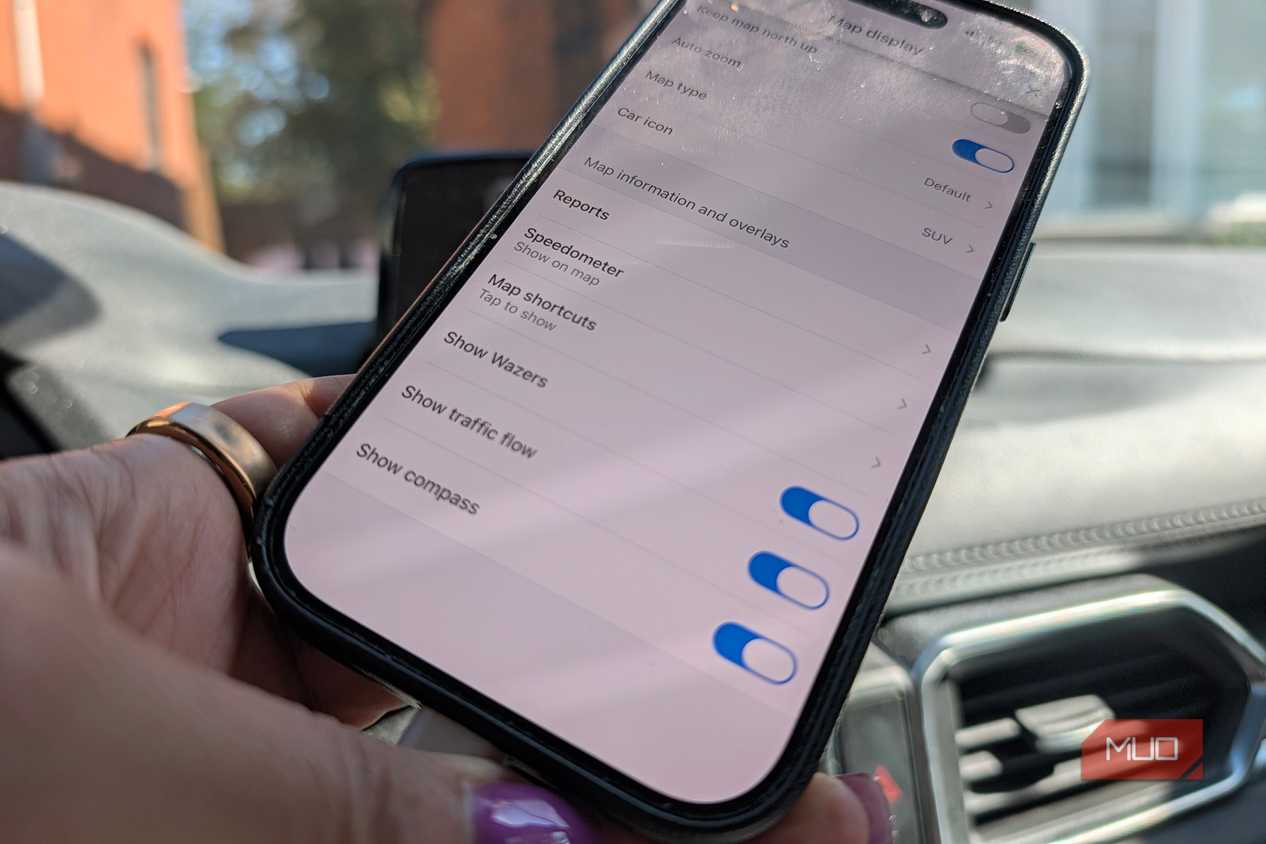
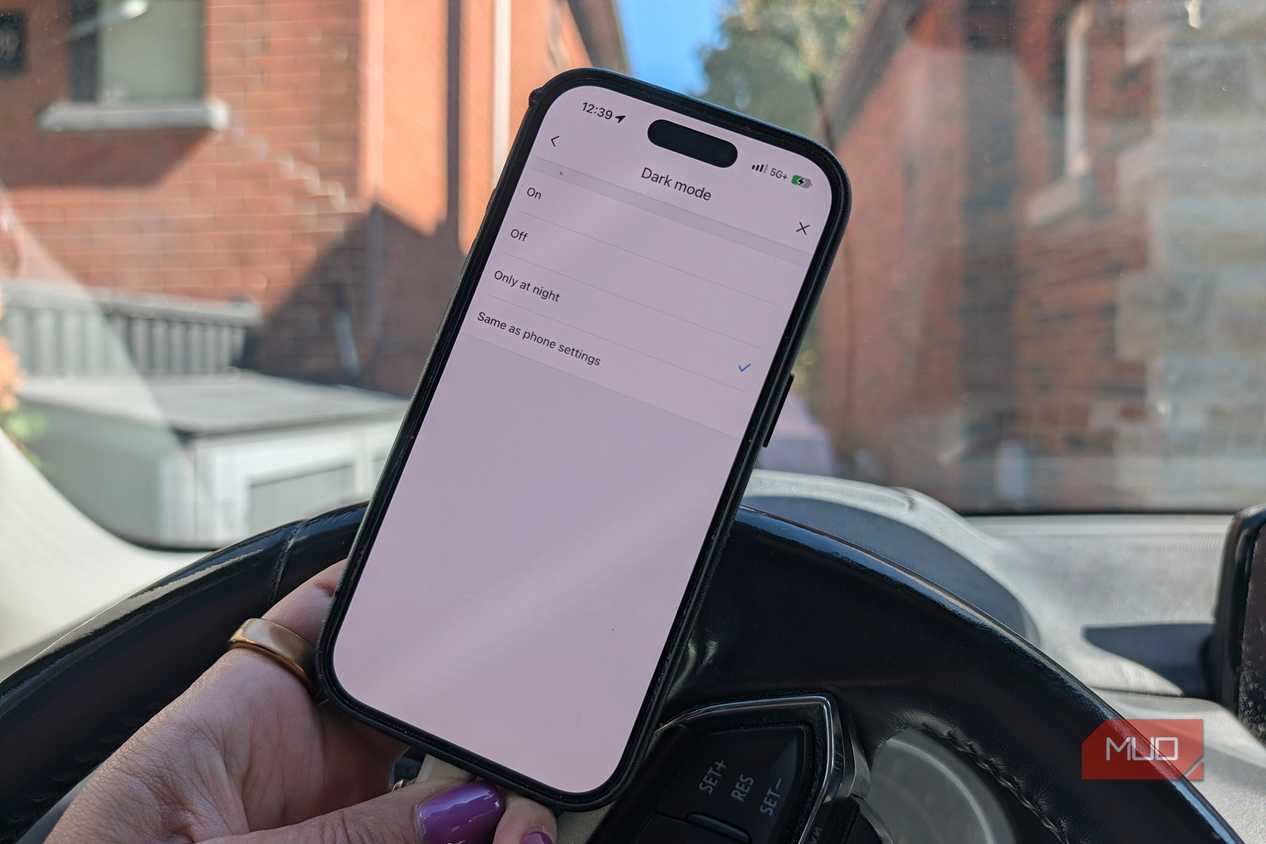


 Credit: Christine Persaud / MUO
 Credit: Christine Persaud / MUO
 Credit: Christine Persaud / MUO
 Credit: Christine Persaud / MUO
 Credit: Christine Persaud / MUO
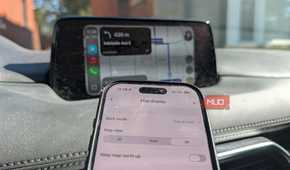
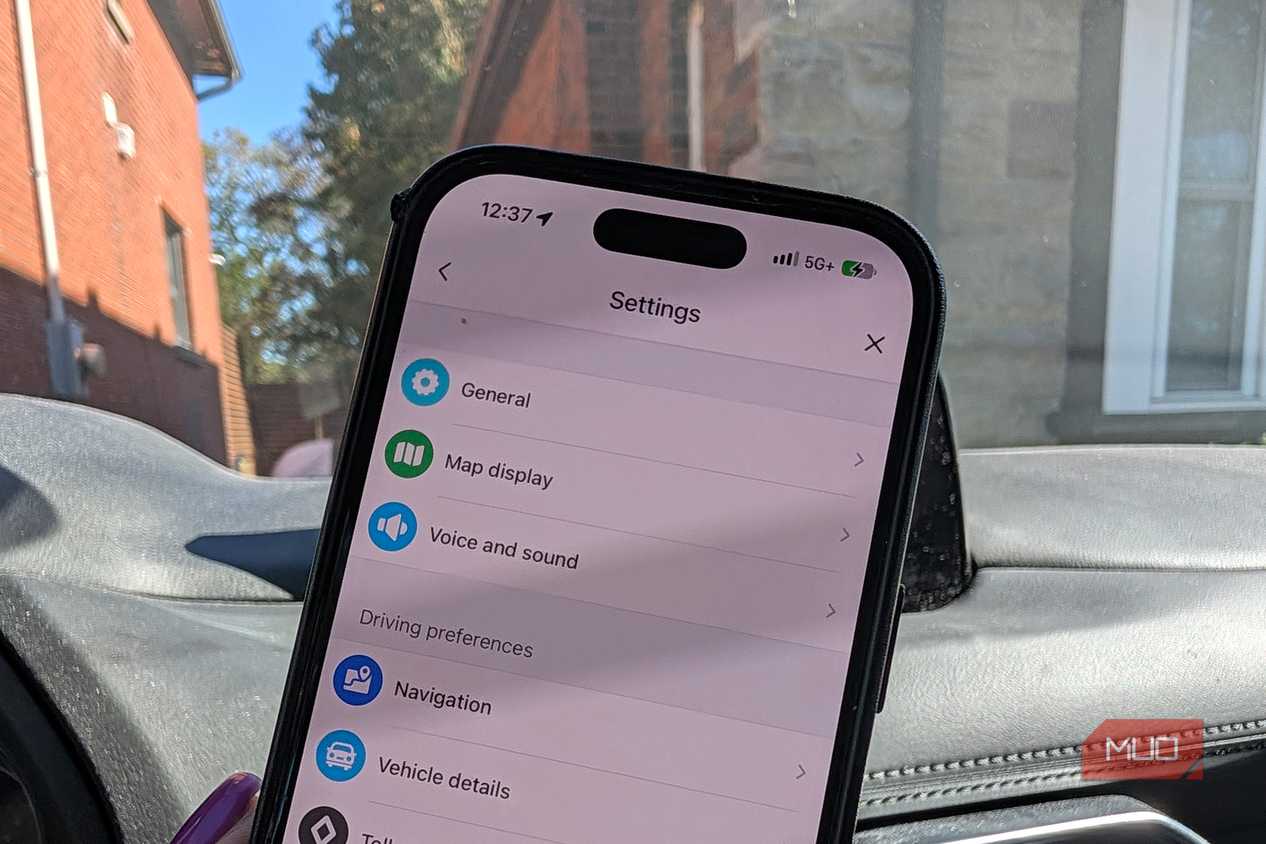
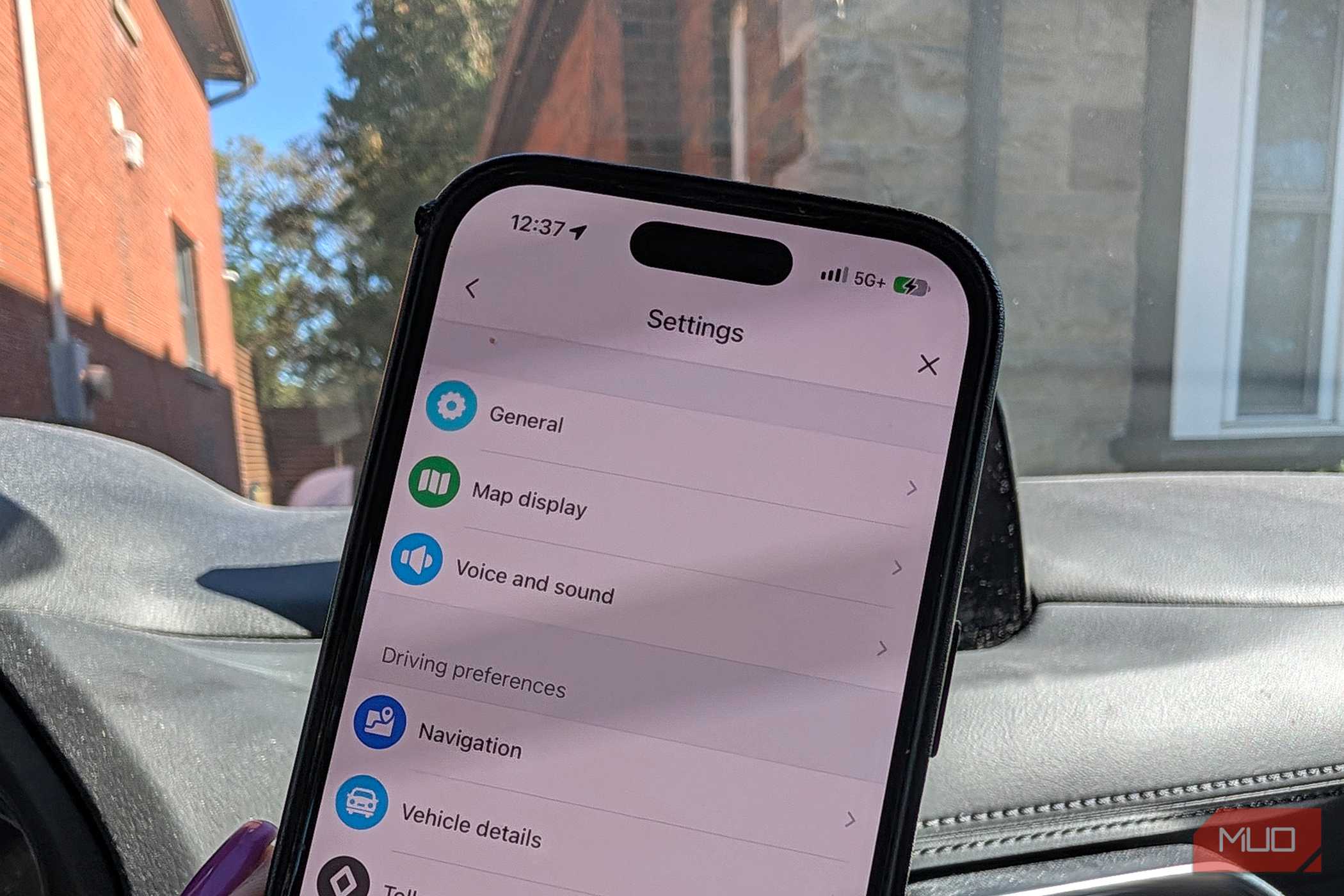
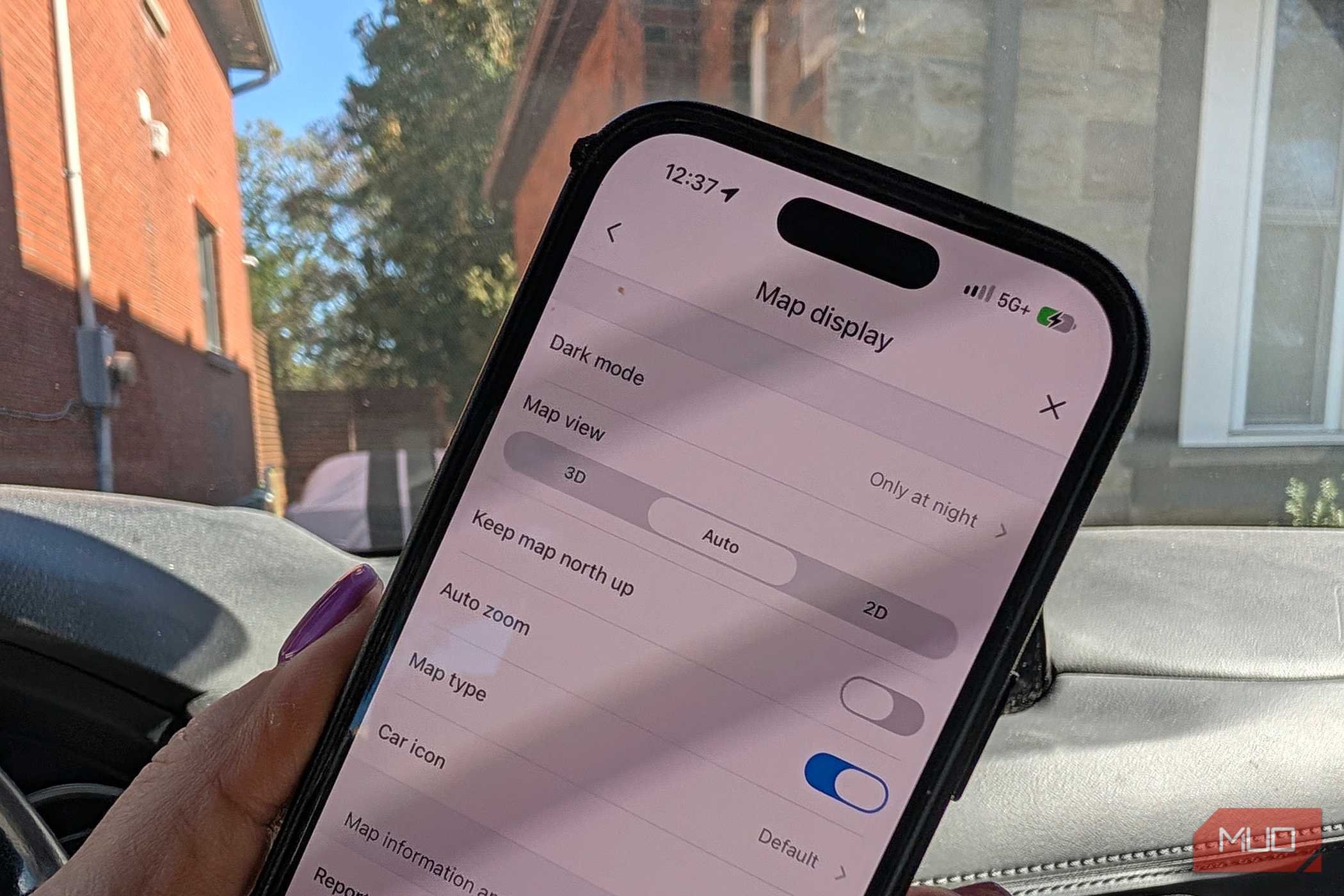
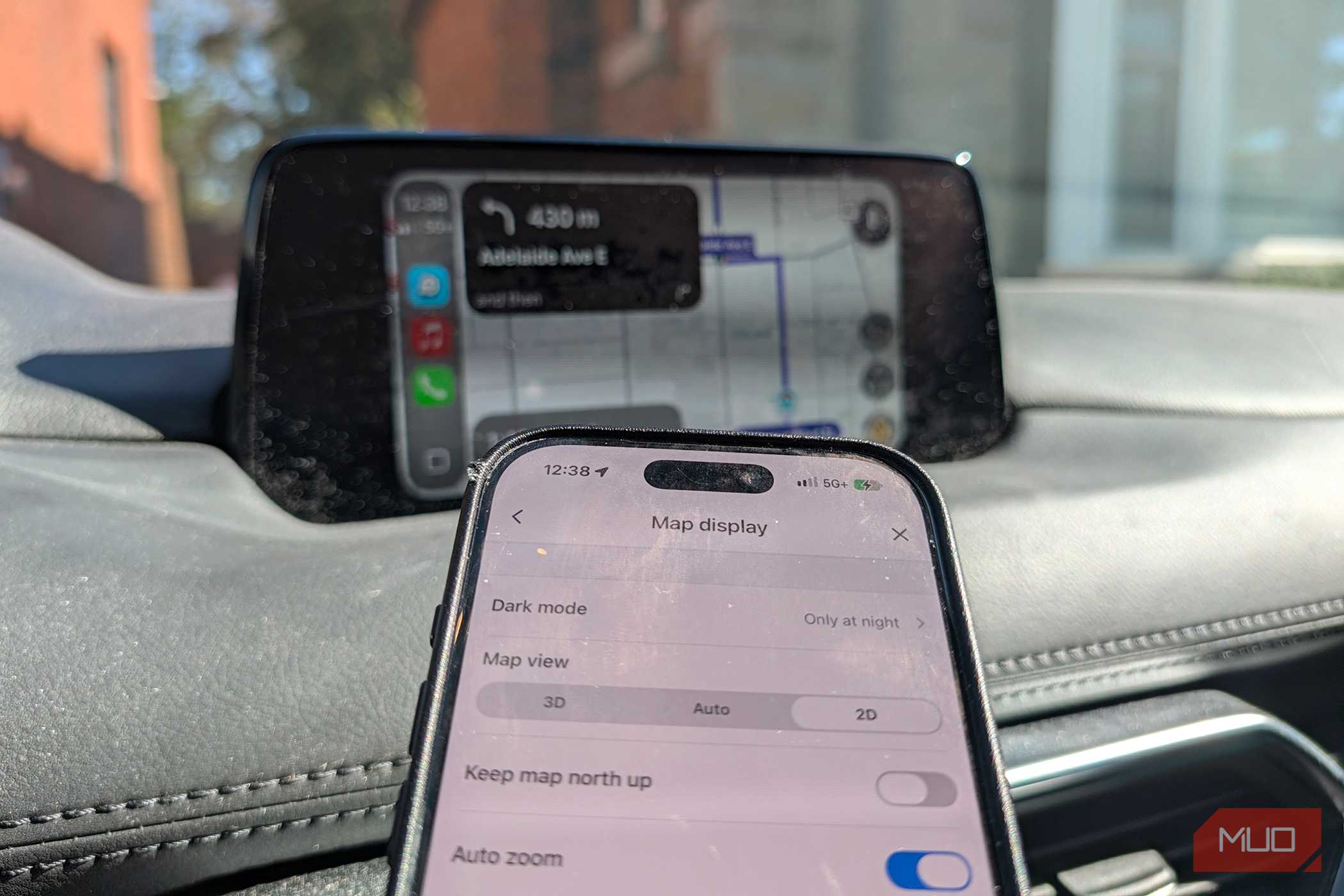
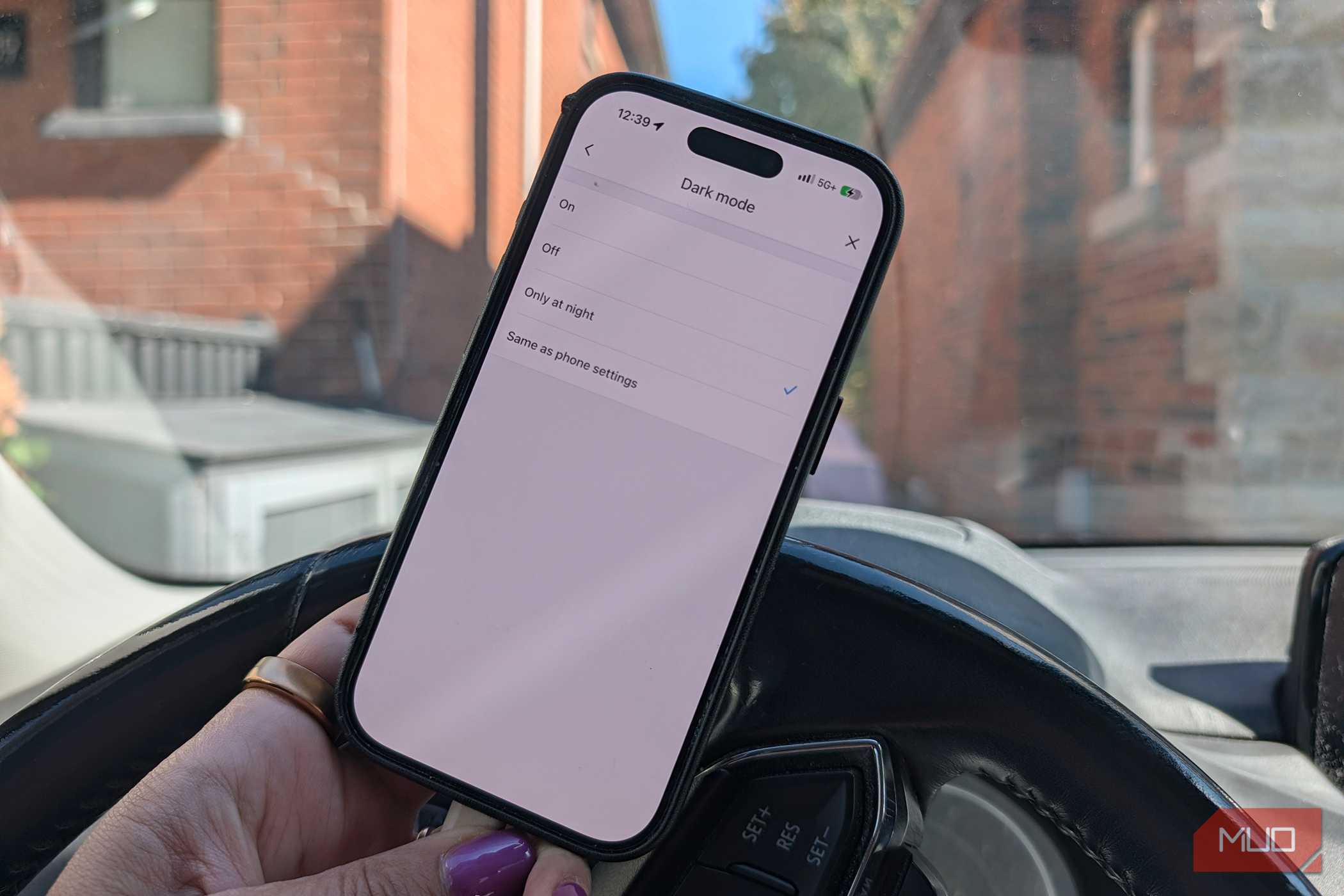
Under Settings, Map display, there are several options to adjust how the map shows up on screen, whether that's directly on your phone or routed to Apple Carplay or Android Auto. One setting I especially like to use is Dark Mode, which you can have come on automatically at night. Map view can be in 3D, 2D, or swap automatically.
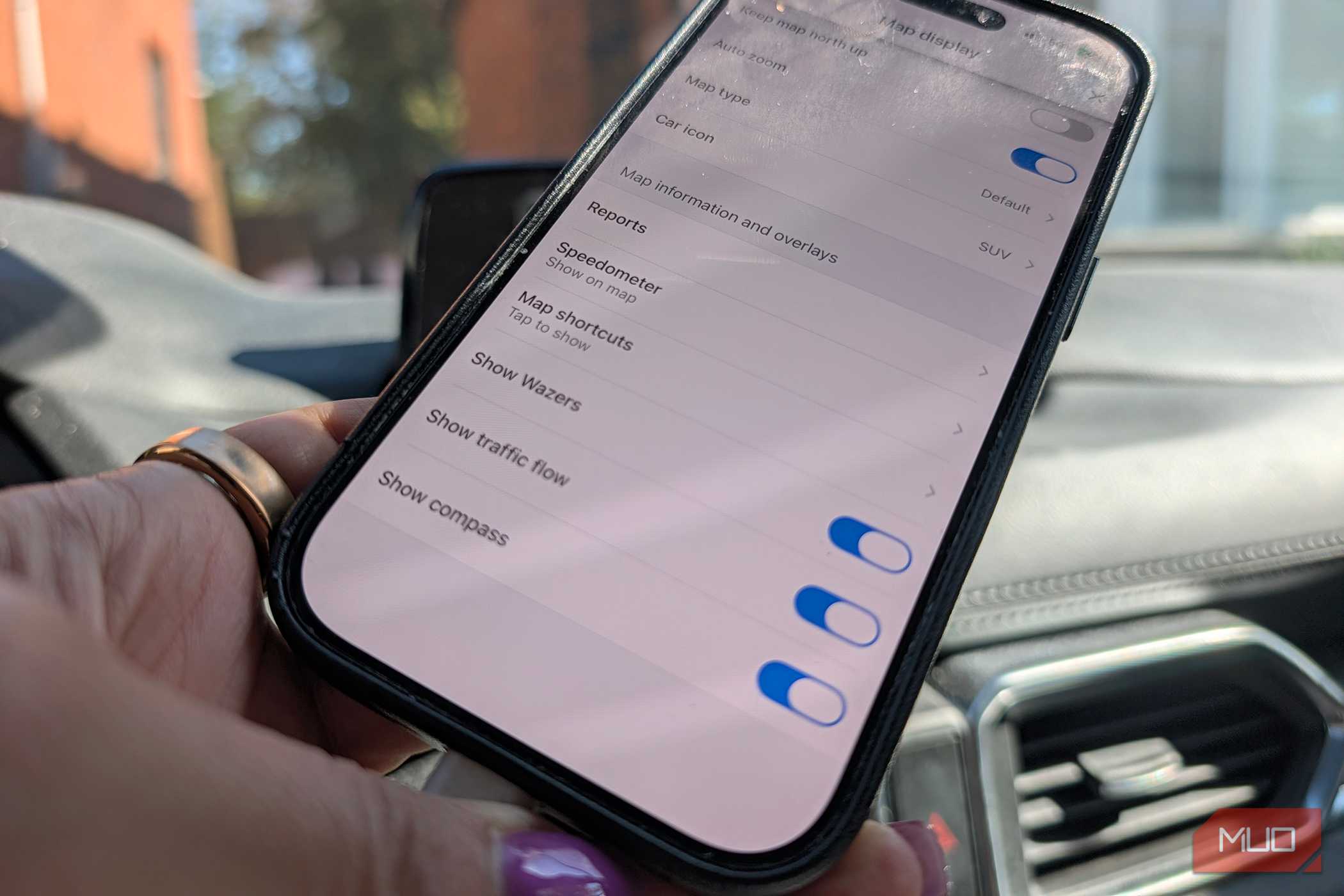
In this same menu, I also make sure that Show Wazers, Show traffic flow, and Show compass are all turned on to provide as much useful information as possible. Select Reports and turn on as much or as little as you want to see. I typically keep everything on, so I'm made aware of everything from upcoming traffic cameras to crashes, sudden slowdowns, upcoming cars on the shoulder, hazards, blocked lanes, and more. I can't see a reason not to turn on as many reports as possible so you're informed on the drive.
Waze is my go-to for driving directions
While I typically use Google Maps or Apple Maps for walking directions, Waze, which is owned by Google, is my go-to in the car to get from Point A to Point B. Whether I'm using it for its primary purpose of turn-by-turn navigations or for secondary reasons like live traffic updates, re-routing, hazards, and more, it's part of my everyday travels. Often, I'm using it for all the above. And to get the most out of it, I make sure to check all these settings before I head out on a trip. Yes, that's even if I'm going 20 minutes away, but especially when it's a longer road trip.