


Windows is full of hidden folders that most of us never interact with, and rightly so. Most of them are critical, which is why Windows usually never lets you modify them. But the problem is, some of these system folders can easily take up gigabytes of storage space unnecessarily. And since they’re tucked away deep inside system directories, you never really notice them.
While monitoring my PC’s storage with WizTree last week, I came across one such folder: Installer. It looked like any other system folder, but it caught my attention because it was taking close to 60 GB of storage. Naturally, I had to know what it was all about, and I’m glad I did because it helped me free up some much-needed storage.
The Windows Installer folder can be a storage hog
It can keep growing forever

The Installer folder is located at C: > Windows > Installer. Any time you install or update an app that uses Microsoft’s installer framework, Windows stores copies of MSI (Microsoft Installer) and MSP (Microsoft Installer Patch) files in this folder. Windows keeps them so it can later use them to repair, update, modify, or even uninstall apps. So yes, the folder is kind of important for the apps you use.
Now the thing is, it’s also one of those folders that never really stops growing. Every time you install a new app or update the existing one, new files are added, and the folder grows. Needless to say, the more apps you have, the larger the folder becomes. In fact, it’s not uncommon for it to grow to 20GB, 40GB, or even more. In my case, it had reached 60GB, which is quite a lot since my laptop only has a 512GB SSD.
This isn’t a folder you should cleanup yourself
It’s not worth the risk

What makes the Windows Installer folder problematic is that it can sometimes contain files associated with apps you uninstalled long ago. And to make matters worse, you can’t just look at the file and tell which app it belongs to. They all have cryptic names made up of random letters and numbers, so a quick glance tells you absolutely nothing.
Most importantly, since files stored here are often required for repairs and uninstallations, deleting them can be risky. If you delete the wrong files, your apps may fail to update, and Windows may fail to repair your apps when needed.
You can reclaim space without breaking apps
You’re not out of options


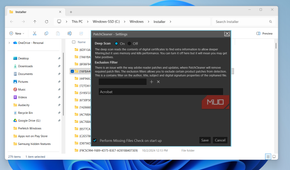
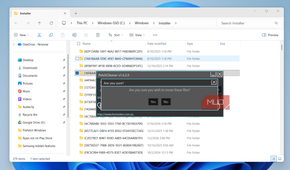
The good news is that you don’t necessarily have to live with a bloated Installer folder forever. While it’s a bad idea to empty it manually, there are safer ways to clean it up. Let’s start with the easiest one.
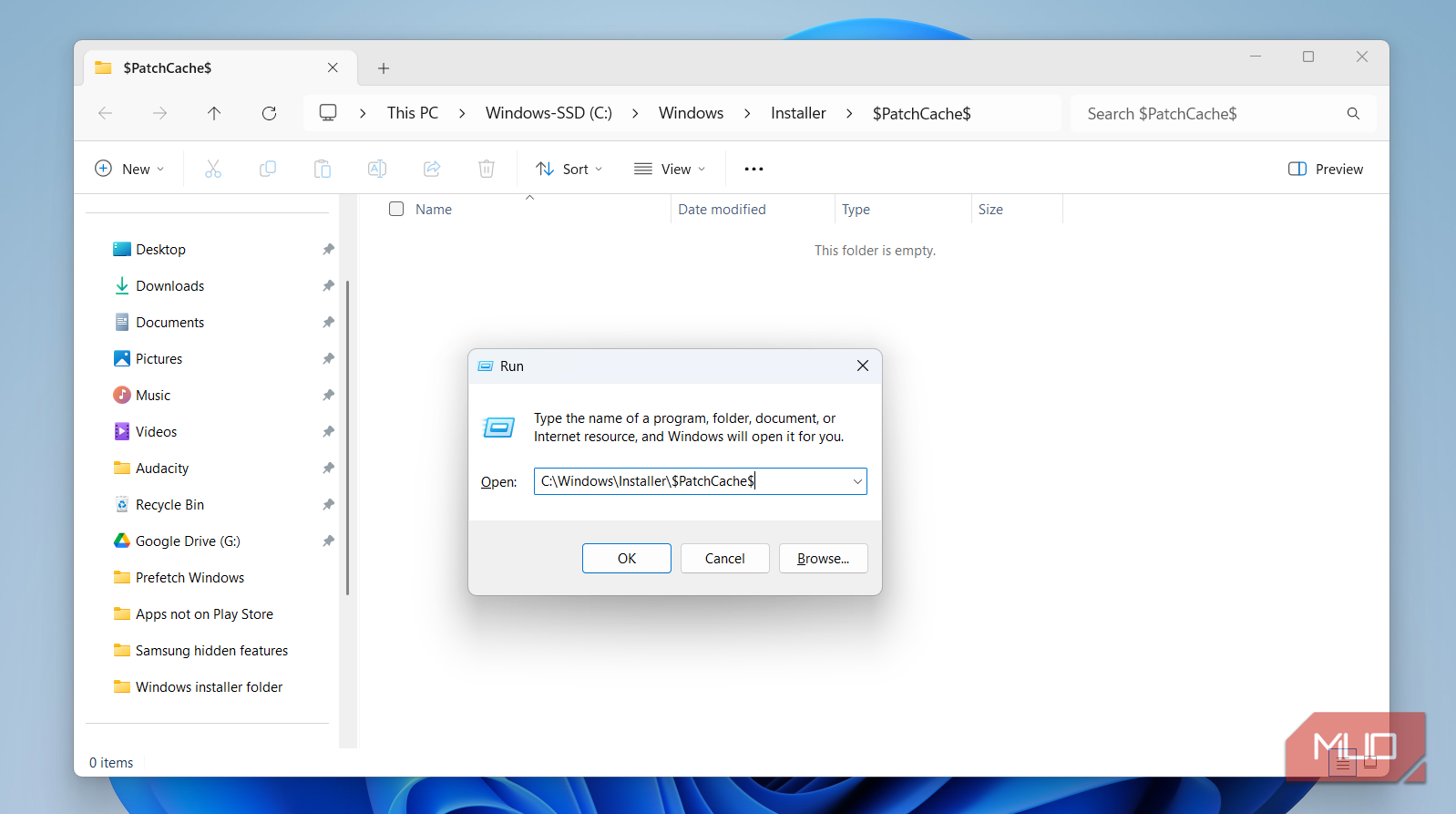
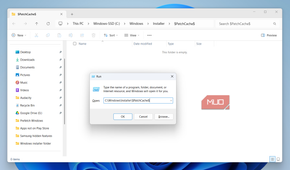
Windows actually stores some patch files inside a subfolder called PatchCache. This is where Windows keeps backup copies of certain patch files, which means it's safe to remove them. To do so, press Win + R to open the Run dialog, type in the following path and hit Enter:
C:\Windows\Installer\$PatchCache$
Select everything inside this folder and hit Delete. Make sure you don’t empty the Recycle Bin right after this. That way, if something breaks, you can restore the deleted files.
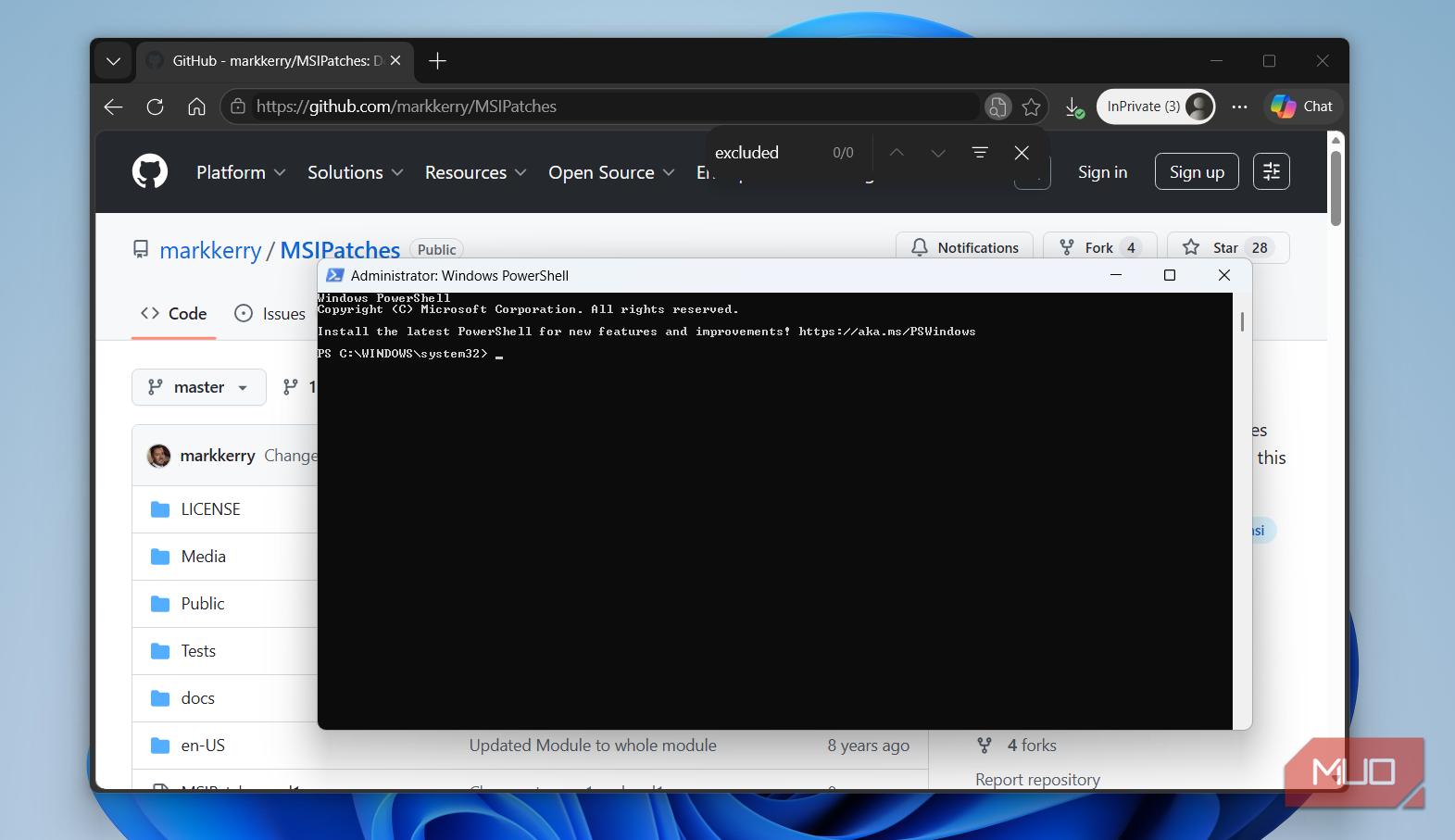
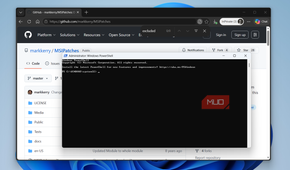
Another way to clean up the Installer folder is by using PowerShell. There’s an open-source module called MSIPatches that can detect and move the orphaned patches. Of course, this method is only ideal if you’re comfortable using PowerShell.
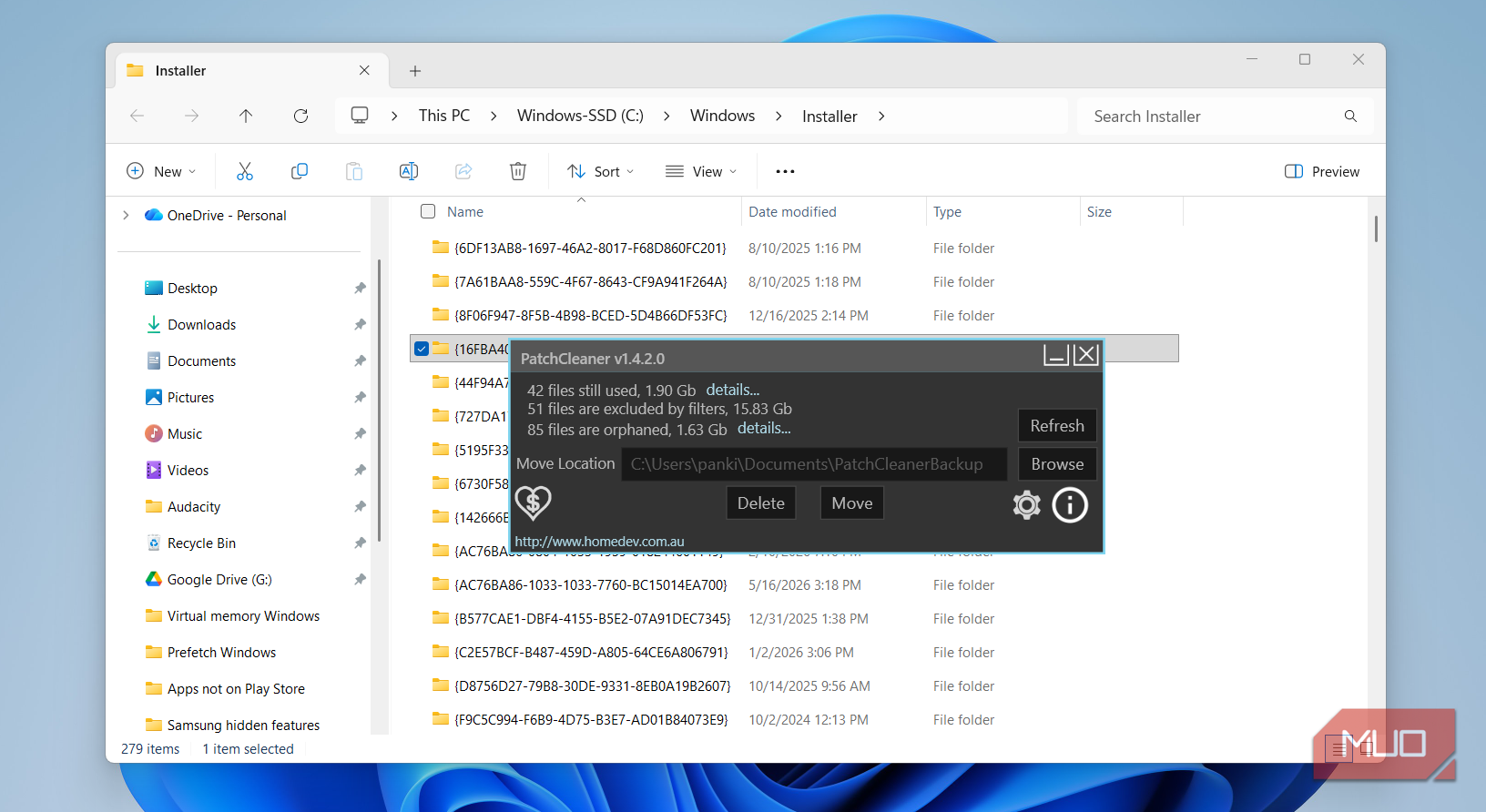
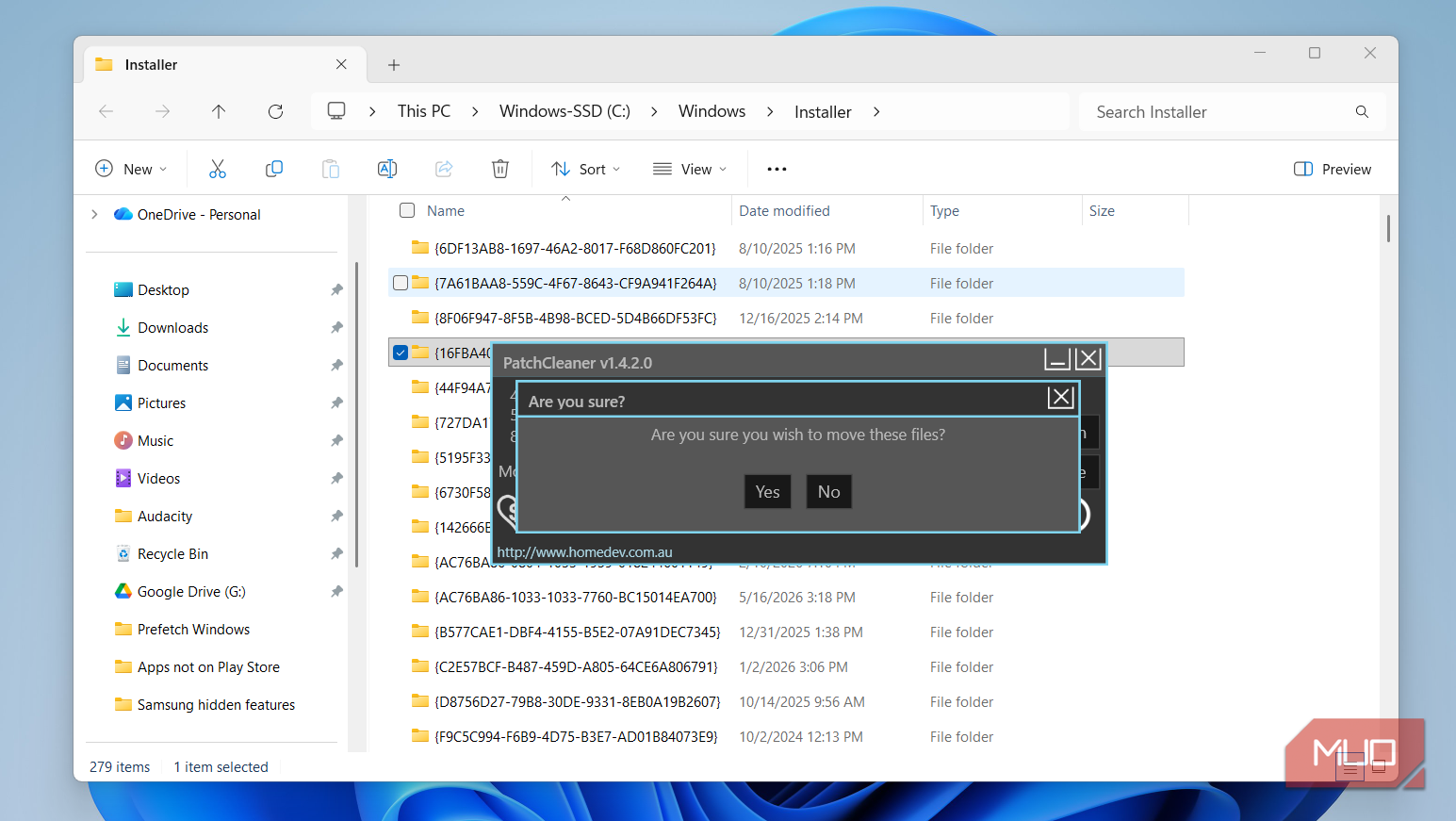
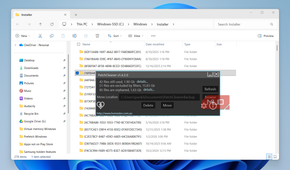
If PowerShell isn’t your thing, there are GUI-based tools that make the cleanup process easy. A popular option is PatchCleaner, which is what I used on my PC. It basically compares the MSI and MSP files stored in the Installer folder against the list of files Windows is actively using. After the scan, it flags files into three categories:
- In use: Files that are actively used by your apps.
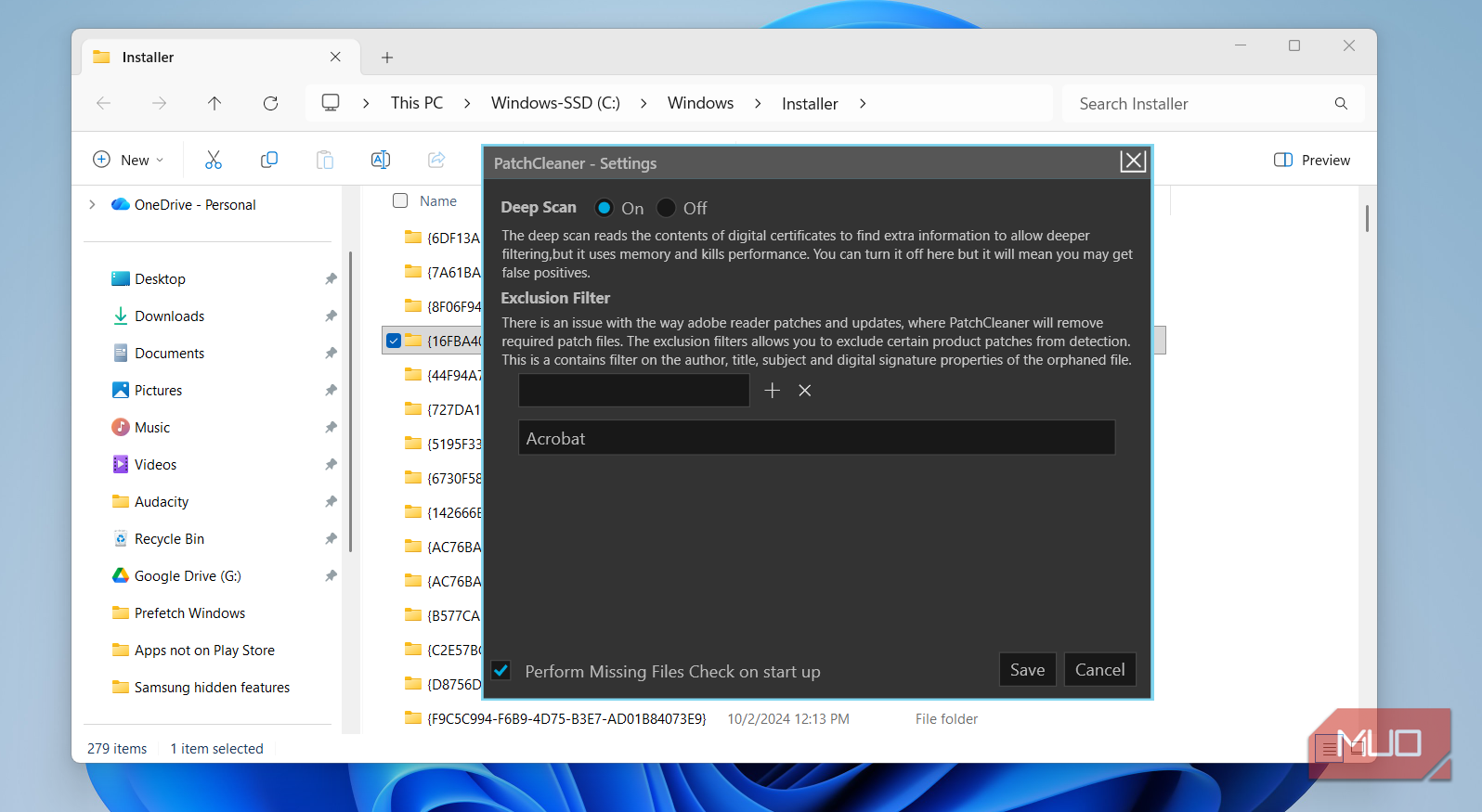
- Excluded: Files that Windows or your apps may still need.
- Orphaned: Files that are linked to apps that are no longer installed.
The good thing about PatchCleaner is that it gives you options. If you don’t want to risk deleting the files immediately, you can move them out of the Installer directory instead. If nothing breaks, you can choose to remove those files permanently. In my case, the tool detected 15GB of orphaned files, and I was able to get rid of them. Of course, your results can vary depending on how many apps you’ve installed and removed over the years.
Windows Installer folder is just one of many storage hogs
Windows has a habit of accumulating all sorts of unnecessary files over time, and the Installer folder is just one example. Your PC is likely storing old update files, hibernation data, restore points, driver packages, app cache and a lot more that just take up storage. The easiest way to clean up many of these files is with Storage Sense. It’s built into Windows and can periodically remove unimportant files without you having to do anything.

ASUS VivoBook 15
The ASUS Vivobook 15 is a quality pick for programmers and coders seeking an affordable laptop. There are various configurations to help you find the right amount of power and storage, and the Full HD display is bright and clear.