


My main laptop only has 512GB of storage, so I’m constantly looking for ways to free up space and manage it better. But for the longest time, I had no idea Windows itself was wasting a massive amount of storage in the background. The culprit was the paging file, which is part of Windows’ virtual memory feature that automatically expands whenever Windows thinks your system might need extra memory.
It’s easy to miss this since it’s buried deep inside Windows’ system files. In my case, it had expanded to 36GB, which was a bit too much on a laptop with a 512 GB SSD. Fortunately, fixing it took less than a couple of minutes. All I had to do was to stop Windows from expanding the paging file automatically.
I used Windows for 15 years before I discovered it had this cool feature built in
Windows had this all along and I somehow never triggered it.
The paging file can easily grow out of control
It’s useful but can be a storage hog

The paging file is basically Windows’ emergency overflow area of memory. When your PC’s actual RAM starts filling up, Windows starts moving less important data onto your storage drive temporarily. This acts as a safety net and prevents apps from crashing once the memory usage gets too high.
By default, Windows manages the paging file automatically. It constantly monitors memory usage and expands the paging file whenever it thinks extra headroom might be needed. So when you’re editing videos, running virtual machines, browsing with 40 tabs open, or using tools like Photoshop, Windows might adjust the paging file to prepare for massive spikes.
And since Windows prefers to play it safe, it can sometimes allocate far more space than you realistically need. More importantly, it doesn’t always shrink it automatically afterward. That means you can end up with a paging file consuming 20GB, 30GB, or even more storage just because of workloads you only briefly used weeks ago.
For instance, in my case, Windows had expanded the paging file all the way to 36GB. And honestly, on a 512GB SSD, losing that much space hurts. That’s space that could’ve gone towards games, videos, apps, or literally anything more useful. Also, my PC already has 24GB of physical RAM to work with, which is plenty for the work I do.
Disabling the paging file completely usually isn’t the best idea
Don’t do it even if your PC has plenty of physical RAM
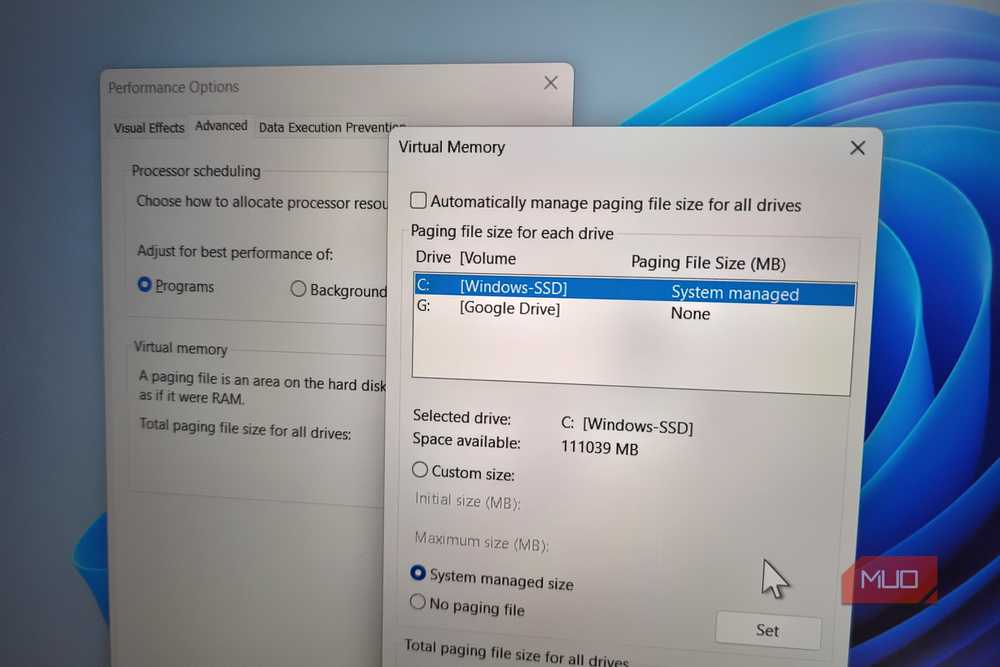
My first instinct after discovering the paging file was to simply turn it off. After all, my PC already has 24GB of RAM, so letting Windows reserve tens of gigabytes of SSD space felt unnecessary. Even systems with large amounts of RAM still benefit from having at least some virtual memory available. For starters, a lot of Windows apps are built with the assumption that a paging file exists in the background. So turning off the paging file can cause those apps to run into issues and throw “out of memory” errors.
Windows itself also depends on the paging file for certain things like crash memory dumps. And above all, the paging file is a great safety net if your PC's RAM usage ever spikes beyond normal expectations, which can happen at times.
So yes, disabling the paging file completely can create more problems than it solves. A better solution is to simply stop Windows from managing it automatically and set a file size limit manually. And that’s the route I took.
Managing the paging file size is easy
There’s no one-size-fits-all paging file setting, though
The good news is that Windows gives you full control over the paging file size. To do this, type adjust the appearance and performance of Windows in the Start menu and hit Enter. Inside the Performance Options window, switch to the Advanced tab and click Change under Virtual memory. From here, you can set a custom minimum and maximum size for the paging file instead of letting Windows expand it endlessly on its own. This gives you the best of both worlds. You stop Windows from taking tens of gigabytes of space and also keep the stability it offers.
For my setup, I chose a modest fixed size of 8192MB since it felt more than enough for occasional memory spikes. The old school formula for this — setting the Initial size to around 1.5x your total RAM and the Maximum size to roughly 3x your total RAM — doesn't really make sense for most PCs. On a PC with 16GB of RAM, for instance, that formula could theoretically leave you with a paging file starting at 24GB and expanding all the way up to 48GB. In practice, you should set a smaller size that feels reasonable for your workload. If it doesn’t end up being enough, you can always change it later.
Honestly, Windows’ paging file size is just one example of how Windows consumes storage in the background. There are several other system folders doing the same thing. And much like the paging file, many of these serve an important purpose, so you won't be able to delete them outright. Still, you can trim them down to recover gigabytes of storage on your PC.

SAMSUNG SSD T7
- Storage Capacity
- 1TB
- Compatible Devices
- PC, Mac
- Dimensions
- 3.3 x 2.2 x 0.3 inches
- Brand
- SAMSUNG