


Windows always looks busier than I expect after a fresh boot. Task Manager settles down, the fans behave, and then a small crowd of Microsoft apps keeps hanging around in the background as if they are paying rent. They weren't doing anything evil; in fact, most existed for sensible reasons. The problem was just that I was not using them.
So I stopped treating every built-in app as part of the furniture and turned off, and in some cases, removed the ones that don't matter much to me.
OneDrive
The cloud kept stretching before I opened a file


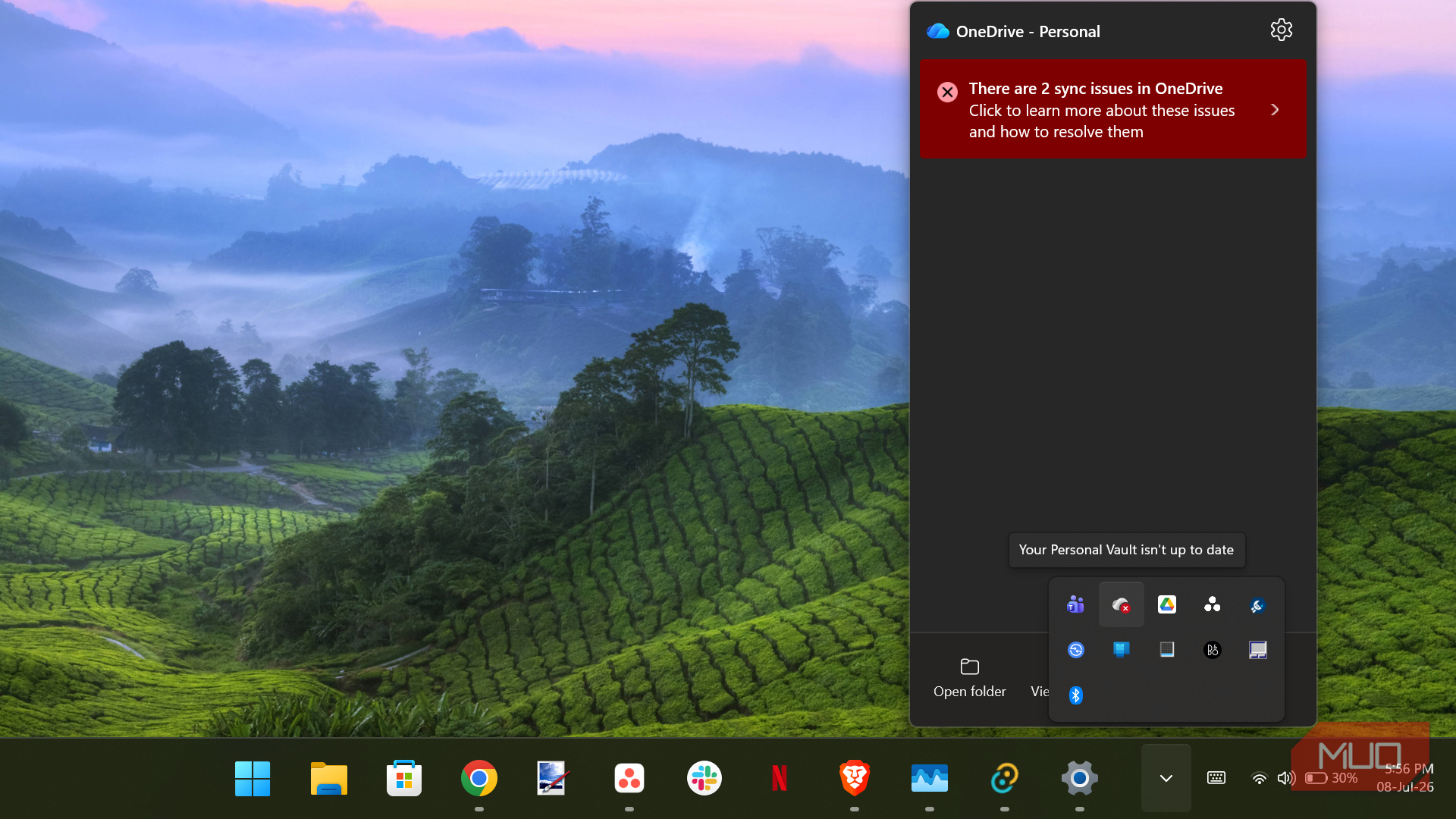
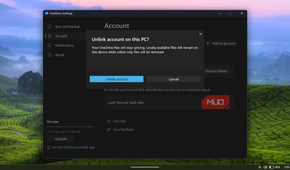
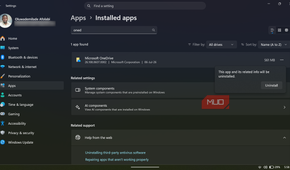
OneDrive was the first app I checked because its background activity is easy to justify. It syncs files, watches folders for changes, keeps cloud placeholders visible in File Explorer, and can back up Desktop, Documents, and Pictures if you enable folder backup. That needs a resident process. OneDrive cannot behave like a cloud drive if it only wakes up after I open it.
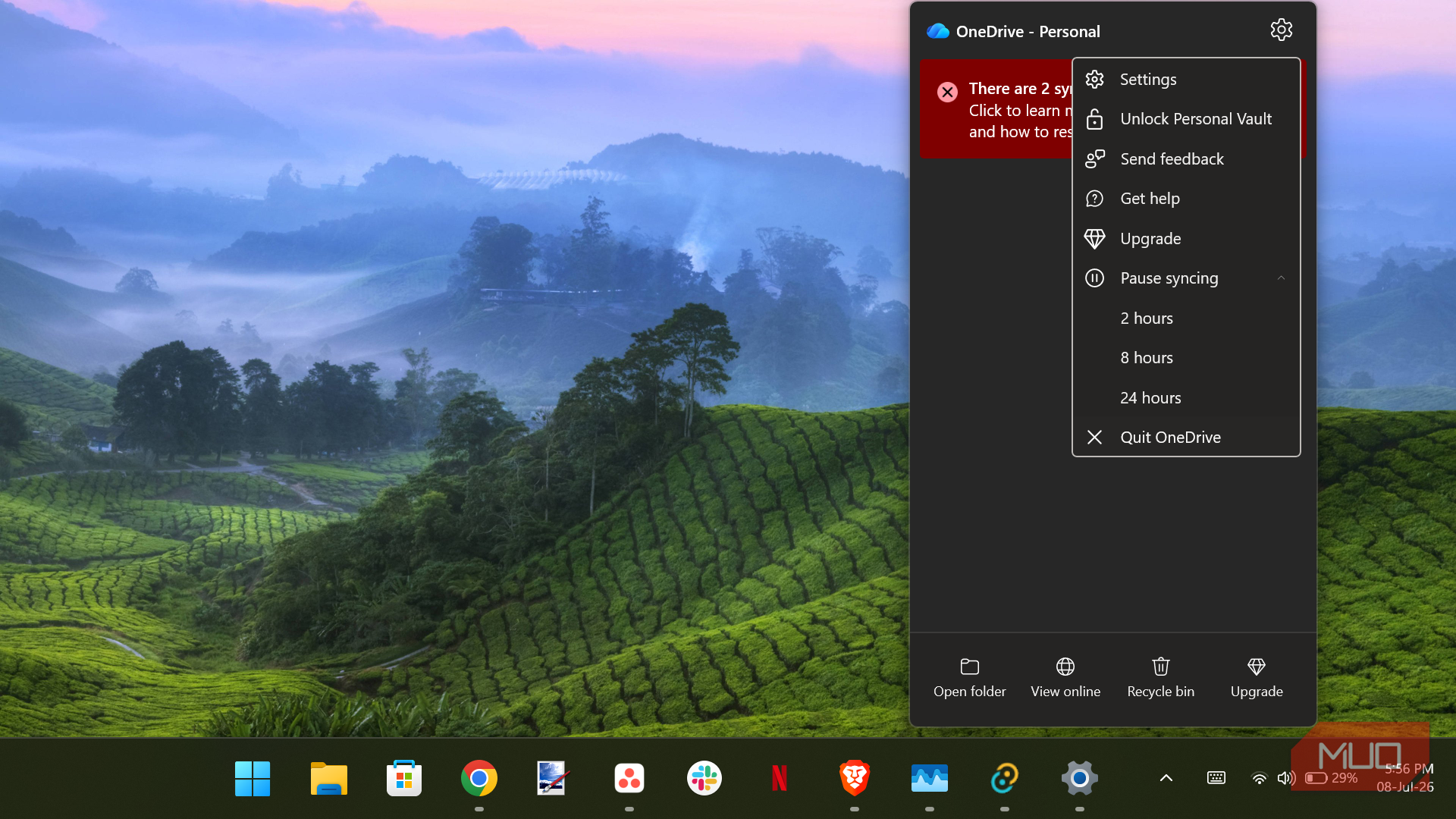
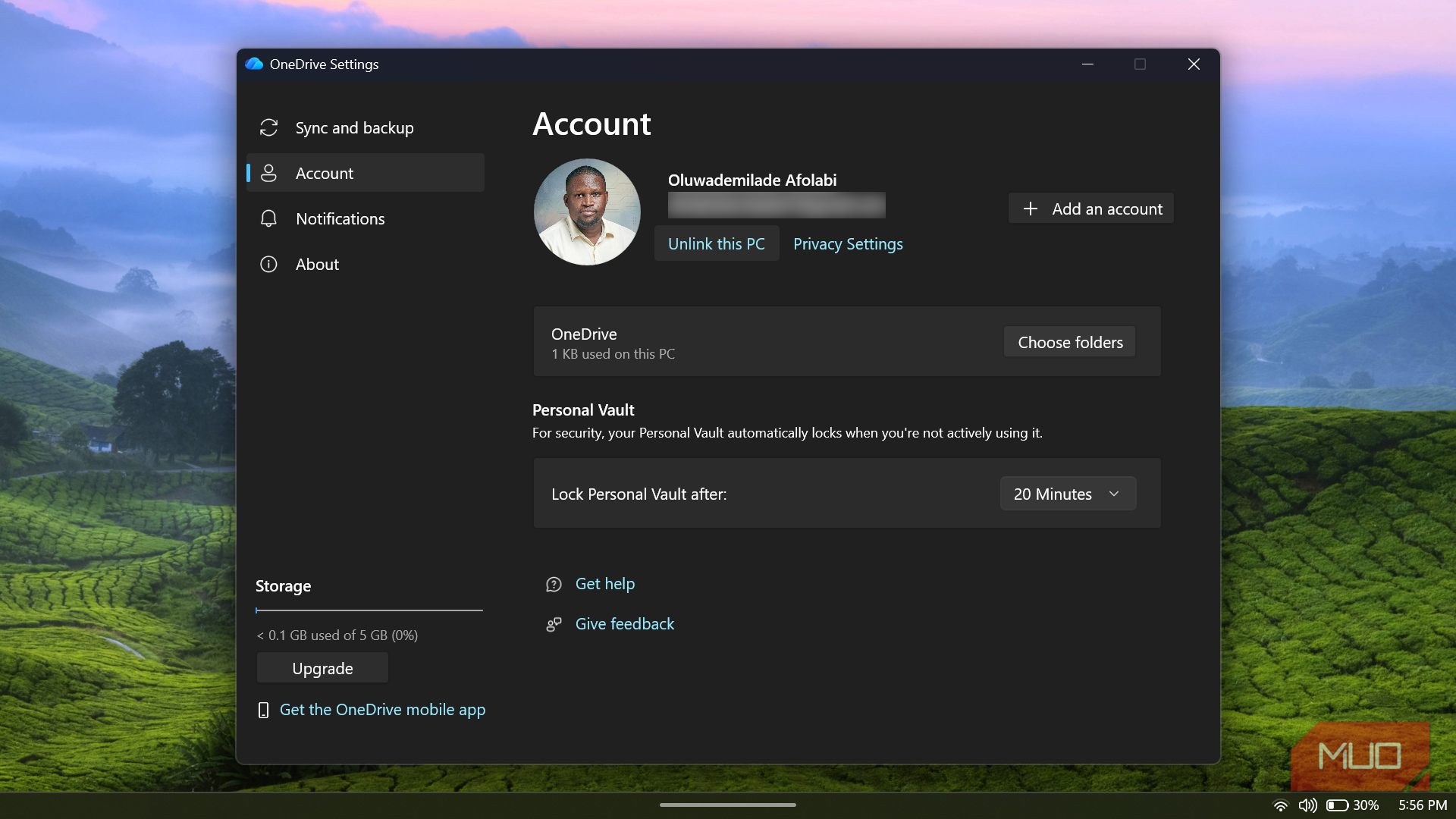
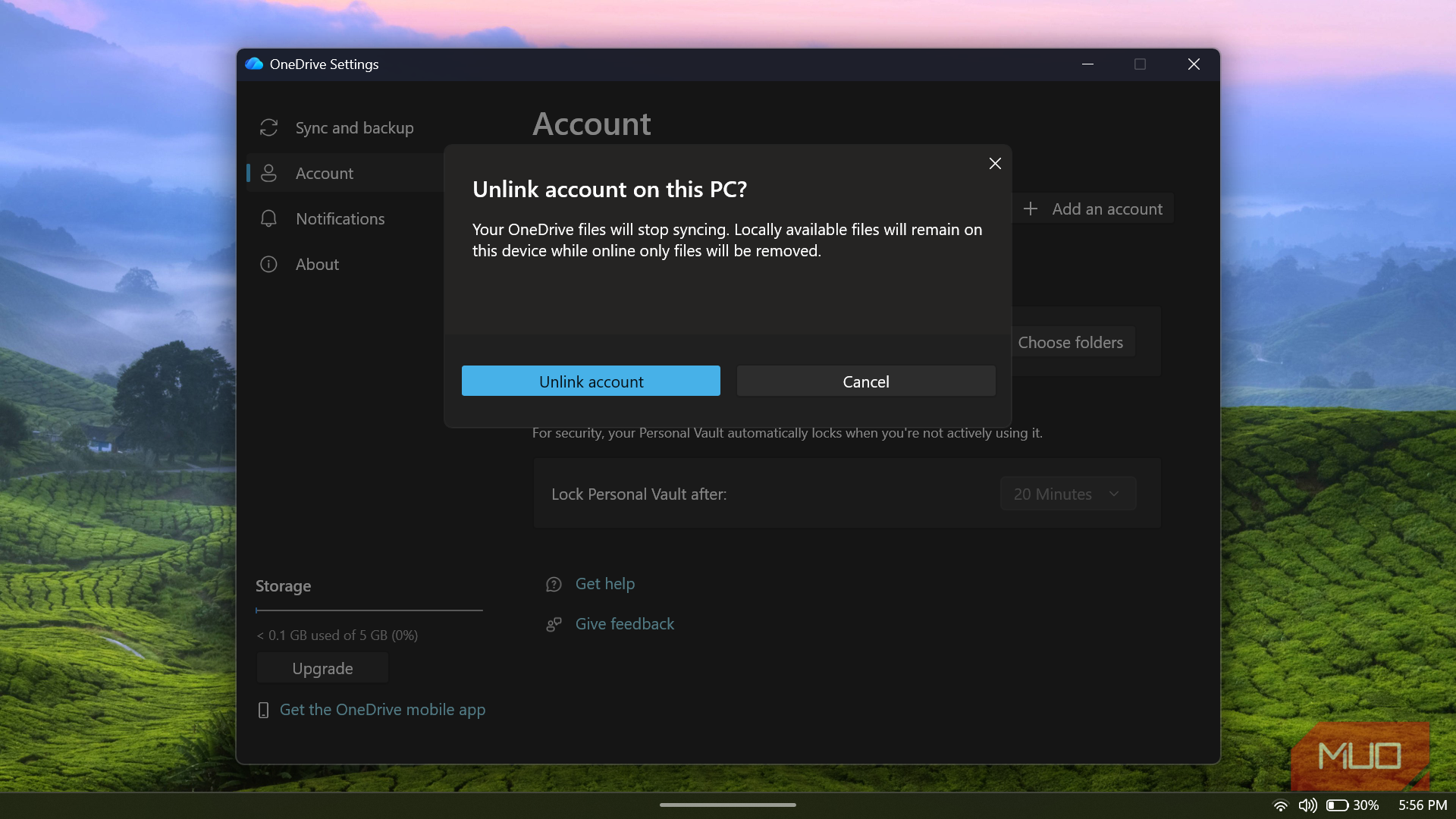
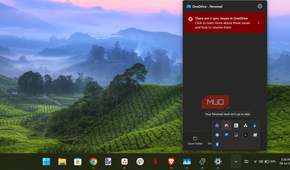
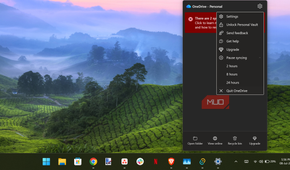
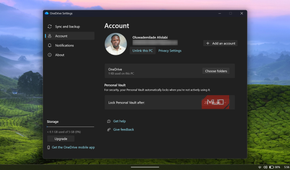
I clicked the OneDrive cloud icon in the notification area, selected the gear icon, opened Settings, went to Account, and chose Unlink this PC. Then I confirmed Unlink account. After that, I went to Settings -> Apps -> Startup and turned off Microsoft OneDrive so it would not launch every time I signed in.
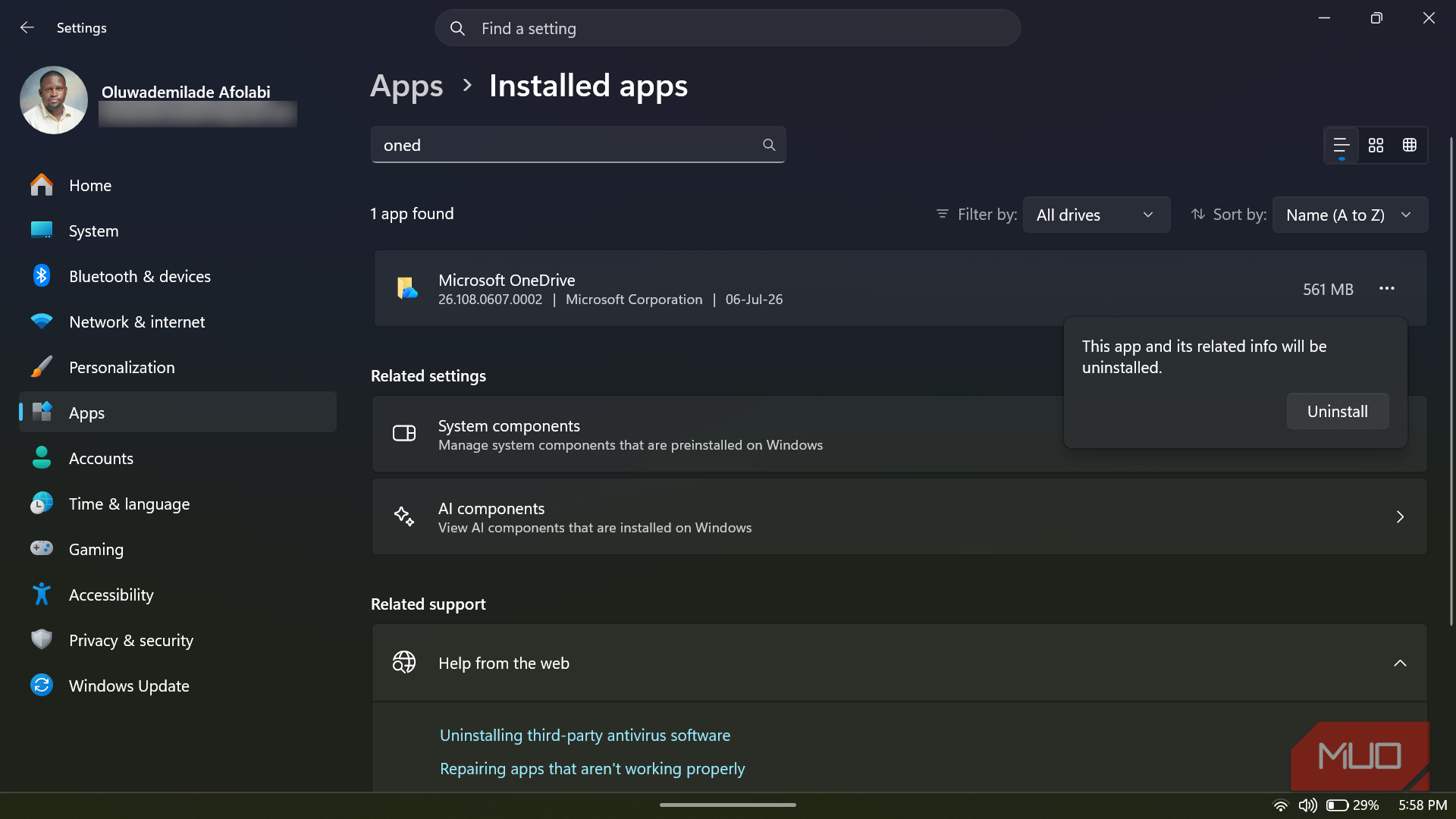
If you want to disable or remove OneDrive completely, go to Settings -> Apps -> Installed apps, search for Microsoft OneDrive, click the three-dot menu, and select Uninstall.
Phone Link
My phone notifications did not need a second home


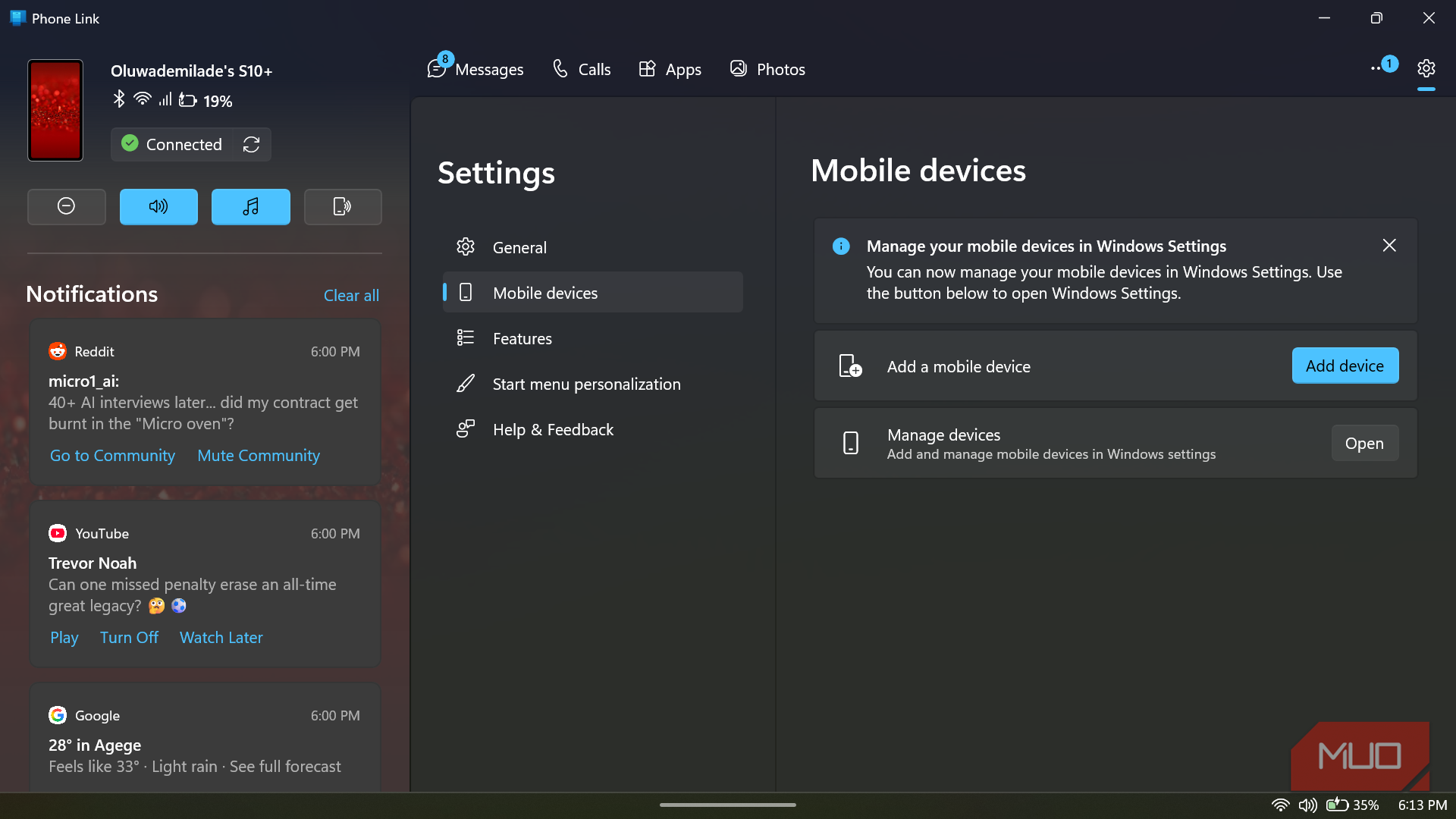
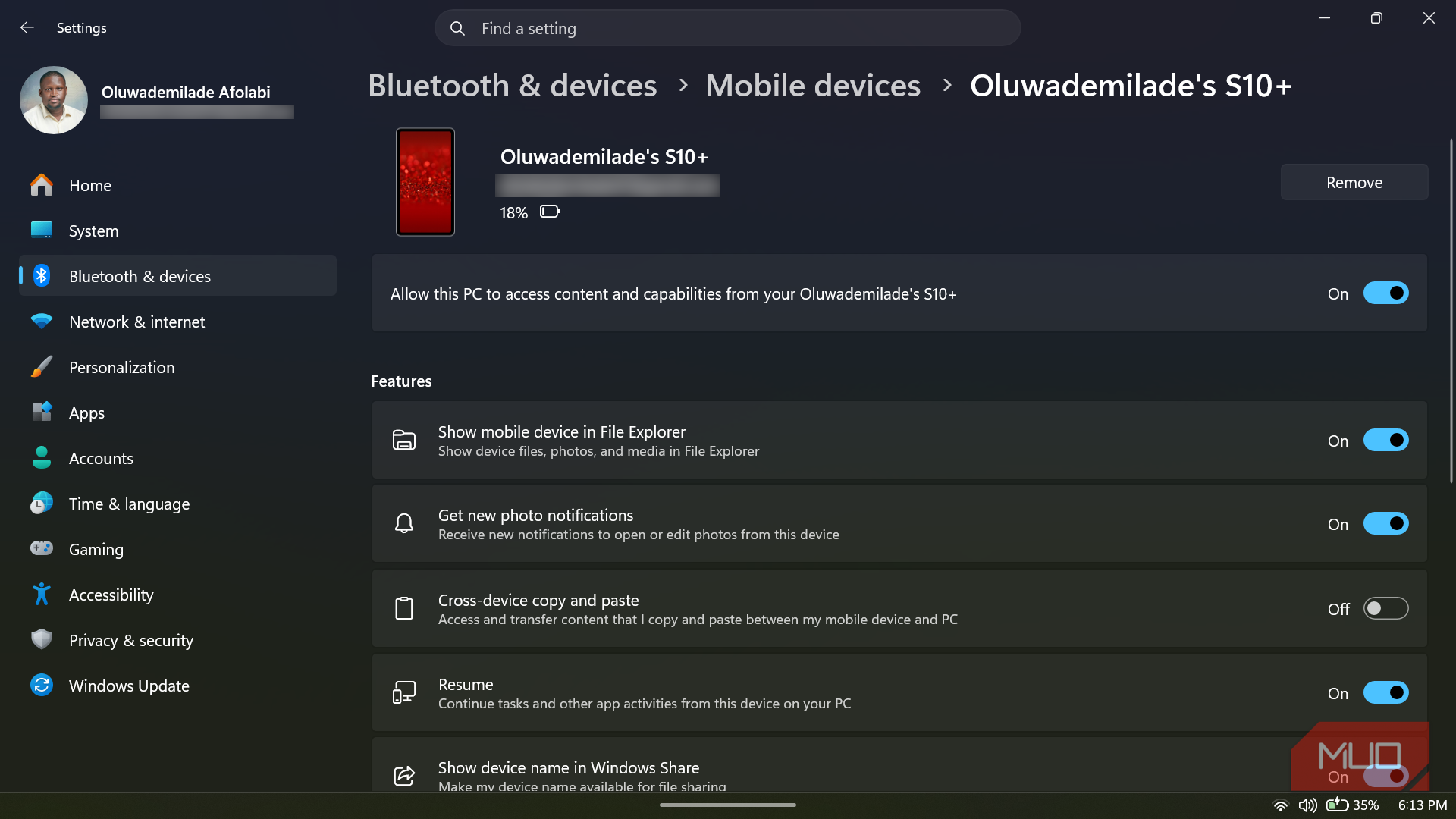
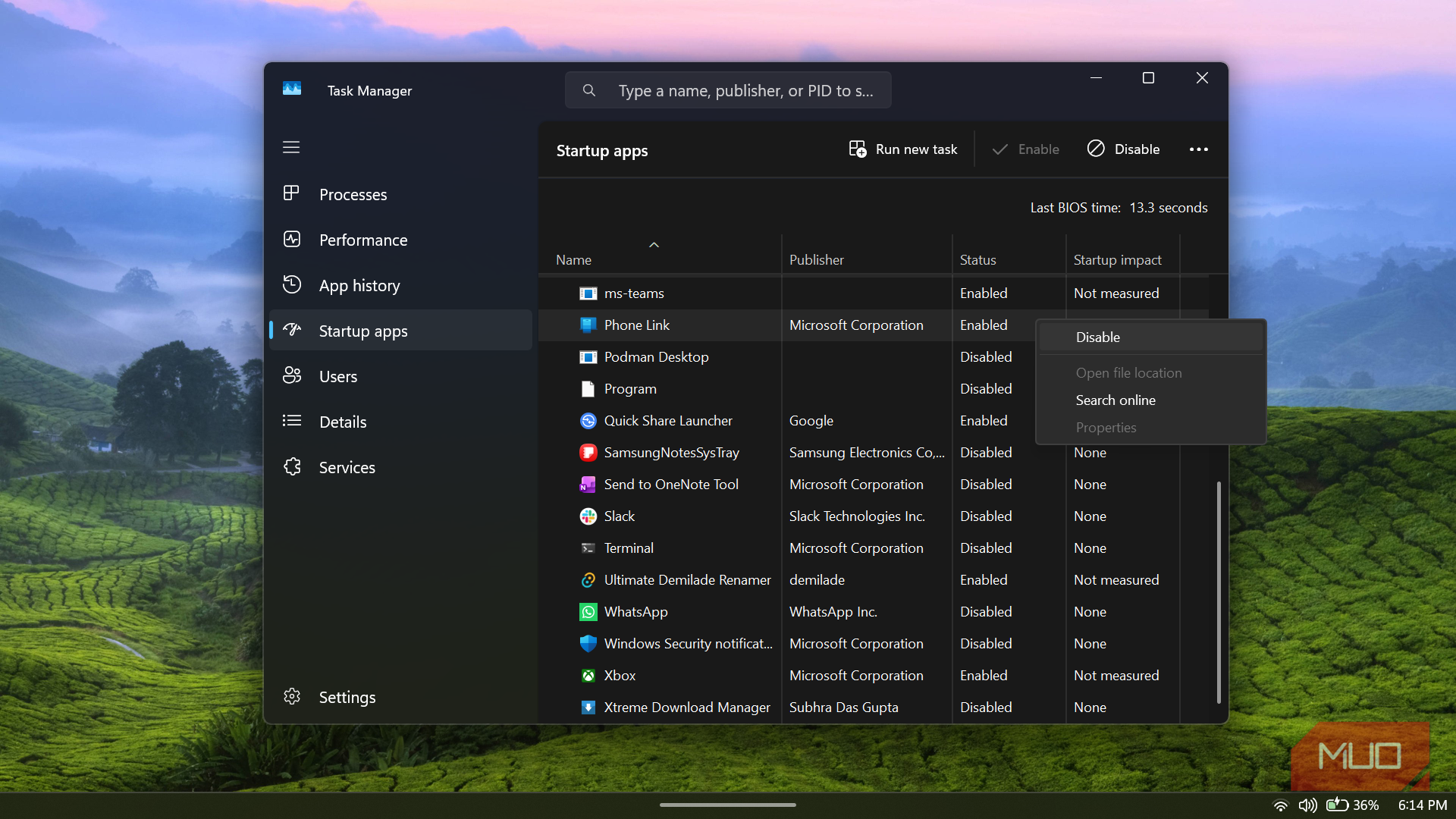
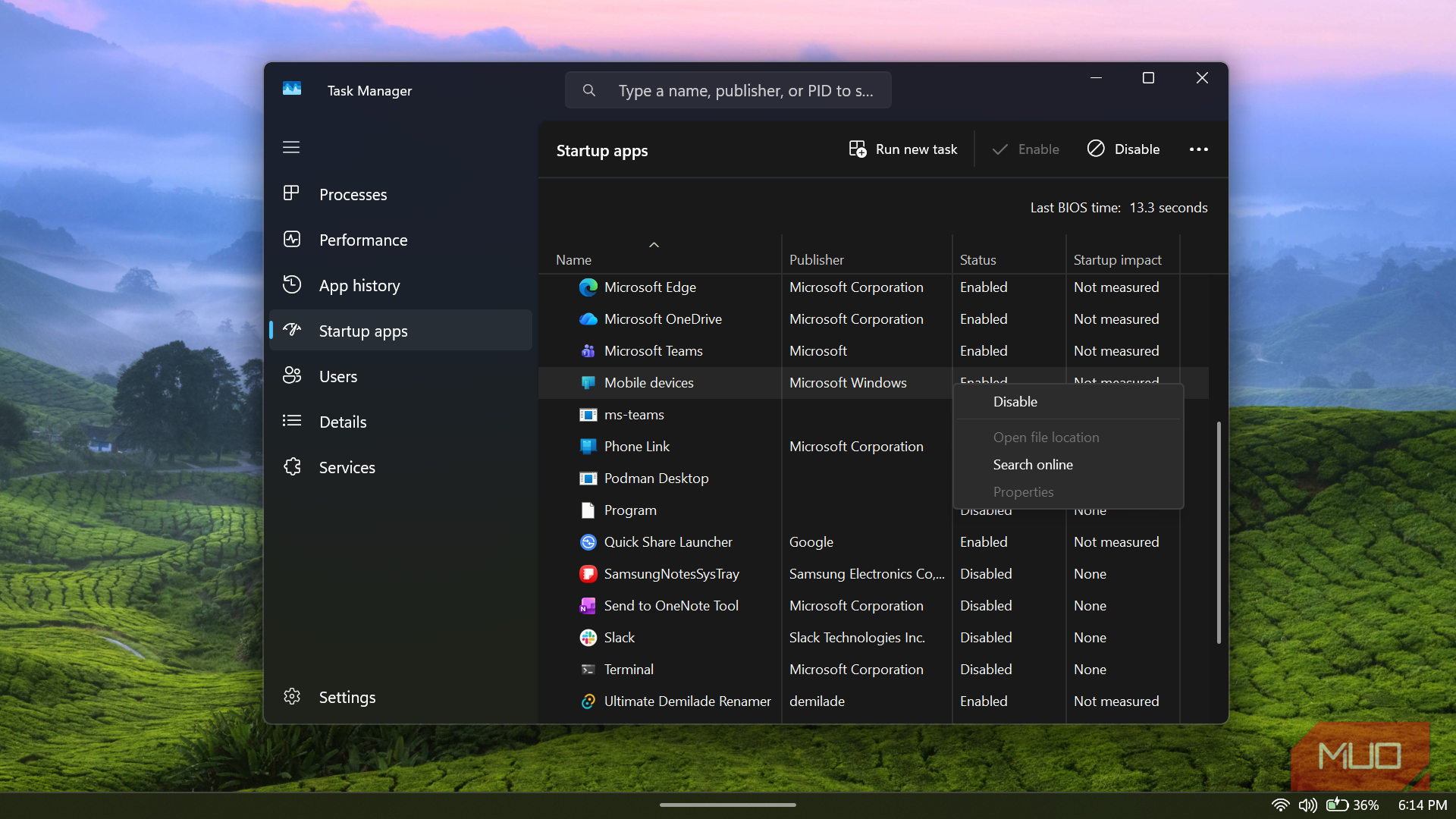
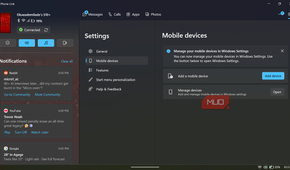
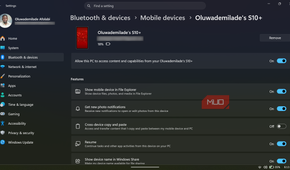
Phone Link is genuinely useful when you want messages, calls, photos, and phone notifications on your PC — it even lets you lock your PC remotely with your phone. That also explains why Windows allows it to stay active in the background. If it is meant to catch texts, mirror alerts, and keep a phone connection available, it cannot behave like a calculator.
My problem was simpler. I did not need my phone replicated on that machine. I already had the phone beside me, and I did not want WhatsApp, SMS alerts, calls, and random mobile notifications turning my desktop into a second lock screen.
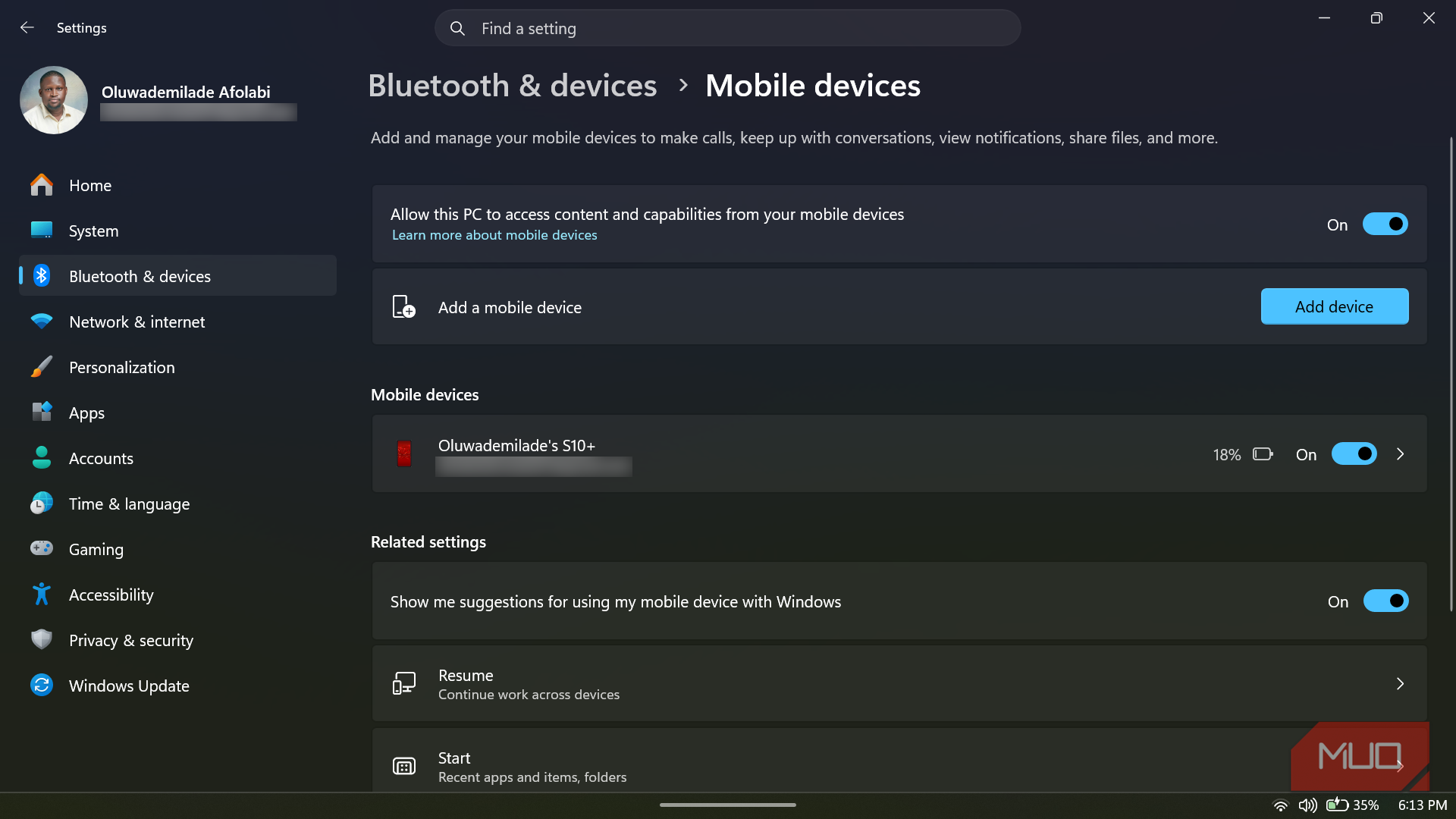
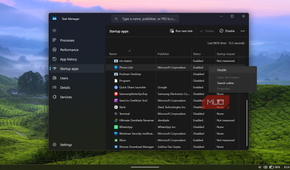
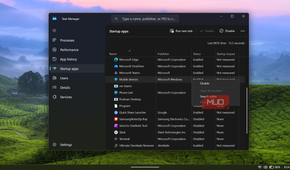
So, I went to Settings -> Bluetooth & devices -> Mobile devices and turned off Allow this PC to access content and capabilities from your mobile phone. If a phone is already linked, the cleaner approach is to open Phone Link, go to Settings -> Mobile devices -> Manage devices, and remove it there instead of leaving Windows prepared for a device you no longer use. Then I opened Task Manager -> Startup apps and disabled the Phone Link and Mobile Devices entries I found there.
Microsoft Teams
The meeting room kept leaving the lights on

The Microsoft Teams icon on the taskbar now points to a single, unified version of Teams that brings personal and work or school accounts into the same app. Windows includes it by default, so you can handle calls and messages with friends, family, or colleagues, then switch between accounts without installing separate versions. It can also start in the background when you sign in, so it can catch notifications and calls before you ever open the app.
On my PC, the icon had been sitting there since setup day, occupying space for a service I almost never use. My calls usually happen in Google Meet or Zoom, so Teams has become one of those default Windows apps that was technically useful to someone, just not to me. I opened Teams itself, clicked the three-dot menu, went to Settings, and unchecked Auto-start Teams and Open application in background under the General tab. Then I went to Settings -> Personalization -> Taskbar and turned off the toggle for Microsoft Teams under Other system tray icons.
If you already know Teams has no place in your workflow, you can quickly remove it along with other bloatware from Settings -> Apps -> Installed apps. In my case, turning off auto-start and hiding the tray icon was enough. The taskbar looked cleaner, and Startup Apps had one fewer entry trying to join the day before I asked for it.
Xbox app
Standing by for a game library that doesn't exist

The Xbox app makes complete sense on a gaming PC. It handles Game Pass discovery, installed games, cloud gaming entry points, social features, and the general Microsoft gaming layer on Windows. However, this particular PC was not for Xbox, Game Pass, or Store-installed games.
I opened Settings -> Apps -> Installed apps, searched for Xbox, clicked the three-dot menu beside the Xbox app, and selected Uninstall. If you don't want to completely uninstall it, you could go to Settings -> Apps-> Startup and disable any Xbox-related entries that don't need to launch with Windows.
I also opened Settings -> Gaming and reviewed the features I was not using.
Widgets
A weather button became a tiny news machine

Widgets look harmless until you remember they are not just static weather tiles. On Windows 11, Widgets can show weather, news, sports, finance, traffic, and other web-fed cards. The Windows Web Experience Pack helps power that experience, which is why widget-related components can stay involved even when I am not deliberately opening the board. Besides, this was one of the default Windows 11 features that you can disable to free up RAM immediately.
I did not uninstall anything here because the simplest move was the cleanest. I right-clicked the taskbar, selected Taskbar settings, and under Taskbar items, toggled Widgets off.
That removed the button, the temptation, and the feeling that Windows was trying to turn my desktop into an airport lounge screen.
My task manager finally looks boring again
To be clear, I am not saying these apps are malicious. They are not. They are simply designed as if they are the only important things running on the PC, and Windows gives each of them enough room to behave that way.
What made the difference for me was not one dramatic fix, but five small changes that added up. The numbers backed that up: I freed roughly 1.5GB of idle memory, cut my cold boot-to-usable-desktop time from about three minutes to around two, and gained an average of roughly 20 extra minutes of battery life during normal writing and browsing.
With memory this expensive, the cheapest upgrade left is making the software behave. Check your own Task Manager before you blame your hardware for feeling old.