


Storage is precious (and now expensive too), so anyone running a PC with a smaller SSD has to manage it smartly. That also means doing everything possible to stop Windows itself from wasting space.
While going through my storage recently, I came across a system folder called WinSxS, and it caught my attention because of its size: a whopping 22GB. It's there for a reason, but there's a built-in DISM command that can help shrink it down. I ran it myself and freed up 10GB of storage in the process.
WinSxS is useful, but it can grow huge
Not everyone has a large SSD

WinSxS stands for "Windows side-by-side," and it's basically the component store for your entire operating system. Every time Windows installs an update, a driver, or a feature, it doesn't just overwrite the old files. It keeps multiple versions of system components side by side, which is exactly where the folder gets its name. This is what lets you uninstall a problematic update and roll back to the previous state. It’s also why different apps that depend on different versions of the same DLL don’t end up fighting each other.
So yes, all of this is to say WinSxS has a real purpose. The only problem is that it can also be a storage hog. Every update adds a little more baggage to this folder, and it can easily end up taking 15-20GB of storage. That’s a lot for anyone running a 256GB or 512GB SSD.
To be fair, Windows isn’t completely oblivious to this. It does have a scheduled task for cleaning up this folder automatically. Head to Task Scheduler > Microsoft > Windows > Servicing, and you’ll see a task called StartComponentCleanup. This does the job, but the catch is that it waits for 30 days after an update installs before it touches anything. That’s a lot of time if you need free storage today.
A single command can clean up WinSxS
The easiest way to free up storage


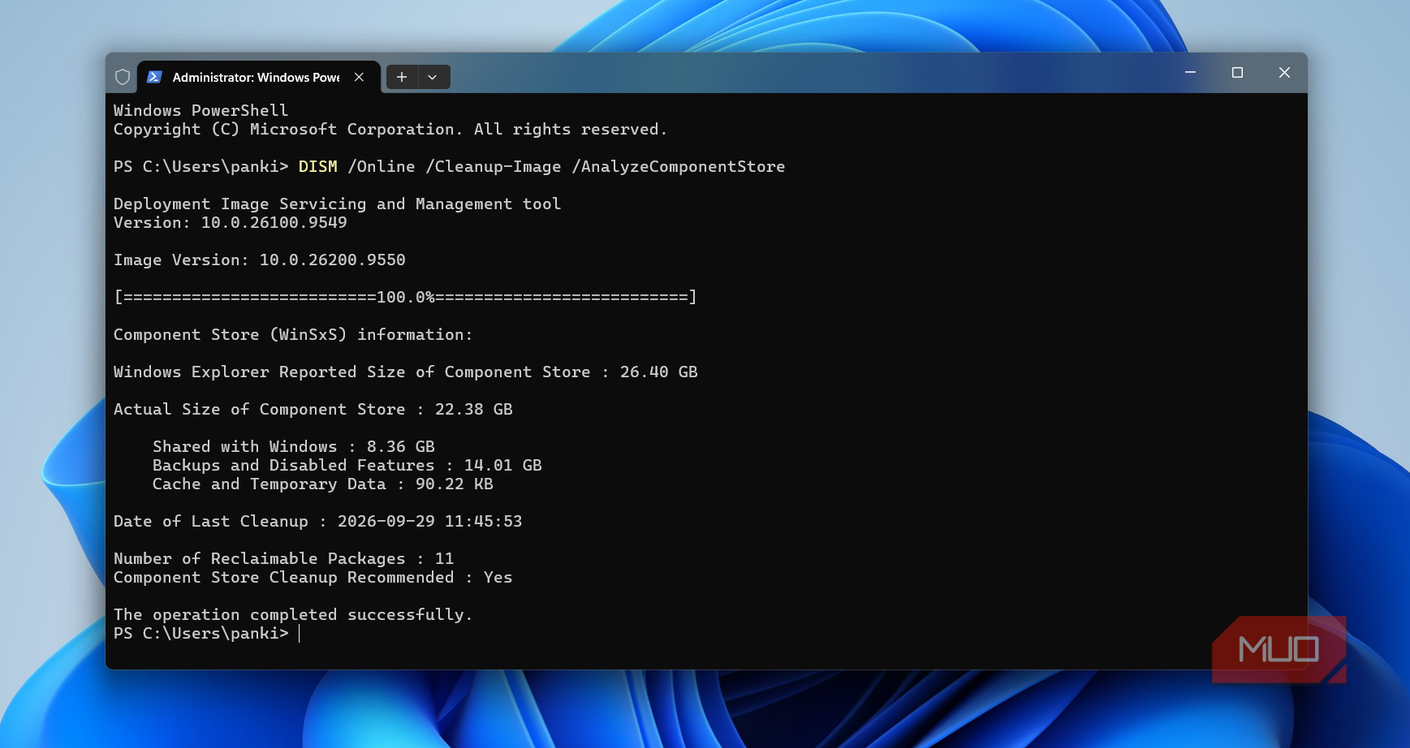


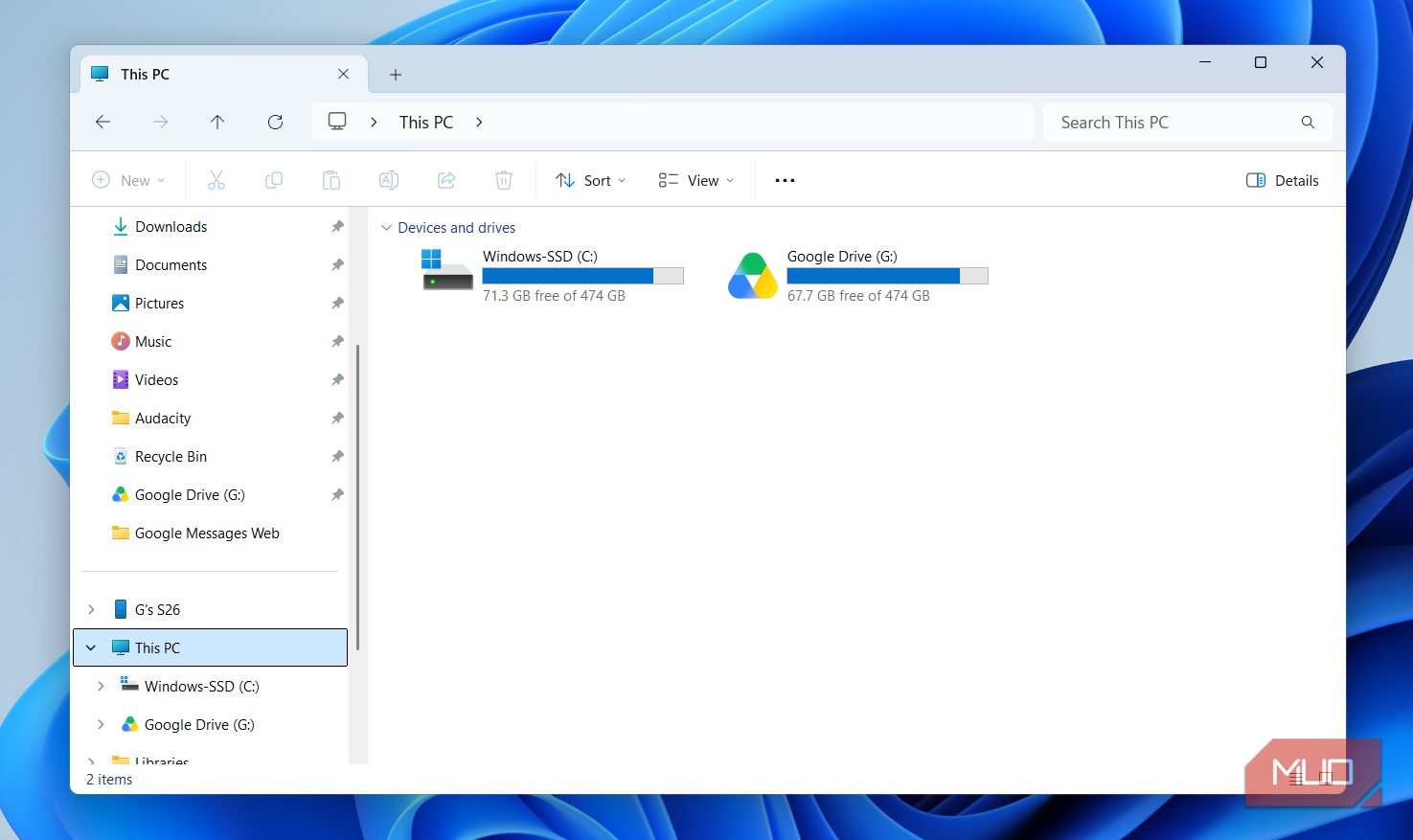
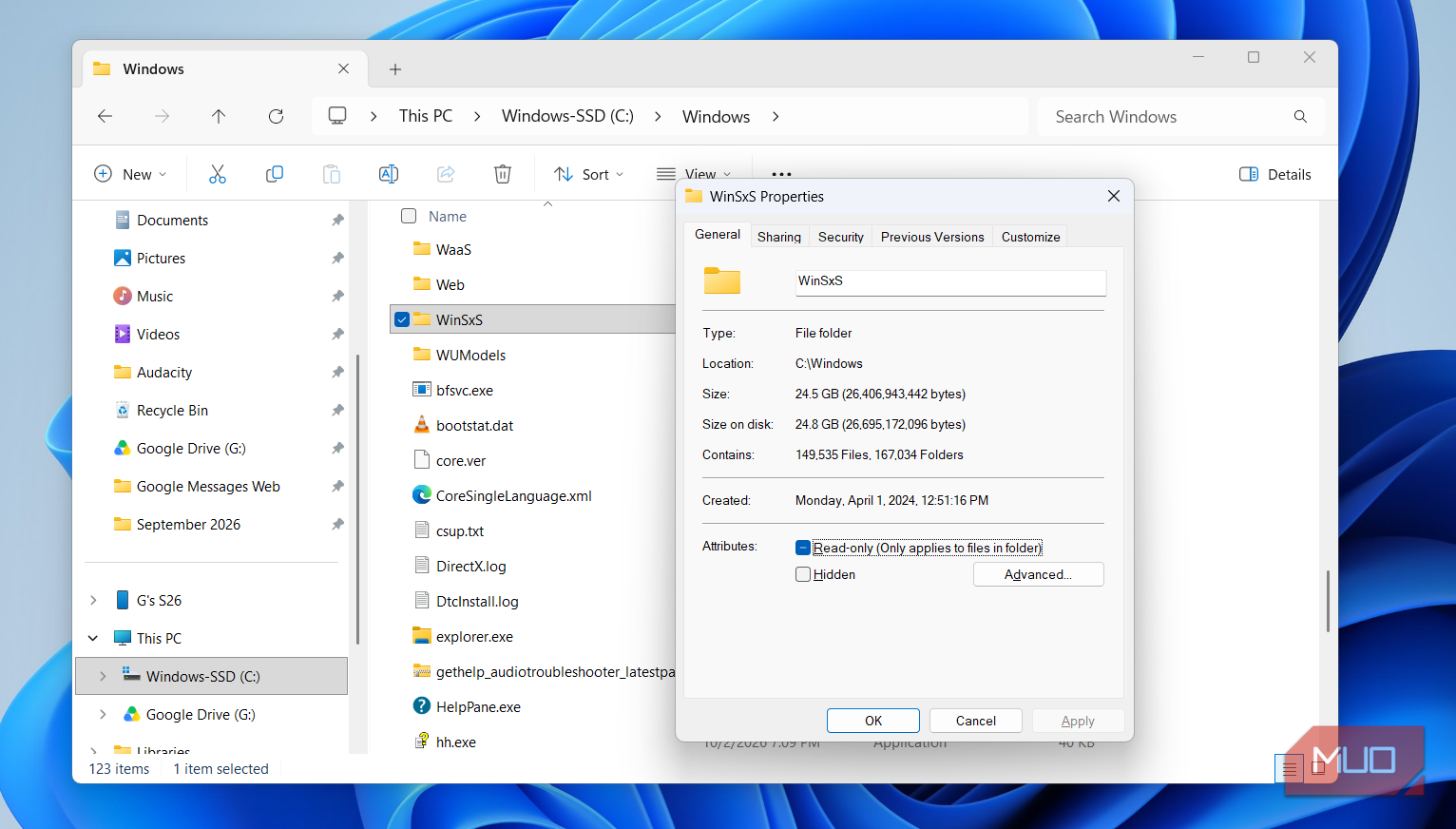

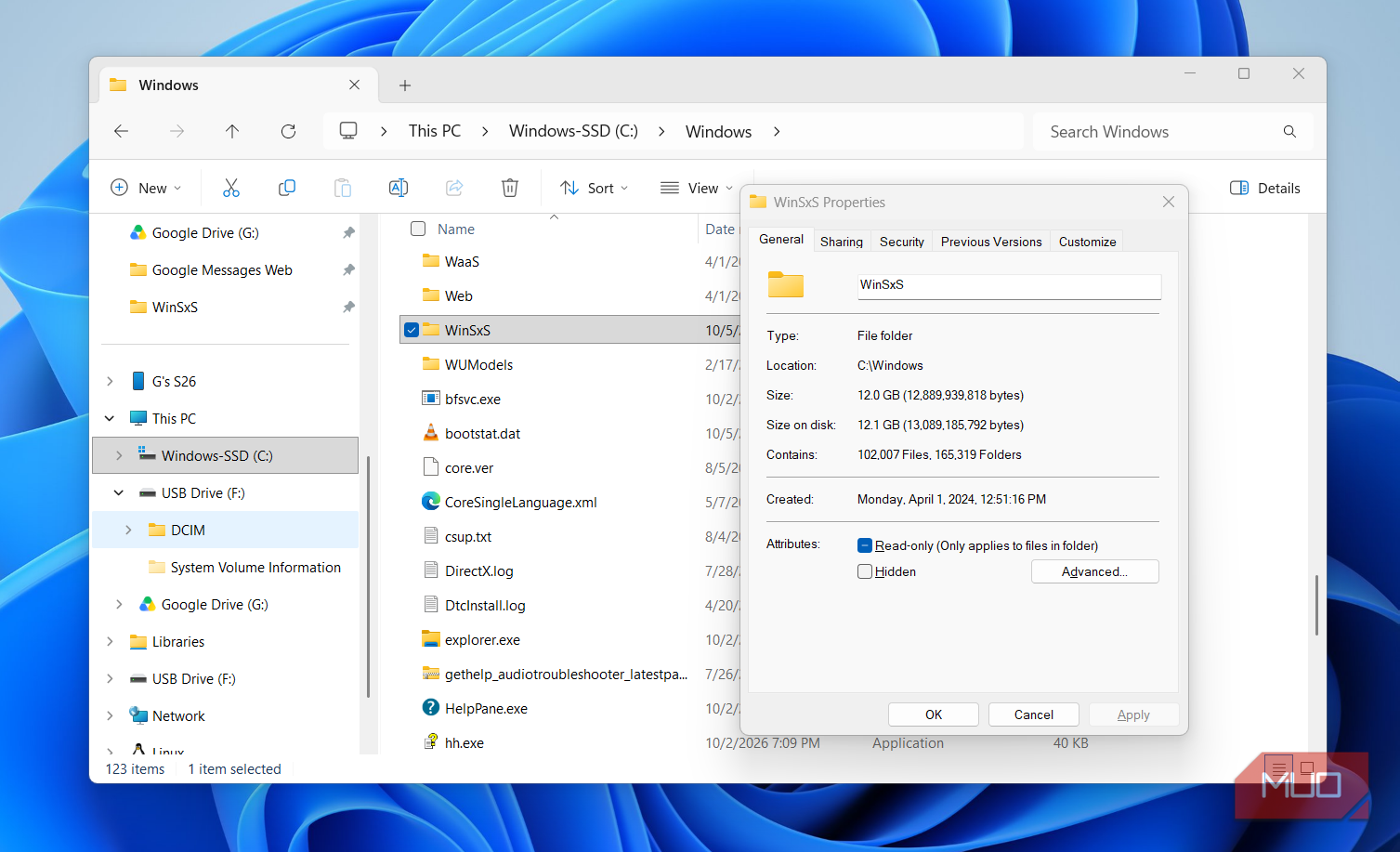
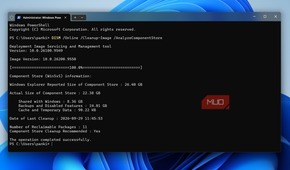
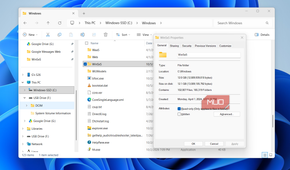
I came across this folder while analyzing the storage on my C: drive. In my case, WinSxS was taking up close to 24GB — almost 5% of my total storage. You can check how much it's taking up on your system by heading to C: > Windows > WinSxS and opening the folder properties.
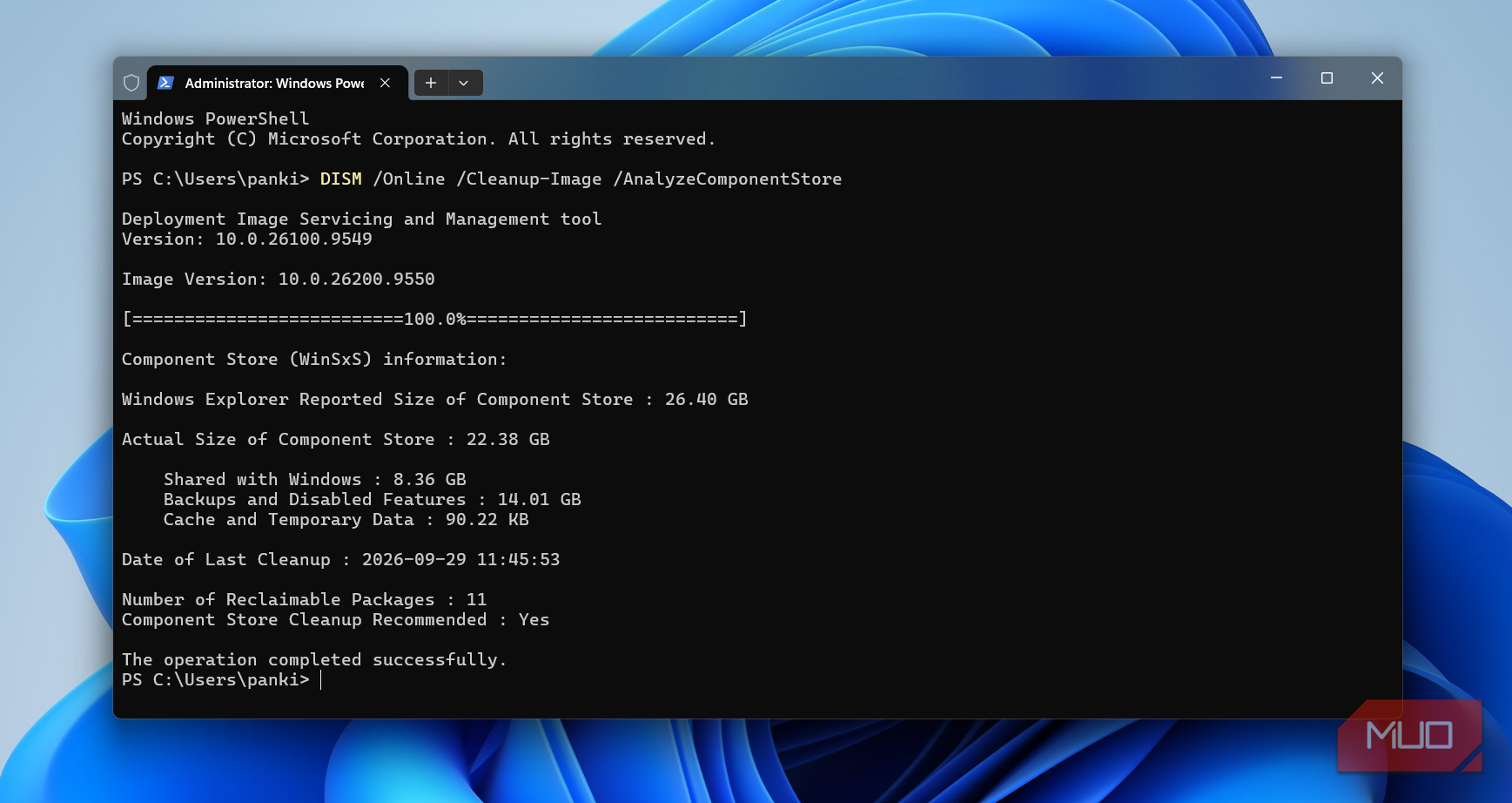
Some of the files inside WinSxS are hard-linked to other locations like System32, so the size shown in properties isn't always accurate. To get the real number, open PowerShell as administrator and run:
DISM /Online /Cleanup-Image /AnalyzeComponentStore
The catch is that you can’t just delete the WinSxS folder and free up that space. That’s because WinSxS is necessary if you’re having problems with the latest build and want to roll back. But if you’re happy with how your PC is performing, or don’t mind giving up the safety net to free up space, you can clean up the WinSxS folder. All you have to do is open PowerShell with admin access and run this command:
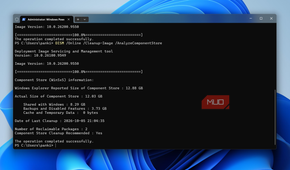
DISM /Online /Cleanup-Image /StartComponentCleanup
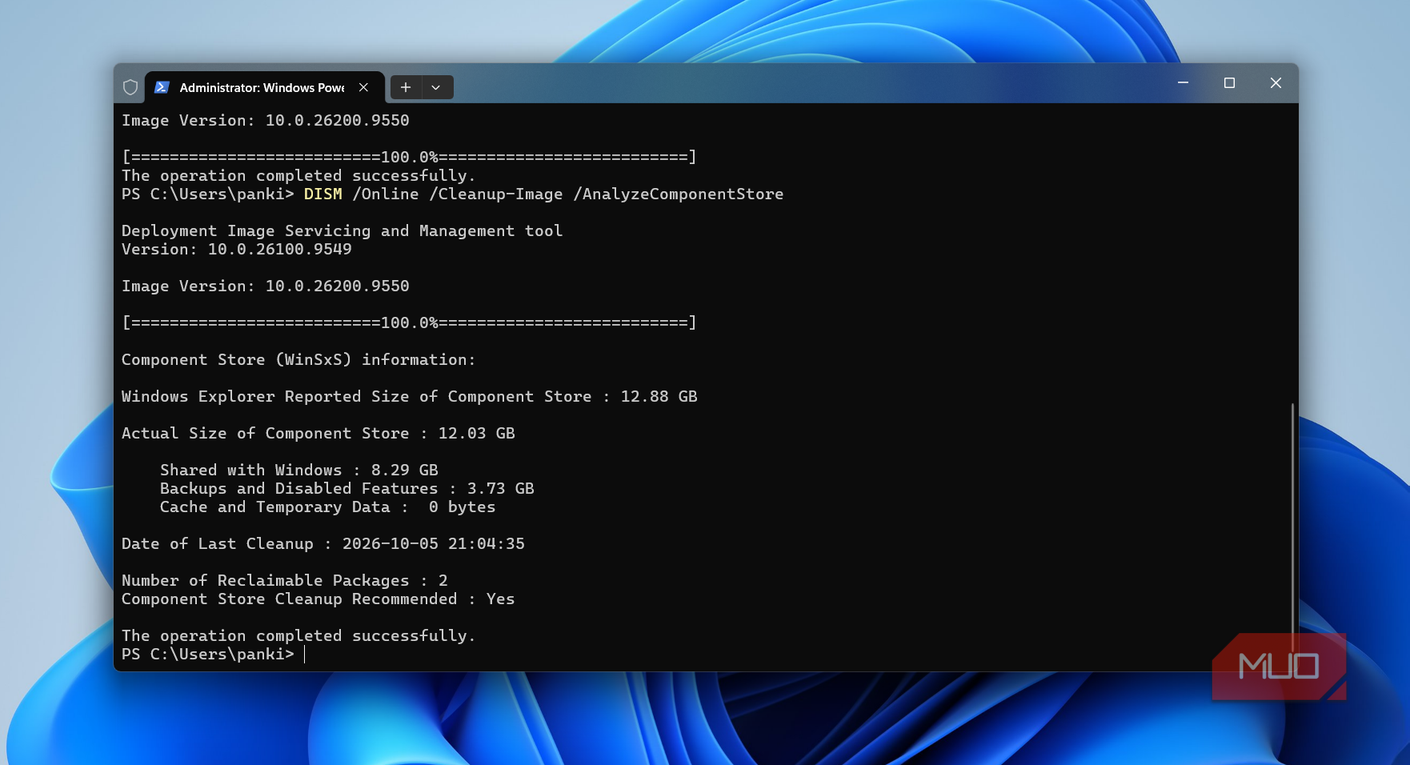
This removes all the older update files except the most recent one, which means you still have a recent version to roll back to. But that also means WinSxS won’t be emptied completely. You can run the first command again to check the first command again to see how much storage WinSxS is taking now. In my case, it was 10GB less than before. The exact amount of storage your PC will free up varies depending on when the update was installed and its size.
You can also be more aggressive with this if you want and add /ResetBase at the end of the above command. It removes all the update files, including the most recent one. I wouldn’t recommend doing that, but if you know what you’re doing, that’s fair game too.
You don’t have to wait for Windows to clean it up
A few more ways to slim down your drive

This DISM command isn't some magic trick that frees up several gigabytes out of nowhere. It's a small, low-risk cleanup you can run manually to get some breathing room when you need it. And it's really only worth doing if you don't plan on going back to the previous version. If storage isn't a problem for you, there's no real need to bother. You should just let Windows handle WinSxS.
But of course, if storage is a constant struggle, this is one of the easiest ways to claw some space back. And if you want to squeeze out even more, you can turn off a few unnecessary Windows features too. Disabling hibernation, system restore, delivery optimization, and capping your maximum page file size can all make a difference. I went through and did all of that on my own PC recently and ended up freeing close to 65GB of storage. So yes, it was worth the time.