


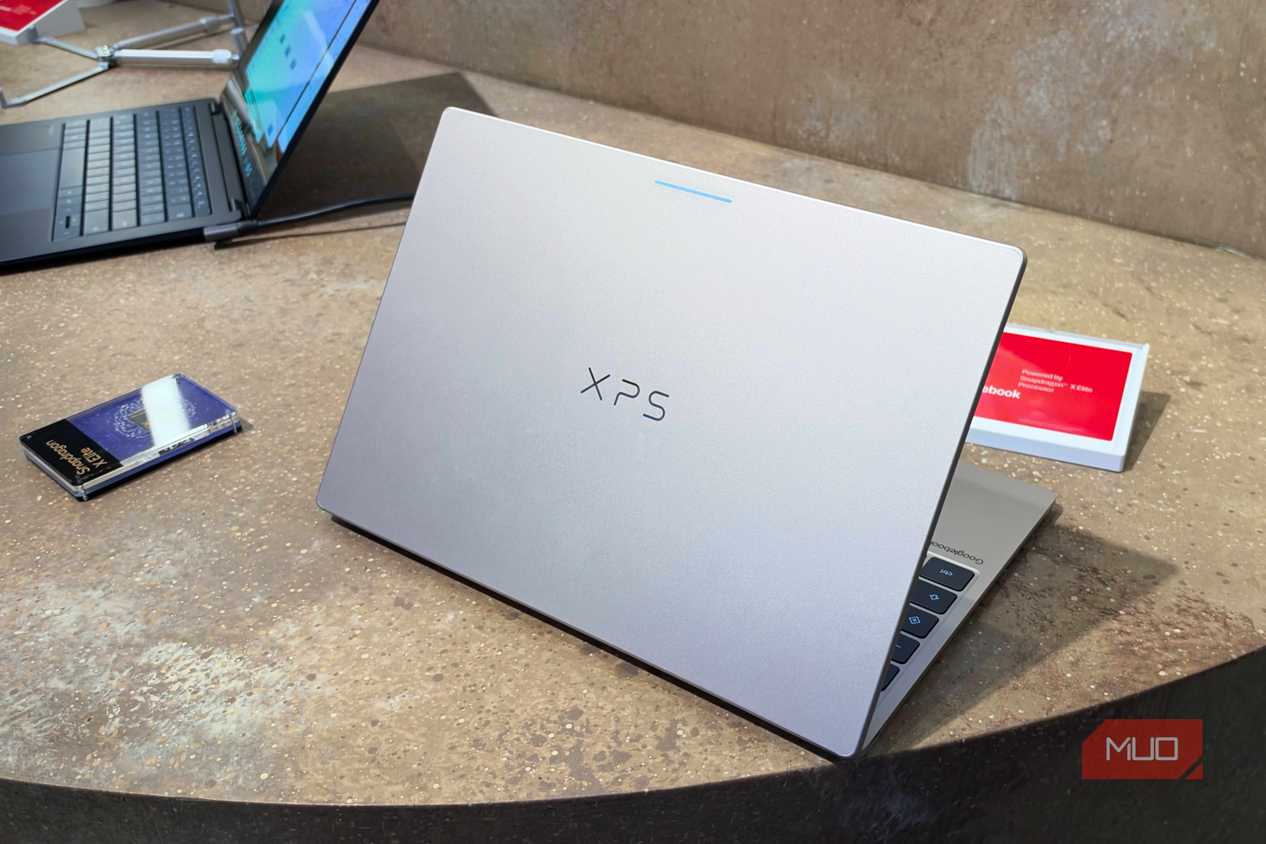
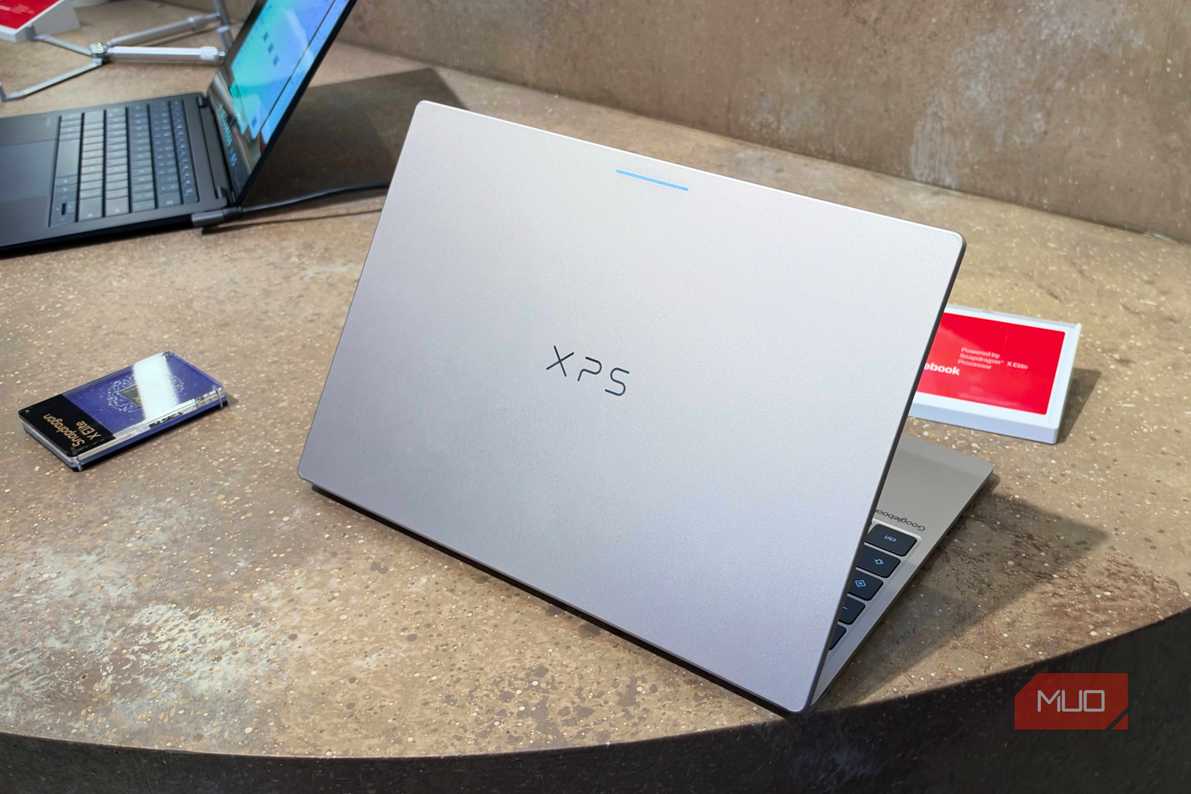
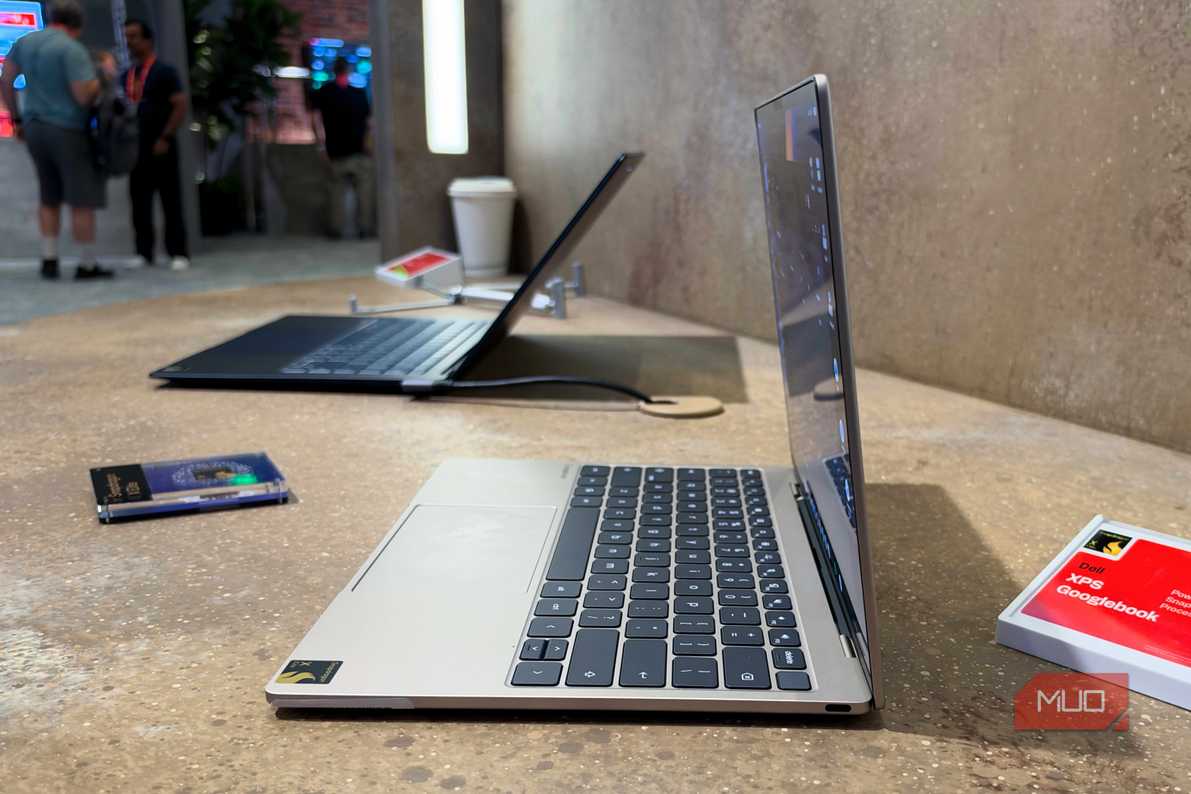
Googlebooks are here, and in a sentence, they're premium laptops that run Googlebook OS — something of a hybrid between Android and ChromeOS. I was incredibly skeptical when I first heard Googlebooks would start at $899, because at that price point, they're competing with full-fledged macOS and Windows laptops. Given that ChromeOS (and Android, for that matter) is designed to run efficiently on lower-tier hardware, I wasn't exactly wishing for expensive Googlebooks with Intel Core Ultra Series 3 or Qualcomm Snapdragon X Elite chipsets.
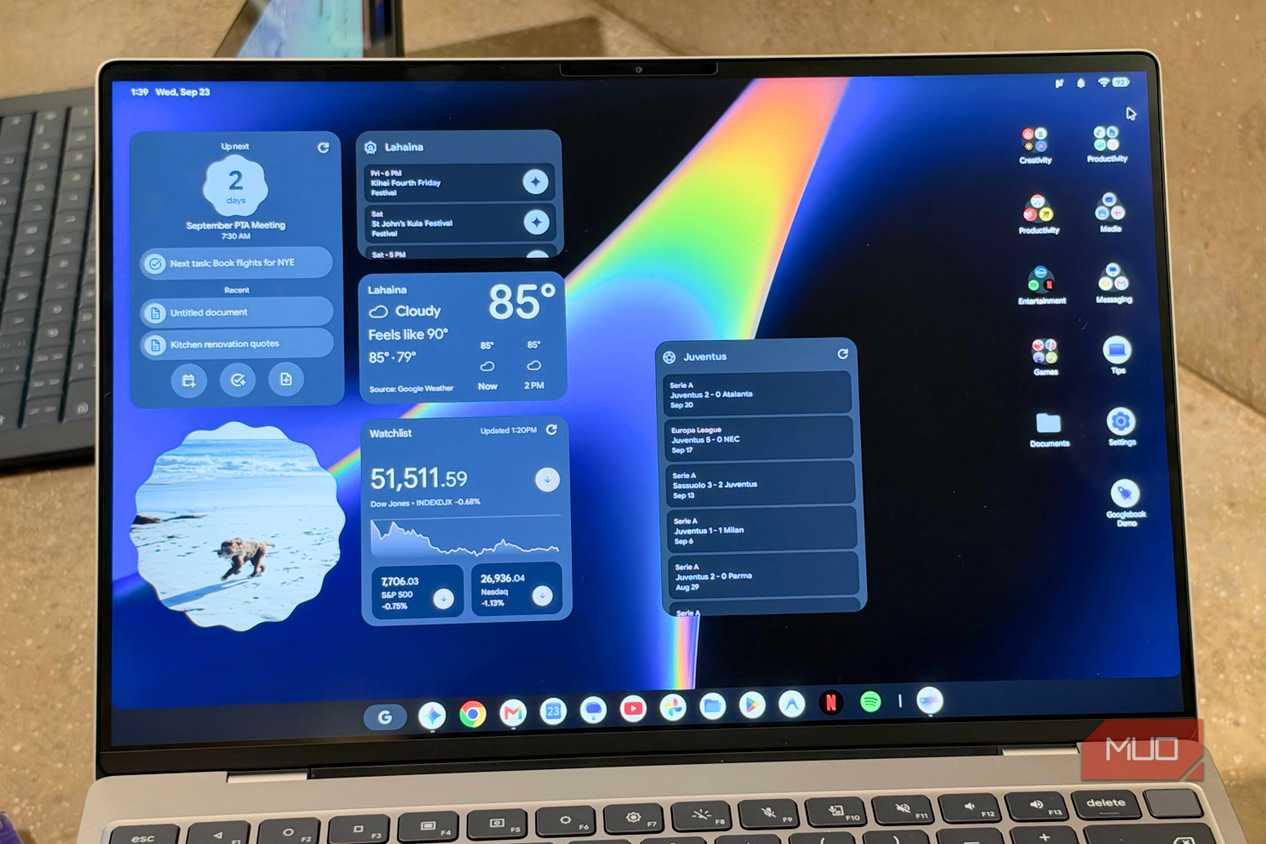
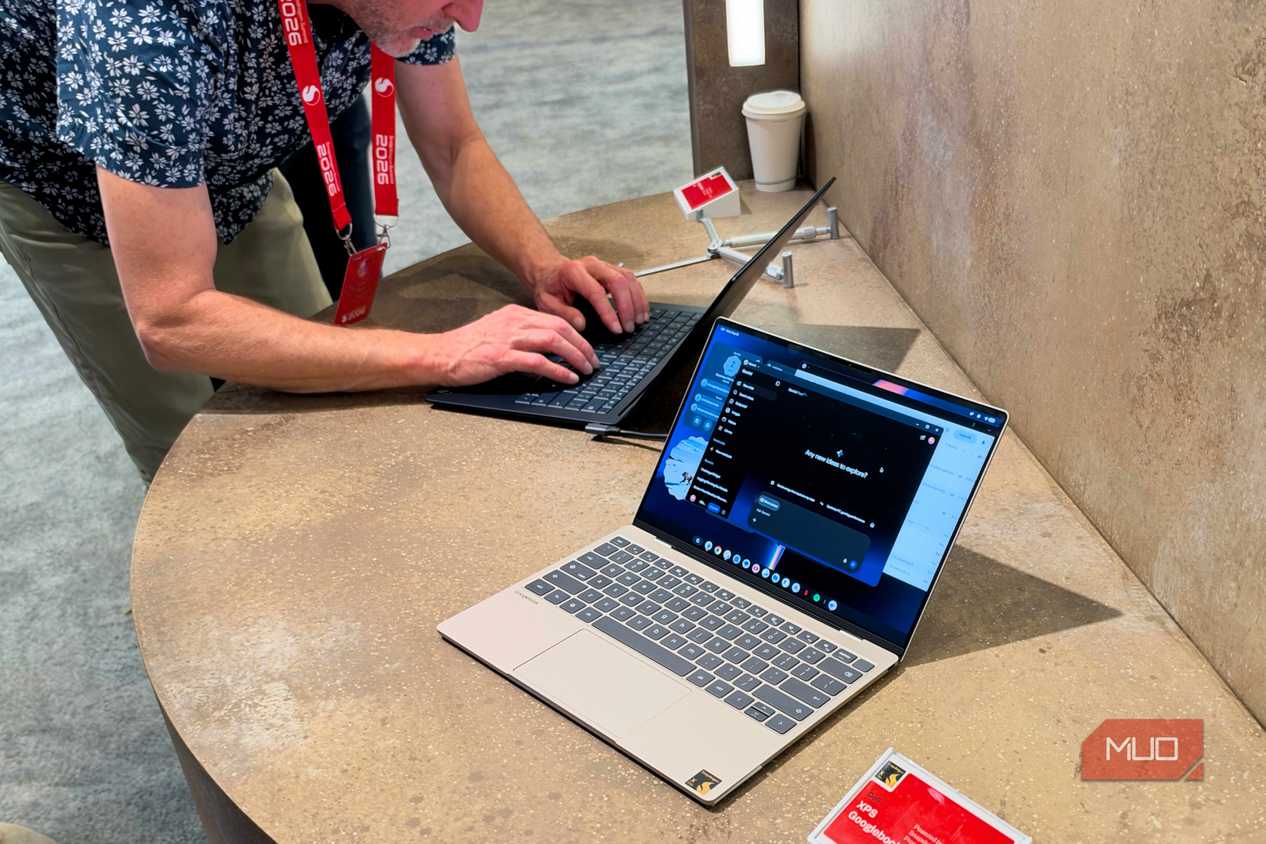
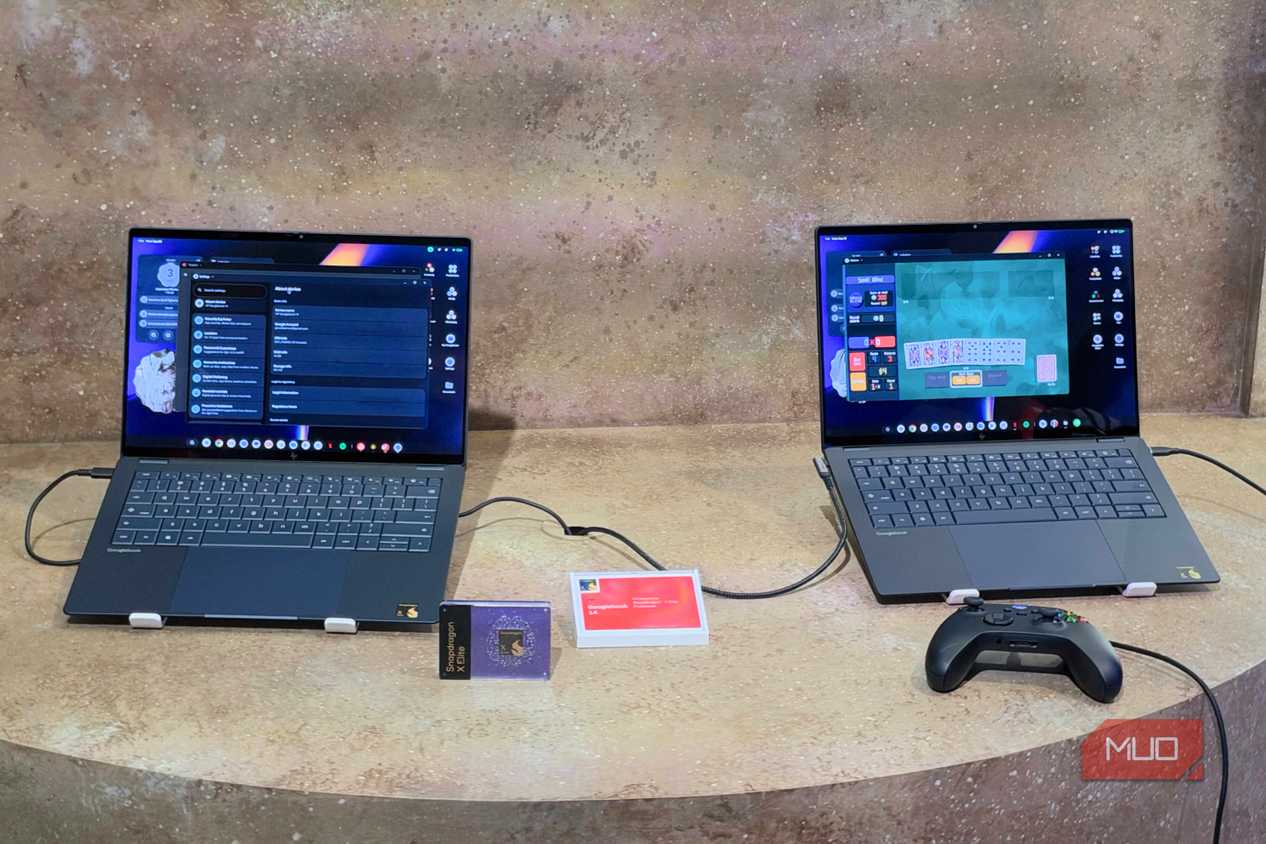
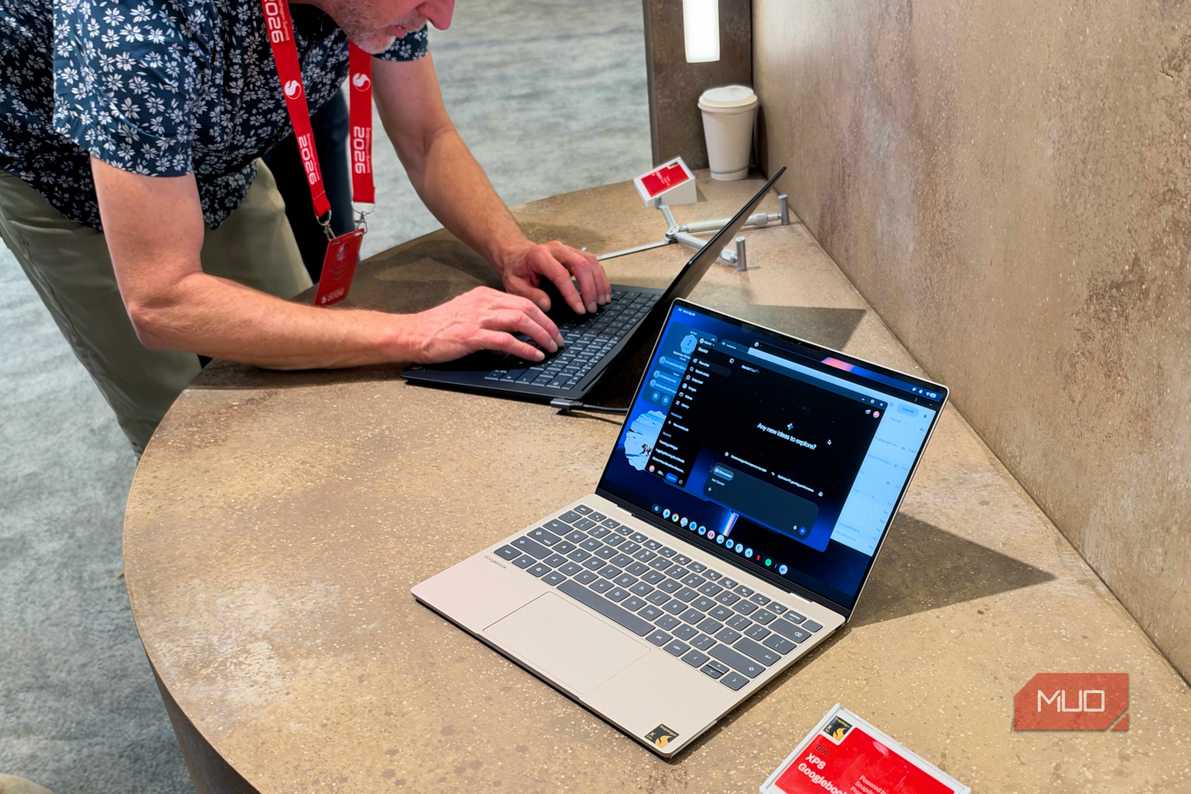
Based on my first impressions of Googlebooks at Snapdragon Summit, I was right about one thing: hardware isn't the reason to buy a Googlebook. Instead, it's the software. Googlebook OS can do things on a laptop that a MacBook or a Windows PC can't, and I'm already seeing why Android users might want one. My hands-on time with Googlebooks wasn't nearly long enough to give them a proper review, but here's a preview of five Googlebook OS features that stood out.
Quick Access
This level of integration is unlike anything I've ever seen

The one feature that has me genuinely considering switching to a Googlebook is Quick Access. It's a way to access files stored locally on your Android phone from the Files app on your Googlebook. Crucially, this feature isn't using a cloud storage service like Google Drive or iCloud to make the connection. The transfers happen locally using Android's Cross Device Services suite, meaning you don't need to install apps or manually transfer files between your Android phone and your Googlebook.
There are some limitations: an Android 17 phone is required, and Quick Access only works for files up to 200MB in size. Aside from these caveats, though, Quick Access looks like a far more convenient solution than anything Microsoft or Apple offer. Apple's solutions for accessing files stored on your iPhone from your Mac involve using iCloud, AirDrop, or a cable. Microsoft does have Phone Link for wireless file sharing, but it's a manual process.
Quick Access simply shows your Android phone's files in the Files app in Googlebook OS, with no manual setup, connection, or transfers required. I transfer photos and files between phones and computers often, and Quick Access would likely save me time on a weekly basis.
Continue On
Pick up right where you left off on your phone

As a regular Mac and iPhone user, I'm familiar with Handoff — the feature that allows you to start something on one Apple device and pick something up on another. macOS and iOS are completely different operating systems, and that complicates things. You're more likely to see Handoff work with Apple apps, such as Safari, than the average third-party app. Since Android and GooglebookOS are both built on the Android tech stack, the Continue On feature has much more potential.
Continue On lets you pick up on a Googlebook where you left off on your Android phone, and it even works with in-progress drafts. The feature preserves the exact state of an app or webpage as you move between your phone and laptop. Best of all, there's a web fallback option for developers. Android apps without a Googlebook OS version can open a web client in the desktop-class Chrome browser on the laptop instead.
We'll have to test how reliable and helpful the Continue On feature is for ourselves, because Handoff hasn't changed how I use my iPhones and Macs in years. If Google can get this right, Continue On might be a reason for Android power users to buy a Googlebook.
Cast My Apps
Quickly open apps without installing them on your Googlebook

Apple and Microsoft each offer smartphone screen mirroring on laptops through iPhone Mirroring and Phone Link, respectively. Both features have limitations; notably, you're stuck using apps in the same aspect ratio as your phone. Google takes a different approach with Cast My Apps — you can cast individual apps from your phone to your Googlebook in windowed form. They can be moved and resized as you wish, unlike the rigid iPhone Mirroring and Phone Link experience.
Similarly to Quick Access, Cast My Apps uses Cross Device Services to bridge the gap between your Android phone and Googlebook. That means the two are always connected when they're nearby. You can view your Android phone's app drawer from your Googlebook OS taskbar, and click on an app to launch it using Cast My Apps. Another unique characteristic of Cast My Apps is that you can keep using your Android phone while casting an app to your Googlebook.
Rambler
This is the only voice-to-text tool worth using

I've used Rambler on the Pixel 11 series, and it's a game changer for voice-to-text dictation. It's an AI-powered speech recognition tool that works anywhere in Googlebook OS, and it uses Gemini models to clean up your mistakes, mispronounced words, and adjust formatting on the fly. If you've ever been so frustrated with speech recognition tools that you ended up reaching for your phone's virtual keyboard, Rambler is for you.
There is a dedicated button for dictation on Googlebooks, and pressing it activates Rambler. I never use voice-to-text on my laptops, but the keyboard shortcut in the function row on Googlebooks might change that. Of course, I'd only use Rambler when I'm by myself, because I'd look a little strange talking to my laptop in a coffee shop.
Quick Insert
Accessing clipboard history has never been easier

I mentioned the dictation button, but it's far from the only keyboard tweak you'll find on Googlebooks. Each laptop has a Google button, which serves as a "super key" for Googlebook OS. However, the bigger change is the caps lock key. Out of the box, it doesn't toggle caps lock at all. Instead, it serves as a Quick Insert button — you can use it to access emoji, GIFs, stickers, images, URLs, contacts, and clipboard history.
I primarily use macOS for work, and it only recently gained clipboard history. Even now, it's in an inconvenient place, as you can only access it through Spotlight. As someone who regularly copies text, pastes URLs, and inserts images, the Quick Insert key sounds genuinely useful. But is it worth needing a second key to trigger caps lock? I'm not sure yet.
Is Googlebook OS good enough to replace macOS or Windows?




 Credit: Brady Snyder / MakeUseOf
 Credit: Brady Snyder / MakeUseOf
 Credit: Brady Snyder / MakeUseOf
 Credit: Brady Snyder / MakeUseOf
 Credit: Brady Snyder / MakeUseOf
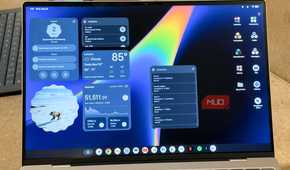
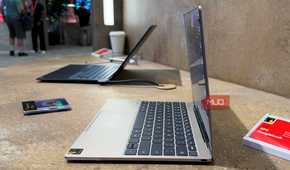
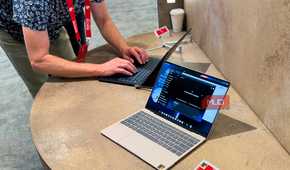
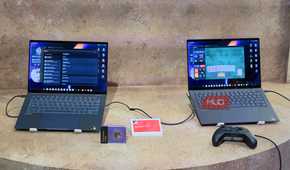
Googlebook OS is a new operating system, and Googlebooks are a new class of laptops. I don't think anyone should rush to buy one, because there are bound to be bumps in the road. This isn't a beta program, but it might as well be. Googlebooks will be the worst they'll ever be at launch, and they'll only get better over time with software updates. It's worth waiting for long-term reviews before spending $899 or more on a relatively unknown quality.
That said, Googlebook OS sure is tempting. The user interface feels familiar to anyone who's used Android before, and exclusive features like these five help clearly draw a line between Googlebook OS and ChromeOS. If you're as excited about these features as I am, perhaps it's worth giving Googlebooks a shot as an early adopter. Just double-check the return policy in case a specific workflow or app you depend on doesn't work as expected at launch.
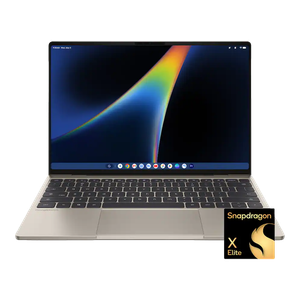
Dell XPS Googlebook
- Operating System
- Googlebook OS
- CPU
- Qualcomm Snapdragon X Elite
- RAM
- 16GB
- Storage
- 512GB
- Display (Size, Resolution)
- 13.4-inch, 2560 x 1600
Dell's XPS Googlebook is a premium Snapdragon X Elite-powered laptop running Google's new desktop operating system, which neatly integrates with Android and Google services.