


Files by Google works great for basic file management, has a nice UI, and comes in handy when you want to do some cleanup and free up storage. However, it doesn't let you make folder shortcuts or move files from Drive to local storage.
After trying a couple of popular file managers for Android, I settled on X-plore. This is not the best-looking app in terms of UI, but it beats all the pretty ones in terms of usability. From WiFi file sharing and built-in viewers to editing ZIP files and saving them back, X-plore has replaced Google Files on my phone for good.
Dual-pane tree view
See both source and destination without switching tabs



 Credit: Tashreef Shareef / MakeUseOf
 Credit: Tashreef Shareef / MakeUseOf
 Credit: Tashreef Shareef / MakeUseOf
 Credit: Tashreef Shareef / MakeUseOf
 Credit: Tashreef Shareef / MakeUseOf
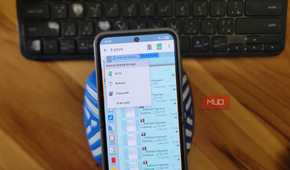

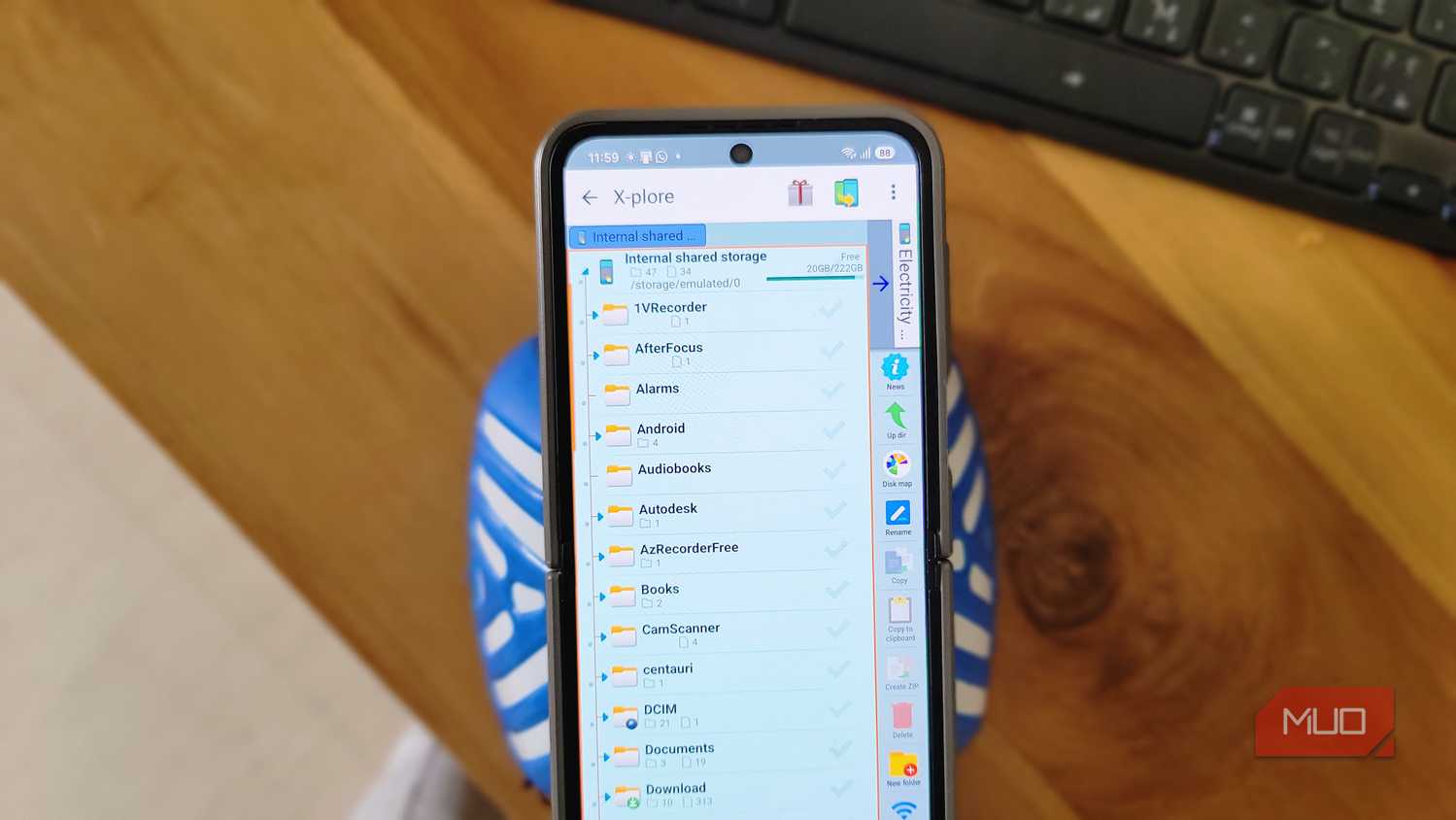
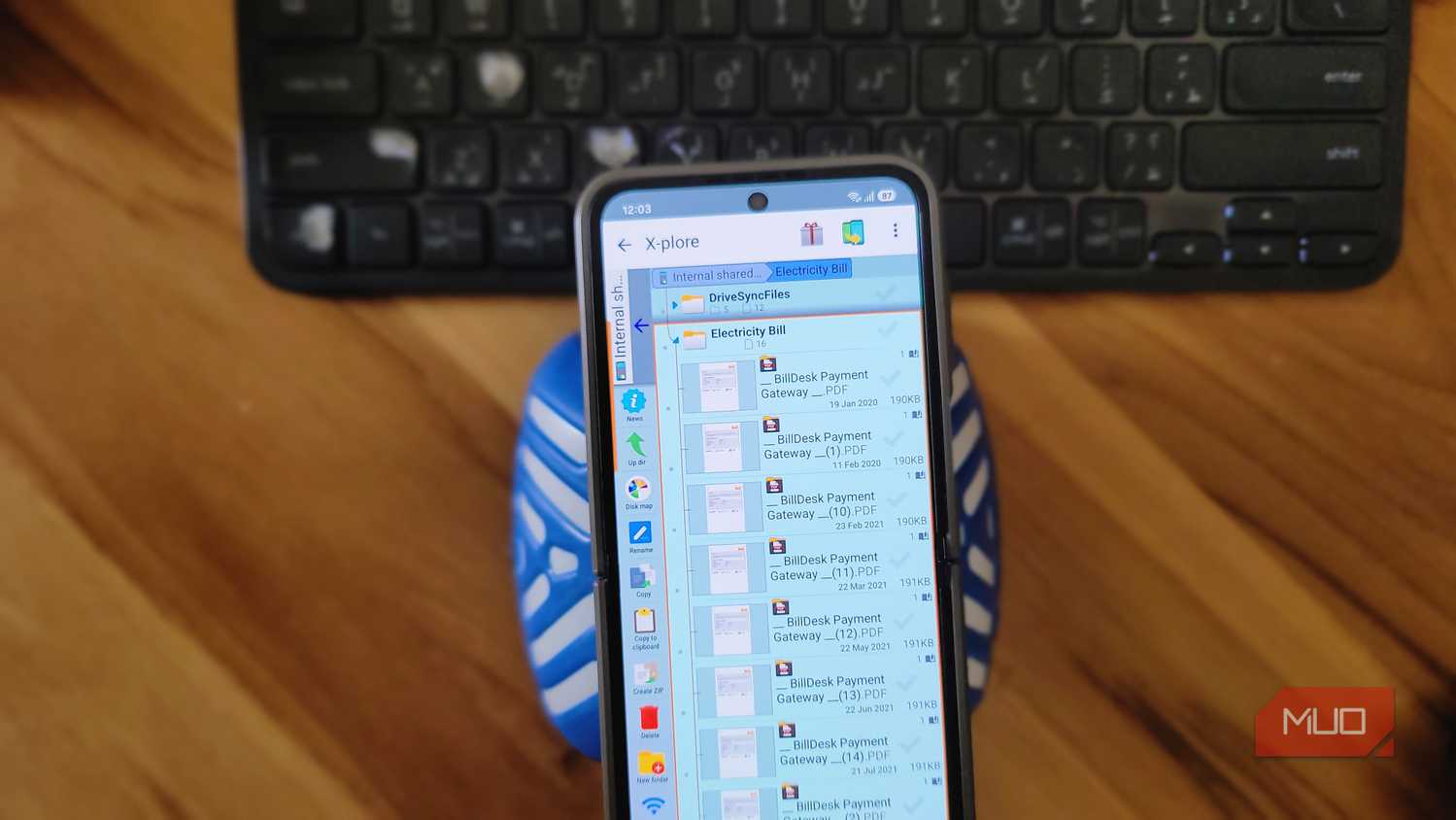
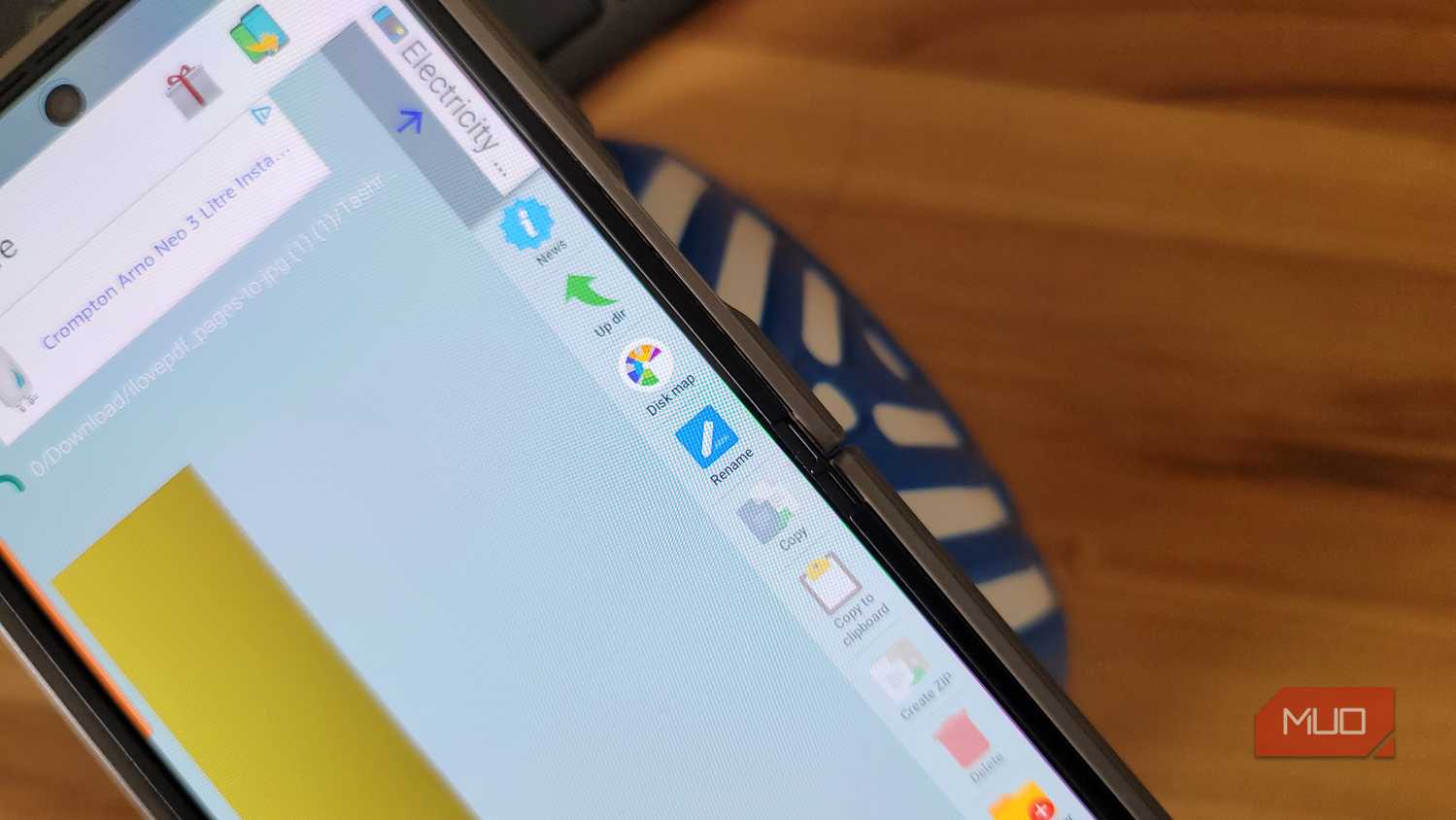
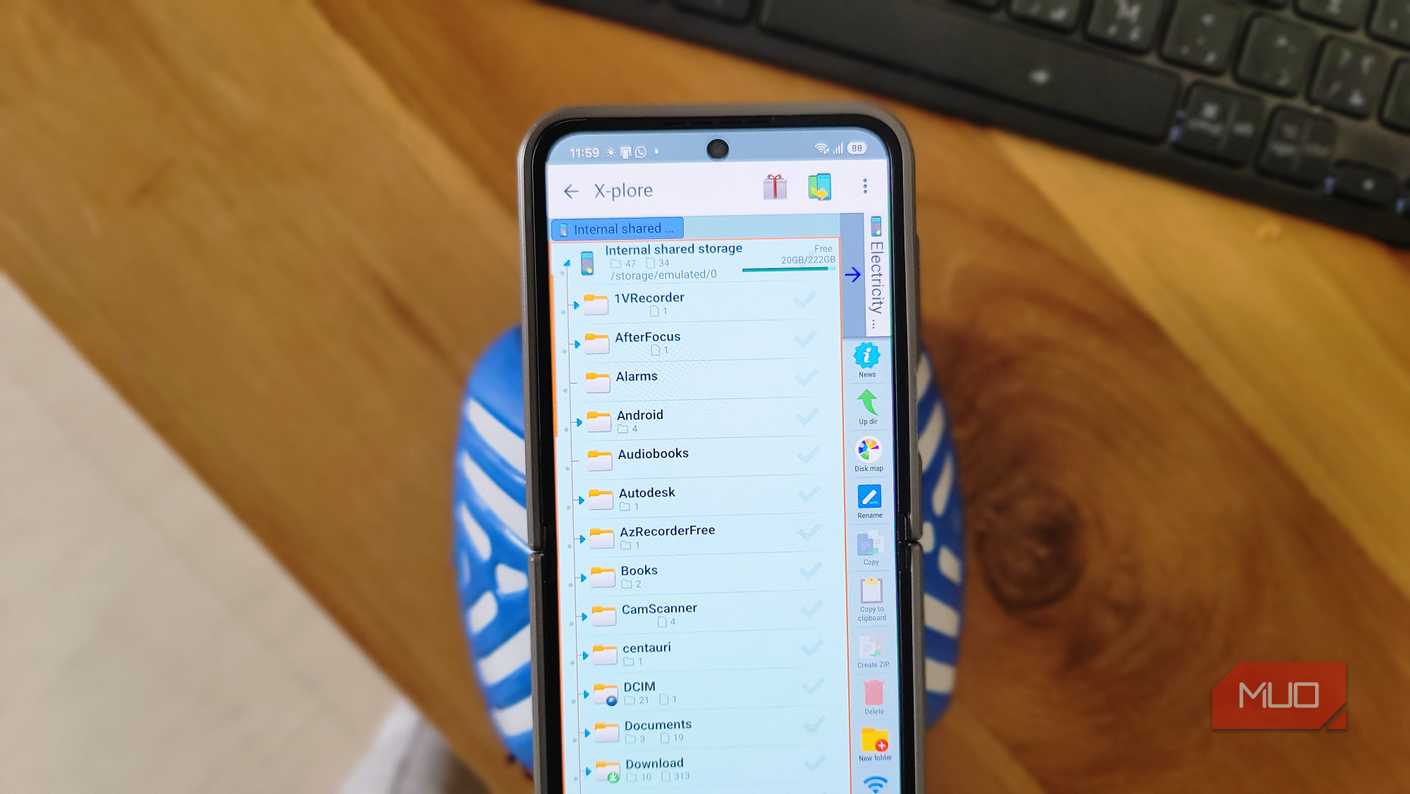
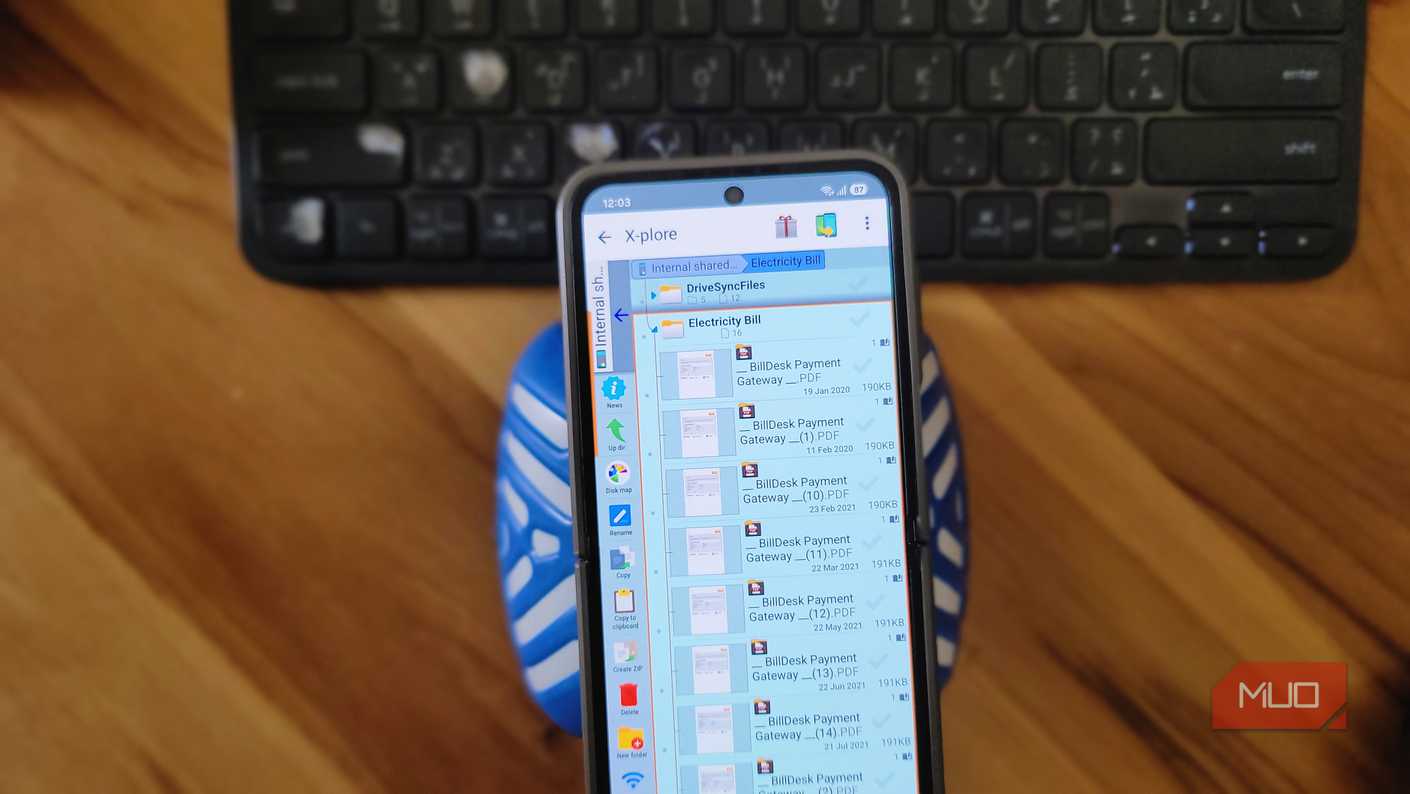
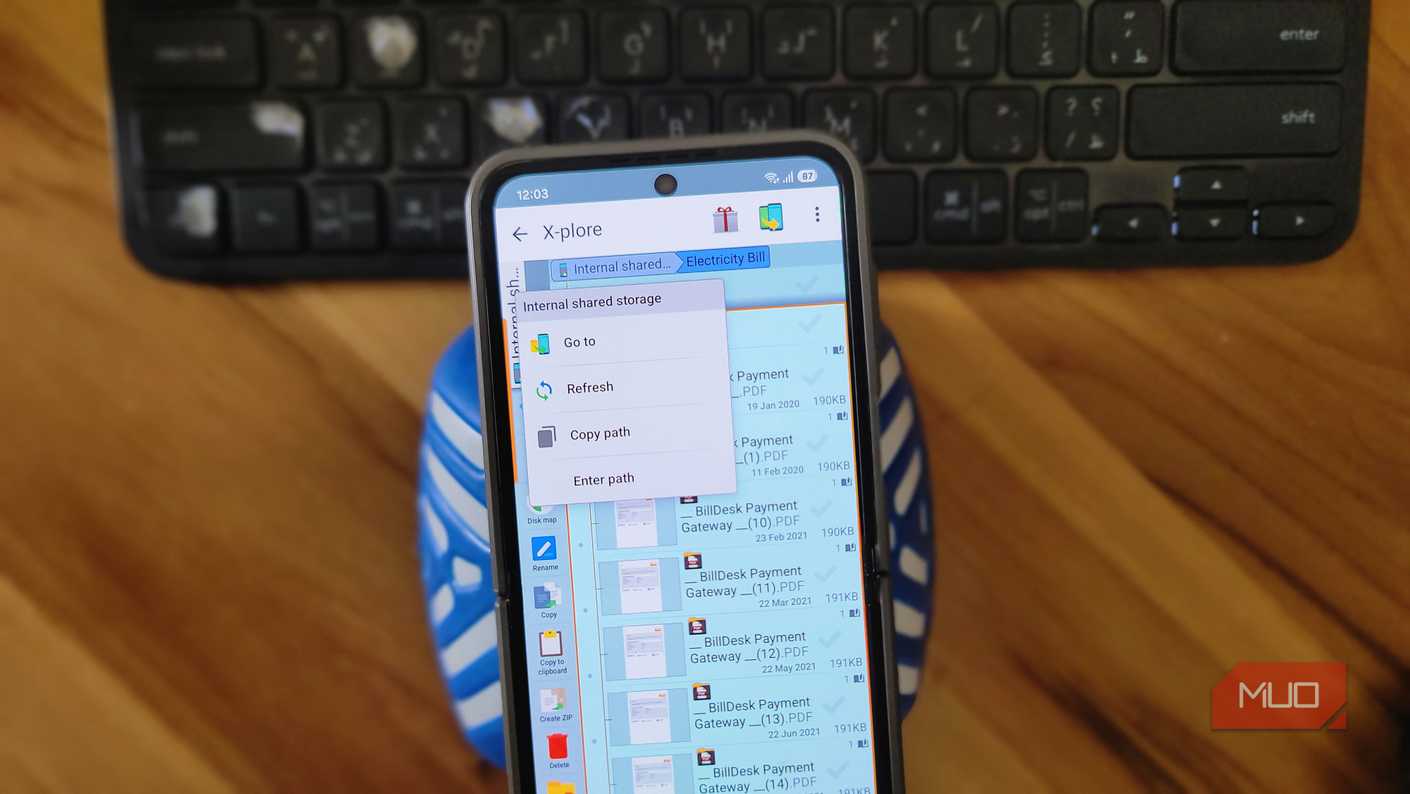
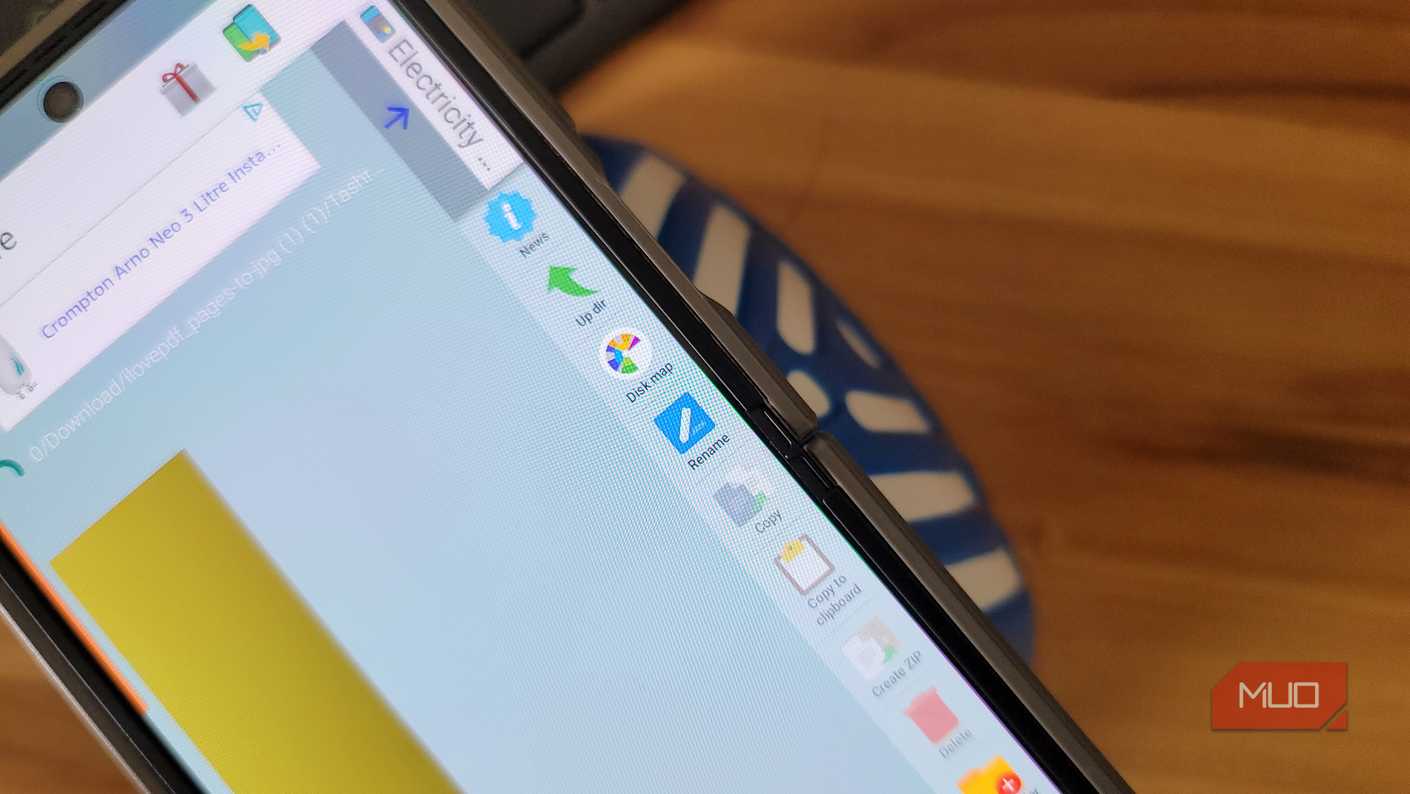
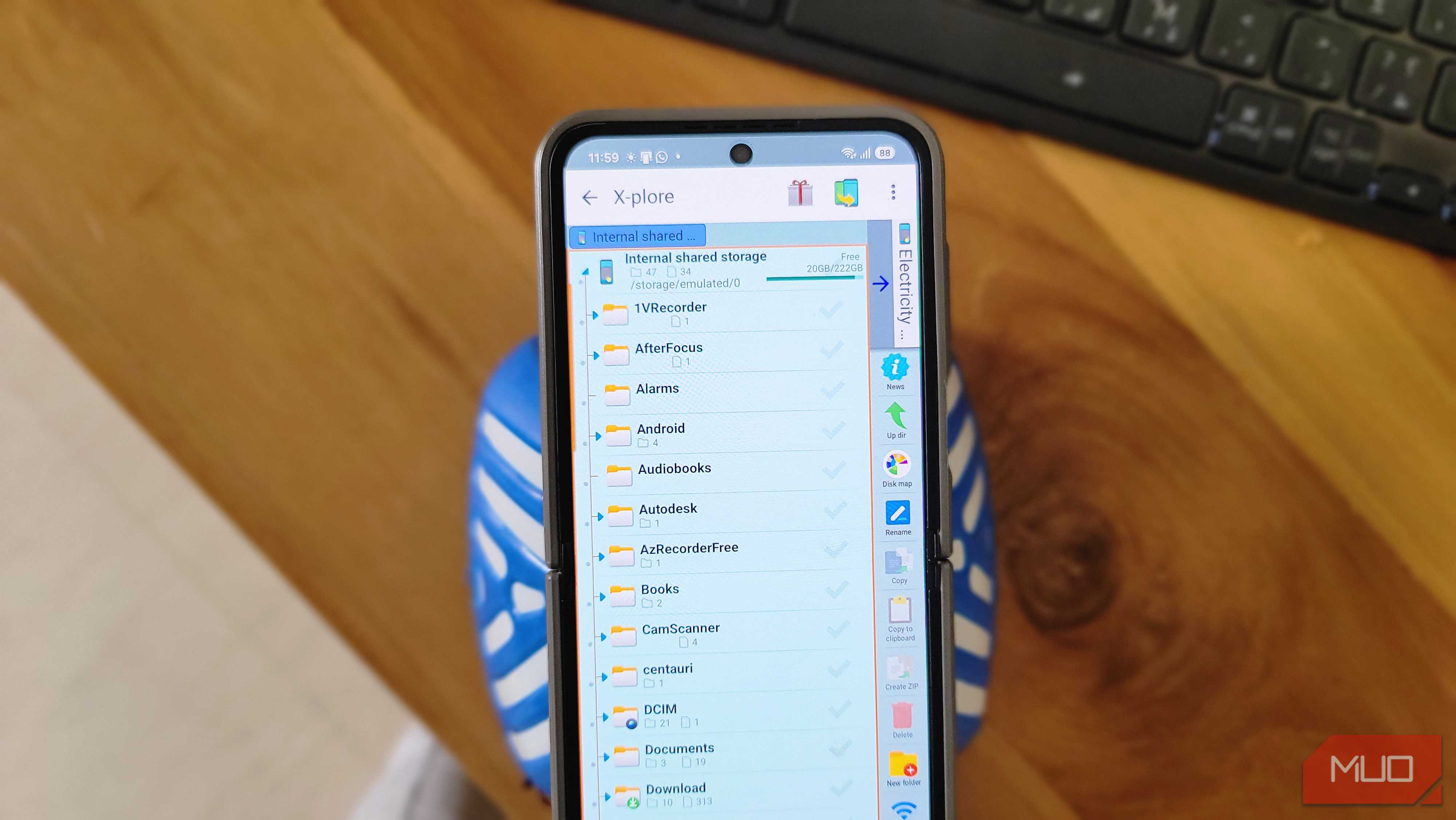
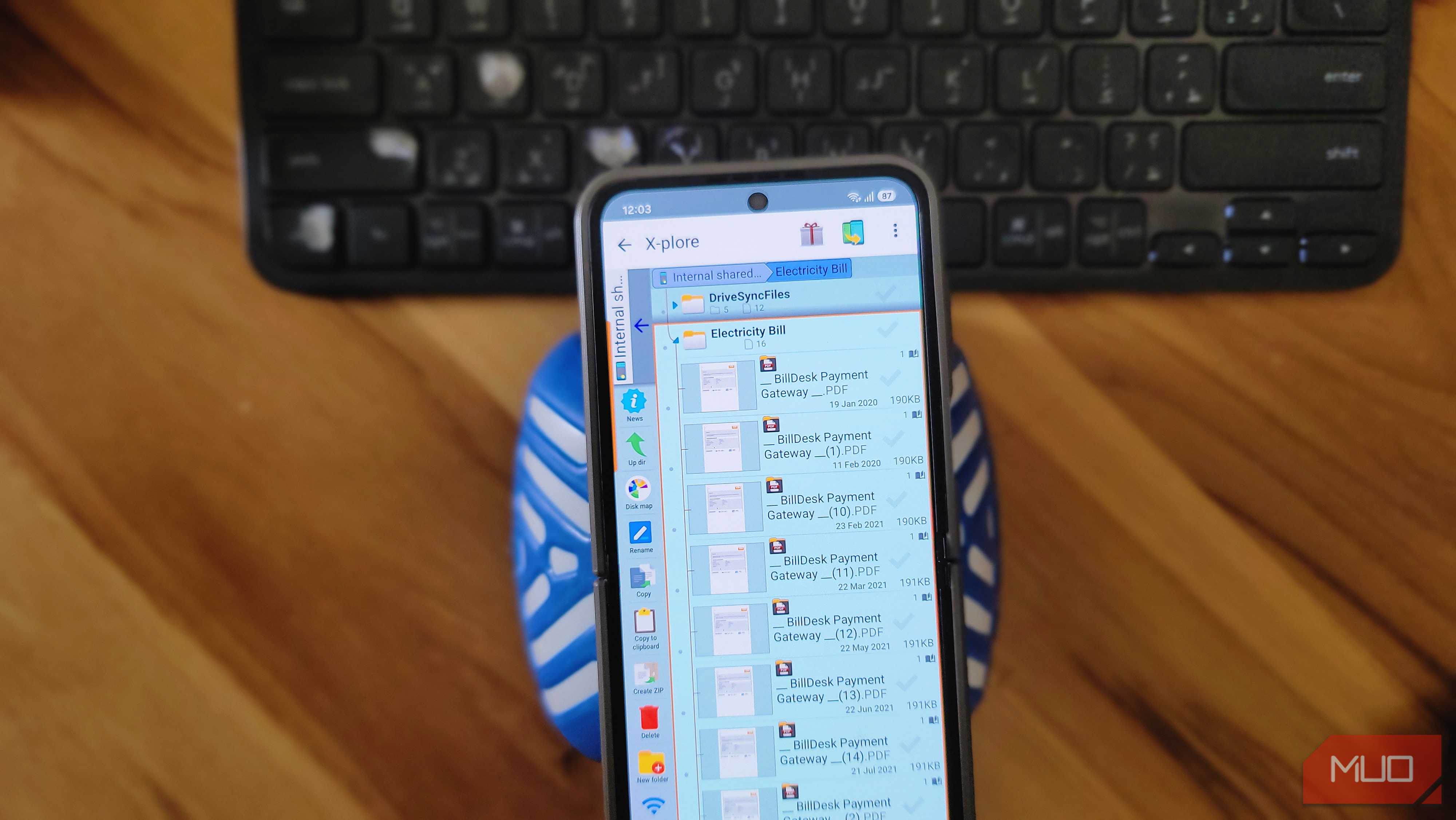
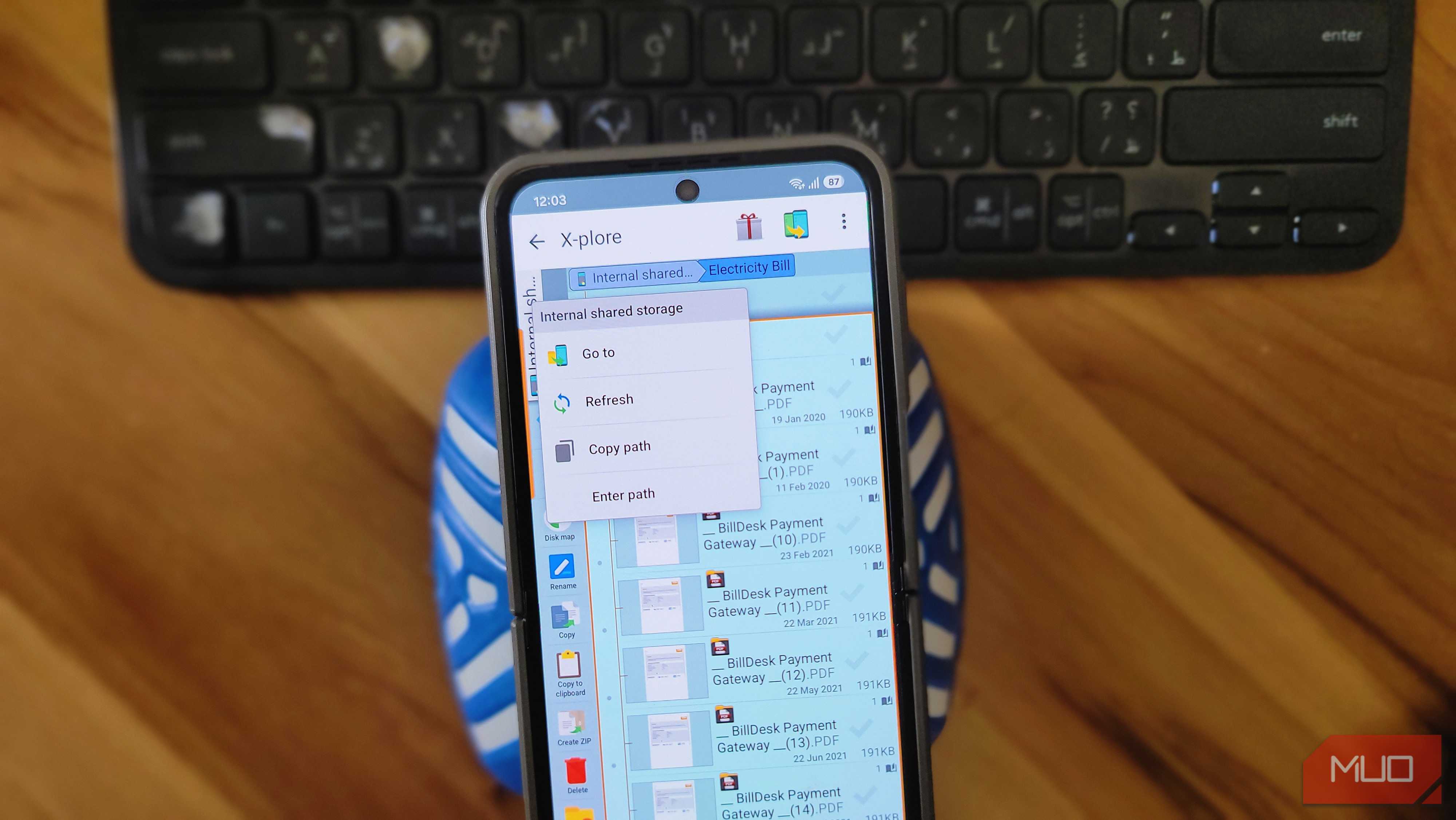
The first thing you notice when you open X-plore is the dual-pane layout. Your screen splits into two panels, each showing a tree of folders you can expand and collapse. If you have ever used Windows Explorer or those old DOS-era file managers like Norton Commander, this will feel familiar.
This layout makes copying and moving files far less tedious. Instead of navigating to a folder, selecting files, hitting move, and then hunting for the destination folder one tap at a time, you can see both the source and the destination side by side. Select files on one side, tap the target folder on the other, and hit copy or move. It sounds simple because it is, and it's something most file managers still don't offer.
The tree view also helps when you're trying to figure out what's eating your storage. You can expand folders level by level and see exactly where things are buried, instead of tapping into one folder after another and losing track of where you started.
Network and cloud access
One app for your NAS, servers, and cloud drives
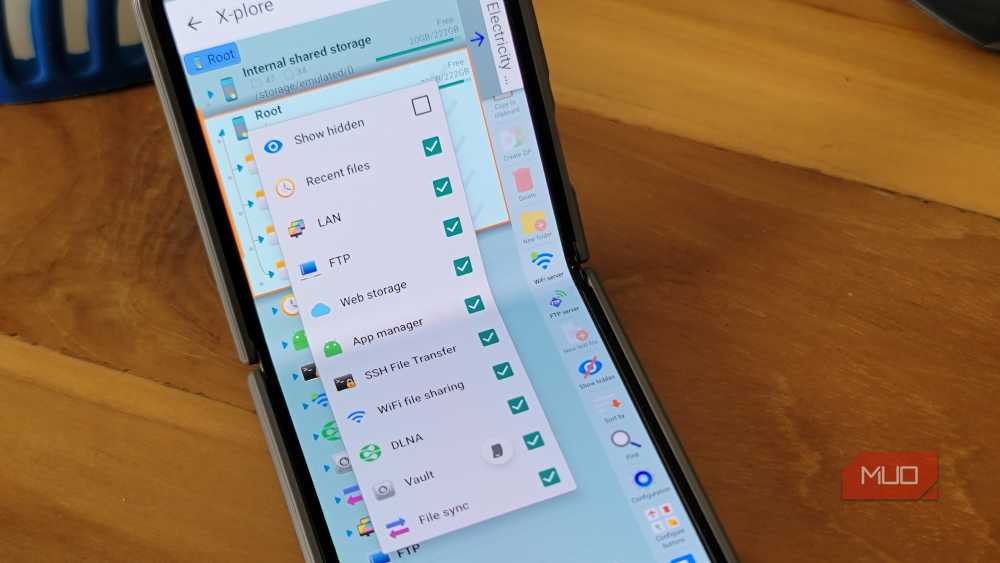
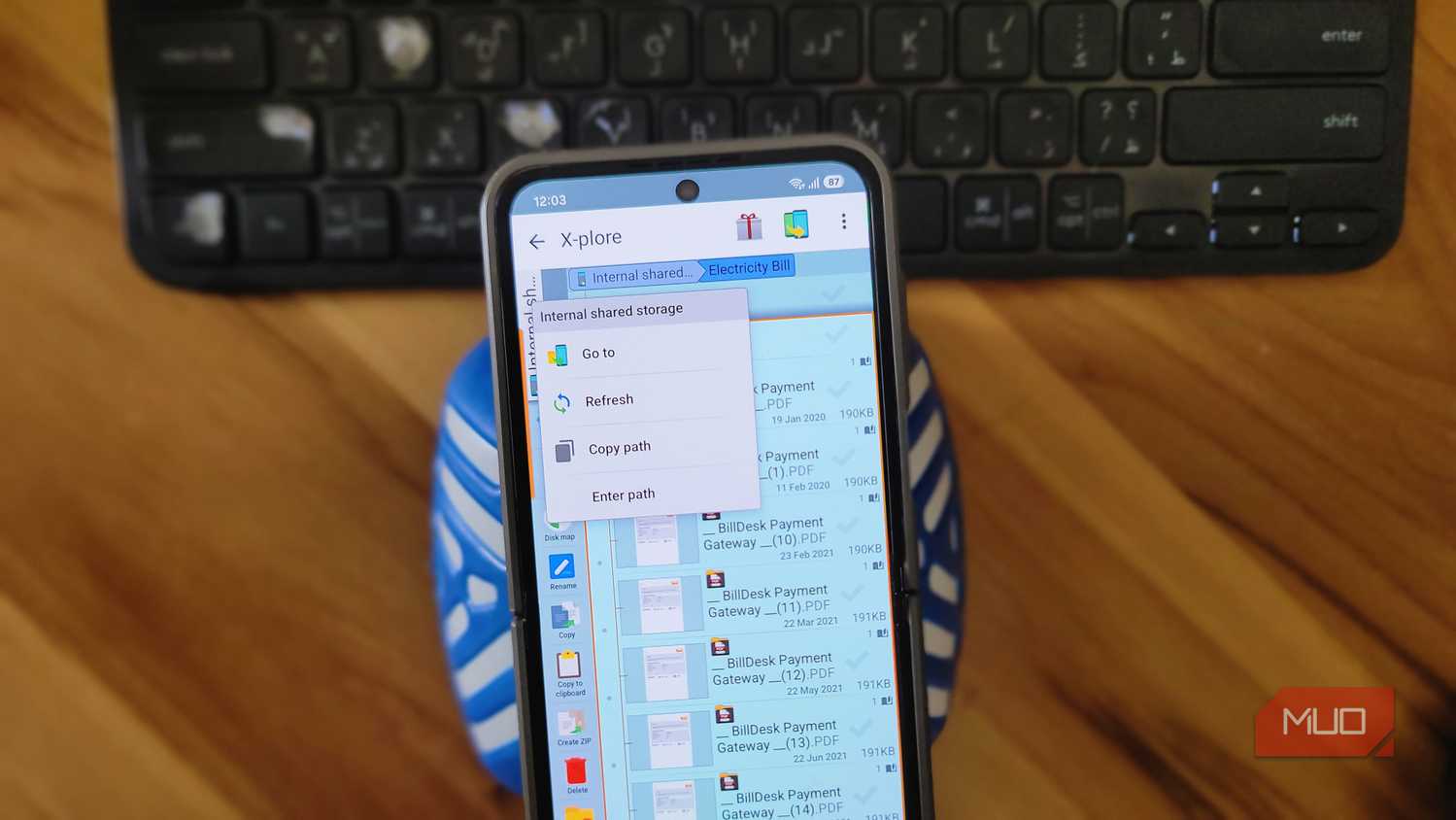
X-plore pulls together every remote storage option I care about into a single interface. It supports SMB/LAN for accessing shared folders on my Windows PC, FTP for quick transfers, SFTP over SSH for secure connections, DLNA for media servers, and WebDAV for self-hosted setups. If you use a NAS at home, you'll really love what X-plore has to offer.
What's more, you can add multiple accounts from the same cloud service. So if you have, say, three Google Drive accounts for work, personal, and a shared one, they all show up as separate entries in the sidebar. Same goes for Dropbox and OneDrive. Most file managers let you connect one account per service, so this is a step-up if you work with multiple cloud accounts.
Supports WiFi file sharing and web server
Transfer files without touching a USB cable
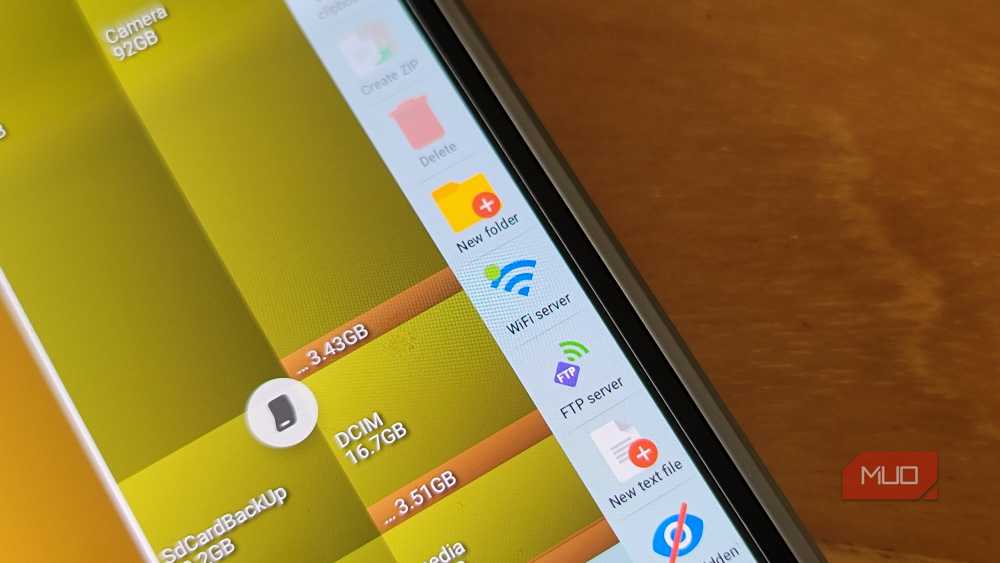
Now Wi-Fi file sharing is the feature that made me pay for the full version. Granted, it's not the most expensive app on the planet, but it always takes something special for an app to make me pay. Turn Wi-Fi file sharing on, and X-plore starts a small web server on your phone. It gives you a URL that you can open in any browser on your computer. From there, you can browse your phone's files, download them, or upload files to your phone, all through the browser window.
I've only used Blip or LocalSend to move a large video or a batch of screenshots to my PC. With X-plore I can toggle the Wi-Fi sharing option, open the link on my laptop, and drag files in either direction. It works on any device connected to the same network, whether that's a Mac, a Chromebook, or even another phone.
The web interface is bare-bones, but it does its job. You get a basic file listing, upload buttons, and folder navigation. You are not going to mistake it for a polished web app, but it works fast and doesn't need any setup beyond tapping a button.
Built-in viewers
Open PDFs, videos, and databases without leaving the app
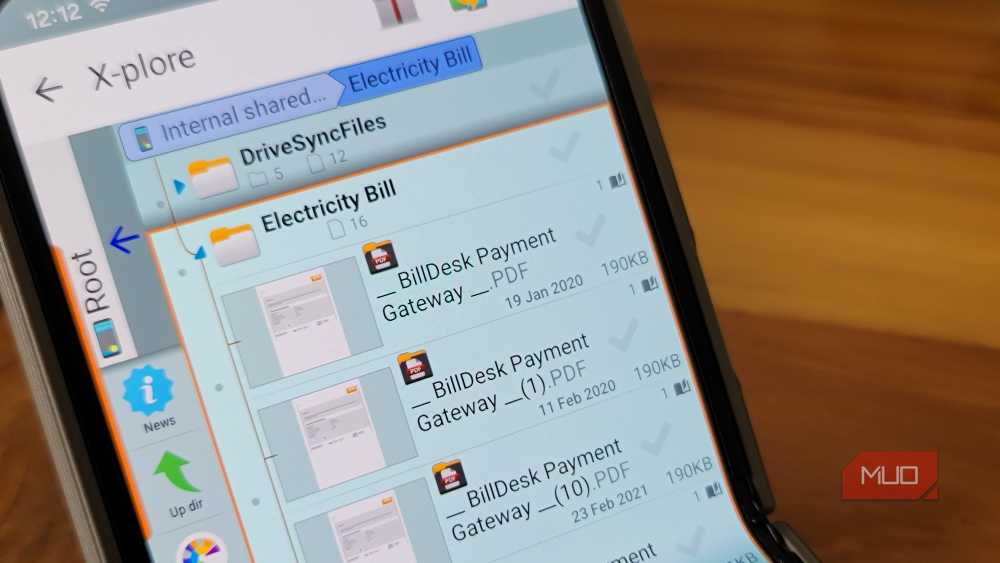
X-plore comes with its own viewers for PDFs, images, videos, music, and plain text files. That means you don't need to jump out of the file manager and into another app just to check the contents of a file. Tap a PDF, and it doesn't bother you with picking a dedicated app, but opens it in its own viewer. Similarly, if you tap a photo, you get a full-screen preview.
There's a SQLite database viewer as well. If you're into Android development or just curious about how apps store data, X-plore lets you open .db files and browse their tables. It's a niche feature, but it saves you from installing a separate database browser. There's also a hex viewer if you need to inspect raw file data.
You can configure X-plore to use its built-in viewers by default or hand off files to whatever system app you prefer. I keep the built-in viewers for quick previews and only switch to dedicated apps when I need to edit something. It cuts down on the number of apps I need installed, so that's a plus.
Advanced features
Root-level access and power tools most apps skip
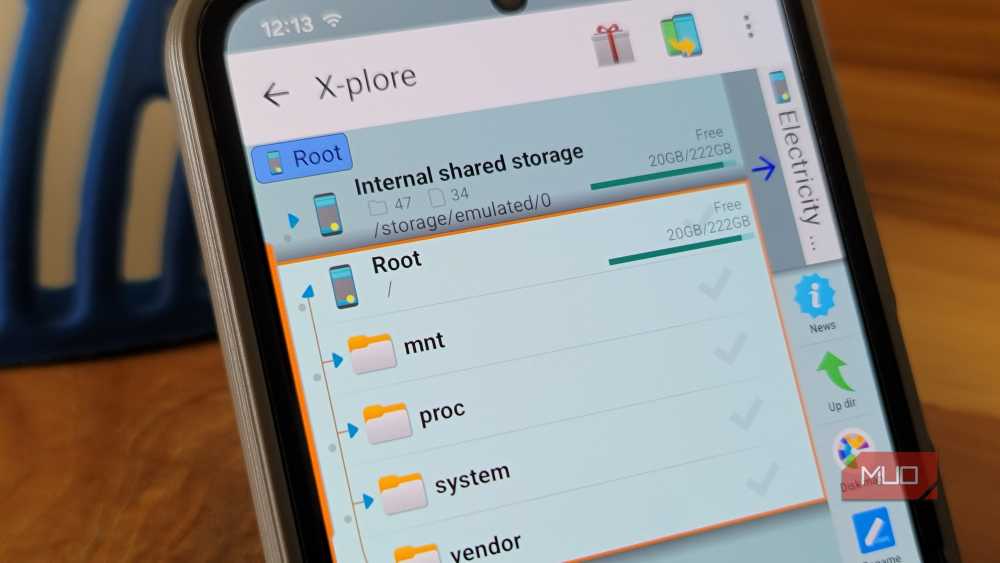
X-plore can reach folders that most file managers wouldn't. After Android 11 locked down access to the Android/data directory, a lot of file managers lost the ability to browse app data. X-plore offers deeper access, and if you have Shizuku set up on your device, it can go even deeper without needing full root access.
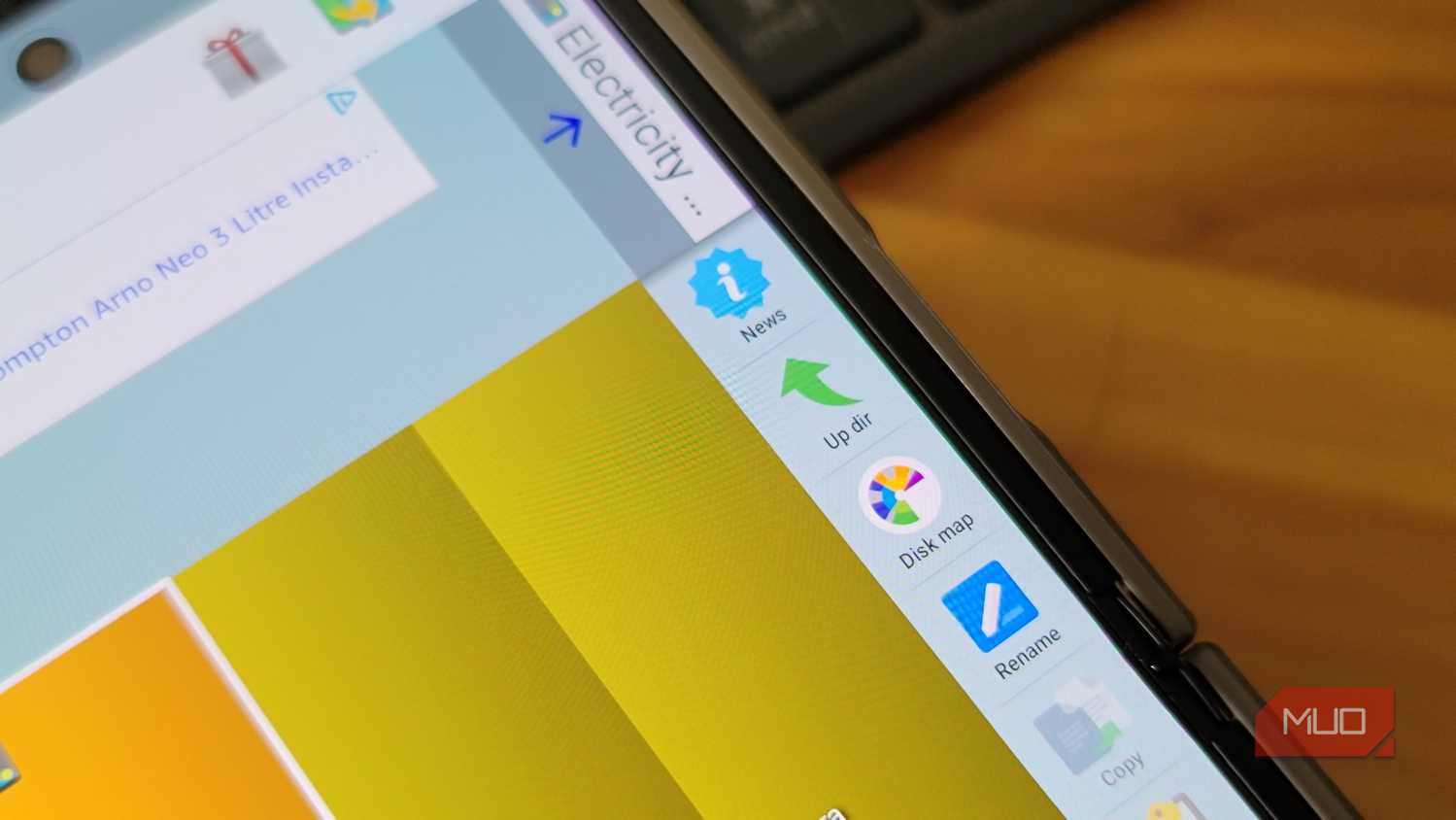
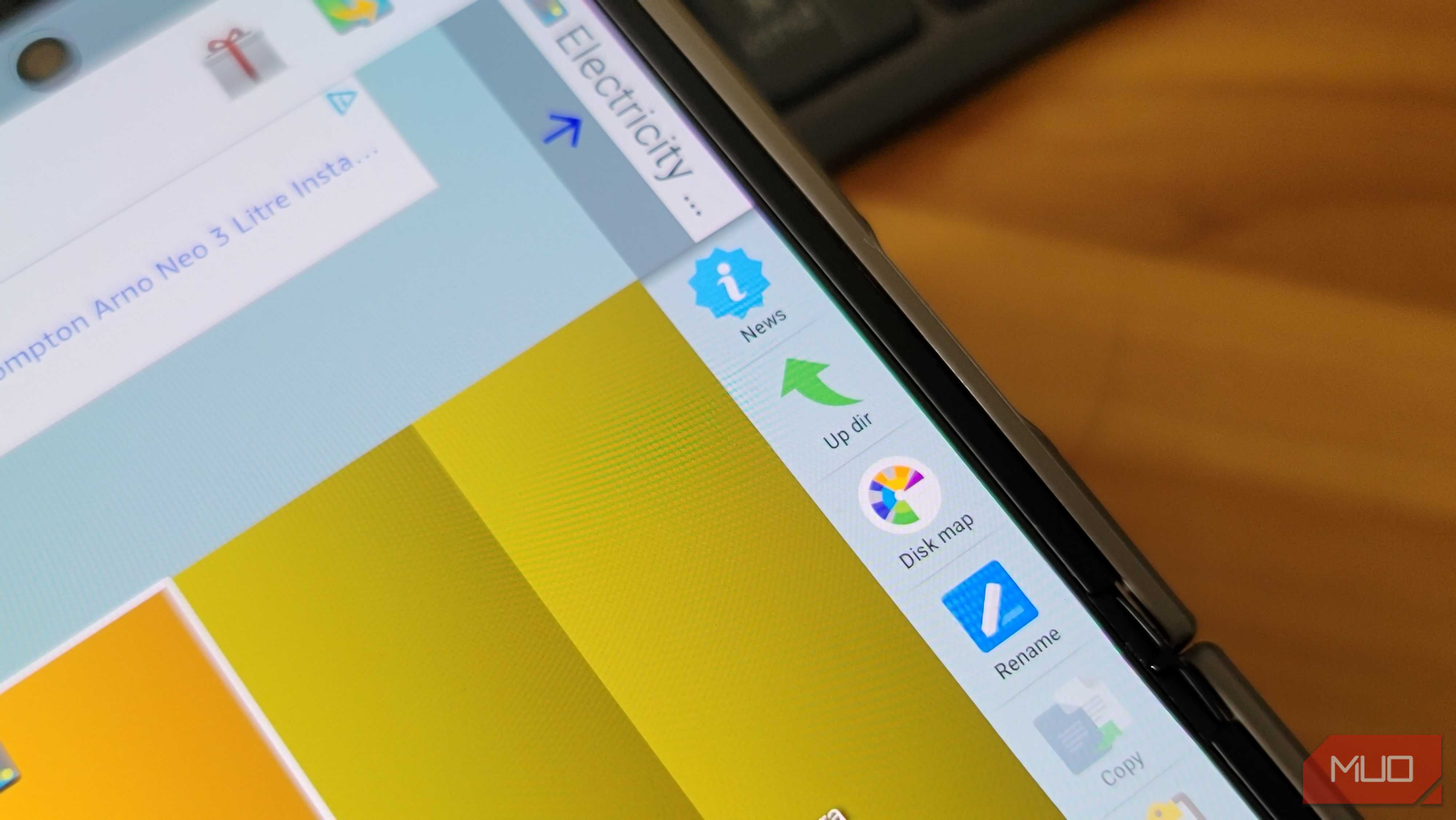
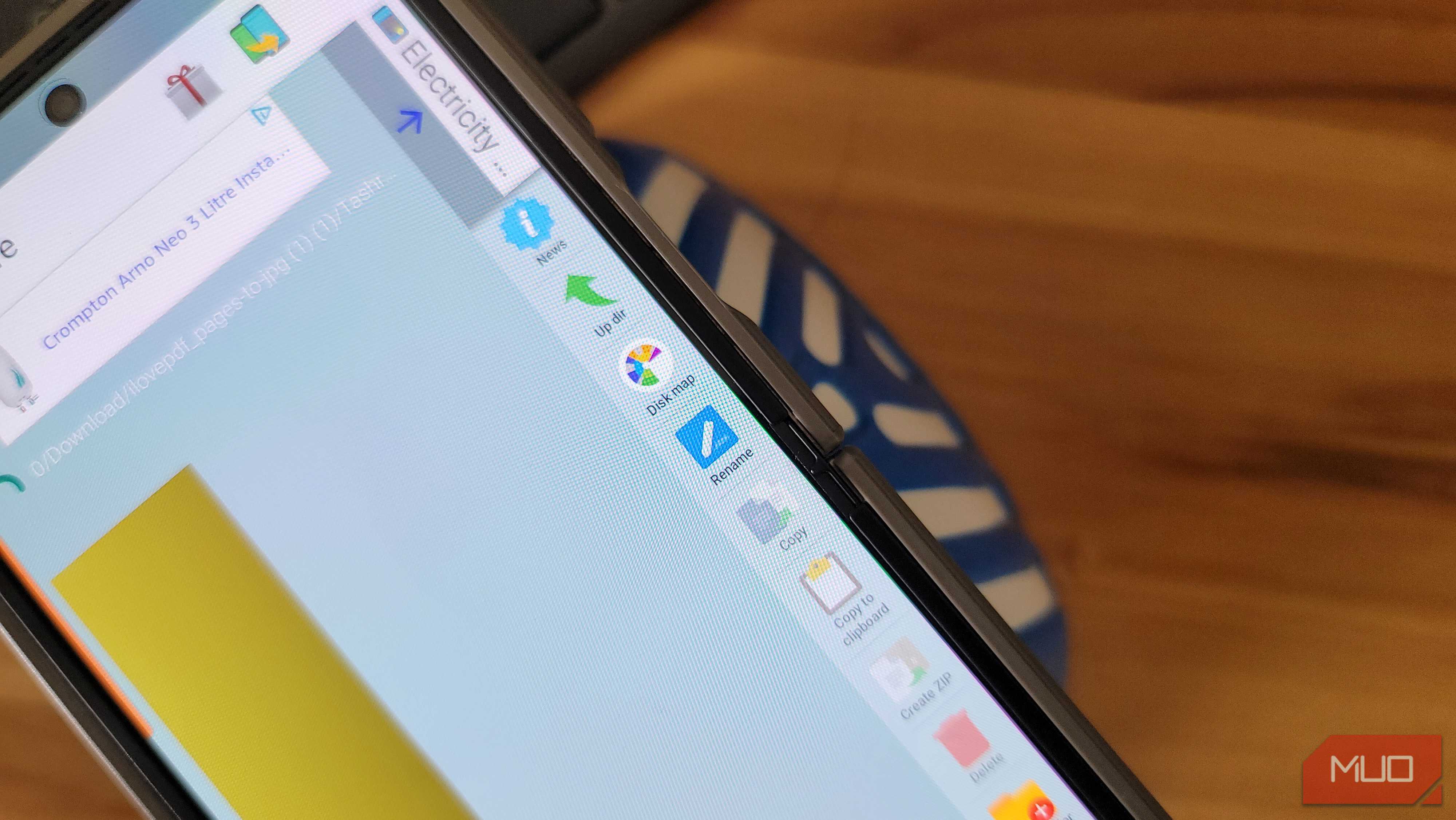
For rooted users, X-plore has dedicated root features that let you browse and edit system files. But even without root, the power tools are solid. Disk Map gives you a visual breakdown of what's using your storage, sized by how much space each folder takes.
Then there are checksums for verifying file integrity, a vault with real AES encryption for sensitive files, sync jobs for keeping folders mirrored between locations, and an app manager that shows APK signatures.
When usability beats pretty interface
X-plore can be a little annoying on the free version. It shows full-page ads when you first open the app or while you're navigating between folders. It doesn't happen constantly, but it's frequent enough to break your flow when you're in the middle of moving files around. The donate version, which costs about $3 on the Play Store, removes those ads entirely and unlocks premium features like WiFi file sharing and SSH. For what you get, that's a no-brainer.
Compared to FX File Explorer, X-plore gets far more frequent updates, even though FX does make ascending and descending sorting a bit easier. If you've been using Total Commander, X-plore will feel just as powerful but more intuitive, especially the WiFi file sharing that Total Commander lacks. And if you grew up using Windows Explorer, the tree layout will feel like coming home.
It's not the prettiest file manager on Android, but once you've worked with that dual-pane view and those network tools, going back to anything simpler feels like a downgrade.