


Bluetooth headphones can go from perfectly normal to embarrassingly bad audio without disconnecting, stuttering, or giving you any useful clue about what happened. Music suddenly sounds flat, compressed, and weirdly telephone-like, even though the connection itself looks completely healthy.
That usually sends people straight into Bluetooth troubleshooting mode, where resetting the connection, changing codecs, or re-pairing the headphones all seem reasonable. Sometimes one of those fixes works, which only makes the problem more confusing.
There is a much better place to look first, and it is probably not anywhere near your Bluetooth settings.
Your microphone can wreck perfectly good playback
Bluetooth has to squeeze your voice in somewhere

Bluetooth headphones are expected to pull double duty. They have to deliver good stereo audio for music, movies, and games, then send your voice back through the microphone whenever you jump into a call or voice chat.
On Bluetooth Classic hardware, those jobs usually rely on different profiles. Everyday music playback typically runs over A2DP, or the Advanced Audio Distribution Profile, which is designed for higher-quality one-way audio. This is the territory where SBC, AAC, aptX, and LDAC live, with Bluetooth codecs determining how audio gets compressed and transmitted.
A2DP doesn’t provide a return path for your headset microphone. When an app needs that mic, the connection can switch to HFP (Hands-Free Profile), which supports two-way audio. Traditional HFP connections have far less bandwidth available for playback, so the spacious stereo sound you were listening to can shrink into a much narrower stream designed primarily for speech.
Windows 11 makes this behavior particularly easy to trace. Microsoft documents Bluetooth Classic headsets moving from A2DP to HFP when an application opens the headset microphone, and an app can also trigger HFP by starting an audio stream classified for communications. Playback over these HFP connections is mono and commonly uses 8kHz or 16kHz voice modes, which explains how an otherwise excellent song can acquire the acoustic sophistication of a customer-service hold line.
This quality drop is separate from the usual debates over aptX and LDAC audio quality. Once the headset switches to the call-oriented Bluetooth profile, a better music codec won’t rescue playback quality.
Macs can run into the same basic behavior. Apple warns that using the microphone built into Bluetooth headphones can reduce playback quality and volume for as long as the mic stays active. Android faces the same Bluetooth Classic limitation, and Google also notes reduced audio quality when Bluetooth microphones are in use.
Calls are simply the most obvious trigger. Discord, WhatsApp, Telegram, Google Meet, browser conferencing, game voice chat, voice recorders, and plenty of other apps can open the Bluetooth microphone while your music or video keeps playing. If the audio goes bad at almost the exact moment a voice chat, meeting, or microphone-heavy app starts up, the Bluetooth profile is a much stronger suspect than failing headphones.
The privacy page can expose the app behind it
Your microphone indicator finally gets a troubleshooting job


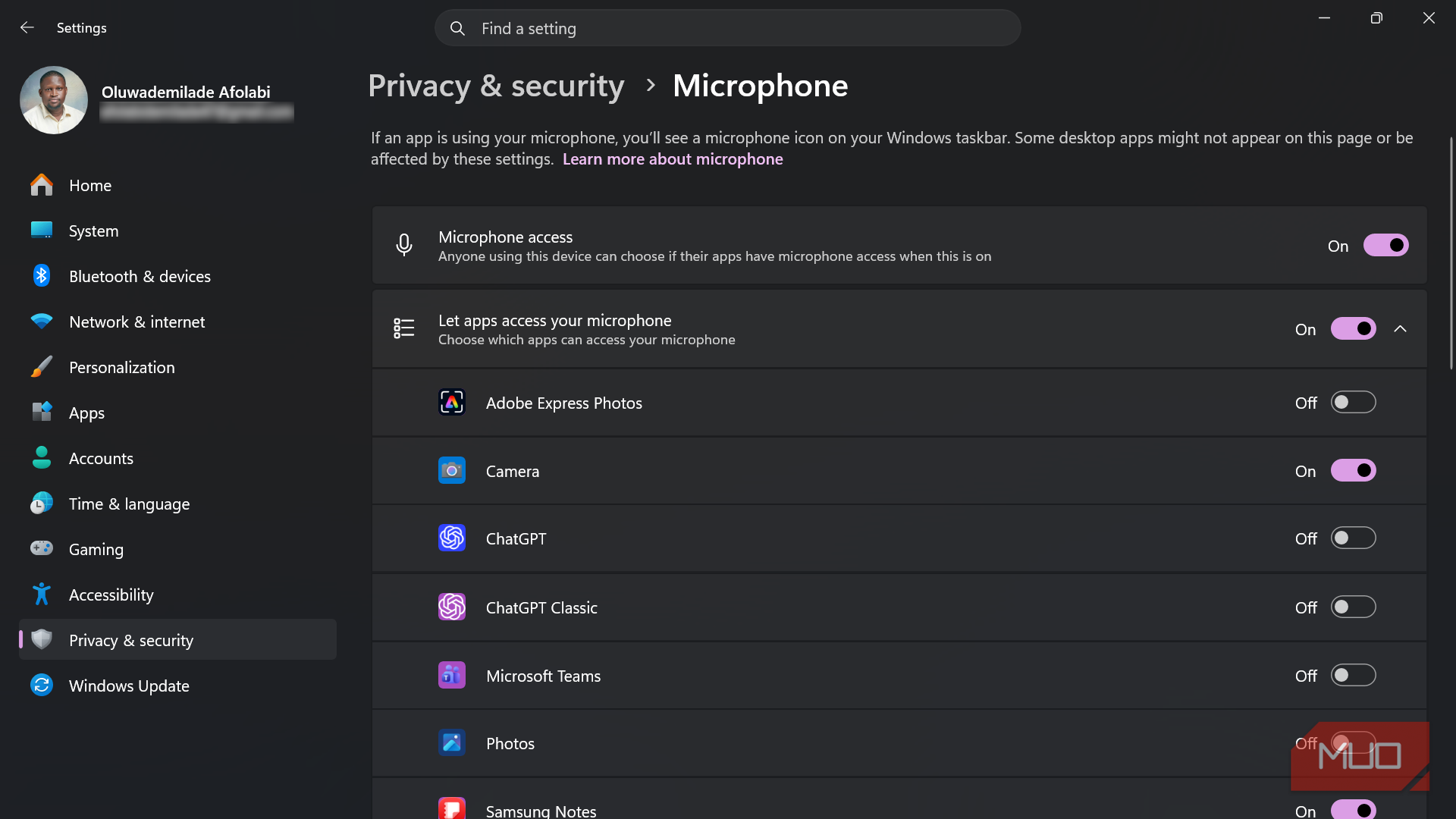
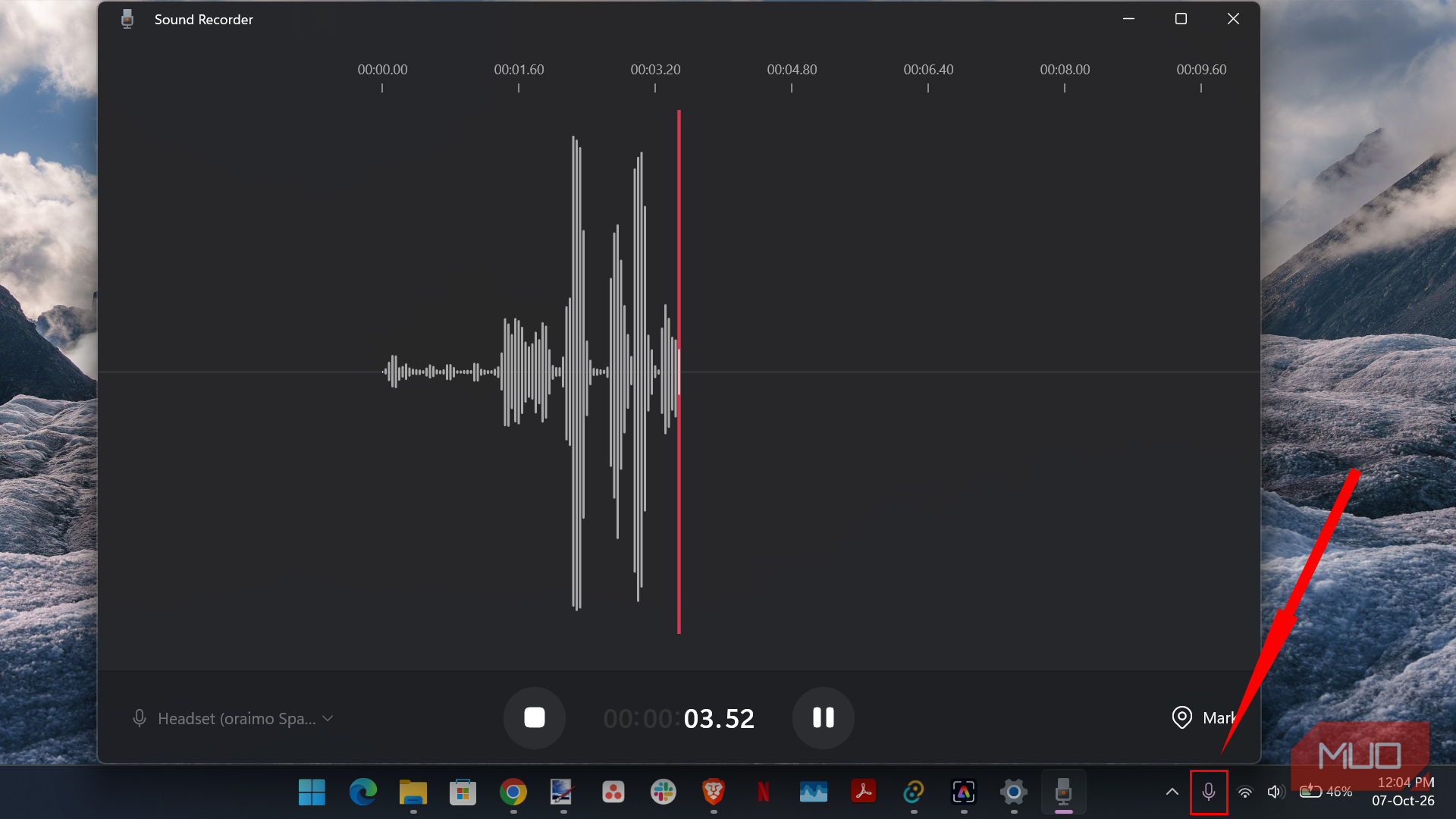

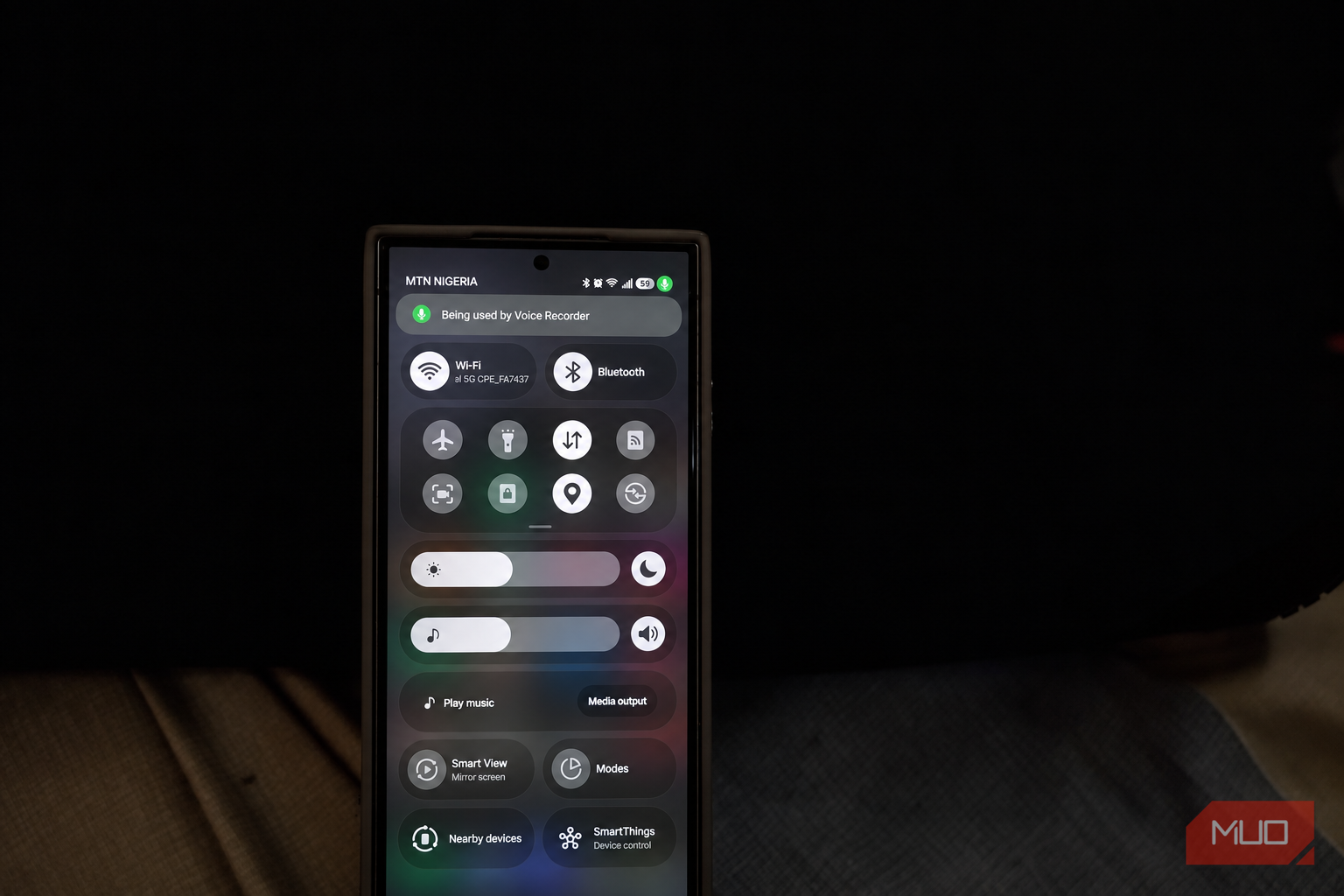
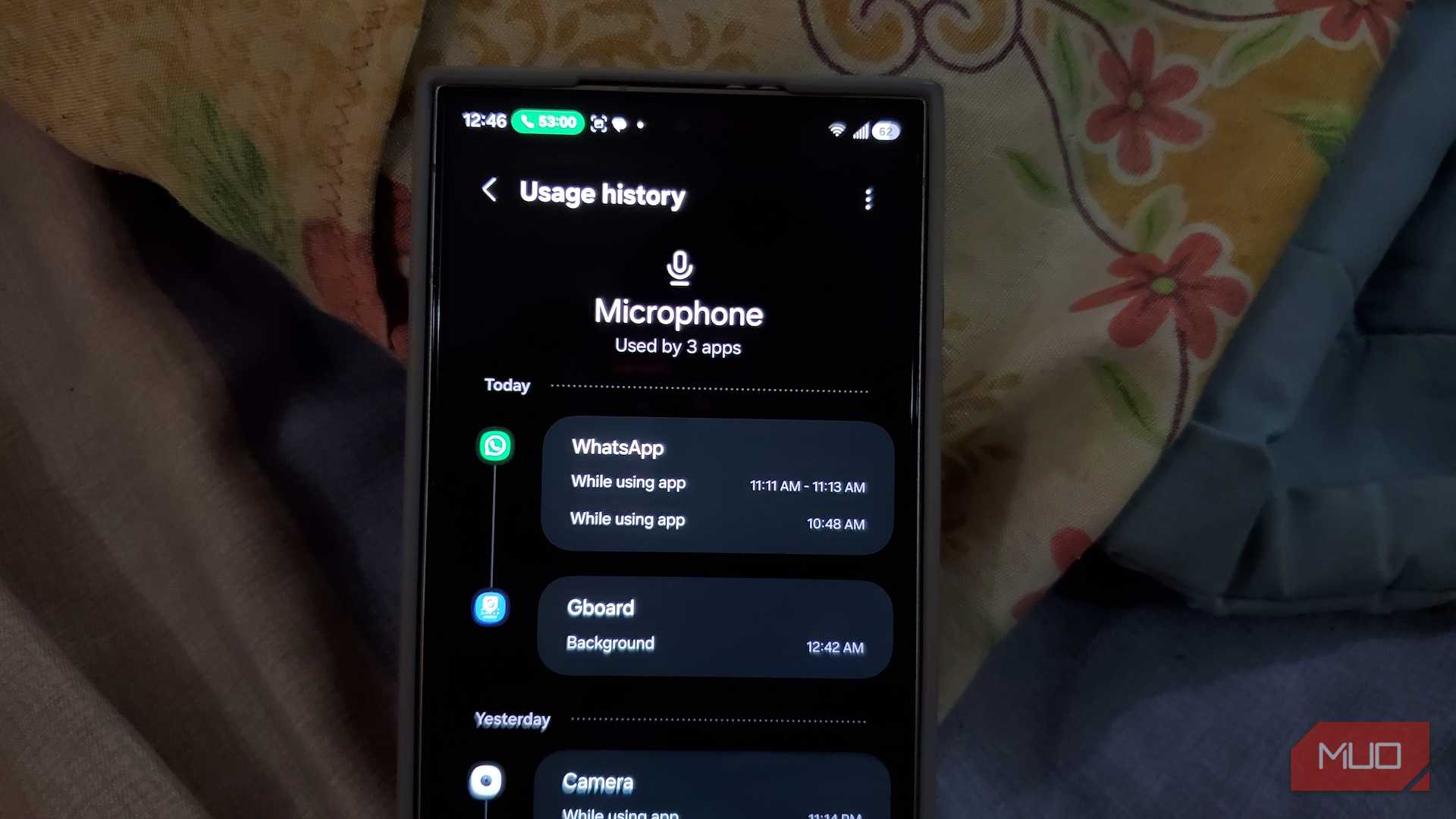
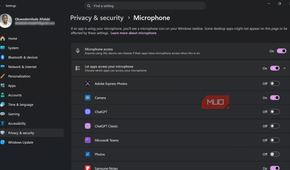
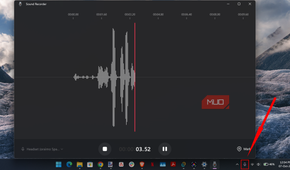
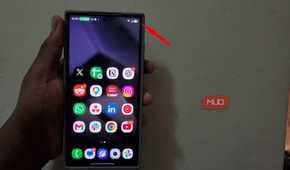
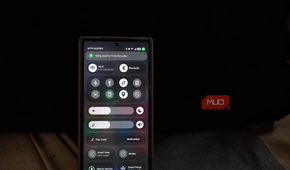
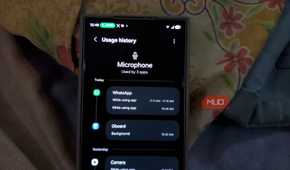
Modern operating systems already monitor microphone activity for privacy reasons, and those same controls are handy here. The best place to check varies by platform because some systems provide a proper activity history, while others rely more on live indicators.
|
Platform |
Best place to check |
What to look for |
|---|---|---|
|
Windows 11 |
Settings > Privacy & security > Microphone |
Apps Windows has detected interacting with the microphone |
|
Android |
Settings > Security & privacy > Privacy dashboard > Microphone on many devices |
Which apps used the microphone and when |
|
macOS |
Control Center |
The app currently using the microphone |
|
iPhone |
Control Center |
Current or recent microphone use |
Windows shows a microphone icon in the taskbar notification area while an app is using a mic. Its privacy settings can also show apps Windows has detected interacting with the microphone, although traditional desktop programs don't always fit into Windows' permission system as neatly as Store apps. If you already spend time tightening the OS down, several other Windows privacy settings are worth reviewing in the same part of Settings.
Android does this especially well. Android 12 and newer show a green privacy indicator when an app accesses the microphone or camera, and tapping the indicator can reveal which app is responsible. If the app has already released the mic, Android's built-in Privacy Dashboard shows a history of sensitive permission use, so you can compare the timestamp with when your headphones started sounding awful.
On Mac, you can check the orange microphone indicator and open Control Center to see which app is currently using it. On an iPhone, the orange indicator also signals microphone use, while Control Center can show which app has used it recently. Settings > Privacy & Security > Microphone on both Apple platforms is a better way to manage permissions than trying to figure out exactly what happened five minutes ago.
One catch is worth keeping in mind. Seeing microphone activity doesn't prove the app is using the microphone in your Bluetooth headphones. Your laptop mic, webcam mic, or phone microphone can trigger the same privacy indicator without forcing the Bluetooth headset into hands-free mode.
Once you find the suspicious app, open its audio settings and check the selected input device. Finding your Bluetooth headphones listed as the microphone makes the case considerably stronger.
Fix the microphone session before rebuilding Bluetooth
Re-pairing should be several rungs down the ladder
mi

After you identify the app using the headset microphone, fix the problem there before tearing apart your Bluetooth setup.
- Leave forgotten meetings, voice channels, game chats, and calls.
- Close browser tabs that are actively using the microphone.
- Quit and reopen an app that refuses to release the mic.
- Turn off voice chat in games you never use.
- Revoke microphone access from apps that don't need it.
- On a computer, choose the laptop, webcam, or USB microphone as the input device instead of the Bluetooth headset.
Using another microphone can be particularly effective on a PC. When the communication app releases the Bluetooth headset's input, Windows can usually keep playback on the higher-quality A2DP path. Check the microphone selection in the app and in Windows Sound settings, since Zoom, Discord, games, and other communication software can maintain their own device choices.
This also explains why disconnecting and reconnecting headphones can appear to cure the problem. Reconnecting may terminate the microphone session or make an app release the headset input, leaving the Bluetooth pairing to take credit for solving a problem it never created.
Newer hardware has an escape hatch through Bluetooth LE Audio. Compatible Android devices can provide much better simultaneous microphone and playback quality, while supported Windows 11 PCs and LE Audio headsets can maintain stereo output with the microphone active. The PC, Bluetooth hardware, drivers, and headphones all need the right support, so a recent Bluetooth version number on the box doesn't guarantee the feature. Audio terminology around newer headphones gets murky fast, especially when manufacturers pile on claims about codecs, hi-res playback, and lossless sound, so it helps to understand the difference between high-resolution and lossless audio before treating those labels as proof of anything.
Check the mic before blaming your headphones
Microphone use will not explain every bad Bluetooth connection. Radio interference, multipoint weirdness, low battery, driver trouble, and hardware faults can produce their own mess. When good stereo playback turns into call-quality mush as soon as an app starts listening, though, the microphone activity page gives you a much better first move than resetting a pair of headphones that may be behaving exactly as Bluetooth told them to.