


Windows gives you plenty of networking tools, but most of them assume you already know exactly what you're trying to inspect. ipconfig, nslookup, and PowerShell can surface DNS information, though the output usually comes back as raw addresses, record types, and values that still need a bit of decoding.
DNS Toolkit wraps that same kind of information in a much friendlier interface. From one browser tab, you can look up a domain, check DNS health, inspect email records, see whether changes have propagated, and pull registration details without installing another app.
Windows can find the answer if you know what to ask
Command line archaeology gets old fast

If you're troubleshooting DNS on Windows, you already have a solid set of built-in tools. ipconfig /all can show which DNS servers your PC is using, nslookup can resolve a domain, and PowerShell's Resolve-DnsName can dig into specific record types when you need more detail. Windows also runs a DNS Client service behind those lookups, including the local resolver cache, which can complicate troubleshooting when an old answer sticks around.
The catch is that each command usually answers one narrow question. If you want to know where a domain points, who handles its email, which nameservers are authoritative, or what's buried inside its TXT records, you need to know which query to run and how to make sense of the result afterward.

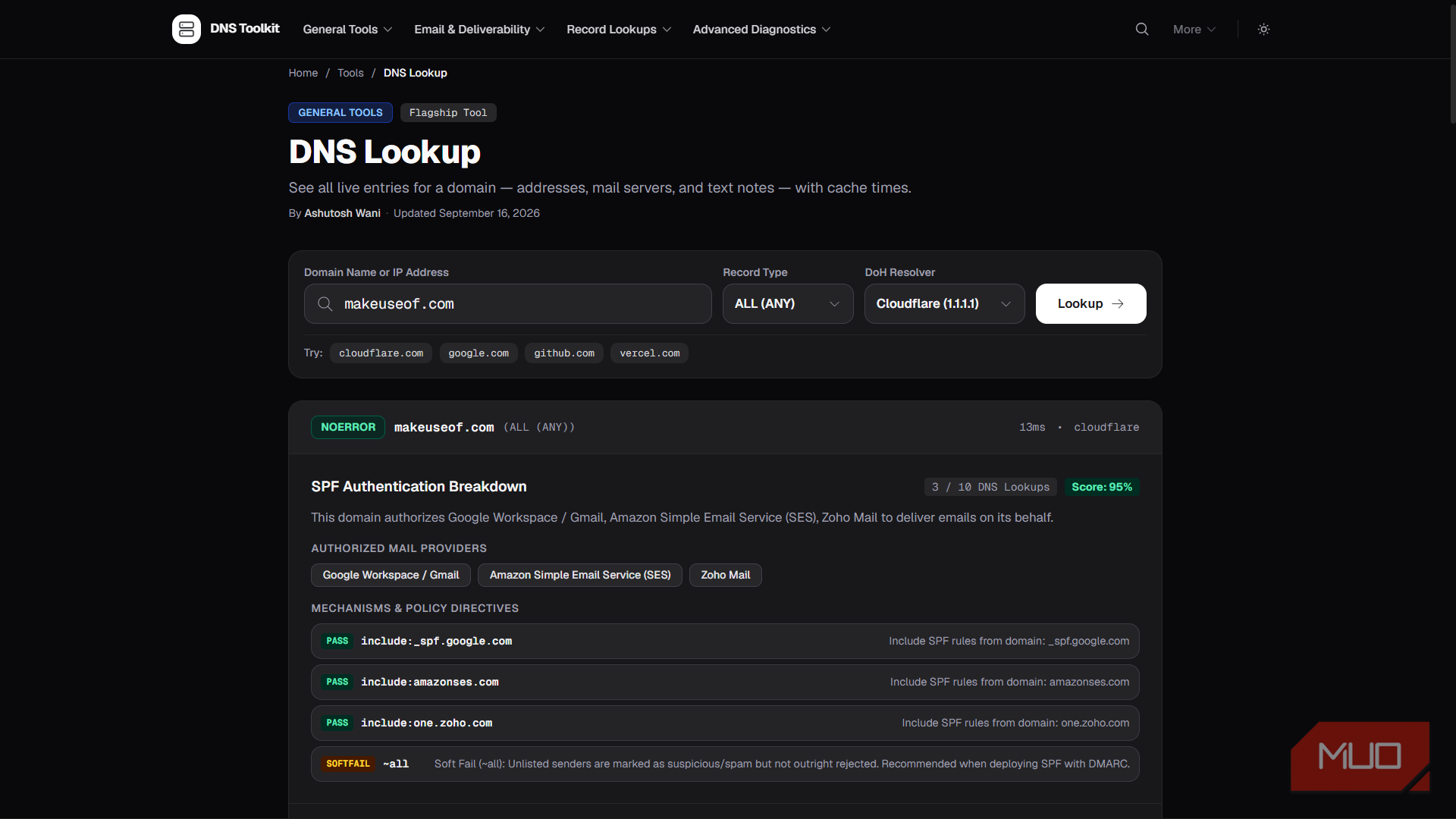
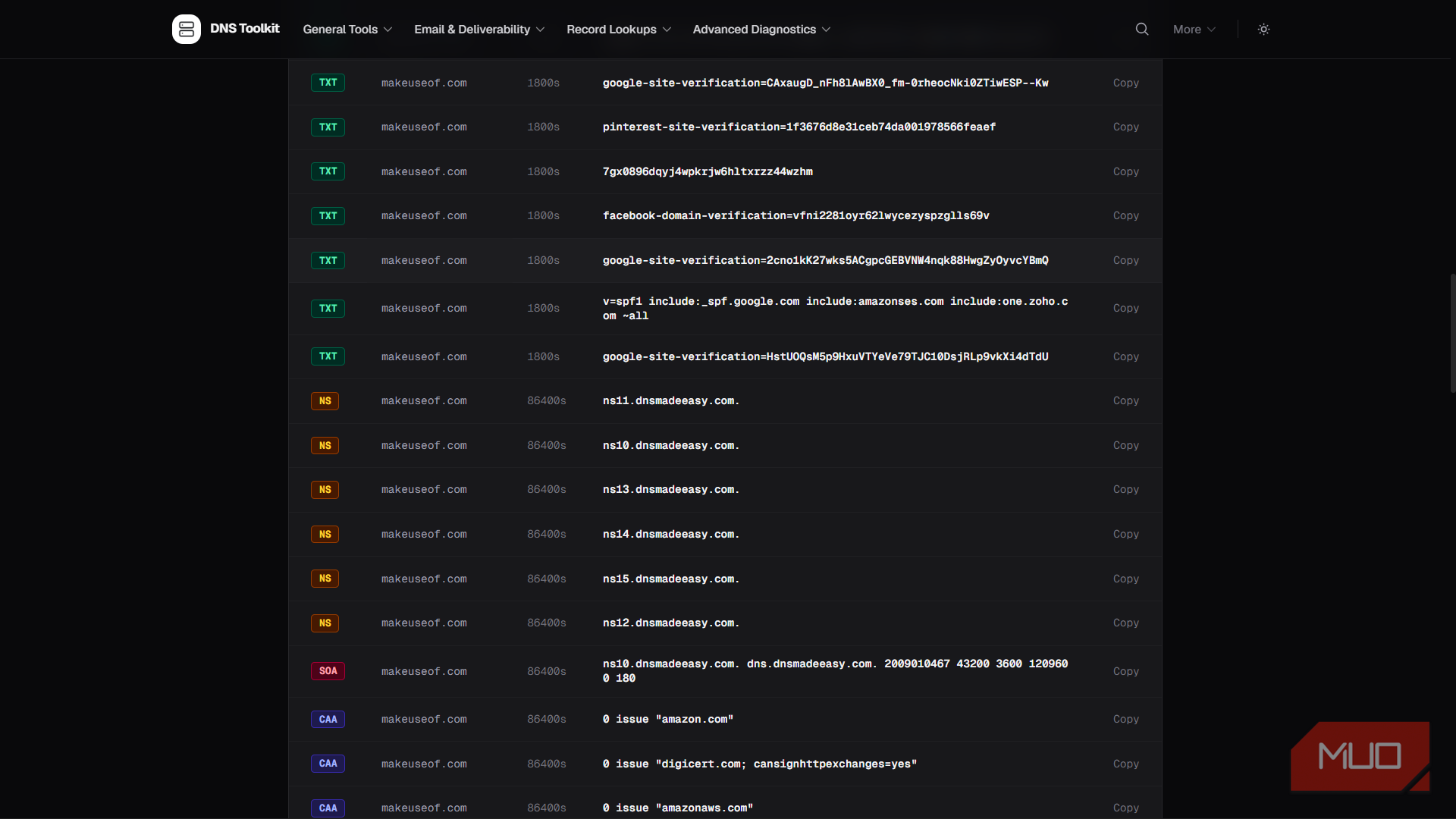
Enter a domain in DNS Toolkit and the main lookup pulls several types of DNS information into one page, with labels and explanations that are easier to scan than raw terminal output. When you're trying to understand how a domain is configured rather than simply resolve it, you can quickly see its IP address, mail routing, nameservers, verification records, certificate-authority rules, and other public DNS data without jumping between commands.
It also helps interpret some of the records for you. SPF can look like alphabet soup if you haven't worked with email authentication before, but DNS Toolkit can identify the services referenced in the record and explain what the policy is doing. That saves you from decoding a long TXT string to figure out which services the domain authorizes to send mail.

You should still use Windows' built-in tools when the problem is local to the PC, such as a bad adapter configuration, a DHCP issue, or the wrong DNS server. If the resolver itself is the problem, your Windows DNS settings are still where you need to fix it. For investigating the DNS side of a website or domain, though, the browser interface is usually the faster route.
It turns DNS troubleshooting into questions you'd actually ask
You don't need to memorize every record type first


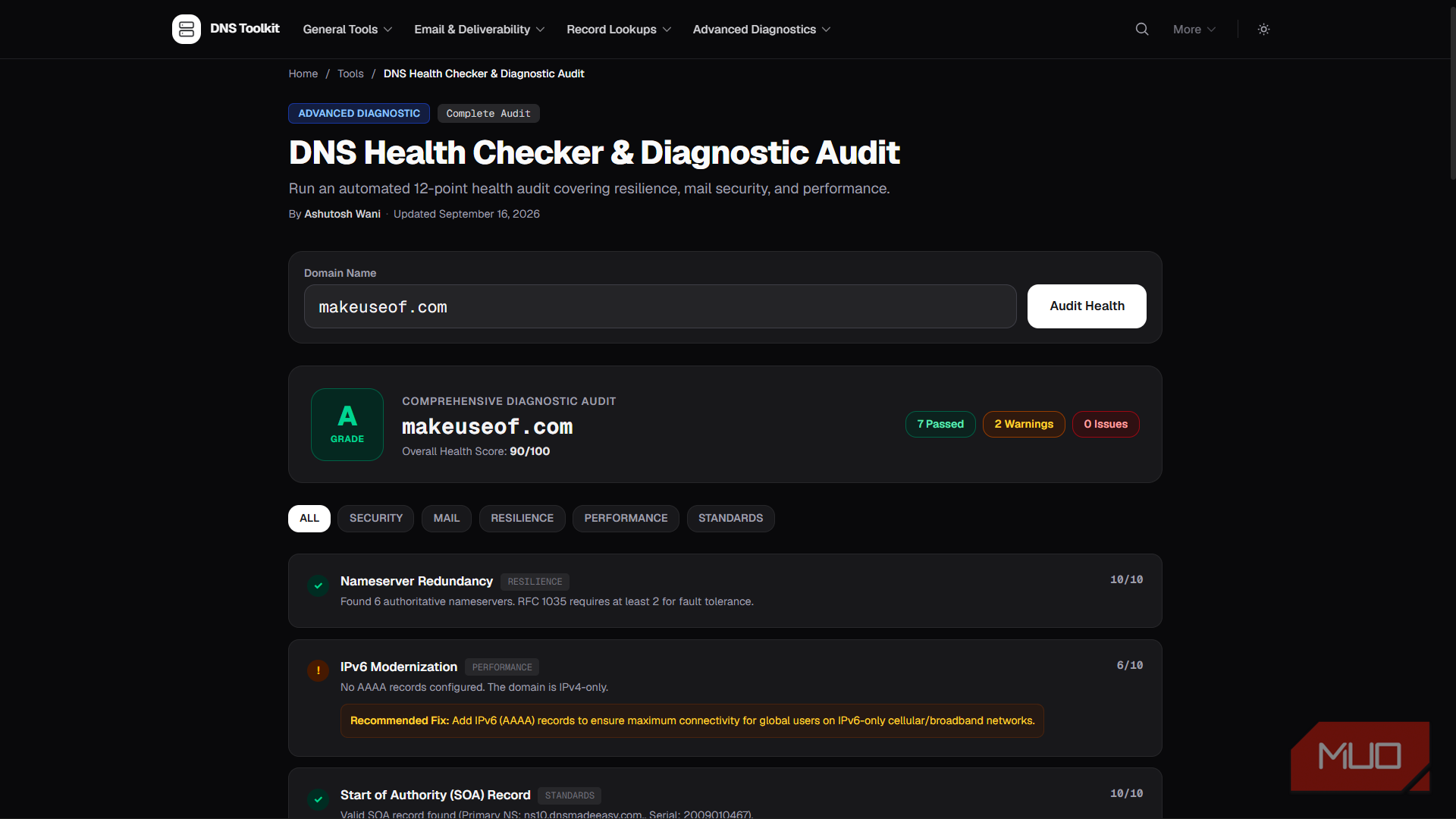
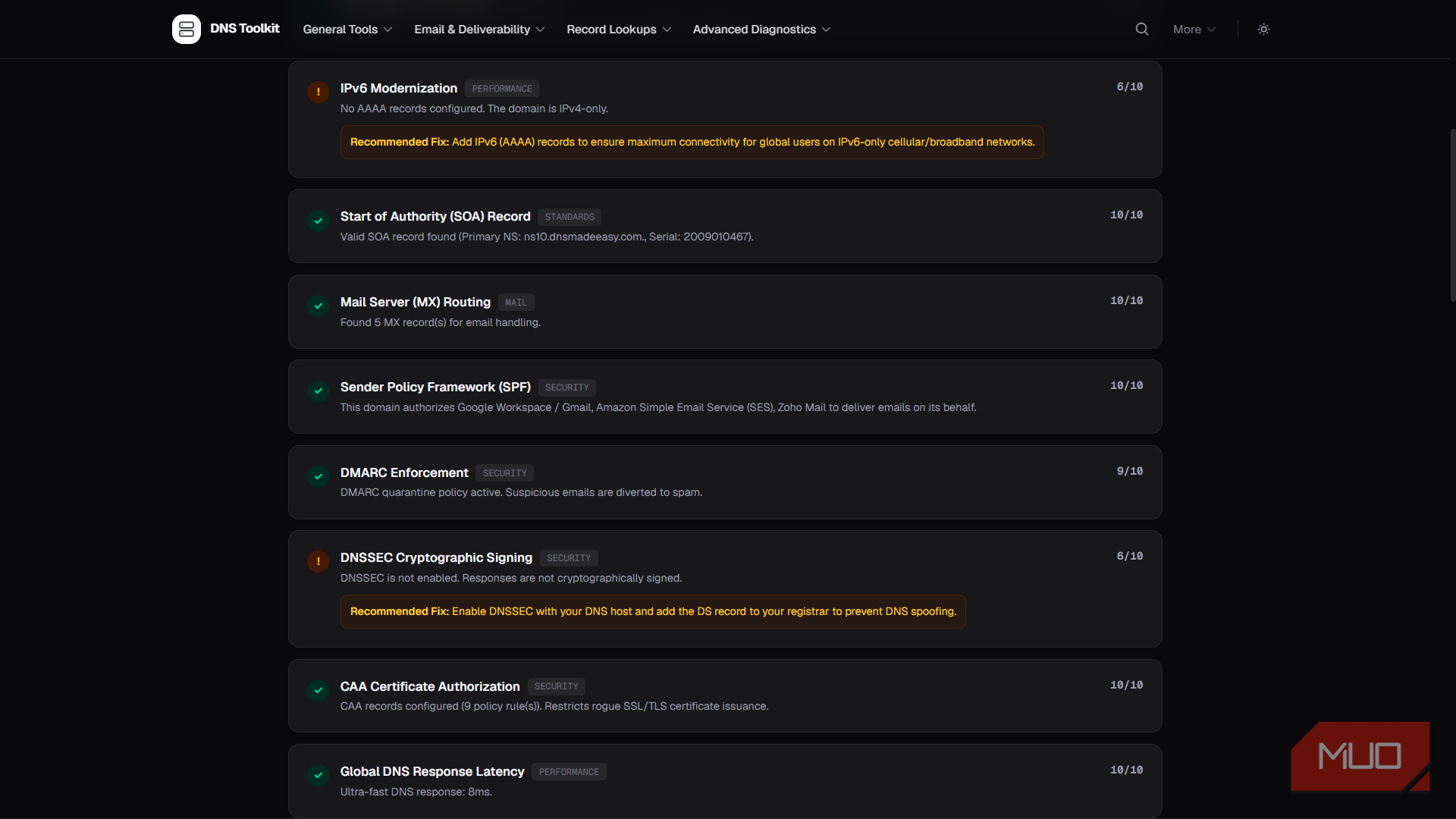
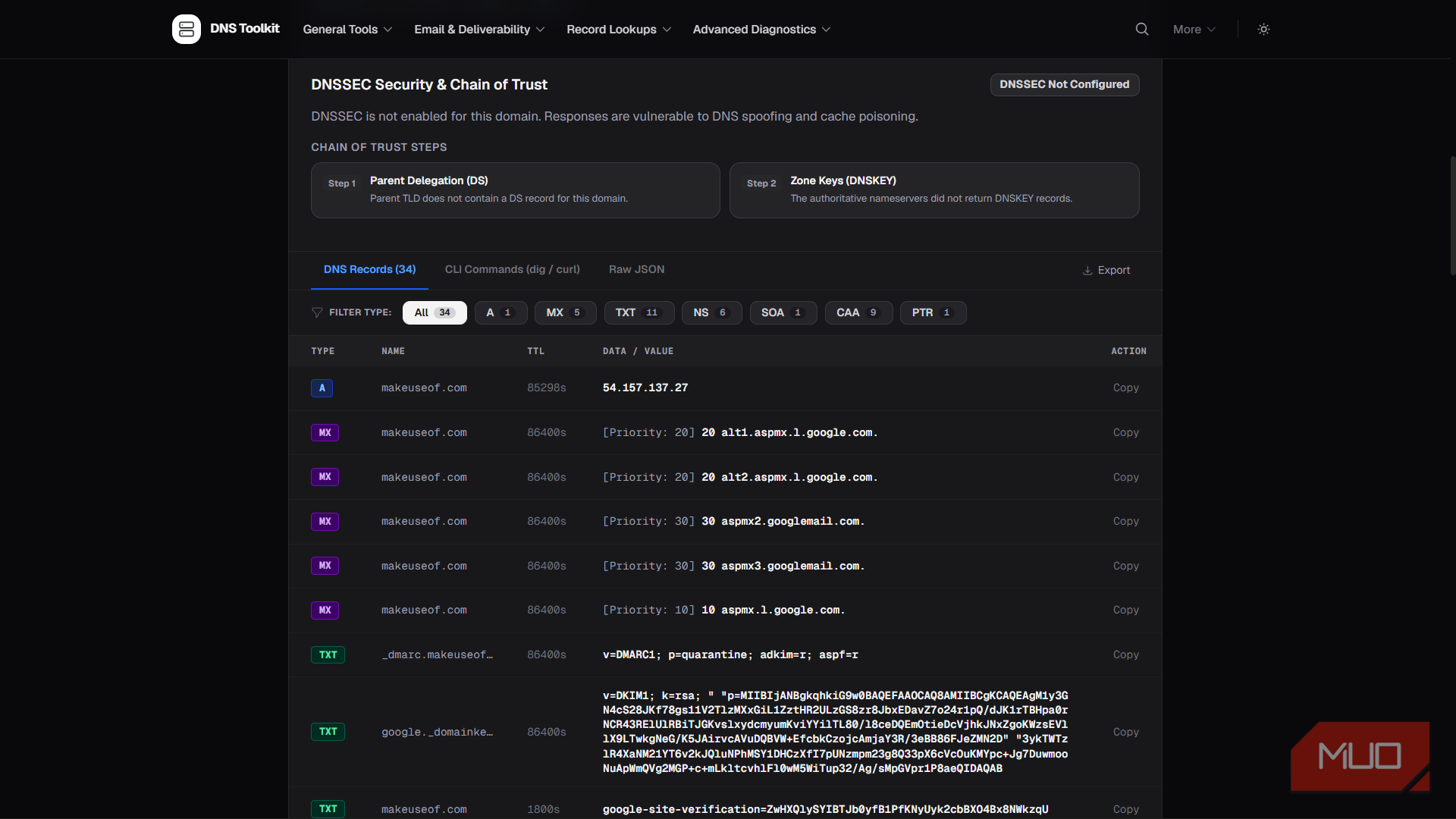
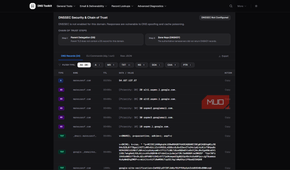
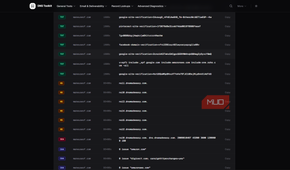
The DNS Health Checker ended up being the feature I used most because it looks at the domain as a complete setup instead of making you inspect every record one at a time. If you feed it a domain, it checks nameservers, mail routing, SPF, DMARC, DNSSEC, CAA records, IPv6 support, and several other pieces of the configuration. The results are grouped into readable categories, and any warning comes with an explanation of what triggered it instead of leaving you with a red icon and a mystery.
That makes it useful in a few common situations. If you run a website, you can use it as a quick sanity check after changing DNS providers or editing records. If mail from your domain keeps landing in spam, the SPF and DMARC checks give you a sensible place to start. If you just want to know whether a site supports DNSSEC or IPv6, you don't have to remember which command exposes each one.
The overall score comes from DNS Toolkit's own scoring system, so don't treat it as a verdict that a domain is configured perfectly. The individual checks are much more valuable because they show exactly what the site found and why a particular result was flagged.
The rest of the toolkit works well when you start with a specific problem instead of a record type. You don't have to begin with "I need an MX lookup." You can start with a practical question such as "Does this domain's email setup look healthy?" and work your way backward into the records behind it.
It's also a much easier way to learn DNS without first memorizing a wall of acronyms. Seeing A, MX, TXT, NS, SPF, DMARC, and DNSSEC attached to a real domain gives each term some context that a command reference rarely manages on its own.
A few of these tools are worth bookmarking on their own
DNS problems rarely respect your browser tabs

The DNS Propagation Checker is the tool I reach for after changing a DNS record and seeing everything looks right on my end, but someone else is still getting the old result.
It checks the same record against multiple public resolvers, so you can see whether they agree instead of relying on whichever resolver your PC happens to use. That makes it easier to see whether public resolvers are still returning different answers or whether the result you're getting locally is the odd one out.
Don't rely too heavily on the big synchronization percentage at the top. During my testing, a few resolver checks failed to return an answer even when the successful ones all agreed. A low percentage can therefore have several explanations, so it's worth looking at the individual results before assuming the record is still propagating.

The WHOIS and RDAP Lookup covers another job that usually sends me to a separate website. If you enter a domain, it pulls up public registration details such as the registrar, important dates, registry status, and delegated nameservers. That comes in handy when you're checking an unfamiliar domain, troubleshooting one you manage, or figuring out who handles its DNS. It's also a quick way to see when a domain was registered without sifting through separate lookup sites.
DNS Toolkit includes more specialized tools for individual record types, email authentication, DNSSEC, reverse DNS, and nameserver testing, even if you don't use every one regularly. Having all of those checks in one place is reason enough for me to keep the site bookmarked.
I'd rather open a tab than remember another command
I'm not replacing nslookup or PowerShell with a website, especially when I'm troubleshooting the Windows machine itself. DNS Toolkit isn't replacing the resolver configuration on my PC either. If I want to switch providers or enable DNS over HTTPS, Windows and my browser have their own controls.
DNS Toolkit is for the moments when I care about the domain on the other end and want an answer without turning a five-minute question into a refresher course on DNS syntax. For that job, opening a browser tab sounds pretty good to me.