


One of the things that I do, when I am not doom-scrolling past my social media feed or sitting in front of my laptop, is clear junk files from my phone. My Samsung phone was down to its last 4GB, and no amount of clearing the gallery or uninstalling apps made the low storage warning go away. Turned out it wasn’t the usual files eating up the space, and once I dug deep, there were a few issues that were the bigger storage eaters than my photos.
Your phone's "Other files" bucket is doing more than you think
It's the one category that never adds up on its own

On my Samsung, I open Settings, head over to Device Care, tap Storage, and you'll see the usual suspects: images, videos, documents, and apps. However, even after adding them all up, they rarely match the “used storage” number at the top of the screen.
The process for finding your device storage may vary by smartphone manufacturer, but that's generally what you're looking for.
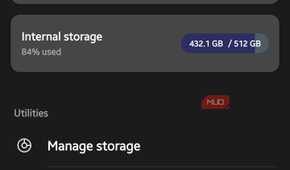
That gap is filled by the “Other files” section, which appears when you tap “Show more” (in Device Care on my Samsung Galaxy phone). On my phone, it was holding up more than 13GB of data, which is a significant amount.
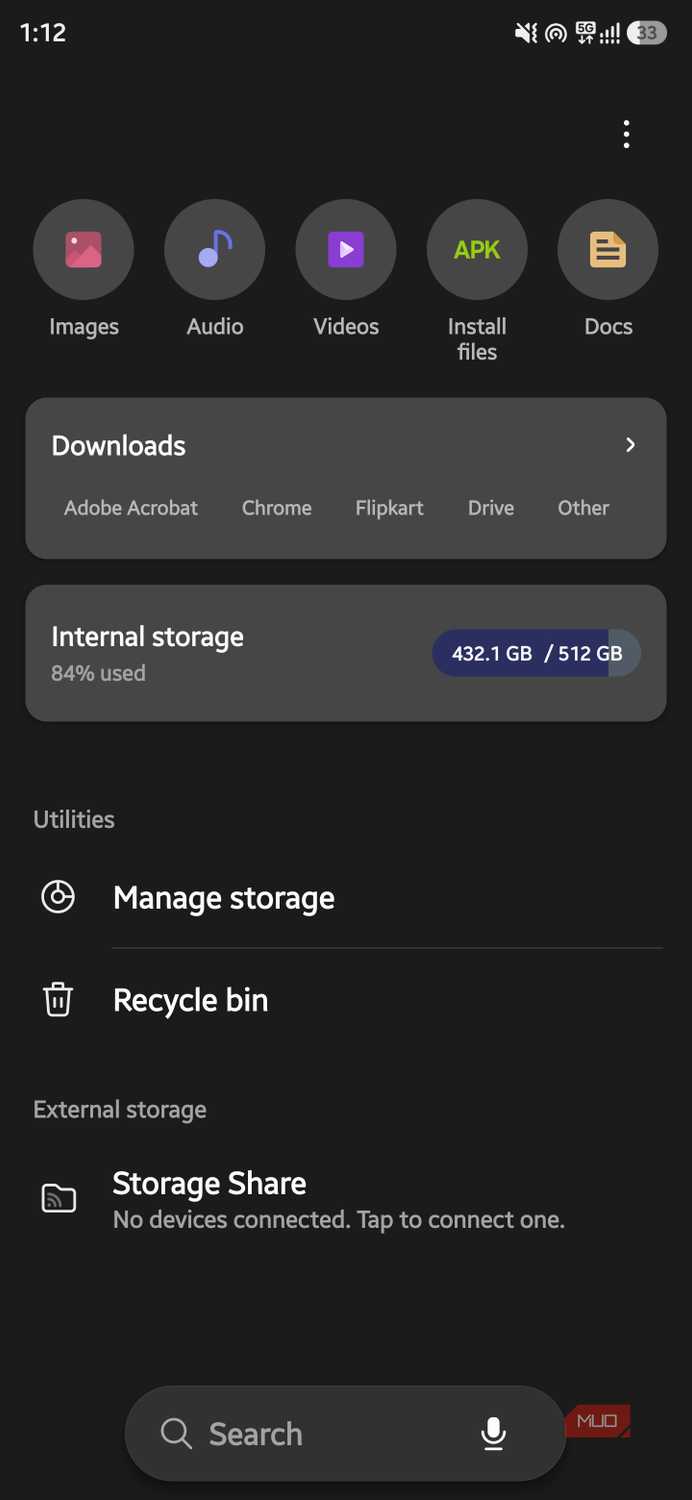
This data was split between duplicate photos, backups, stuck file transfers, and old WhatsApp database files. The good thing about a Samsung phone is that you can tap Other files, which will categorize the data in this bucket and let you delete them, either one by one or all at once.
Unfortunately, this feature isn’t available on some Android phones. On some, you can only browse what’s inside, note the file names, then manually delete them from the app or folder they actually belong to. A tedious task, to be honest. This is why you should use a third-party file manager, like Files by Google, which lets you clear junk files rightthen and there.
Overall, if you have gone through the same drill of cleaning up a bloated photo gallery, and you are still confused about what is eating up a chunk of the phone’s storage space, you are probably not looking in the right direction.
Google Maps offline downloads outlive your trip
Downloaded once, forgotten forever


 Credit: Sagar Naresh/MUO
 Credit: Sagar Naresh/MUO
 Credit: Sagar Naresh/MUO
 Credit: Sagar Naresh/MUO
 Credit: Sagar Naresh/MUO
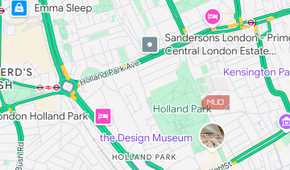

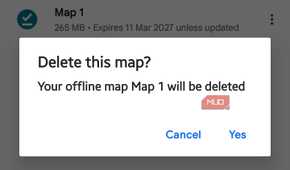
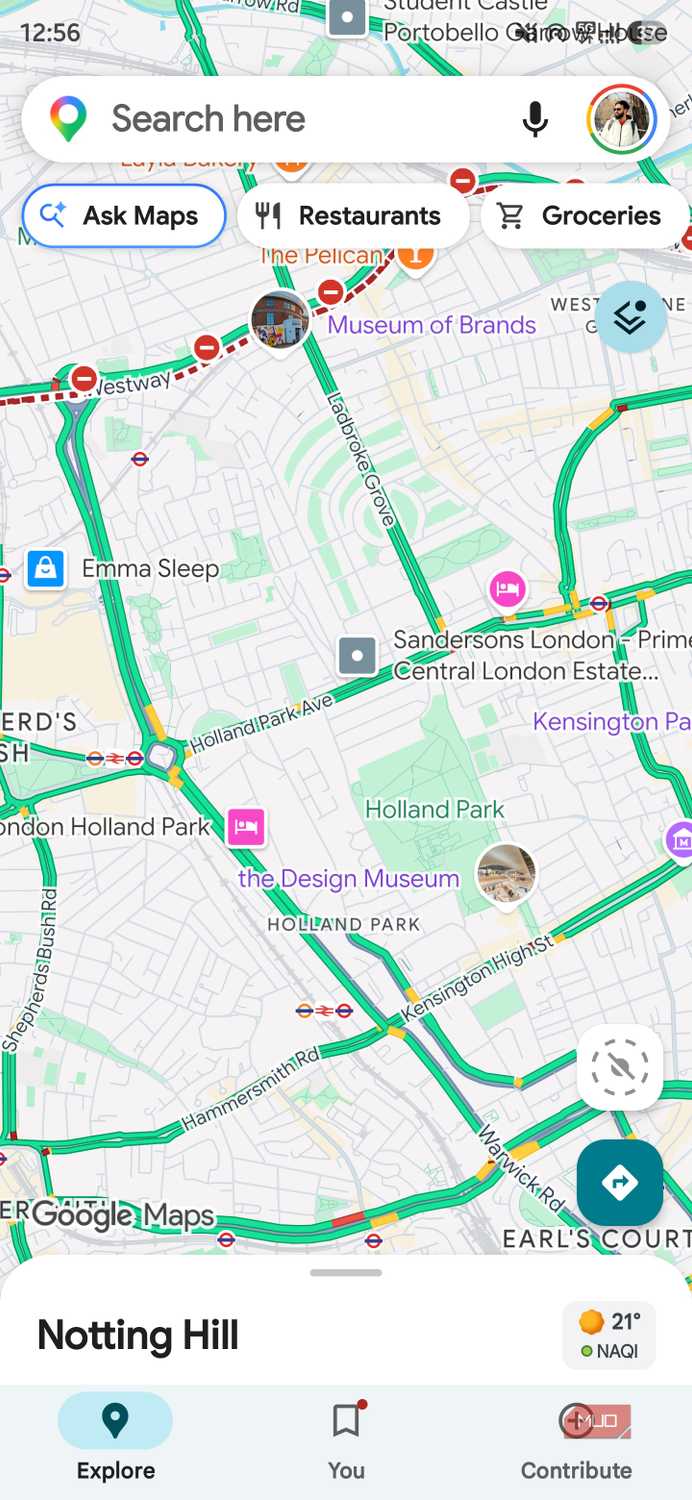
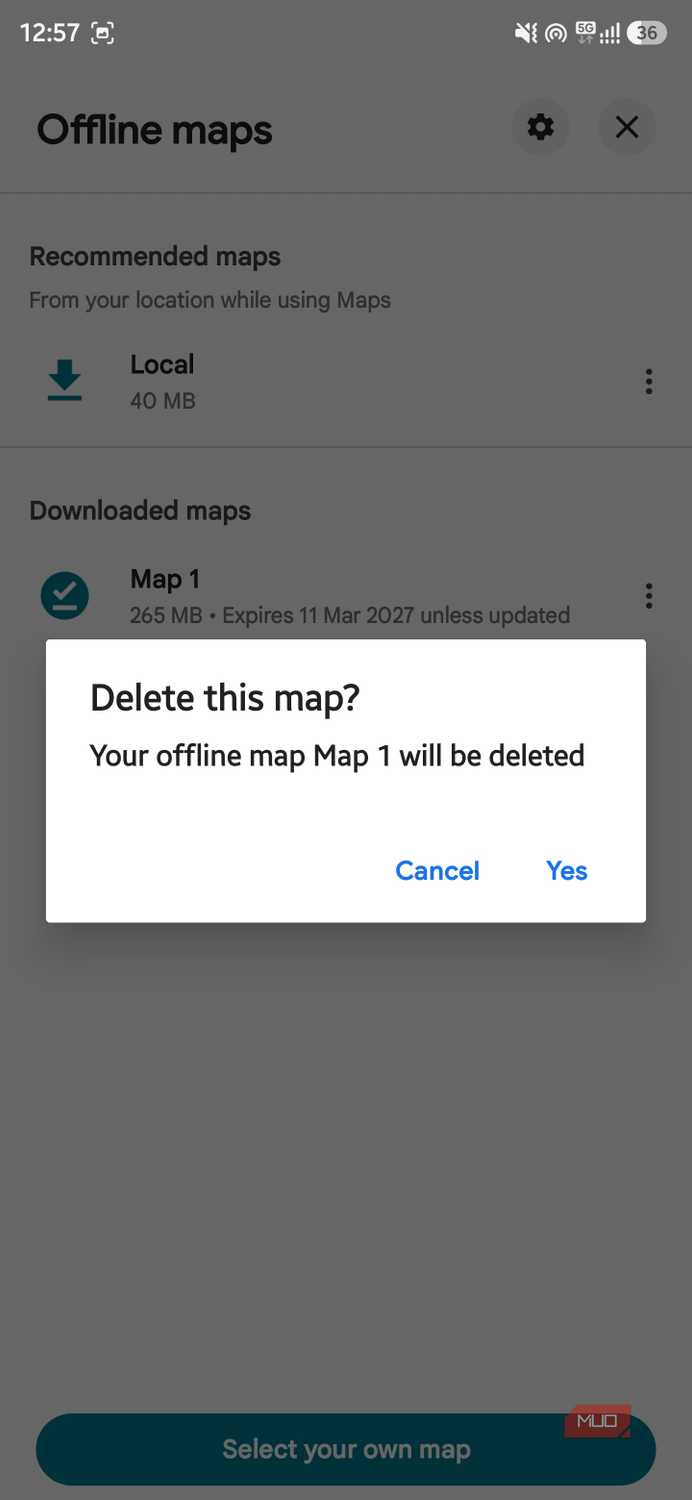
I shift my base quite frequently, so I frequently use offline maps in case I lose connectivity or my smartphone doesn't immediately connect to the local network. Recently, during my trip to Europe, I downloaded the entire region for offline navigation.
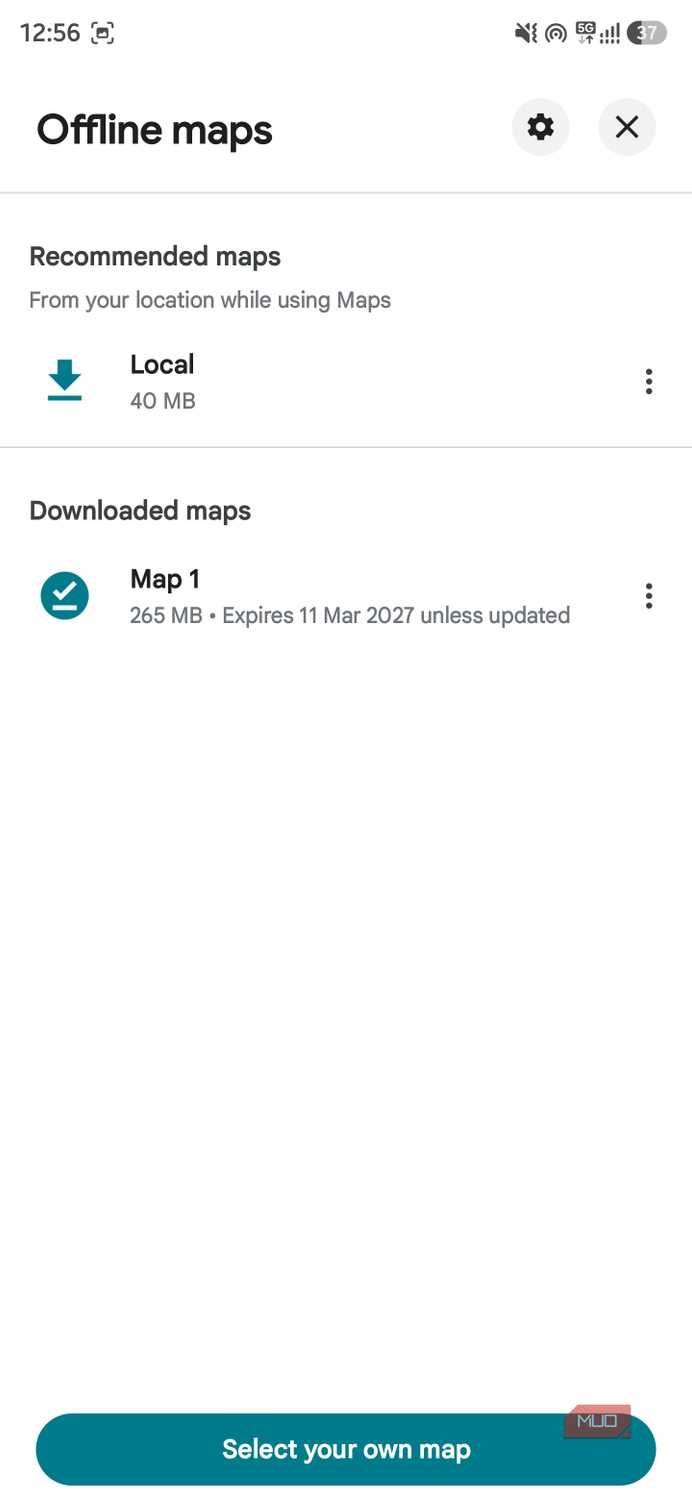
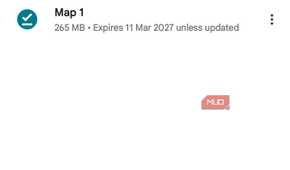
According to Google, an offline map area on Android can range from a few hundred MB to well over a GB, depending on its size. I downloaded five cities, and I forgot to delete even one of them.
Offline maps don’t warn you when they become old. They just sit there, taking up space, until you manually search for them and delete them from your phone. Google Maps does auto-refresh them if you are near expiry and on Wi-Fi, but it won’t clean up old, unused downloads on its own.
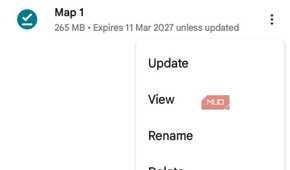
Here’s how you can check and get rid of them:
- Open Google Maps on your phone.
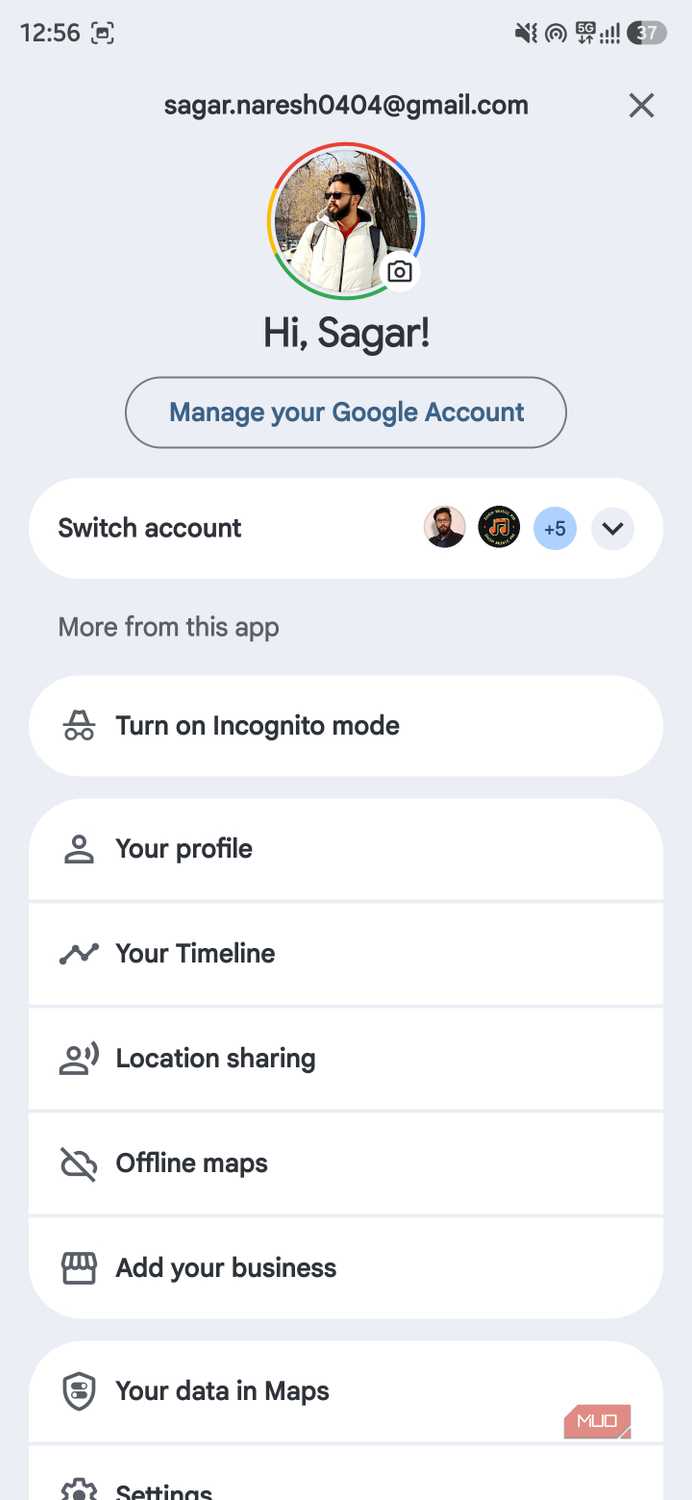
- Tap on your profile picture in the top right corner and choose Offline maps.
- Look at every area listed, not just the most recent one.
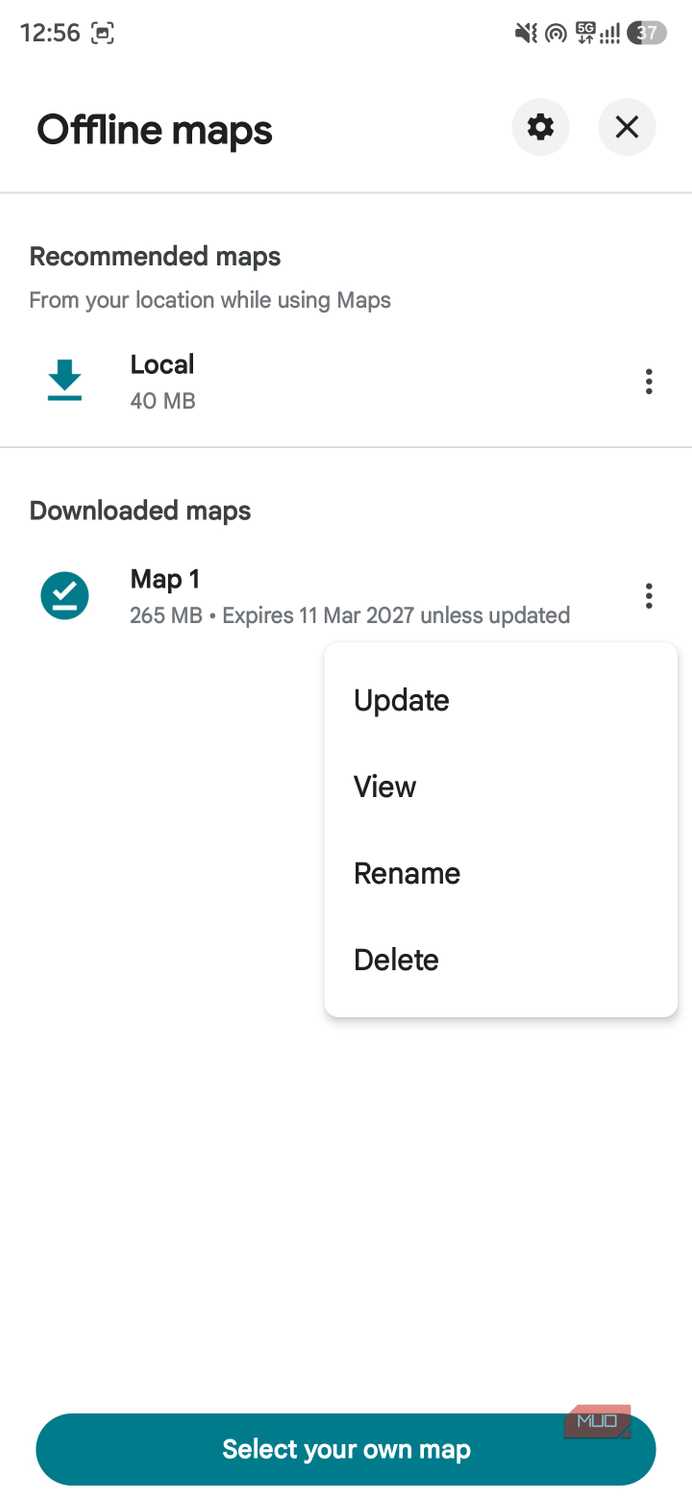
- Tap the map you no longer need and then tap Delete.
If you often travel or download maps for offline use, you should check this menu frequently to see if an old offline map is piling up and eating up your phone’s storage.
WhatsApp's daily backups are stacking up in the background
That “Other files” storage is mostly chat history that you'll never restore


 Credit: Sagar Naresh/MUO
 Credit: Sagar Naresh/MUO
 Credit: Sagar Naresh/MUO
 Credit: Sagar Naresh/MUO
 Credit: Sagar Naresh/MUO
 Credit: Sagar Naresh/MUO
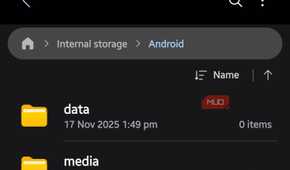
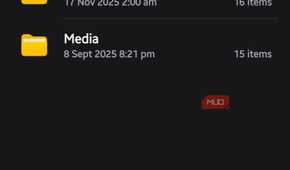
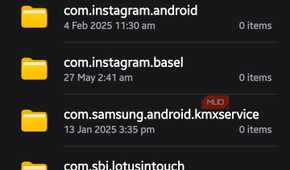

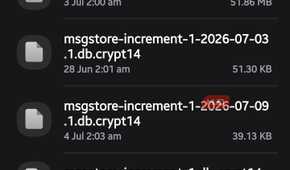
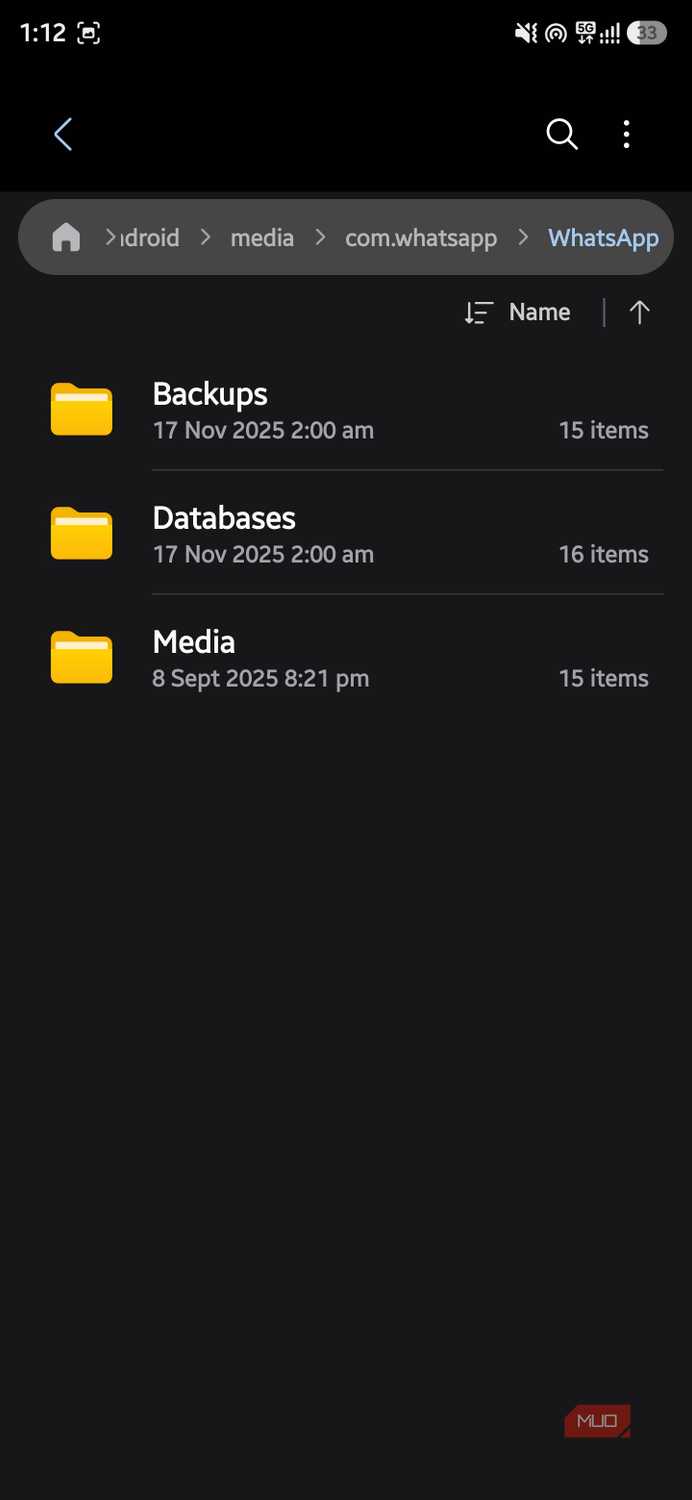
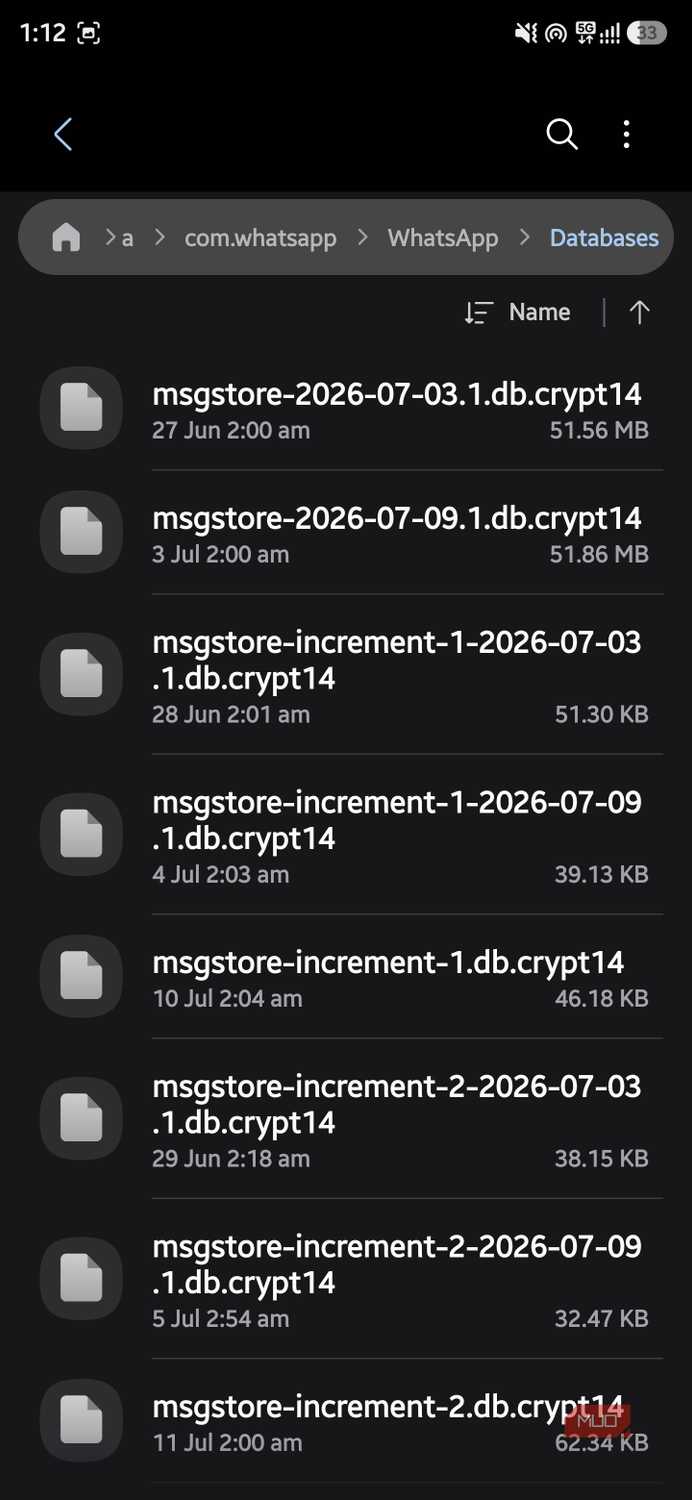
Every night at 2 AM, WhatsApp creates a local backup of your chat database on your phone. This is separate from the backup that gets created on your connected Google Drive account. These files show up with names such as msgstore-2026-01-15.1.db.crypt15, and WhatsApp keeps several weeks' worth of them by default.
You only ever need the latest one to restore your chats; the rest are just dead weight. This is why you should check them out and remove them from your phone:
- Open the file manager app.
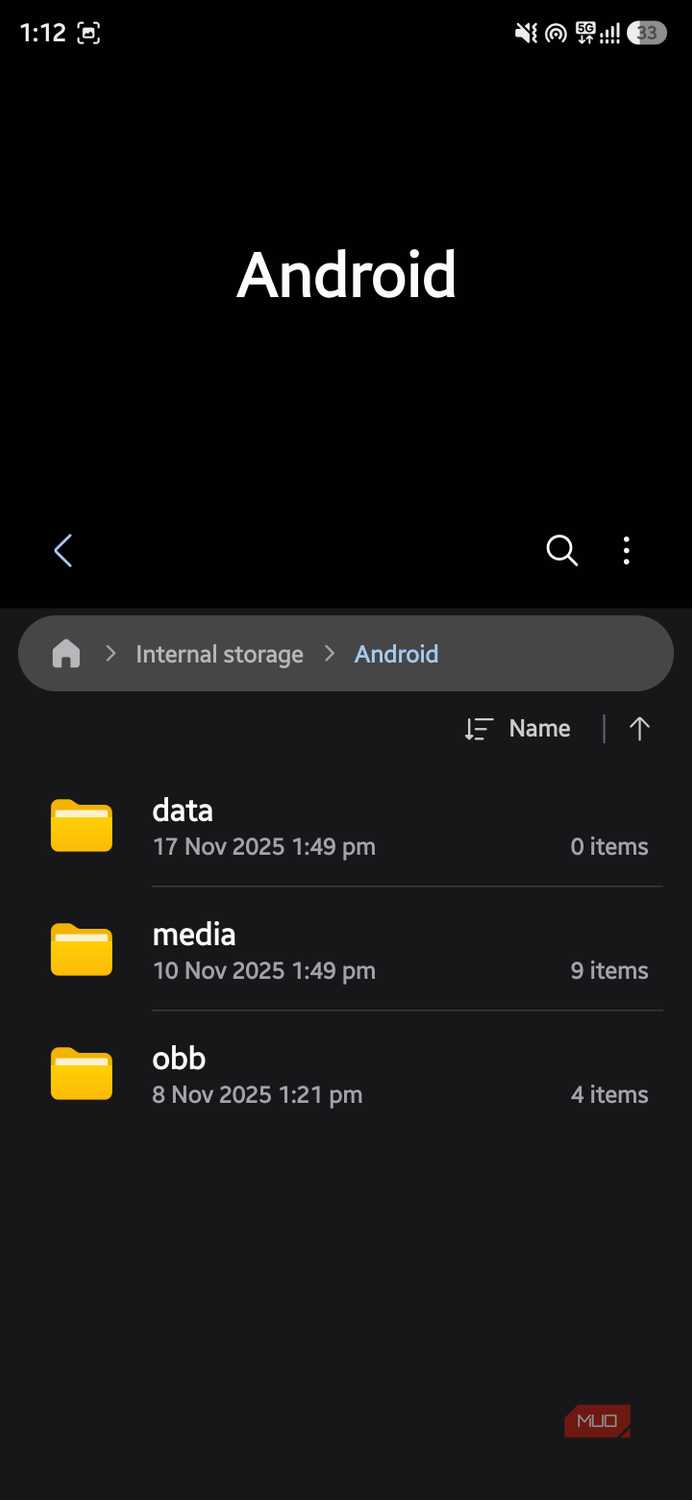
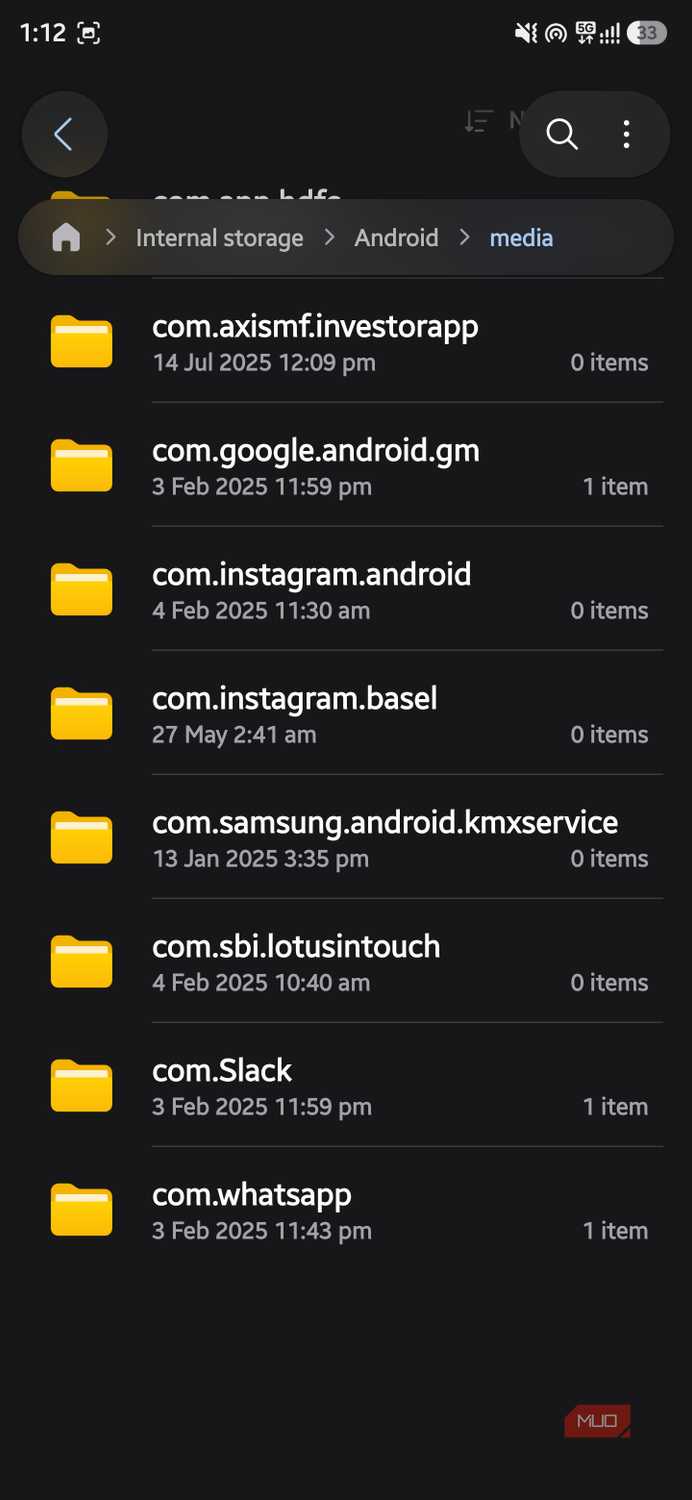
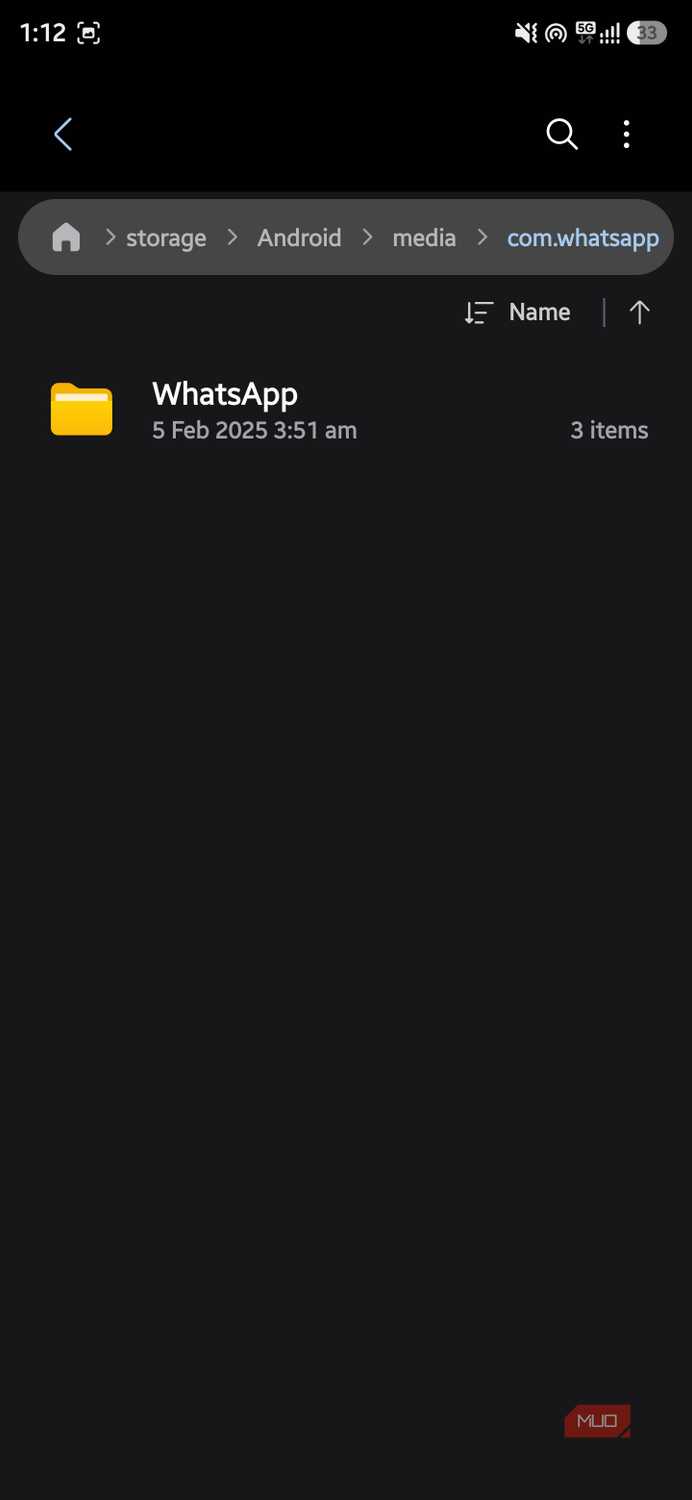
- Navigate to Internal storage > Android > media > com.whatsapp > WhatsApp > Databases.
- Sort files by date.
- Keep the newest file, since that is your active backup, and delete the older ones.
Make sure that you do not touch or accidentally delete the current, updated file. That’s the one WhatsApp actively uses to restore your account if you switch phones.
App cache is another culprit
Your apps have more cache than you think

Cache is real, and it hogs onto your phone’s storage without you knowing. We assume that we will continue using our favorite social media apps, and they only use your storage when you save a handful of posts on your phone. But that is not correct.
When I checked Instagram's storage details, I found it had more than 1GB of cache data. Then I checked YouTube, and it had 1.4GB of cache data stored on my phone. These are just two of the many apps I have on my phone.
App cache is the data the app stores locally on your phone, so the app doesn’t have to re-download it when you open it again later. It is perfectly safe to clear the app cache, and here is how you can do it too:
- Long-press on any app icon on your phone and select the “i” button.
- Tap on Storage.
- Hit the Clear cache button. Do not press Clear data, as it will also delete any login data associated with the app.
Clearing the cache deletes the temporary data that the app stores. However, the cache will be rebuilt once you open the app, which can make your apps feel a little slower; you've removed frequently used data, and it will slowly repopulate. In that, clearing your cache is useful, but it's not a permanent fix.
The space was never actually missing
Aside from the usual culprits, like your media and apps, these little things were also responsible for the gigabytes of storage space your phone was using. While getting rid of photos and apps is easy, since they are the ones your phone’s cleaner flags for deletion first, digging a few steps deeper reveals items you can actually delete to reclaim storage. If your storage keeps showing a low storage warning, no matter how many photos you delete, skip your gallery for a day and check the above-mentioned places instead.