


If you use an Android phone, you probably tap the same three icons at the bottom of the screen. The triangle takes you back; the square shows your open apps; and the circle takes you to the home screen. This is the mindless way you’re accustomed to. Those three buttons are far more functional than you've ever imagined.
The standard navigation only scratched the surface. I transformed them from the boring navigation options you know into a powerhouse command center.
I configured these on my Samsung Galaxy A72 running One UI, but the underlying mechanics are universally built into Android.
The instant app switcher
Double-tap the square

Typically, when I tap the Recents button, I wait for the animation to appear, then scroll through the cards to find the app I need. However, within that same button is a faster shortcut I had not noticed.
Double-tapping Android's square button on the 3-button navigation bar toggles between the two most recently used apps. It's very similar to the Windows Alt + Tab function.
In daily life, this is one of the most practical uses of the navigation buttons I've found. I no longer open the multitasking view when copying a tracking number from Gmail to Chrome. It's also handy when I copy verification codes from Messages.
It feels very fast without the animation-heavy multitasking screen, and the gestures become muscle memory after a few days of use.
The hidden macro button
The fourth navigation key

This was one of the more surprising options I found, simply because it changed the default shape of Android's navigation bar. After you enable the Accessibility shortcut, you get an extra navigation button on the navigation bar.
Accessibility features are often assumed to be only for users with disabilities, but the Accessibility button can be repurposed as a useful shortcut. It can become the Magnifier, Select to Speak, color correction, or even the Accessibility Menu.
This is how you set it up:
- Launch the Settings app.
- Navigate to Accessibility -> Advanced settings -> Accessibility button.
- Tap Select options, then select any from the long list of options.
You'd instantly see a fourth icon (human icon) on your navigation bar. This is one of the most practical configurations, simply because you can make the button into anything you want. For a while, I set it up to give me access to my password manager. I've also configured it to shrink the screen for easy one-handed navigation. I will talk about this very feature next.
The oversized phone fix
Double-tap for reachability

Android phones seem to be getting taller every year. This makes those moments when you have to make that awkward stretch to get to the top of the phone a bit more common. My solution is Android's One-Handed Mode.
The configuration is quite straightforward:
- Launch the Settings app.
- Navigate to Advanced features, then toggle on One-Handed Mode.
Now, just double-tap the Home button. It will shrink the usable area of the phone, pulling everything lower. This makes the search bar at the top of an app's screen easily reachable, and you won't need to adjust your grip or reach with your second hand.
I've found myself using it far more often than I expected since discovering it, and it comes in handy in the most practical situations: while carrying groceries, walking outdoors, or replying to messages one-handed.
Instant screenshot
Fastest screenshot option on Android


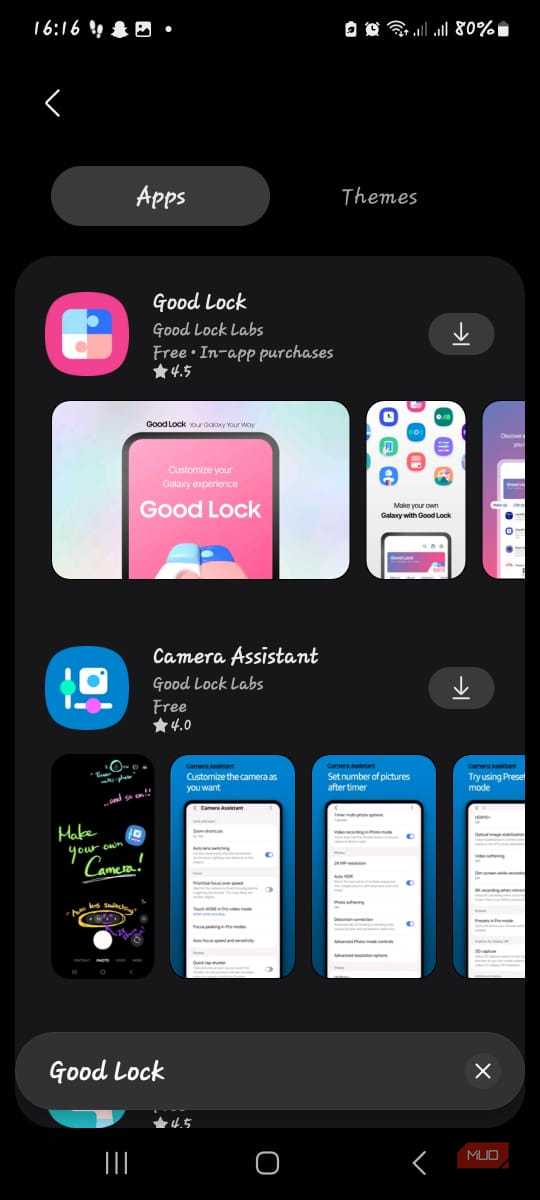
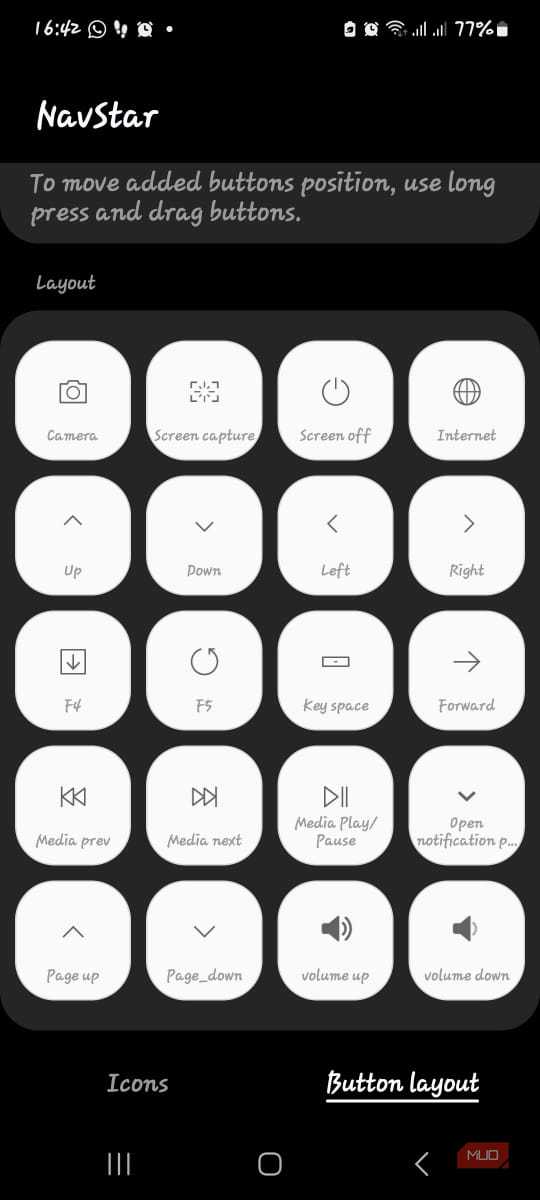
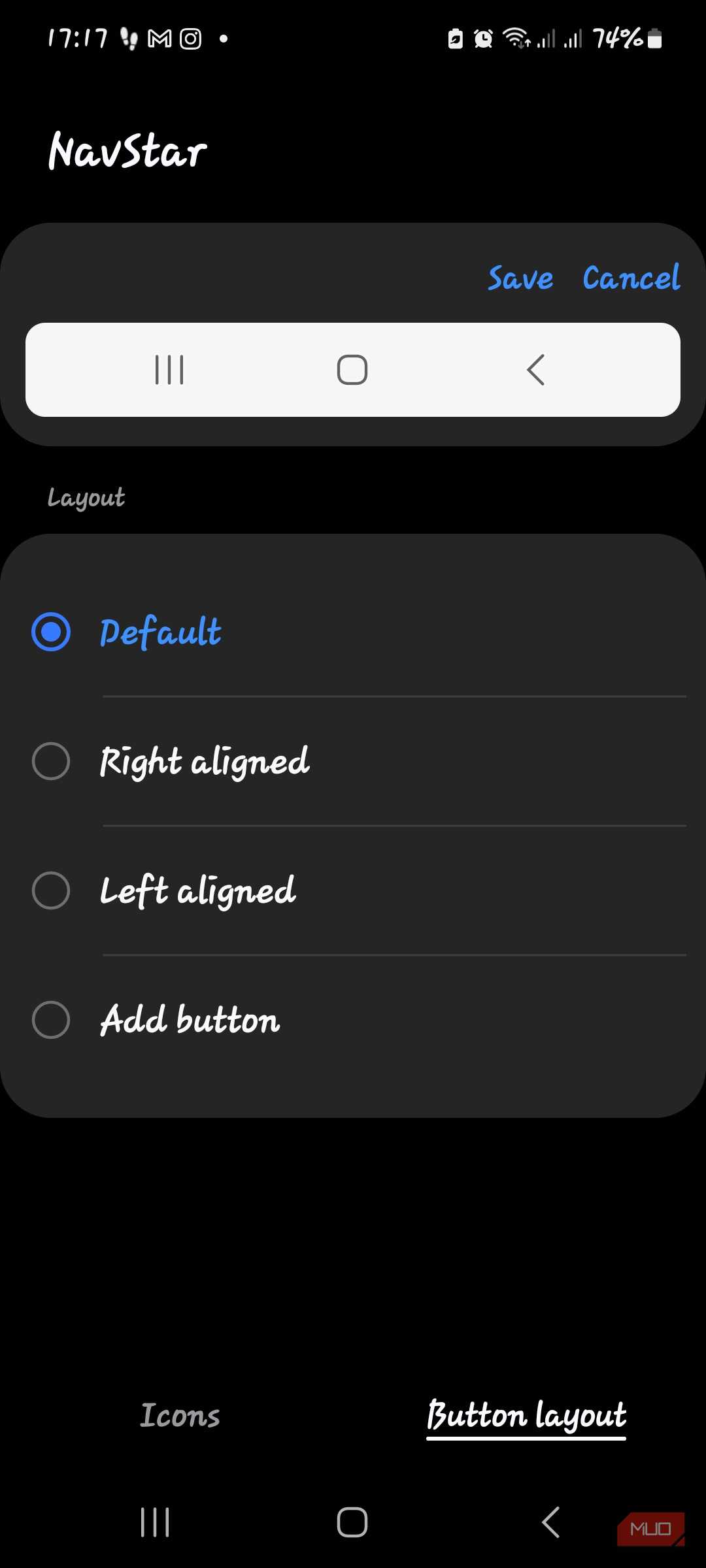
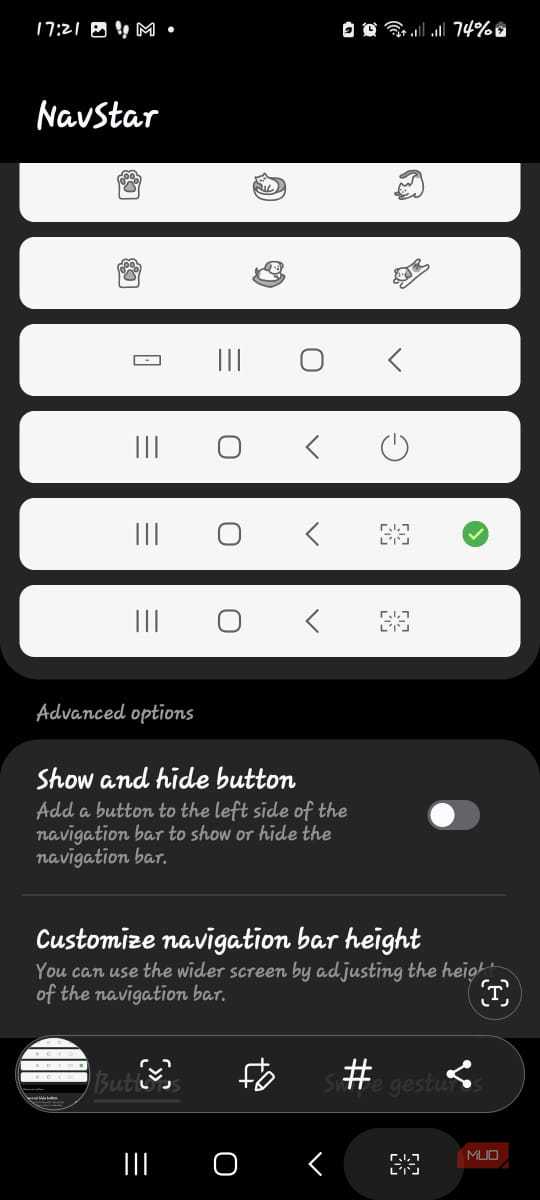
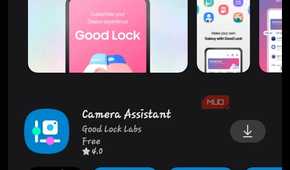
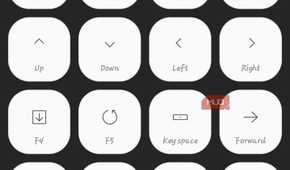
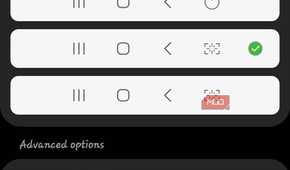

Of all the customizations, this is probably the most advanced, simply because it requires an extra application and a few more steps to configure. However, once configured, you no longer need a combination of physical keys to take a screenshot on your phone. For someone like me who is constantly writing, screenshots have become part of my daily routine, and after pressing the power and side buttons several times a day, I gradually started feeling the strain on my fingers.
Here is how I added an extra button to my navigation bar just for screenshots:
- Download the Good Lock app from the Galaxy Store (this works for Samsung devices).
- Launch the app, tap the NavStar menu, then toggle it on and tap New Configuration.
- At the bottom right, tap Button layout, then Add button.
- Tap the Screen Capture option, then, on the navigation bar template at the top, drag the newly added icon to wherever you prefer.
- Scroll down the list of navigation options and select the one with the newly added button.
If you don't see an option for NavStar in the Good Lock app, download the Fine Lock app from the Play Store, launch it, tap NavStar, then download and install the NavStar APK.
Now, you should have an extra button on the navigation bar that, when tapped, takes a screenshot. It's far less strenuous on the hand than using side button combinations.

Good Lock
- OS
- Android
- Developer
- Good Lock Labs
- Price model
- Free
Good Lock is a powerful customization suite for Samsung Galaxy devices, offering a collection of modules and plugins that let you personalize almost every aspect of your phone. With Good Lock, you can tweak the lock screen, home screen, navigation bar, keyboard, notifications, and more to match your style and workflow.
The navigation bar I overlooked
Ever since I made these configurations, my phone genuinely feels different and better. In reality, the entire navigation bar is one extremely functional shortcut waiting to be configured. All the features I now use have become muscle memory and seamlessly blended into how I use my phone.