


When it comes to eGPUs, there are essentially two mainstream ways to connect them to a PC, handheld, or otherwise. The first and more common method is to use a Thunderbolt or USB4 connection, which is the standard for most laptops and handheld PCs.
The other is Oculink, a less convenient method that promises much higher performance. To test it out, I swapped an RX 9070 between a direct M.2 to Oculink connection and a more traditional Thunderbolt 3 dock.
The results were quite surprising, with the Oculink setup offering more than just raw performance.
A brief look at the setups
Oculink vs. Thunderbolt


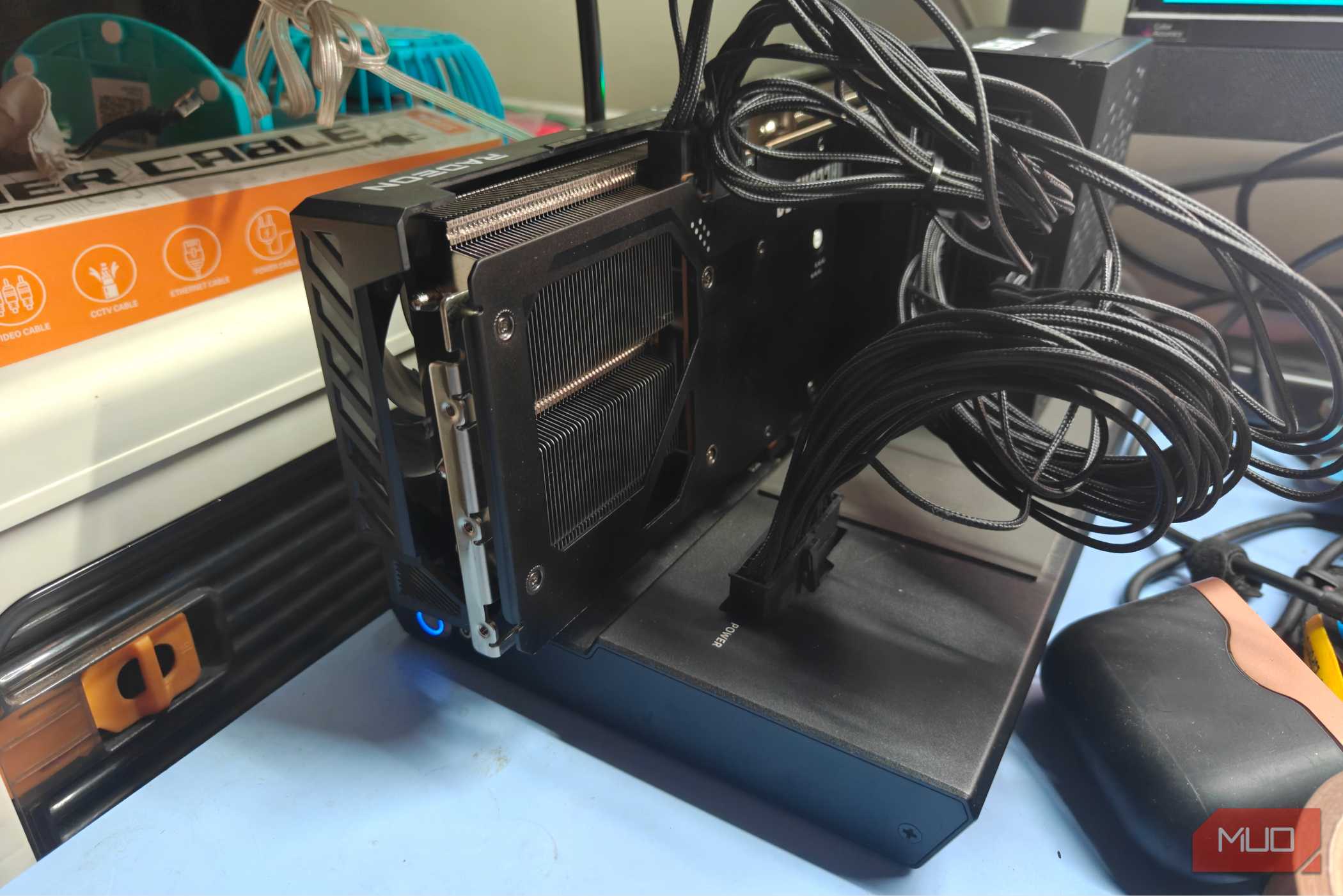
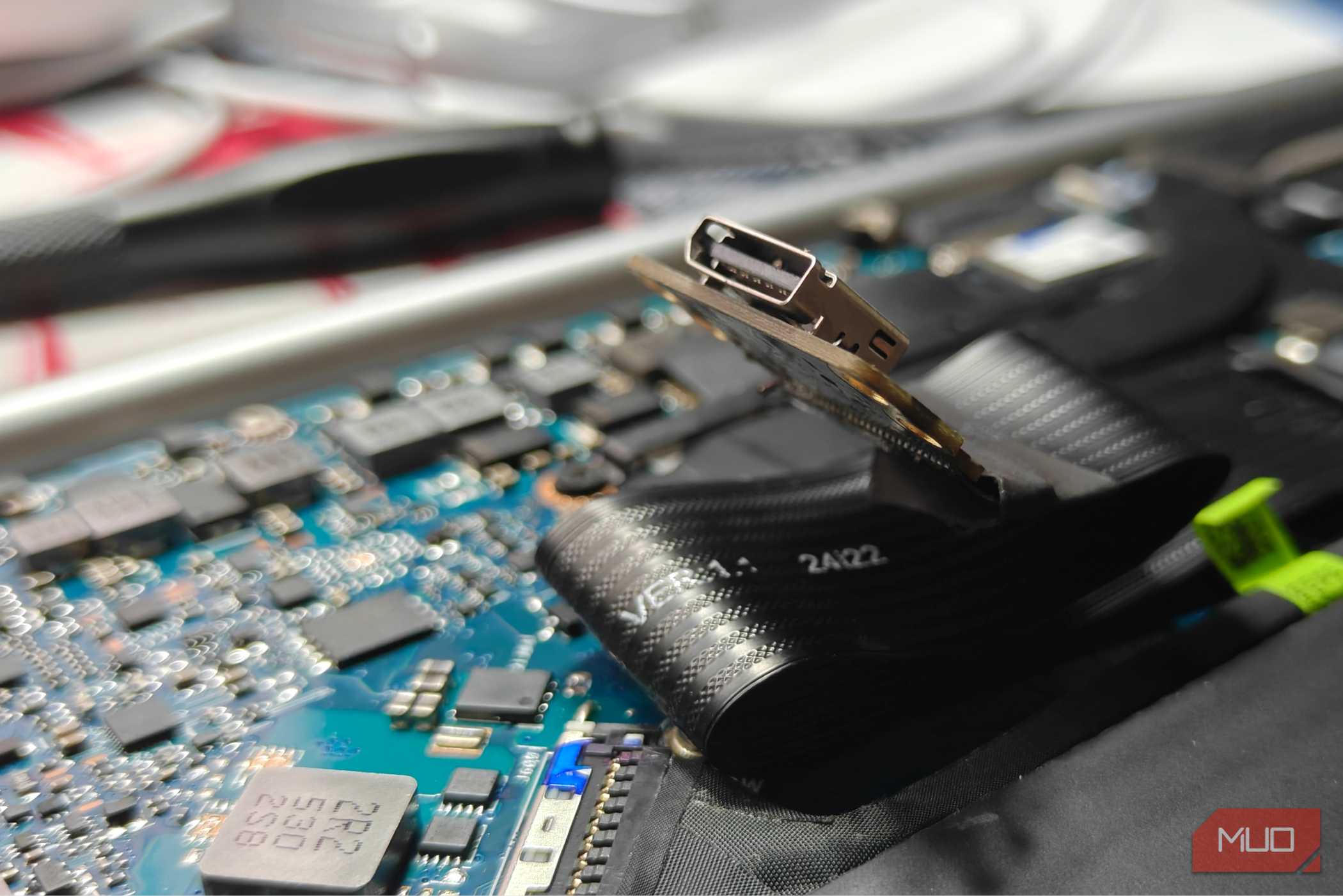
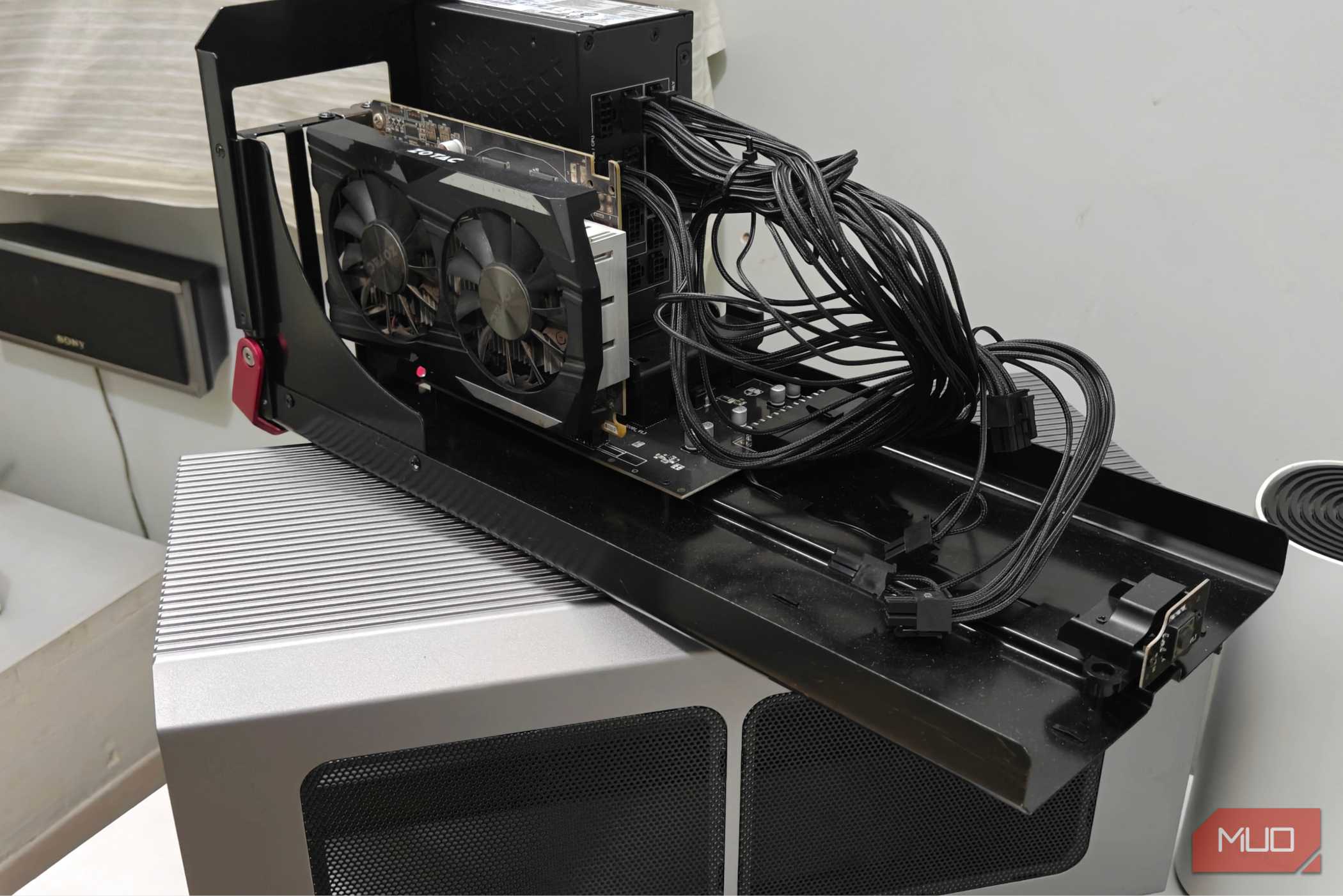
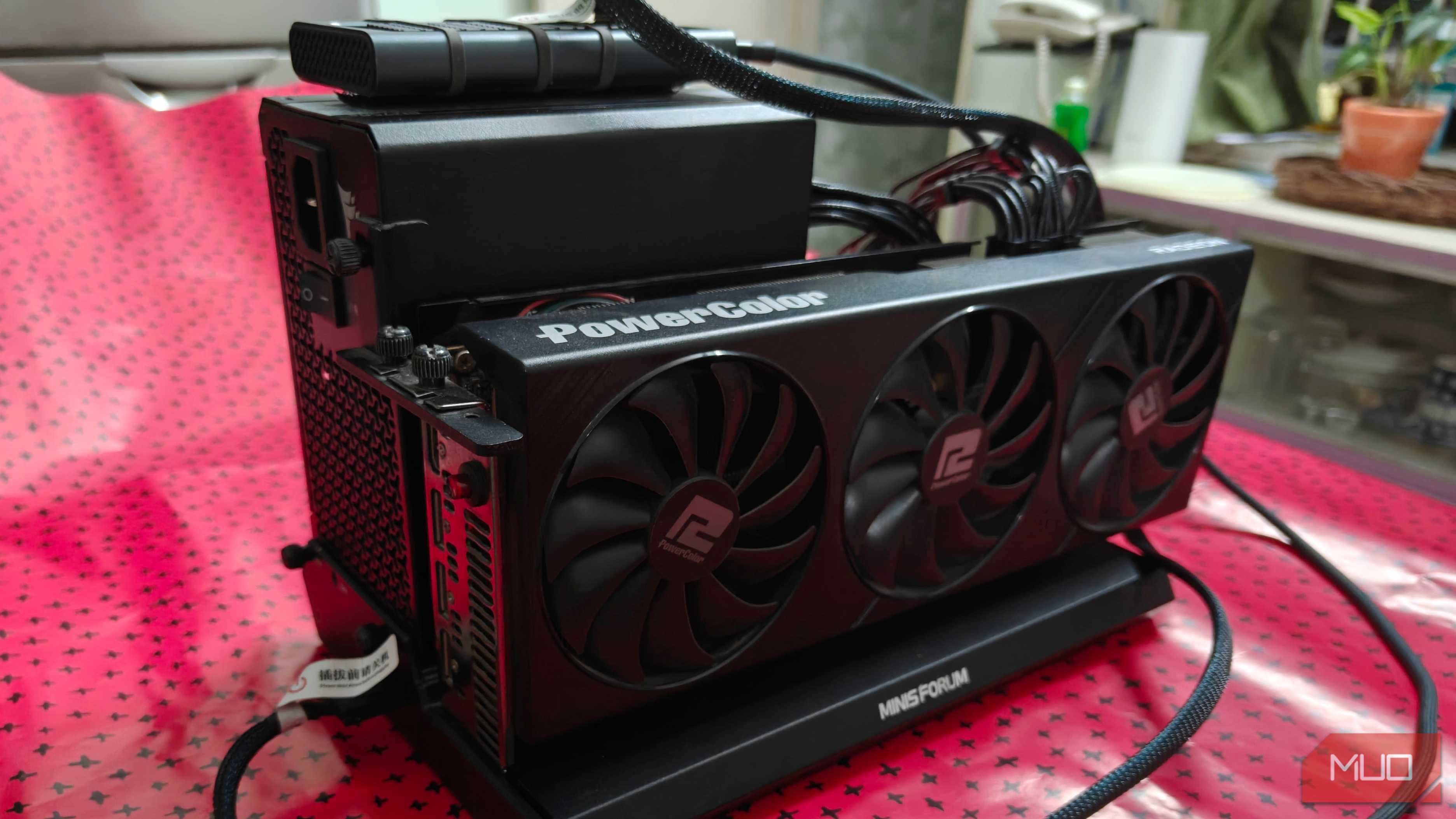
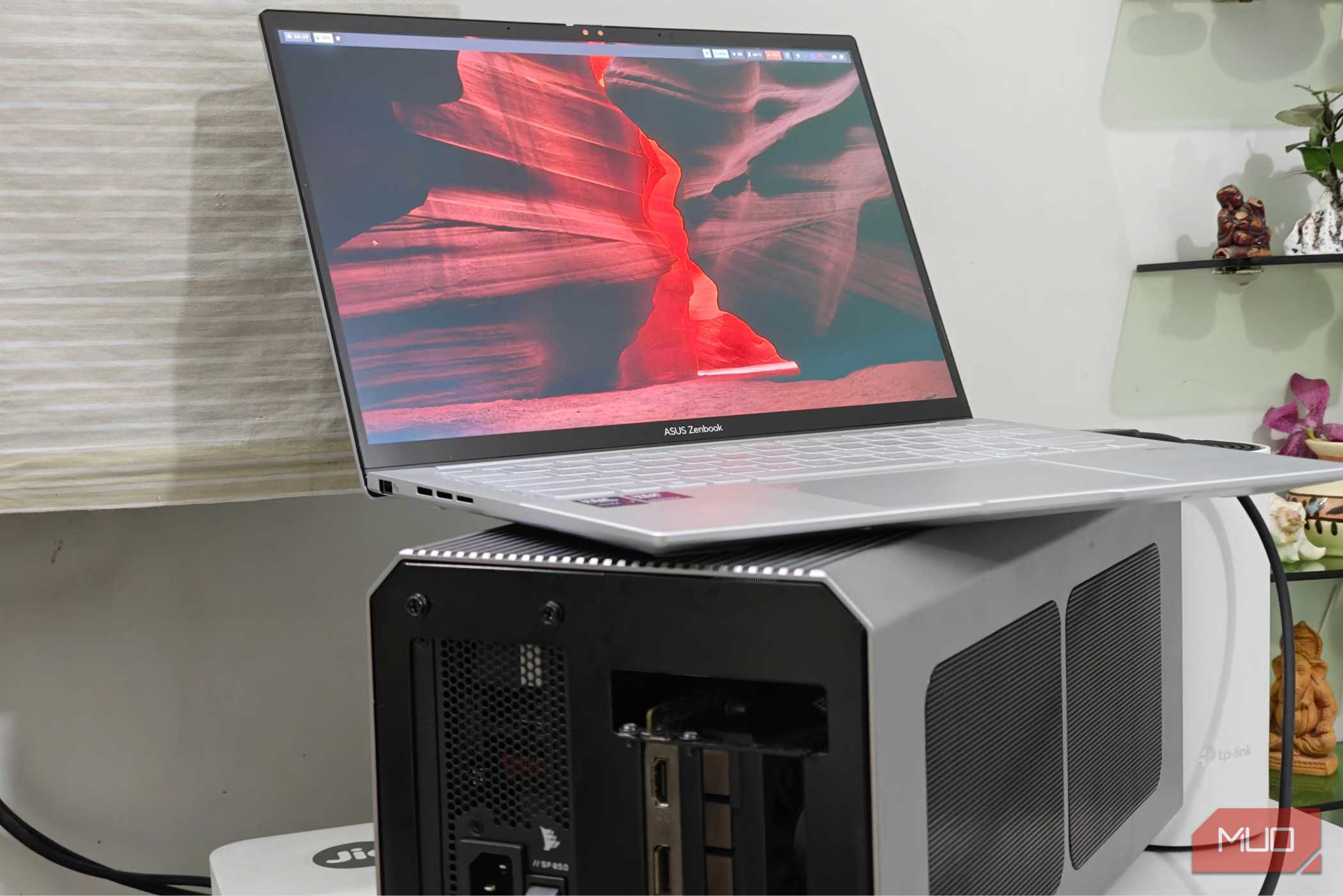
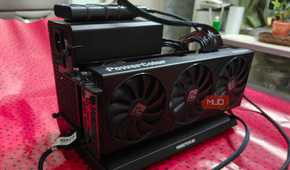
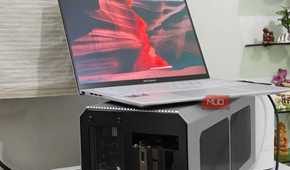
I used an ASRock RX 9070 Challenger (the non-XT version, that is) as my GPU of choice for the tests. While it would have been ideal to test the same configuration on both Thunderbolt and Oculink, it was simply not possible.
I don’t have a Thunderbolt 3 connector on my PC, and my laptop has only one M.2 slot. Still, as I'll explain in a moment, it makes basically no difference, and Oculink just streamrolls through.
The first setup was an AM4 build, consisting of a Ryzen 5600G and 32GB of RAM. The 9070 was connected via Oculink in a PCIe 3.0 x4 interface — a generation behind the PCIe 4.0x4 cap, thanks to the 5600G being stuck at PCIe 3.
It was connected using a (crudely taped together) M.2 to Oculink adapter to the first M.2 slot of the motherboard. This ensured PCIe 3.0 x4 speeds, which the second slot does not.
The second setup was a Strix Halo (specifically, the AMD Ryzen AI Max 390) with 32GB of total system memory. This was connected to the 9070 using a standard Thunderbolt 3 interface — an eGPU dock.
The dock connects to the Strix Halo laptop via a single USB4 cable that carries both data and power, resulting in a much cleaner setup.
With the setups ready to go, it was time to finally test some games.
Testing each system with gaming benchmarks
The bottleneck is very real

After playing through the entire selection of games and engaging in some day-to-day use, I’ve come to one conclusion. Oculink is a far more performant solution, and Thunderbolt just doesn’t come close, which is quite frustrating.
This was very apparent in the case of Doom: The Dark Ages. It’s not a particularly easy game to run on PCs, and taxes both the CPU and GPU. Despite this, the 5600G PC maintained a higher average frame rate (around 70 FPS) with the same RX 9070 as the Strix Halo machine.
The Strix Halo device barely managed a stable 60 frames per second in comparison.
It’s really strange when you think about it. Both connections share the same PCIe 3.0 x4 bandwidth cap, and even then, the tables should be turned in favor of the Strix Halo machine — simply because it has a much better CPU.
The cause, then, must be bottlenecking. To put it quite simply, we are nowhere near the PCIe bandwidth of the Thunderbolt connection. We’re approaching a bottleneck, and the GPU isn’t operating at full capacity.
In comparison, Oculink has no issues keeping up, and what surprised me most was the sleep/wake functionality. It just worked, and I was able to switch between power states automatically. Thunderbolt, on the other hand, worked half of the time, and waking up from sleep often resulted in a system crash.
Oculink is a lot more stable
It delivers consistent performance

Aside from their higher performance ceiling (PCIe 4.0 x4 or 64 Gbps versus 40 Gbps), Oculink connections tend to be much more stable. I’ve had far fewer frame-rate dips and frame-time stutters when using it, and again, this was despite using a much weaker Ryzen 5600G (and much slower RAM!).
If you’re looking for something much more consistent, Oculink might be your only choice, but it does have one fatal flaw.
Oculink has one very fatal flaw
Oculink, by design, is not meant to be plugged and unplugged often. The connector is brittle and has latches to hold it in place. This is perhaps why it also lacks hotplug functionality entirely.
In other words, you cannot unplug and replug a GPU using Oculink when a system is up and running.
Thunderbolt starts to look a lot more appealing now, and despite its performance loss, it is a lot more convenient to use. Especially if you’re planning to use something like a thin and light laptop (with a decent CPU) as your gaming rig when docked to a monitor.
Still, Oculink is a solid choice for mini PCs or devices that won’t see much movement. It’s also a lot cheaper to get into.

Acasis eGPU
The Acasis eGPU can house upto a 3-slot GPU and has space for an SFF power supply. The device connects via Thunderbolt 4 or USB 4, along with 85 W PD charging. However, it is a bit large.