


Everyone who builds PCs has a drawer of drives that were once important. After years of piling up, I got tired of them sitting there serving no real purpose other than filling up space. So I investigated whether I could use them on Windows without buying a new drive, and it turned out that Windows 11 has the perfect feature for this. It's tucked away in Settings, and it turns a pile of mismatched drives into one drive in File Explorer, for free.
Three mismatched drives, one annoying mess
Storage Spaces fixed it without new software or hardware


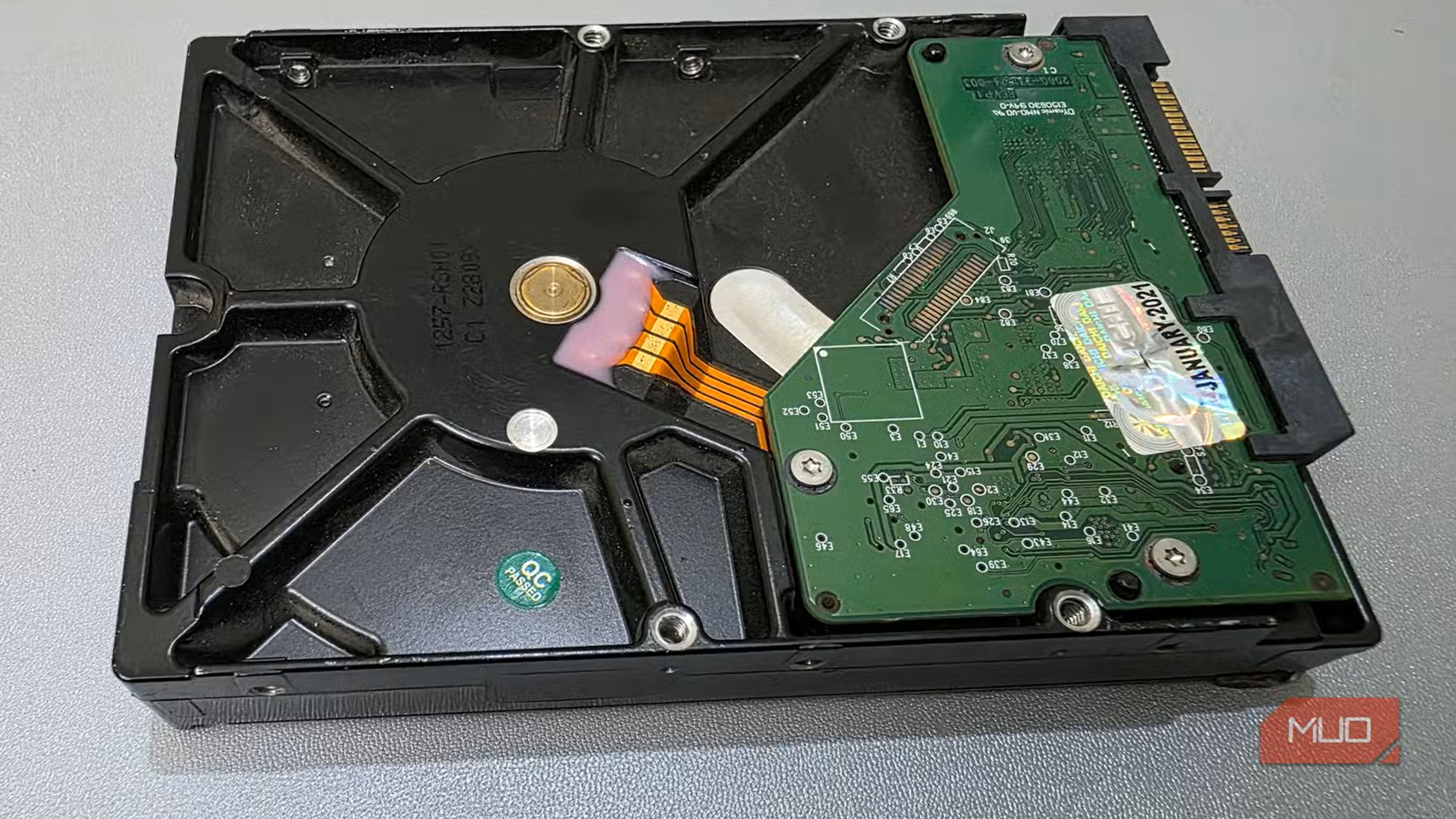
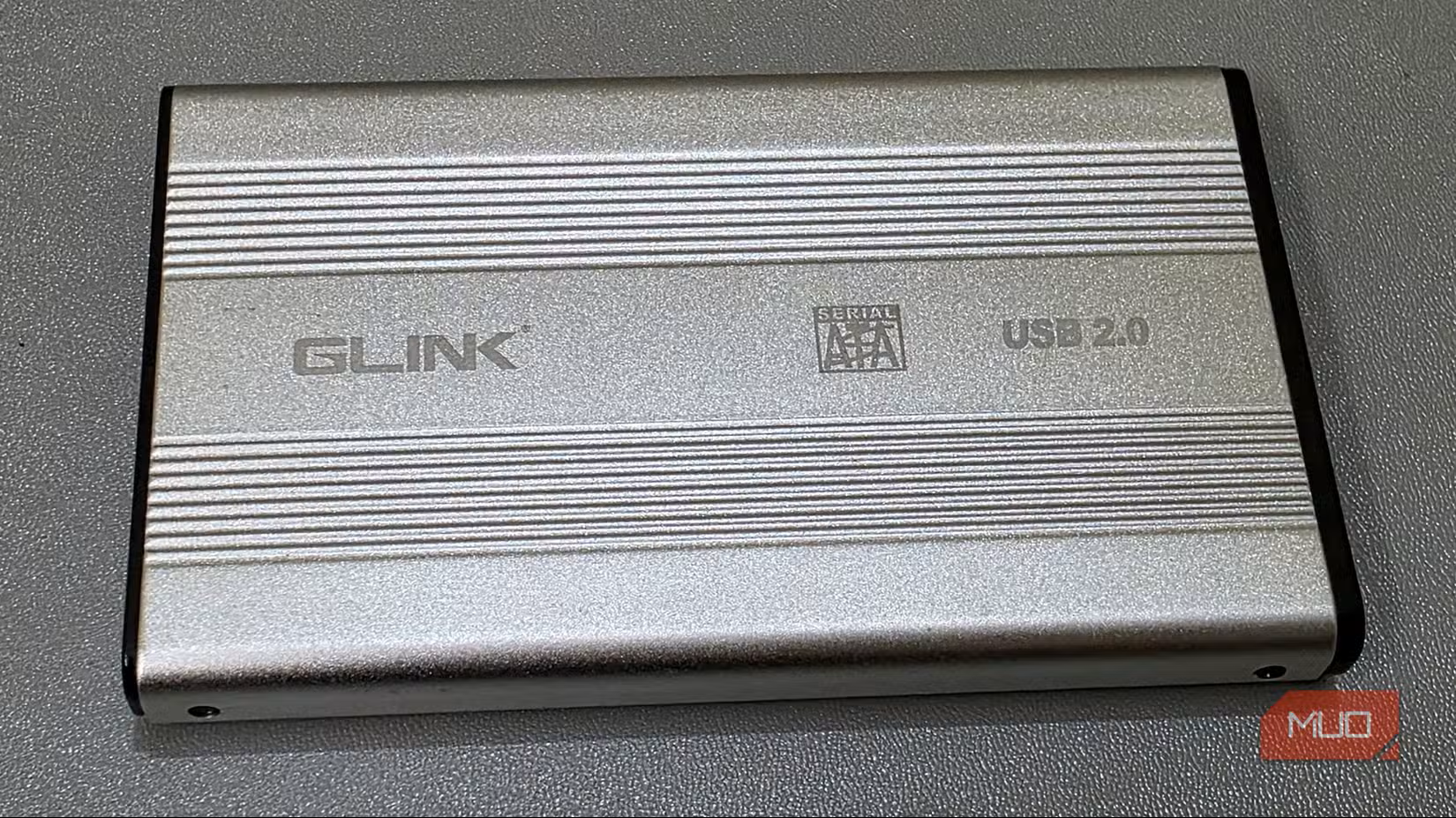

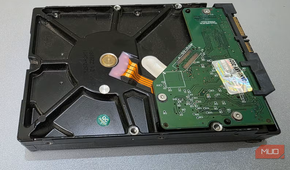
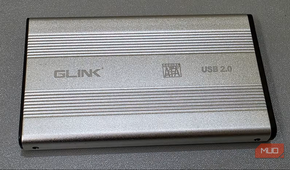

I've amassed several drives over the years: a 240GB SATA SSD from an upgrade, a 1TB 2.5-inch HDD rescued from a dead laptop, and a 2TB external drive I keep as a backup. Individually, they weren't doing much, but together they added up to 3.24TB of unused storage.
However, what I found most concerning was management. Managing one drive is far easier than juggling three. I often had to search through all three because I'd forgotten which one held the resource I needed. Even though I always ended up finding what I needed, I wanted to eliminate that friction.
Storage Spaces was the solution. This native Windows feature pools several physical disks into a single logical drive, which is displayed in File Explorer as a single drive letter.
Storage Spaces is a more flexible alternative to spanning drives in Disk Management, mainly because when one drive in a spanned volume fails, the entire spanned volume becomes unusable. Storage Spaces pools support resiliency options and can be expanded just by adding another drive.
My setup before and after Storage Spaces is like day and night:
|
Before |
After |
|---|---|
|
Three drive letters |
One drive letter |
|
Free space spread across drives |
One unified pool |
|
Manually choosing where files go |
Windows manages placement |
Setting it up was almost too easy
Simple, Mirror, or Parity — pick your risk tolerance

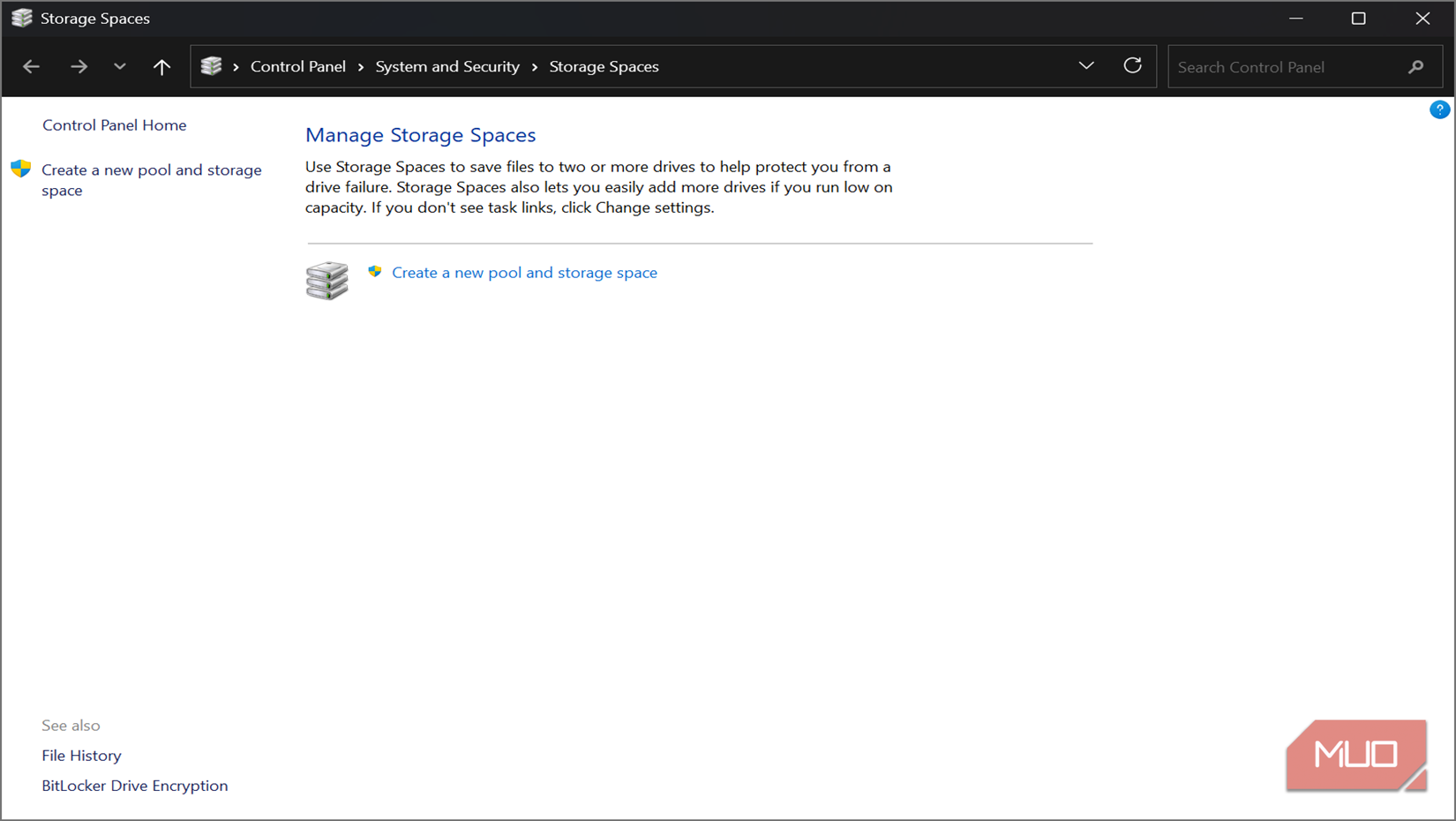
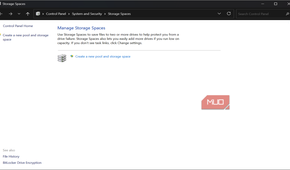
You find the setup by searching for Storage Spaces in the Start menu and clicking the Manage Storage Spaces Control Panel option. In Control Panel, click Create a new pool and storage space.
Back up whatever is on the drives because the process will erase all current data.
You then have to select your resiliency type; this is the main choice. Selecting Simple gives you the most usable storage, but it offers no protection. If one drive fails, all the data in that storage space is lost. Two-way mirror is the option I went with. It duplicates all data across drives so that a single bad drive doesn't cause data loss, but at the expense of storage space. Parity is the middle ground, offering some protection and better space efficiency than mirroring, but with slower writes.
Since the pool will be holding photos and backups, I used Two-way mirror. I'd rather sacrifice capacity than risk data loss. Once you confirm your choice, Windows may take several minutes to build the pool and shows a progress bar as the process runs.
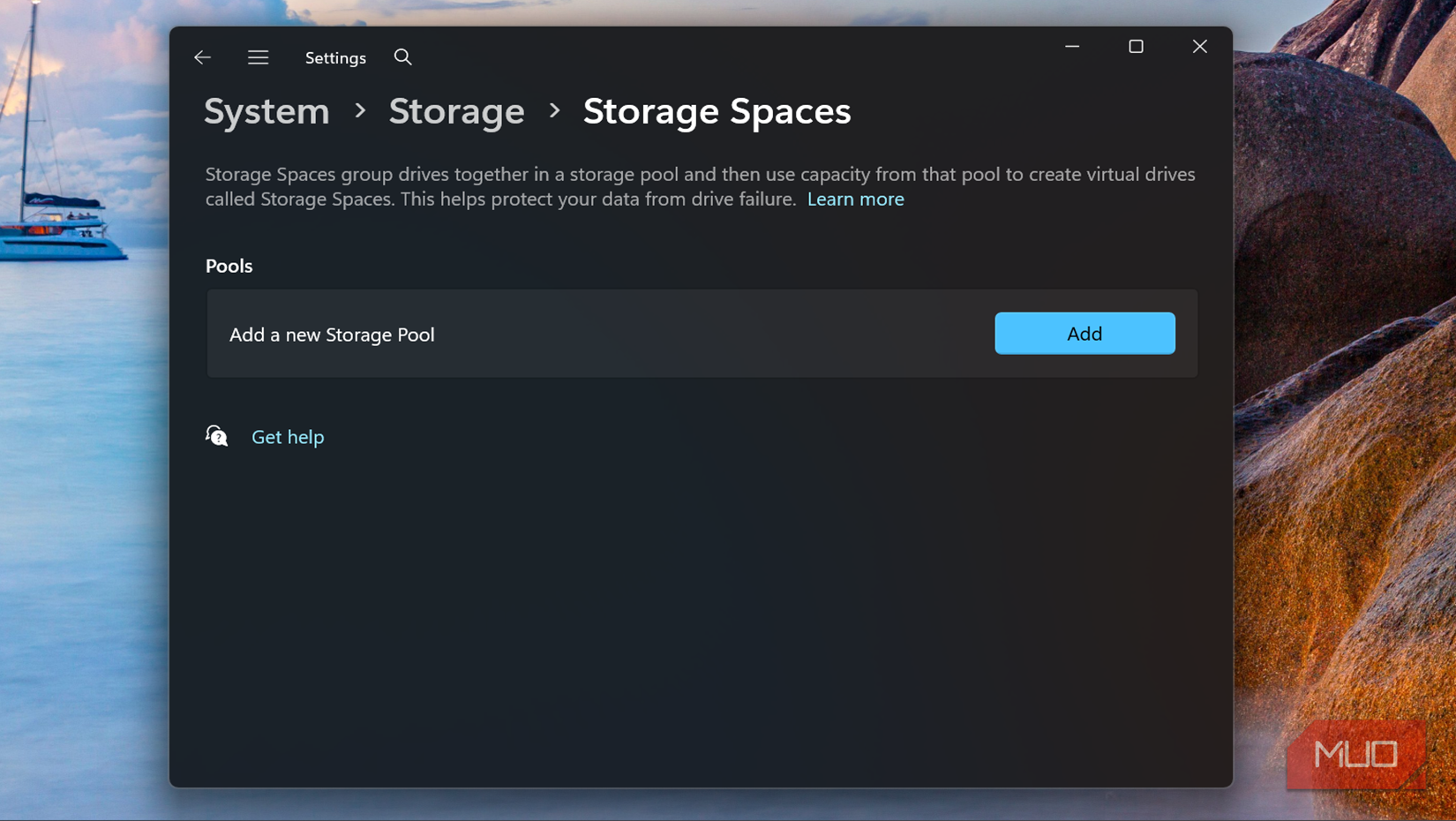
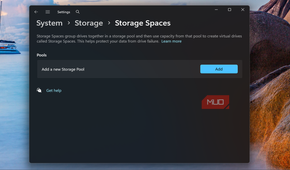
You can also create a storage space using the Storage Spaces feature in Windows Settings. To start, open Settings and navigate to System -> Storage -> Advanced storage settings, and click Storage Spaces.
The real surprise wasn't the merge
Windows didn't care about what I threw at it

I felt skeptical while building my pool because it was a mix of SSDs and HDDs from different brands and ages. I expected some friction, but there wasn't any. Each drive was treated as a building block, provided it met the basic eligibility requirements.
The best part is that I don't have to rebuild to add a fourth drive; add it to the existing pool, and its size grows. However, Storage Spaces did not suddenly make my HDD act like an SSD. In my setup, performance generally felt closer to that of the slower HDD, especially during sustained writes.
Failure behavior depends entirely on the resiliency option you selected when building your pool. Two-way mirror offers the best protection. Parity provides some protection, but rebuilding storage space after a single drive failure can be lengthy, and performance during other activities may be affected.
|
Layout |
Capacity |
Protection |
Best for |
|---|---|---|---|
|
Simple |
Full pooled space |
None |
Scratch storage, non-critical files |
|
Two-way mirror |
~Half of pooled space |
Survives one drive failure |
Photos, backups, irreplaceable files |
|
Parity |
More capacity than Two-way mirror, less than Simple (full pooled space) |
Survives one drive failure |
Archival data, less write-heavy use |
After setting up my pool, I almost instantly stopped worrying about individual drives. I went from jumping between drive letters to inspect available space to managing everything in one central location.
I'd do it again — only for the right kind of storage
This is the right setup for a media library, photo archive, backup, and Plex-style storage. As long as you're dealing with read-heavy workloads that don't require instant load times, you'll benefit from using Storage Spaces.
However, it is not suitable for a boot drive, modern game libraries, or a video-editing scratch disk. Once constant reading and writing of large files is required, you'll quickly run into the limitations of the slowest drive in the pool. Other options you may try to include a spanned volume, a NAS, and a JBOD enclosure. Here's how they compare with Storage Spaces.
|
Option |
Best for |
Advantages |
Downsides |
|---|---|---|---|
|
Storage Spaces |
Free unified storage |
Resiliency, expandable |
Limited by slowest drive |
|
Spanned Volume |
Quick combining |
Simple |
No resiliency, hard to recover |
|
NAS |
Network storage |
Full control, remote access |
Cost, setup complexity |
|
JBOD Enclosure |
Physical expansion |
Portable |
Still feels like separate drives |
The biggest advantage I got from Storage Spaces was that three drives that had been sitting idle suddenly became a single drive with a new purpose. It only took using a feature Windows had all along.