


Google Chrome is so wedded to the idea of "going online" that it's easy to forget (or even not know) that the browser is also quite a capable local tool. If you strip away the websites, feeds, login pages, and a dozen open tabs silently judging your attention span, Chrome still has a few party tricks left.
Almost all of these do not require an internet connection, an extension, or a Google account. They are all baked into the browser you probably already have open right now. If you spend any real time inside Chrome, some of these will change the way you use it every day.
These features are mostly suited to the desktop version of Chrome, where the browser exposes far more of its tucked-away functionality.

7 features in the Opera browser I wish I had on Chrome
These features in Opera changed the way I look at other browsers.
Turn a Chrome tab into a disposable notepad
The world's laziest writing app
My favorite Chrome trick is also the one I use most often: turning a blank tab into a quick notepad. Type this into the address bar and hit Enter: data:text/html, That's it. Chrome opens a plain editable page, and you can start typing immediately. It is not fancy; it is not synced, and it will not win a design award. That is the point. It is a blank scratch surface for quick notes, rough headlines, temporary lists, URL fragments, or the kind of sentence I need to park somewhere before it vanishes.
The magic is in contenteditable, which tells the browser that the page can be edited directly. Since this is a data: URL, the entire "page" lives in the address itself rather than on a website.
You can also dress it up. For example, this version gives you a warm background, a centered writing column, a serif font, and a calmer writing space:
data:text/html, The %23 bits are just encoded hash symbols for CSS colors. You can swap the background, font, size, margin, or max-width to taste, and you can make anything from a fake typewriter sheet to a cheap iA Writer tribute in a tab.

The catch, of course, is that this is not a proper notes app. If you refresh the tab, close it carelessly, or expect it to autosave, you are asking for heartbreak. I treat it like a digital sticky note, not a vault. You can bookmark the URL for fast access, or set Chrome to open it at launch by going to Settings -> On startup -> Open a specific page or set of pages, paste the URL in, and Chrome will launch straight into your writing surface every time it opens.
Browse your computer's file system
Your hard drive, but in tabs
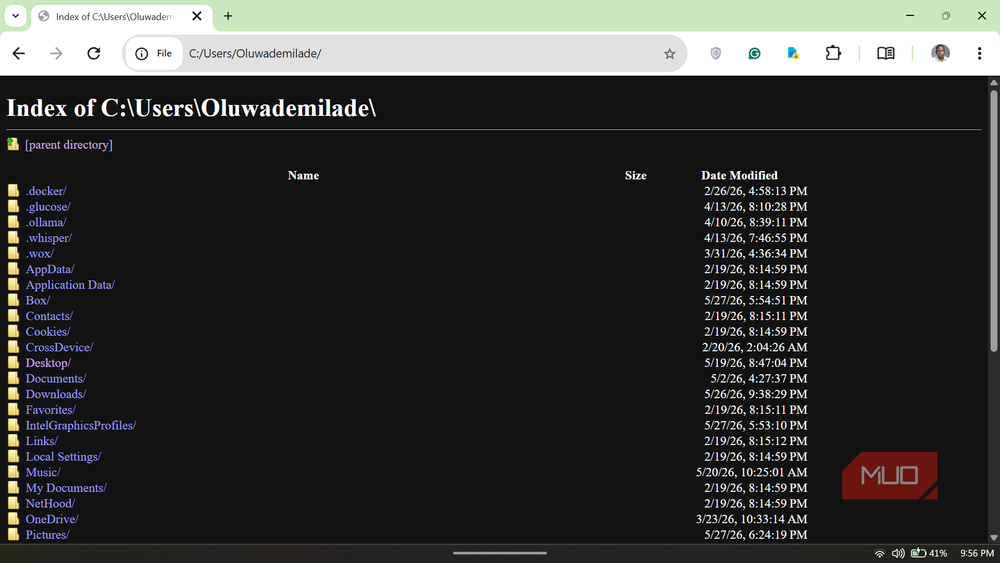
Chrome can also browse your computer's local files, which sounds wrong until you try it. On Windows, type:
C:/ or file:///C:/ On macOS or Linux, try:
file:/// Chrome will show a basic directory view, letting you click through folders and open supported files. It is not prettier than File Explorer or Finder, and it is definitely not more powerful. It does, however, give you a quick, clean way to peek through folders from inside the browser, especially when you already have Chrome open and cannot be bothered to summon another window.
This is particularly handy for opening PDFs, images, text files, and media files in a tab. I would not use it to manage my entire computer because Chrome is not trying to replace your operating system's file manager. You cannot expect rich sorting, tagging, previews, or all the usual desktop comforts. Still, for quick access, it works.
Play local audio and video without opening a media app
Drag, drop, and press play
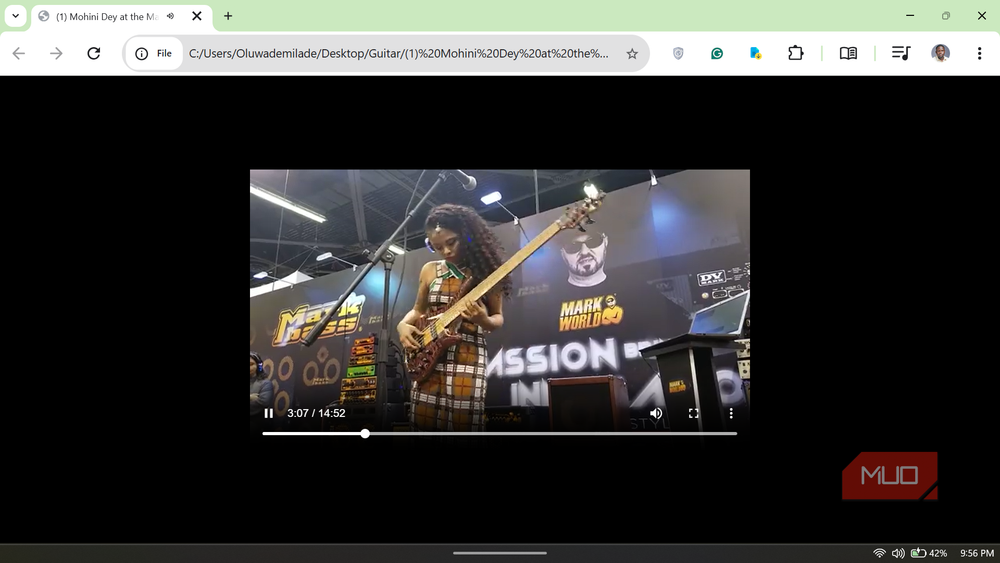
While you may already know how to control playback in Google Chrome using a toolbar button, it's worth taking advantage of the fact that Chrome can also behave like a lightweight media player. Drag an MP3, MP4, WebM, or another supported media file into a Chrome window, and it will usually open in a tab with playback controls. Chromium's own audio and video documentation lists support for common formats and codecs across Chrome and Chromium builds, including AV1, VP8, VP9, AAC, and Chrome-specific proprietary codecs like H.264, where available.
The useful bit is not that Chrome replaces VLC. It does not. The useful bit is that Chrome is often already open, already full-screen friendly, and already good at rendering media. I use this when I want to quickly preview a downloaded clip, check an audio file, or play something locally without adding another app to the pile.
Play the offline dinosaur game on purpose
You don't need the internet to have a good time
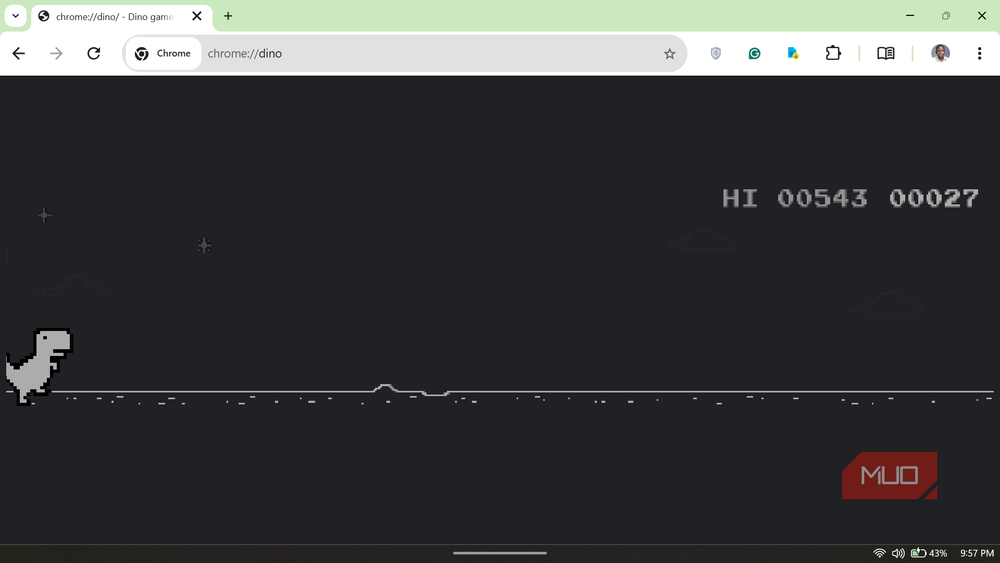
The Chrome Dino game is the browser's finest act of pity. When Chrome loses its network connection, it surfaces a pixelated dinosaur runner that you must have clicked past at least once. But you do not have to wait for your internet to drop to play built-in browser games in Chrome. Navigate to chrome://dino at any time and press Space to start playing the game. It is basic, monochrome, and still irritatingly replayable. Space or the up arrow jumps, the down arrow ducks, and the only real strategy is to pretend your reflexes are better than they are.
If you ever get bored with the vanilla challenge, modders have even created ways where you can now play Google's Dinosaur game with weapons for a more chaotic spin. There is nothing productive about this one, which is why it belongs here. Chrome spends most of its life helping us work, research, shop, procrastinate, and open too many tabs. Sometimes, the best non-browsing trick is letting a pixel dinosaur sprint across a desert while your brain reboots.
Launch a timer from the address bar
Put the phone down

This one is slightly different because it leans on Google Search rather than Chrome alone, but it still fits the spirit of the thing: you can use the address bar as a quick timer launcher or stopwatch. Type something like "set a timer for 25 minutes" or any duration you specify into Chrome's address bar and press Enter. If Google is your default search engine, there is an interactive countdown timer right at the top of the results page, ready to start with a click. When the timer runs out, it plays an audible alert, and the active tab shows the countdown progress throughout, which is a nice little touch.
I use this for writing sprints, steeping tea, quick breaks, laundry, and the tiny admin rituals of working at a computer. It saves me from opening the Windows Clock app, finding my phone, or installing yet another productivity extension with a suspiciously cheerful logo.
Open a new tab — you know what to do
Chrome has spent years accumulating useful functionality well beyond its core purpose, and most of it goes completely unnoticed. The next time your internet drops, or you want a distraction-free writing surface or a quick way to preview a local file, the tool you need is probably already open.

- OS
- Windows, macOS, Linux, Android, iOS/iPadOS, ChromeOS
- Developer
- Google LLC
- Price model
- Free
Google Chrome is a cross-platform web browser developed by Google LLC, built for speed, security, and integration with Google services. It uses the Blink rendering engine (formerly WebKit) and supports extensions, tab sandboxing, synchronization across devices, and frequent updates.