


Obsidian is more than a text editor with backlinks. It's less of a note-taking space and more of a thinking space. Your notes, ideas, and half-finished projects don't have to live as walls of text. Unlike many note-taking apps, Obsidian has a few visualization plugins hiding in plain sight.
You don't need expensive software or complicated workflows to see your ideas differently. The plugin ecosystem adds more ways to map connections, organize projects, and spark insights. For me, visualizing my Obsidian notes helps me deal with overwhelming information. It allows me to see my information, not just read it.
Graph View reveals hidden patterns
Your vault already has a map

Graph View is built directly into Obsidian. And it's more than just a pretty network of dots. It visualizes how your notes connect through links, helping you spot clusters of related ideas and orphaned notes that need attention. Open it with Ctrl + G, and you'll immediately see which notes are well-connected and which ones are unlinked. Those orphaned nodes are usually a sign that a note needs to be linked or deleted.
I started using Graph View for auditing my learning notes. Usually, using these interconnections helps with recall. Isolated notes indicate a standalone topic or something I haven't explored fully yet.
As a visual learner, I can also color-code the nodes by grouping them based on specific tags or folders. This simple tweak transforms a chaotic soup into a clearer map of concepts.
Canvas turns notes into workspaces
Think beyond linear documents


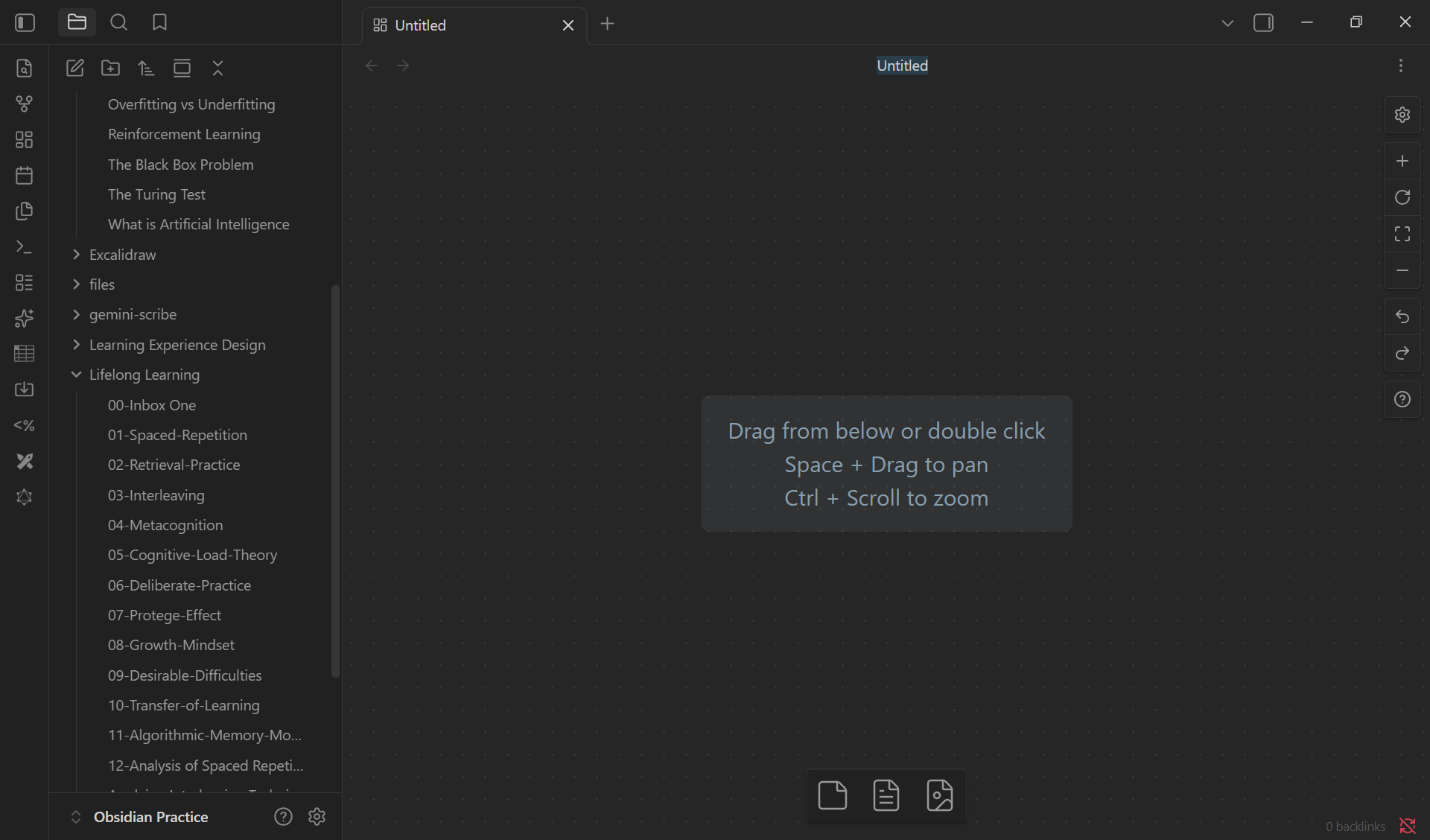
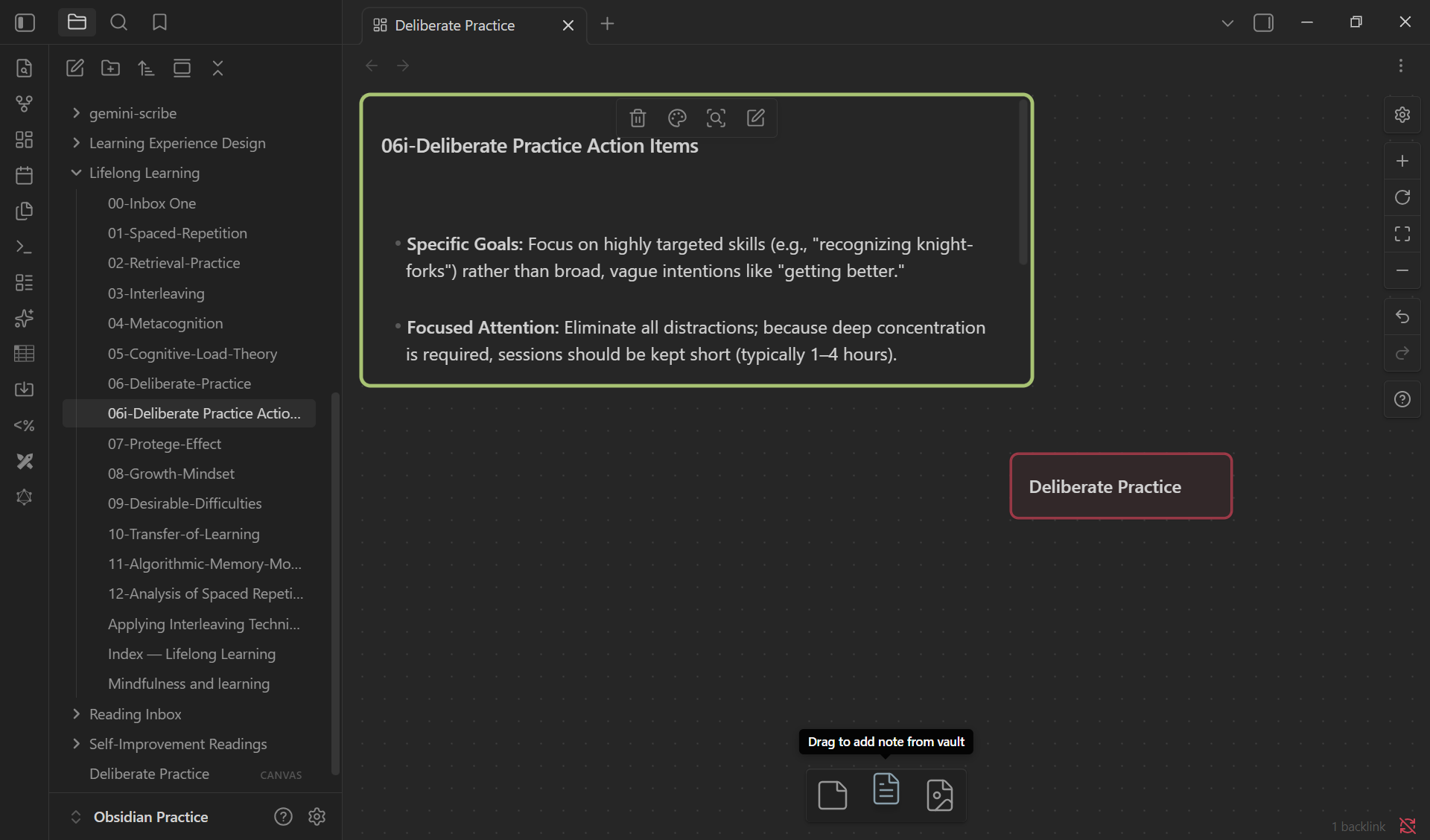
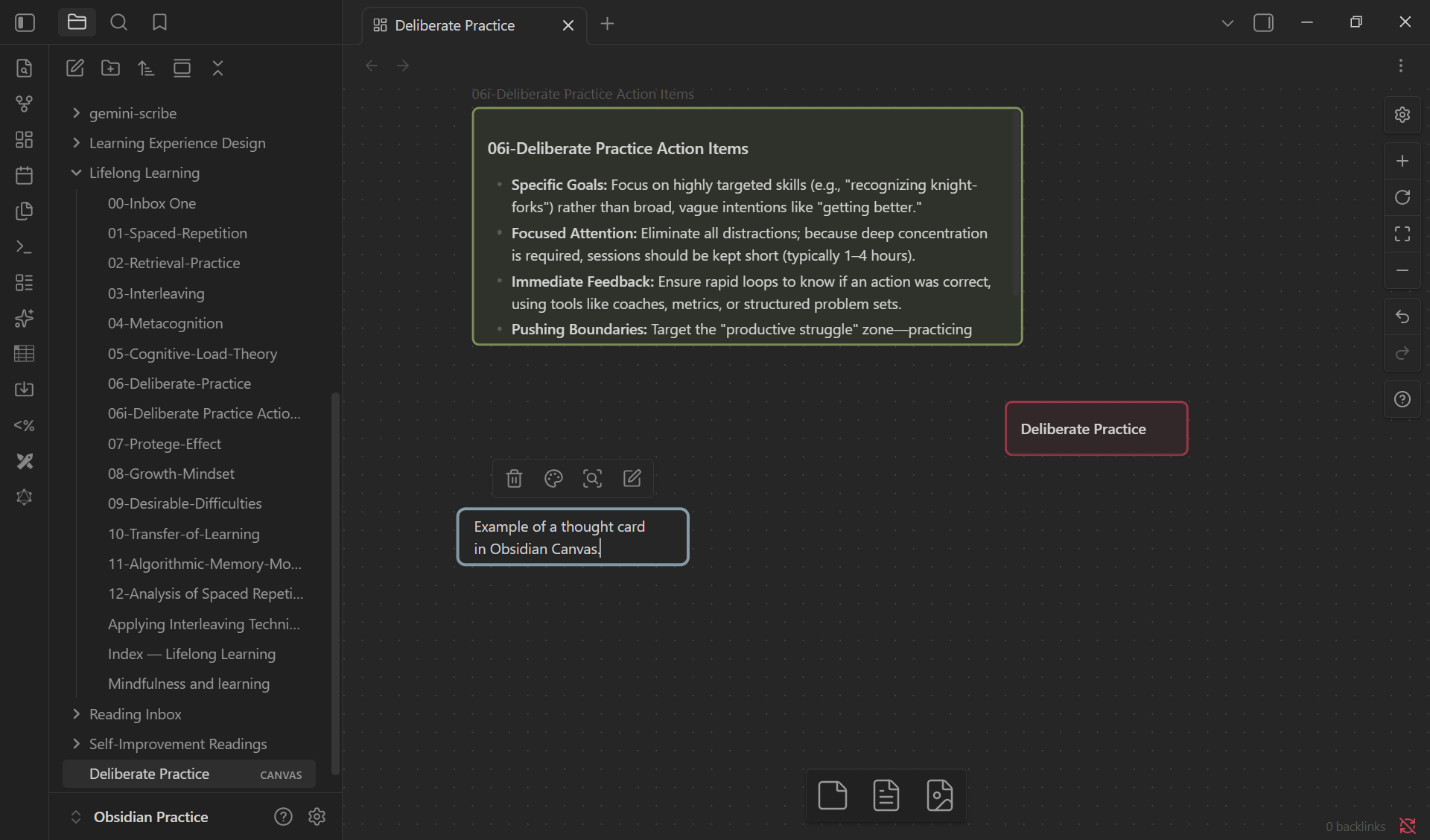
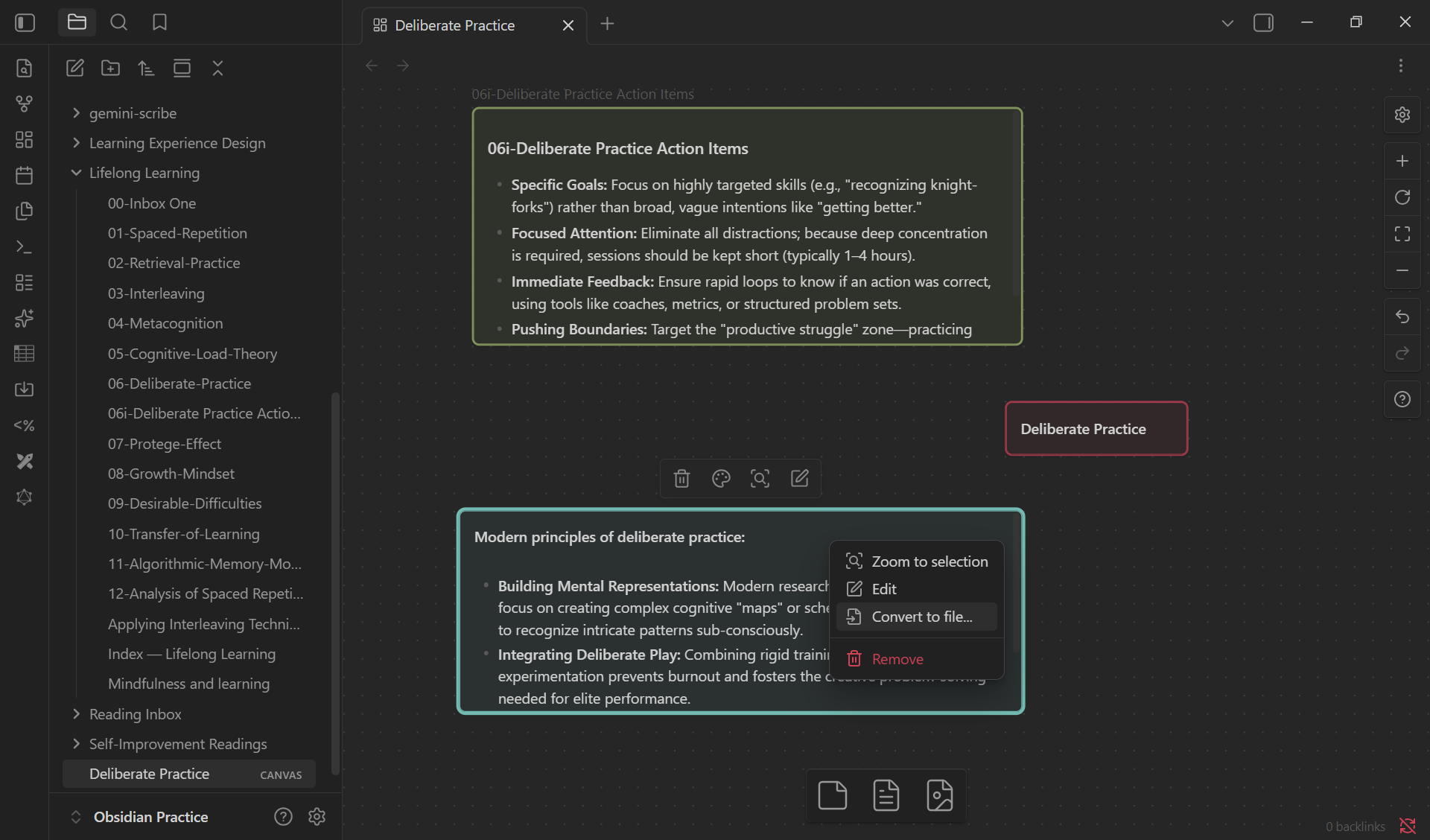
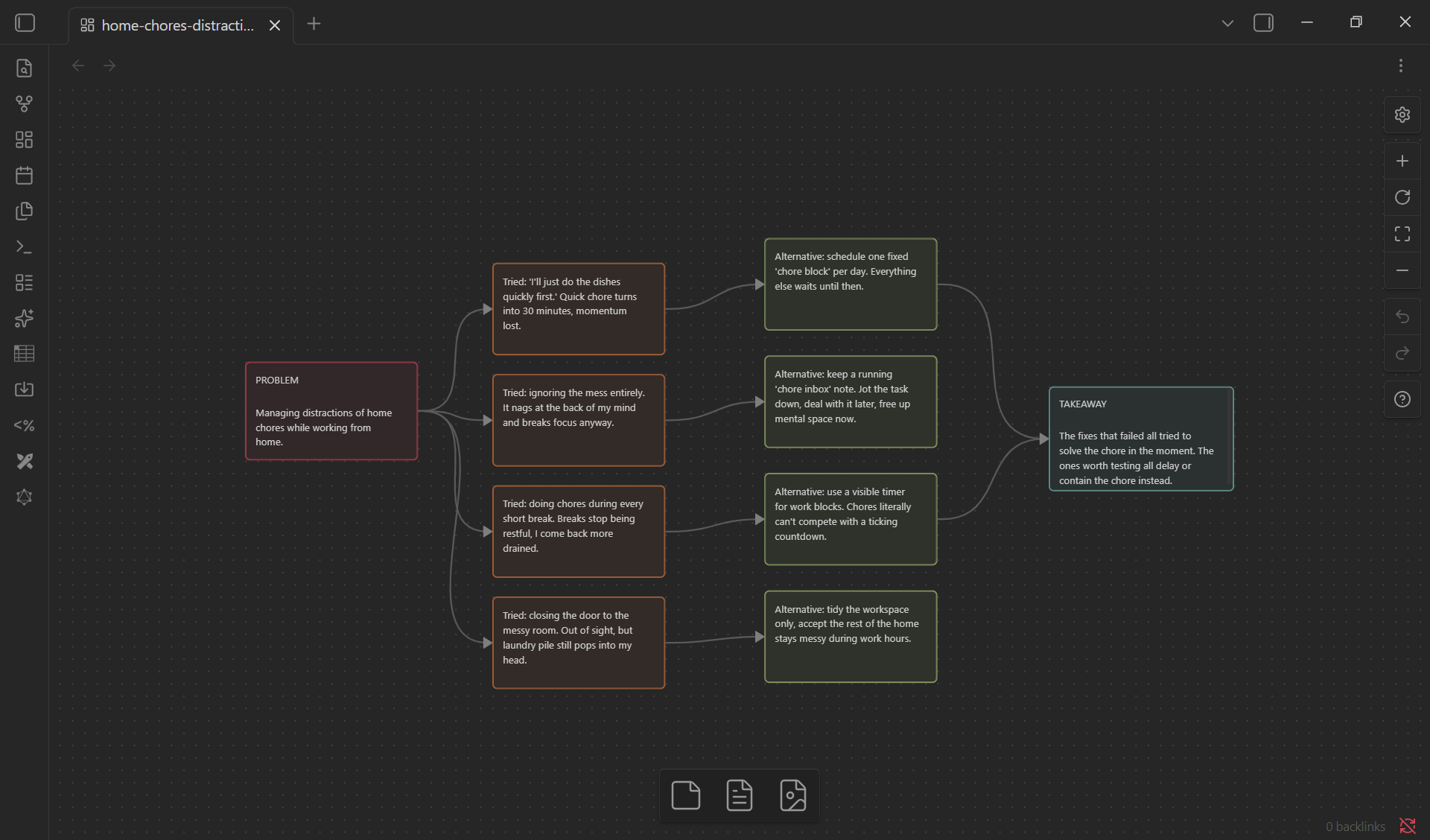
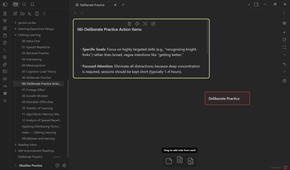
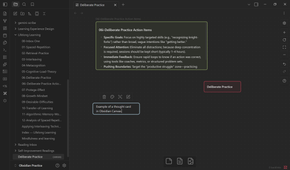
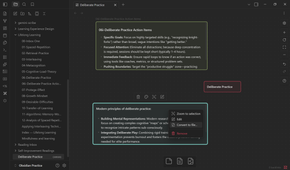
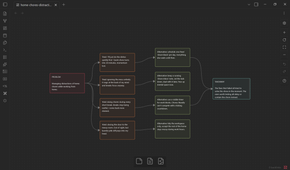
A whiteboard is an old-fashioned visualization device. And Canvas is Obsidian's infinite whiteboard tool. It lets you move notes, images, PDFs, and text cards around. Even if you are a linear outliner, you can arrange your ideas spatially to compare, outline, or plan.
I use Canvas for brainstorming article ideas. One of my methods is to place a problem on one side, common fixes that don't work on another, and potential alternative fixes floating between them (see the last screenshot in the above gallery). Moving pieces around often reveals more ideas than outlining.
But don't limit Canvas to brainstorming. You can create reusable templates for planning household chores, organizing trips, or collaborative decision-making. Canvas is one of the best free-form visual thinking tools available in Obsidian by default.
Double-click anywhere on the canvas to create "cards" for quick thoughts without cluttering your main vault folder with tiny, single-sentence markdown files. Then, you can instantly turn any temporary visual card on the Canvas into a permanent markdown note by right-clicking it and selecting Convert to file.
Excalidraw makes ideas tangible
Sometimes sketches explain better

You can't go too wrong with a community plugin that's racked up 6 million+ downloads. The Excalidraw plugin brings hand-drawn diagrams into Obsidian. You can sketch workflows, annotate screenshots, create visual notes, and even link drawings back to your existing vault.
I'm a wannabe sketchnoter, so Excalidraw lowered the barrier enough that I started doodling concepts to remember them better. A rough diagram of a concept often helped me understand a problem faster than another page of written notes. Even messy sketches can unlock new insights.
You can use simple shapes and arrows instead of polished illustrations. Because these drawings are fully interactive, you can link specific sketched elements back to individual Markdown notes. This turns a simple sketch into a supporting visual note.
Zsolt Viczián, the creator of Excalidraw, has several resources to help you become a better visual thinker.
Mind maps simplify complexity
See the big picture quickly

I have gotten used to working with mind maps in NotebookLM. Obsidian Mind Map fills the gap as it converts H1/H2/H3 note hierarchies into collapsible mind maps. The headings and bullet points form a branching structure that makes dense information easier to scan and understand.
I found this especially useful when researching unfamiliar topics. A long note that felt intimidating in text suddenly became approachable once I could navigate it visually by expanding its branches. It's very basic, but it gets the job done.
If you're studying from your notes, build outlines with meaningful headings. The better your note structure, the more useful your mind maps become.
Juggl brings your vault to life
Explore connections dynamically

Juggl is often described as Graph View with steroids. For instance, the plugin offers several styles for colors, shapes, sizes, and icons. Combine them with the four layout types (force-directed, grid, circle, and hierarchical). You can visualize more complex relationships at one glance with the styles, as you organize, filter, and manipulate your notes with greater control. The default Obsidian graph can be chaotic. Juggl gives you customization options via a CSS file in its folder. I wouldn't recommend this plugin to a beginner, but if you are familiar with CSS, you can make precise customizations to the graph using the YAML front matter in your Obsidian notes.
I am still not there yet with Juggl. My notes aren't there yet, as I am an Obsidian beginner. Though its Workspace mode is helping me go through my notes, one node at a time. It feels less like browsing files and more like investigating a living knowledge system.
Juggl works best once your vault has matured. I can see that the learning curve is real, as Juggl is much more granular than the default Graph View. So, install and use it one connection at a time. While the graphs work on mobile, they can be buggy.

- OS
- Windows, macOS, Linux, Android, iOS, iPadOS
- Developer
- Dynalist Inc.
- Pricing model
- Free
- Initial release
- March 30, 2020
Obsidian is a local-first, Markdown-based note-taking application that stores your notes as plain text files and lets you build interlinked “vaults” of knowledge. It supports plug-ins, graph visualisations, and full control of your data rather than locking you into a proprietary format.
Start thinking visually
Choose one visualization tool that aligns with how you naturally think, and spend a week using it intentionally. Like most of us, I started with Graph View. Now, I am exploring other visual plugins and adapting them for different types of notes. Sketches help you break down problems, mind maps improve learning, and Canvas becomes a planning environment. Each visual plugin makes us stop seeing Obsidian as a collection of text files. Noticing the ideas hiding between your notes comes next.