


I use speed tests a lot. However, the problem is that their scope is limited; they show you how fast your device retrieves and sends data from the internet. Raw bandwidth is just one aspect of network performance, which means that speed results don't always surface why websites lag or why downloads may freeze halfway.
There are, however, a handful of PowerShell commands that reveal details you don't see in speed tests, surfacing DNS latency, packet loss, adapter errors, and bad routing priorities even better than most GUI tools. They are my go-to for network troubleshooting.
Trace where your connection actually breaks down
Find packet loss and unstable hops in real time

I feel frustrated when my fast internet starts to feel slow. With speed tests only measuring throughput to a nearby server, I still feel stuck because the problem is often further along the route. This is when I turn to the Test-Connection command for clarity. It's best used in any of these situations:
- Random gaming lag despite stable speeds
- Voice or Zoom calls cutting out
- Certain websites loading slowly while others work fine
- Packet loss during downloads
Here are the actual commands to run:
Test-NetConnection "8.8.8.8" -TraceRoute
The command maps hops between the target and my device, revealing latency for each node. The two things to check for are sharp latency spikes on hops that linger and packet loss starting on nodes and persisting. The patterns it reveals often indicate issues along the route beyond the local network rather than local configuration.
I often include the -InformationLevel Detailed flag when I need to actively expose the actual Round-Trip Time (RTT) in milliseconds for the final destination.
Windows was throttling my internet until I found these 5 settings
Your internet might already be fast, Windows just isn’t letting it feel that way.
Check whether your adapter is quietly dropping packets
Expose network errors Windows normally hides
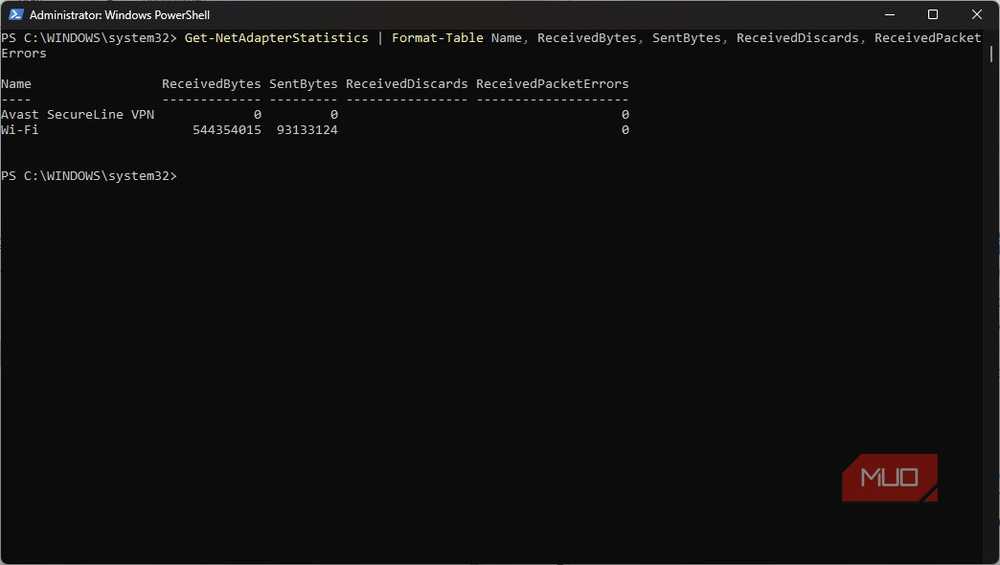
I have had periods of inconsistent connectivity that were actually not the fault of my ISP. On one such occasion, it was a failing Ethernet cable and my noisy USB dock. Browser-based speed tests revealed no problems. However, I had an adapter silently discarding packets while accumulating transmission errors.
I use the Get-NetAdapterStatistics command when I notice any of these:
- Random connection drops
- Slow local file transfers
- Wi-Fi instability that comes and goes
- Docked laptops behaving inconsistently
Here is the exact command I run:
Get-NetAdapterStatistics | Format-Table Name, ReceivedBytes, SentBytes, ReceivedDiscards, ReceivedPacketErrors
ReceivedPacketErrors shows frames that arrived damaged or malformed — a sign of a bad cable, failing port, or flaky wireless driver. ReceivedDiscards shows packets that arrived intact but were dropped anyway, which usually means the adapter or driver was overwhelmed and couldn't keep up. What you have to watch for are values steadily climbing or already in their thousands. These are pointers to a physical or wireless instability problem.
Certain counters may expose names and values that vary slightly depending on your adapter driver and hardware vendor.
Measure whether your DNS server is slowing everything down
Fast internet means nothing with slow DNS resolution
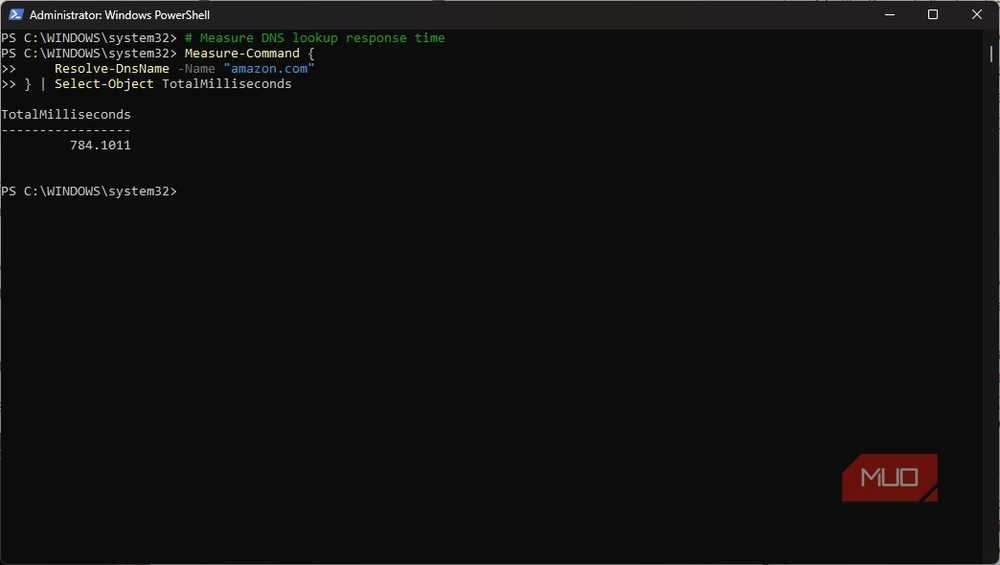
Sometimes, after running a speed test that seems fine, web pages continue to hang before opening. Sometimes this delay is a DNS issue and has nothing to do with bandwidth. Domain names are resolved to IP addresses, and the process drags if that lookup takes too long.
I can run a command to measure DNS lookup speed if I notice any of these:
- Websites hang before loading
- Browsers feel slow despite fast downloads
- Apps stay stuck on "Connecting…"
- Pages suddenly load all at once after a noticeable wait
Here is the exact command I run:
Measure-Command {

 Resolve-DnsName -Name "amazon.com"

} | Select-Object TotalMilliseconds
You typically get results in single or low double-digit milliseconds for responsive DNS. Investigate if DNS lookups exceed ~100ms. You may even switch to faster DNS servers like 8.8.8.8 or 1.1.1.1.
Find the apps quietly consuming your network
Track active connections by process ID
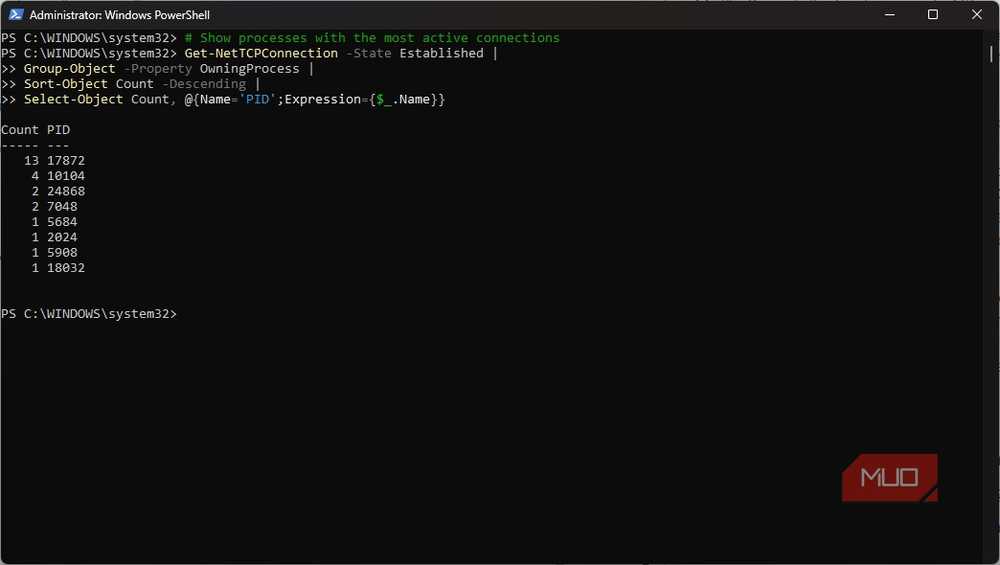
Sometimes, when my network slows down, it's usually a cloud-sync app, game launcher, or browser process launching several background connections. The taskbar doesn't give a hint, and even the Resource Monitor may show moderate network usage.
You can see processes with the most active connections, and it's often called for when you notice any of these:
- Unexpected bandwidth spikes
- High data usage while the machine sits idle
- Slow downloads during what should be background activity Unexplained network congestion during normal use
Here is the actual command to run:
Get-NetTCPConnection -State Established |

Group-Object -Property OwningProcess |

Sort-Object Count -Descending |

Select-Object Count, @{Name='PID';Expression={$_.Name}}
Your output gives process IDs with their corresponding number of established TCP connections. To match the ID to an app, run this command, replacing 17872 with the actual process ID: Get-Process -Id 17872.
High connection counts are not always signs of high bandwidth use, but they expose noisy background apps worth investigating.
Verify that Windows is prioritizing the right adapter
Check connection metrics before blaming your router
Windows doesn't always correctly choose the network adapter that should take priority. This is even more common on laptops connected to Ethernet docks while Wi-Fi remains active.
Viewing adapter priority metrics comes in handy in these cases:
- Docking a laptop
- Switching between Wi-Fi and Ethernet
- Installing or connecting to a VPN
- Seeing inconsistent speeds on a wired connection
Here is the exact command to use:
Get-NetIPInterface -AddressFamily IPv4 |

Sort-Object InterfaceMetric |

Format-Table InterfaceAlias, InterfaceMetric
Windows treats the adapter with the lowest metric value as the top-priority route. This means that Wi-Fi can become the priority over wired if it has a lower metric value. If you don't manually override these values, Windows will automatically handle them.
I keep coming back to these commands
There is a place for speed tests, but at best they respond to a very narrow question. These commands answer the diagnostic questions you need when network behavior isn't explained by simple speed tests. I've learned to spot and fix several Windows issues using PowerShell. Once you master PowerShell, from networking to performing daily tasks, there will be almost no limits to what you can do on Windows.