


My Galaxy A55 has been feeling more and more bloated since the latest One UI 8.5 update. The new UI looks great, and the device feels fresh on the surface, but the performance has taken a noticeable hit. In contrast, my Z Flip 6 and S24 Ultra still work as well as they did when new.
To deal with the lag, I started tweaking a few settings to squeeze better performance out of my aging Samsung phone. After a handful of changes, the A55 went from sluggish to surprisingly usable again, but I had to let go of some good things Samsung had to offer, especially the One UI.
Disable RAM+
The biggest performance boost came from one toggle


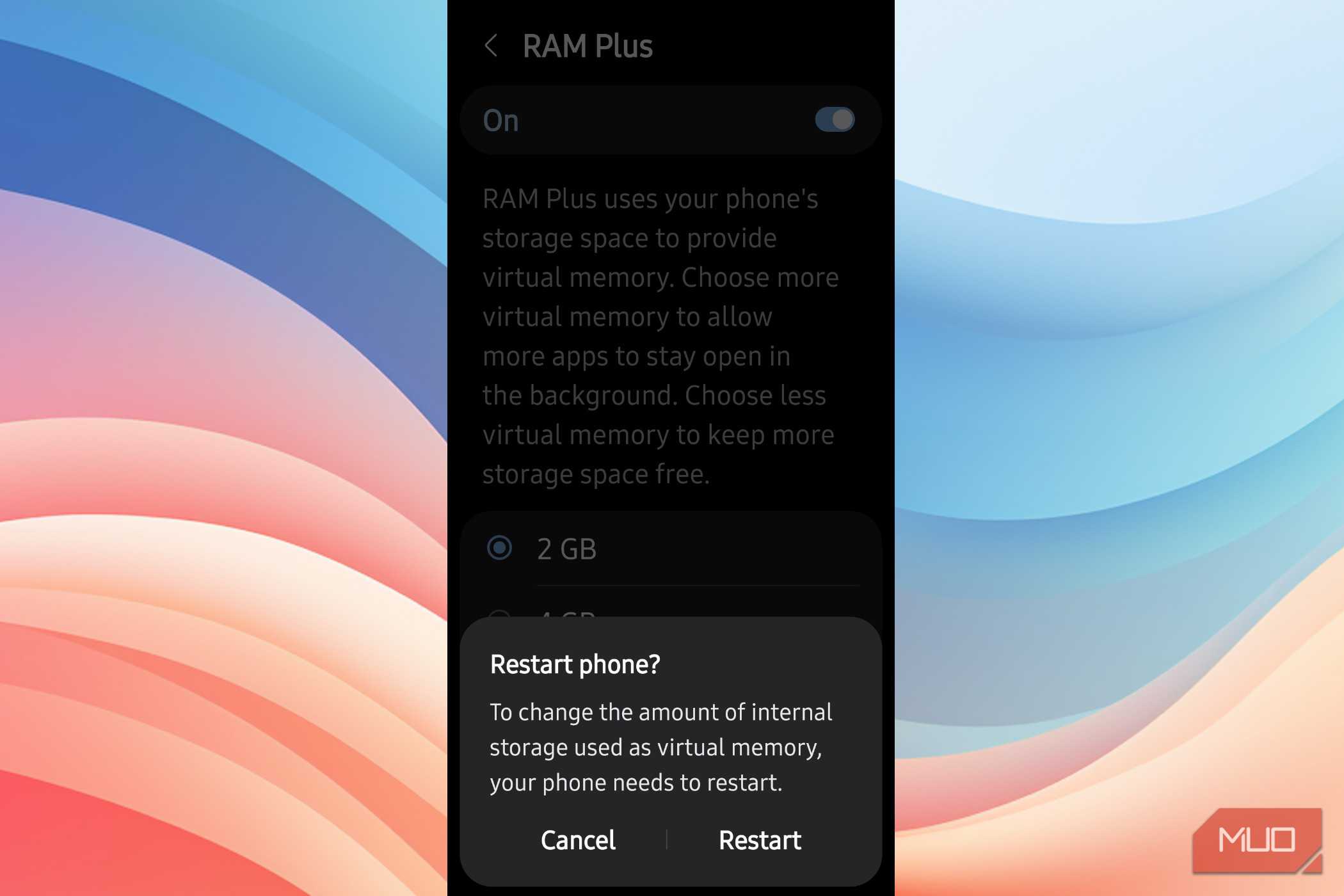
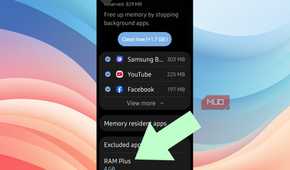
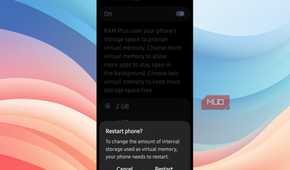
RAM+ is a Samsung feature that uses your phone's internal storage as extra memory. The idea is that it helps keep more apps open in the background. However, in practice, the biggest performance improvement I noticed on my A55 came after I turned it off.
The problem is that the internal storage is much slower than RAM. When RAM+ is active, the system constantly shuffles data between fast physical memory and slow storage, and every swap forces the processor to wait. That is what causes the stuttering and slow app switches that have been an issue since the last update. RAM+ is known to cause performance issues on Samsung phones, yet it comes enabled by default on most Galaxy devices.
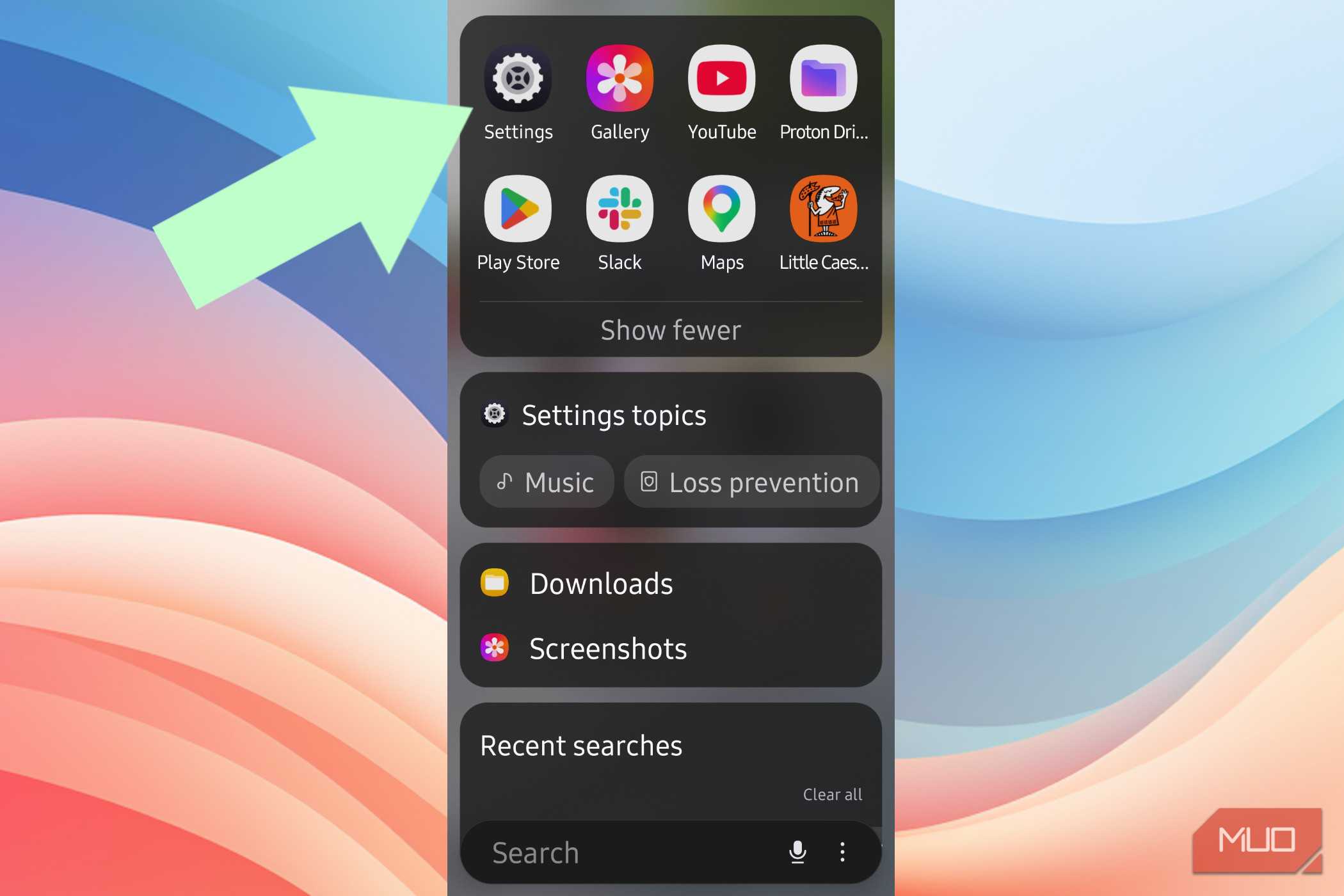
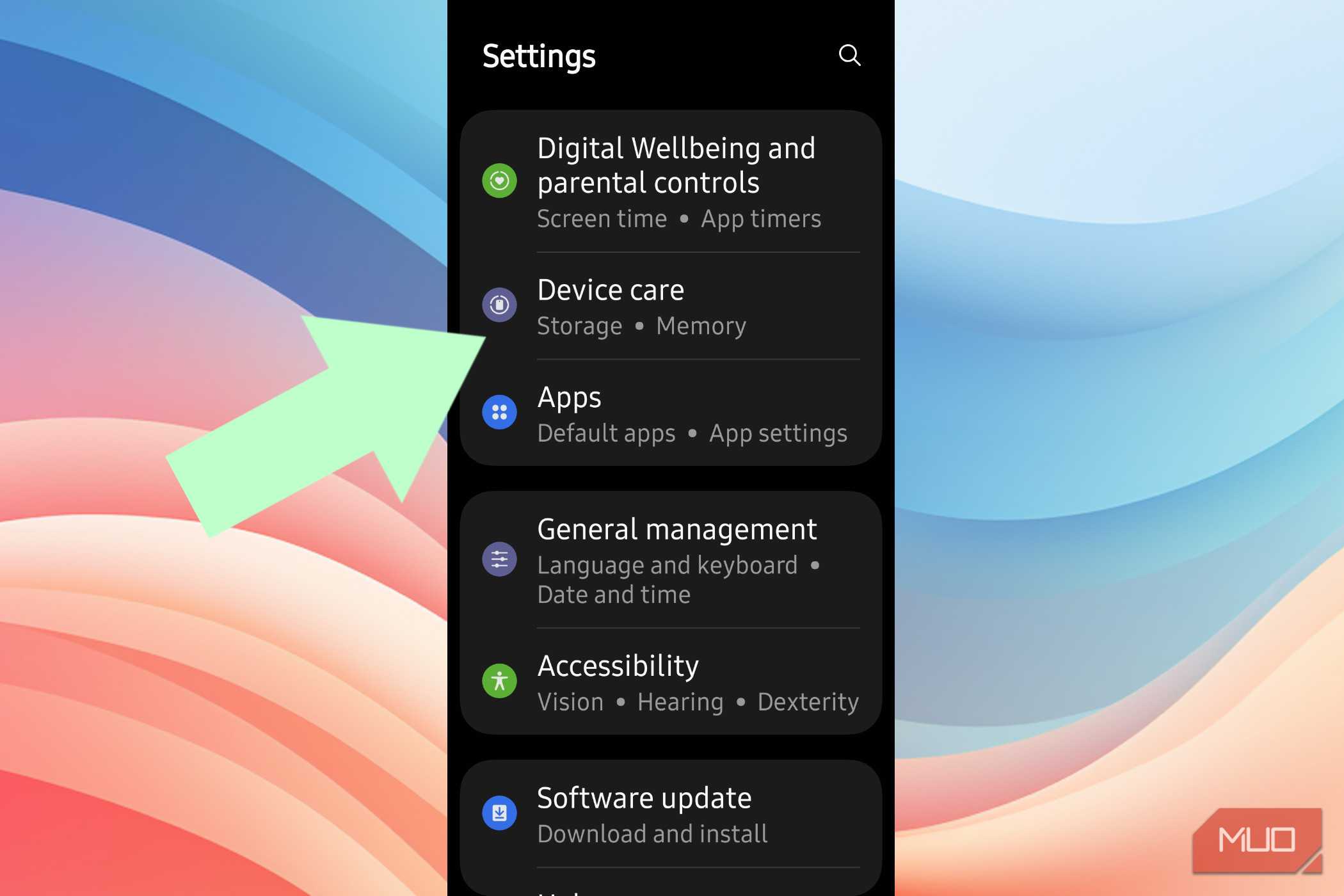
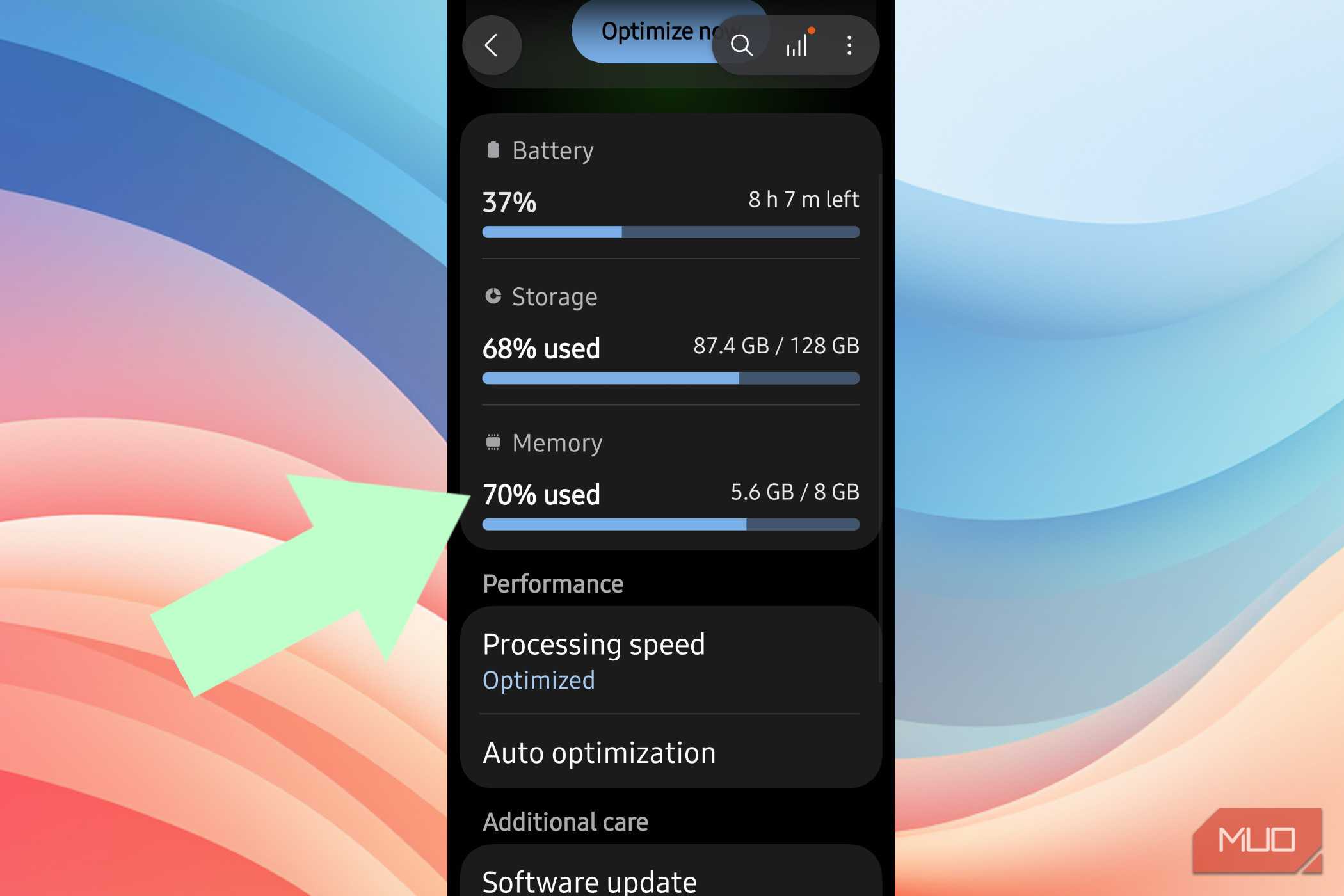
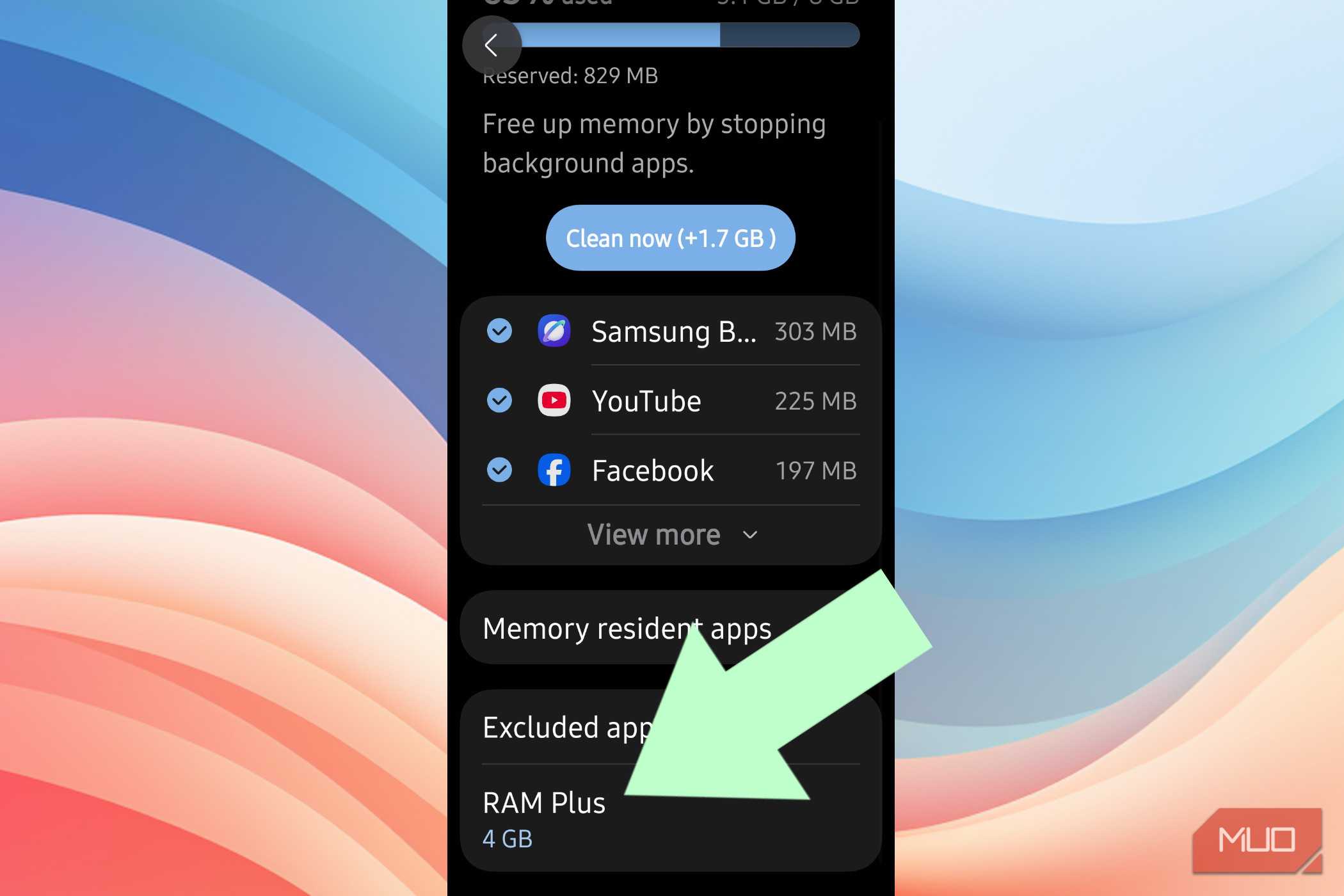
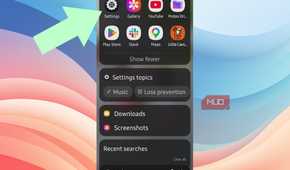
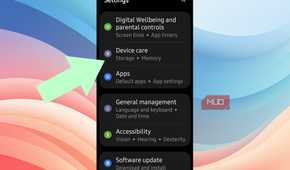
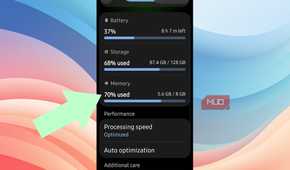
To disable it, go to Settings > Device care > Memory, scroll to the bottom, and toggle RAM Plus off. The system will ask you to restart your phone. After the reboot, my A55 felt noticeably snappier during app switches and when navigating through the settings.
If you don't want to disable it entirely, you can lower the allocation instead. Mine was set to 4GB by default, which was eating into storage I could use for photos and apps. Dropping it to 2GB, or turning it off completely, can give the phone room to breathe.
Let your unused apps sleep
Fewer background processes mean less lag

Another handy feature in Samsung phones is the ability to put unused apps into a deep sleep state. Most of us have dozens of apps installed that we barely open, but they still run background tasks, sync data, and send notifications. All of that background churn competes with whatever you're actively doing on the phone.
Samsung's Deep Sleeping Apps feature stops these apps from running in the background entirely. They only wake up when you open them, then go right back to sleep when you leave. For social media apps, shopping apps, old games, and anything else you don't need real-time notifications from, this can help improve your phone's performance.
To set it up, go to Settings > Battery and device care > Battery > Background usage limits. Make sure Put unused apps to sleep is turned on so the system automatically flags low-use apps. Then open Deep sleeping apps and tap the plus icon to manually add apps you want to freeze. The list splits between what the system added automatically and what you chose yourself, so you always know what's happening.
The trade-off is that deep-sleeping apps won't send you notifications until you open them. Now that's more of a feature than a bug for me. Most of those notifications were unnecessary anyway. If you do miss alerts from a specific app, go back to the same menu and remove it from the list.
Auto-optimize storage
Full storage quietly slows your phone down

I keep hearing that keeping at least 10 percent of storage free is ideal for smoother performance. When your phone's storage fills up, the controller has less room to manage data in the background, and phones can slow down past a storage threshold that most people never think about. With this, write performance drops, app installs take longer, and the system starts feeling heavier across the board.
The problem is that optimizing storage can be a chore. You would need to regularly clean up your gallery for duplicate photos, clear old downloads, and empty the recycle bin. I try to do a quick gallery cleanup every couple of weeks, mainly deleting screenshots and duplicates, and I always empty the recycle bin manually rather than waiting for the 30-day auto-delete.
For everything else, Samsung has a built-in auto optimization feature that handles some of the maintenance for you. Go to Settings > Device care > Auto optimization and turn it on. You can also enable the option to restart your phone automatically when it's idle.
One UI is heavy
A lighter launcher can make a budget Samsung feel new

One UI on flagship phones like my S24 Ultra and Z Flip 6 feels smooth, and I like what Samsung has done with its software over the years. On a budget phone like the two-year-old Galaxy A55, though, the same UI feels like it's doing a lot of heavy lifting just to keep up with the update. With every new update, there is more lag during unlock, the blur effects stutter, and animations that look fluid on flagship hardware feel choppy on a mid-range chip.
You'd think that since One UI runs fine on the S24 Ultra, it should work on the A55 too. But the gap between a Snapdragon 8 Gen 3 and an Exynos 1480 is significant, and One UI doesn't scale its visual effects down enough to compensate.
If you can live without One UI's full feature set, switching to a lightweight third-party launcher helps more than you might expect. I switched to Niagara Launcher on my A55, which replaces the traditional icon grid with a simple alphabetical list. The home screen loads instantly, app launches feel quicker, and the whole phone just feels more responsive.
Niagara won't give you Samsung's Edge panels, widgets, or folder customization. But on a phone that is struggling to keep up with One UI, that trade-off is worth it.

Niagara Launcher
- OS
- Android
- Price model
- Free w/in-app purchases
Niagara Launcher is a minimal Android launcher designed to make your phone more pleasant to use while reducing distractions. The hallmark feature is its list-based approach — your home screen is just a list of apps and a clock. Don't let the simplicity fool you, though — it's actually quite customizable and feature-rich.
Making my budget Samsung feel responsive
These changes stripped away the software overhead that was making a capable phone feel slower than it needed to be. Between disabling RAM+, deep sleeping apps I rarely use, keeping my storage lean, and switching to a lighter launcher, the A55 feels like it did when I first pulled it out of the box.