


Samsung Internet isn’t talked about enough, which is a bit odd since it’s also available on non-Galaxy phones and now has a PC version too. More specifically, it can do things that Chrome for Android still hasn’t figured out. We’re talking about extensions, customization options, better privacy, and a lot more. It’s all there, and Google could certainly use some inspiration.
Extensions give Samsung Internet an obvious edge
One thing we’ve all been begging for

This is the big one. Extension support is something that most Chrome rivals on Android have in common. Samsung Internet is no exception. It supports third-party add-ons, and the most useful thing you can do with them is block ads. There are a few different add-ons available, so you can pick the one you trust the most and browse peacefully without pop-ups, banners, or autoplaying videos.
Beyond ad-blocking, there are also add-ons for adding subtitles to any video, fetching discount codes for shopping sites, customizing the dark mode, and even flagging if the site is safe to browse. The add-ons list isn’t that long, but they’re there, which is what matters the most.
Samsung Internet’s customization options are more fun
Chrome feels a little too rigid


 Credit: Sanuj Bhatia / MakeUseOf
 Credit: Sanuj Bhatia / MakeUseOf
 Credit: Sanuj Bhatia / MakeUseOf
 Credit: Sanuj Bhatia / MakeUseOf
 Credit: Sanuj Bhatia / MakeUseOf




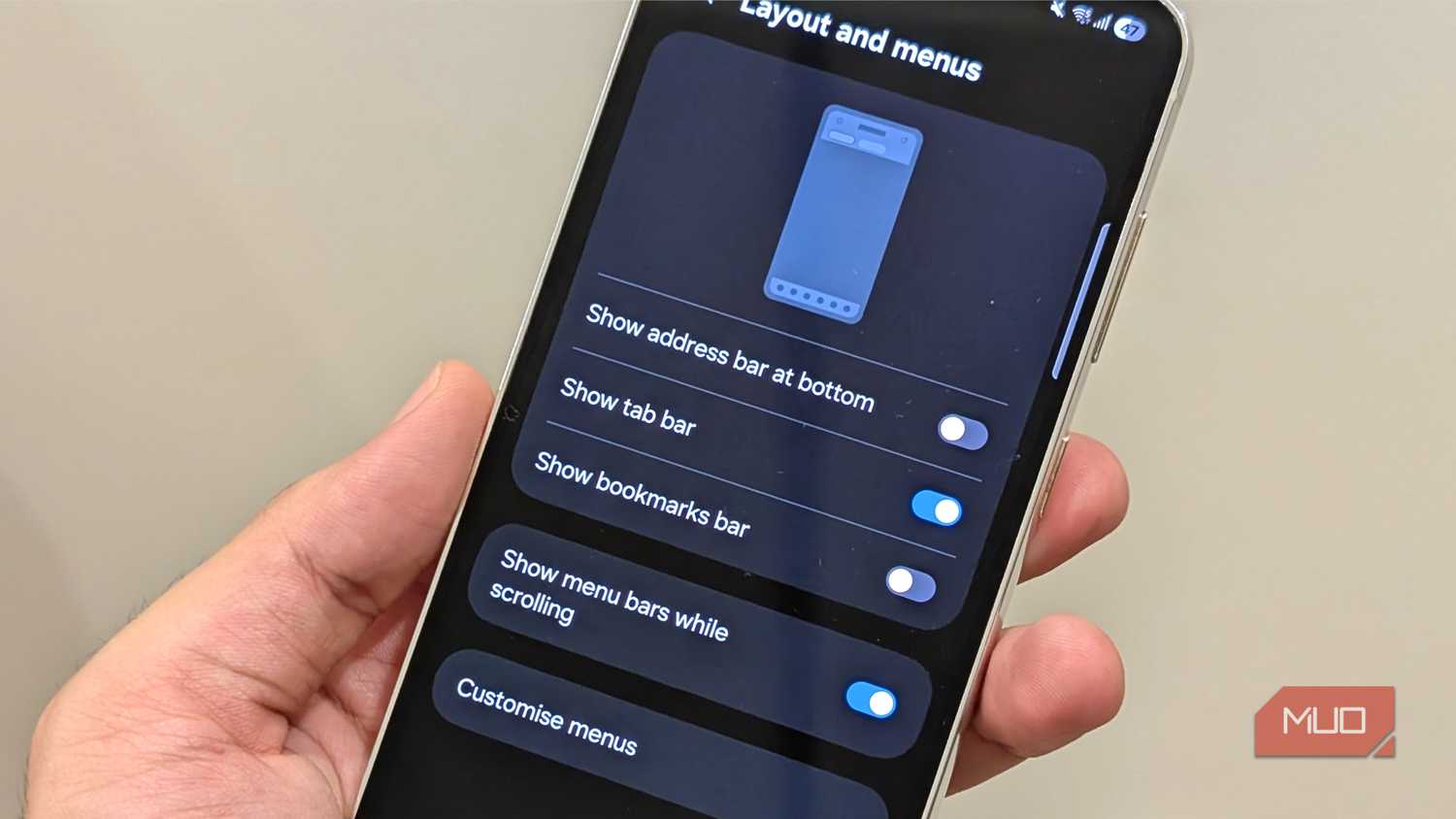
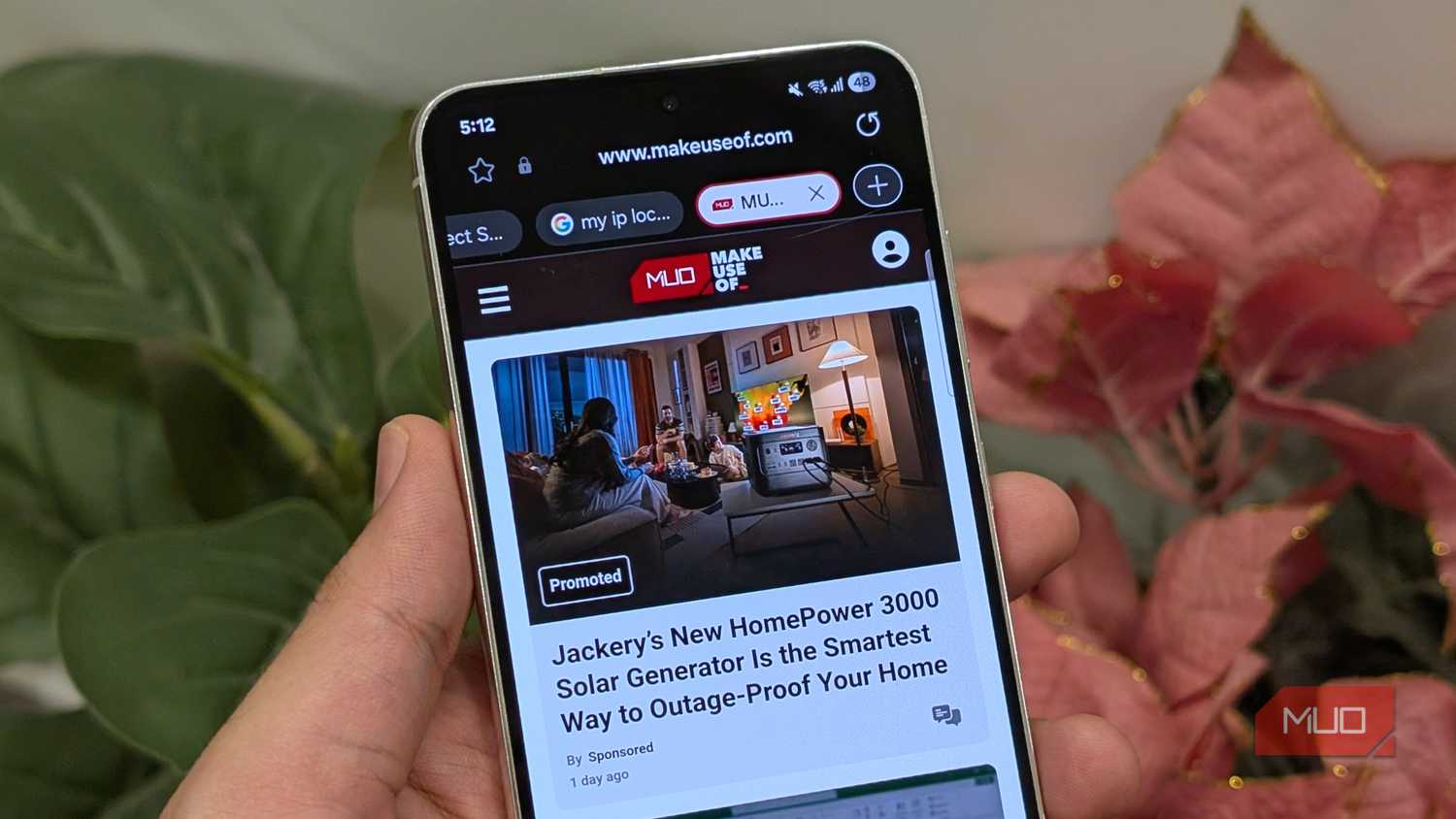
Chrome lets you switch between themes, move the address bar, add a custom toolbar shortcut and make some changes to the new tab page. Samsung Internet lets you do a lot more than this, and my favorite one is the tab bar.
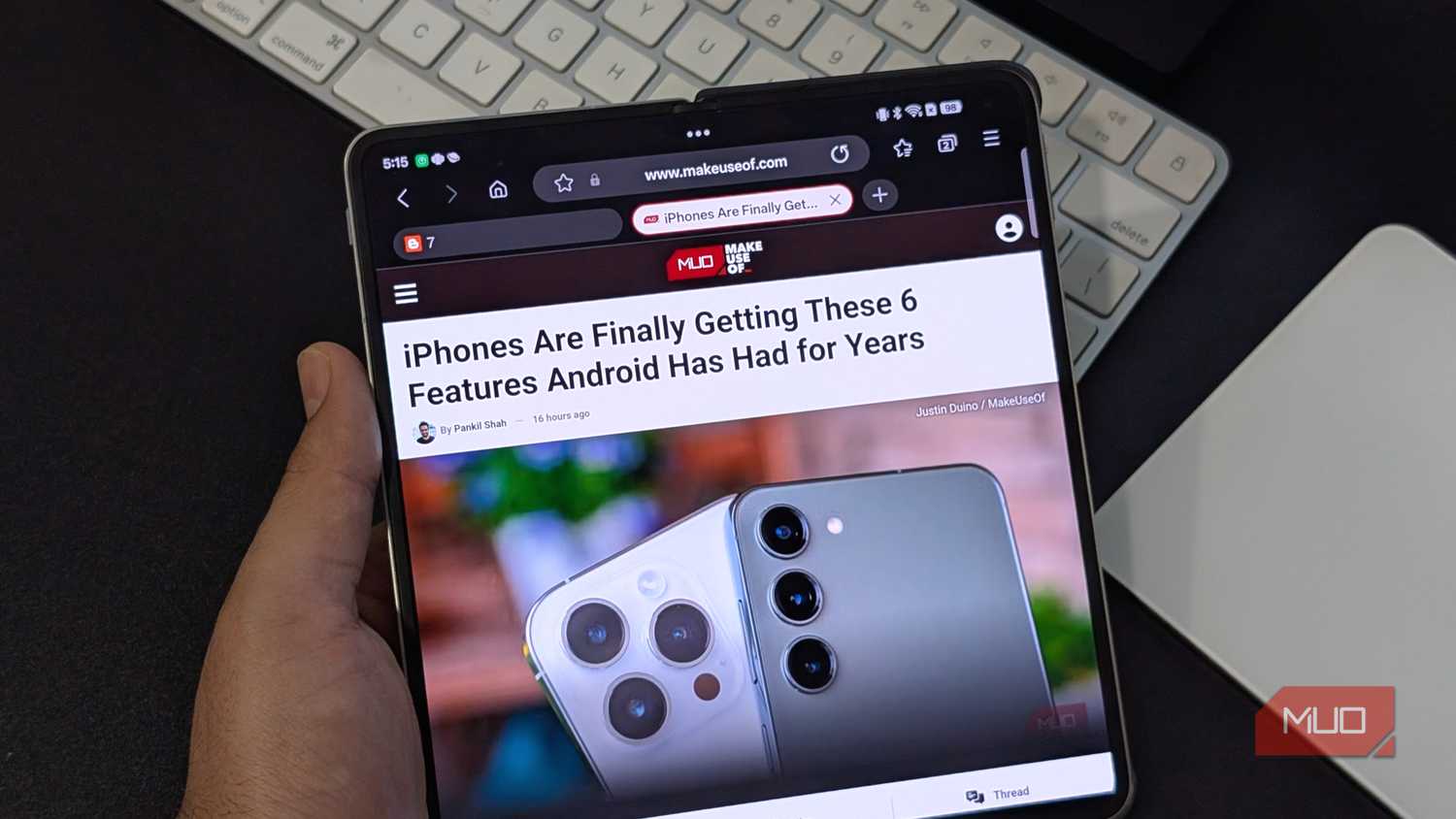
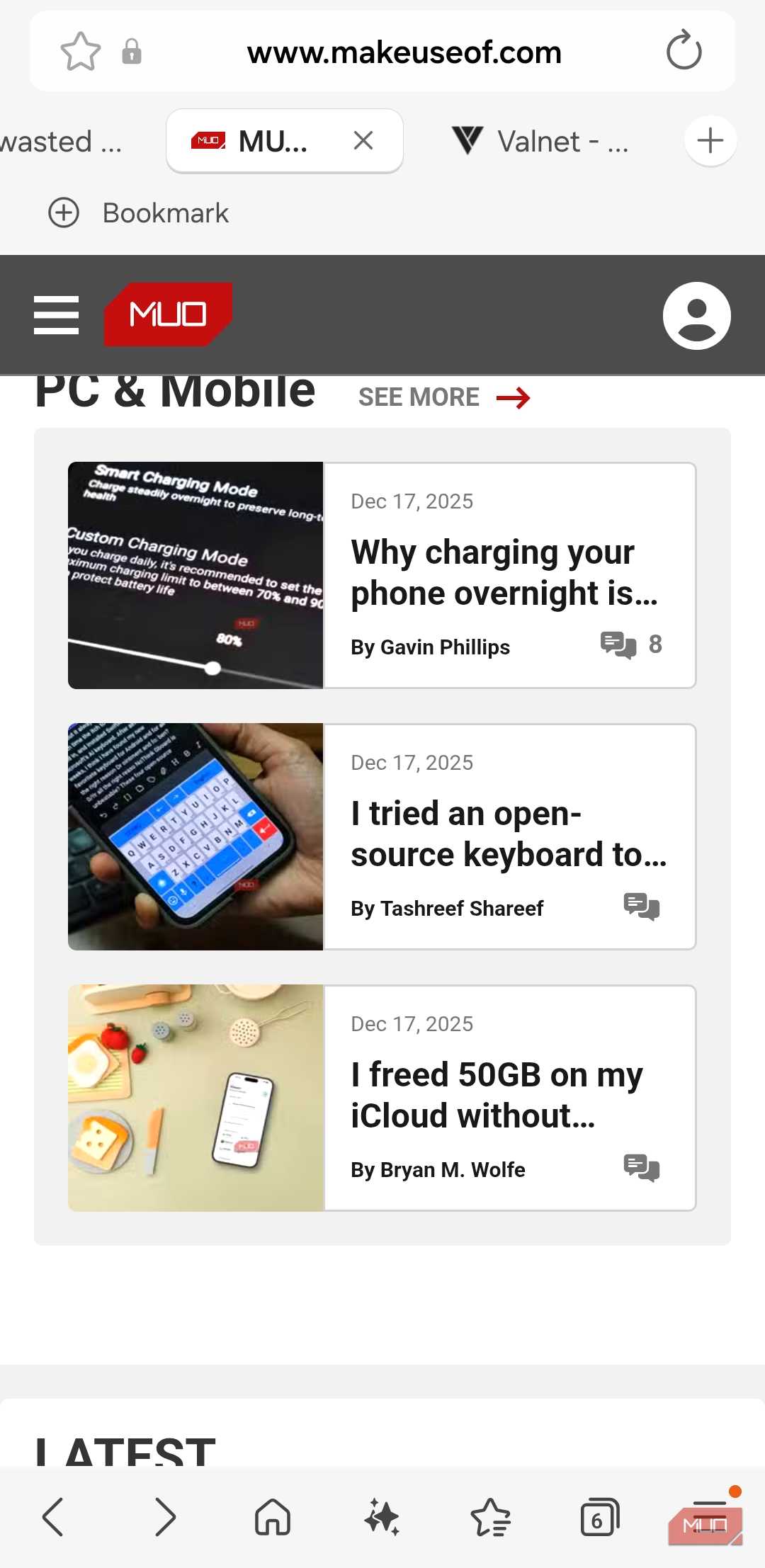
Samsung Internet can show tabs along the top just like a desktop browser, and that makes tab switching so much faster. It makes even more sense on larger-screened phones where you actually have the real estate for it. Heck, you can even set it up to show the bookmarks bar right below the tab bar, and at that point it starts to feel less like a mobile browser and more like a proper desktop experience.
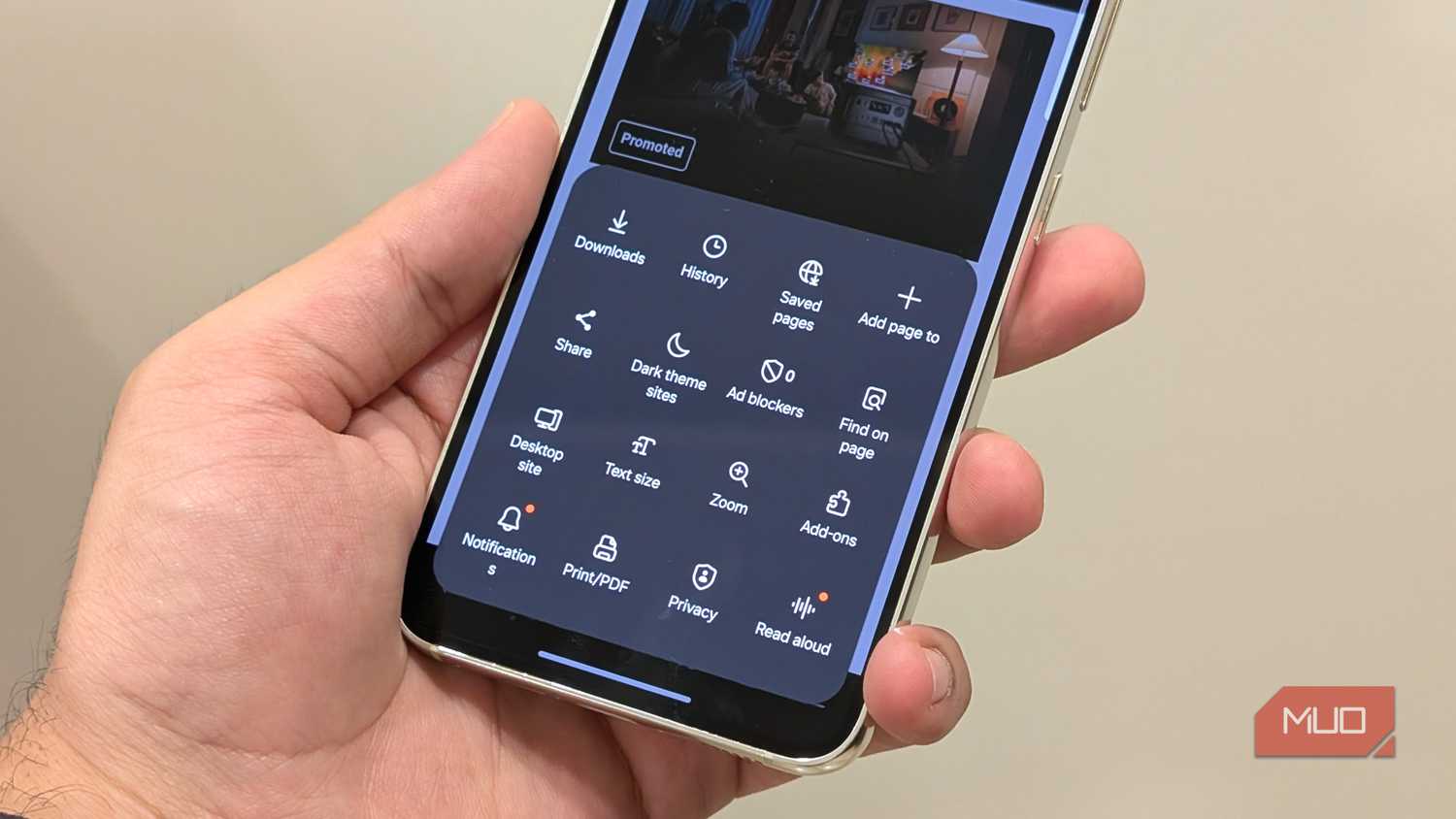
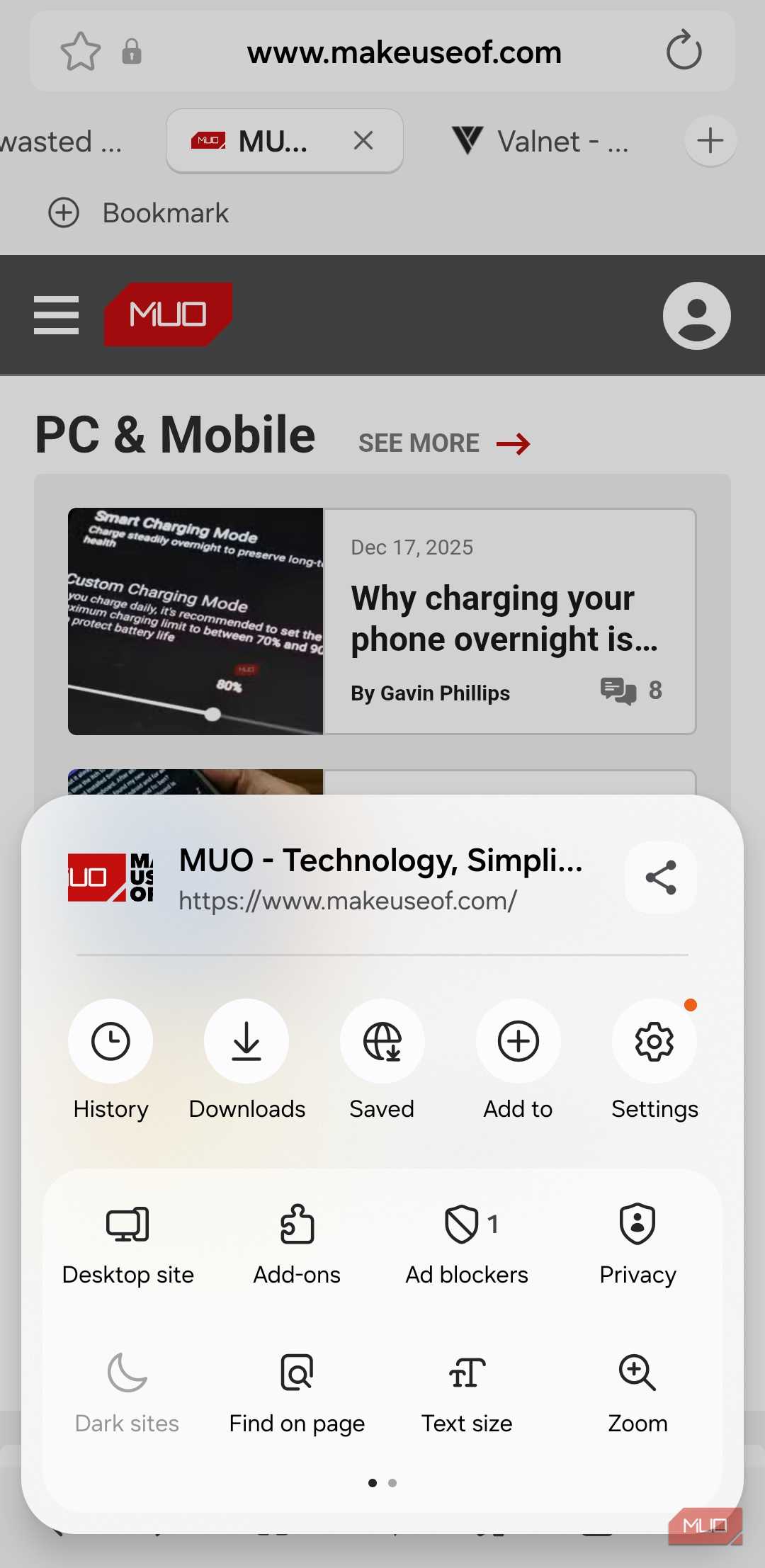
Samsung Internet also gives you full freedom to customize both the bottom toolbar and the main menu, which means you can keep your most used options within reach while hiding everything else. It’s not a big thing, but you miss it when it’s not there.
Samsung Internet puts privacy front and center
Google could do better


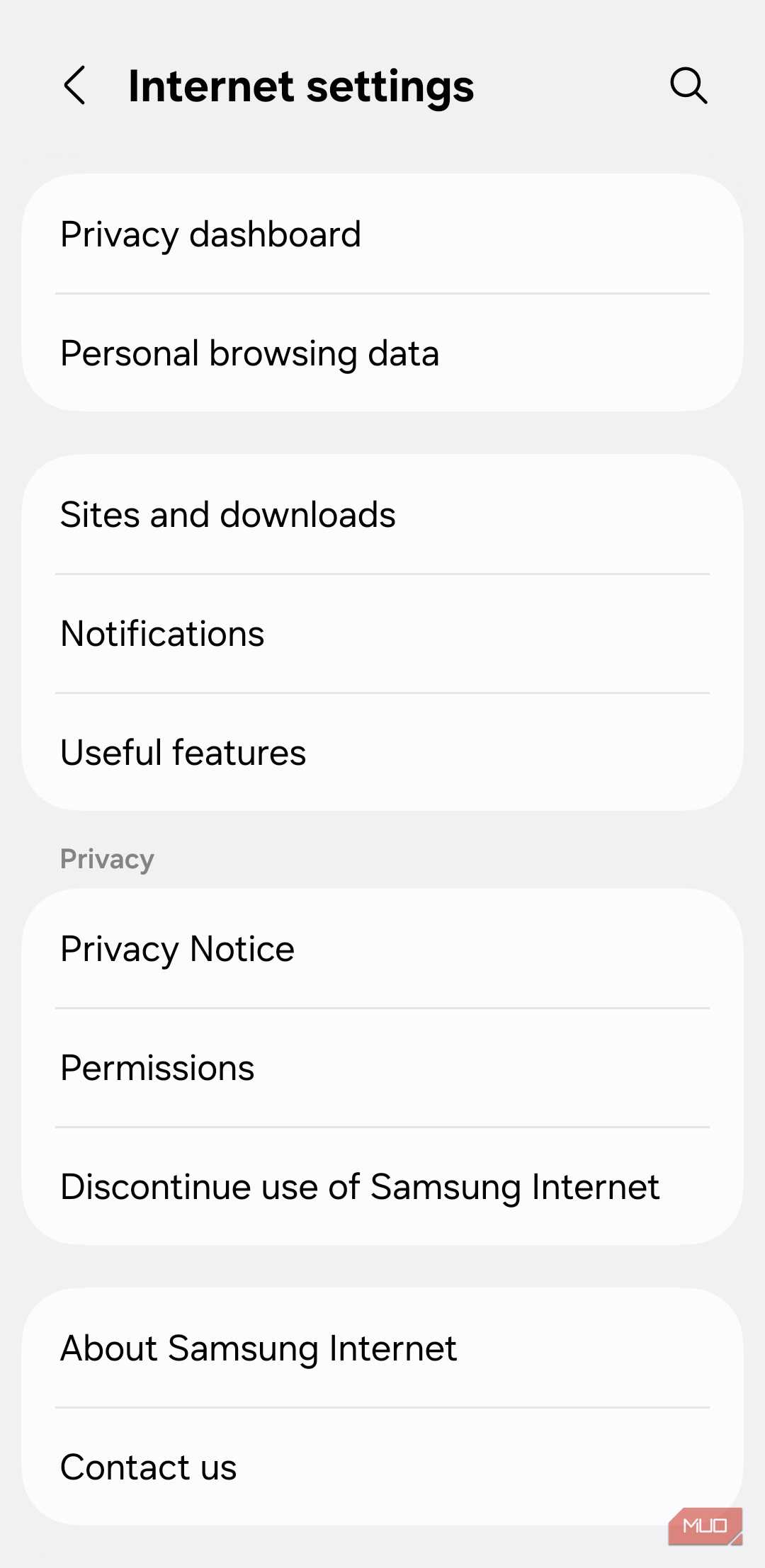

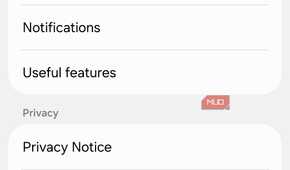

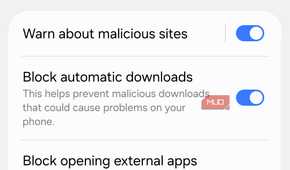
Chrome’s privacy story on Android has never been great. Sure, it has Safe Browsing and blocks third-party cookies, but that’s about as far as it goes.
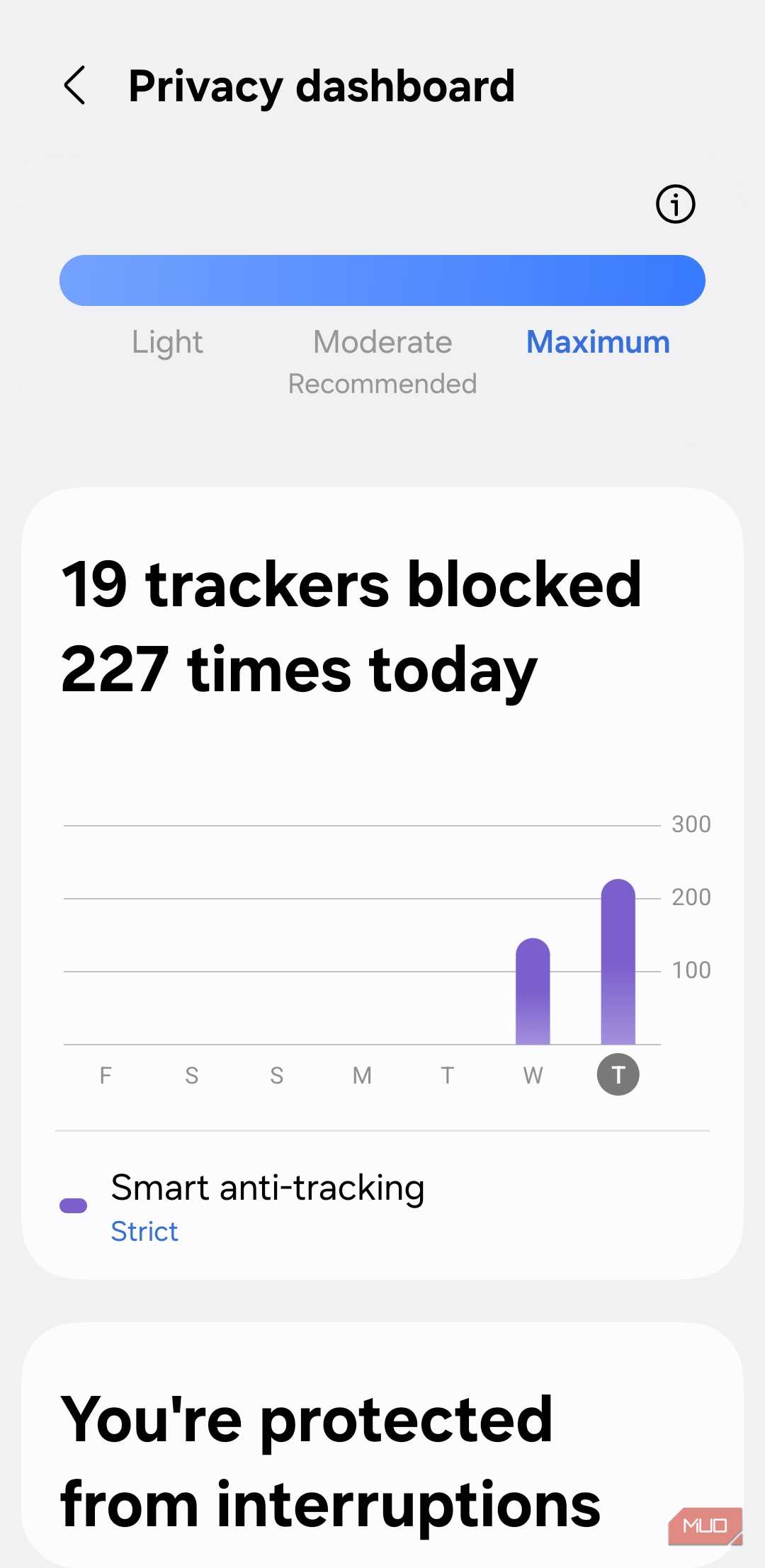
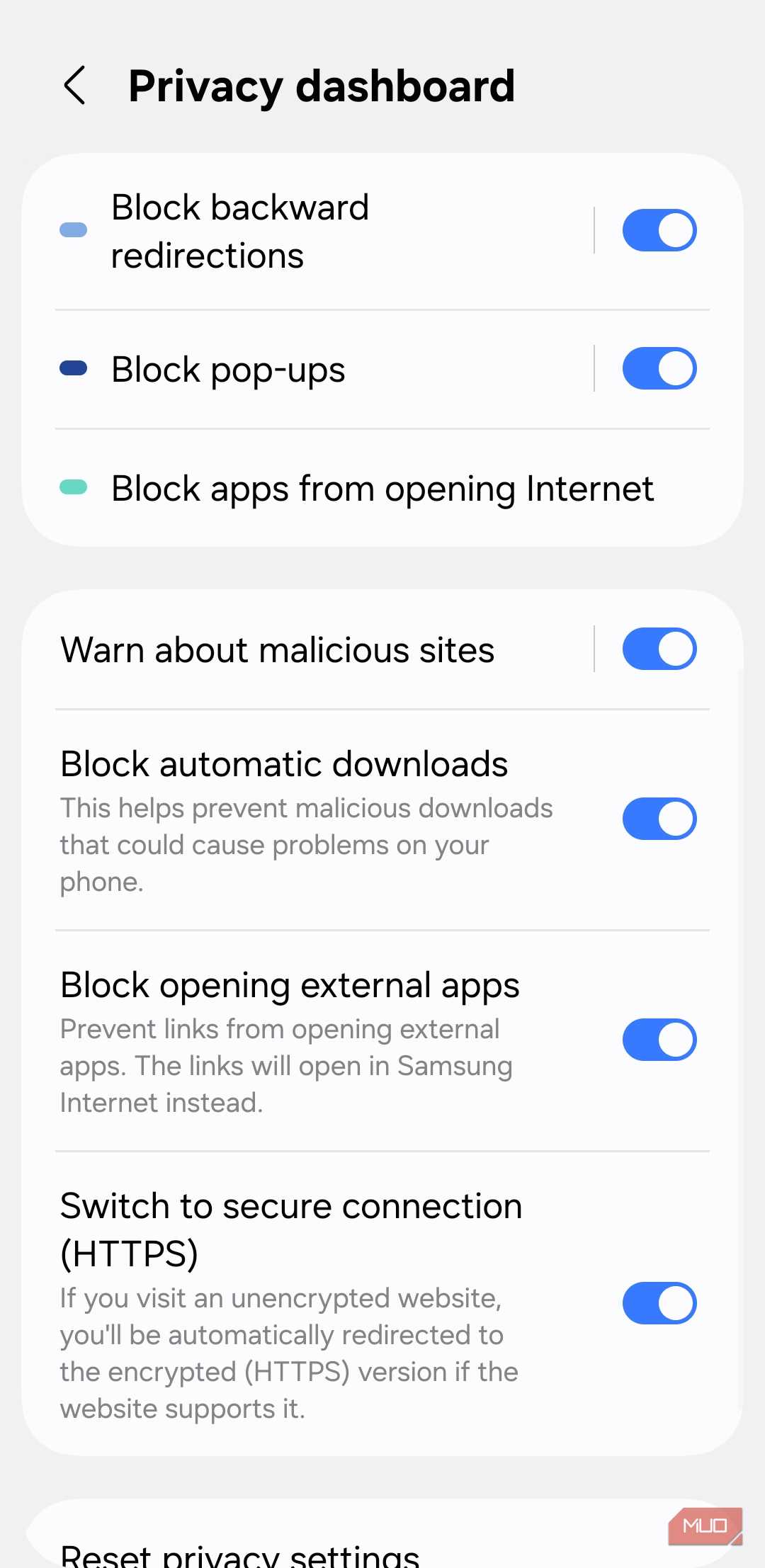
Samsung Internet’s Privacy Dashboard is something I always miss when I switch back to Chrome. It gives you a proper overview of how many trackers have been blocked, so you can actually see what your favorite sites are up to behind the scenes. Samsung Internet also blocks backward redirections, pop-ups, and automatic downloads. All of these are extremely important for online safety.
Another useful feature is Smart Anti-Tracking, which lets you skip CAPTCHAs on certain sites so they can’t collect any data during verification to track you. These aren’t features that you’ll notice often, but that doesn’t make them any less important.
Better dark mode and background playback
Chrome fumbles both of these

Pankil Shah / MakeUseOf
Dark mode in Chrome is pretty basic. It applies Google’s classic dark gray theme everywhere across the interface but skips the one thing that actually matters, which is websites. Chrome doesn’t force dark mode sites that don’t support it natively, so you often end up with a dark browser frame around a blinding white page, and it looks way worse than no dark mode at all.
Technically, Chrome can force dark mode on sites, but only through a flag. And the problem is that Chrome Flags are experimental in nature and can disappear at any point. Samsung Internet does this natively, and my favorite thing about it is that it even lets you customize the page brightness specifically for dark mode.
Another useful feature is background playback. Chrome has picture-in-picture mode, but it pauses the video as soon as you lock the screen. So if you just want to listen to something, you’re out of luck. Samsung Internet has background play that keeps the audio going even when you turn the screen off, though it doesn’t work on sites like YouTube.
Easy search engine switching
There’s a faster way to do it

Pankil Shah / MakeUseOf
This might never happen, but it’s worth talking about. Chrome for Android does let you switch search engines, but it’s something you need to do from the settings menu. Samsung Internet makes this quick. It gives you a drop-down menu on the left of the address bar so you can switch between search engines without going anywhere.
That means if you want to use Google Search for most things, but DuckDuckGo for specific queries, you can do that easily. You can even search for YouTube videos directly and add custom search engines if you need to search specific sites regularly.