


AirDrop is one of Apple’s best features and also one of its most annoying. It works beautifully, but only with Apple devices and a handful of Android models. Windows and Linux are out of the question entirely.
And since I’m someone who uses all of these operating systems on a daily basis for work and personal stuff, I had to fix this. So, I self-hosted PairDrop and now every device I own can share files with every other device.
PairDrop brings AirDrop-style sharing to every platform
It’s entirely web-based




 Credit: Pankil Shah / MakeUseOf
 Credit: Shaun Cichacki/MUO
 Credit: Shaun Cichacki/MUO
 Credit: Shaun Cichacki/MUO
 Credit: Shaun Cichacki/MUO





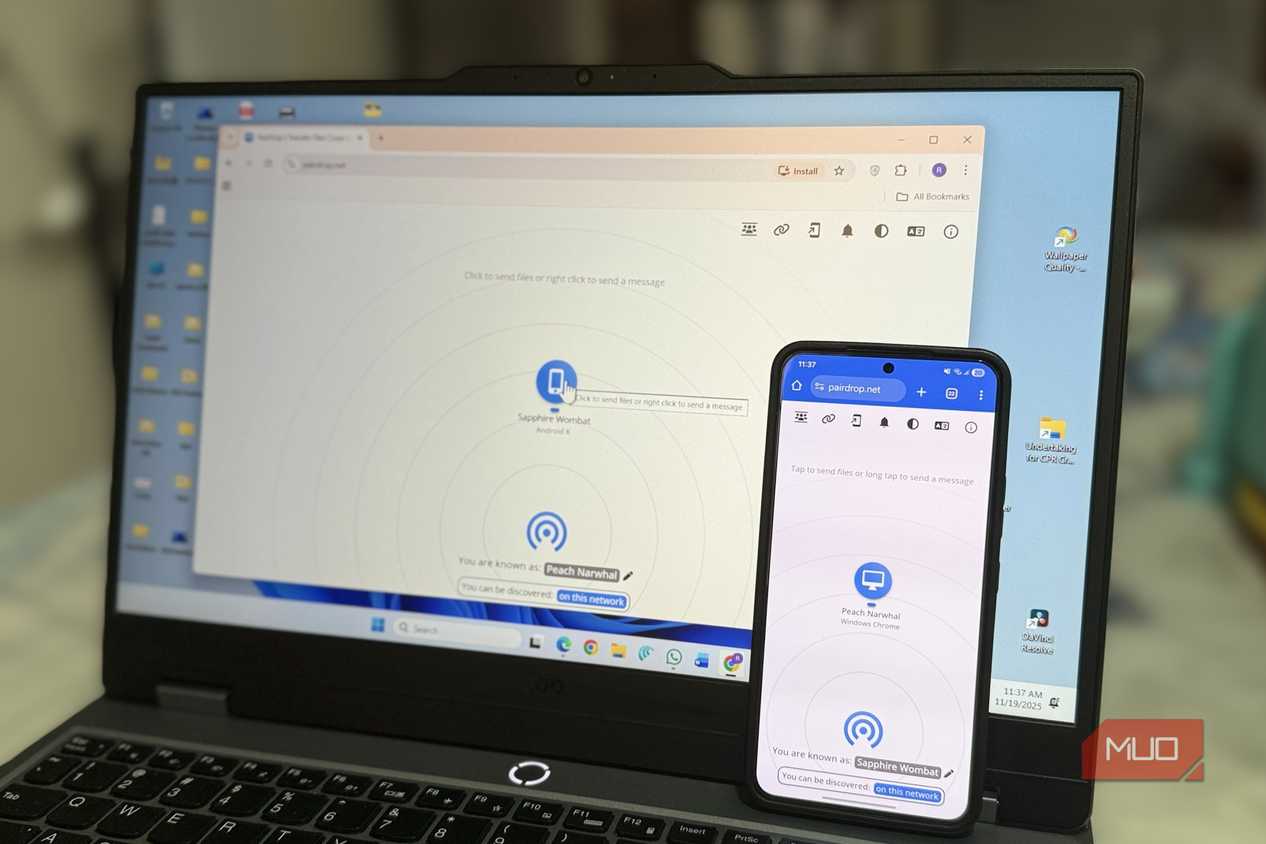
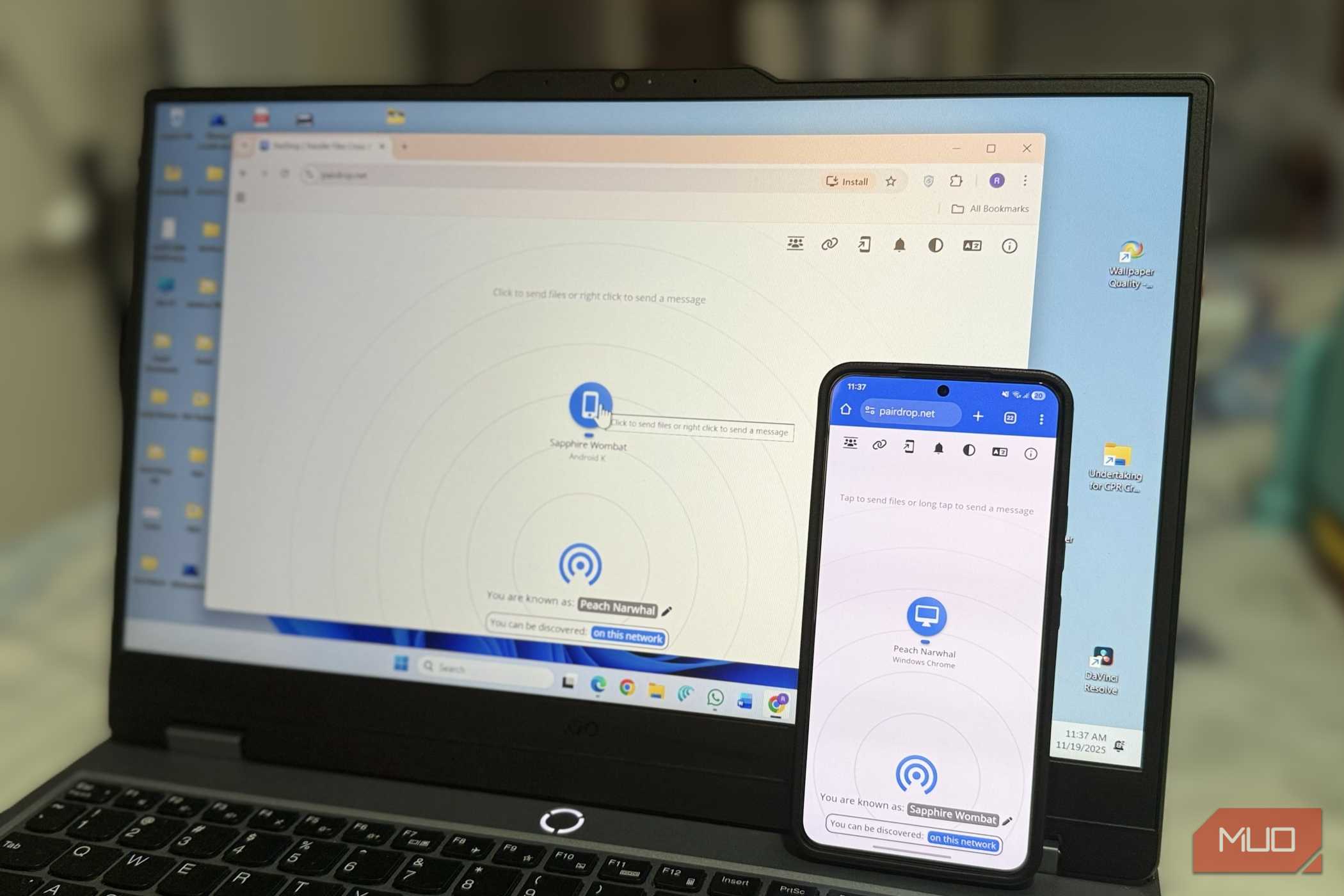
PairDrop is what AirDrop or Quick Share should’ve been from the start. It’s a free, open-source tool that lets you share files across devices, regardless of what OS they’re running. The whole thing runs off a web browser, so you don’t need to install any app or create an account on either device.
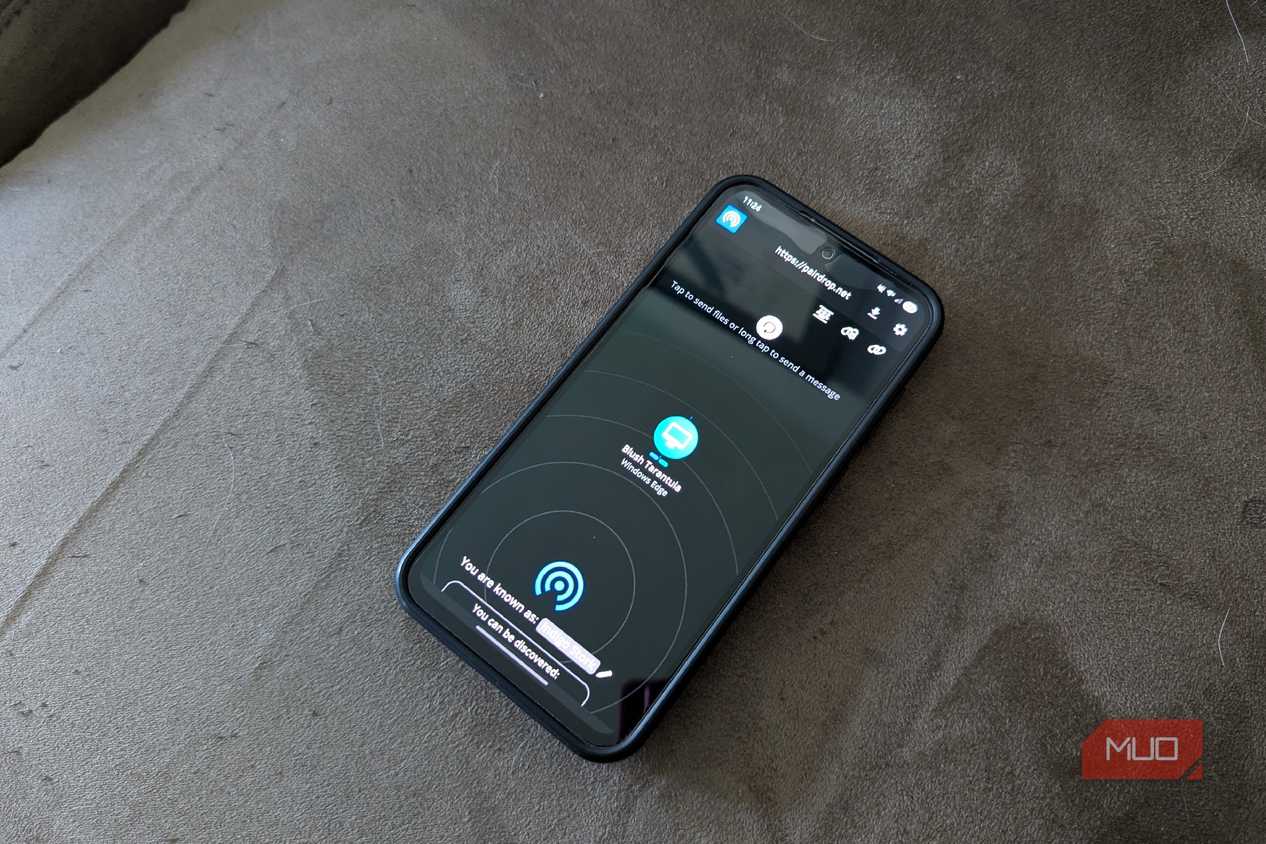
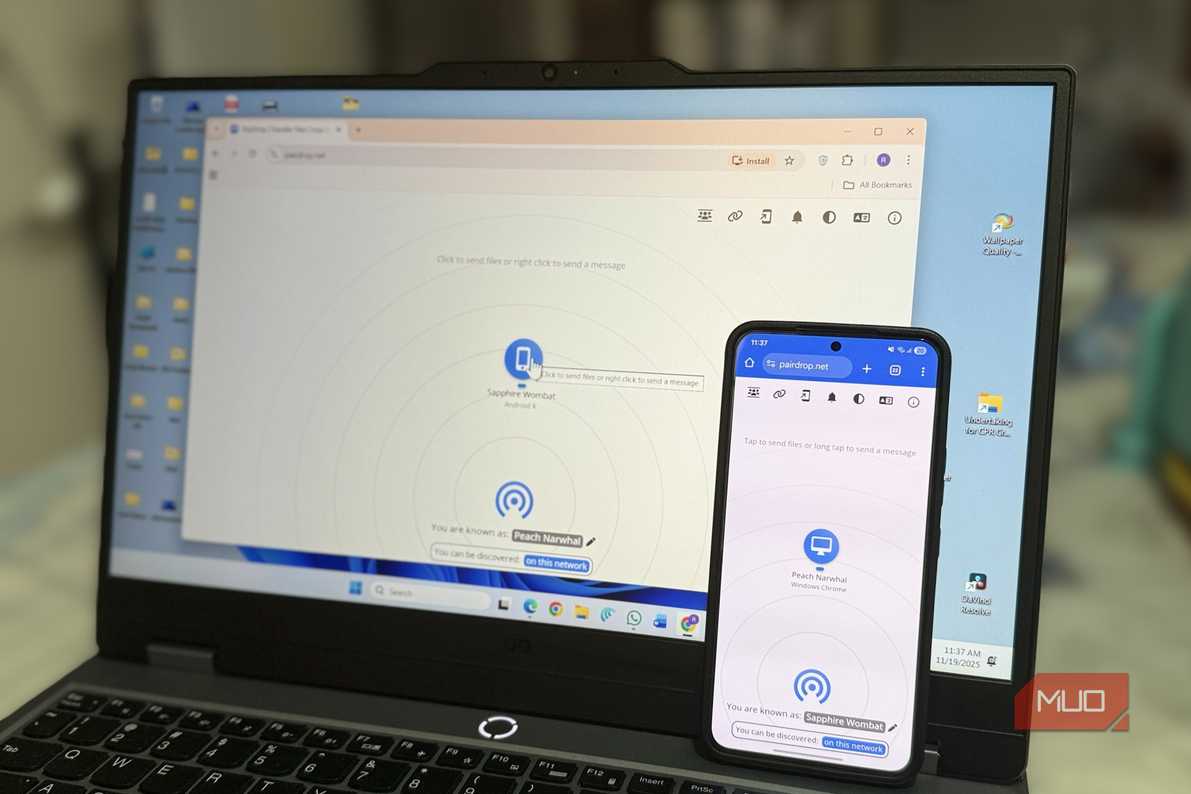
Using it is also dead simple. All you have to do is open pairdrop.net on both the devices, and they’ll detect each other, as long as they’re on the same local network. You can then transfer photos, videos, files, or anything else you want. And yes, it’s not limited to one file at a time. You can fire off multiple files to several devices in one go.
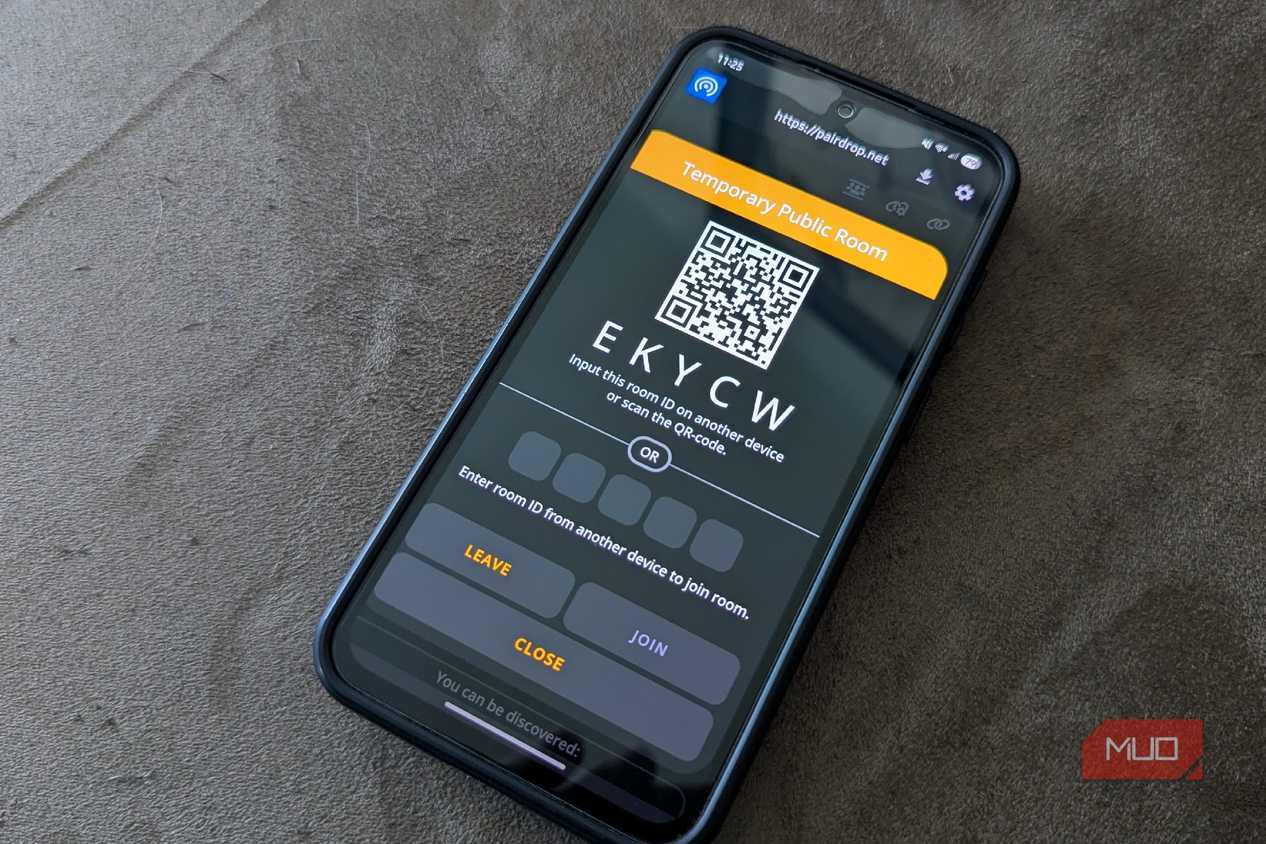
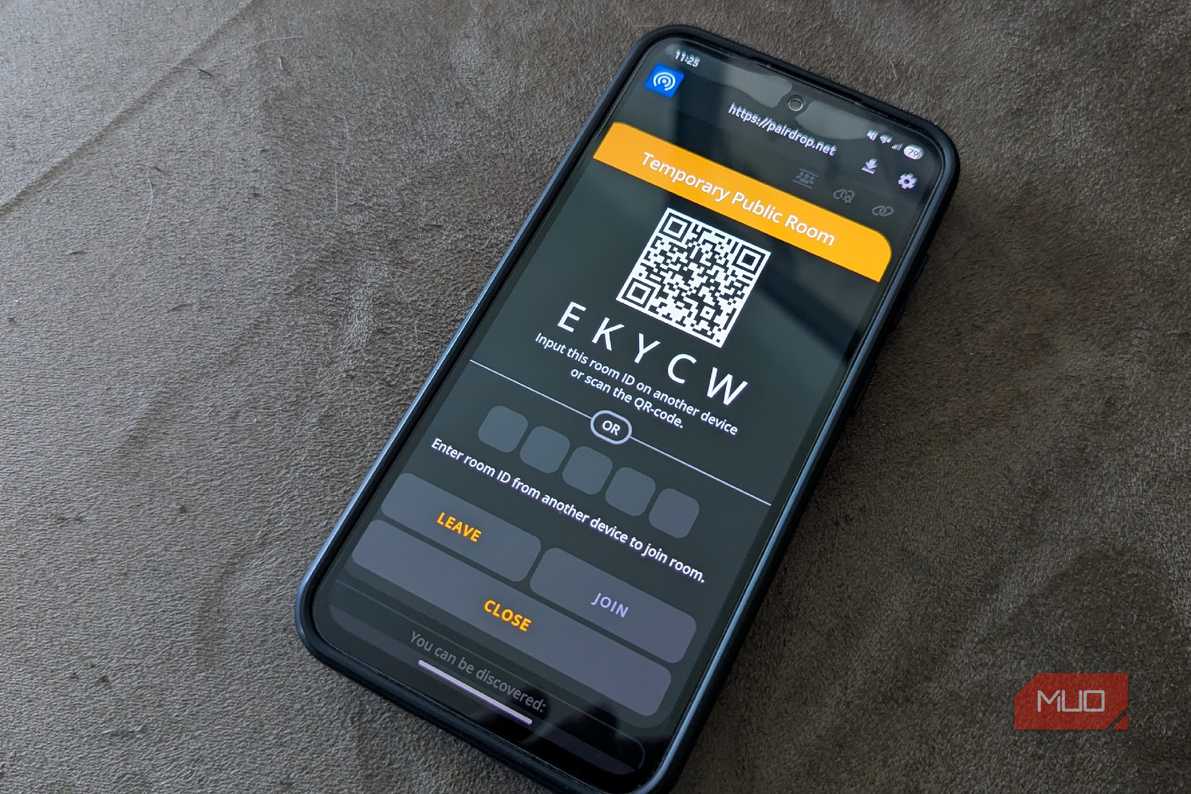
PairDrop also isn’t limited to devices on the local network. It can push files over the internet too. For this, you need to create a room and connect both the devices using the room ID or a QR code. Once the transfer is done, both the devices can leave the room, and the room is automatically destroyed. If it’s your own device or one that you trust, you can even pair it permanently so you don’t have to keep doing the same process.
The biggest benefit here is that PairDrop works on Android, iPhone, Windows, Linux, Mac, and pretty much anything else with a browser. This is what makes it special over any other alternative.
Self-hosting makes PairDrop even better
Get your own instance running

PairDrop gets a lot right, but if there’s one thing that can make privacy-minded folks like me uncomfortable is relying on a remote server for transfers. Self-hosting PairDrop removes that concern. It keeps every transfer inside a network that’s entirely under your control. And of course, you also avoid any bandwidth caps or rate limits since you’re the one hosting it. Most importantly, it’s barely any extra work if you already have a home server, NAS, or Raspberry Pi lying around.
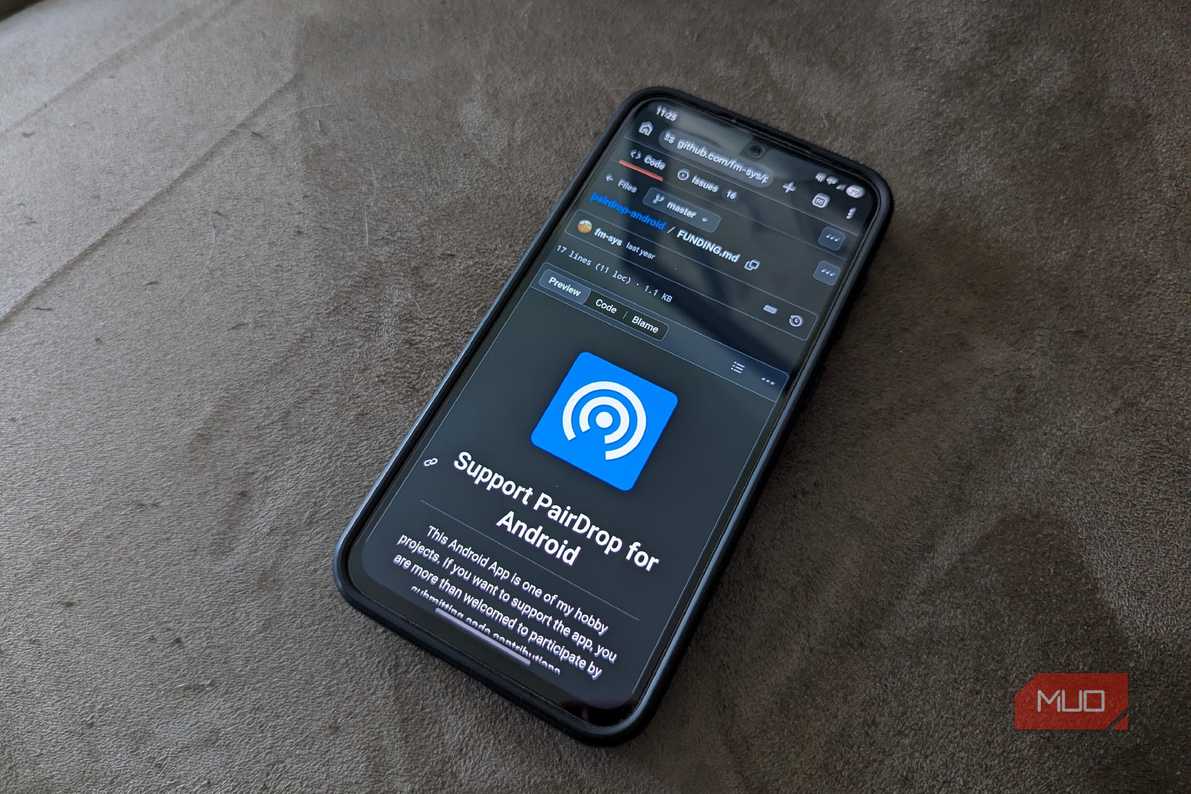
The Docker Compose configuration for PairDrop is available on its GitHub page. First, create a new directory for PairDrop and create a docker-compose.yml file. Open it, and add the following code:
services:
 pairdrop:
 image: 'lscr.io/linuxserver/pairdrop:latest'
 container_name: 'pairdrop'
 ports:
 - '3000:3000'
 environment:
 - PUID=1000 # UID to run the application as
 - PGID=1000 # GID to run the application as
 - WS_FALLBACK=true # Set to true to enable websocket fallback if the peer to peer WebRTC connection is not available to the client.
 - RATE_LIMIT=false # Set to true to limit clients to 1000 requests per 5 min.
 - RTC_CONFIG=false # Set to the path of a file that specifies the STUN/TURN servers.
 - DEBUG_MODE=false # Set to true to debug container and peer connections.
 - TZ=Etc/UTC
 restart: unless-stopped
Now, to start PairDrop, head to the Docker directory and run the following command:
docker-compose up -d
That’s it. You’re now all set. This will start PairDrop on port 3000, although you can specify a different port in the docker-compose.yml file if you want. Once PairDrop is running, head to http://localhost:3000 in your browser, and you’ll see the same PairDrop interface, except this one is hosted on your server. Open the same path to other devices and they’ll all detect each other. From here, the transfer process is the same as usual.
Of course, the self-hosting part is entirely optional. I only did it, so I don’t have to think twice before sending anything sensitive. That’s probably overkill because PairDrop’s internet mode already relays encrypted WebRTC traffic without storing files.
Yes, I find it better than LocalSend
PairDrop has an edge

When it comes to cross-device file sharing, LocalSend is a popular recommendation. It’s fast, free, open-source, and doesn’t require a server at all, since it works peer-to-peer over the local network.
But the simple reason I prefer PairDrop is because LocalSend needs to be installed on every device before it can transfer anything. That’s obviously a friction, and it’s also not practical for one-off transfers. Another benefit of PairDrop is that it doesn’t necessarily need a local network to work. Finally, self-hosting tips the scale even more in PairDrop’s favor.
None of this means LocalSend is a bad tool by any means. If you’re happily using it to transfer files between your own devices, there’s no reason to switch. But if you factor in convenience, internet transfers, and self-hosting, PairDrop is in a league of its own.