You don’t always need new hardware to fix a slow laptop. In fact, most of the time, the hardware is rarely the main problem. More often, laggy performance comes from things we tend to ignore over time, like the overload of startup apps, unnecessary visual effects, the wrong power mode, and Windows itself becoming more demanding with every update.
Of course, all of these things can be fixed without spending money on upgrades. All it takes is a bit of patience and a few smart tweaks.
Cleaning junk files and dust buildup goes a long way
Start with the basics

As obvious as it sounds, the first step to fixing a slow laptop is simply clearing the clutter. That means removing unused apps, deleting temporary files, clearing the cache, and freeing up storage in general. These are often the biggest reasons why your laptop might feel slow. The good thing is Windows already offers useful cleanup tools for this.
Besides removing unwanted apps, you should also check the startup programs and background apps. If too many apps are consuming resources in the background, it can affect your laptop’s boot times and responsiveness.
The cleanup shouldn't stop at software. Dust buildup inside your laptop is another overlooked reason for poor performance. That’s because when a laptop overheats, it typically slows itself down to prevent damage. That means even though your processor is capable of better performance, thermal throttling keeps holding it back. You don’t need to do much to fix this. Simple things like cleaning the vents and fans with compressed air are usually enough to improve airflow and keep your laptop cool under load.
Cut back on visuals effects
Less eye candy often means better performance

Windows 11 is designed to look sleek out of the box, but all those animations and visual effects don’t come free. They all consume resources. And on older or lower-end laptops, those effects can actually make the system feel slower than it really is.
An easy way to fix this is to simply configure Windows to prioritize performance over looks. Type in adjust the appearance and performance of Windows in the Start menu and hit Enter. From there, choose Adjust for best performance and hit Apply.
Windows might not look pretty as before, but it’ll certainly feel snappier. If it feels a bit too lifeless, choose the Custom option and re-enable a couple of options, like Smooth edges of screen fonts and Show thumbnails instead of icons.
Use the right power plan
Choose performance over efficiency

By default, your Windows laptop tries to strike a balance between performance and battery life. That works great for everyday tasks, but if you’re using your laptop for heavy workloads like video editing, that balanced approach can make the laptop feel sluggish. This becomes even more noticeable as laptops age and hardware naturally starts feeling slower over time.
In such cases, it’s usually better to switch to a higher performance power plan. You can do this by heading to Settings > System > Power & battery > Power mode. Beyond the standard options that appear here, Windows also includes hidden plans like Ultimate Performance. As the name suggests, this one is designed to squeeze the maximum possible performance out of the hardware by ignoring the battery savings or thermal efficiency completely. If you mostly use your laptop plugged in, switching to this plan can be worth it.
Apply a few BIOS tweaks to make the most of the hardware
Your BIOS settings might be limiting performance
Most of us never open the BIOS or UEFI settings on our laptops because there’s usually no reason to. But if your laptop feels slow and you want to squeeze a bit more performance, a few BIOS-level tweaks can help a lot.
For instance, some laptops let you switch between Quiet, Balanced, and Performance thermal modes. Switching to a more aggressive, performance-focused mode can let your processor sustain higher clock speed before thermal throttling kicks in. Another useful tweak is enabling features like AHCI for SSDs. This can improve storage responsiveness compared to older compatibility modes.
Similarly, you can also try other memory-related tweaks, fan behavior controls, power-related tweaks, and other optimizations that can improve performance. The availability of these options can vary depending on the laptop model, so it’s usually best to dive into the BIOS and explore the available options yourself.
Switch to a lighter OS
Windows isn’t the best fit for aging hardware
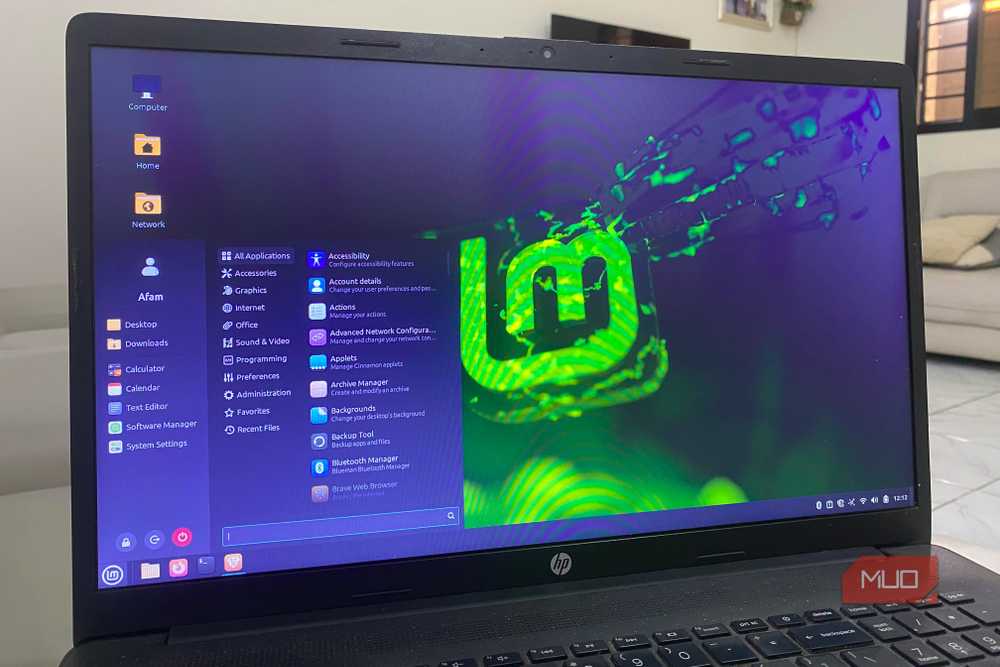
The biggest reason a laptop feels slow over time comes down to aging hardware and the OS becoming more demanding over time. So if your laptop is already more than 4 or 5 years old and still struggling after trying all the above tweaks, it might be best to leave Windows for a lighter alternative like ChromeOS or Linux.
Yes, this isn’t as simple as turning on a toggle. You’ll need to wipe the system and install a brand new OS, which is a bit of work. Still, if you’re not planning to upgrade soon and want to make the most of your old laptop, installing a lightweight Linux distro or even ChromeOS can do wonders. The biggest downside, though, is that you won’t be able to use Windows-specific apps and games. But if you can live with that, it’s absolutely worth exploring other operating systems besides Windows.
Of course, hardware still matters, and your laptop will eventually show its age no matter what you do. Still, the above tweaks can go a long way in getting the most out of your laptop. If nothing else, they can buy you more time before needing an upgrade.

Lenovo Slim 7 Ultra Aura Edition

- Operating System
- Windows 11
- CPU
- Intel Core Ultra 7 355
- GPU
- Intel Arc Xe3
- RAM
- 32GB LPDDR5X