


Whenever my PC felt sluggish, I always defaulted to running a RAM cleaner. Observing the drop in used memory gave the impression that the problem was fixed. It felt as though RAM optimizers worked. However, I recently looked into what these tools actually do. It revealed something I was oblivious to: Windows wasn't hoarding memory, and my optimizing efforts were only throwing away an important component that makes Windows fast.
Windows fills your RAM on purpose
Cached memory is one of the reasons your PC feels fast

Even when nothing is actively using your RAM, Windows doesn't simply leave it empty. Data created by opening an app, running background processes, or reading a file is often kept in RAM even after you're done with those activities. It forms the standby cache, an integral part of Windows memory management, and shouldn't be confused with a bug or unintentional memory bloat.
It's similar to how we work with physical documents. If I need to work on three documents all day, I don't have to pull them from the shelf every single time I need them. They can sit neatly on the desk, allowing quick access. Recently used data in Windows stays close by, allowing you to access it without fetching it from the drive each time.
By design, Windows isn't hoarding this cached memory because it's instantly made available if a second program needs the RAM space. While unused RAM has no performance advantage, cached RAM makes the system faster.
|
RAM contents |
Why Windows keeps it there |
|---|---|
|
Standby cache |
Reopens apps and files faster |
|
Frequently used system libraries |
Launches programs more quickly |
|
Completely unused RAM |
Does nothing for performance |
RAM optimizers don't remove junk
They create free memory by discarding useful cached data

When you run a RAM cleaner, it typically forces Windows to dump the standby cache. These aren't memory leaks or junk files, but the actual data that improves your computer's responsiveness.
Don't be fooled; Task Manager shows a real spike in available memory afterward. Even though you regained space, nothing bad was removed from memory. That clean button only told the OS to forget the data it had ready to go, and the PC rebuilds the cache it had before.
However, this begs the question: why have we always believed clearing memory helps? Well, running out of memory used to be a real issue, especially in the days of Windows XP, when all you had might be 512MB or 1GB of RAM. This was a time when clearing space felt more beneficial because low-memory systems were common. But the way Windows handles memory now is different from how it did in 2003. Systems now generally have far more memory to work with, so this once-helpful habit doesn't do as much good today. Today, in most cases, you are only forcing Windows to recreate a cache it was already working with. There are better options to improve responsiveness, like cleaning up your startup app list or adjusting visual effects.
This is where your PC gets slower
Every cache miss forces Windows to reload data from storage

It's easy for RAM clearing to fool people because you don't instantly feel anything when the process completes. The slowdown may take a moment to surface. You'd probably only notice it the next time you launch an app you always use: Chrome, File Explorer, Photoshop, or even simply tabbing back to your game.
In the past, all these felt readily available. After the process, Windows checks the RAM for the data, doesn't find it, and then has to pull it from your drive. Modern drives can be incredibly fast, but even the fastest PCIe 5.0 NVMe SSD on today's market isn't as fast as RAM. In fact, I have a RAM disk set up on one of my devices just for extra speed. Your best drives operate in microseconds, but RAM works in nanoseconds.
|
Where Windows gets the data |
What you notice |
|---|---|
|
Already cached in RAM |
Instant, no delay |
|
Reloaded from NVMe SSD |
Usually a small delay |
|
Reloaded from SATA SSD |
More obvious pause |
|
Reloaded from a hard drive |
Visible loading and stutter |
Stop watching the RAM number
Memory pressure is an important signal


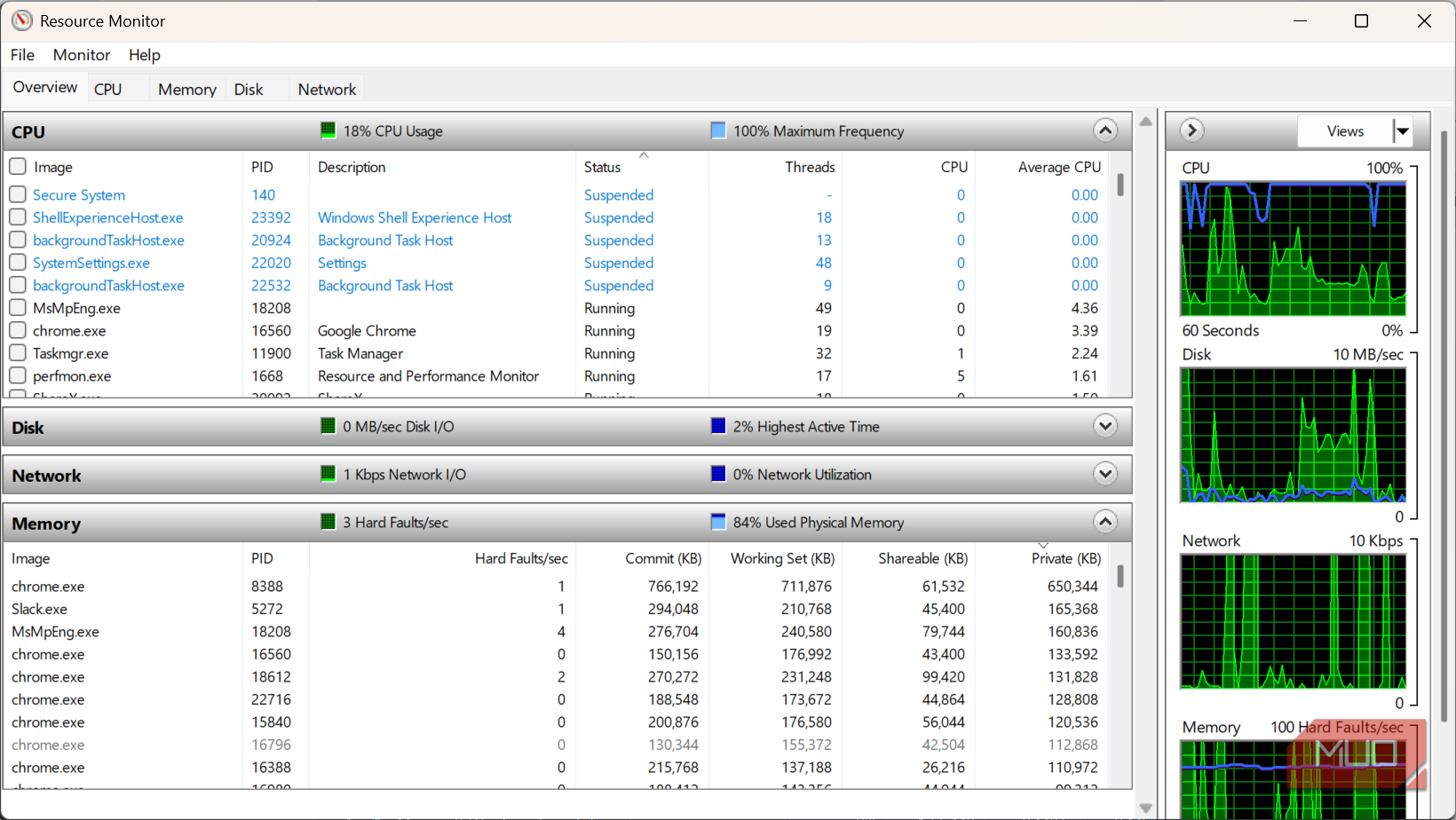
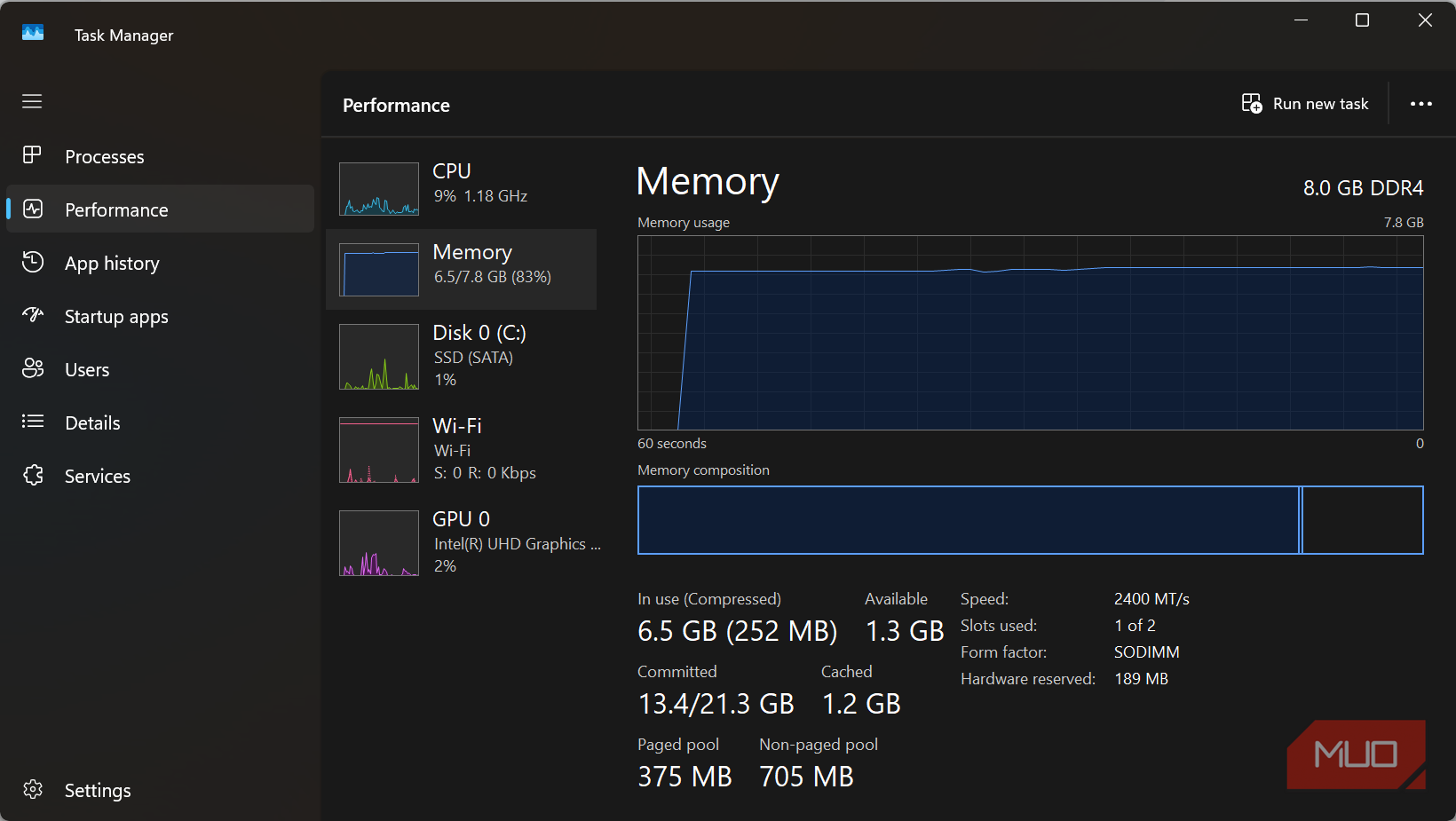
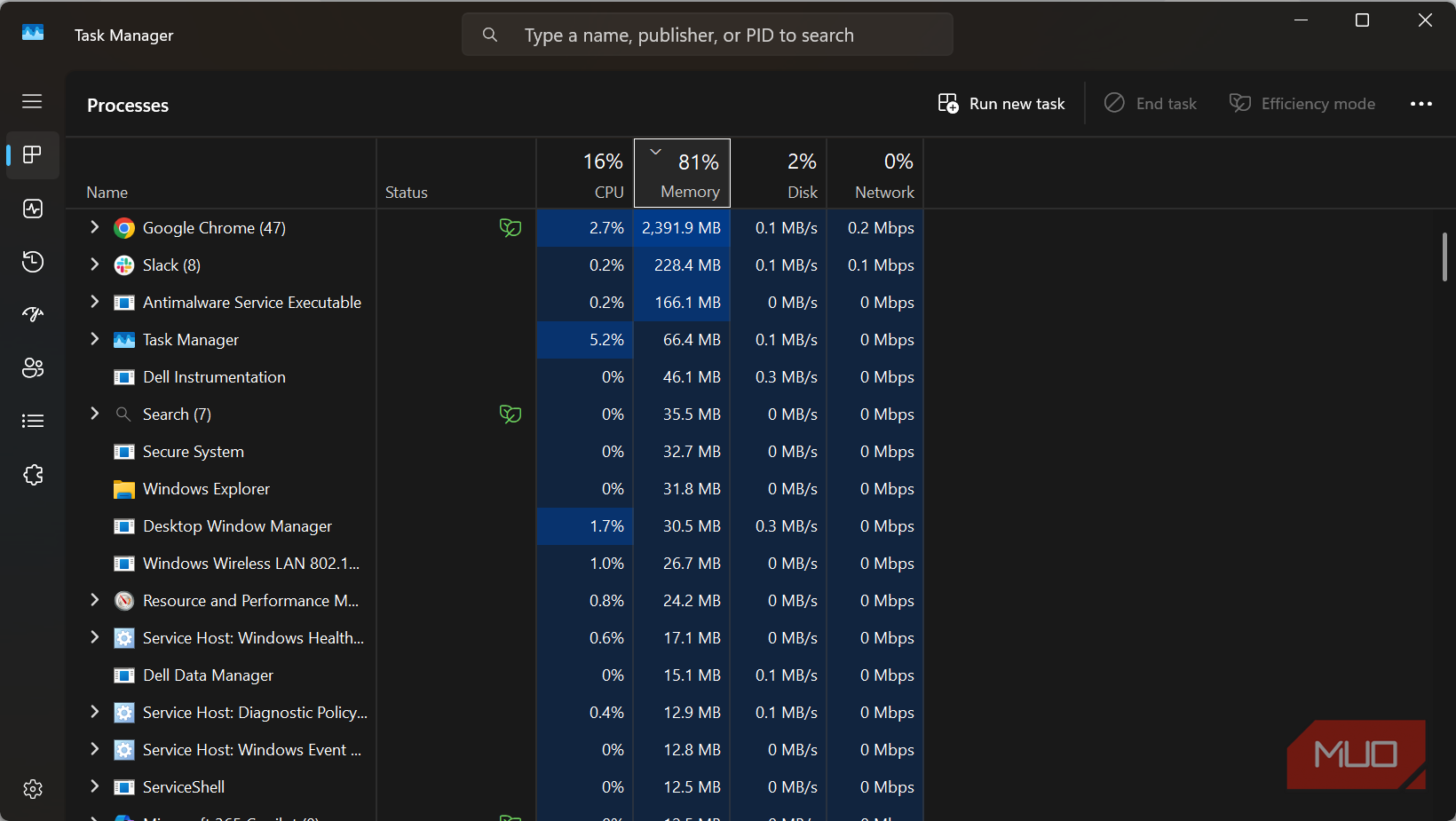
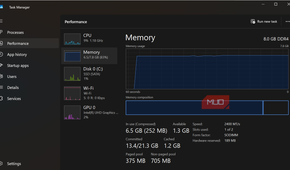
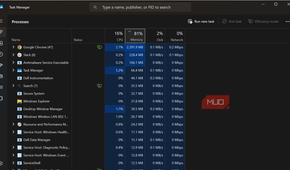
High RAM usage doesn't mean as much as you think. By design, your computer makes the best use of available RAM rather than keeping it empty. This shows the cache is functioning as it's meant to. However, memory pressure tells a different story and manifests differently on your computer. A few signs include memory usage around 95–100% during normal tasks; heavy paging to disk; sluggish multitasking; and apps taking a long time to launch or becoming unresponsive.
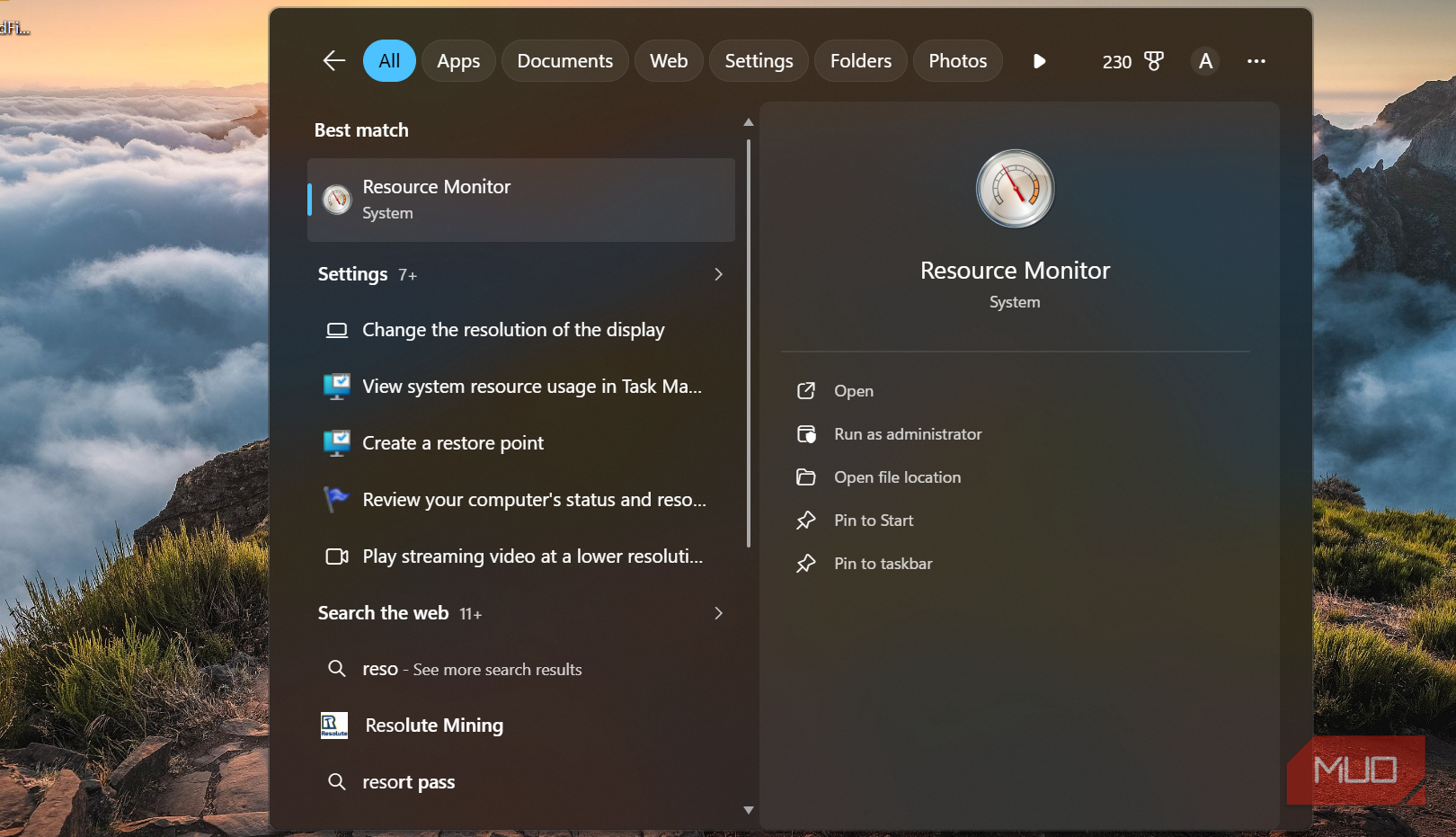
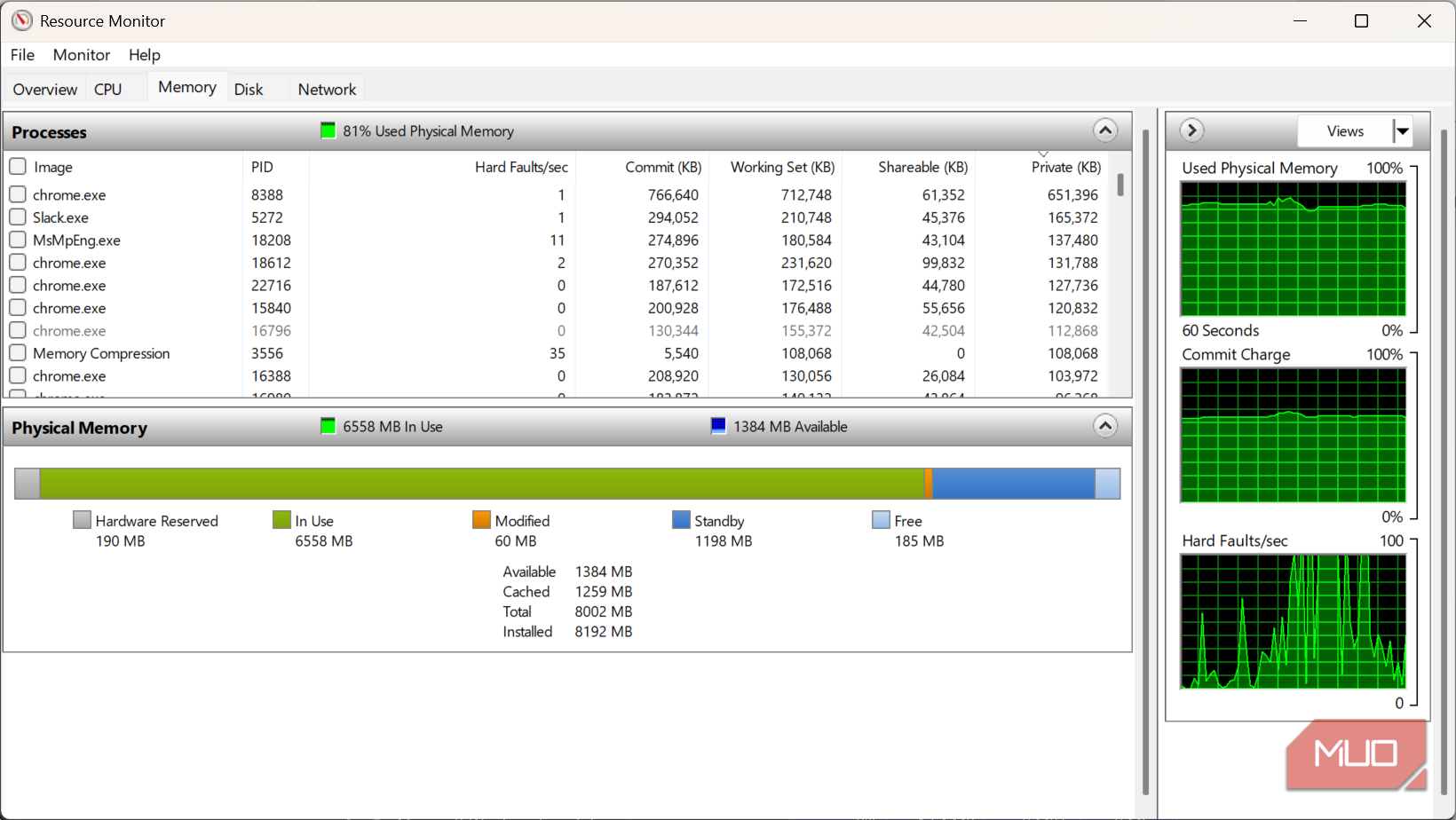
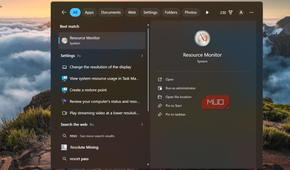
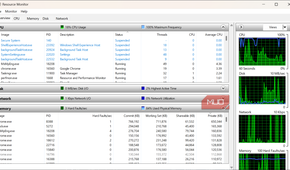
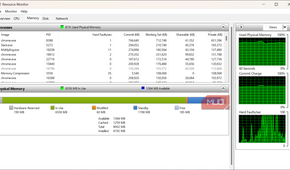
I recommend skipping the cleaner and opening Resource Monitor to see what's going on. Navigate to the Memory tab, then observe the Standby figure. That figure is what RAM optimizers first target. Even if this number is elevated, there is no problem as long as your computer feels fine. However, if you're consistently running into memory pressure during regular daily workflows, additional RAM is the fix you should consider.
RAM cleaners still have a few niche uses
I don't encourage every user to start clearing RAM, but you may use RAM cleaners if you're testing software or tracking a memory leak. This, however, isn't routine maintenance. However, it's worth noting that your RAM may not be running at its full speed. I have covered this separately, and it has nothing to do with RAM optimizers.
I've learned not to judge my computer by what the RAM graph says. A better metric is how responsive it feels.