


Smartphones contain sensitive data, and that's why they are safeguarded with thoughtful security measures. Many flagship devices feature biometric security methods, like a fingerprint scanner or facial recognition support. Some even support extra anti-theft safety measures, like Theft Detection Lock on Android. However, these security measures — and all the precious information your smartphone holds — can be bypassed if your phone's passcode is compromised.
It's surprisingly easy to catch a glimpse at someone's phone password, and it's even easier to brute-force short PINs with the right gear. That's why the best way to protect your smartphone data and online accounts is to use a strong device passcode in addition to individual strong site passwords. All your passwords are only as strong as their weakest link, and for most of us, that's our phone.
Your phone is probably your master password
If you use Apple Passwords or Google Password Manager, it's true

Convenience and security are always at odds, and our desire to quickly access our smartphones usually prompts us to create short, memorable passwords. Sometimes, they are easy to guess as a result. It could be a simple pattern, an important date, or the year you were born. Of course, these are poor choices for a secure passcode, as they wouldn't be too hard for someone to figure out using public information. That doesn't stop people from using weak PINs for the sake of convenience.
In theory, the smart way to secure your device is to make a strong device passcode, and use biometrics for everyday device unlocking. Reality is much different, as there are plenty of reasons why you might not be able to use biometrics all the time. I have large Oakley sunglasses that break Face ID on my iPhone, and dirty or wet hands are enough to bother the fingerprint sensors on my Android phones. In those cases, I resort to using my passcode, and that's why I like to keep it short.
This is a problem because password managers built into iOS and Android use your device passcode as your "master password." You might use Face ID to unlock Apple Passwords or a fingerprint sensor to open Google Password Manager, but if those biometrics don't work, your phone will prompt you to use a device PIN. If your device passcode is only a few digits, every password stored on your device is accessible after getting past merely a four-digit PIN.
Passkeys are only as secure as your device
They're unbreakable in theory, but only if your device password is robust
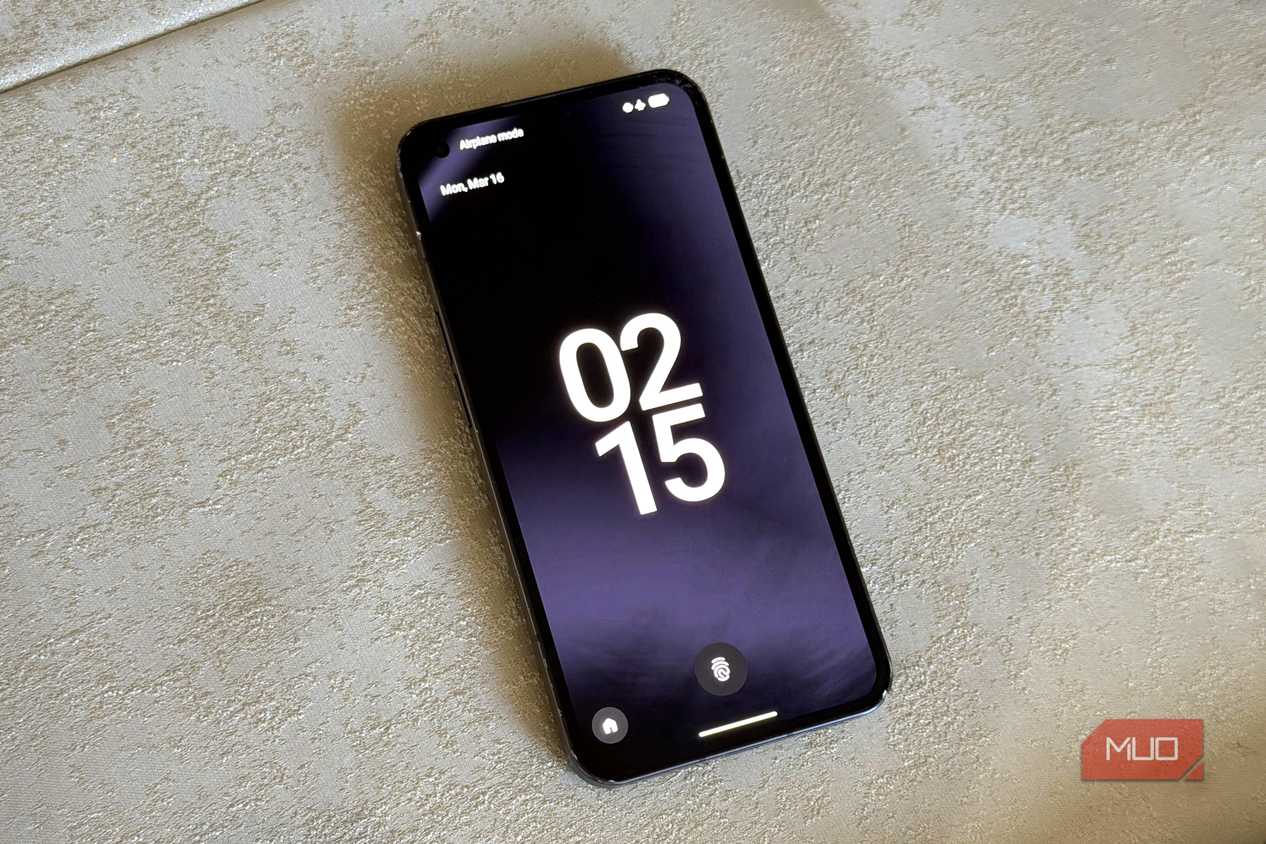
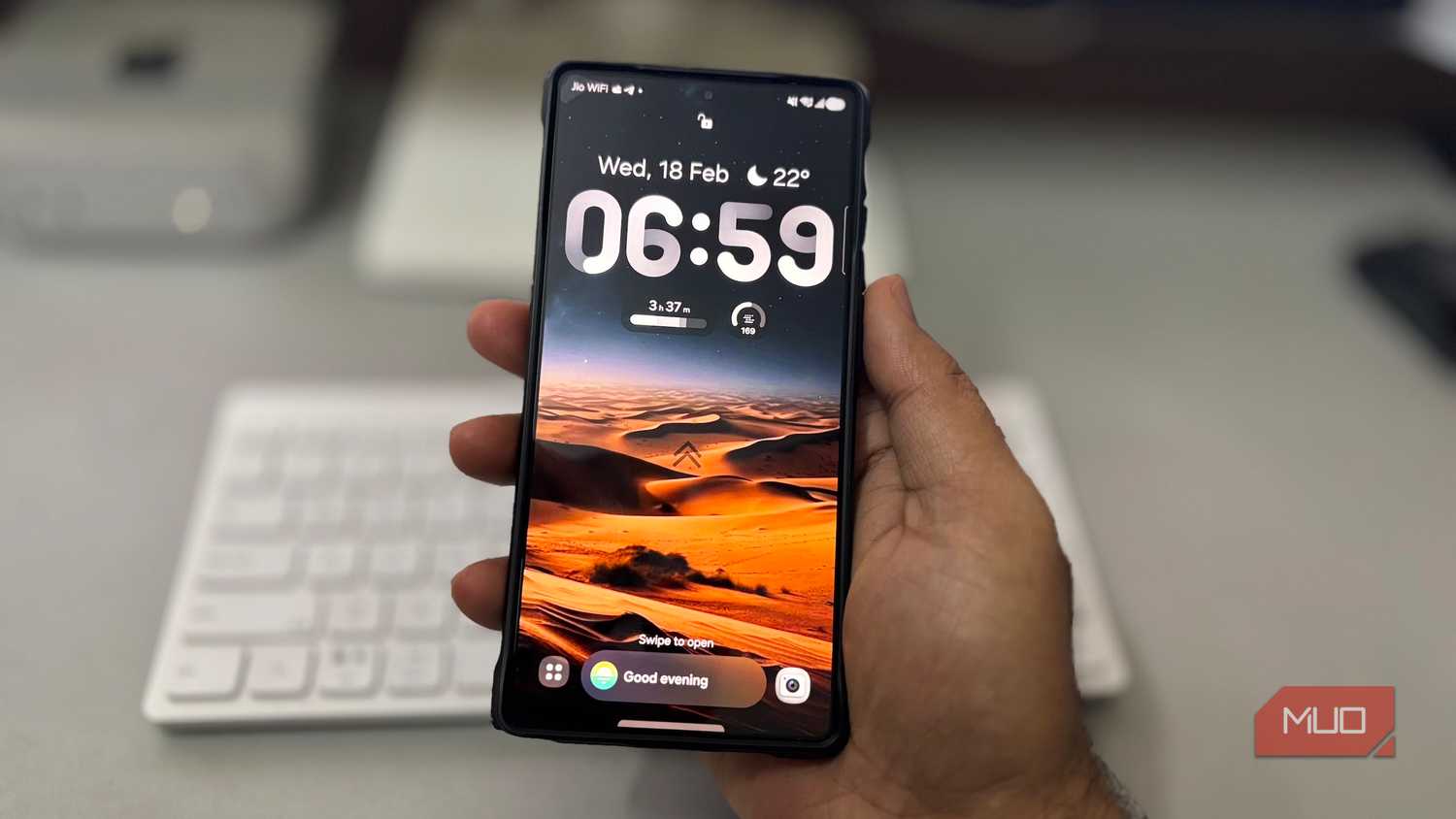
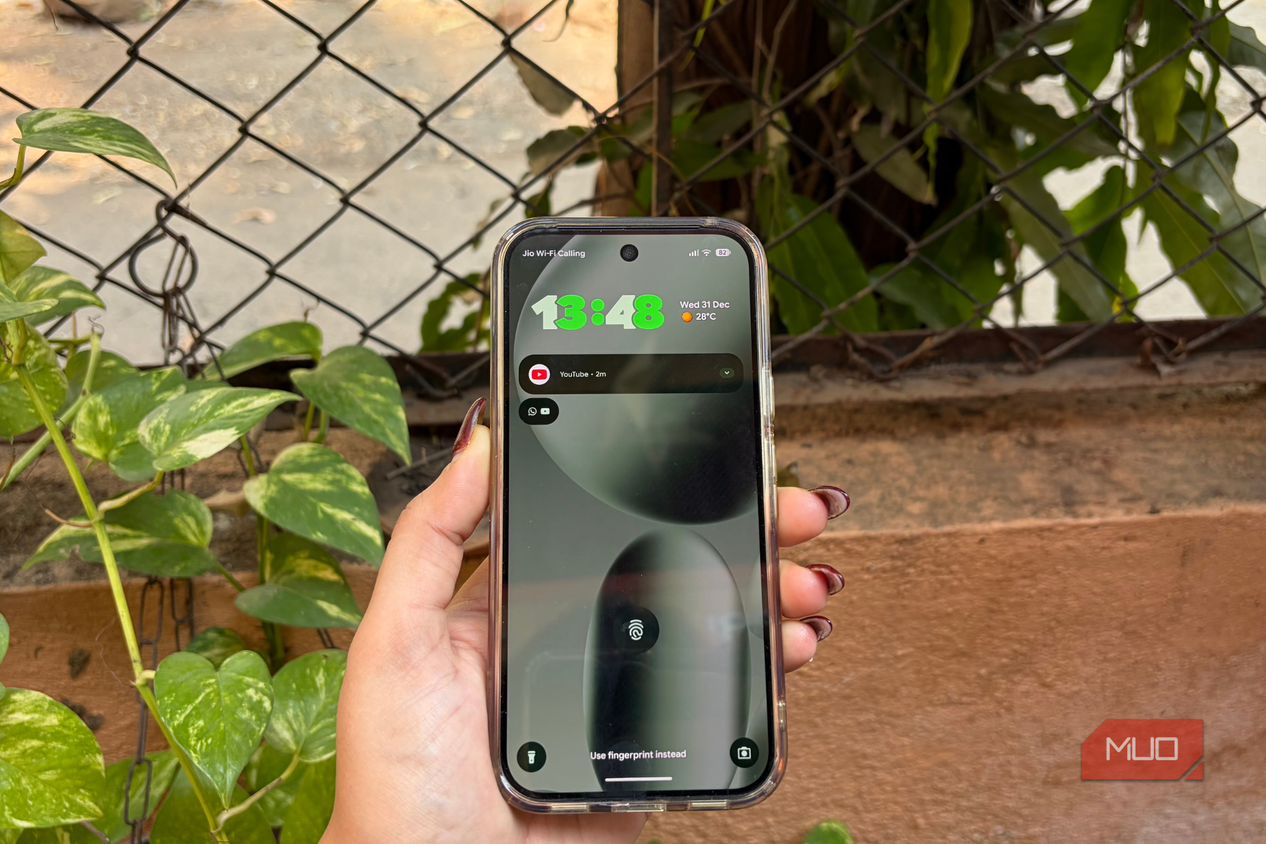
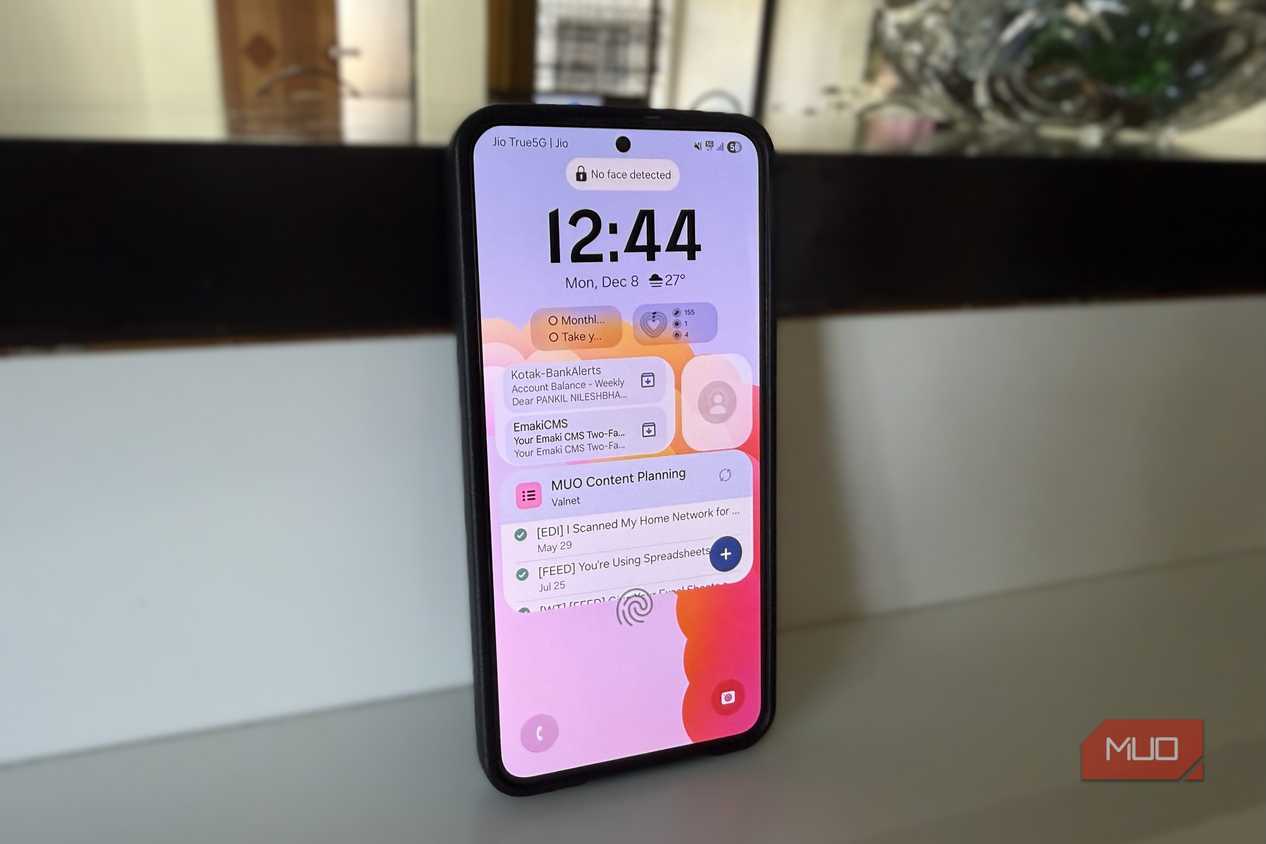


 Credit: Digvijay Kumar / MakeUseOf
 Credit: Shimul Sood / MakeUseOf
 Credit: Pankil Shah / MakeUseOf
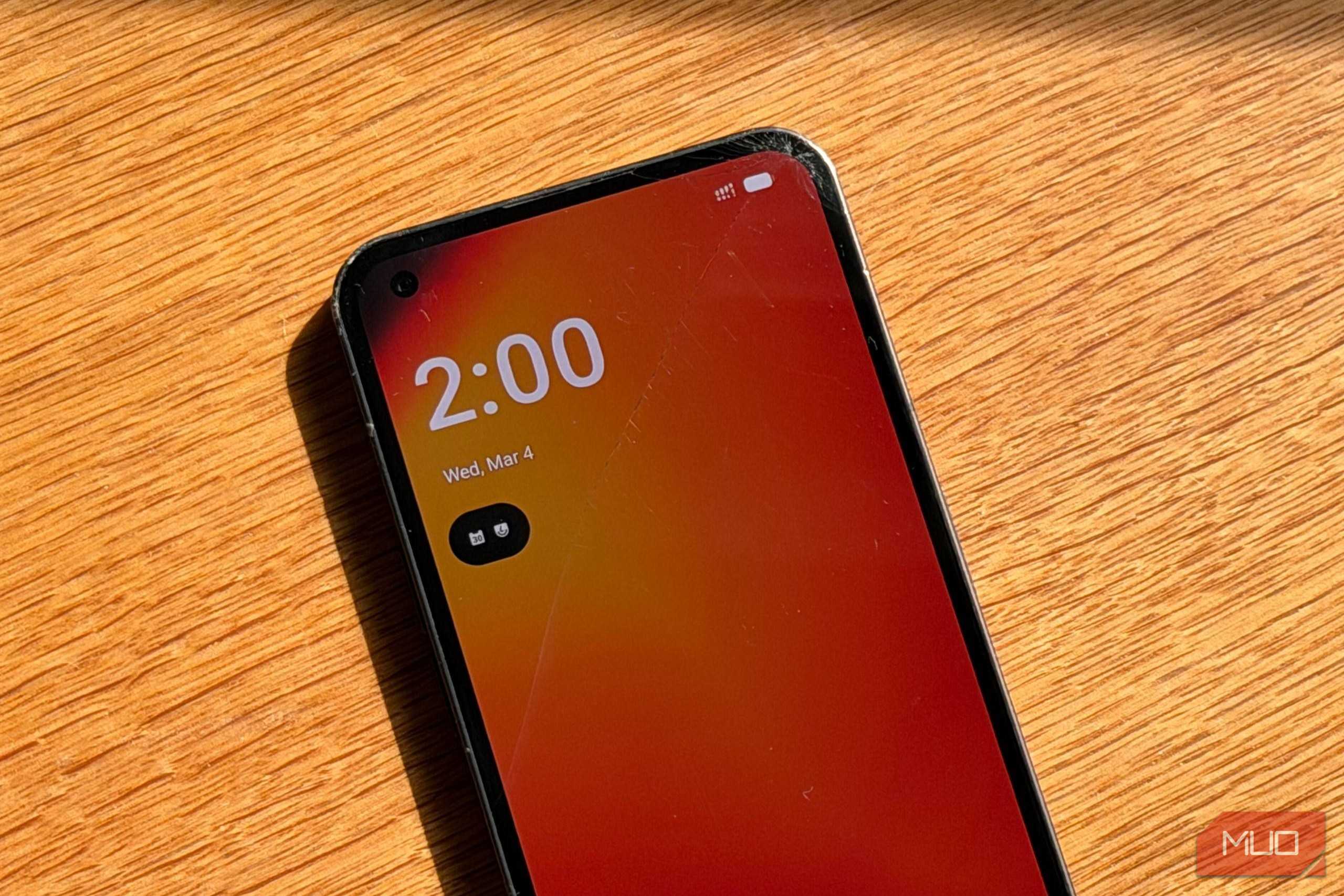 Credit: Amir Bohlooli / MUO

Passkeys might seem like the solution, but they too rely on a strong device password or passcode. For those unfamiliar, passkeys work using a set of cryptographic keys. There's a public key handled by the online account the passkey is being used to access, and a private key that never leaves your device.
When you want to use a passkey, the site sends a challenge that can only be signed with the private key on your device. The idea is that because the private key stays on your device, like a smartphone, it can't be intercepted or compromised.
That part is true, but if your device becomes compromised, the security benefits offered by passkeys are moot. Sure, the passkey stays on your phone. The catch is that if a four-digit passcode is all that's securing them, they're not very secure. When using a passkey, you'll be prompted to authorize the login using biometrics or by entering your device passcode. If someone figures out your device passcode, they could get access to all your passwords and all your passkeys.
Using a third-party password manager is a way of avoiding this smartphone security weak point. When you use something instead of Apple Passwords or the Google Password Manager, the independent password manager has its own master password used to access your library of stored logins.

Bitwarden
- OS
- Cross-platform
- Developer
- Bitwarden
- Price model
- Free, Premium available
- Services
- Password manager, password generator, secure file sending, credential management, etc.
Bitwarden is a secure, open-source password manager that helps you generate, store, and autofill strong passwords across all your devices. It uses end-to-end encryption, meaning only you can access your data—not even Bitwarden itself. With support for passkeys, secure notes, and cross-platform apps, it’s a privacy-focused alternative to built-in browser password managers.
So, a bad actor would need to bypass your device passcode and your master password to get into your online account passwords or use your passkeys. When using your operating system or browser's password manager, they're one and the same.
Your strongest passcode should be your phone's PIN
If a bad actor only has to crack four digits, you've already lost

Passwords are just the tip of the iceberg when it comes to the sensitive data stored on your phone. While using a third-party password manager adds an extra layer of security, you should also be strengthening your device passwords. The default passcode length might be four or six digits, but you can always make something stronger for additional protection.
Android users can open the Settings app and look for Security and Privacy. Then, tap Device unlock and press the Screen lock tab to edit your selection. Keep in mind that the exact method for changing your device passcode, password, or PIN will vary based on your phone brand. iPhone users should open Settings, tap Face ID and passcode, and press Change passcode. Then, tap Passcode Options. This will allow you to choose a custom numeric or alphanumeric code, which are more secure than a basic four- or six-digit PIN.
I use an eight-digit passcode to make my device harder to crack, and you can use a long PIN or an alphanumeric password as well. I don't want the strong passwords and passkeys used to access my critical government or banking accounts to be at risk due to a weak device passcode. I'd recommend using a long numeric or alphanumeric passcode to make sure everything stored on your device stays protected.