


Have you ever been looking around in a closet or a basement and found an old device that you'd forgotten you owned? You uncover the box and think, "Oh yeah! I can't believe I used to have this." Most of the time, you probably just put the device back where you found it and move on with your day.
But that doesn't mean that it always needs to be how that scenario plays out. There are ways to repurpose some of your gadgets to give them a second life. One of the most popular options for devices that can be repurposed is a tablet. You might have a new iPad or Samsung Galaxy Tab and don't use the old version anymore. Rather than letting it collect dust, turning it into a smart home display eliminates your need to buy a hub for your home.
Tablets make for perfect displays
They have the screen and you hope they have the right system
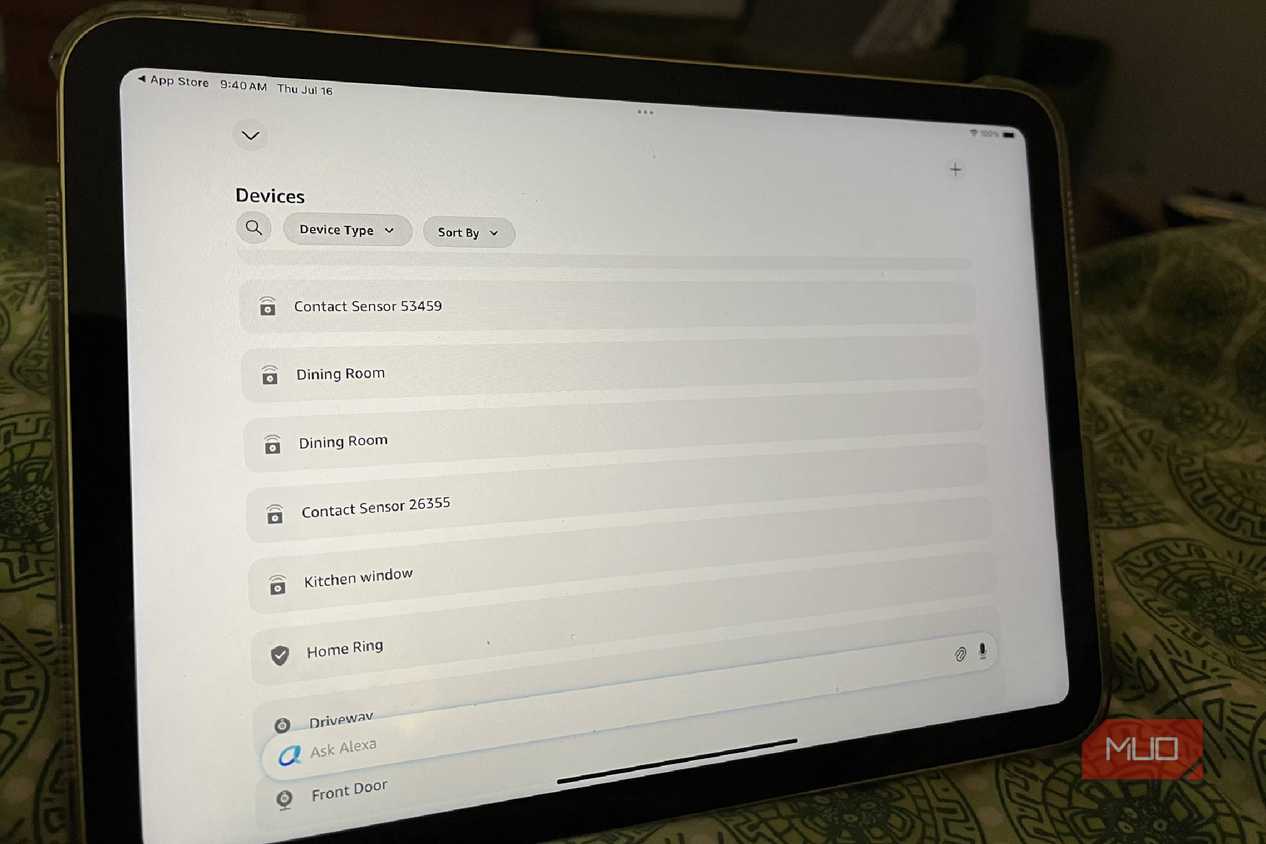


 Credit: Chris Hachey / MakeUseOf
It should be obvious, but certain pieces of technology are too old to actually be useful. You need a tablet that offers you the right operating system to be able to use the smart home display software.
You have to check the operating system for whichever tablet you have, whether it's an Android tablet, iPad, or another. You must have at least Android 9.0 or newer to run Google Home, for example. For many of the smart home platforms, you need at least iPadOS 17 to run them.
For the most part, tablets can be turned into smart displays because their screens are touch-enabled and they can respond to voice commands. This is what you want in a smart display, as you're able to control certain aspects of your home from it.
It's easiest to set up a smart display once you already have a smart home that's set up. You can do it as you're setting devices up for the first time, but it will have to be updated more often as you add more devices. This is because you'll have to refresh the tablet and the display after you add devices.
I personally use Amazon Alexa as my go-to smart home platform. Many of my smart home devices run through Alexa, meaning I can control them with my Echo Show speakers, which also double as Thread Border Routers.
How I built a smart display on an iPad
There's some finagling you need to do


 Credit: Chris Hachey / MakeUseOf
 Credit: Chris Hachey / MakeUseOf
 Credit: Chris Hachey / MakeUseOf
 Credit: Chris Hachey / MakeUseOf
 Credit: Chris Hachey / MakeUseOf
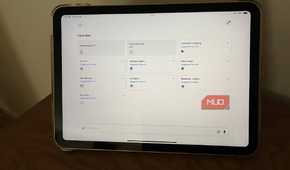
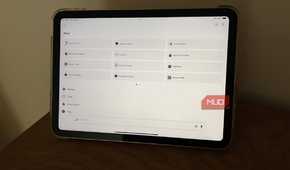
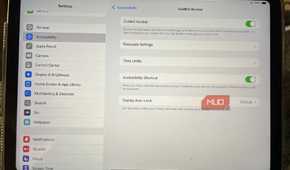
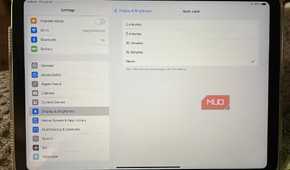
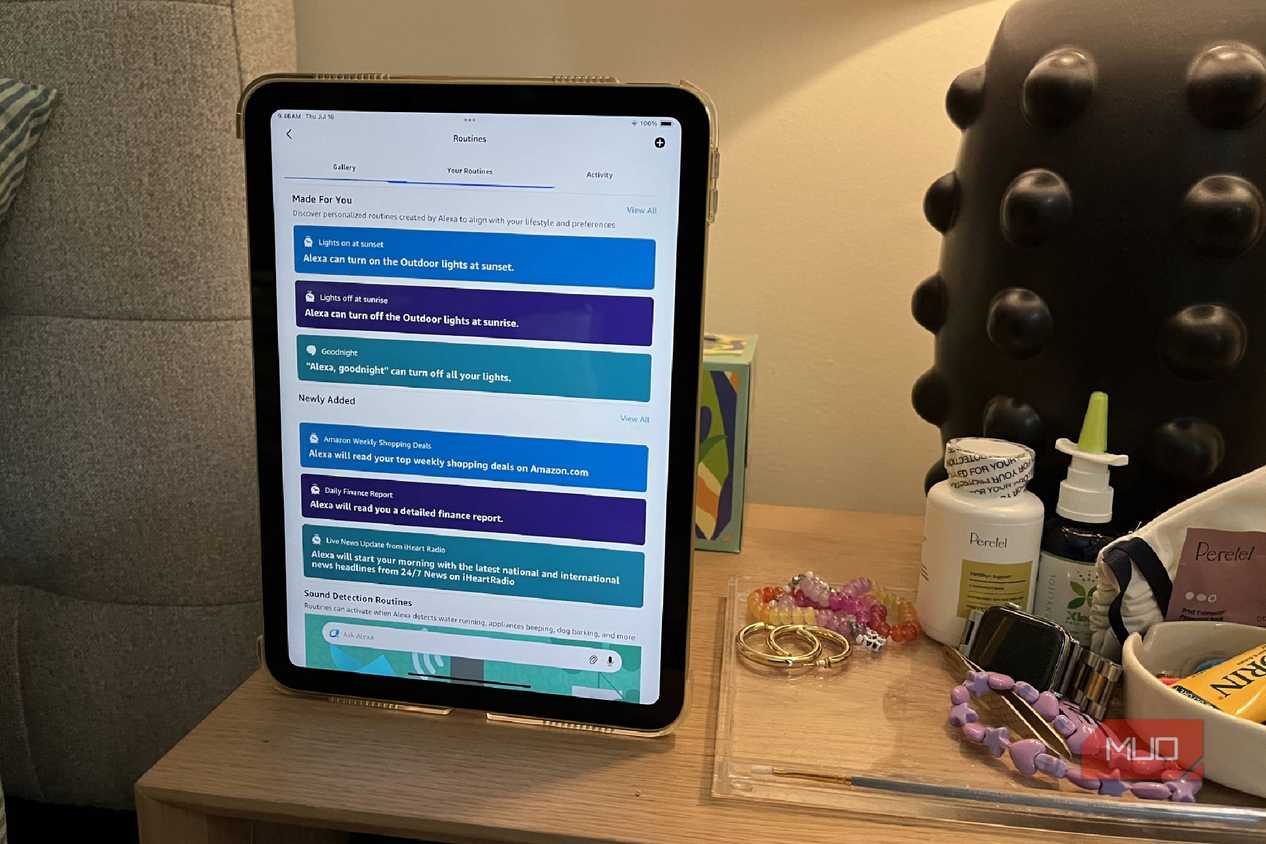
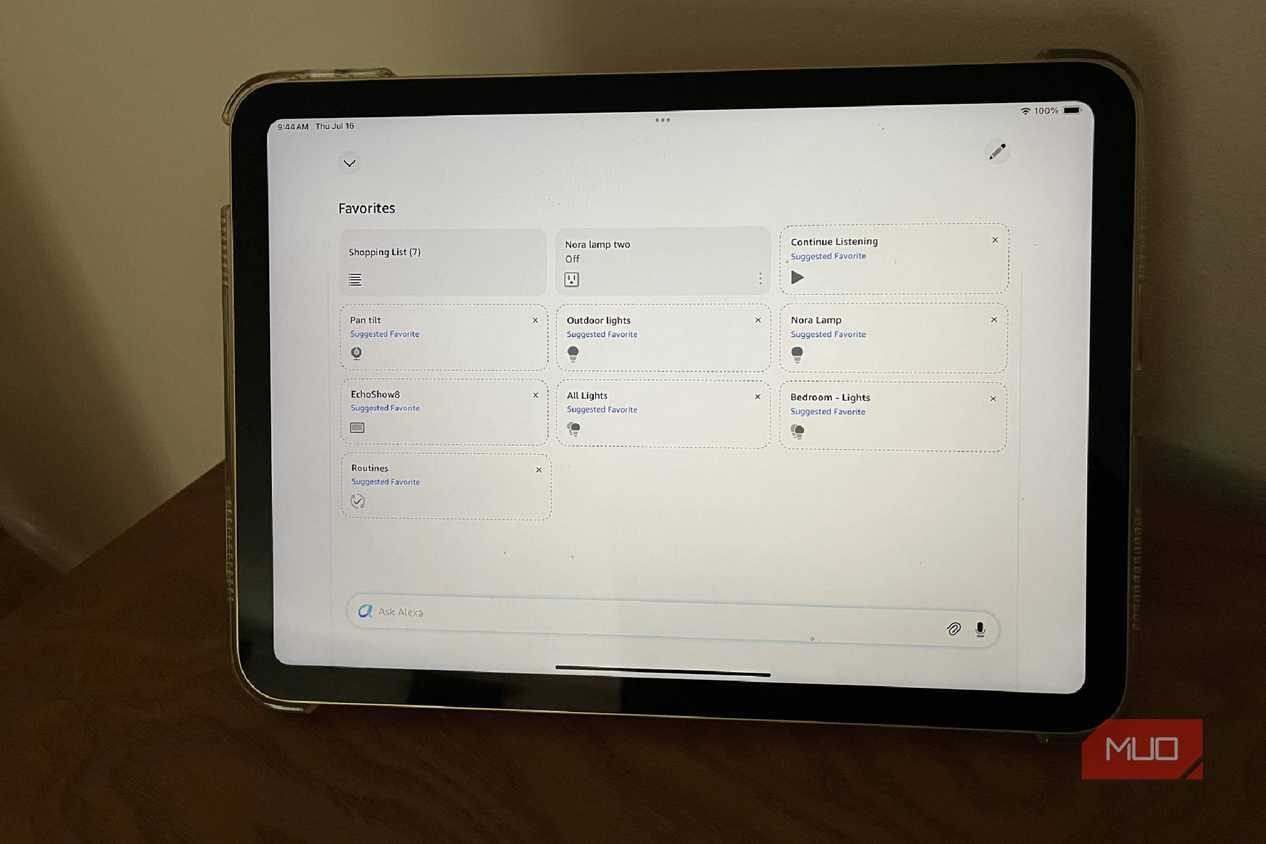
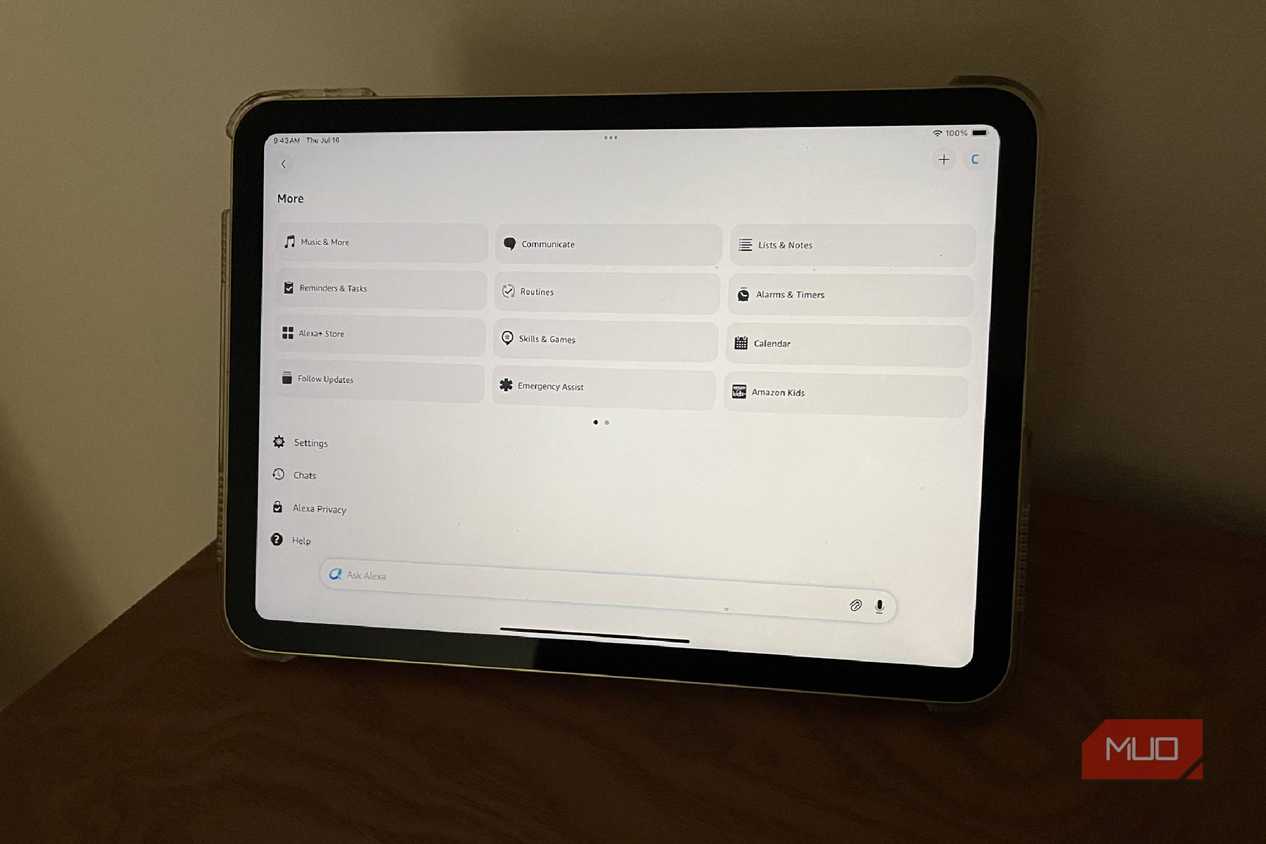
I used an Apple iPad (10th Generation) for this display. I relied on Amazon Alexa to showcase it.
If you have an iPhone running iOS 17 or newer, you may have noticed that when you put your phone on a MagSafe charger and turn it sideways, it creates a smart display. This shows you the clock and widgets you can select to display on your phone.
Unfortunately, iPadOS doesn't offer this when you turn the display sideways. So, if you want to create your own smart home display, you have to be a bit creative.
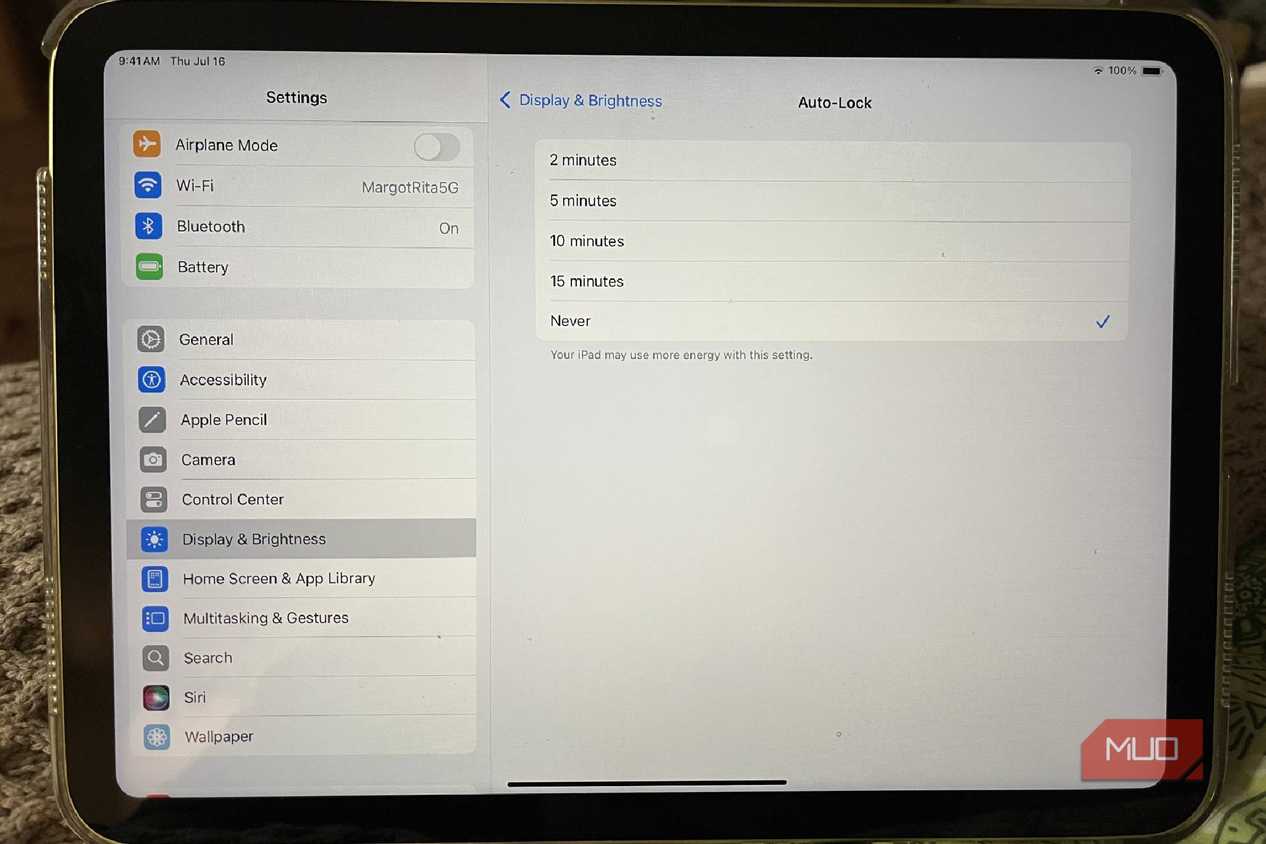
First, you need to figure out a way to keep the screen from shutting off. Going into Settings > Display & Brightness > Auto-Lock and selecting Never keeps your display on at all times. Apple does warn you that this will affect your iPad's battery.
From here, you can open your smart home platform app of choice. This might be Alexa, Google Home, Apple HomeKit, Samsung SmartThings, or something else. Once you have that open, you can maneuver to the devices portion, actions portion, or whatever page within the app that you want.
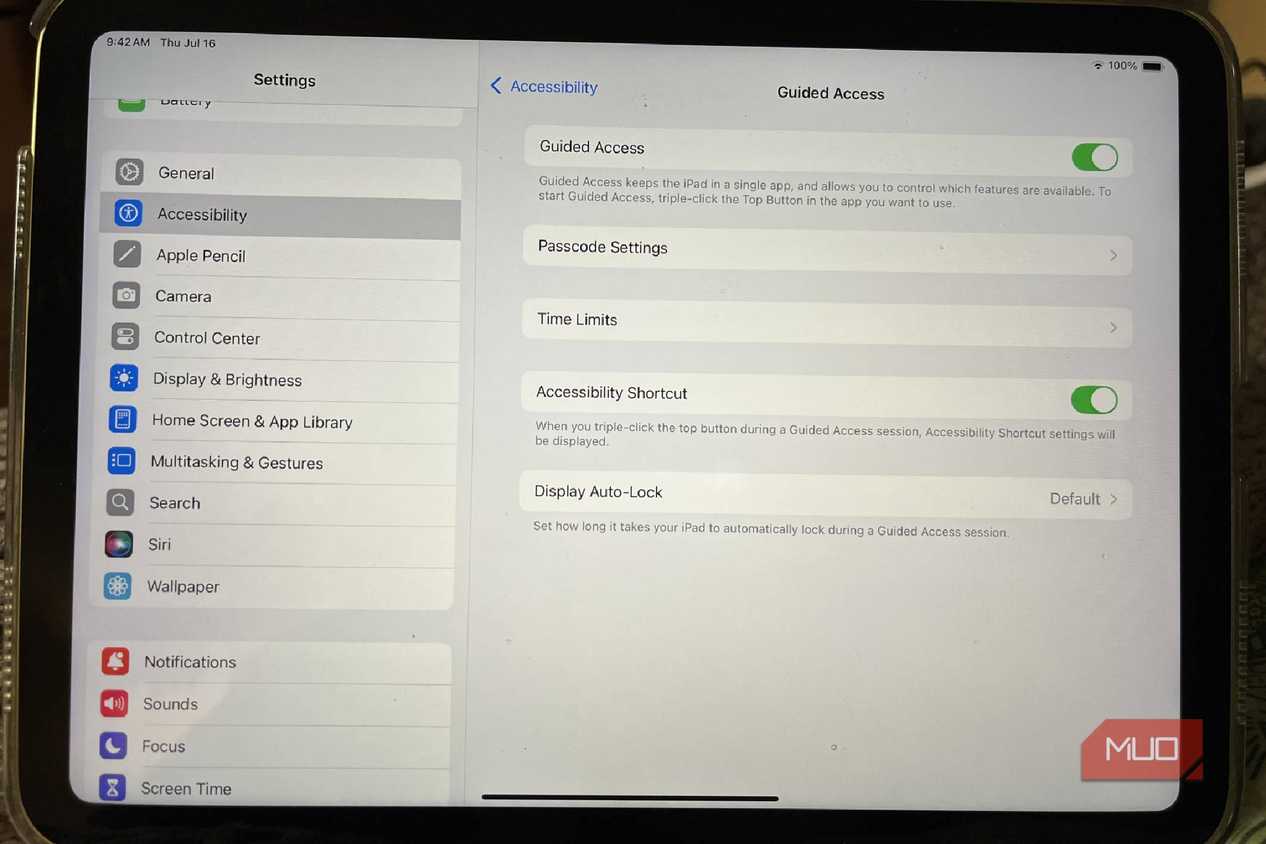
Once you have the page that you want, you need to enable Guided Access. This feature locks a single app on the screen at all times. Open up Settings > Accessibility > Guided Access and turn it on. You can enable a passcode which will help you exit that screen later on when you want to leave the app. Pressing the lock button three times keeps the app on the screen. Typing in the passcode helps you leave it.
From here, I can access any of the smart home devices that I run through my Amazon Alexa ecosystem. I can also ask Siri to make changes to the Alexa app for me, so I don't have to physically touch the screen.
If you use Apple HomeKit, you can more easily use widgets on the main screen to control smart home devices. iPadOS is set up well to use HomeKit, which might be worth your while if you want to use an iPad for your smart home display.
Android tablets aren't difficult to turn into smart displays
There are just a few different steps

If you have an old Android tablet to repurpose, you can easily utilize it as a smart home display or controller. For a Google tablet, you already have Google Assistant built in, meaning you can use voice commands to control the tablet.
You can turn on Google Assistant by going to Settings > Google Assistant > General and then toggle it on. Using the voice commands, you need to enable Hey Google. You do this by choosing Hey Google & Voice Match in the Google Assistant menu.
If you're using Google Home, you can open the Google Home app and populate it on the screen. To keep that app up, you need to visit Settings > Display > Screen Timeout and choose Never.
For anyone who wants to utilize widgets rather than having to keep the Google Home app up all the time, you can long press on the home screen and then tap Widget. To build in your smart home actions, you can use third party apps like Action Block, Tasker, or MacroDroid, which can create smart home actions like turning on lights and make them into widgets. You can choose as many widgets as you want to keep on your screen.
Making a smart home display with a tablet is a good way to use old tech
For anyone who does create a smart home display with their tablet, you might want a case that folds and props the tablet up, making it easy to see all the time. You can also consider putting it in a mount on the wall to display it for everyone. Syncing up your smart home devices with the display makes for a fast and easy way to control the gadgets.

Samsung Galaxy Tab S9 FE
The Samsung Galaxy Tab S9 FE provides an enjoyable experience when you're using it. The brilliant displays and fast processing work well.