


I used to treat my phone’s battery as London’s winter weather: something to complain about but not something I could change.
If I had a busy day, I would already be hunting for a charger by mid-afternoon. And by evening, I was in low-power mode and wanted to squeeze out every last drop of juice. I assumed that was just how modern phones worked. Then I noticed my phone's battery was dropping quickly, even on relatively light-use days. That’s when I started looking at the settings that could be quietly using that precious power in the background.
I changed a handful of Android settings and habits, and together they helped my phone last longer between charges.
I changed some display settings
Switch to a less power-hungry screen
Let's face it. The display is one of the biggest power users on a smartphone. So I started by tweaking my display settings. The first thing I changed was the Always-On Display (AOD). There’s no doubt that an AOD looks cool. I can glance at the time and notifications without waking the phone. That also means part of your screen is never truly off. Frankly speaking, I’m not a fan of always-on displays. So, I turned it off on my phone. But if you regularly use AOD to check notifications or the time, you can choose to leave it on.
Then I checked my phone's refresh rate. Higher refresh rates give you a buttery-smooth experience, but they also consume more processing power and battery. If your phone offers multiple resolutions, you can drop from the highest setting (often QHD+) to Full HD+. Well, I don’t need the highest refresh rate all the time. So, I switched to the lower setting for a few days. I didn't notice much difference in my everyday usage, which basically involves browsing the internet, checking emails, and scrolling social media. You can try it too and switch back if the difference bothers you.
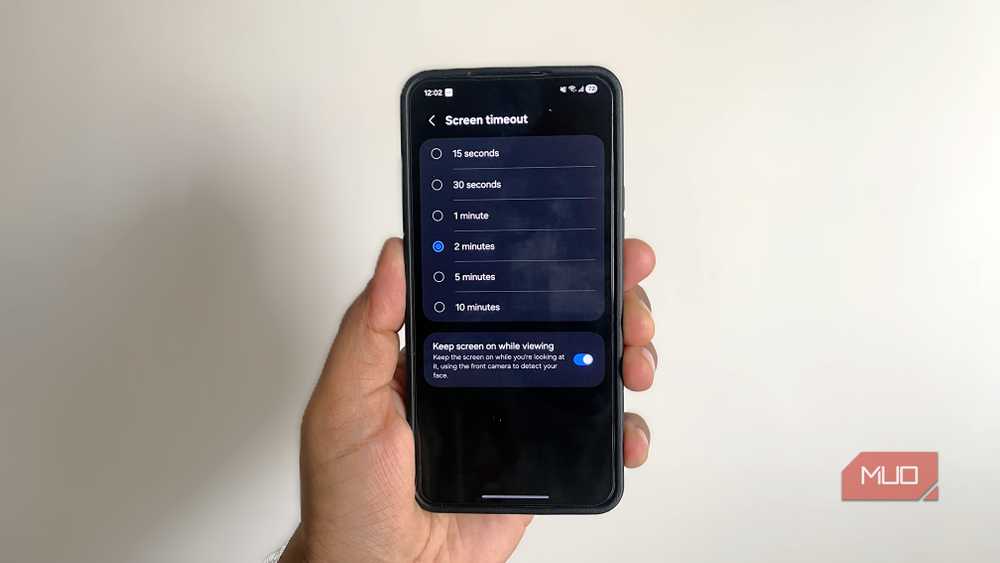
I also changed my phone's screen timeout. Mine was set to two minutes, which meant that every time I put the phone down mid-task, the display stayed lit for a long time — so I dropped it to 30 seconds. I can’t even count how many times I pick up and put down my phone in a day, and all of those extra seconds of a lit display add up and consume unnecessary power.
I stopped apps from running unnecessarily in the background
Put background-hungry apps in their place
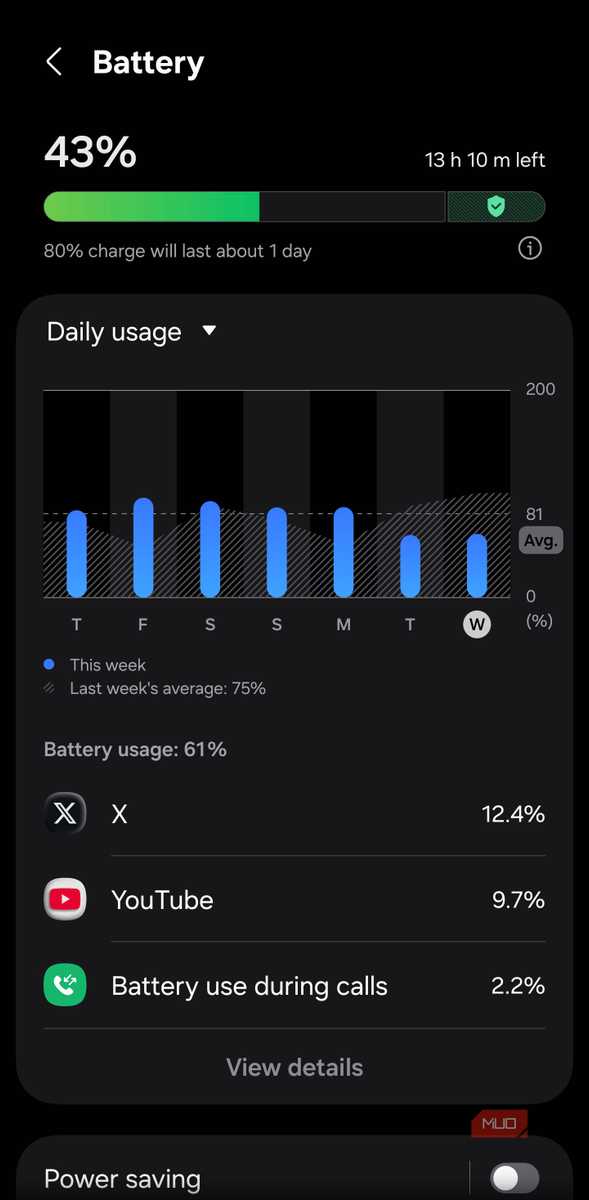
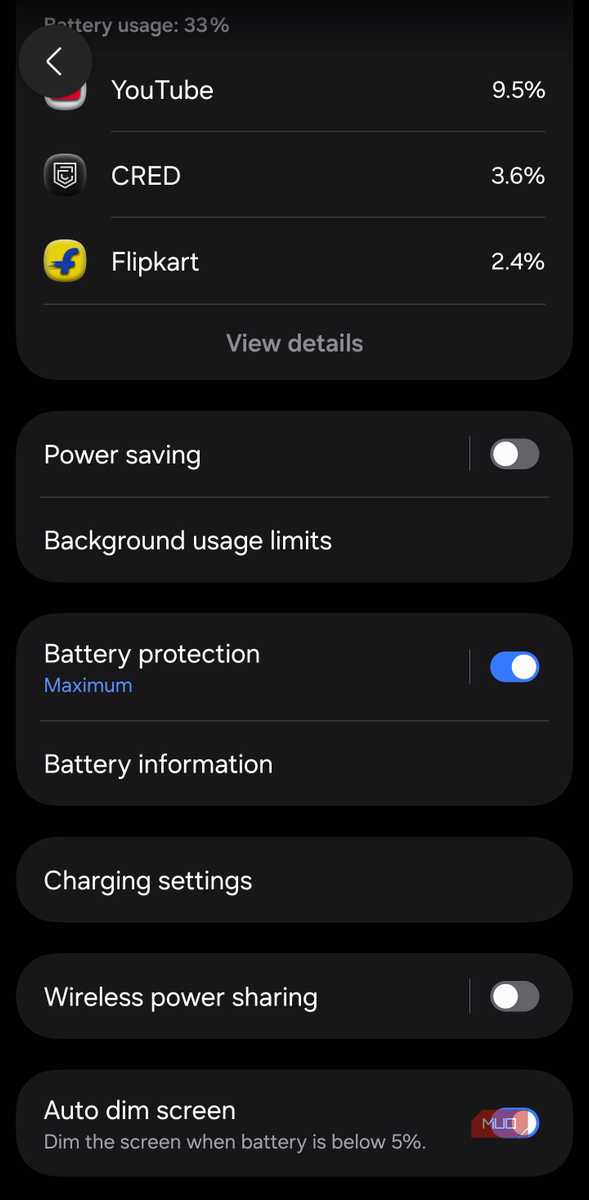
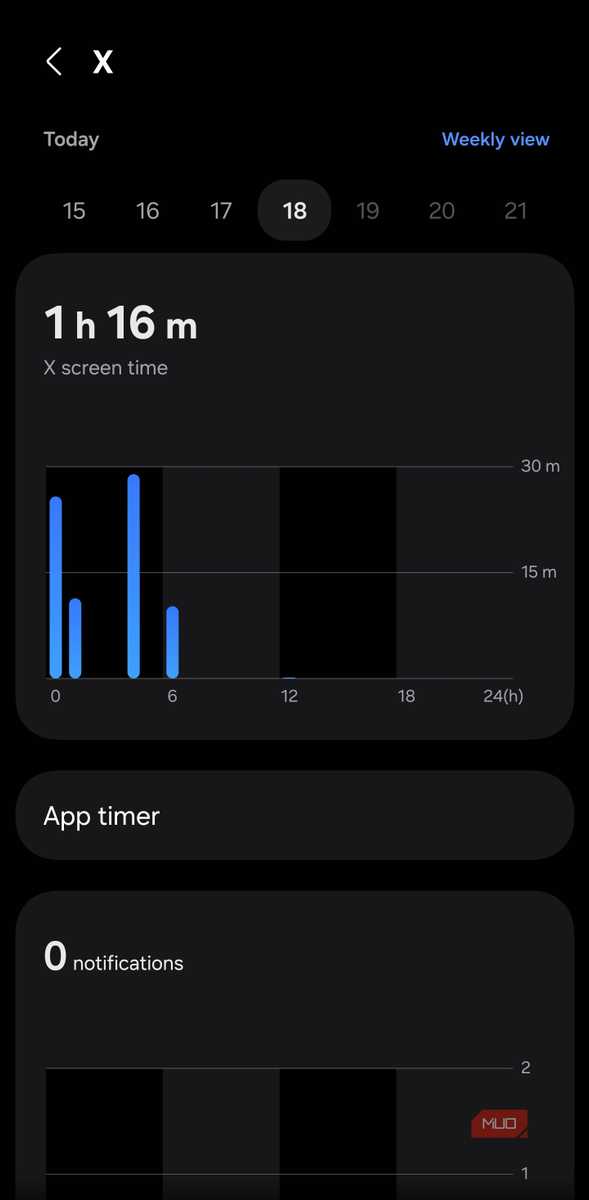
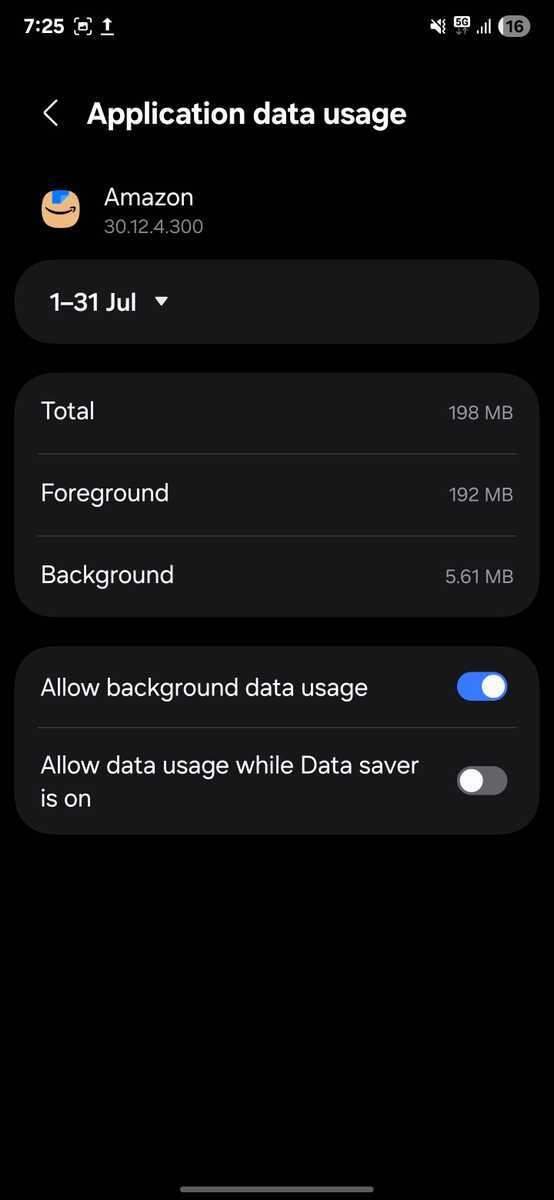
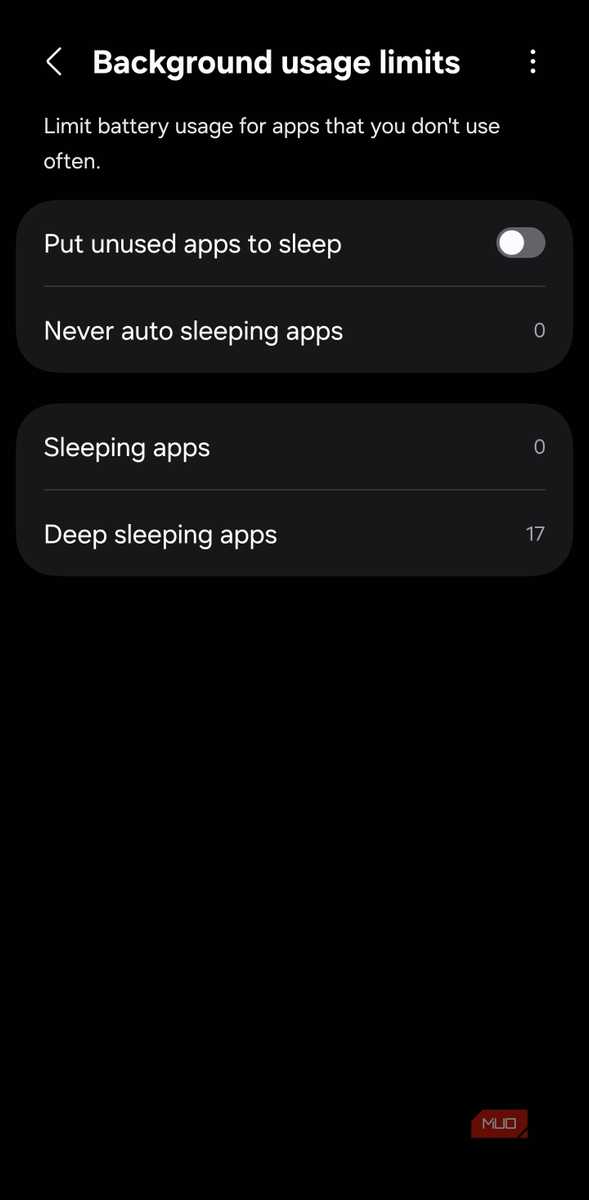


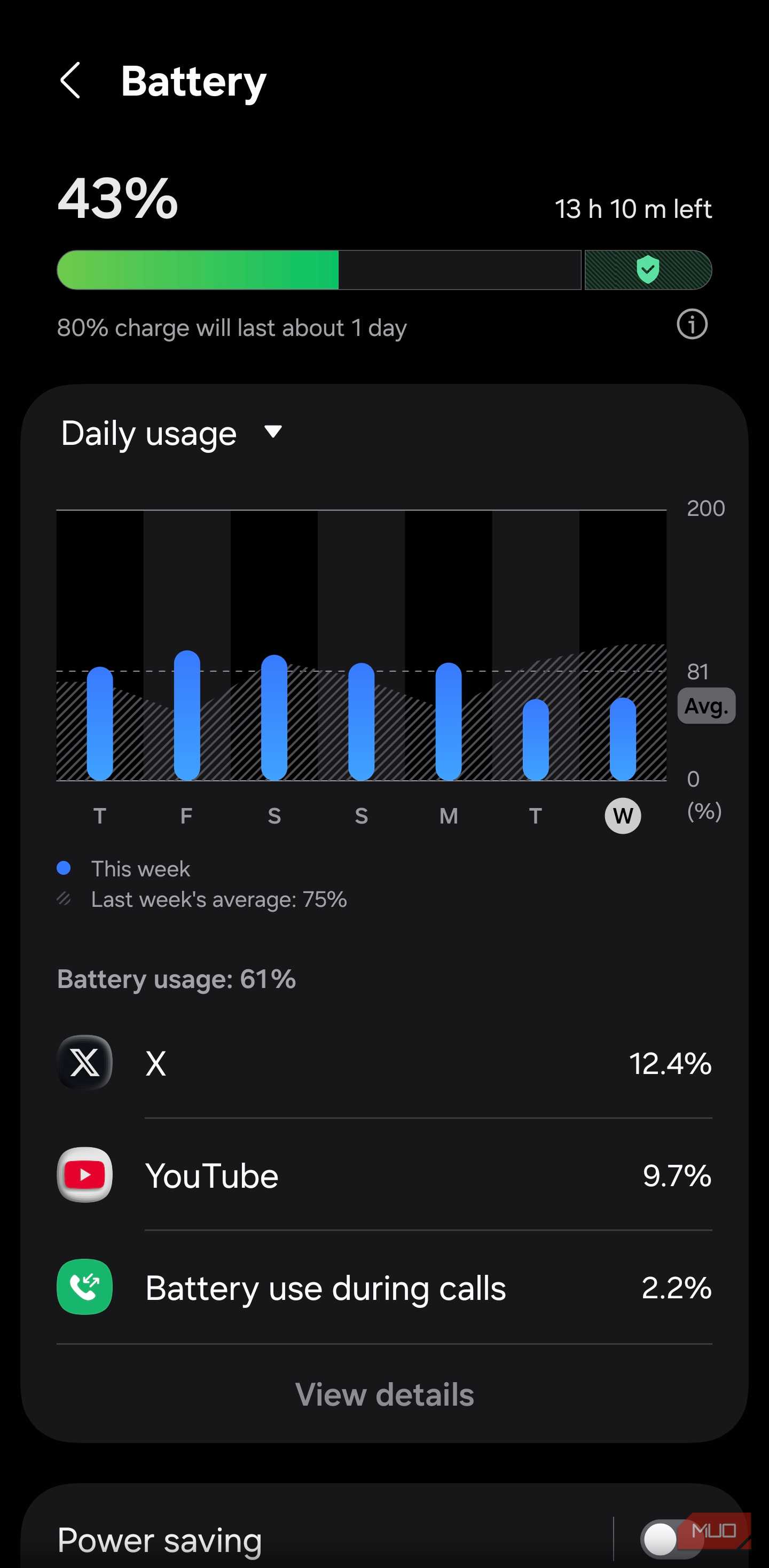
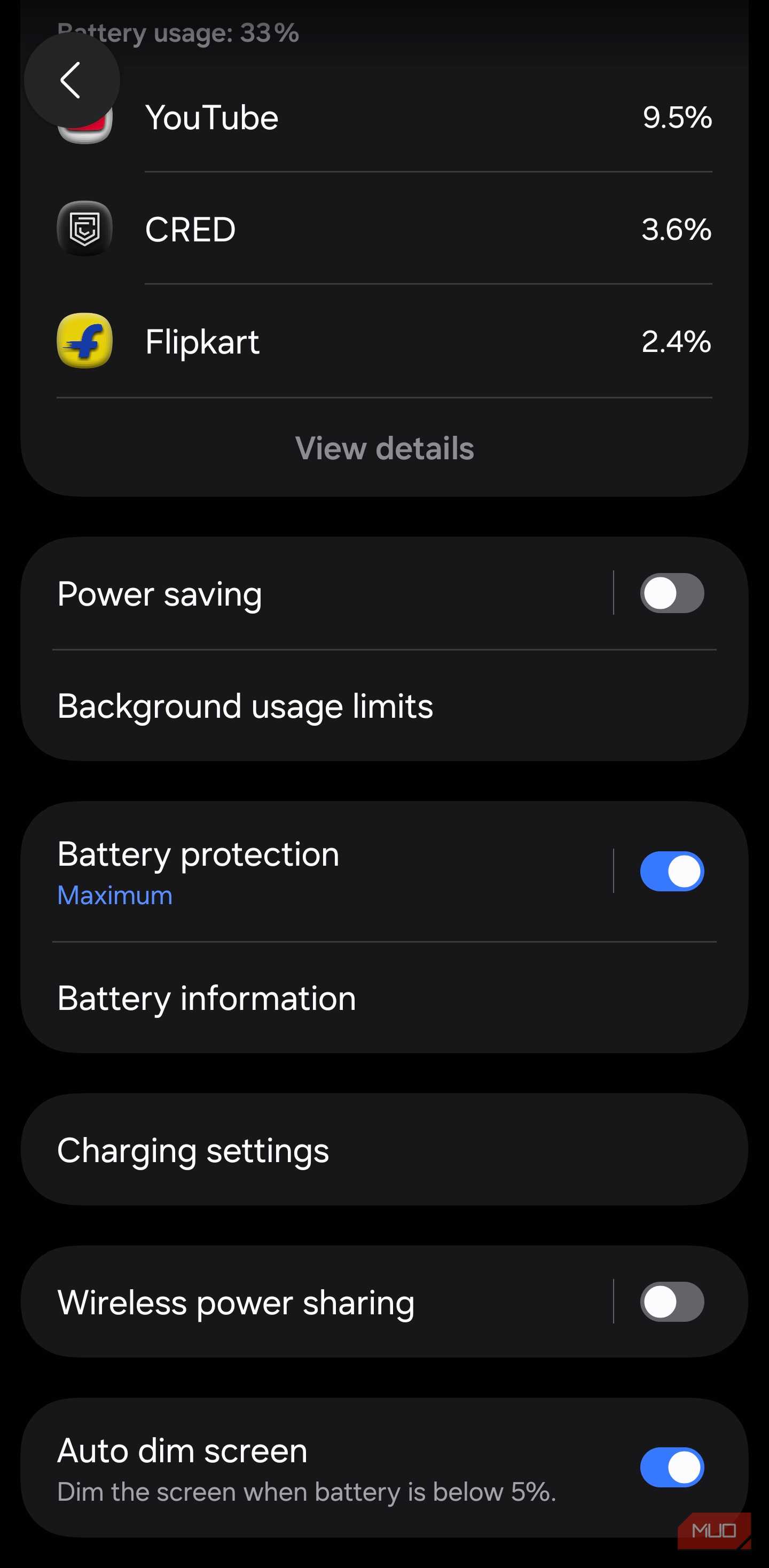
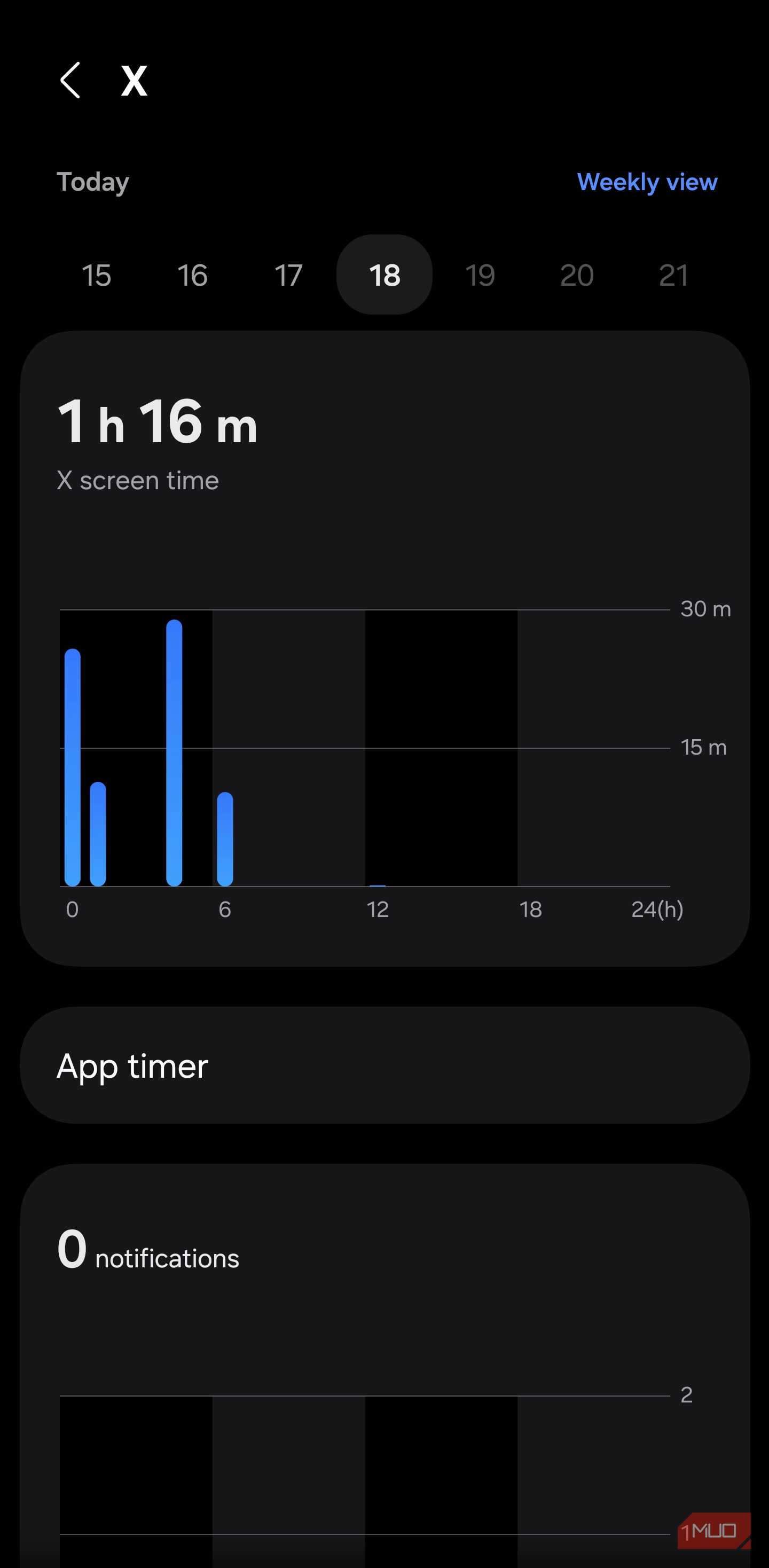
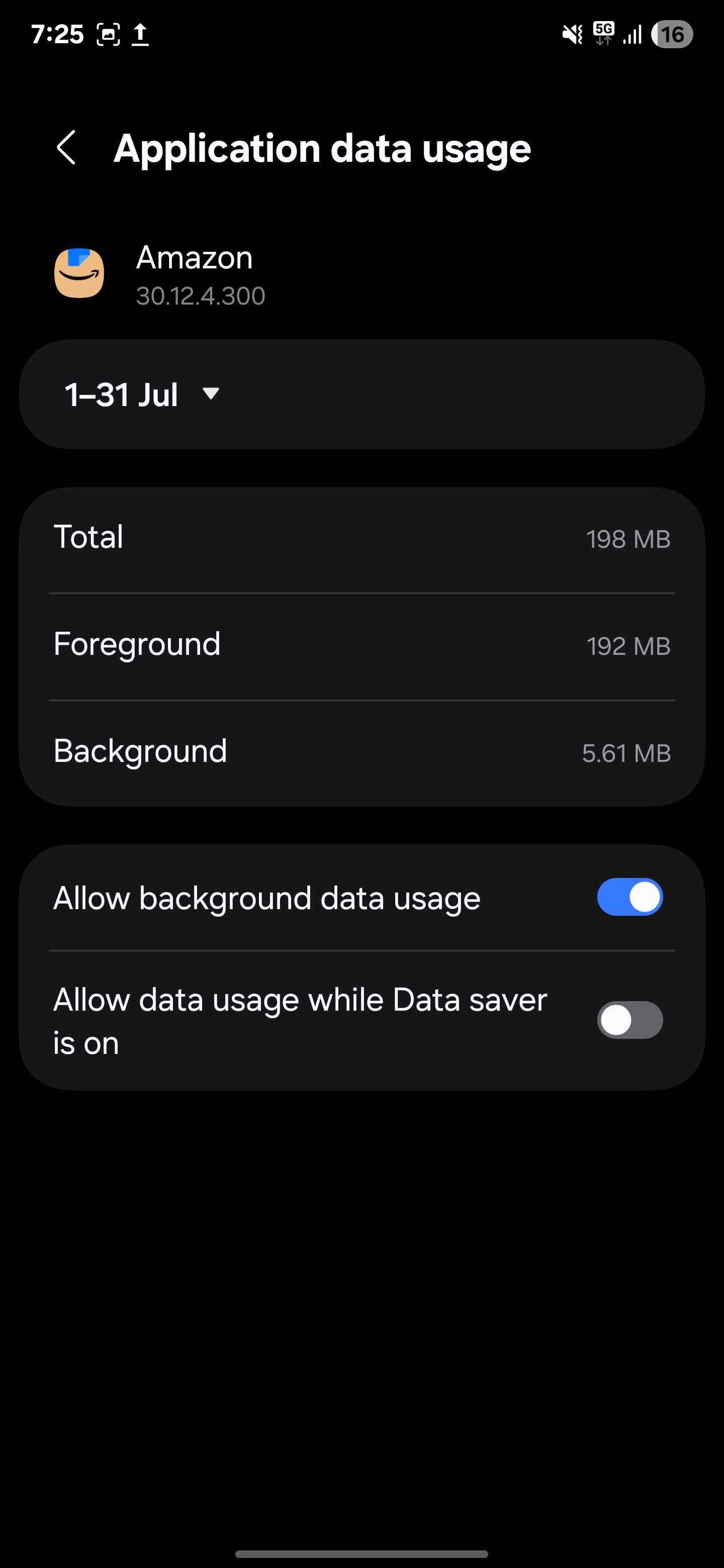
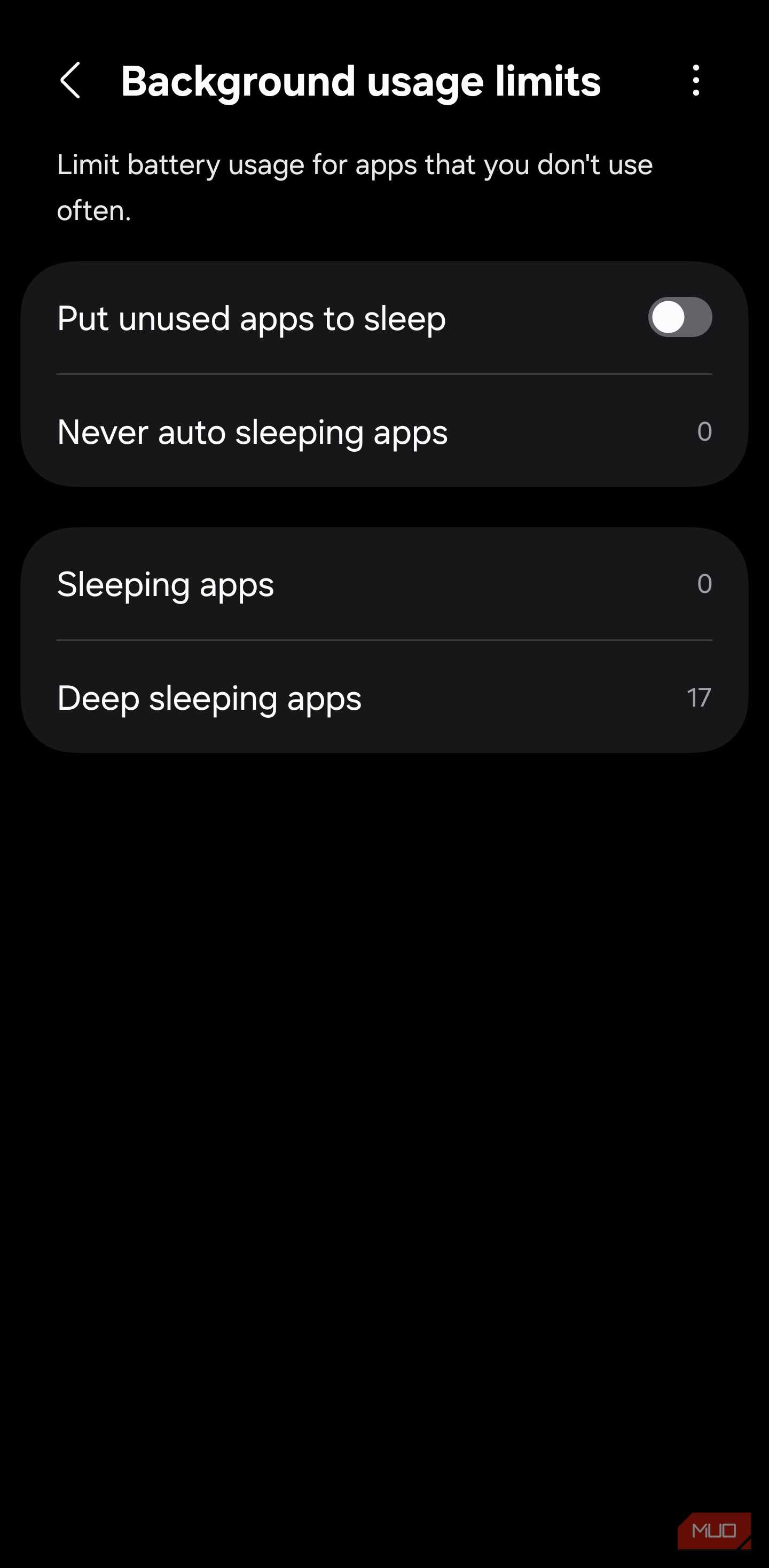
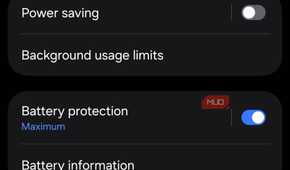
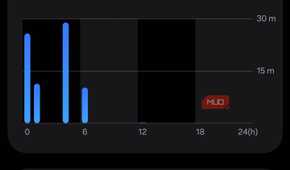
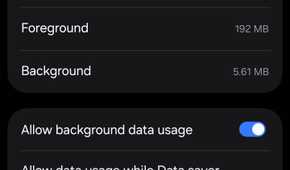
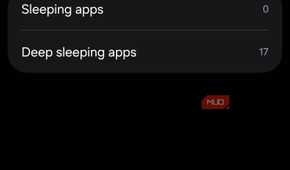
Android is designed to manage apps and background activity automatically, so you don't need to obsessively close every app after using it. When an app runs in the background, it can sync data with its servers to keep your content updated. Sure, this sounds convenient, but it also consumes battery.
I have dozens of apps on my phone (we all have plenty), including social media, games, and more. I don't need to enable unrestricted background activity access for every app. For instance, cloud storage services may need background usage access, but some apps like food delivery don’t need to run 24/7. So, I turned off background usage for apps that don't need it and the ones I rarely use.
I opened Settings -> Apps -> Battery -> Restricted and turned off background activity for unnecessary apps. If your smartphone is also losing battery while doing nothing, this is one of the best ways to fix battery drain on Android.
I turned off Wi-Fi and Bluetooth scanning
This one is easy to miss

Continuous Wi-Fi and Bluetooth scanning are one of those hidden Android settings that quietly drain your battery life. Even when you turn off Wi-Fi and Bluetooth, Android can keep scanning for nearby networks and devices. Well, this improves location accuracy and offers benefits like nearby sharing and fast pairing. Unfortunately, that also means your phone is working in the background.
When an app (if it has permission) continuously scans for Bluetooth devices, it keeps Bluetooth and networking components active. This doesn’t allow your phone to enter deep sleep mode. So, I went to Settings -> Location -> Location services and turned off both Wi-Fi and Bluetooth scanning options. This gave me an hour of battery life daily.
Now, this doesn’t mean I can’t use Wi-Fi or Bluetooth on my phone. When I actually want to connect to my home network or wireless headphones, I can still use them normally.
I reviewed location and other permissions
I'd been more generous with permissions
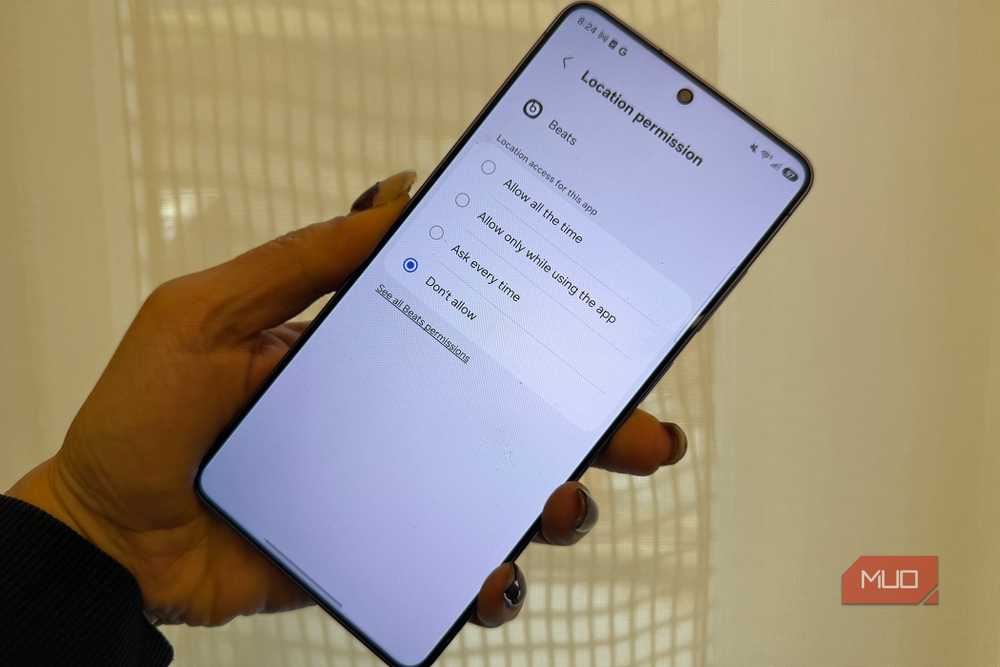
When you install an app on your phone, it might ask permission to access things like your location, microphone, camera, contacts, and more. I had a bad habit of hitting the allow button without thinking twice. Also, I never bothered to check app permissions on my phone. Over time, I ended up with dozens of apps that have permission to access your location even though they don't genuinely need it. Unarguably, location access is among the most power-hungry permissions that you may grant. You do more harm when you allow an app to access your precise location all the time.
I decided to check which apps can track my location. Then, I found out that several unnecessary apps, like social media, have precise, always-on access. I immediately tweaked location permissions on my phone. I switched to approximate location only for weather, news, and other apps, and completely disabled access for social media and shopping apps.
While I was at it, I also checked the microphone, camera, contacts, files, and other categories.
I turned off optimized battery charging
A trade-off rather than a pure win

Adaptive or Optimized charging feature learns your routine. For instance, when you plug your phone in overnight and when you usually wake up. It holds the battery at around 80% and tops it up shortly before you unplug. This reduces the time your battery spends at 100% and slows long-term wear.
If you always charge your phone overnight on a predictable schedule, you need to start using this. My routine isn't consistent. Sometimes I plug my phone in late, wake up early, and find it's only 80% charged instead of 100%. So I don't think this feature is for me.
That being said, I’m focused on maintaining my battery's long-term health. I try to avoid leaving my phone at 100% for hours, and I don't let it drain to 0% regularly. Some phones also offer a manual charge limit, such as capping at 85% or 90%. I think that's a good middle ground.
Make these changes together to maximize your battery savings
My final suggestion is to push all these setting tweaks together into one big battery-saving package. Combining them can add to some surprising battery savings, giving you a few more hours on your device.
And after all, if one doesn't work out, you can just flip the switch and change it back!