


I’ve been using Windows 11 almost daily since launch, and I still sometimes find features I had no idea existed. And I’m not talking about anything that needs a registry hack to unlock. These are features that are either buried in menus or simply easy to miss. None of these are big enough to make a headline, but they can change the way you use your PC, or make the boring stuff a little less boring.
Use Winget to update all apps at once
A single command is all it takes

Windows gives you the freedom to download apps from wherever you want, but the only problem with that is keeping them all updated. Sure, Microsoft Store takes care of anything you’ve downloaded from it, but the rest of your apps still need to be updated manually.
Winget is a built-in package manager that can help you with this. All you have to do is open Command Prompt on your PC, type winget upgrade --all and hit Enter. It’ll scan every app installed on your PC, check for newer versions, and install them all in the background. You can also run the winget upgrade command to see what’s outdated before committing.
Winget isn’t just for app updates, either. It can also help you find, install, and remove apps with the same convenience.
Use the “End task” option to kill frozen apps
Skip the Task Manager

It’s never fun when an app freezes on you, but it can happen. The classic move in such cases is to open the Task Manager, find the process, right-click, and choose End task. It works, but there’s a quicker way to do this. Head to Settings > System > Advanced and enable the End Task toggle. Now, you can right-click any app on the taskbar and choose End task directly.
This isn’t just for closing frozen apps. I personally use this all the time when I’m done using an app and don’t want it running in the background. This frees up resources for other things and also improves battery life. Of course, this isn’t ideal for apps you need repeatedly. You should also avoid using it for apps that need to stay active in the background to save data or show notifications.
Use Windows Sandbox for the risky stuff
A disposable PC inside your main one


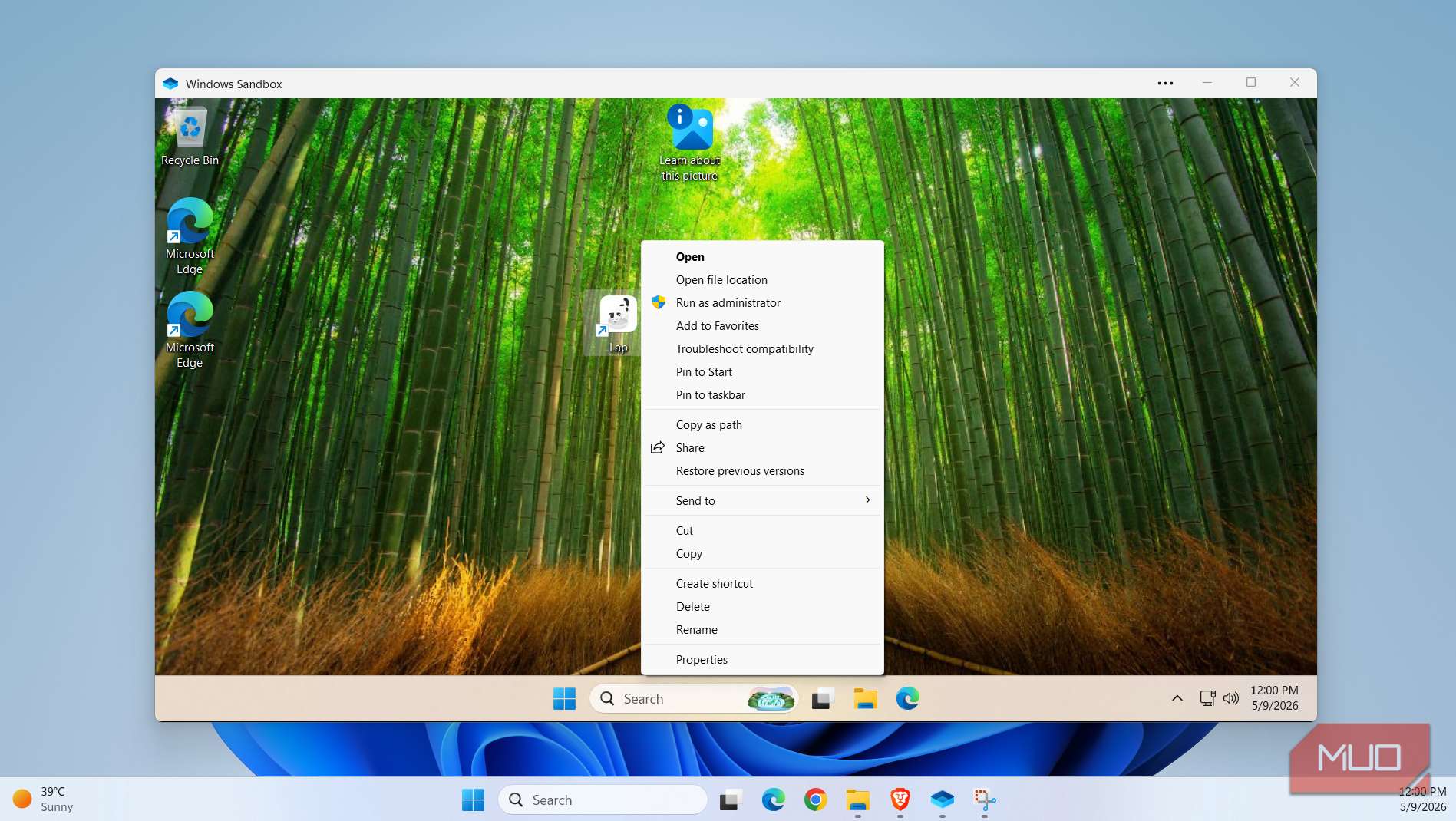
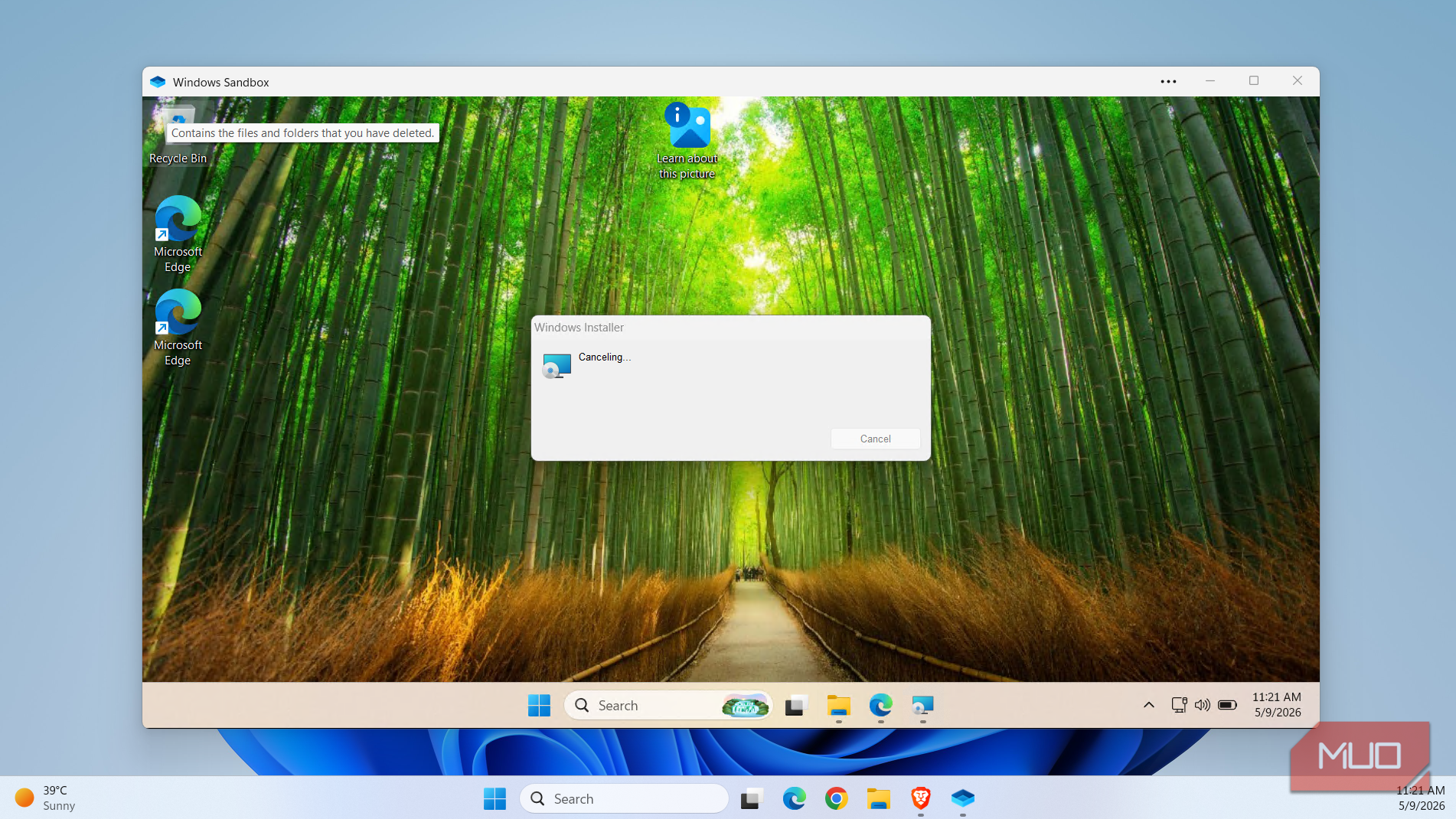
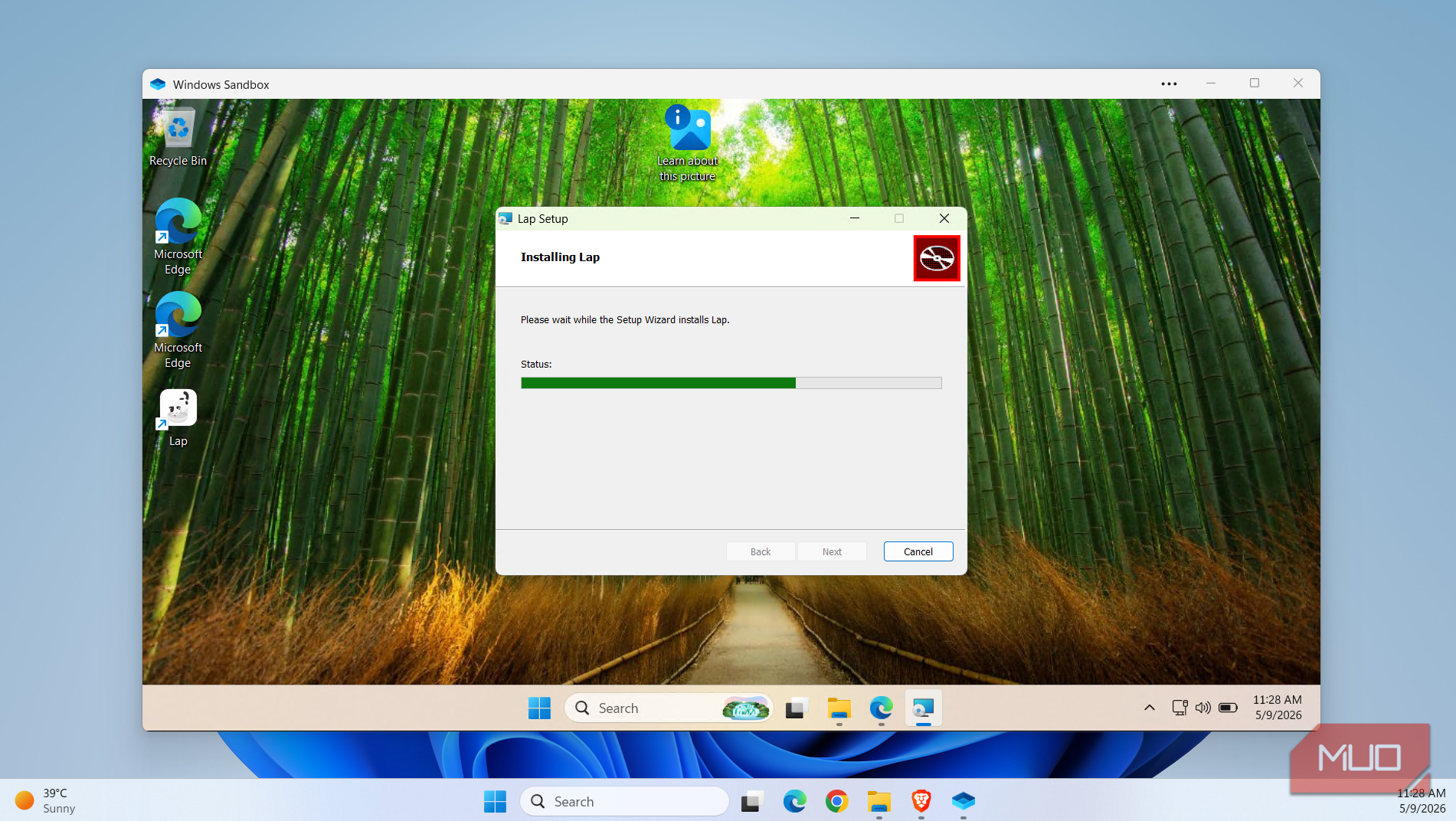
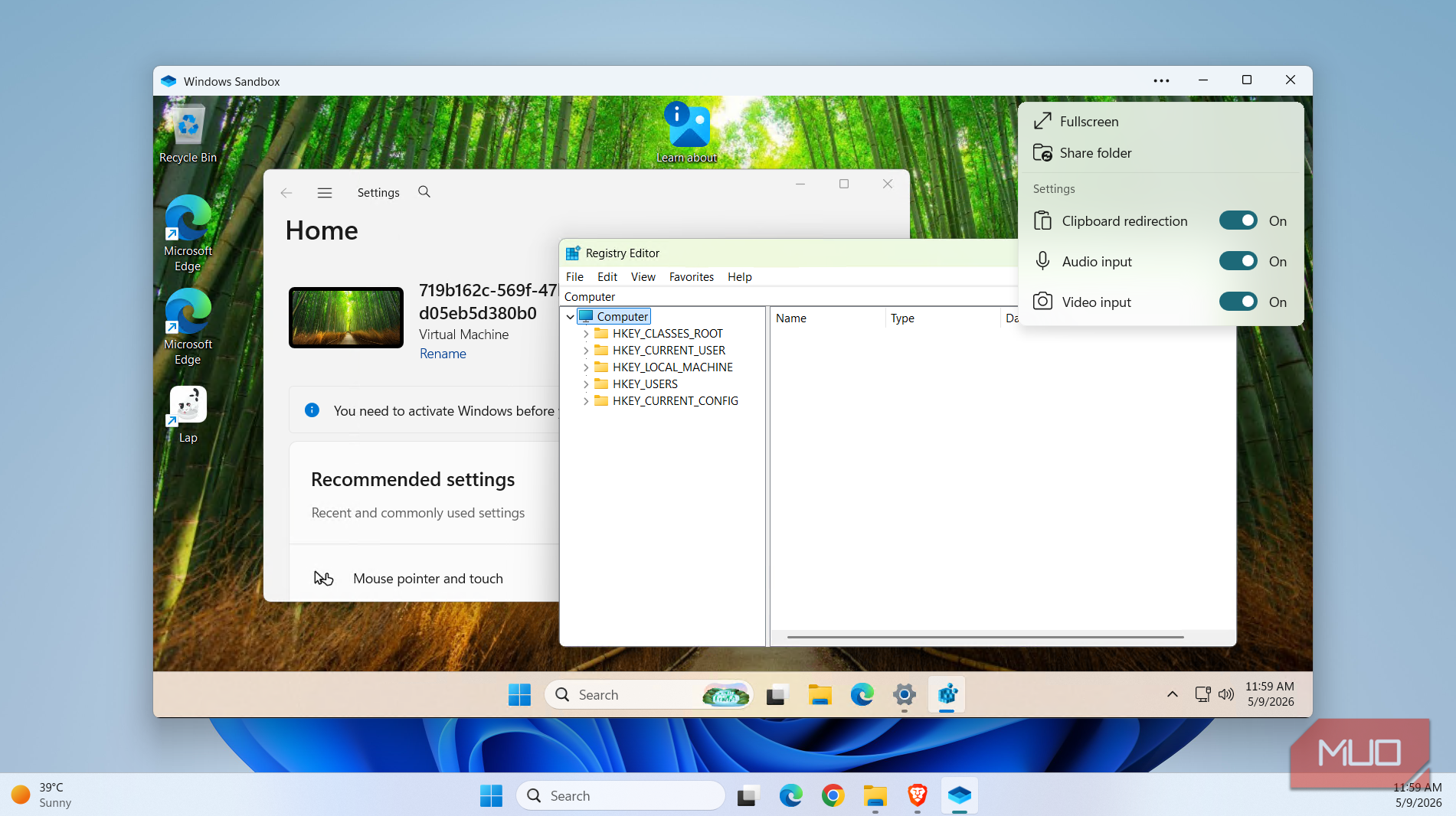
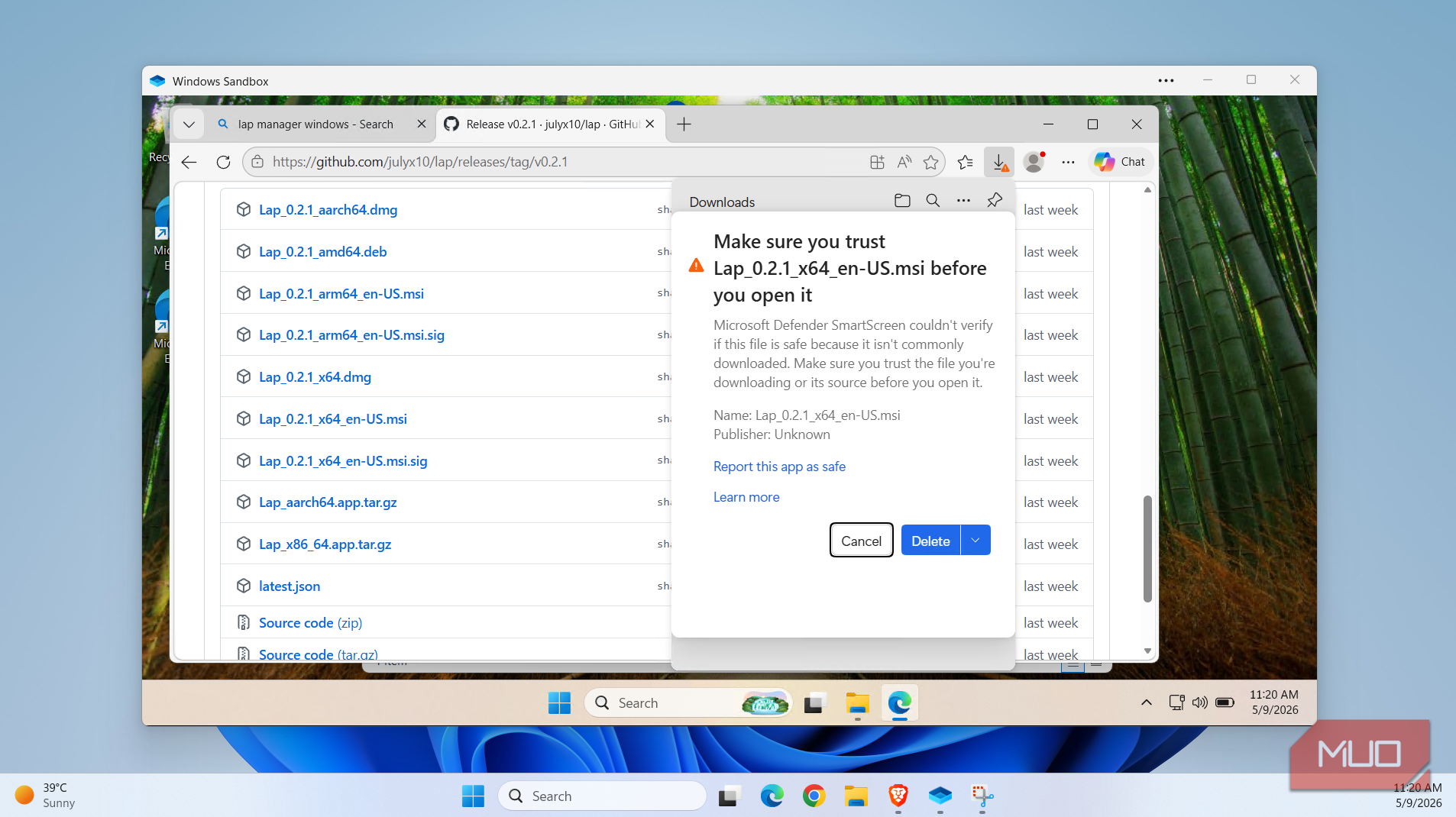
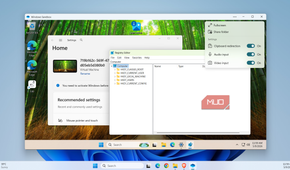
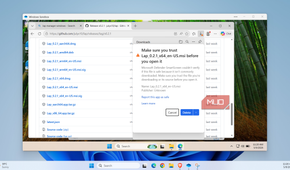
This one is only available for those using the Pro version of Windows 11. Windows Sandbox is a disposable PC that you can run inside your actual PC. It’s completely separate, and nothing you do inside can affect your personal files or security settings.
Sandbox essentially gives you the freedom to test unknown apps, open suspicious files, run scripts, and do basically anything you wouldn’t risk doing on your main PC. Once you close the Sandbox window, it deletes everything you’ve done, so there’s no trace left. When you reopen Sandbox, it loads a clean copy of Windows from scratch.
Mirror phone screen with Phone Link
The best Android emulator you're not using

For me, Phone Link’s best feature isn’t showing phone notifications or letting you make phone calls. It’s actually mirroring the phone screen on your PC because it gives you the freedom to interact with it while it’s charging or in your pocket.
Yes, using mobile apps with a mouse and keyboard can feel a bit awkward at first, but screen mirroring with Phone Link is honestly the best way to try Android apps on a PC. Its best feature is the new expanded view option, which lets apps use up to 90% of screen space. That means you’re not tied to that phone-shaped vertical layout anymore.
Customize touchpad gestures for productivity
You’ll want to ditch your mouse for good

Your laptop’s touchpad can do a lot more than click and scroll. Windows 11 is full of touchpad gestures that often get overlooked. You can use these to go forward and backward, switch apps, hide everything except the app in focus, control music playback, and even snap windows using Snap Layout.
The cherry on top is that none of it is locked in. Head to Settings > Bluetooth & devices > Touchpad and you can remap what three and four finger taps and swipes do. They might take a while getting used to, but they’re absolutely worth it.
Master keyboard shortcuts for these things
Use your PC like a pro

Much like touchpad gestures, keyboard shortcuts are nothing new, but there are a few that everyone should know about.
- Win + . opens an emoji panel over any app you’re using.
- Win + V opens a clipboard history that can remember everything you’ve copied recently.
- Win + Z lets you snap windows in a specific layout without hovering over the maximize button.
- Win + Ctrl + Shift lets you move apps between multiple monitors.
- Win + K lets you cast your PC’s screen to a TV or another display wirelessly.
Of course, this is all just the tip of the iceberg. Windows 11 has plenty of shortcuts like these that are worth memorizing.