


Google Photos has always been my go-to app for storing, organizing, and editing images. However, Google's generous 15GB of free memory didn't last long, and even after subscribing to a larger plan, my storage capacity quickly diminished as I added more pictures and large video files.
I was therefore forced to pay more attention to what the app was actually backing up, and before long, I'd changed a handful of Google Photos settings that dramatically reduced clutter and helped my cloud storage last much longer.
I realized every screenshot was being treated like a memory
Turning off screenshot backups instantly decluttered my library

If, like me, you take a lot of screenshots, either for work, to help jog your memory, or to send information to others for reference, these quickly build up and eat up storage. While it makes sense to save these from a technical standpoint, it also clutters your photo library.
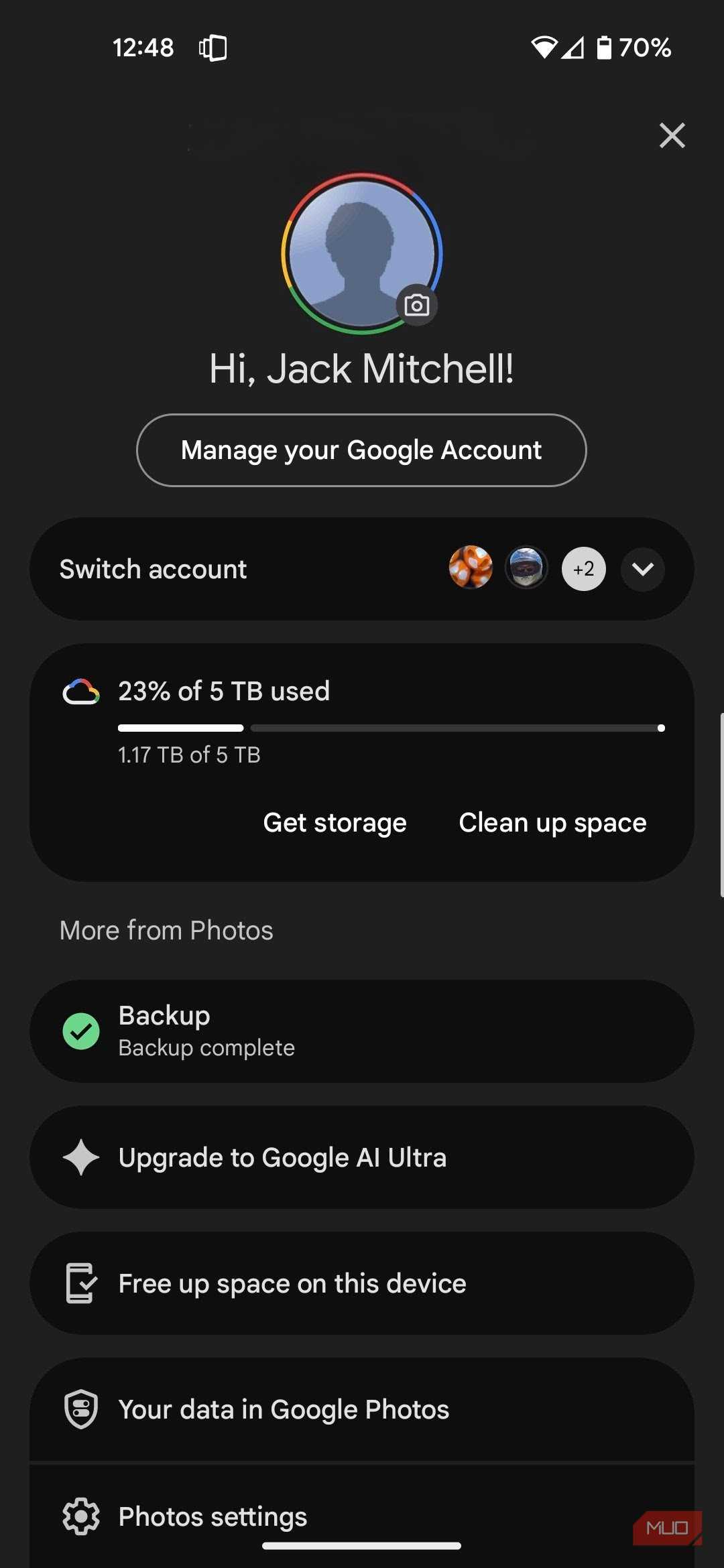
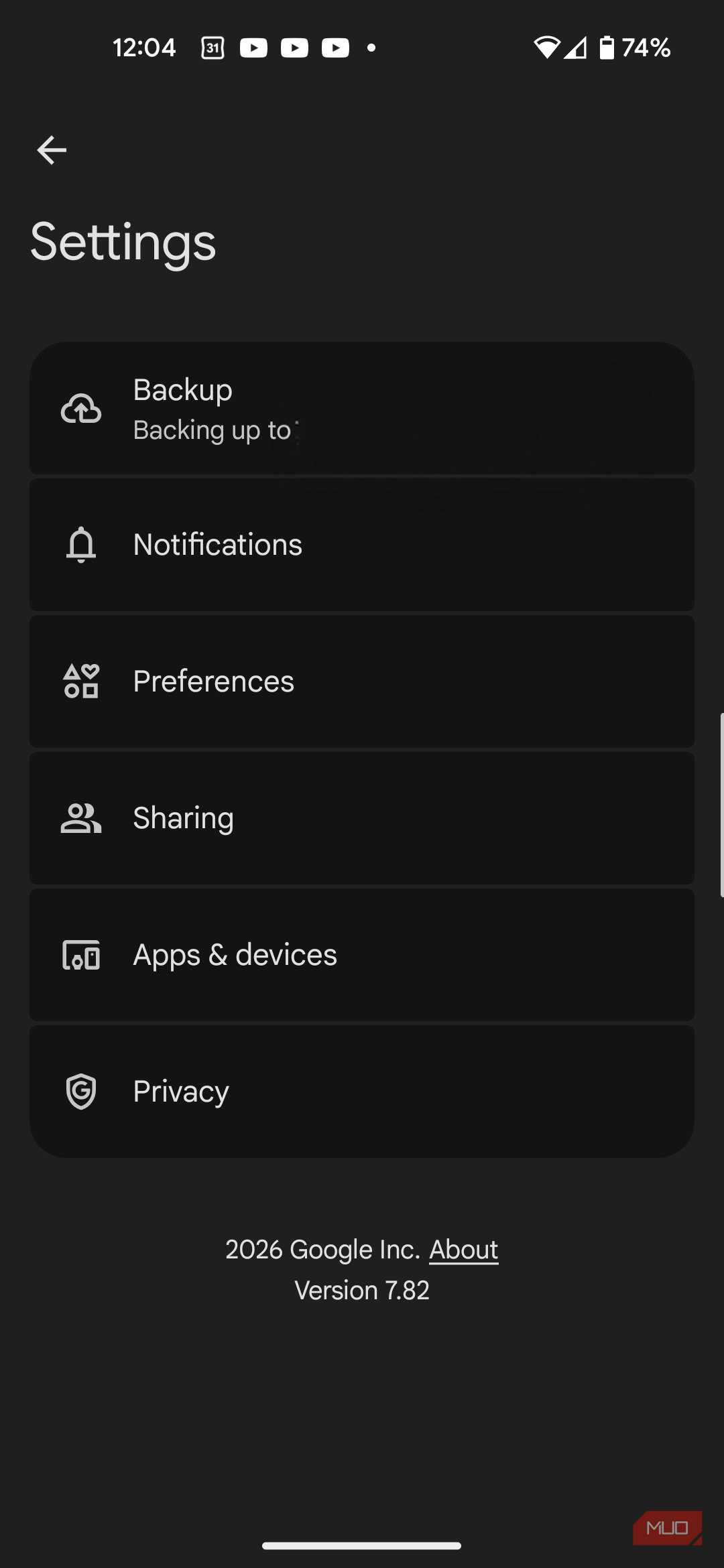
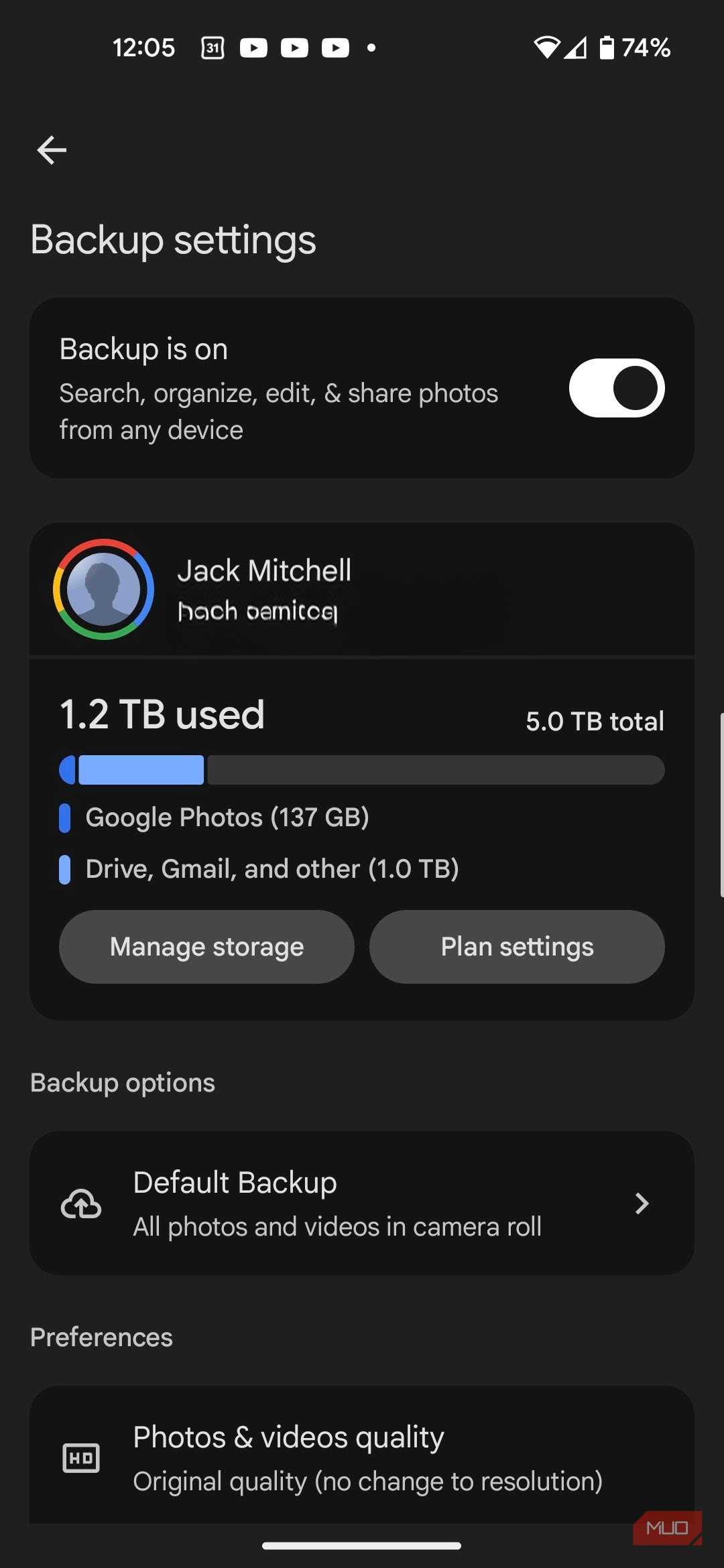
Screenshots are typically stored in their own folder in Google Photos under the Collections tab and can be deleted individually there or disabled entirely in Settings (On mobile: tap your profile icon in the top-right corner -> select Photos settings -> Backup -> scroll down and tap Back up device folders -> find Screenshots folder -> uncheck folder).
I chose the latter, which was one of the simplest changes I made, but the difference was immediate. My library felt cleaner, searches became more accurate, and I stopped wasting storage on images that didn’t have any long-term value.
If I want to keep an important screenshot, I manually back it up to a folder in Google Drive. I just don't need every single one stored forever in my photo library.
I checked my backup folders and found hundreds of photos I never wanted to save
Social images and downloads were quietly filling my cloud storage


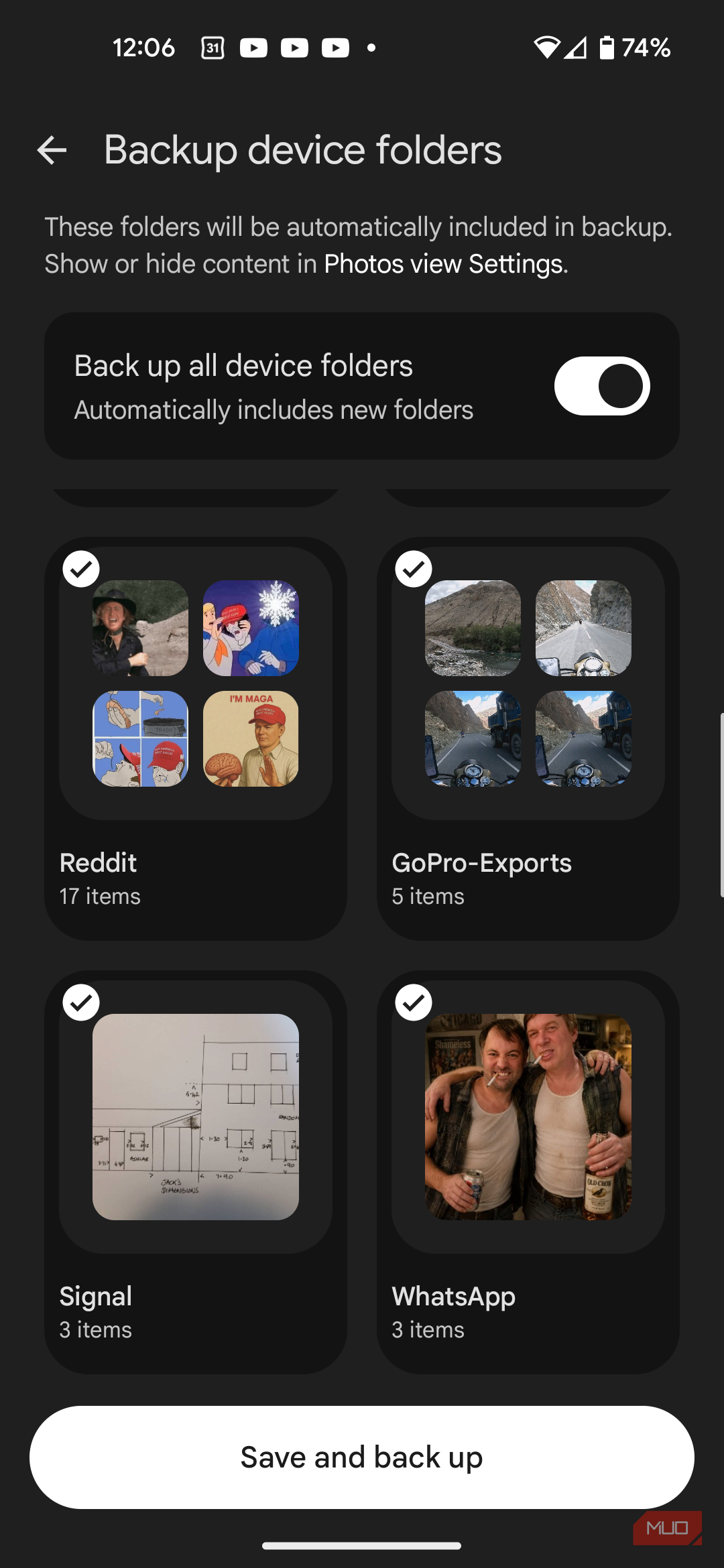
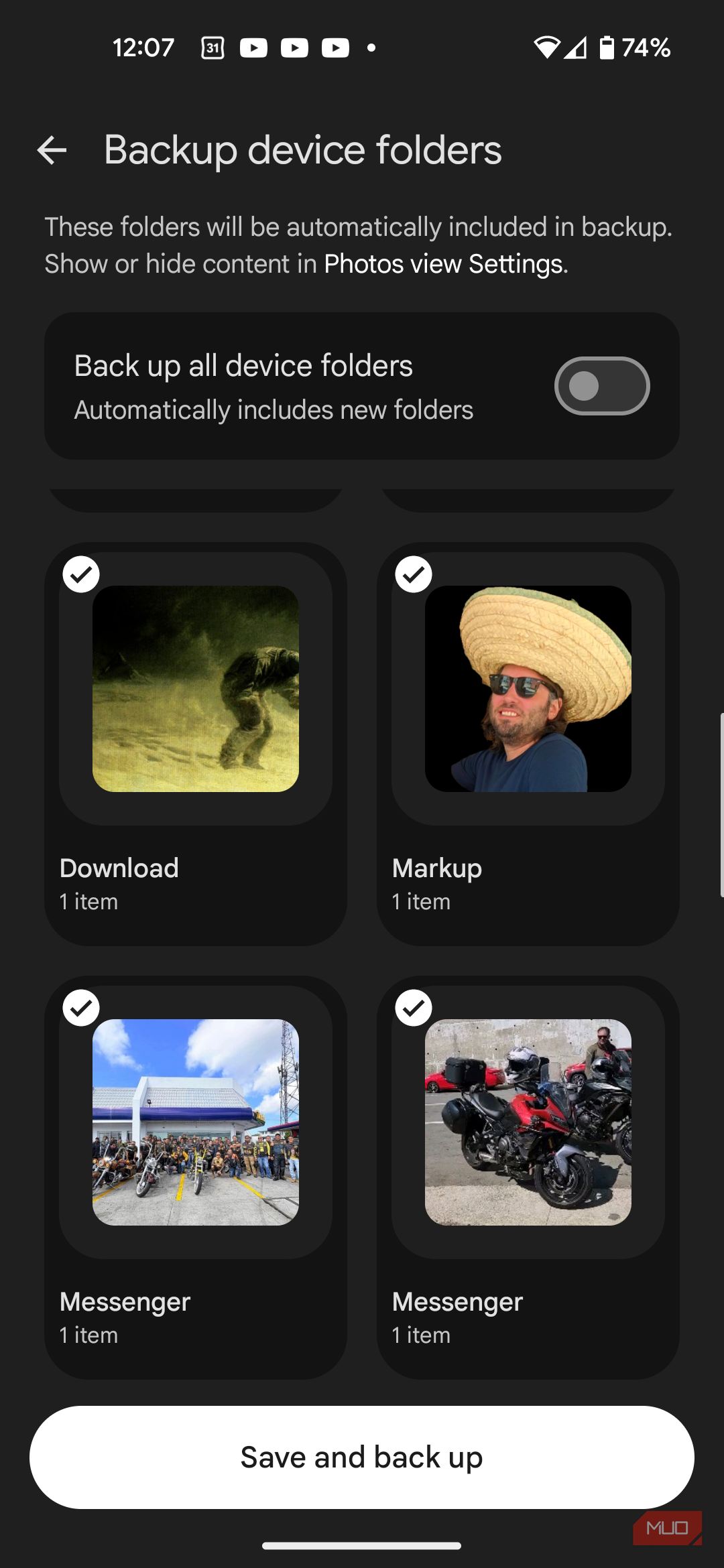
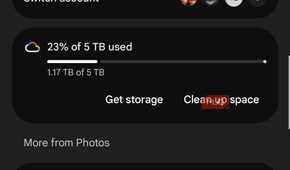
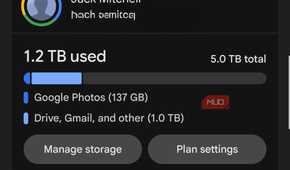
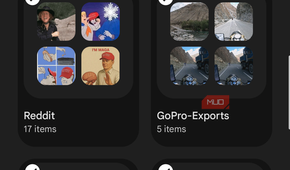
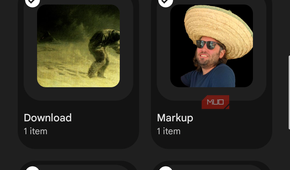
Turning off my screenshot backups opened Pandora’s Box, exposing my poor data handling. When reviewing the Backup device folders settings, I quickly realized how many random images, GIFs, and videos were saved in my WhatsApp, Telegram, Signal, Messenger, Downloads, and other folders.
While they were not appearing in my camera roll, my library contained many memes, forwarded photos, edited images, receipts, and videos I'd never intentionally saved. These weren't memories, but disposable files that happened to land on my phone.
Now that I’ve turned off backup for the folders I don’t care about, Google Photos has become a much better reflection of my actual photography. And I’m not wasting cloud storage space on content I'll never look at again.
An overseas trip showed me how quickly videos consume storage
I have become much more selective about what deserves a backup

After a recent motorcycle trip, I returned with dozens of short video clips, captured on my GoPro in 4K resolution. While most captured memorable moments, others were shaky recordings, accidental clips, or test videos used to check sound and visuals.
Google Photos is certainly the most convenient place to store my videos, but I never gave much thought to how much storage space they occupied once they were in the app.
Rather than automatically backing up every clip, I now review them first and keep only the ones I genuinely want to watch again or edit later (reducing backup quality is another option to save storage space). It takes less than a minute, but it prevents large video files from quietly eating through my cloud storage.
Google Photos was uploading pictures before I'd even reviewed them
Waiting for Wi-Fi availability gives me time to review what is kept


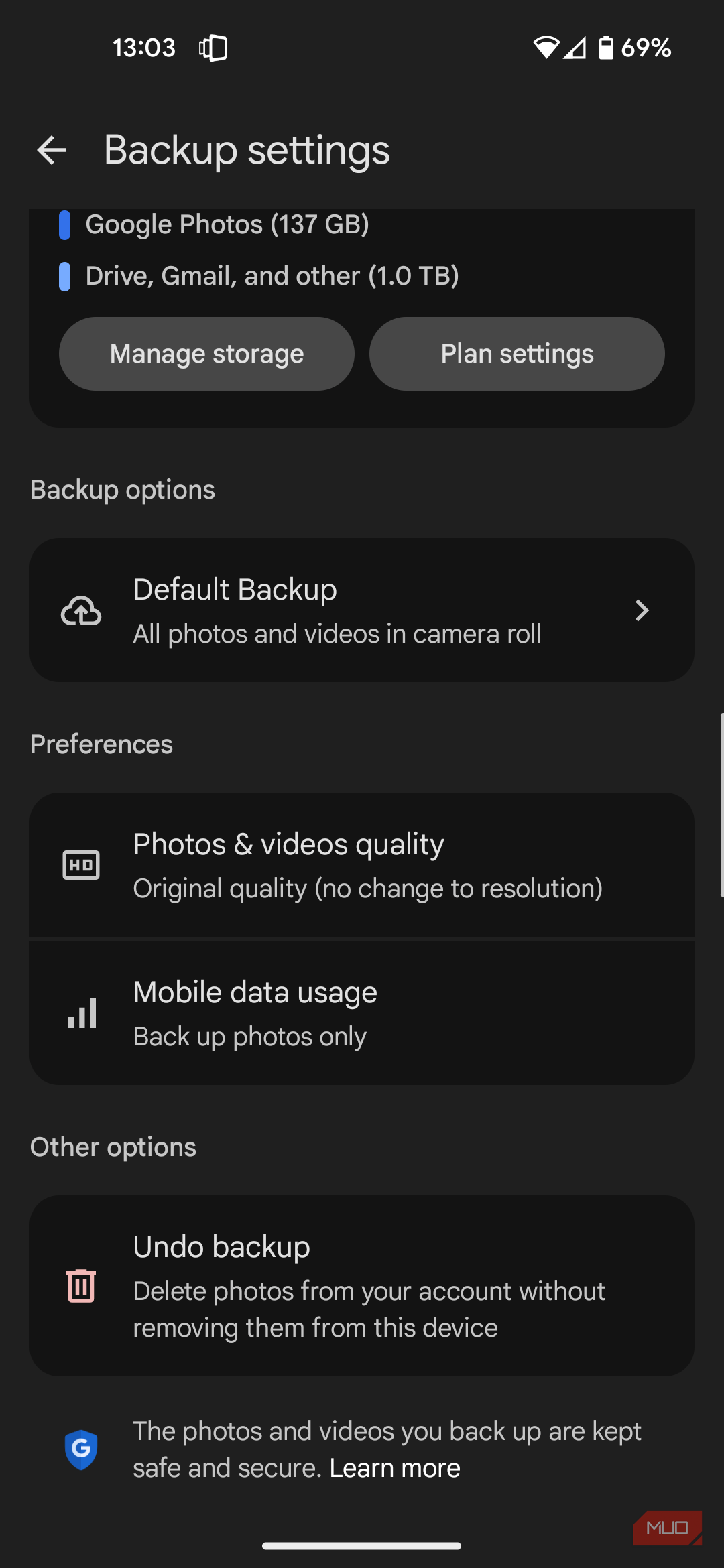
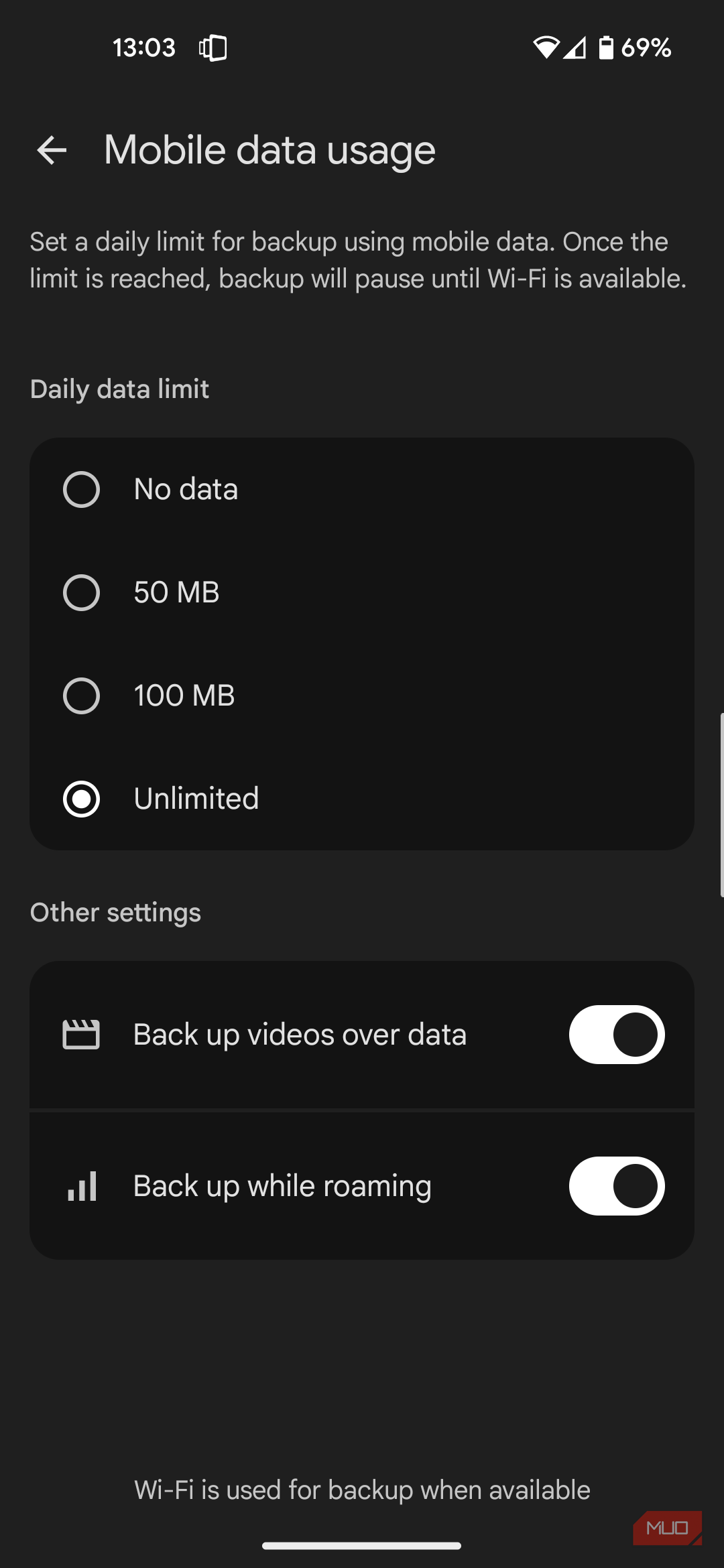
Travel is when I take the most photos, and naturally, many (if not most) of these are unnecessary. For example, I’ll photograph the same landmark from multiple angles, accidentally capture blurry images while walking, or end up with several nearly identical pictures because I’m trying to capture the perfect shot.
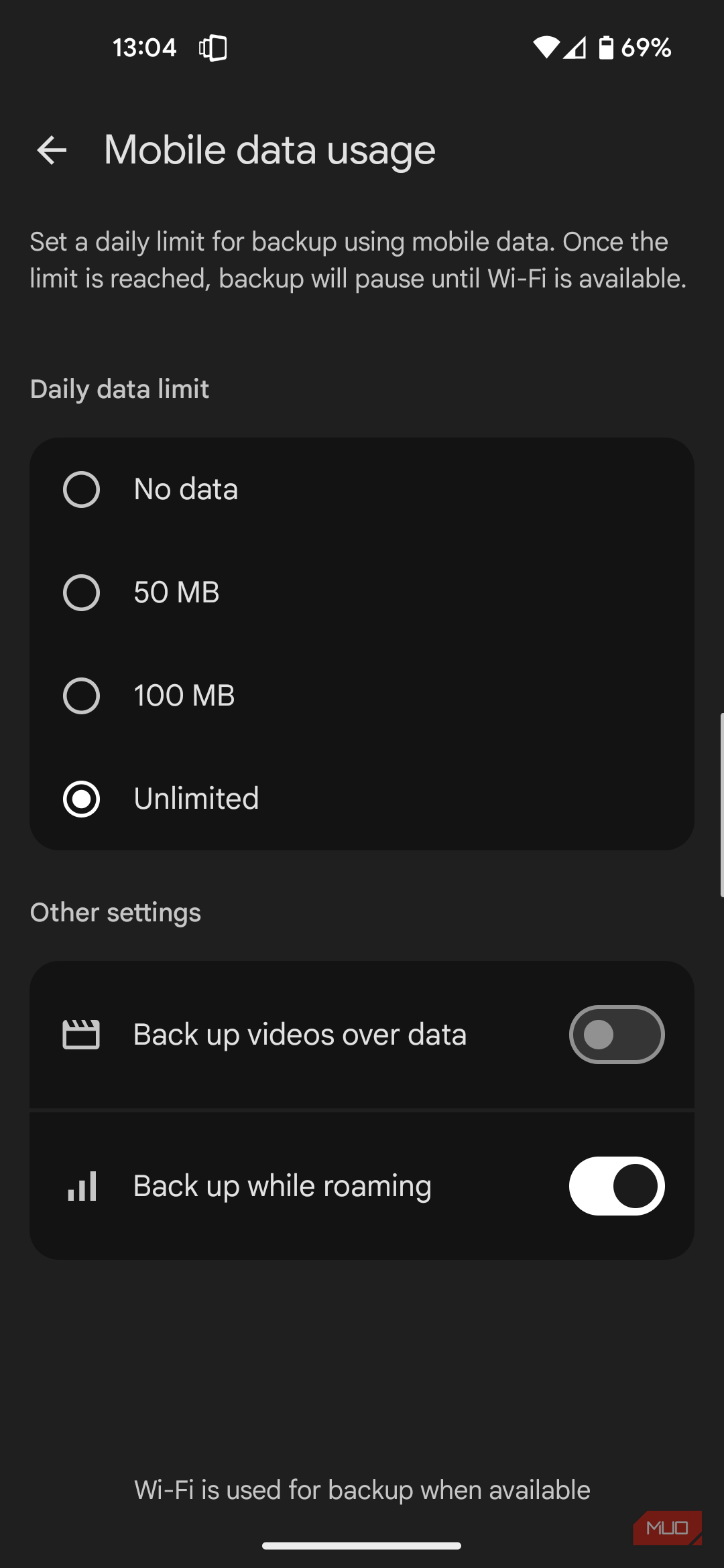
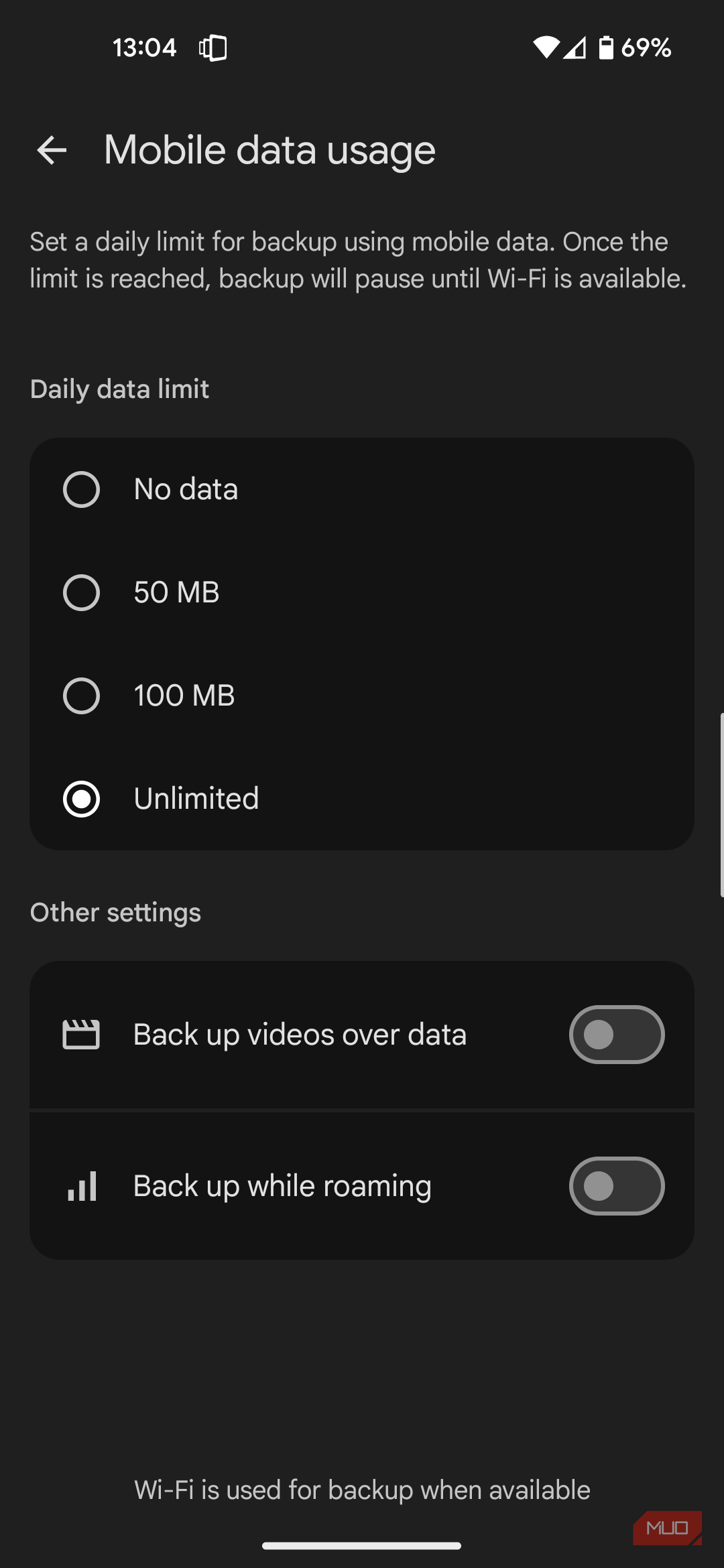
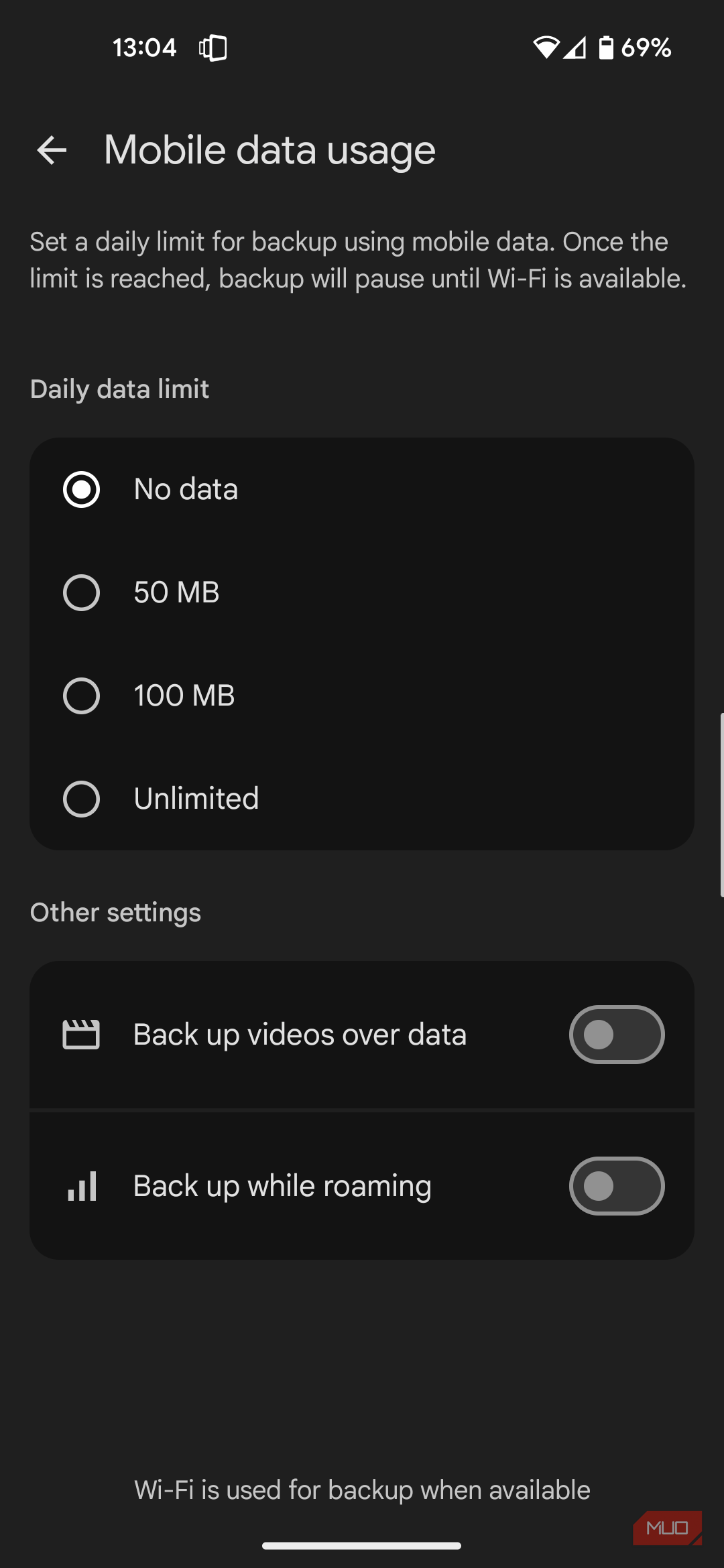
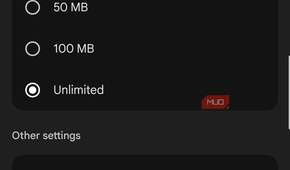
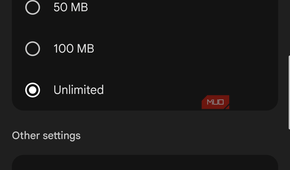
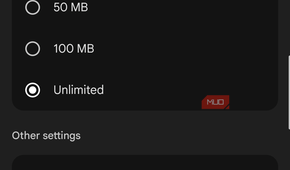
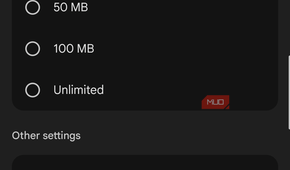
Previously, Google Photos uploaded everything over a mobile data connection. Before I had time to sit down to sort through my pictures, every duplicate and poor-quality shot had already reached the cloud. Turning off backup over mobile data (Photos settings -> Backup -> Mobile data usage -> No data) has made me more mindful of what I should keep in storage.
Now I wait until I'm connected to Wi-Fi, spend a few minutes deleting the obvious rejects, and only then let Google Photos upload what's left. This way, less storage is wasted, fewer duplicates make it into my library, and I’m completely in control of what gets backed up.
Spending a minute reviewing my camera roll made the biggest difference
This small habit saved me more storage than any setting

Ironically, the biggest improvement didn't come from changing any settings at all. These days, before I let Google Photos back everything up, I spend a minute scrolling through my latest pictures. This way, accidental pocket photos, blurry images, duplicates, and failed attempts are deleted immediately instead of becoming permanent additions to my cloud library. And every once in a while, I'll review my library and back up my most important memories rather than trust everything to the app.
It sounds almost too obvious to point out, but a quick review after a day of snapping photos has probably saved me more storage than any individual feature I've disabled. I've also found that my photo library tells a much better story because it's filled with intentional photos rather than digital clutter.
Taking back control was easier than buying more storage
If you don’t want to pay for a larger storage plan, it’s essential to be selective about what you keep, and by default, Google Photos will back up more than what you want or need. Turning off a few features and changing a couple of habits can make a significant difference, greatly improving the app experience.
Now, my library is easier to browse, search results are more accurate, and, most notably, it is a higher quality and a better reflection of my lifetime memories. As it turns out, the best way to get more space isn't to buy it; it's to decide what deserves to be saved in the first place.

Google Photos
Google Photos is a cloud-based photo and video storage service that automatically backs up, organizes, and enhances your media. It uses AI to sort images, create albums, and enable powerful search, while offering easy sharing, editing tools, and seamless syncing across devices.