


When trying to troubleshoot Wi-Fi connectivity issues on my old Android phone, I was fiddling with QoS-style features, hoping that something would fix the problem. While doing so, I also turned off a rather useless-sounding feature called Wi-Fi WMM.
The connectivity problem on my old phone stayed, but the internet speed on almost every device on my network dropped to 56 Mbps on a 200 Mbps connection. As I tried to retrace my steps through the QoS features, it took me a while to realize that this useless-sounding router feature was quietly hurting my internet speed, and it can do the same to yours without you even noticing.
What WMM actually does
It decides who gets to talk first on your Wi-Fi

Wi-Fi is a shared medium. Only one device can transmit on a channel at a time. Before any device sends data, it waits for the channel to go quiet, waits a random backoff period, and then transmits if nobody else has started. WMM, short for Wi-Fi Multimedia, changes those waiting rules depending on the type of traffic being sent.
It sorts your traffic into four categories. Voice traffic, like VoIP and video calls, gets the shortest wait times, and Video streaming gets short waits. Regular browsing and most apps fall under best effort with normal waits. And bulk downloads, backups, and updates get the longest waits. Higher-priority categories wait a shorter fixed interval and use a smaller random backoff window, so they usually win the race for airtime.
WMM is based on the IEEE 802.11e standard, and it became a required part of Wi-Fi starting with Wi-Fi 4 (802.11n). Every Wi-Fi standard since, including Wi-Fi 5 and Wi-Fi 6, depends on it. One common misconception is that WMM manages your internet bandwidth. It does not. It manages contention among devices sharing the Wi-Fi channel. That contention exists regardless of how fast your internet plan is. Even on a 2 Gbps connection, your devices still have to take turns talking over the air.
Another thing worth knowing is that WMM includes a power-saving feature called WMM Power Save. It lets battery-powered devices like phones, laptops, and smart doorbells sleep between transmissions and wake up efficiently to collect queued data. So even for devices that do not benefit from the traffic-prioritization side, WMM can still help with battery life.
Disabling Wi-Fi WMM can kill your internet speed
Modern Wi-Fi standards need it to run at full speed


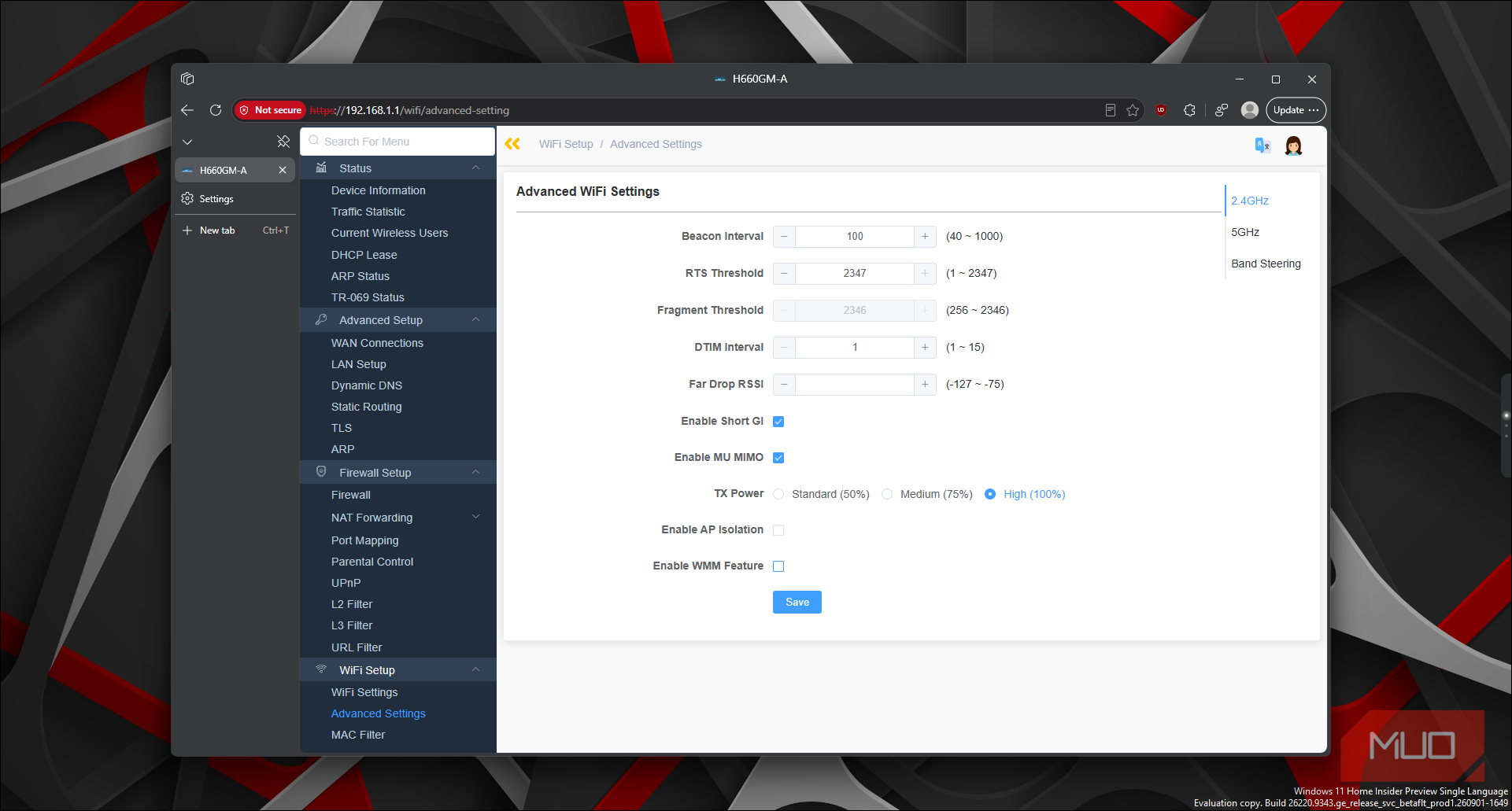
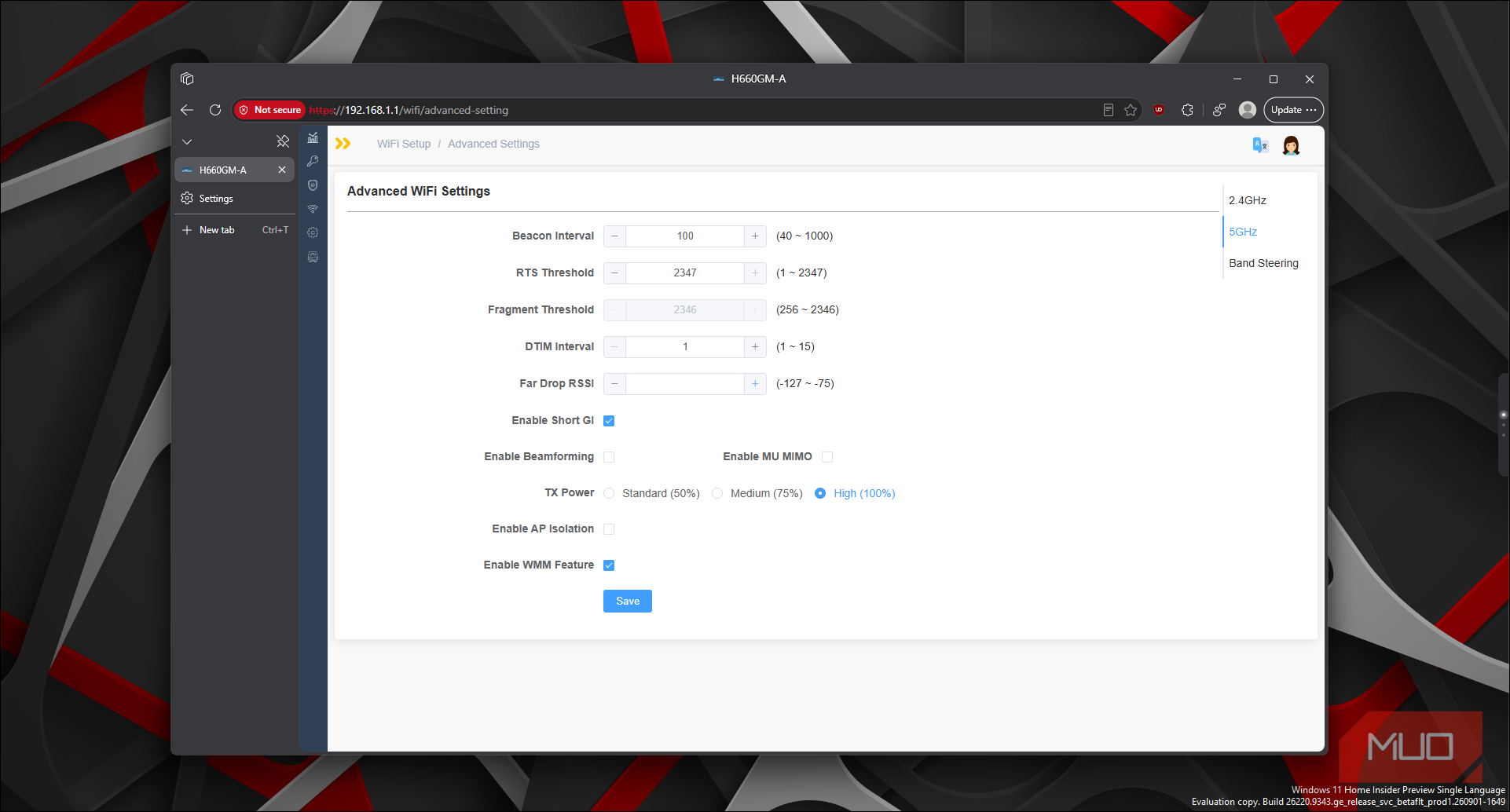
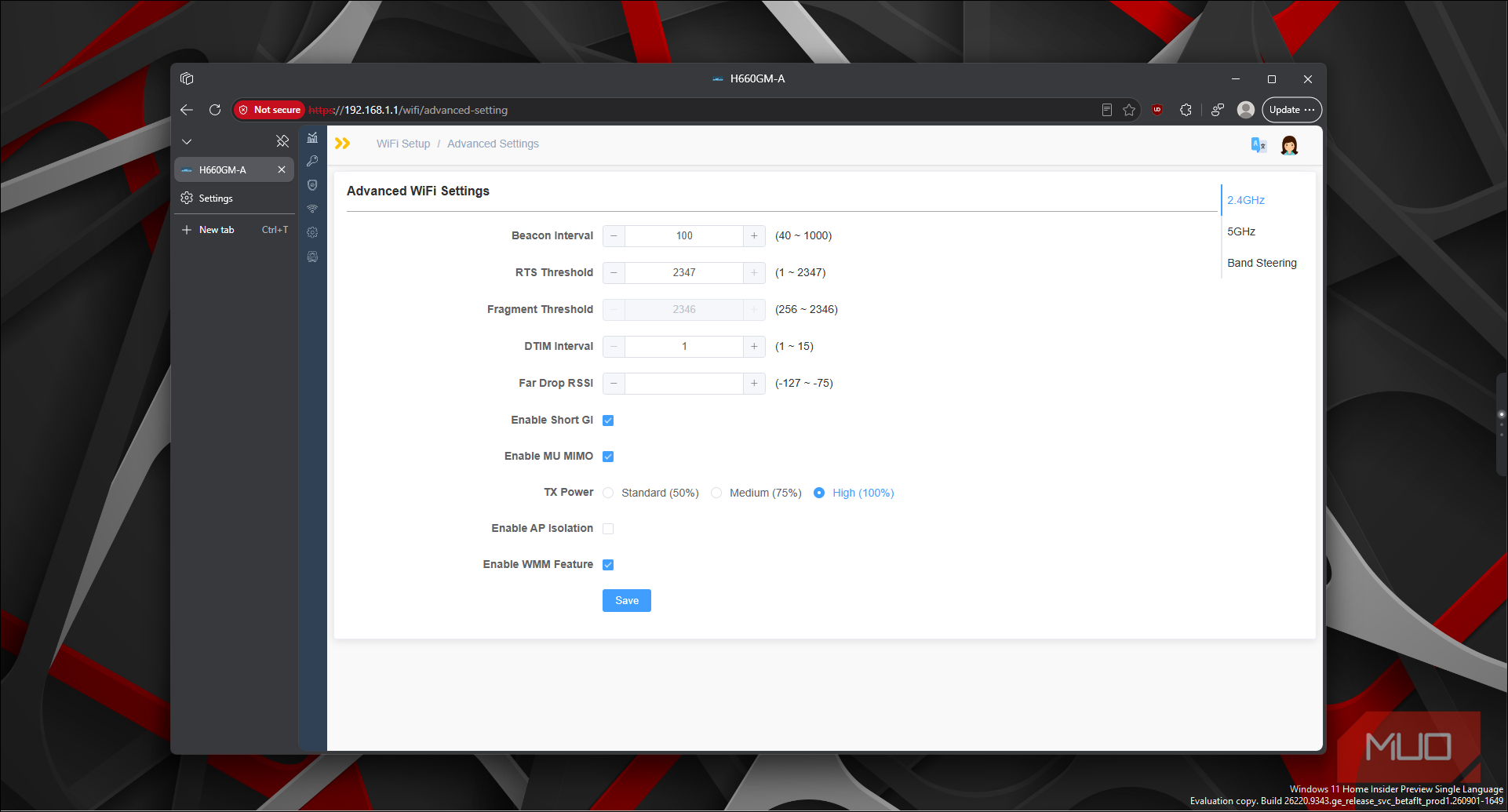

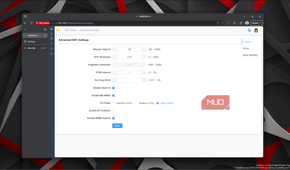
So, why did turning it off kill my internet speed? WMM is not just a nice-to-have traffic manager, and modern Wi-Fi needs it to run at modern speeds at all.
The 802.11n and 802.11ac standards (Wi-Fi 4 and Wi-Fi 5) require WMM for any link speed above 54 Mbps. Without it, the router and your devices cannot negotiate high-throughput rates. They fall back to legacy 802.11a/g rates, which top out at 54 Mbps on paper. In practice, Wi-Fi spends a lot of airtime on overhead like acknowledgments, contention, and preambles. A 54 Mbps link usually delivers about 20 to 25 Mbps of real data, and less with a weaker signal.
That is exactly what happened on my network. I turned off two router settings to try and match my plan's speed, but disabling WMM did the opposite. My speeds tanked because turning WMM off also disables frame aggregation. Much of Wi-Fi 4 and Wi-Fi 5's speed comes from bundling many small data frames into one large transmission and acknowledging them all at once. That mechanism depends on the QoS data frames that WMM provides. Without it, each frame is sent and acknowledged individually, which is far slower.
And because Wi-Fi is a shared, half-duplex medium, this does not just affect one device. Every device on the network talks at legacy speed, so they all split the reduced capacity between them. One setting change, and your entire home drops to 2000s-era Wi-Fi performance.
Turning it off rarely helps
The problems people blame on WMM usually have nothing to do with it

You will find forum threads where people claim disabling WMM fixed their lag spikes or connection drops. In some cases, the lag did go away. But that does not mean WMM was the cause.
Think about what WMM controls. It manages which of your own traffic gets priority on the wireless channel. It does not affect your signal strength, your Wi-Fi channel congestion, interference from microwaves or Bluetooth devices, overlap with your neighbor's router, or buggy drivers and firmware. Those are the things that cause most Wi-Fi problems, and WMM has nothing to do with any of them.
If someone disables WMM and their lag spikes disappear, the fix may have been a coincidence. Lag spikes at regular 30 to 60 second intervals are often caused by something else entirely, like a device scanning for networks in the background or a router firmware bug. Turning WMM off does not fix those root causes. It just happens to shake things up enough that the symptom temporarily goes away.
Meanwhile, there's a real trade-off with this fix. You are giving up modern Wi-Fi speeds, frame aggregation, and WMM Power Save. Your laptop may be clinging to a slower Wi-Fi signal already, without WMM making it worse. The better approach is to keep WMM on and troubleshoot the real issue. Move to the 5GHz band if you are not on it already, pick a quieter channel, and update your router firmware.
Keep Wi-Fi WMM on, fix the real problem
On a quiet home network with a handful of devices, WMM does not do much. Most of your traffic falls into the same best-effort category, so there is nothing to prioritize. However, the moment you turn it off, you lose the foundation that Wi-Fi 4, 5, and 6 are built on.
The only time disabling WMM is worth trying is when a very old device refuses to connect with it enabled, and even then, I would try a firmware update first. I turned mine back on, and my network went right back to the speeds I was paying for. Sometimes the most useless-sounding router setting is one you should never change.