


One of the more common "speed up your PC" pieces of advice I've come across is opening msconfig and setting the Number of processors to the highest value. What you may not know is that Windows already utilizes all the processors your system exposes, even without tweaking that setting.
Let me show you what that setting actually does and why it has become one of the most widespread performance myths. It takes just five minutes to prove it to yourself.
What the number of processors setting was built for
A debugging tool, not a performance switch

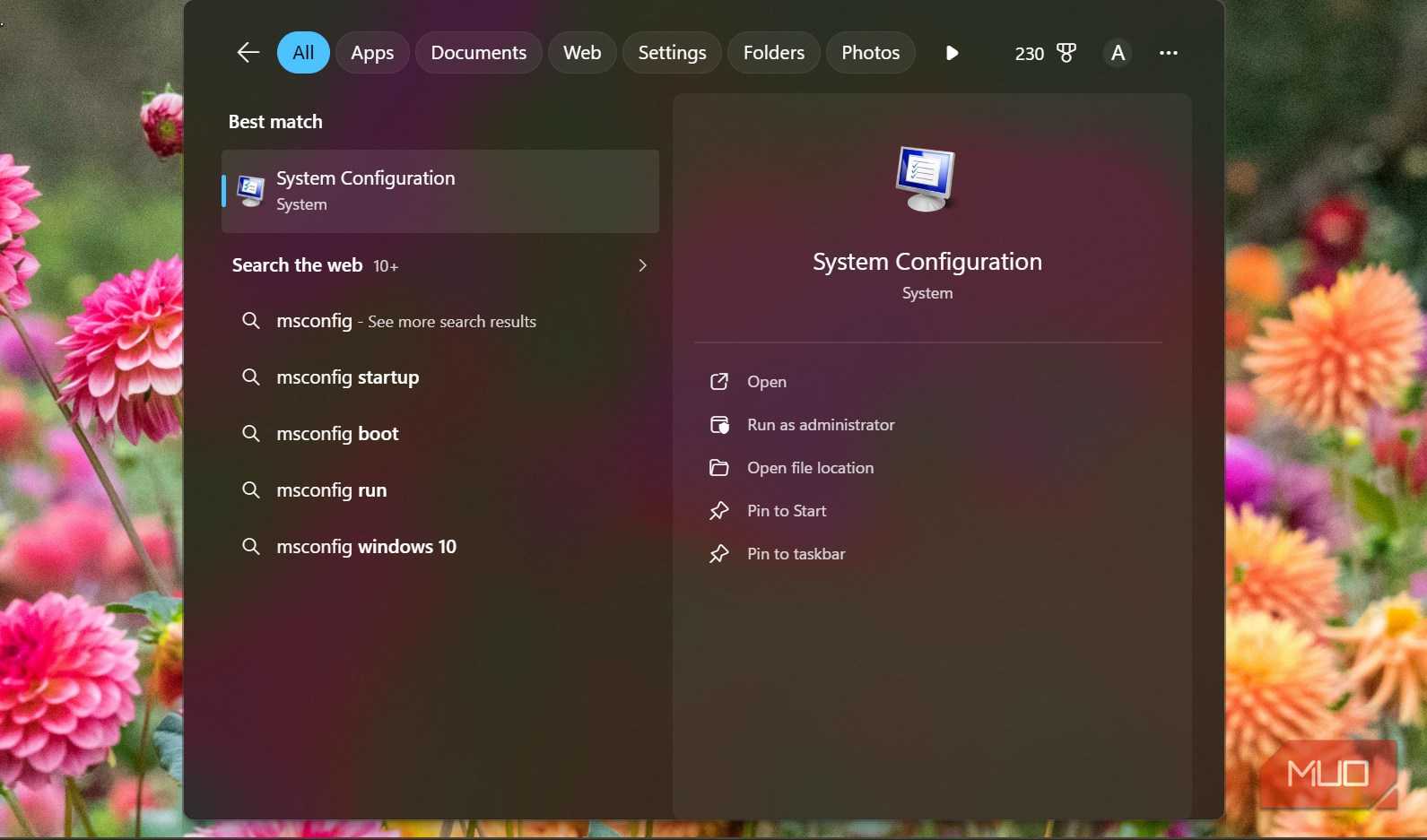
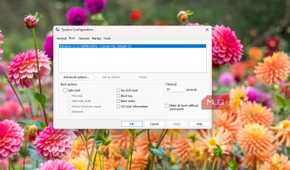
Open msconfig from the Start menu, then navigate to Boot -> Advanced options. There, you'll find the Number of processors option. This option serves as a boot-time limiter and is intended for IT teams and developers. It gives them control over the number of processors available when your computer starts up. It's primarily used for three things:
- Reproducing bugs on lower-spec hardware
- Testing how apps behave with fewer cores
- Troubleshooting driver conflicts that appear only under a specific condition
The boot-time limiter allows you to reduce processing power under controlled conditions; it doesn't increase performance. So, true to what it actually does, it limits rather than unlocks. From the moment your computer boots, Windows already has access to and uses all the logical processors exposed by the firmware, without requiring special configuration. This is the primary reason why this option is unchecked by default. Checking it only allows you to reduce the available processors.
So, how about that one detail about setting this option to the maximum core count? Well, the maximum processor count was already on your computer's ceiling before you opened the settings.
How millions came to believe the myth
A dropdown, confirmation bias, and one forgotten piece of CPU history

The dropdown for this setting is set to "1" by default. Clicking it and seeing numbers as high as 8 listed can easily give the impression that Windows was working with a single processor. That's the whole illusion that has driven this myth. The highest number has always been the ceiling Windows uses, but manually selecting it gives the impression that you just forced Windows to use it.
Confirmation bias completes the story. After tweaking the setting and restarting, your computer may genuinely feel faster, since a restart clears memory leaks and background clutter. Because the perceived improvement occurs right after changing the setting, the tweak often gets the credit. Just like that, it's been shared on forums, YouTube videos, and several other guides, and people don't generally care to benchmark before and after.
Aside from these, one genuine piece of history has made "hidden cores" feel somewhat plausible. Certain AMD Phenom II chips from 2009 to 2011 shipped with some cores disabled. This was common in some tri- and dual-core models like the Phenom II X3 720 Black Edition. In most cases, disabling the cores was due to manufacturing defects in those cores. Some motherboard manufacturers included the ACC (Advanced Clock Calibration) BIOS feature to re-enable those cores, but it wasn't always a guaranteed or stable fix. Even though this was unrelated to Windows, msconfig, or the Number of processors checkbox, the myth borrowed credibility from it.
You should also note that for people who believed this was a performance tweak, it went both ways. Selecting "2", for instance, means you have throttled your performance.
The five-minute check
The processor count never changes before or after


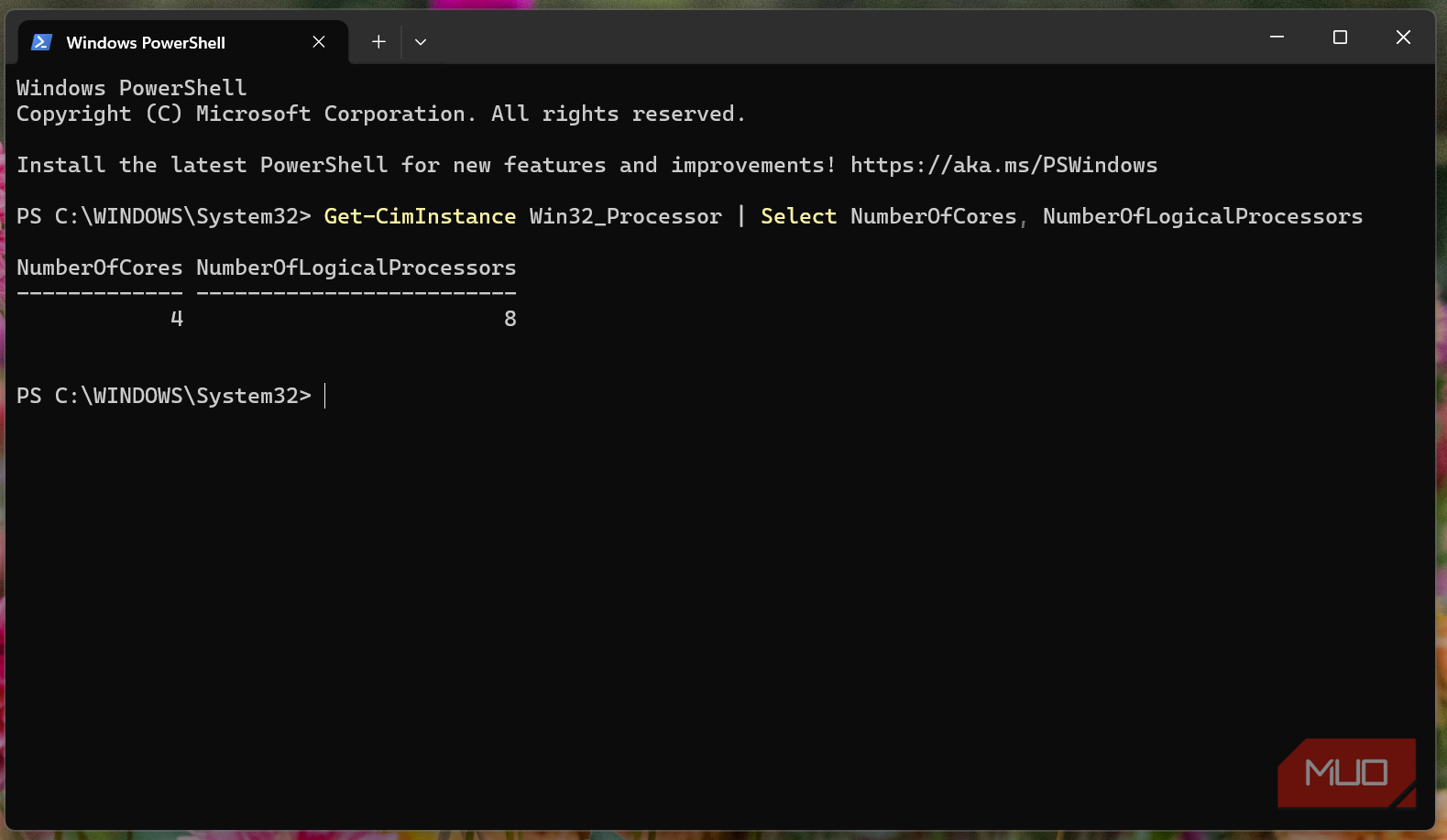
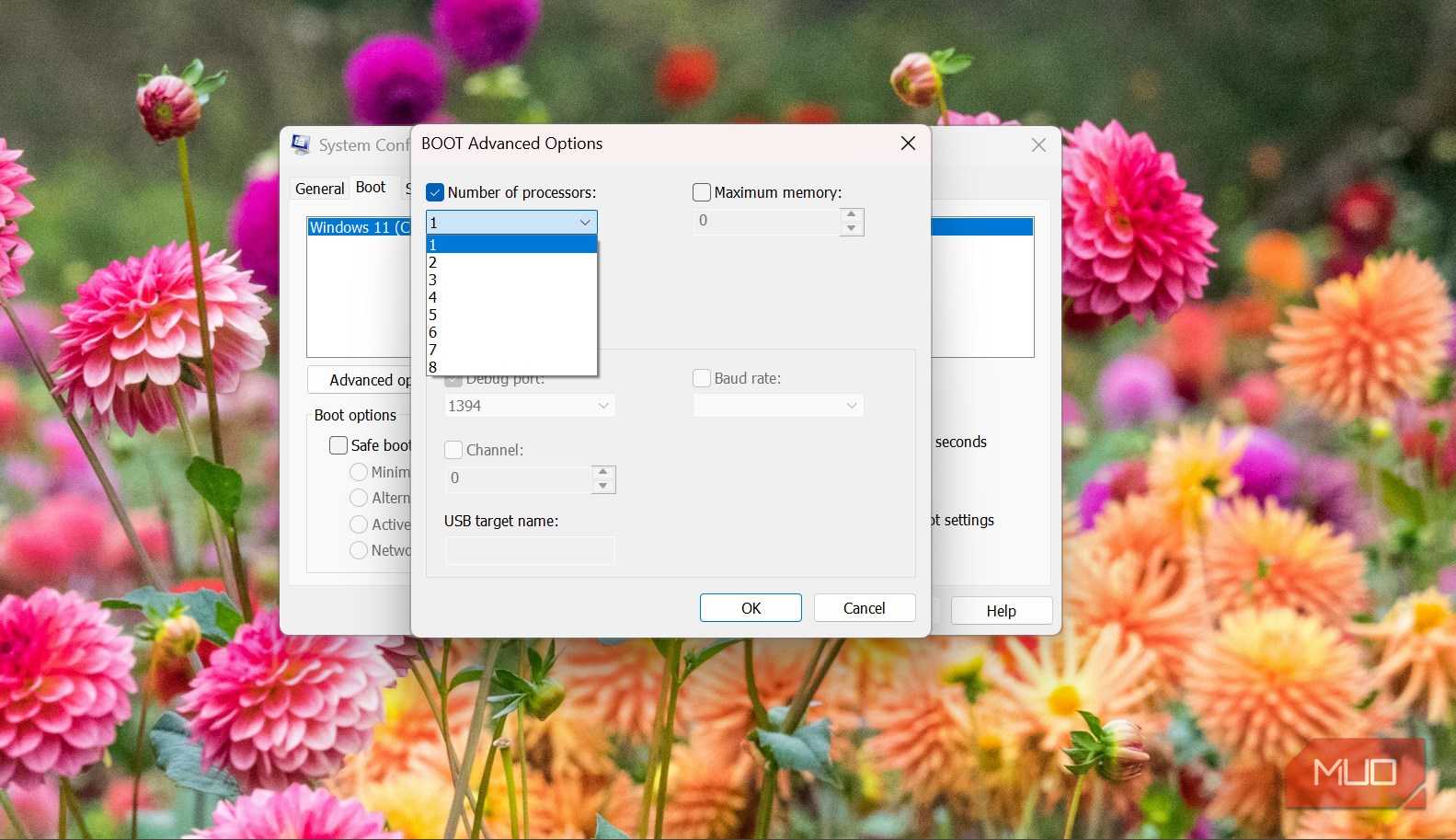
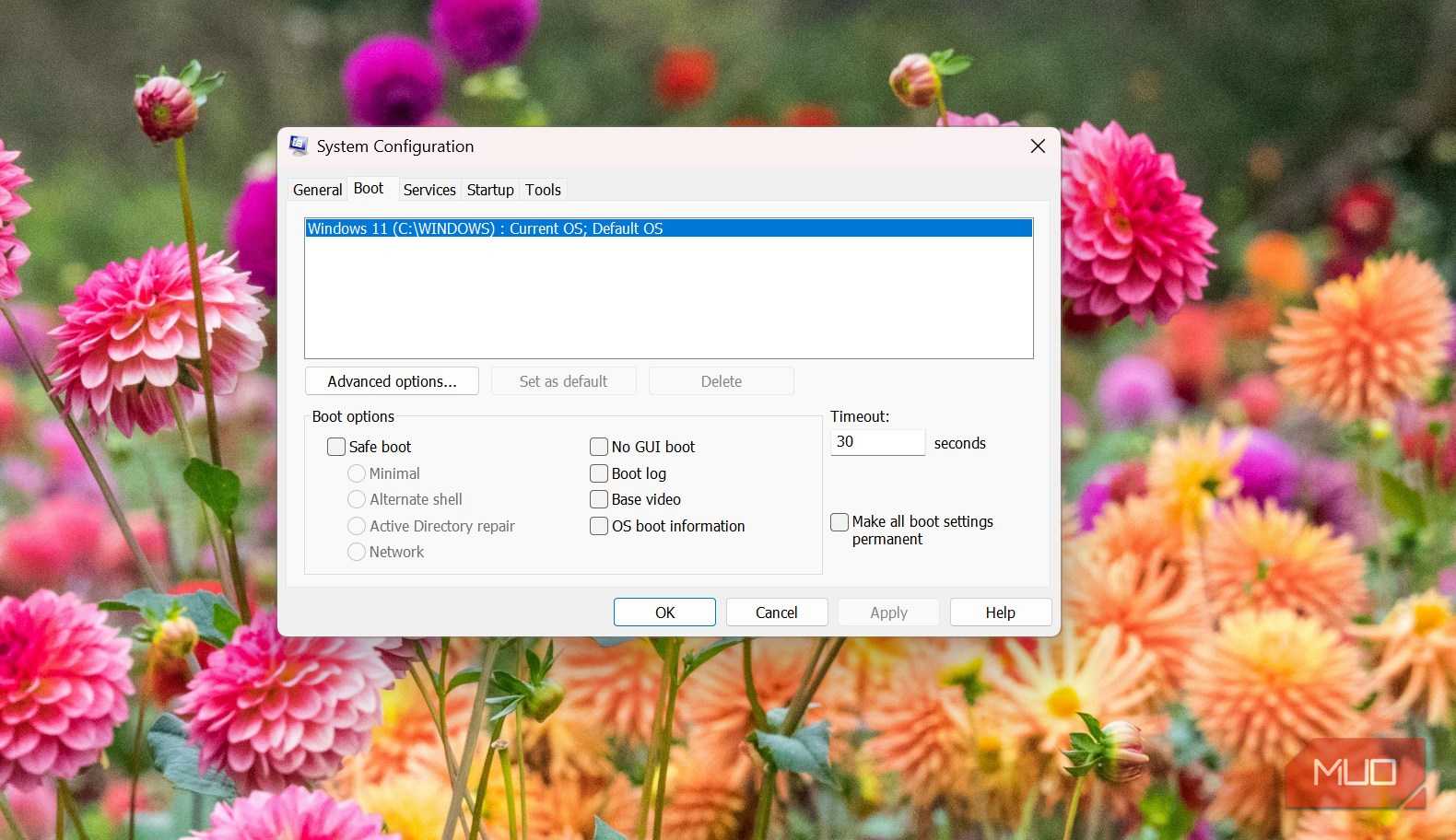
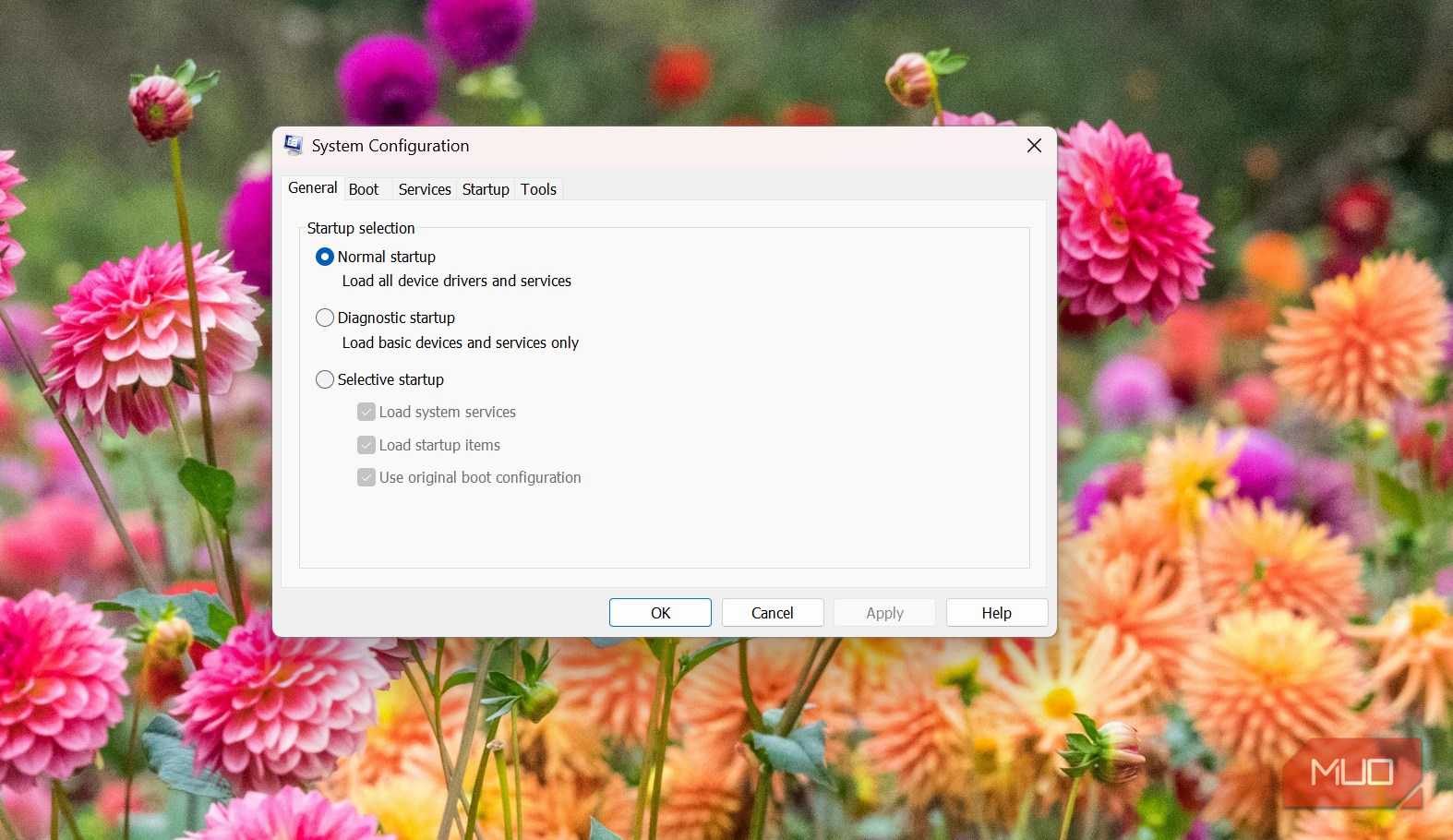



There are two ways you can verify this. The first is through Task Manager. Navigate to Performance -> CPU. Take note of the number of cores and logical processors shown at the bottom of the window. Without touching miscuing, restart your computer and check again. The values will stay the same. Now, go to msconfig and enable the Number of processors option, select the maximum number, restart the computer, and you'll see no change in Task Manager.
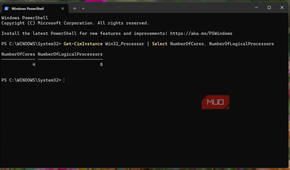
Alternatively, run the command below in PowerShell before and after changing the Number of processors option. Nothing will change:
Get-CimInstance Win32_Processor | Select NumberOfCores, NumberOfLogicalProcessors
|
MSCONFIG option |
What Windows does |
|---|---|
|
Unchecked |
Uses every available logical processor |
|
Checked, maximum value |
No change |
|
Checked, lower value |
Genuinely limits available processors |
The table summarizes the entire article. msconfig's "Number of processors" option isn't fictional; however, the setting can only limit available processors; it cannot enable more than the system already exposes.
The performance fixes that make a real difference
The cause of a slow PC rarely lies in msconfig. However, looking through these places may be the perfect starting point:
- Startup apps: The Startup apps section in Task Manager shows exactly which apps load each time you boot your computer. Some of these may hog more CPU and memory resources than you expect, even before you open any of your regular apps.
- Thermal throttling: When your laptop runs hot, it will, as a protection mechanism, drop its clock speed. There is no way to tell without using tools like HWiNFO to check temperatures.
- Power mode: The selected power mode genuinely impacts the computer's performance. Setting it to Best performance will give you Windows' optimal performance.
- XMP or EXPO: You'll face a real-world bottleneck if your computer is set to run at its JEDEC baseline instead of its rated speed. I've covered the impact of XMP and EXPO in detail.
The bottom line is that Windows isn't hiding your cores. Someone saw a dropdown and assumed it was a performance upgrade switch. It isn't.

HWiNFO
- OS
- Windows
- Developer
- Martin Malik
- Pricing model
- Free
HWiNFO is a free diagnostic tool that provides in-depth hardware analysis and real-time system monitoring.