


I usually have a secondary monitor connected to my laptop. It lets me be more productive so that I can run multiple apps at the same time and be able to interact with several apps at once.
But when I'm away from my office, the whole thing kind of falls apart, because monitors are not portable, and you're not going to take a monitor with you to the coffee shop. But you don't need to. You can get the benefits of multiple monitors using Virtual Desktops in Windows, especially if you know the trackpad gestures that makes it easier to move between them and give yourself the feeling of multiple monitors without actually having one.

The One Windows Productivity Feature That Changed How I Work
I stopped drowning in windows thanks to this one simple feature.
No need for multiple monitors
Each virtual desktop becomes a workspace collections of apps

Windows lets you have up to 32 virtual desktops. Each desktop can be a collection of apps that you can move between, almost as if you have multiple monitors.
This is a huge benefit for productivity because you can use virtual desktops to have collections of apps based on what you are doing: each desktop can have a different set of apps for different tasks, like you could have one desktop for planning a trip with a calculator, your AI assistant, and a Google Maps window in Chrome. Then, on another desktop, you have your personal tasks, like your email inbox and messaging app.
Then with Windows Snap Layouts you can maximize your screen space by letting Windows help you arrange your apps into halves, quarters, and other configurations.
This is incredibly useful if you have a laptop with a smaller screen—Snap Layouts lets you segment your display into multiple parts so you can see up to four apps on the screen at one time. If you have enough RAM, this means that 32 desktops with four apps each will allow you to have over 100 apps open at the same time.
Swipe up with four fingers to reveal virtual desktops
You can have up to 32 desktops
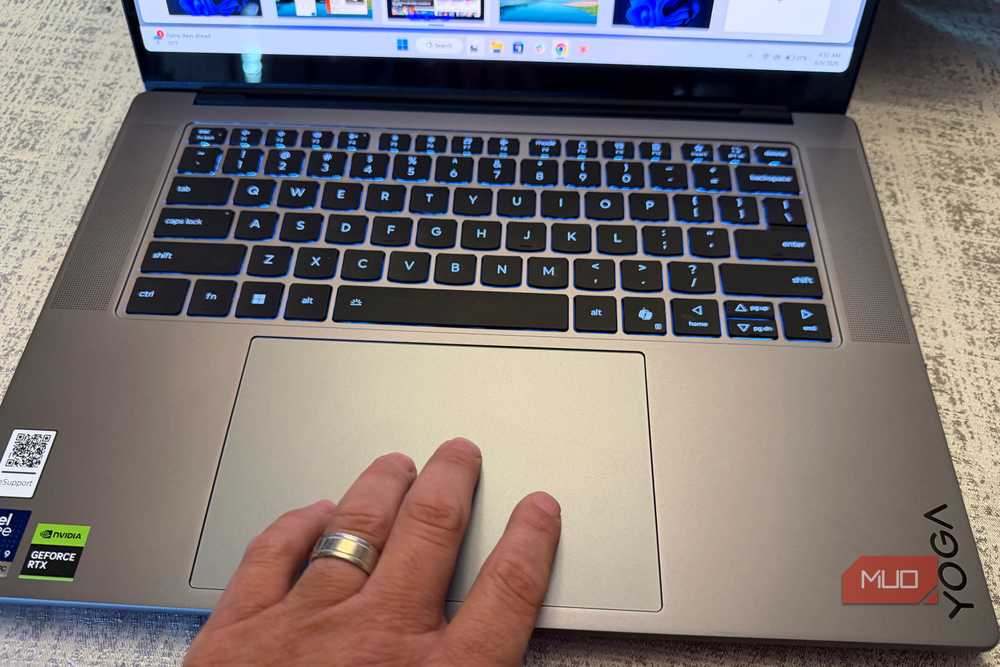
By default, a four-finger swipe up gesture on your Windows laptop trackpad will bring you to the virtual desktop view. From here, you can interact with each desktop preview along the bottom of the screen by moving them around with your mouse to re-order them, or you can hover on any and hit the X to close a desktop (which will not close the apps), or you can add a new one by pressing the plus button to the right.
Another gesture built into Windows which I use constantly is the four-finger swipe right and left, which lets you quickly toggle between your virtual desktop. This gesture is like "flipping between" multiple monitors and is the best way to toggle between your virtual desktop and all the apps you have opened on them.
The way I use this gesture is to sometimes set up just two virtual desktops: one with the task I'm working on (usually in Chrome) and the one adjacent for my communication app (usually Slack or email).
Then I can easily swipe between my current task and my communication apps with a quick gesture from my trackpad. In fact, Windows has several other gestures built into the operating system that can enhance your productivity further (like tap with two fingers to right-click or a four-finger click to bring up notification center instantly).
How to set it up
Learn the gestures and customize them
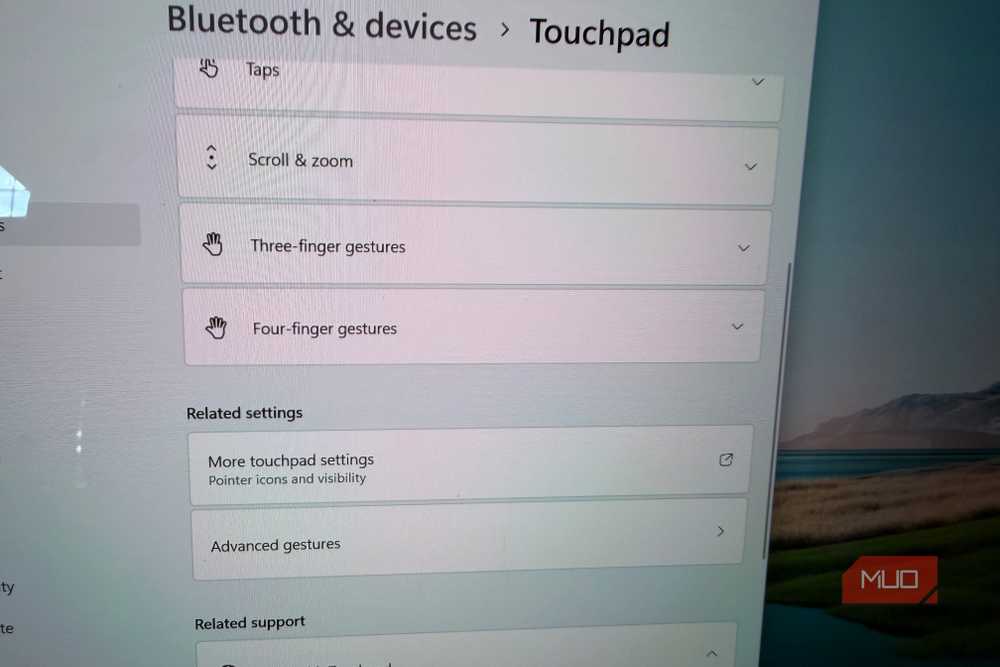
These gestures are already enabled by default on most laptops, but there are some settings you can play with to customize the gesture behavior.
To access this setting panel, go to Settings > Bluetooth & devices > Touchpad > Gestures.
From here you can customize the three and four-finger gestures. By default, a four-finger swipe up goes to multitasking (virtual desktop) view, while four finger swipes right and left will switch between virtual desktops. I like this setup, and it works for me, but it's possible you might want to make some changes.
You have four swipe action presets to choose from in this menu:
- Nothing: disables gestures
- Change audio and volume: this lets you swipe up and down to change volume, or swipe side to side to change your audio track.
- Switch desktops and show desktop: this is my favorite preset and is the default, and it works the way I want it by making it easy to see your virtual desktop overview, then swipe between them.
- Switch apps and show desktop: I don't like this one as much, which changes swipe right and left to toggle between active apps on a particular desktop. This is fine if you don't use a lot of virtual desktops, and want to easily be able to toggle between active apps similar to using ALT+TAB but with gestures.
You don't always need a second monitor
Virtual desktops fill the void
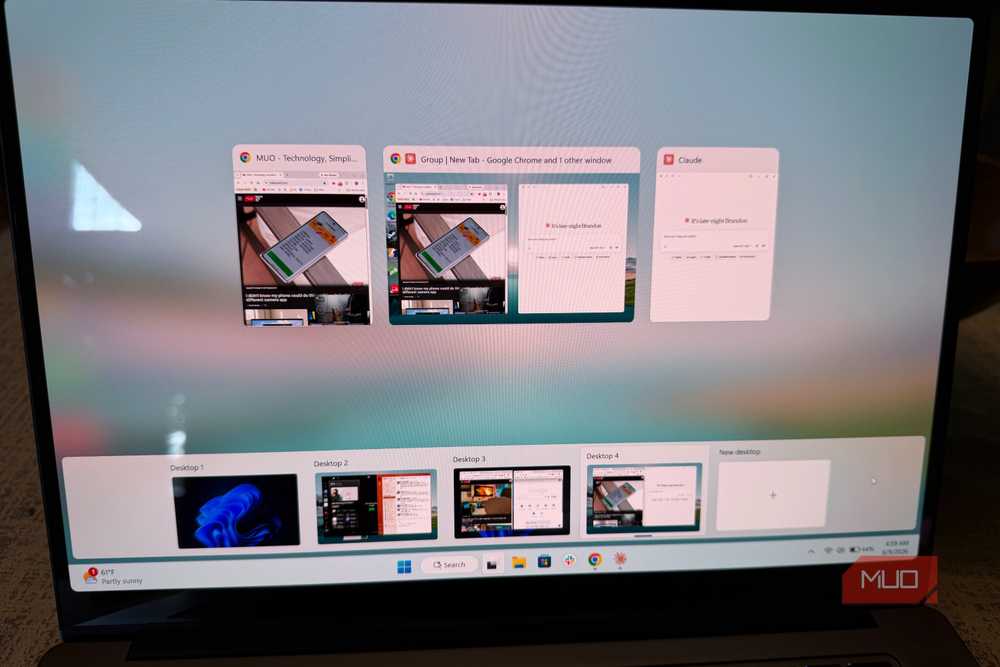
Do virtual desktops remove the need for multiple monitors? No, I still rely on multiple monitors at my office (and be sure you change a few settings to make your secondary monitor more useful). But the combination of using Windows' virtual desktops, along with trackpad gestures built into Windows, means that I can take my laptop anywhere, set up multiple desktop environments, and experience the productivity gain I get from a second monitor, but while leaving it at home.

Lenovo Yoga Slim 7x

- Operating System
- Windows 11
- CPU
- Snapdragon X2 Elite X2E-88-100 Processor (4.70 GHz)