


I have always liked the idea of using Android as a pocket computer, and while there are several ways to turn your phone into a PC, until a few weeks ago, I hadn't found the right launcher to scratch that itch. In my search for one, HyperDroid caught my attention with its Play Store listing, which describes it as a launcher that turns Android into a complete desktop experience. When I checked it out, I quickly found that it does not simply decorate Android but rather tries to reorganize it around a desktop metaphor, complete with a Windows 11-style interface.
Before I go into the details of the app, you should note that HyperDroid isn't a virtual machine, a dual-boot setup, or a remote desktop trick. It's just a launcher, and that's what makes it so remarkable.
The first boot will make you do a double-take
It looks like Windows 11, and even disturbingly so
Installing HyperDroid is as mundane as downloading any other app from the Play Store. Once it's installed, head to Settings -> Apps -> Choose default apps -> Home app and select it as your default launcher. If it doesn't show up right away, open HyperDroid itself and dig into its Settings or Control Panel window. From there, go to System -> Default Launcher and flip on the Enable as launcher toggle. After that, tap your home button, and your phone will look like it booted into a miniature Windows 11 desktop.
The desktop loads with the taskbar pinned to the bottom, the Start button on the left, and Wi-Fi, battery, and clock in the system tray on the right. The blue Windows 11 wallpaper fills the screen, with desktop icons for This PC, UiInstaller, and UiChrome sitting in the top-left corner. Opening the Start menu displays all your installed Android apps in a familiar grid, with a search bar at the top and a power button in the bottom-right corner. It moves and responds the way you'd expect, and the attention to visual detail is noteworthy throughout. I mean the typography, the subtle blur effects, and the transition animations.
There are early rough edges to acknowledge. On a phone's smaller screen, the launcher forces itself into landscape mode and compresses the interface into a layout that can feel a bit claustrophobic. You'll probably find yourself nudging the display scale around to make it usable. The default 80% scale helps fit more on screen, but it can also make text and controls harder to read. HyperDroid makes the most sense on a tablet or larger-screen Android device, where the taskbar, desktop layout, and windowed interface have enough room to be really useful.
If you truly want the full desktop illusion to turn your smartphone into a desktop replacement, you can pair it with a Bluetooth keyboard and mouse. A USB-C hub works too if you prefer a wired setup. Once everything is connected, you can head to the Click Behavior menu tucked inside the hidden taskbar icons and choose whether apps and files open with a single or double click. From that point on, navigating the interface with a mouse feels more natural, and right-clicking desktop icons produces a proper context menu, just like on the desktop.
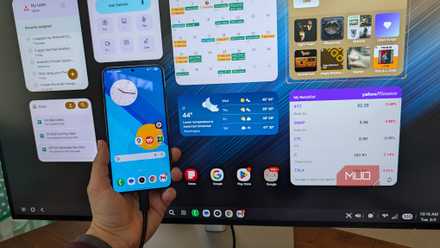
I finally found a real reason to use Samsung DeX
Here's a reason to use DeX that you might actually like.
There's real muscle behind the makeover
It's deeper than it looks
Beyond the visuals, it is good to see that HyperDroid ships with a suite of built-in tools that go further than any launcher I've tested. The system tray opens a control center with toggle tiles for Wi-Fi, Bluetooth, Nearby Share, Theme, and Accessibility, plus a volume slider and battery percentage, all without dropping back to the standard Android experience. The Settings app inside the launcher mirrors the Windows 11 settings panel closely enough that I navigated it on muscle memory alone without having to think much about where anything was.
The built-in browser, called UiChrome, is Chromium-based and ships with a standard three-dot menu offering Translate, Print, Find in page, and Install page as App, with which you can pin sites as desktop shortcuts that behave just like Progressive Web Apps (PWAs). I installed MakeUseOf this way, and it sat on the desktop like any native shortcut.
I was also impressed by the file explorer. It mimics the Windows File Manager's sidebar structure, with sections for This PC, Documents, Downloads, Music, Pictures, and Videos, making it intuitive to browse device storage, especially if you have spent time on a Windows machine. It also labels internal storage as Internal (C:) and any connected drive or SD card as USB Drive (D:), complete with used-space bars. If you drill into the internal drive, the full Android folder structure appears, rendered with yellow Windows-style folder icons. Opening any form of media (pictures, music, or videos) launches it in Windows 11-style default apps, which I think is a really neat touch that shields you from standard mobile viewer pop-ups.
The widgets panel, accessible from the taskbar, taps into Android's native widget ecosystem so that you can drop in an email preview, a weather card, or anything your installed apps support. The illusion breaks the moment you open a native Android app. For example, when I tap Phone from the Start menu, the launcher slides away entirely, dropping me into standard Android portrait mode. The dialer fills the screen exactly as it always has. It's a jarring reminder that HyperDroid is a very convincing costume, not a transformation. Because it is a launcher, not a root-level custom operating system, it must relinquish control to Android's native system parameters whenever a full-fledged mobile app requests the foreground.
HyperDroid is still a phone, somehow
I would not replace my laptop with HyperDroid, but I can absolutely see myself keeping it around for the moments when my phone feels powerful enough for the job but trapped in the wrong outfit. HyperDroid does not reveal that your Android was secretly a PC in the literal sense. It rather reveals that the border between phone and computer has been thinner than the default launcher would have you believe.

HyperDroid PC Launcher
- OS
- Android
- Price model
- Free, Premium
HyperDroid is an Android launcher that replicates the Windows 11 interface on your phone. It features a taskbar, Start Menu, and desktop icons.