


Passwords are an imperfect security method. By now, you probably know that using the same weak password across multiple accounts is a security nightmare. Instead, the smarter solution is to use strong, randomly generated passwords that are unique for each account. This is easier said than done, though. It's impossible to remember a complex alphanumeric code for every single website, app, or service we use — the complication of following recommended security rules mixed with the convenience of ignoring them encourages bad password habits.
The solution is using a physical security key, and in 2026, that doesn't mean you have to go out and buy a USB device to keep your accounts secure. Instead, your Android phone can double as a FIDO2 credential, and it can shore up your online security without the hassle. Set it up once, and enjoy simpler logins forever. I put off using my Android phone as a FIDO2 security key for years, and I wish I would've done it sooner. Here's how you can, too.
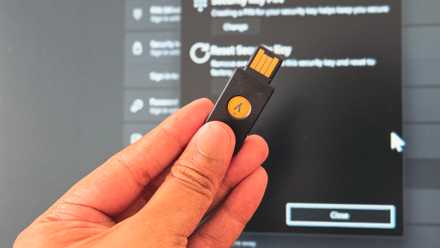
I use the same login protection Google trusts for its own staff
I stopped using passwords and switched to the same physical login protection Google uses internally for daily accounts.
It's time to let passwords go
Passkeys are more secure — and more convenient

I use two-factor authentication methods for many online services not because I want to, but because I have to. When a pop-up appears encouraging me to try a new security protocol or 2FA method, I tend to ignore it. Passwords are complicated enough, and I don't want to confuse matters further. Passkeys were the solution I needed, and they were right in front of me the entire time. They're an open standard made by the FIDO Alliance that leverages cryptographic keys stored on your devices.
This is the same kind of advanced cryptography used by traditional USB security keys, like a YubiKey. The process centers around a pair of security keys that match. The private key is the one stored on a hardware device, such as a USB security key, while the public key is shared with the website handling the internet account. When you attempt to log in to a website, app, or service, the site sends a specific challenge that can only be signed using the private key stored on the hardware device. However, the private key itself isn't shared — it never leaves your physical security key — making this login method extremely secure.
We've long heard about this cryptography being used in the context of dedicated security keys. Now, an identical type of advanced cryptography is used to create passkeys on your Android phone. Instead of the private key being stored on a USB key, it's stored on your smartphone's secure chip. This is the Titan M2 on a Google Pixel phone or the Knox Vault on a Samsung Galaxy phone. All you need to do is unlock your device with biometrics or a passcode to authorize the passwordless sign-in, and the passkey will handle the rest.
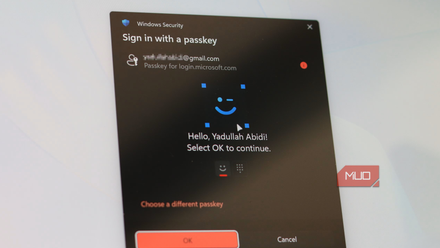
Passwords are officially obsolete — here’s why you should make the jump today
I was initially apprehensive to switching over to passkeys, but it's as simple and secure as advertised.
Your phone is a FIDO2 credential
Set up your device as a security key for your Google account
It's easy to start using your Android phone as a FIDO2 credential that can unlock your Google account. Begin by logging into your Google account on the web, clicking Manage your account, and selecting Security & sign-in. Scroll down to Passkeys and security keys, and click on this option. You'll need to sign in to your Google account with your password, or another passkey or security key, if you already have one set up.
If this is your first time, or you need to create a new passkey, click the blue Create a passkey button. You'll see the following message explaining how your Android phone or a physical security key can be used to log in to your Google account:
Create a passkey to start signing in with just your fingerprint, face, or screen lock. You can create a passkey on this device or use another device, like a hardware security key.
Hit Create a passkey to set up your computer as a passkey, or click Use another device to set up your Android phone as a passkey. A QR code will appear, and you should scan it with your Android phone to pair the two devices. Then, follow the on-screen prompts to add the passkey to your device. After that, you're all set. The passkey will be added to your device and the Google password manager, so you'll be able to set it up on future devices as well.
When to use passkeys and security keys
For most people, a smartphone is good enough

Physical security keys are known for being able to unlock a variety of devices, and your Android phone can do the same. When you attempt to sign in to your Google account on any device, you can avoid entering a password by clicking Try another way → Use your passkey. This will bring up a QR code that you can scan with any phone with a passkey for your Google account. Scan it, authorize the login with a biometric or passcode on your Android device, and you'll be logged into your Google account on another device. It's that simple — your Android phone is now a passkey that can authorize logins to your Google account on any device.
It sounds like a physical USB key, but better. So, when do physical security keys make sense? Since you can use hundreds of security keys for different internet accounts with a single USB key, a physical device might make sense for bulk passkey use. Additionally, USB keys still serve a purpose if you want to lock down your accounts to a single physical device, rather than tie them to your phone or password manager.
If you're still using passwords, though, it's time to give passkeys a try. You don't need a YubiKey anymore, because your Android phone is a security key in itself.

Google Pixel 10a
- SoC
- Google Tensor G4
- Display
- 6.3-inch Actua pOLED display, 1080 x 2424 resolution, 60-120Hz, 3000 nits peak brightness
- RAM
- 8GB
- Storage
- 128GB, 256GB
- Battery
- 5,100 mAh
- Ports
- USB-C
The Google Pixel 10a is a budget-oriented smartphone with a flat back and long battery life. It's powered by the same Tensor G4 chip as its predecessor, and many key specs are identical to the Pixel 9a. However, you do get a brighter screen, better modem, new software features, and Android 16 with seven years of software support.