


What if I told you that even when your VPN is enabled, your favorite web browser is handing over your real IP address, your actual location, and your browsing habits to any website that asks?
I found it out the hard way. A quick DNS check with my VPN active showed my ISP’s server in plain view, and my real location was leaking. Your browser has several independent ways of exposing you, and fixing one is not enough. WebRTC, geolocation, DNS requests, sync account, and fingerprint each hand over what's left of your privacy. Fix one, ignore the rest, and you're still exposed.
Here's how to close the gap, starting with the most dangerous one.
Disable WebRTC in your browser
This sneaky feature exposes your real IP address





WebRTC means Web Real-Time Communication. It enables real-time communication, typically used for video chat, voice chat, or peer-to-peer file sharing, directly in the browser without extra plugins.
However useful it may sound, the problem is that it works under the hood. To establish that peer-to-peer connection, WebRTC bypasses the VPN tunnel to find your real, local, and public IP addresses. A website can use WebRTC to even discover your IPv6 address, all while you are connected to a VPN. This is called a WebRTC leak and is one of the most common ways VPNs get exposed.
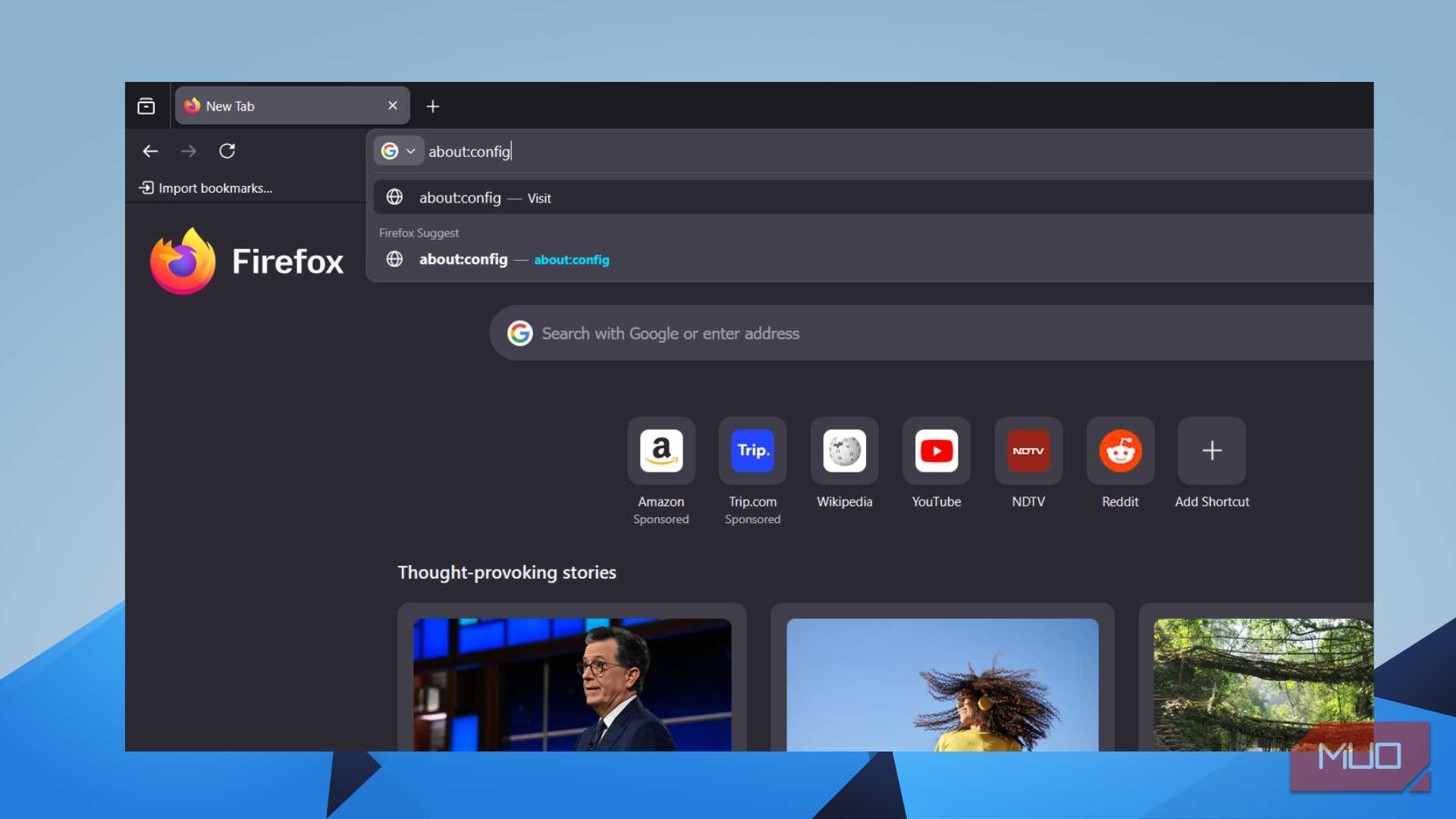
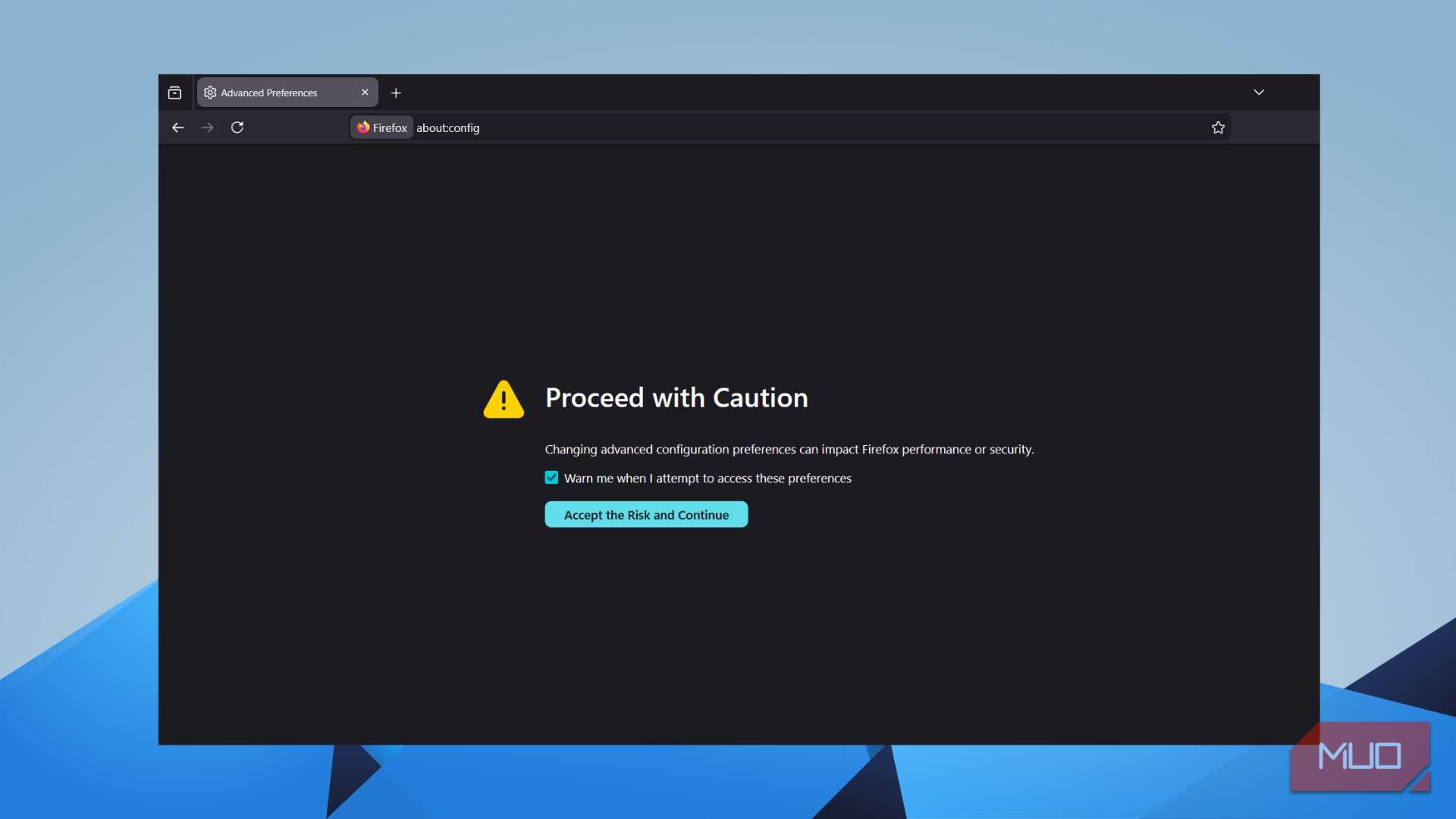
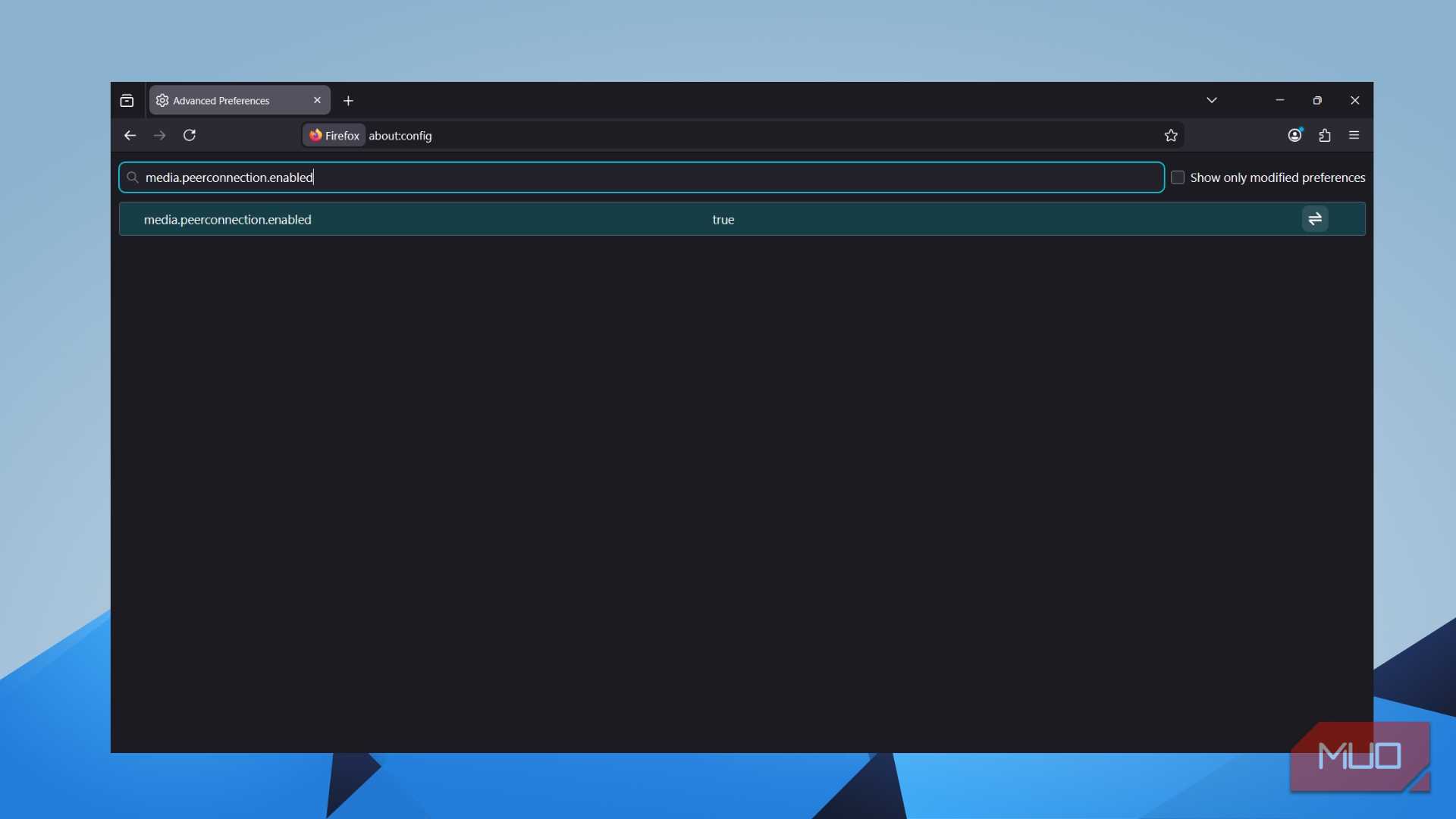
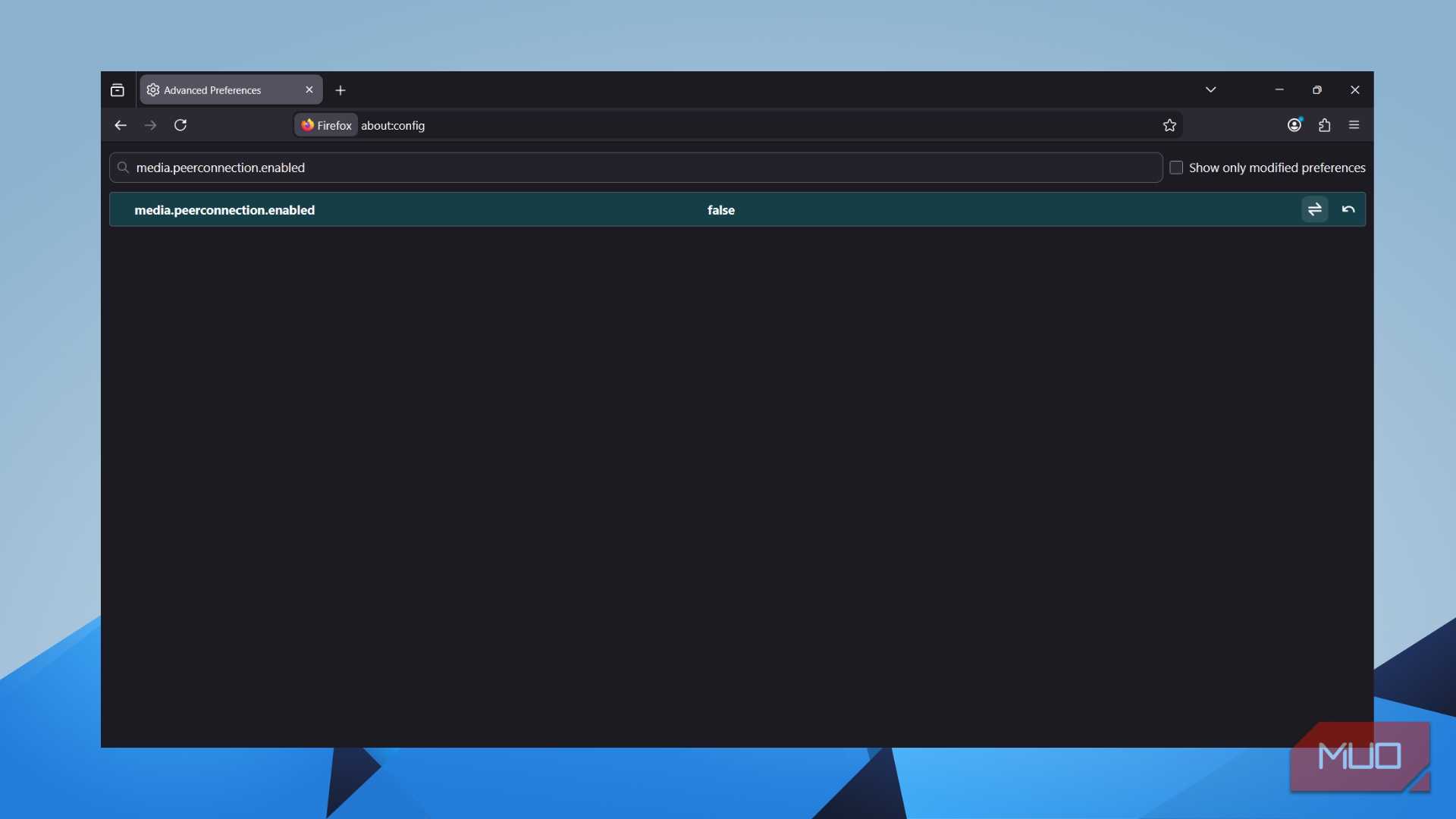
Thankfully, you can easily disable this. If you use Firefox, then you need to type about:config in the address bar and toggle the media.peerconnection.enabled option to False. This will disable WebRTC.
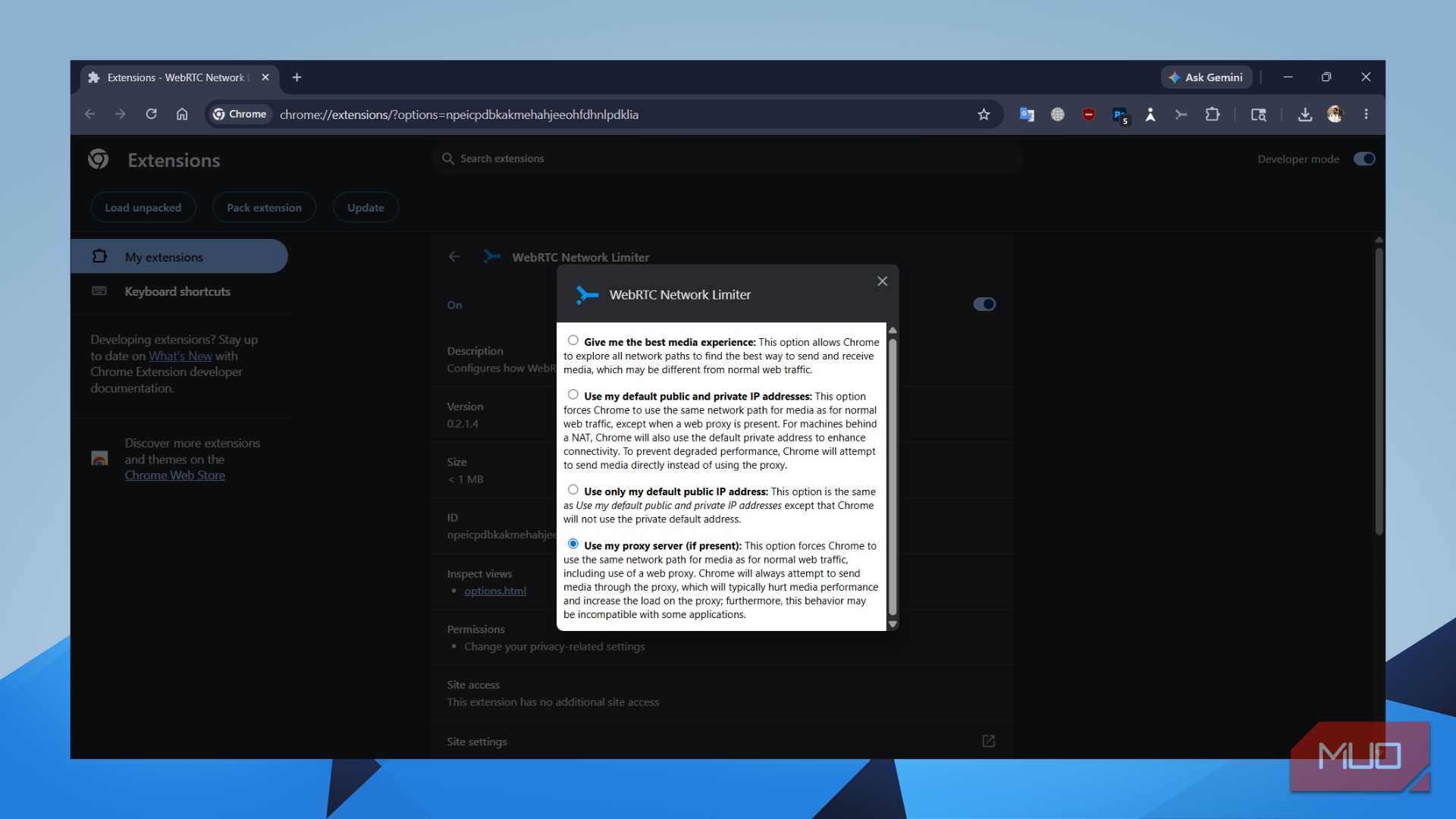
Unfortunately, there is no direct toggle in Chrome or Edge browsers. However, you can use extensions such as WebRTC Network Limiter, which comes from Google itself. After installing the extension, click Options, and select “Use my proxy server (if present)" or "Use my proxy server (if present) and limit to non-proxied UDP.” This ensures that if a VPN doesn’t support a specific connection type, it fails rather than leaking.

WebRTC Network Limiter
- OS
- Chromium
WebRTC Network Limiter is a lightweight Chrome extension that helps prevent WebRTC from leaking your real IP address, especially when using a VPN or proxy. It works by limiting how Chrome routes WebRTC traffic, improving online privacy without needing advanced setup.
Stop your browser from sharing your location
Geolocation permission is a massive hole in a VPN’s armor


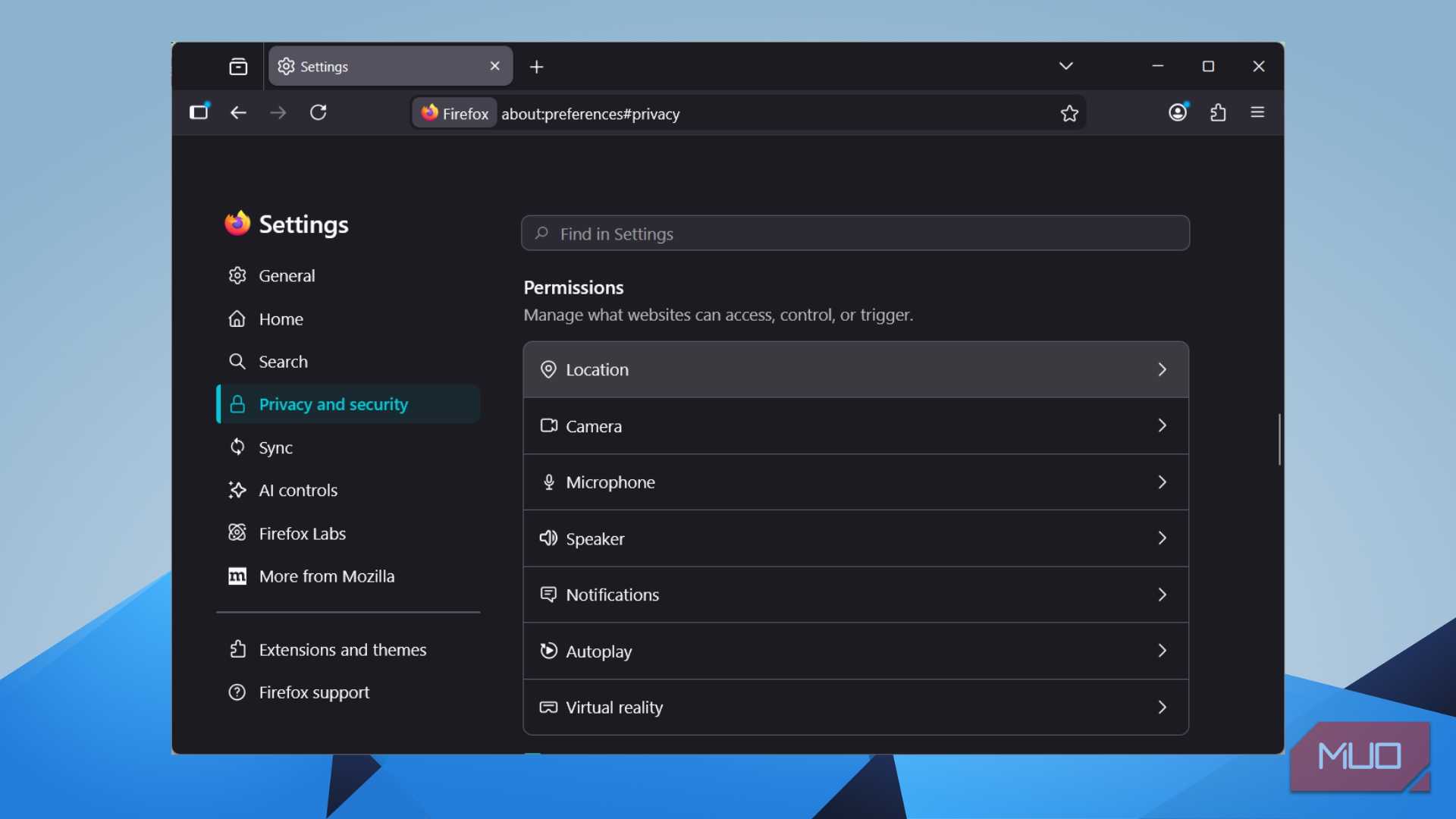
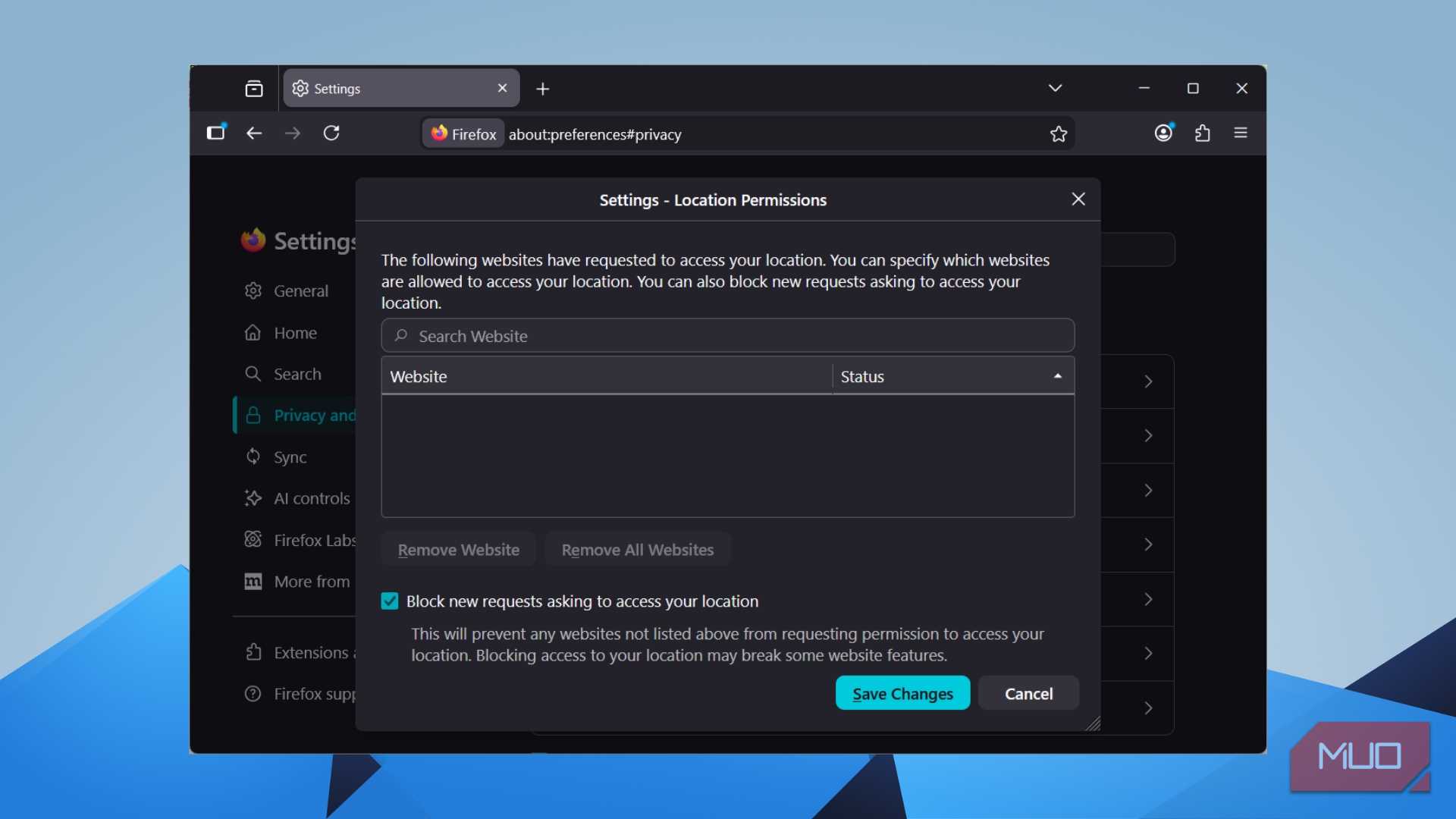
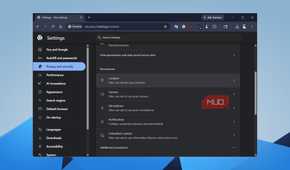
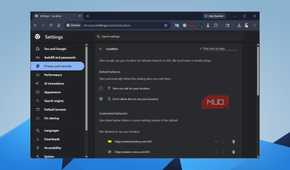

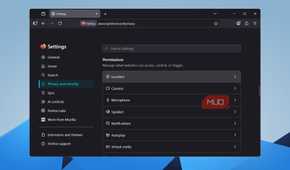
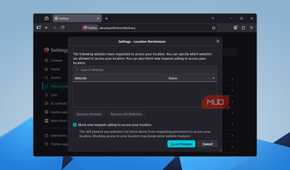
When you turn on your VPN, it masks your IP address. However, what it absolutely cannot mask is the browser’s built-in geolocation API. This can read your GPS signal, nearby Wi-Fi access points, and cellular towers to pinpoint your exact location. When a website asks “Can we access your location?” and you click Allow, you’ve just handed over your exact co-ordinates, VPN or no VPN.
While most people press the Allow button before thinking twice, especially on sites like Google Maps and weather websites, this is understandable. But the permission that you give here doesn’t expire automatically. Many websites use this information quietly in the background.
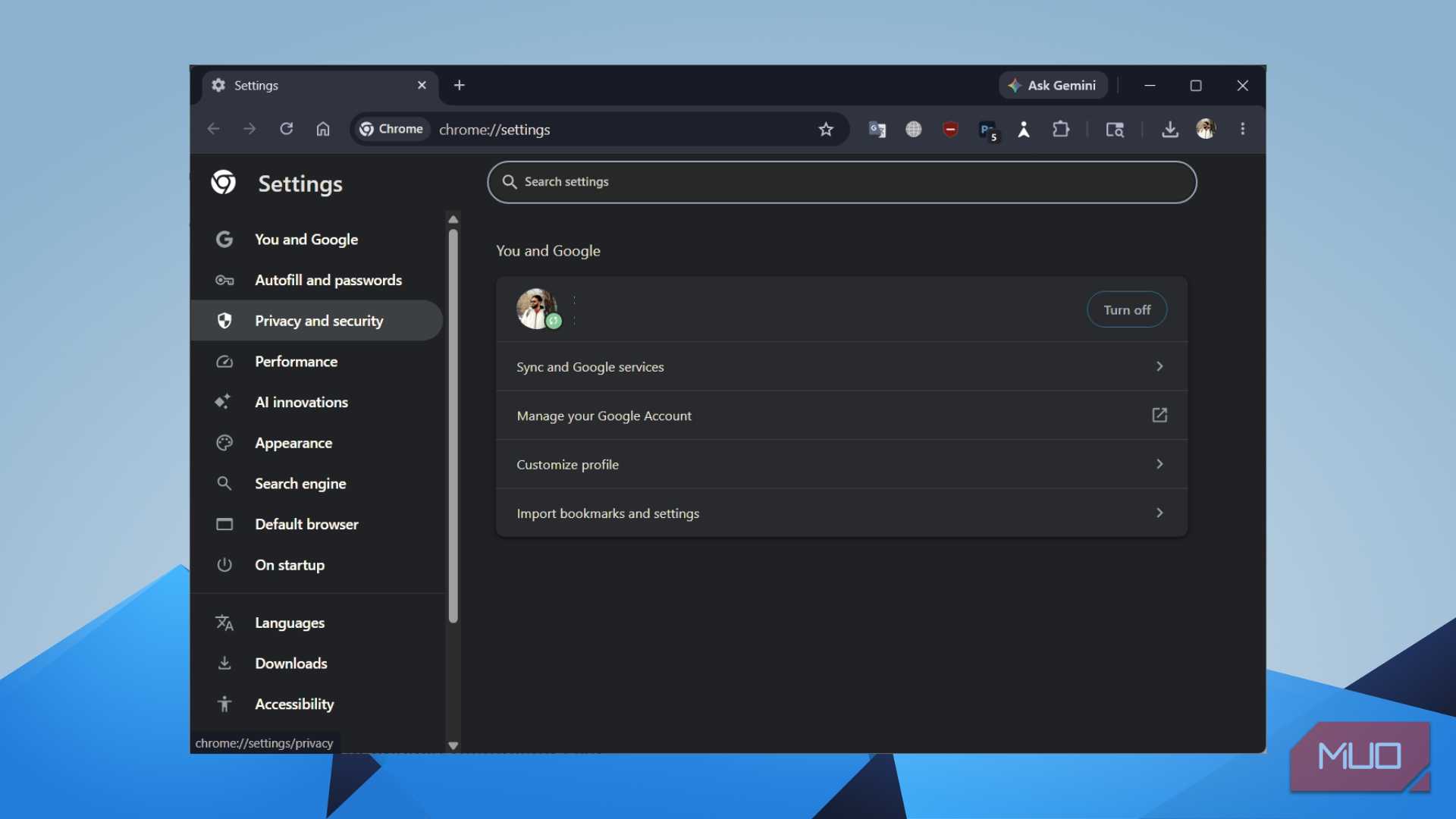
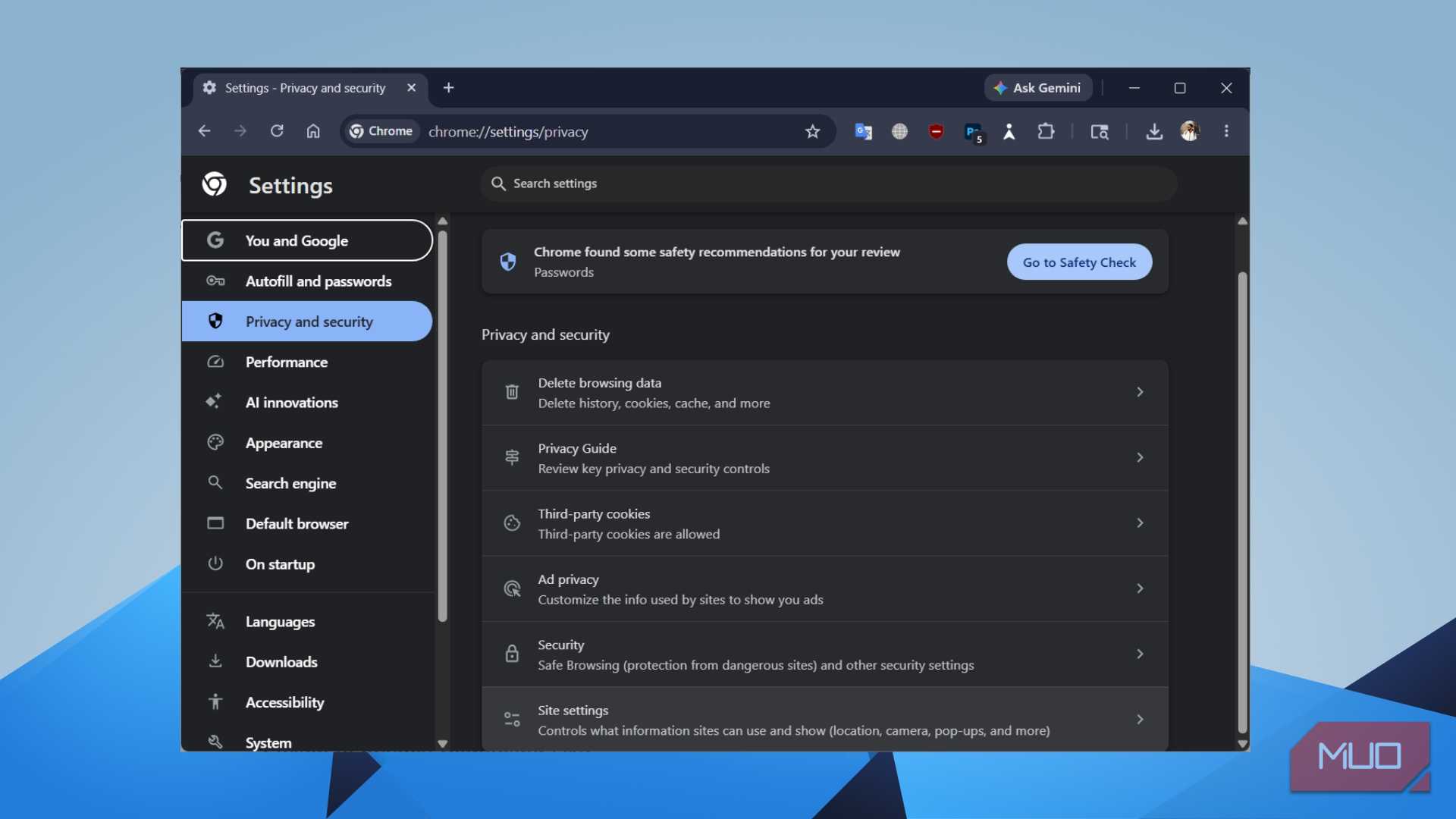
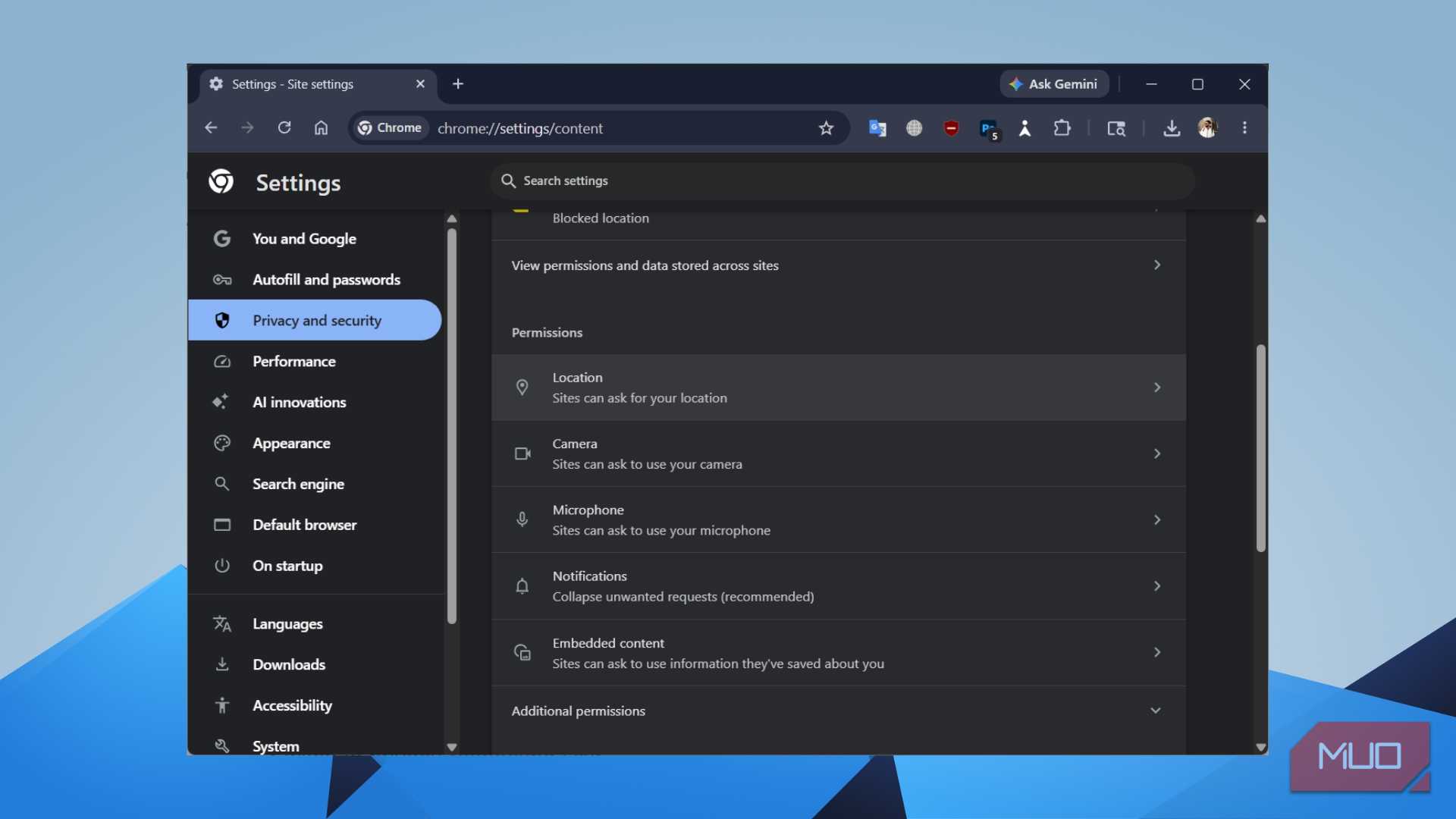
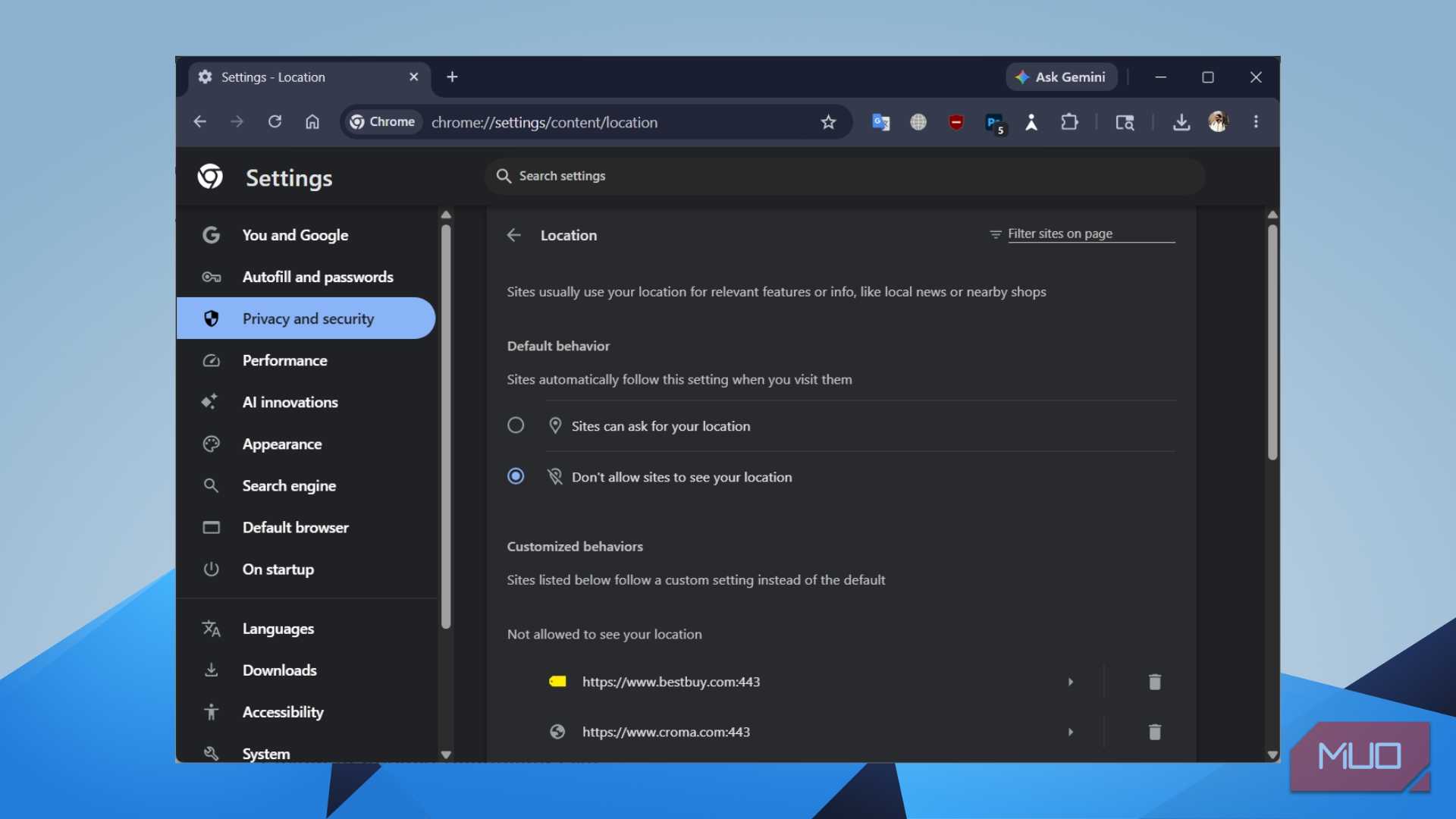
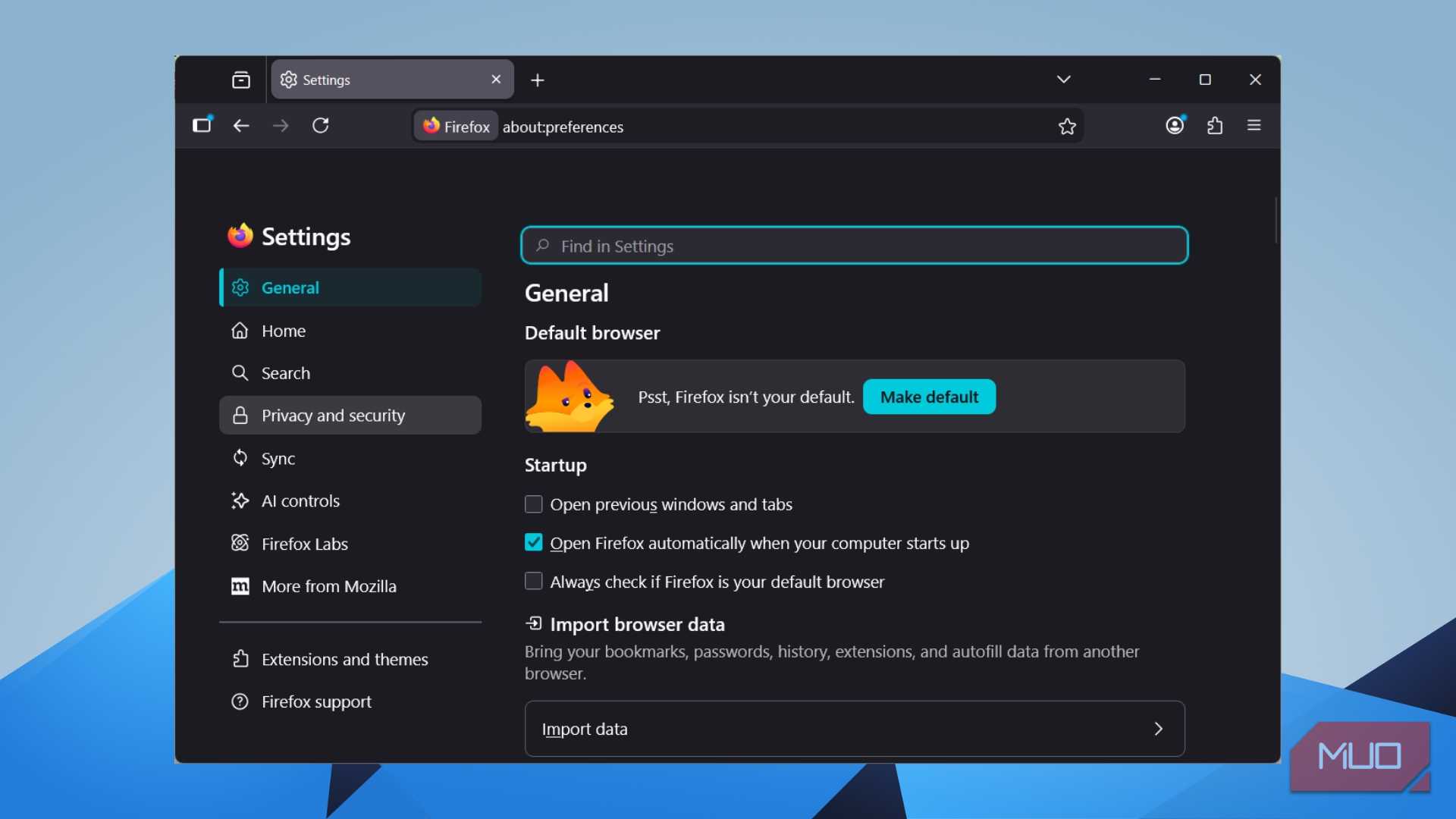
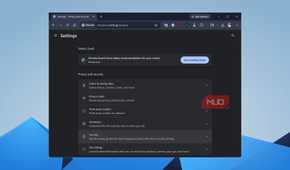
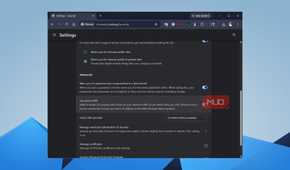
To fix this, you need to head over to your browser’s privacy settings and revoke location access. In Chrome, navigate to Settings -> Privacy and Security -> Site Settings -> Location and set it to “Don’t allow sites to see your location.” In Firefox, this can be done under Settings -> Privacy and Security -> Permissions -> Location.
Switch to a privacy-respecting DNS
DNS leaks are silent killers of VPN privacy


Every time you type a web address, your browser asks the Domain Name System (DNS) to translate that text into an IP address. By default, this request goes through your ISP’s servers. Even when your VPN is active, some OSes and browsers will fail to use the VPN’s DNS if the VPN responds late.
This is called a DNS leak. Since your ISP can see every single domain you visit, even if the content of those visits is encrypted, the VPN may be active and doing its job on paper, but your browsing history is available and handed over to your internet provider on a silver platter.
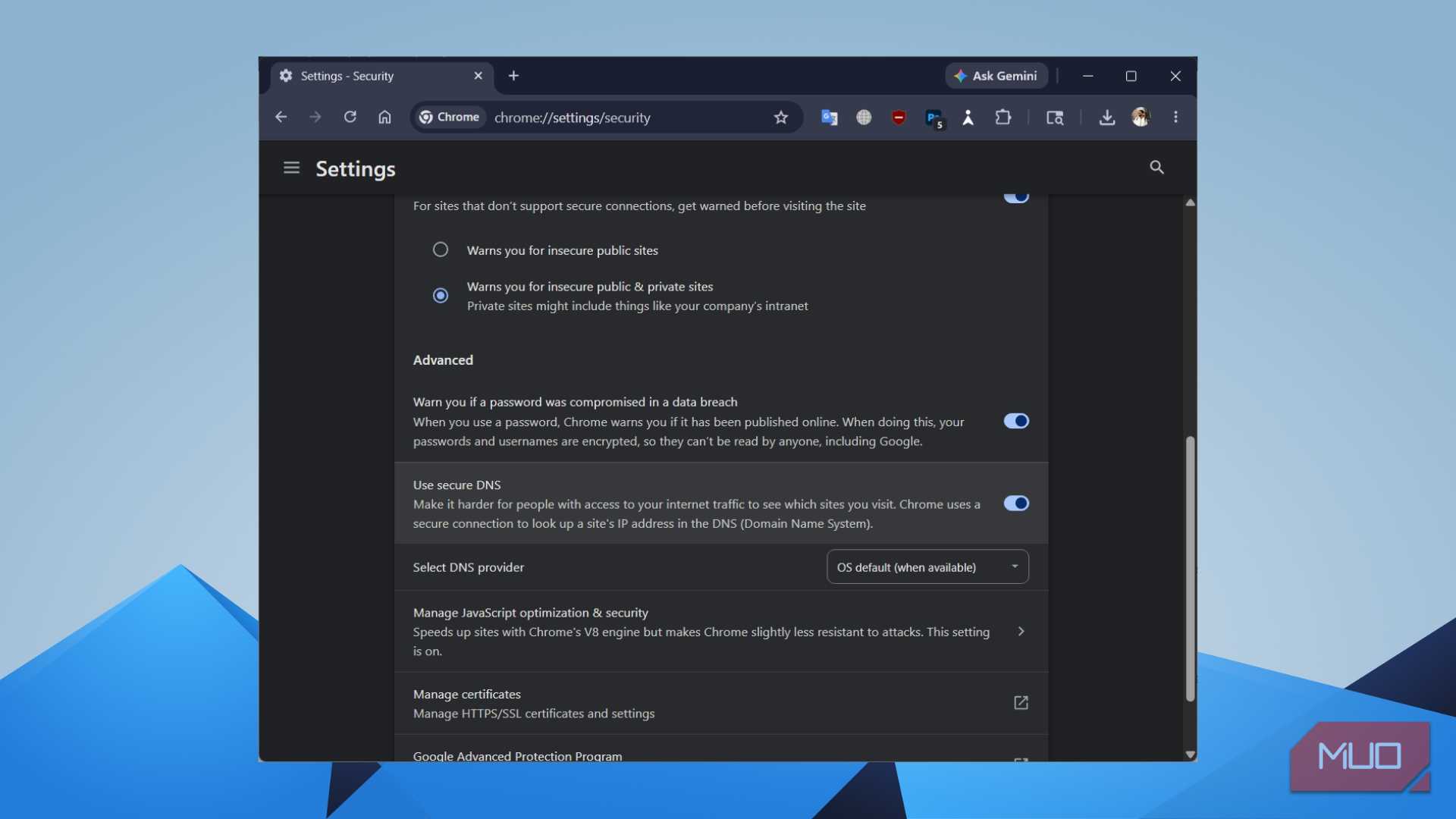
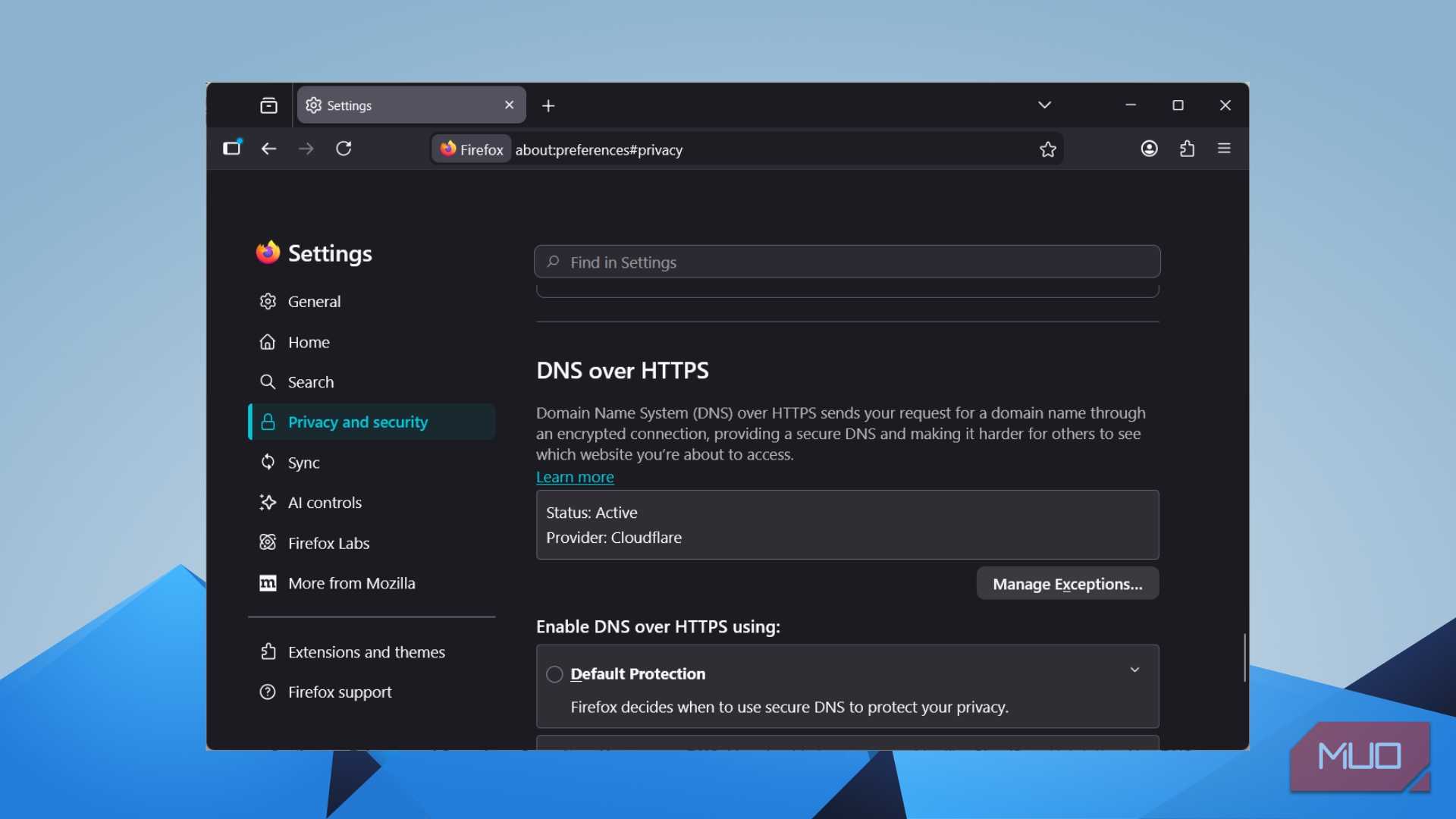
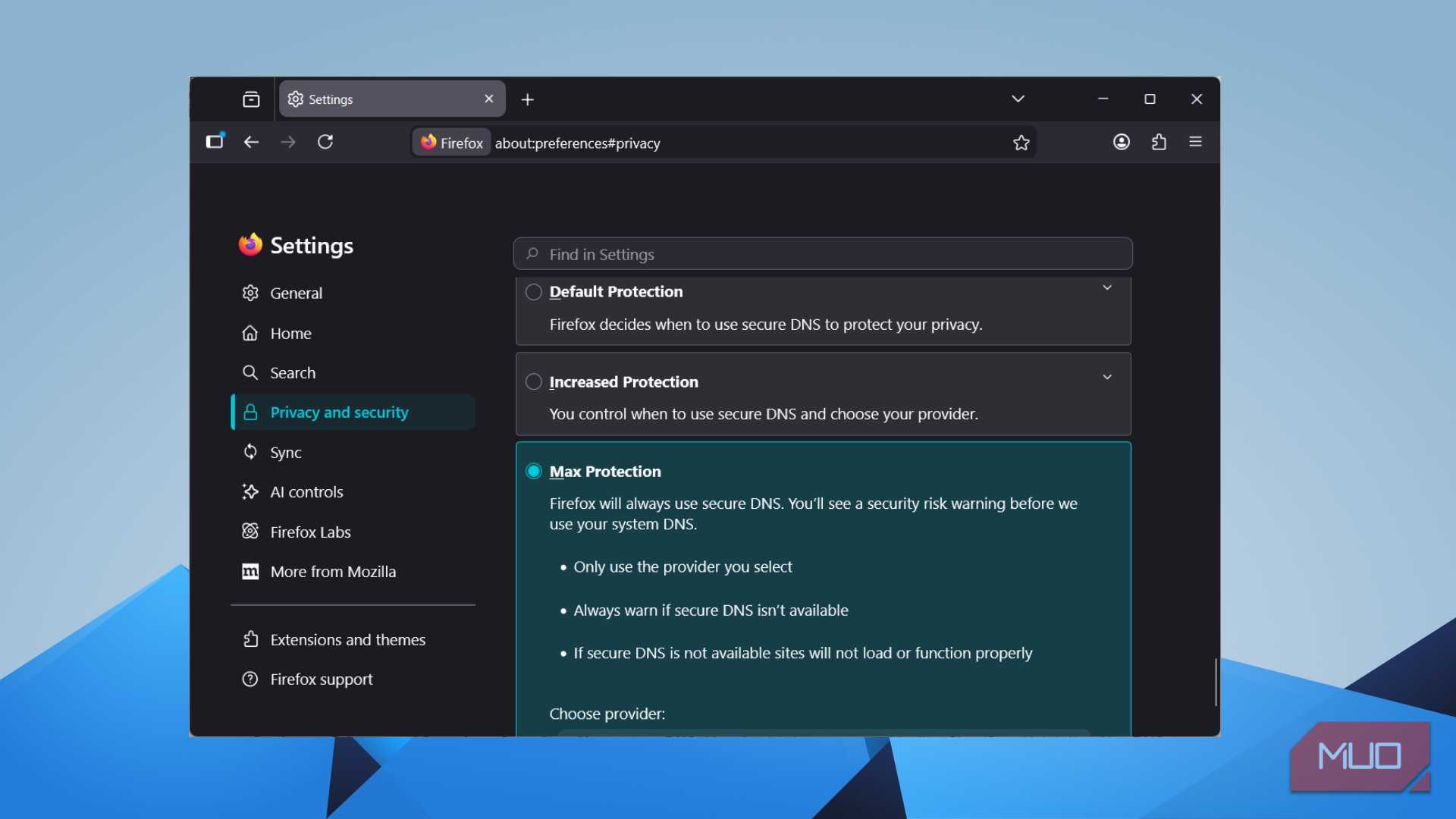
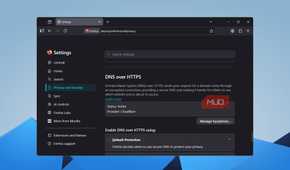
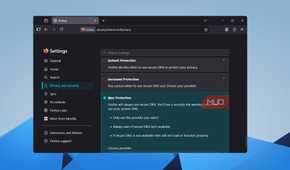
You can fix this by making sure the VPN app you are using has DNS leak protection enabled. The most reputable VPN providers have this in their settings. Alternatively, you can tweak your browser’s settings to use an encrypted DNS protocol called DNS-over-HTTPS (DoH). This encrypts your DNS queries at the browser level so they can't be seen even if something slips past the VPN.
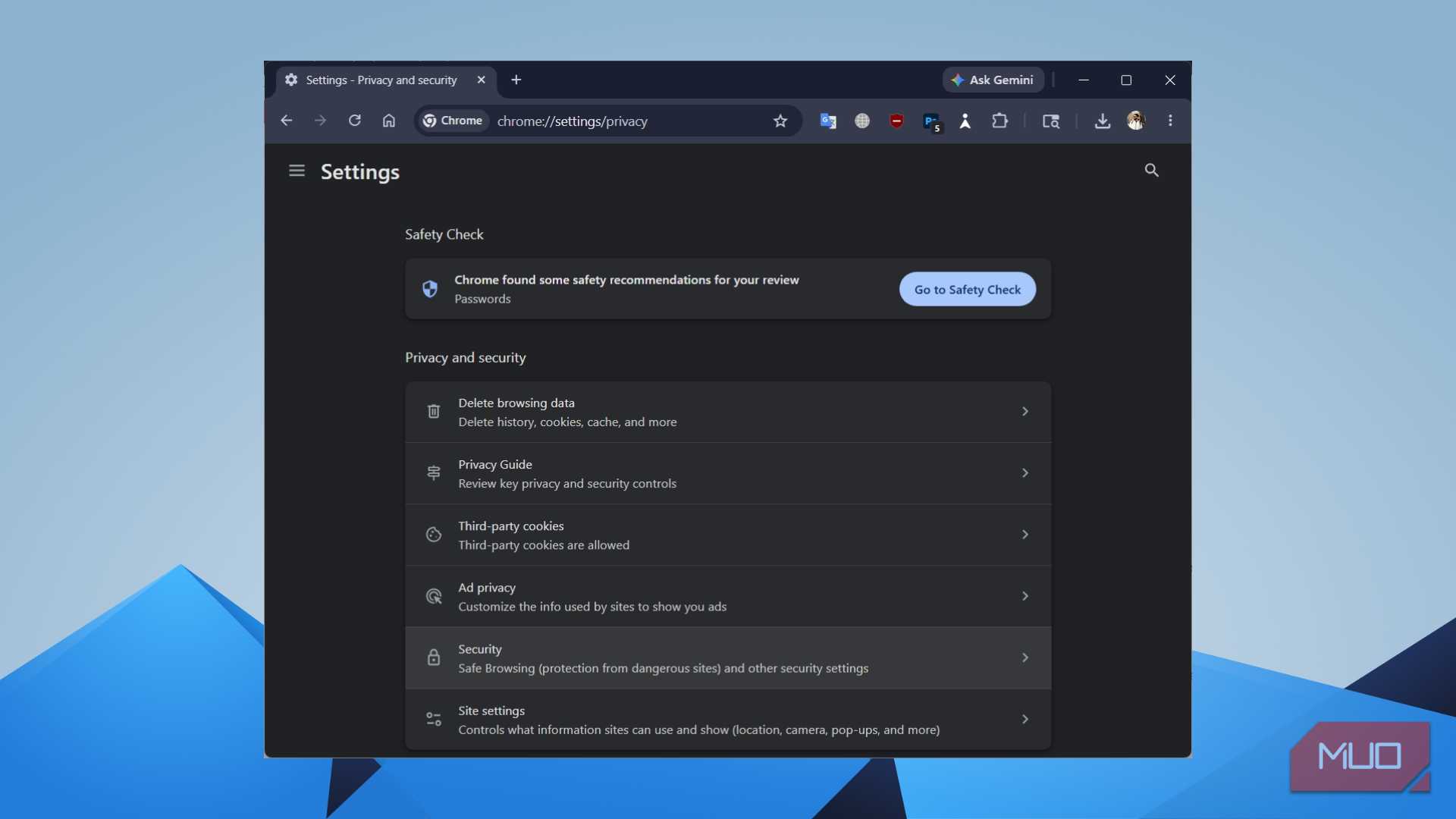
In Firefox, navigate to Settings -> Privacy & Security -> DNS over HTTPS and switch it to "Max Protection." If you use Chrome, it's under Settings -> Privacy and Security -> Security -> Use secure DNS. You should also use a provider like Cloudflare (1.1.1.1) or Quad9 (9.9.9.9) to avoid a DNS leak.
Turn off browser sync
Browser sync unmasks you even with a VPN running

Most of us use browsers with our Google or Firefox accounts logged in. This way, your browser can sync history, bookmarks, extensions, and sometimes the open tabs. This goes to a server in the cloud, tied to your identity.
In this case, when your VPN is routing traffic anonymously, your browser contacts Google or Mozilla servers while logged in with your real name and email. Websites can also see that you are logged into Google services, breaching your privacy.
To maintain your privacy, log out of your browser sync account when using a VPN. Besides, you can also use a different browser without any sync account attached. Using a dedicated privacy browser without any connected profiles will not expose your actual data to websites, and you will remain anonymous.
Block third-party cookies and browser fingerprinting
Because trackers don't need your IP

Despite fixing all the above leaks, there is still one way a VPN just cannot help: browser fingerprinting. Websites collect a large amount of data about your browser, including your screen resolution, OS, installed fonts, language settings, time zone, GPU renderer, etc.
When you combine all of this, it creates a profile that's often unique enough to identify you across every site you visit, regardless of your IP address. Third-party cookies are the other culprit you should be aware of. Even with a VPN running, cookies from ad networks follow you from site to site, building a detailed profile of your interests, behavior, and identity.
To fix this, you have to block all third-party cookies. In Chrome, head over to Settings -> Privacy and Security -> Third-party cookies -> Block third-party cookies. In Firefox, it's turned on by default with "Strict" mode under Enhanced Tracking Protection. For fingerprinting, this is where your choice of browser matters a lot. Brave Browser has fingerprint randomization built in, making it one of the most secure web browsers out there.
A leaky browser makes an airtight VPN pointless
VPNs are great when you want to unlock geo-restricted content and other stuff. It hides your IP address, encrypts your traffic, and keeps your ISP out of your browsing habits. However, a VPN’s true power is only realized when you use your web browser correctly. All the above-mentioned leaks can expose your data even if you have the strongest VPN connected.
Tweaking these settings will take you about 10–20 minutes, but the result is a much more secure VPN browsing experience.